CD player PEUGEOT 308 2014 Owners Manual
[x] Cancel search | Manufacturer: PEUGEOT, Model Year: 2014, Model line: 308, Model: Peugeot 308 2014Pages: 389, PDF Size: 22.92 MB
Page 10 of 389
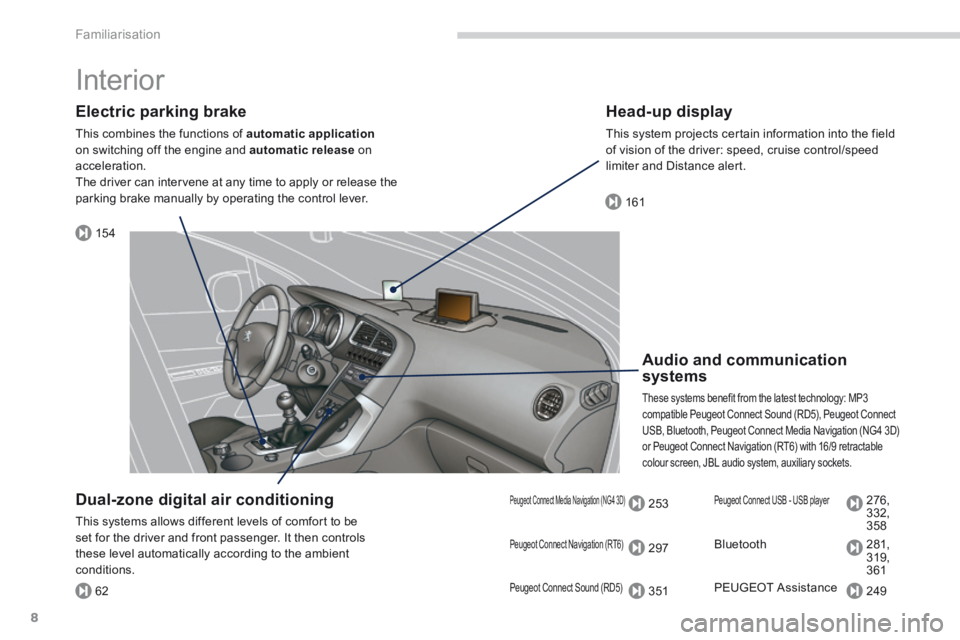
154
161
62
253
297
351
276,
332,
358
281,
319,
361
249
Familiarisation
8
Interior
Electric parking brake
This combines the functions of automatic applicationon switching off the engine and automatic release on acceleration. The driver can intervene at any time to apply or release the parking brake manually by operating the control lever.
Audio and communication systems
These systems benefit from the latest technology: MP3 compatible Peugeot Connect Sound (RD5), Peugeot Connect USB, Bluetooth, Peugeot Connect Media Navigation (NG4 3D) or Peugeot Connect Navigation (RT6) with 16/9 retractable colour screen, JBL audio system, auxiliary sockets.
Head-up display
This system projects certain information into the field of vision of the driver: speed, cruise control/speed limiter and Distance alert.
Dual-zone digital air conditioning
This systems allows different levels of comfort to be set for the driver and front passenger. It then controls these level automatically according to the ambient conditions.
Peugeot Connect Navigation (RT6)
Peugeot Connect Sound (RD5)
Peugeot Connect Media Navigation (NG4 3D) Peugeot Connect USB - USB player
Bluetooth
PEUGEOT Assistance
Page 114 of 389
Fittings
112
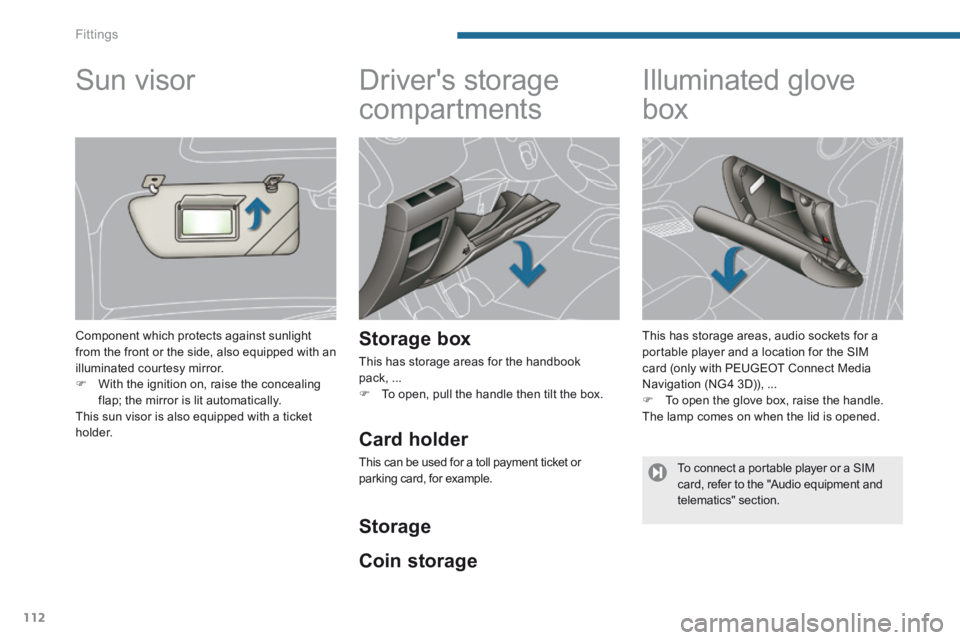
Driver's storage
compartments
Storage box
This has storage areas for the handbook pack, ... To open, pull the handle then tilt the box.
Illuminated glove
box
This has storage areas, audio sockets for a portable player and a location for the SIM card (only with PEUGEOT Connect Media Navigation (NG4 3D)), ... To open the glove box, raise the handle. The lamp comes on when the lid is opened.
Sun visor
Component which protects against sunlight from the front or the side, also equipped with an illuminated courtesy mirror. With the ignition on, raise the concealing flap; the mirror is lit automatically. This sun visor is also equipped with a ticket h o l d e r. Card holder
This can be used for a toll payment ticket or parking card, for example.
Coin storage
Storage
To connect a portable player or a SIM card, refer to the "Audio equipment and telematics" section.
Page 115 of 389
6
Fittings113
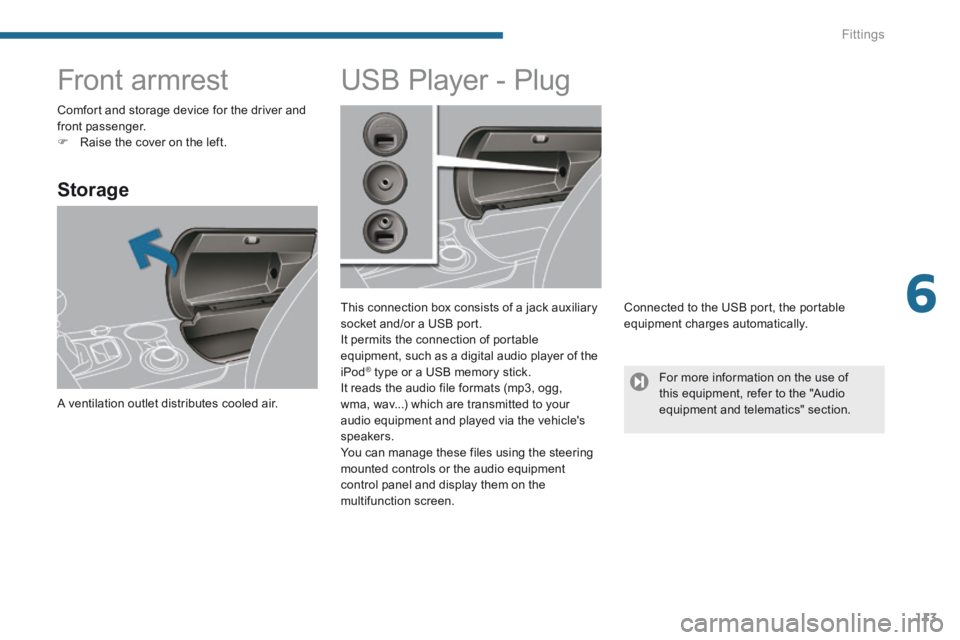
Front armrest
Storage
A ventilation outlet distributes cooled air.
USB Player - Plug
This connection box consists of a jack auxiliary socket and/or a USB port. It permits the connection of portable equipment, such as a digital audio player of the iPod ® type or a USB memory stick. ® type or a USB memory stick. ®
It reads the audio file formats (mp3, ogg, wma, wav...) which are transmitted to your audio equipment and played via the vehicle's
speakers. You can manage these files using the steering mounted controls or the audio equipment control panel and display them on the multifunction screen.
Connected to the USB port, the portable equipment charges automatically.
Comfort and storage device for the driver and front passenger. Raise the cover on the left.
For more information on the use of this equipment, refer to the "Audio equipment and telematics" section.
Page 117 of 389
6
Fittings115
Rear multimedia
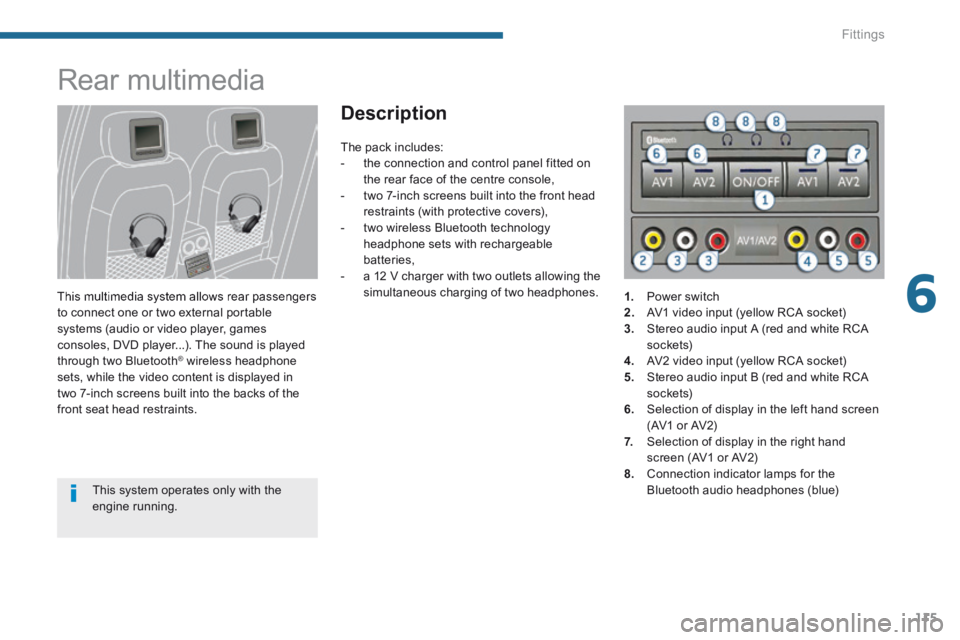
This multimedia system allows rear passengers to connect one or two external portable systems (audio or video player, games consoles, DVD player...). The sound is played through two Bluetooth ® wireless headphone ® wireless headphone ®
sets, while the video content is displayed in two 7-inch screens built into the backs of the front seat head restraints.
Description
This system operates only with the engine running.
The pack includes: - the connection and control panel fitted on the rear face of the centre console, - two 7-inch screens built into the front head restraints (with protective covers), - two wireless Bluetooth technology headphone sets with rechargeable batteries, - a 12 V charger with two outlets allowing the simultaneous charging of two headphones. 1. Power switch 2. AV1 video input (yellow RCA socket) 3. Stereo audio input A (red and white RCA s o c ket s) 4. AV2 video input (yellow RCA socket) 5. Stereo audio input B (red and white RCA s o c ket s) 6. Selection of display in the left hand screen (AV1 or AV2)
7. Selection of display in the right hand screen (AV1 or AV2) 8. Connection indicator lamps for the Bluetooth audio headphones (blue)
Page 242 of 389
Practical information
240
Depending on the legislation in force in the country, certain safety equipment may be compulsory: high visibility safety vests, warning triangles, breathalyzers, spare bulbs, spare fuses, a fire extinguisher, a first aid kit, mud flaps at the rear of the vehicle.
The fitting of electrical equipment or accessories which are not recommended by PEUGEOT may result in a failure of your vehicle's electronic system and excessive electrical consumption. Please note this precaution. You are advised to contact a PEUGEOT representative to be shown the range of recommended equipment and accessories.
You can also obtain cleaning and maintenance products (exterior and interior), products for topping up (screenwash fluid...) and refills (sealant cartridge for the temporary puncture repair kit...) from PEUGEOT dealers.
Installation of radio communication transmitters
Before installing any after-market radio communication transmitter, you can contact a PEUGEOT dealer for the specification of transmitters which can be fitted (frequency, maximum power, aerial position, specific installation requirements), in line with the Vehicle Electromagnetic Compatibility Directive (2004/104/EC).
"Multimedia"
Portable satellite navigation systems, mapping updates, Bluetooth hands-free system, DVD player, USB Box, additional Bluetooth wireless headphones, Bluetooth audio headphones mains charger, multimedia support...
Page 255 of 389
253
The system is protected in such a way that it will only operate in your vehicle.
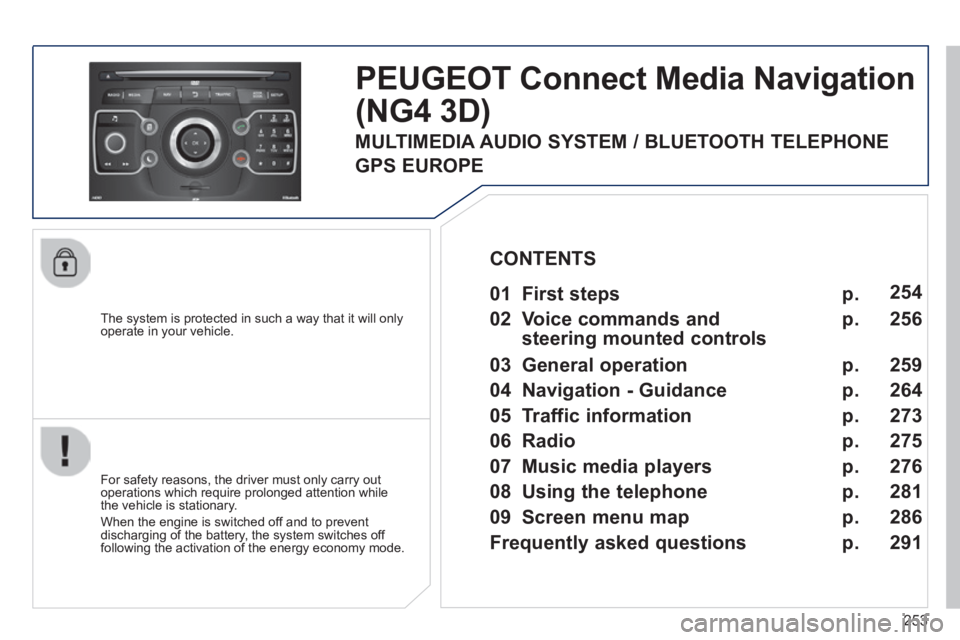
PEUGEOT Connect Media Navigation
(NG4 3D)
For safety reasons, the driver must only carry out operations which require prolonged attention while the vehicle is stationary.
When the engine is switched off and to prevent discharging of the battery, the system switches off following the activation of the energy economy mode.
01 First steps
02 Voice commands and
steering mounted controls
03 General operation
04 Navigation - Guidance
05 Traffic information
06 Radio
07 Music media players
08 Using the telephone
09 Screen menu map
Frequently asked questions
p.
p.
p.
p.
p.
p.
p.
p.
p.
p.
254
256
259
264
273
275
276
286
291
CONTENTS
MULTIMEDIA AUDIO SYSTEM / BLUETOOTH TELEPHONE
GPS EUROPE
281
Page 259 of 389
257
02
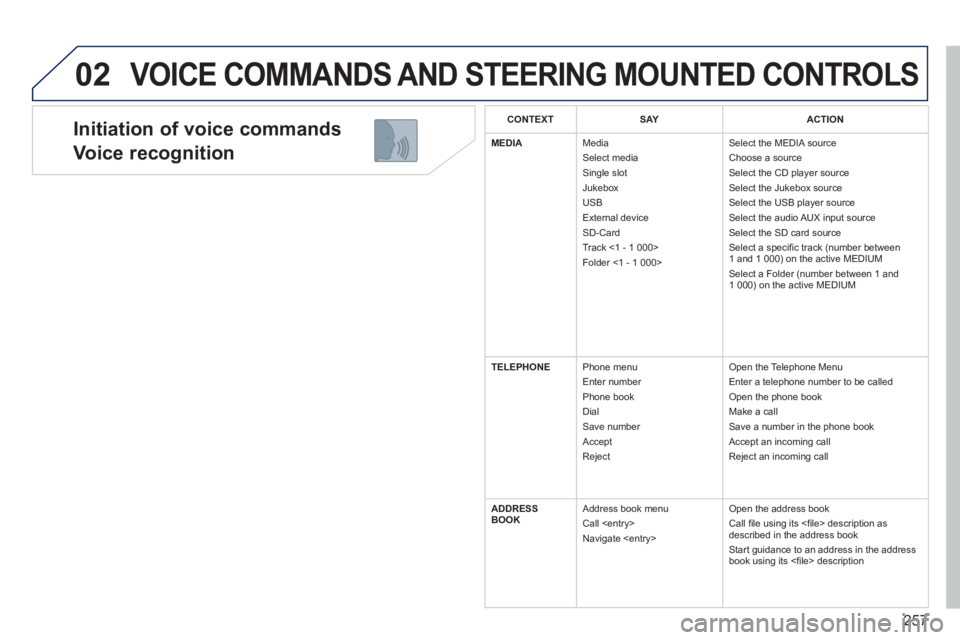
Initiation of voice commands
Voice recognition
VOICE COMMANDS AND STEERING MOUNTED CONTROLS
CONTEXTS AYACTION
MEDIA Media Select media Single slot Jukebox USB External device SD-Card Track <1 - 1 000> Folder <1 - 1 000>
Select the MEDIA source Choose a source Select the CD player source Select the Jukebox source Select the USB player source Select the audio AUX input source Select the SD card source Select a specifi c track (number between 1 and 1 000) on the active MEDIUM Select a Folder (number between 1 and 1 000) on the active MEDIUM
TELEPHONE Phone menu Enter number Phone book Dial Save number Accept Reject
Open the Telephone Menu Enter a telephone number to be called Open the phone book Make a call Save a number in the phone book Accept an incoming call Reject an incoming call
ADDRESS BOOK Address book menu Call
Open the address book Call fi le using its <fi le> description as described in the address book Start guidance to an address in the address book using its <fi le> description
Page 262 of 389
260
03 GENERAL OPERATION
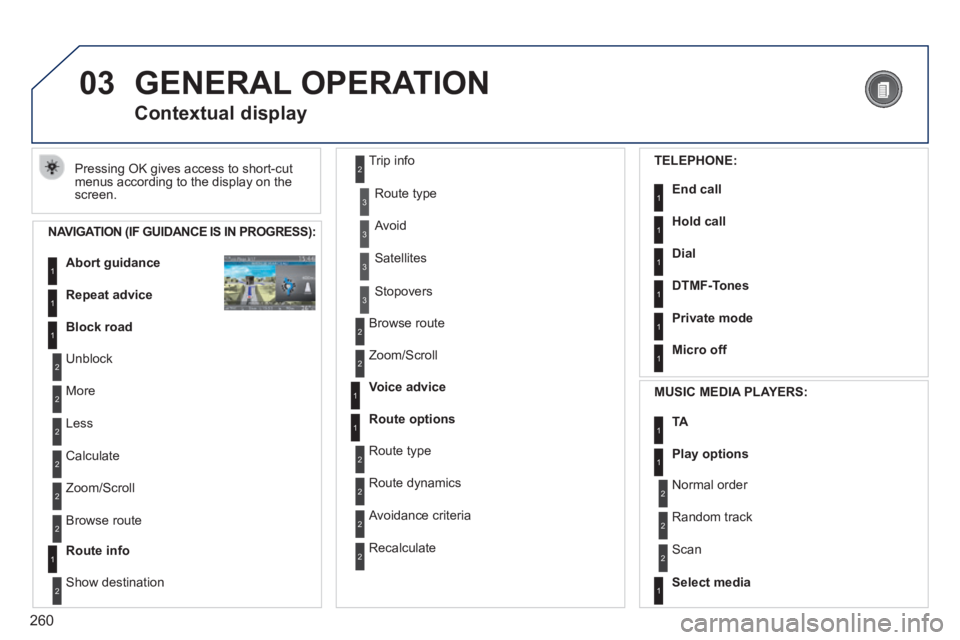
Pressing OK gives access to short-cut menus according to the display on the screen.
Contextual display
NAVIGATION (IF GUIDANCE IS IN PROGRESS):
Abort guidance1
1
1
Repeat advice
Block road
2
2
Unblock
More
2 Less
3
3
Route type
Avoid
3 Satellites
2
2
Calculate
Zoom/Scroll
2 Browse route
1Route info
2
2
Show destination
Trip info
3 Stopovers
2
2
Browse route
Zoom/Scroll
1
1
Voice advice
Route options
2
2
Route type
Route dynamics
2 Avoidance criteria
2 Recalculate
TELEPHONE:
End call1
1
1
1
Hold call
Dial
DTMF-Tones
1Private mode
1Micro off
MUSIC MEDIA PLAYERS:
TA1
1Play options
1Select media
2
2
Normal order
Random track
2 Scan
Page 278 of 389
276
07 MUSIC MEDIA PLAYERS
CD, MP3 / WMA CD, MP3 / WMA SD card /
USB player
In order to be able to play a recorded CDR or CDRW, when recording it is preferable to select the ISO 9660 level 1, 2 or Joliet standard.
If the disc is recorded in another format it may not be played correctly.
It is recommended that the same recording standard is always used for an individual disc, with as low a speed as possible (4x maximum) for optimum sound quality.
In the particular case of a multi-session CD, the Joliet standard is recommended.
The audio equipment will only play audio fi les with the extension ".mp3" with a speed of between 8 Kbps and 320 Kbps and the extension ".wma" with a speed of between 5 Kbps and 384 Kbps.
It also supports the VBR (Variable Bit Rate) mode.
No other type of fi le (.mp4, .m3u...) can be played.
The MP3 format, an abbreviation of MPEG 1, 2 & 2.5 Audio Layer 3 and the WMA format, an abbreviation of Windows Media Audio and the property of Microsoft, are audio compression standards which permit the recording of several tens of music fi les on a single disc.
Connecting an iPod:
To play MP3 type fi les, connect the iPod using the USB port (limited functions).
To play ITunes fi les, connect the iPod using the auxiliary socket (AUX).
In order to be read, a USB memory stick must be formatted to FAT 32.
It is advisable to restrict fi le names to 20 characters, without using of special characters (e.g.: " " ? ; ù) to avoid any playing and displaying problems.
During play, exit the "SD-Card" or "USB" source before removing the SD card or the USB memory stick from its port.
To avoid any risk of theft, remove the SD card or the USB memory stick when you leave your vehicle with the roof open.
Information and advice
Page 279 of 389
277
07
MEDIA
2ABC3DEF5JKL4GHI6MNO8TU V7PQRS9WXYZ0*#
1RADIOM EDIA NA
V ESC TRAFFIC
SETUPADDR
BOOK
2AB C3DEF5JKL4GHI6MNO8TUV7PQR S9WXYZ0*#
1RADIO MEDIA NA
V TRAFFIC
SETUPADDR
BOOK
2ABC3DEF5JKL4GHI6MNO8TUV7PQR S9WXYZ0*#
1RADIO MEDIA NA
V TRAFFIC
SETUPADDR
BOOK
2ABC3DEF5JKL4GHI6MNO8TUV7PQR S9WXYZ0*#
1RADIO MEDIA NA
V TRAFFIC
SETUPADDR
BOOK
2ABC3DEF5JKL4GHI6MNO8TUV7PQR S9WXYZ0*#
1RADIO MEDIA NA
V TRAFFIC
SETUPADDR
BOOK
2ABC3DEF5JKL4GHI6MNO8TUV7PQR S9WXYZ0*#
1RADIO MEDIA NA
V TRAFFIC
SETUPADDR
BOOK
RADIO NA
V TRAFFICMEDIA
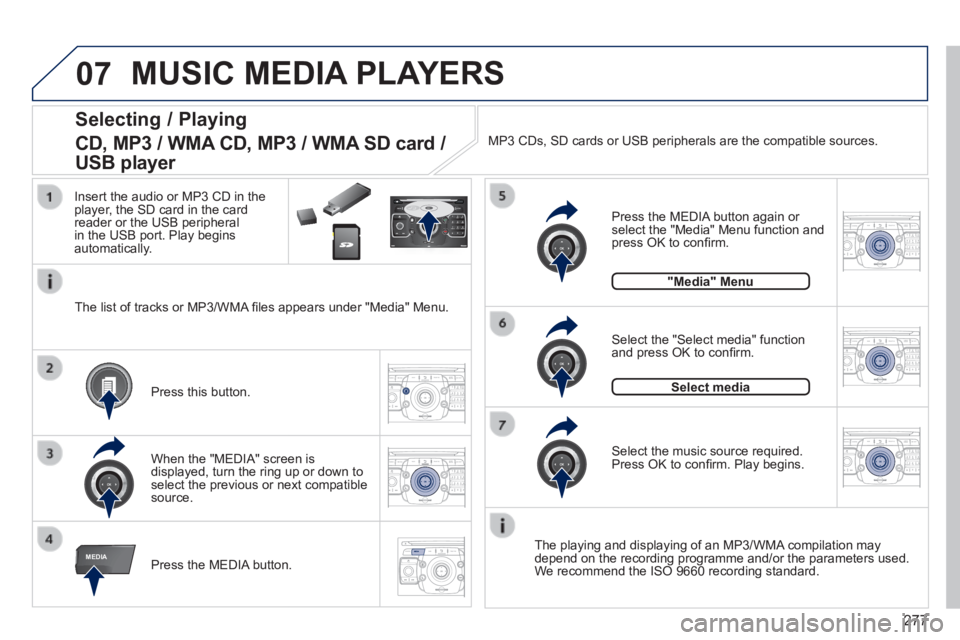
Selecting / Playing
CD, MP3 / WMA CD, MP3 / WMA SD card /
USB player
The playing and displaying of an MP3/WMA compilation may depend on the recording programme and/or the parameters used. We recommend the ISO 9660 recording standard. Press the MEDIA button.
Select the "Select media" function and press OK to confi rm.
Press this button.
Select the music source required. Press OK to confi rm. Play begins.
Select media
Press the MEDIA button again or select the "Media" Menu function and press OK to confi rm.
When the "MEDIA" screen is displayed, turn the ring up or down to select the previous or next compatible source.
"Media" Menu
The list of tracks or MP3/WMA fi les appears under "Media" Menu.
Insert the audio or MP3 CD in the player, the SD card in the card reader or the USB peripheral in the USB port. Play begins automatically.
MP3 CDs, SD cards or USB peripherals are the compatible sources.
MUSIC MEDIA PLAYERS