screen Peugeot 308 2015 Owners Manual
[x] Cancel search | Manufacturer: PEUGEOT, Model Year: 2015, Model line: 308, Model: Peugeot 308 2015Pages: 416, PDF Size: 11.81 MB
Page 376 of 416
01
374
FIRST STEPS
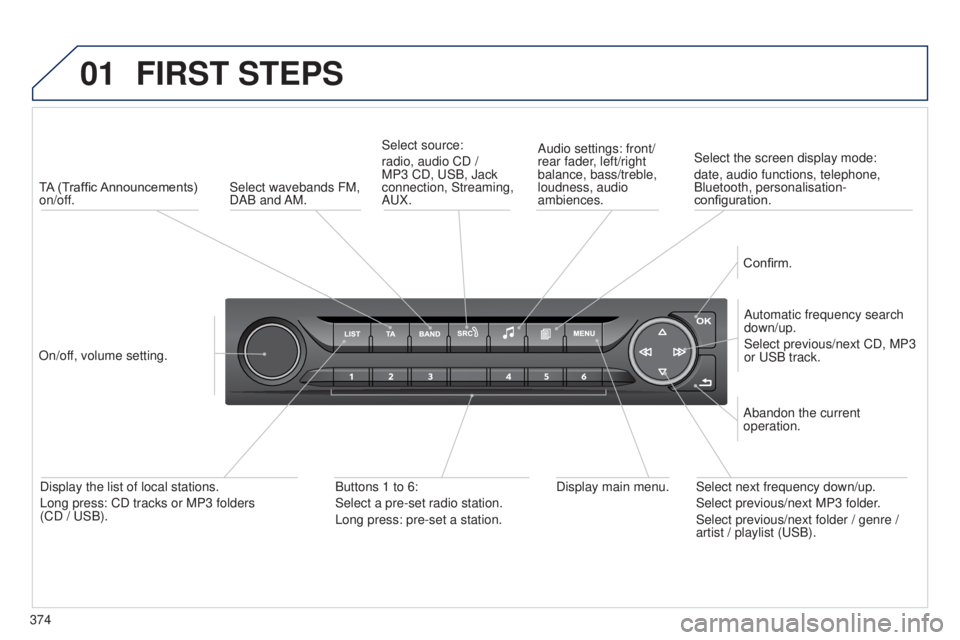
TA (Traffic Announcements)
on/off.
On/off, volume setting. Automatic frequency search
down/up.
Select previous/next CD, MP3
or
u SB track.
Select source:
radio, audio CD /
MP3 CD,
u SB, Jack
connection, Streaming,
A u X.Audio settings: front/
rear fader, left/right
balance, bass/treble,
loudness, audio
ambiences.
Confirm.
Display main menu.
Display the list of local stations.
Long press: CD tracks or MP3 folders
(CD /
u SB). Buttons 1 to 6:
Select a pre-set radio station.
Long press: pre-set a station. Select next frequency down/up.
Select previous/next MP3 folder.
Select previous/next folder / genre /
artist / playlist (
u SB).
Abandon the current
operation.
Select wavebands FM,
DAB and AM.
Select the screen display mode:
date, audio functions, telephone,
Bluetooth, personalisation-
configuration.
Page 378 of 416
03
376
MAIN MENU
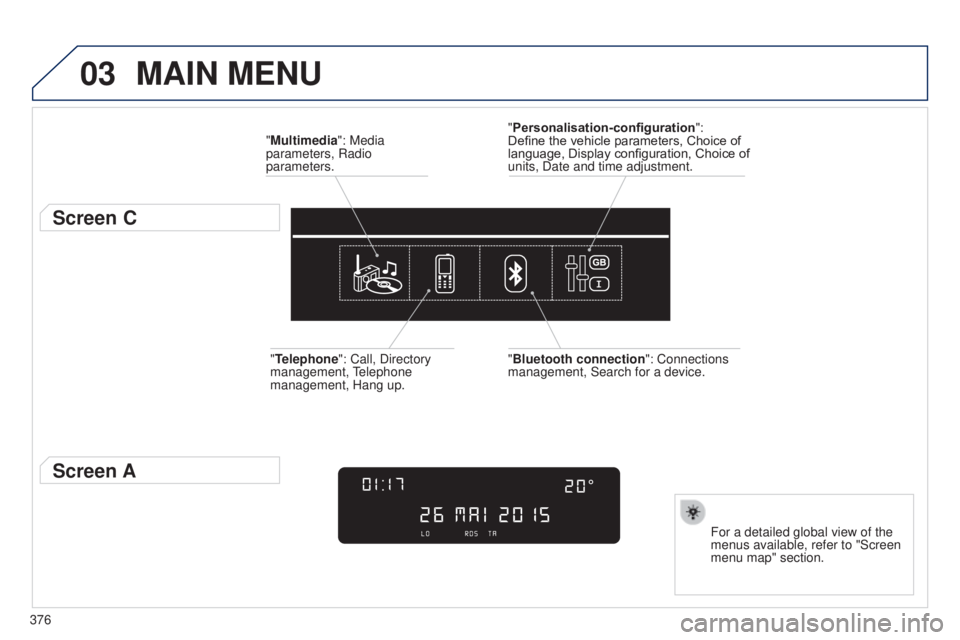
"Multimedia": Media
parameters, Radio
parameters.
Screen C
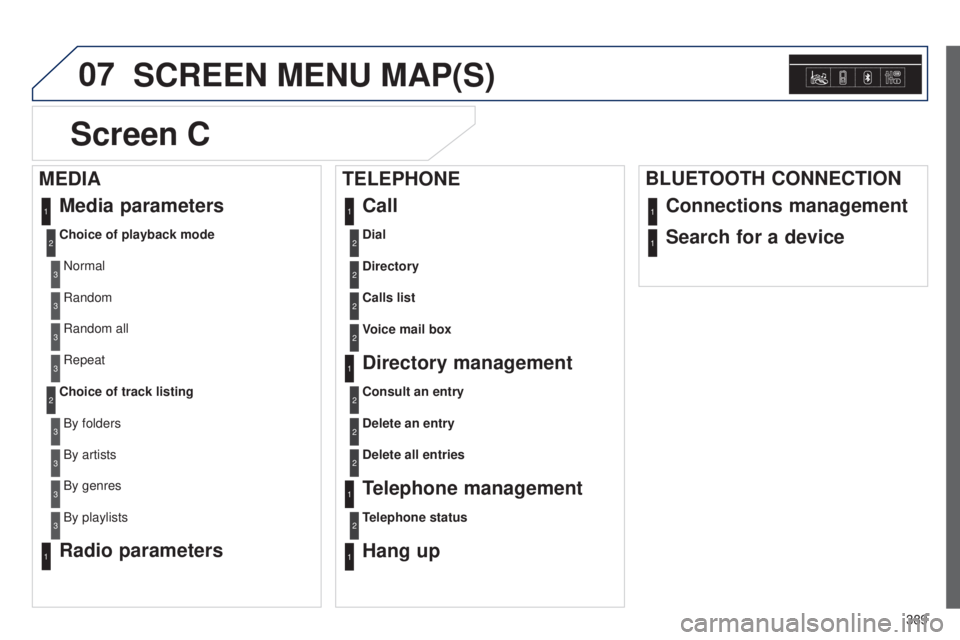
For a detailed global view of the
menus available, refer to "Screen
menu map" section.
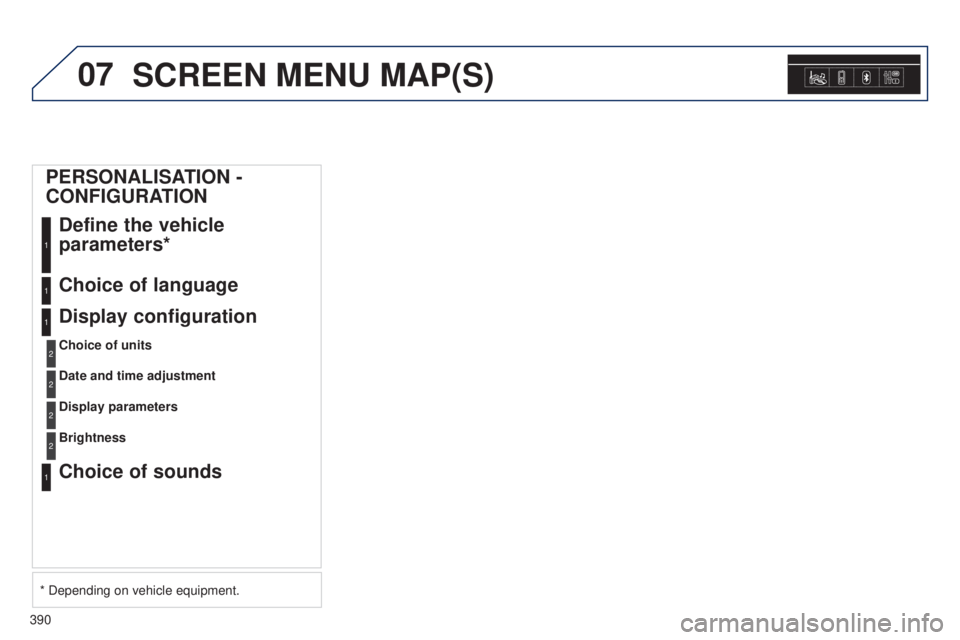
"Personalisation-configuration
":
Define the vehicle parameters, Choice of
language, Display configuration, Choice of
units, Date and time adjustment.
"Bluetooth connection ": Connections
management, Search for a device.
"Telephone": Call, Directory
management,
t
elephone
management, Hang up.
Screen A
Page 379 of 416
04
SRC
BAND
LIST
MENU
377
AUDIO
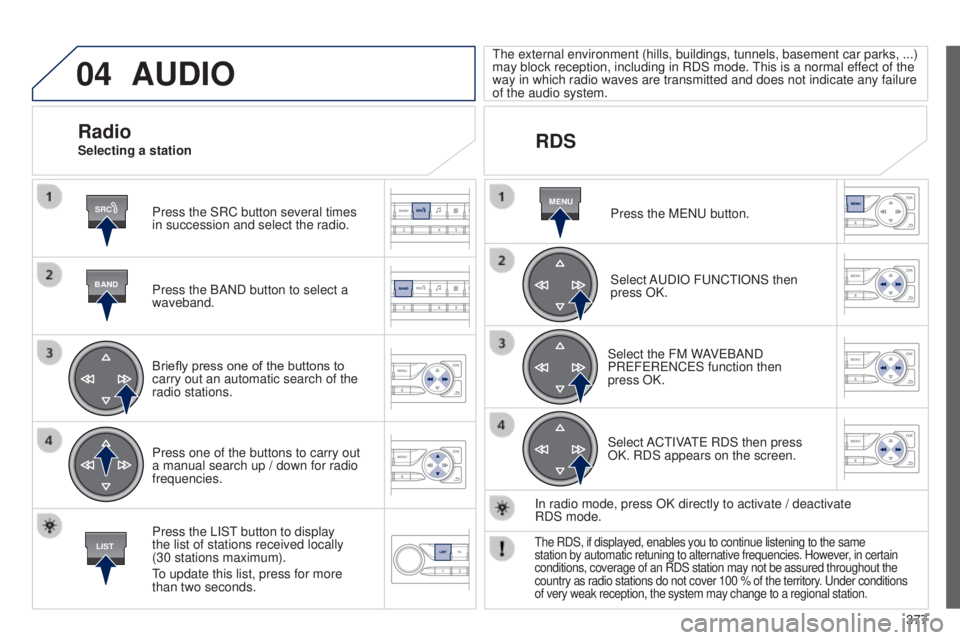
Press the SRC button several times
in succession and select the radio.
Press the BAND button to select a
waveband.
Briefly press one of the buttons to
carry out an automatic search of the
radio stations.
Press one of the buttons to carry out
a manual search up / down for radio
frequencies.
Press the LISt
button to display
the list of stations received locally
(30
stations maximum).
to update this list, press for more
than two seconds.
t
he external environment (hills, buildings, tunnels, basement car parks,
...)
may block reception, including in RDS mode. t
his is a normal effect of the
way in which radio waves are transmitted and does not indicate any failu\
re
of the audio system.
RDS
RadioSelecting a station
Press the M e N u button.
Select A
u DIO F u NC t IONS then
press OK.
Select the FM WAV
e BAND
PR
e F e R e NC e S function then
press
OK.
Select AC
t IVA
te
RDS then press
OK. RDS appears on the screen.
In radio mode, press OK directly to activate
/ deactivate
RDS
mode.
the RDS, if displayed, enables you to continue listening to the same
station by automatic retuning to alternative frequencies. However , in certain
conditions, coverage of an RDS station may not be assured throughout the\
country as radio stations do not cover 100 % of the territory.
u nder conditions
of very weak reception, the system may change to a regional station.
Page 383 of 416
04
BANDMENU
TA
381
AUDIO
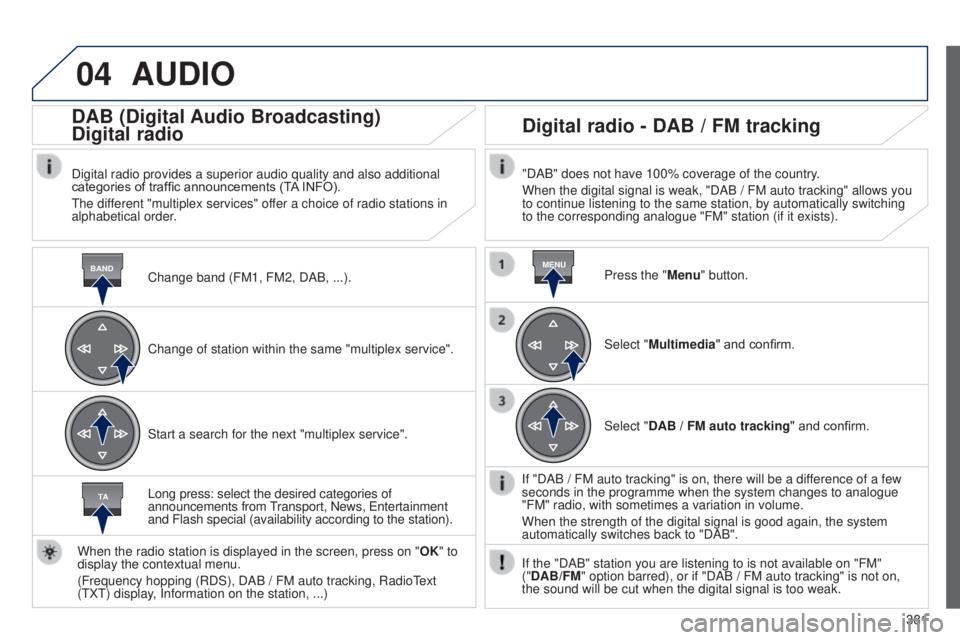
Change band (FM1, FM2, DAB, ...).
DAB (Digital Audio Broadcasting)
Digital radio
Digital radio provides a superior audio quality and also additional
categories of traffic announcements (TA INFO).
t
he different "multiplex services" offer a choice of radio stations in
alphabetical order.
Change of station within the same "multiplex service".
Start a search for the next "multiplex service".
Digital radio - DAB / FM tracking
"DAB" does not have 100% coverage of the country.
When the digital signal is weak, "DAB / FM auto tracking" allows you
to continue listening to the same station, by automatically switching
to the corresponding analogue "FM" station (if it exists).
Long press: select the desired categories of
announcements from
transport, News,
e
ntertainment
and Flash special (availability according to the station).
When the radio station is displayed in the screen, press on " OK" to
display the contextual menu.
(Frequency hopping (RDS), DAB
/
FM auto tracking, Radio
t
ext
(
t
X
t
) display, Information on the station,
...) Press the "Menu" button.
Select "Multimedia" and confirm.
Select "DAB
/ FM auto tracking" and confirm.
If "DAB
/ FM auto tracking" is on, there will be a difference of a few
seconds in the programme when the system changes to analogue
"FM" radio, with sometimes a variation in volume.
When the strength of the digital signal is good again, the system
automatically switches back to "DAB".
If the "DAB" station you are listening to is not available on "FM"
("DAB/FM" option barred), or if "DAB
/ FM auto tracking" is not on,
the sound will be cut when the digital signal is too weak.
Page 387 of 416
06
MENU
385
BLUETOOTH
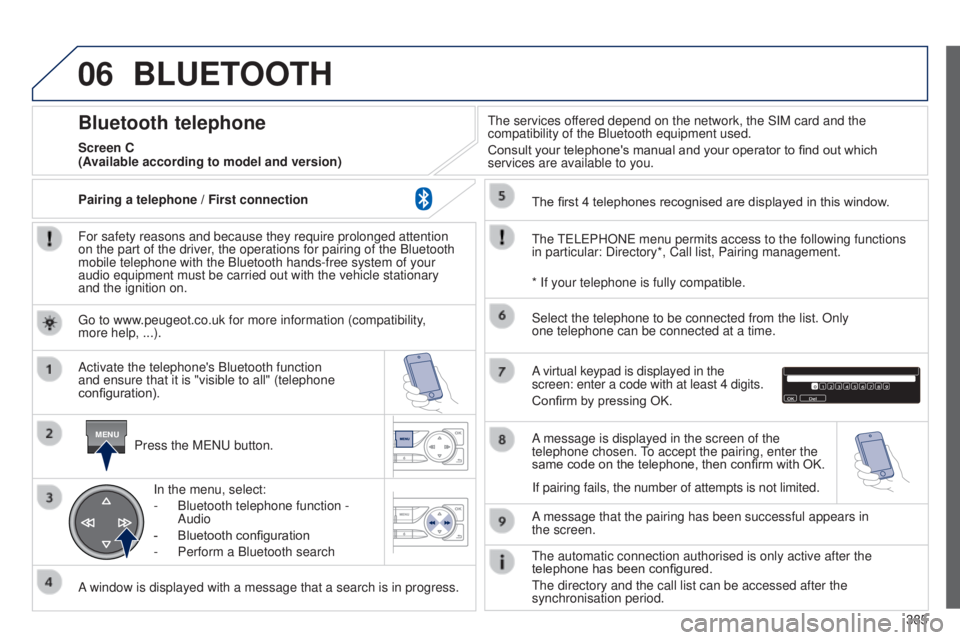
For safety reasons and because they require prolonged attention
on the part of the driver, the operations for pairing of the Bluetooth
mobile telephone with the Bluetooth hands-free system of your
audio equipment must be carried out with the vehicle stationary
and the ignition on.Press the M
e N u button.
A window is displayed with a message that a search is in progress. Activate the telephone's Bluetooth function
and ensure that it is "visible to all" (telephone
configuration). In the menu, select:
-
Bluetooth telephone function
-
Audio
-
Bluetooth configuration
-
Perform a Bluetooth search
t
he services offered depend on the network, the SIM card and the
compatibility of the Bluetooth equipment used.
Consult your telephone's manual and your operator to find out which
services are available to you.
Bluetooth telephone
Screen C
t
he
te
L e PHON e menu permits access to the following functions
in particular: Directory*, Call list, Pairing management. The first 4 telephones recognised are displayed in this window.
A virtual keypad is displayed in the
screen: enter a code with at least 4 digits.
Confirm by pressing OK.
A message that the pairing has been successful appears in
the
screen.
Select the telephone to be connected from the list. Only
one
telephone can be connected at a time.
A message is displayed in the screen of the
telephone chosen.
to accept the pairing, enter the
same code on the telephone, then confirm with OK.
t
he automatic connection authorised is only active after the
telephone has been configured.
t
he directory and the call list can be accessed after the
synchronisation period.
(Available according to model and version)
* If your telephone is fully compatible.
If pairing fails, the number of attempts is not limited.
g
o to www.peugeot.co.uk for more information (compatibility,
more
help, ...).
Pairing a telephone
/ First connection
Page 388 of 416
06
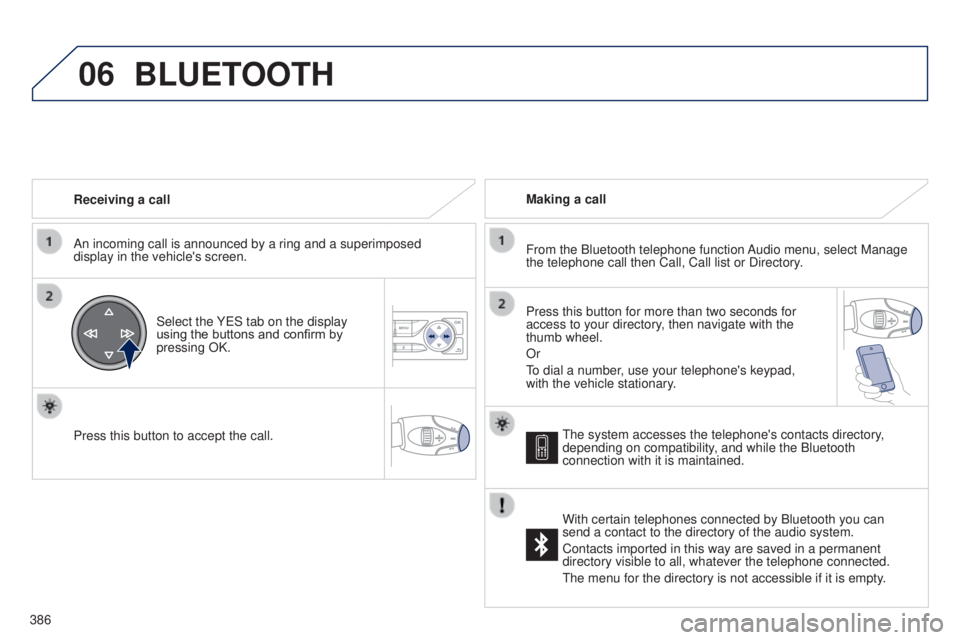
386Receiving a call
An incoming call is announced by a ring and a superimposed
display in the vehicle's screen.
Select the Y e S tab on the display
using the buttons and confirm by
pressing OK.
Press this button to accept the call. Making a call
From the Bluetooth telephone function Audio menu, select Manage
the telephone call then Call, Call list or Directory.
Press this button for more than two seconds for
access to your directory, then navigate with the
thumb wheel.
Or
to dial a number
, use your telephone's keypad,
with the vehicle stationary.
BLUETOOTH
the system accesses the telephone's contacts directory,
depending on compatibility , and while the Bluetooth
connection with it is maintained.
With certain telephones connected by Bluetooth you can
send a contact to the directory of the audio system.
Contacts imported in this way are saved in a permanent
directory visible to all, whatever the telephone connected.
t
he menu for the directory is not accessible if it is empty.
Page 389 of 416
06
SRC
387
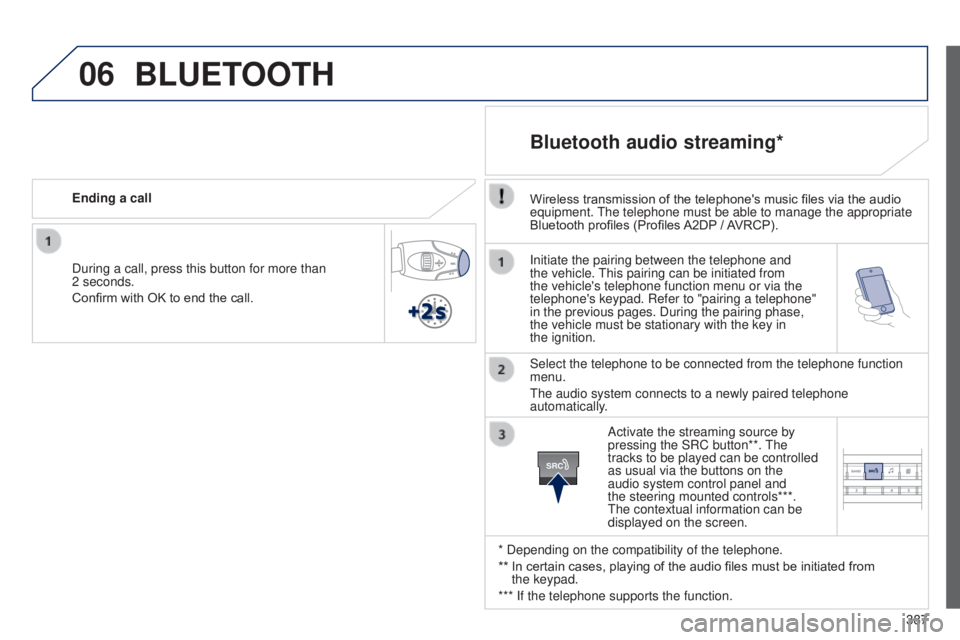
Initiate the pairing between the telephone and
the vehicle.
t
his pairing can be initiated from
the vehicle's telephone function menu or via the
telephone's keypad. Refer to "pairing a telephone"
in the previous pages. During the pairing phase,
the vehicle must be stationary with the key in
the
ignition.
Select the telephone to be connected from the telephone function
menu.
t
he audio system connects to a newly paired telephone
automatically.
Bluetooth audio streaming*
Wireless transmission of the telephone's music files via the audio
equipment. t he telephone must be able to manage the appropriate
Bluetooth profiles (Profiles A2DP
/ AVRCP).
* Depending on the compatibility of the telephone.
**
In certain cases, playing of the audio files must be initiated from
the
keypad.
*** If the telephone supports the function. Activate the streaming source by
pressing the SRC button**.
t
he
tracks to be played can be controlled
as usual via the buttons on the
audio system control panel and
the steering mounted controls***.
t
he contextual information can be
displayed on the screen.
During a call, press this button for more than
2
seconds.
Confirm with OK to end the call. Ending a call
BLUETOOTH
Page 390 of 416
07
388
SCREEN MENU MAP(S)
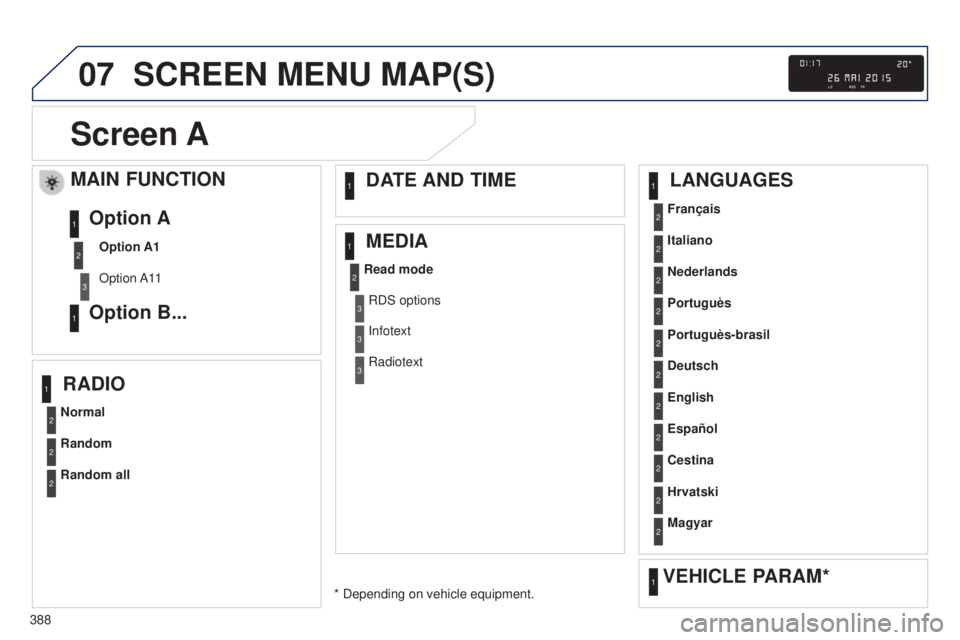
Screen A
MAIN FUNCTION
Option A1
Option A11
Option A
Option B...1
2
3
1
Normal Français
Portuguès
Cestina
Read mode
Random Italiano
English Portuguès-brasil
Hrvatski
Random all Nederlands
Español Deutsch
Magyar
RADIO
LANGUAGES
MEDIA DATE AND TIME
VEHICLE PARAM*
* Depending on vehicle equipment.
2
2
2
2
2
1
1
1
1
1
2
2
2
2
2
2
2
2
2
2
RDS options
Infotext
Radiotext3
3
3
Page 391 of 416
07
389
SCREEN MENU MAP(S)
Dial2
Media parameters
Choice of playback modeNormal
1
2
3
Random3
Random all3
Repeat3
Choice of track listingBy folders2
3
By artists3
By genres3
By playlists3
Call1
Directory2
Calls list2
Voice mail box2
Directory management
Consult an entry
1
2
Delete an entry2
Delete all entries2
Telephone management
Telephone status
1
2
Hang up1
Connections management1
Search for a device1
MEDIA TELEPHONEBLUETOOTH CONNECTION
Screen C
Radio parameters1
Page 392 of 416
07
390
SCREEN MENU MAP(S)
PERSONALISATION -
CONFIGURATIONDefine the vehicle
parameters*
1
Choice of language1
Display configuration
Choice of units
1
2
Date and time adjustment2
Display parameters2
Choice of sounds1
Brightness2
* Depending on vehicle equipment.