Peugeot 308 2017 Owner's Guide
308 2017
Peugeot
Peugeot
https://www.carmanualsonline.info/img/29/28647/w960_28647-0.png
Peugeot 308 2017 Owner's Guide
Page 302 of 392
300
308_en_Chap10b_SMegplus_ed01-2016
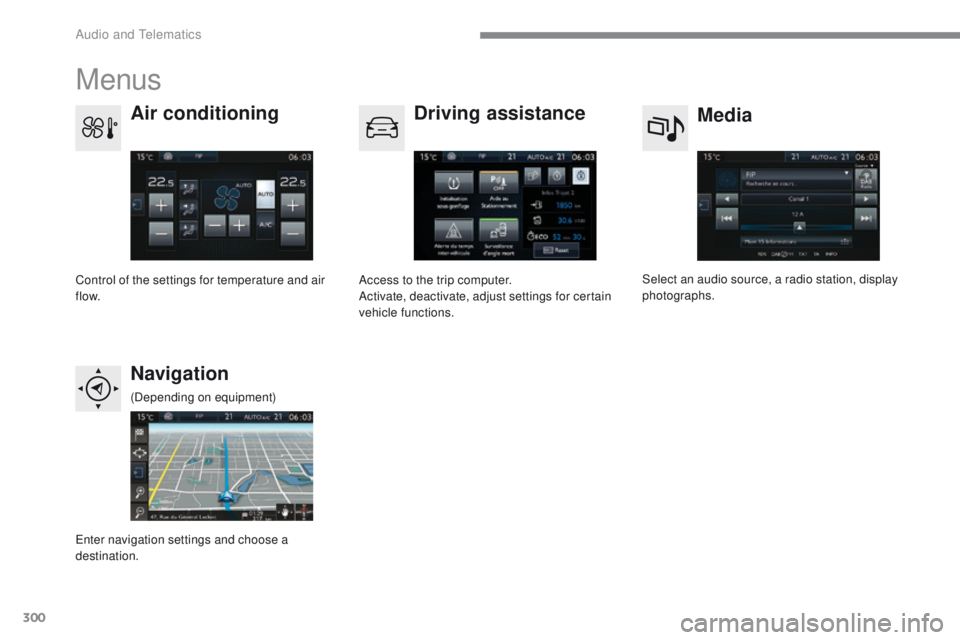
Menus
Media
Air conditioning
Driving assistance
Navigation
Select an audio source, a radio station, display
photographs.
Control of the settings for temperature and air
f low. Access to the trip computer.
Activate, deactivate, adjust settings for certain
vehicle functions.
en
ter navigation settings and choose a
destination. (Depending on equipment)
Audio and telematics
Page 303 of 392
301
308_en_Chap10b_SMegplus_ed01-2016
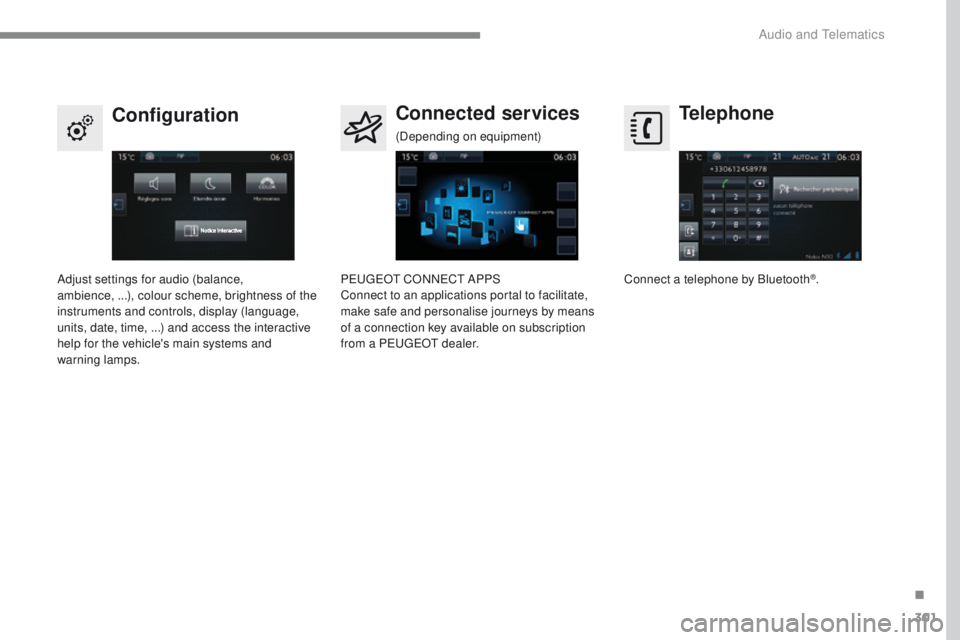
Telephone
Configuration Connected services
Connect a telephone by Bluetooth®.
Adjust settings for audio (balance,
ambience,
...), colour scheme, brightness of the
instruments and controls, display (language,
units, date, time, ...) and access the interactive
help for the vehicle's main systems and
warning lamps. Pe
ugeOt C
ONNeCt A
PPS
Connect to an applications portal to facilitate,
make safe and personalise journeys by means
of a connection key available on subscription
from a P
e
uge
Ot
dealer.
(Depending on equipment)
.
Audio and telematics
Page 304 of 392
302
308_en_Chap10b_SMegplus_ed01-2016
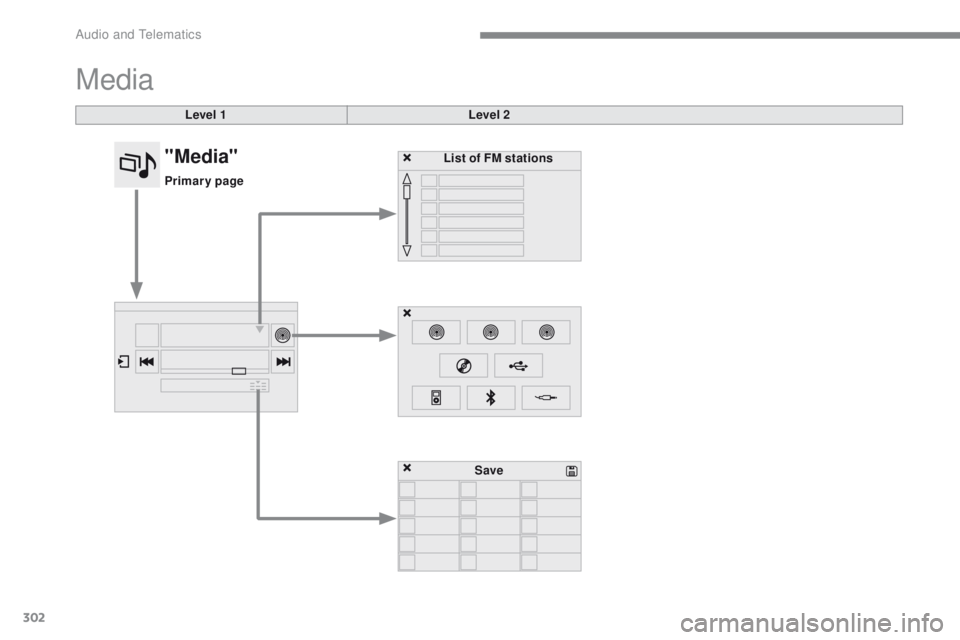
Media
Level 1Level 2
List of FM stations
Save
"Media"
Primary page
Audio and telematics
Page 305 of 392
303
308_en_Chap10b_SMegplus_ed01-2016
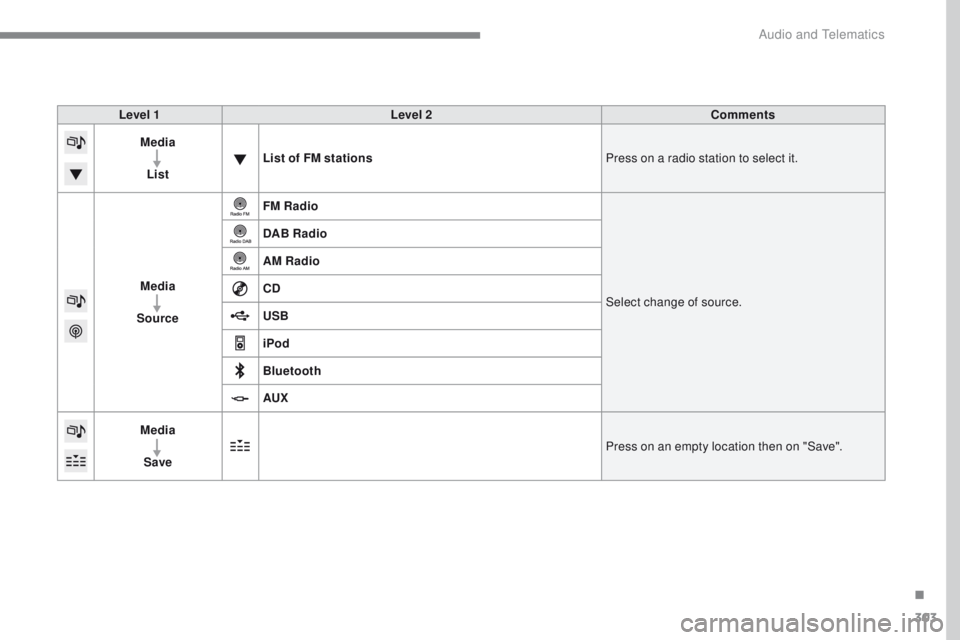
Level 1Level 2 Comments
Media
List List of FM stations
Press on a radio station to select it.
Media
Source FM Radio
Select change of source.
DAB Radio
AM Radio
CD
USB
iPod
Bluetooth
AUX
Media
Save Press on an empty location then on "Save".
.
Audio and telematics
Page 306 of 392
304
308_en_Chap10b_SMegplus_ed01-2016
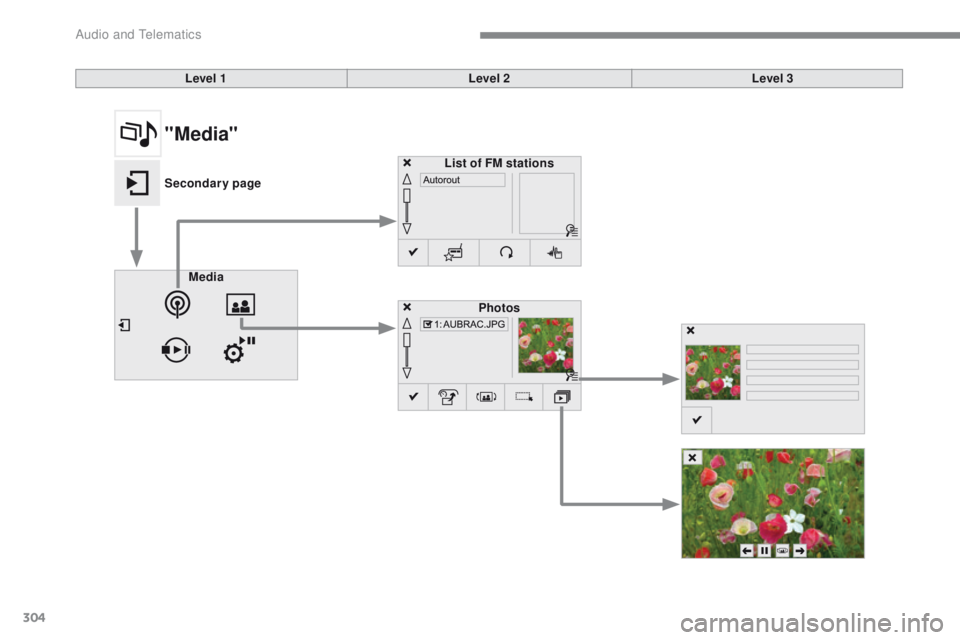
Level 1Level 2Level 3
Media Photos
List of FM stations
"Media"
Secondary page
Audio and telematics
Page 307 of 392
305
308_en_Chap10b_SMegplus_ed01-2016
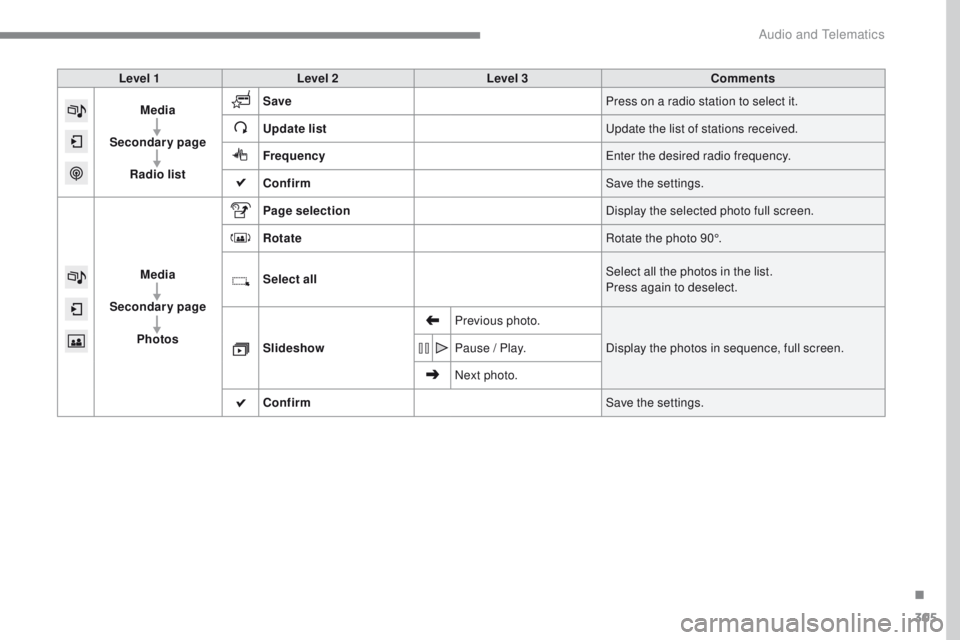
Level 1Level 2 Level 3 Comments
Media
Secondary page Radio list Save
Press on a radio station to select it.
Update list
up
date the list of stations received.
Frequency
en
ter the desired radio frequency.
Confirm Save the settings.
Media
Secondary page Photos Page selection
Display the selected photo full screen.
Rotate Rotate the photo 90°.
Select all Select all the photos in the list.
Press again to deselect.
Slideshow Previous photo.
Display the photos in sequence, full screen.
Pause / Play.
Next photo.
Confirm Save the settings.
.
Audio and telematics
Page 308 of 392
306
308_en_Chap10b_SMegplus_ed01-2016
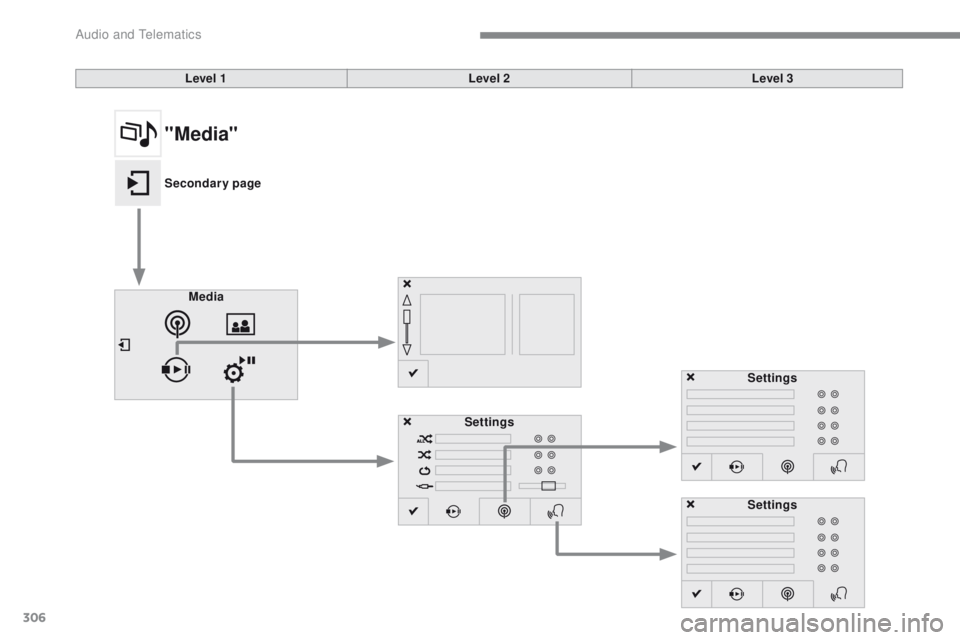
Level 1Level 2Level 3
Media Settings Settings
Settings
"Media"
Secondary page
Audio and telematics
Page 309 of 392
307
308_en_Chap10b_SMegplus_ed01-2016
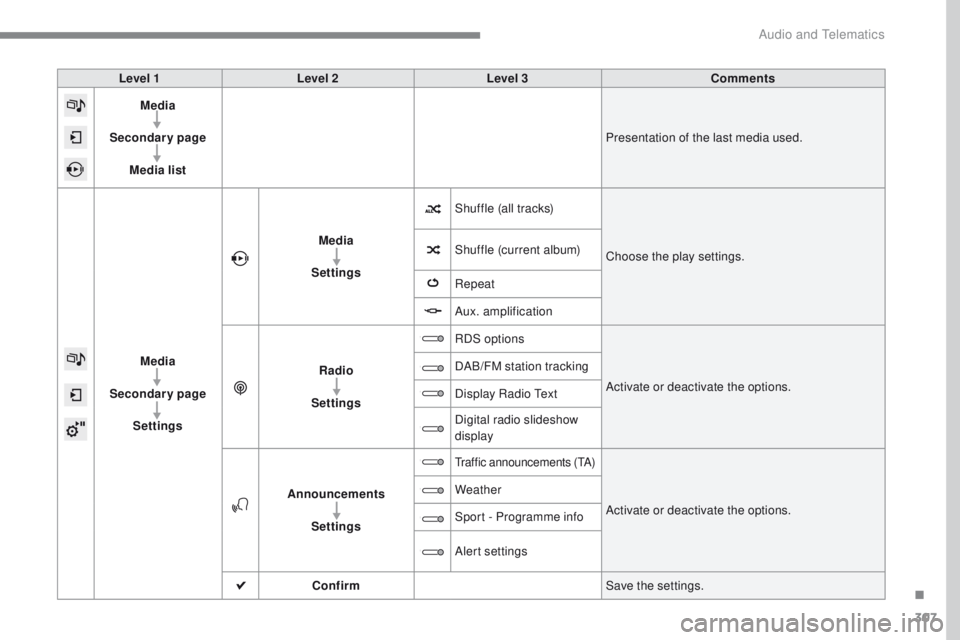
Level 1Level 2 Level 3 Comments
Media
Secondary page Media list Presentation of the last media used.
Media
Secondary page Settings Media
Settings Shuffle (all tracks)
Choose the play settings.
Shuffle (current album)
Repeat
Aux. amplification
Radio
Settings RDS options
Activate or deactivate the options.
DAB/FM station tracking
Display Radio
t
e
xt
Digital radio slideshow
display
Announcements Settings
traffic announcements (tA )
Activate or deactivate the options.
Weather
Sport - Programme info
Alert settings
Confirm Save the settings.
.
Audio and telematics
Page 310 of 392
308
308_en_Chap10b_SMegplus_ed01-2016
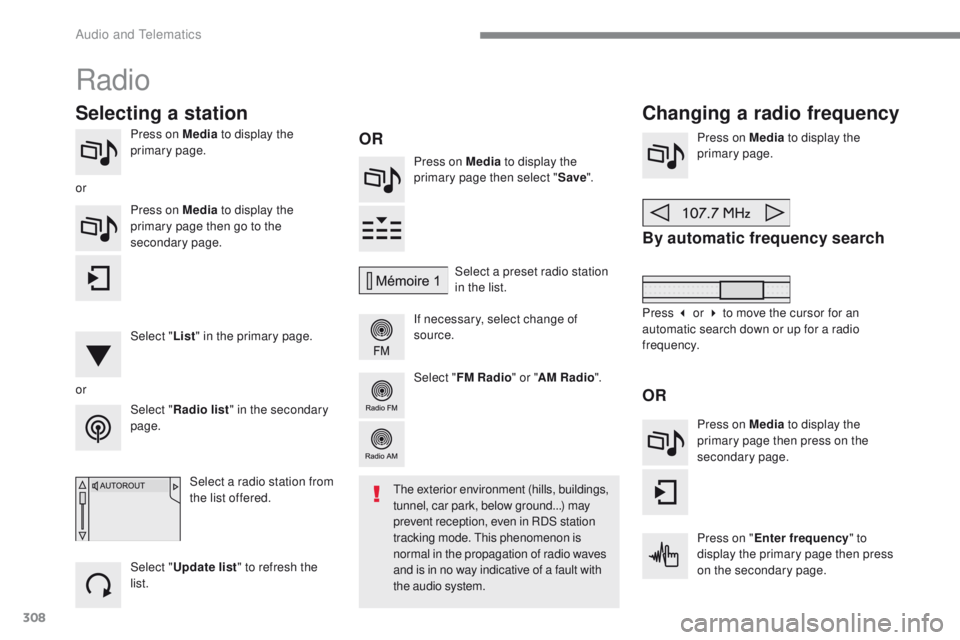
Press on Media to display the
primary page. Press on Media to display the
primary page then select " Save".
If necessary, select change of
source. Press on Media
to display the
primary page.
By automatic frequency search
Select " Radio list " in the secondary
page. Select a preset radio station
in the list.
Select " FM Radio " or "AM Radio ".
Select a radio station from
the list offered.
Select " Update list " to refresh the
list. Press on Media to display the
primary page then go to the
secondary page.
Select " List" in the primary page.
Radio
Changing a radio frequency
Selecting a station
OR
orOR
the exterior environment (hills, buildings,
tunnel, car park, below ground...) may
prevent reception, even in RDS station
tracking mode.
t
h
is phenomenon is
normal in the propagation of radio waves
and is in no way indicative of a fault with
the audio system.
or
Press 3 or 4 to move the cursor for an
automatic search down or up for a radio
frequency.Press on Media to display the
primary page then press on the
secondary page.
Press on " Enter frequency " to
display the primary page then press
on the secondary page.
Audio and telematics
Page 311 of 392
309
308_en_Chap10b_SMegplus_ed01-2016
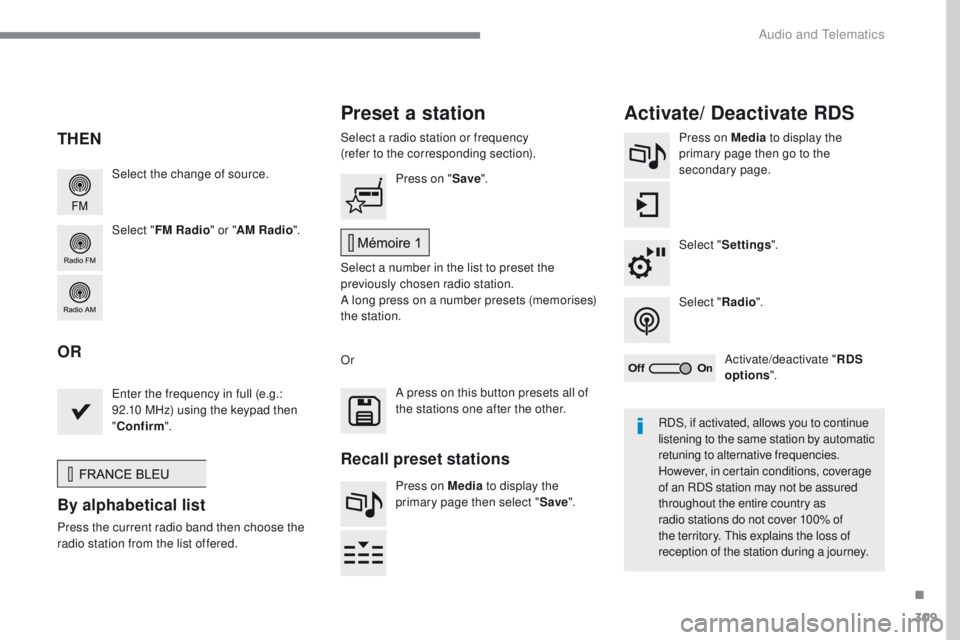
Select the change of source.
Select "FM Radio " or "AM Radio ".Select a radio station or frequency
(refer to the corresponding section).
Press on Media
to display the
primary page then go to the
secondary page.
Select " Settings ".
Select " Radio".
Activate/deactivate " RDS
options ".
Press on "
Save".
Select a number in the list to preset the
previously chosen radio station.
A long press on a number presets (memorises)
the station.
en
ter the frequency in full (e.g.:
92.10 MHz) using the keypad then
" Confirm ".
By alphabetical list
Press the current radio band then choose the
radio station from the list offered. Or
Press on Media to display the
primary page then select " Save".
Preset a station Activate/ Deactivate RDS
THEN
OR
A press on this button presets all of
the stations one after the other.
Recall preset stations
RDS, if activated, allows you to continue
listening to the same station by automatic
retuning to alternative frequencies.
However, in certain conditions, coverage
of an RDS station may not be assured
throughout the entire country as
radio stations do not cover 100% of
the territory.
t
h
is explains the loss of
reception of the station during a journey.
.
Audio and telematics