audio Peugeot 308 2017 Workshop Manual
[x] Cancel search | Manufacturer: PEUGEOT, Model Year: 2017, Model line: 308, Model: Peugeot 308 2017Pages: 392, PDF Size: 10.16 MB
Page 333 of 392
331
308_en_Chap10b_SMegplus_ed01-2016
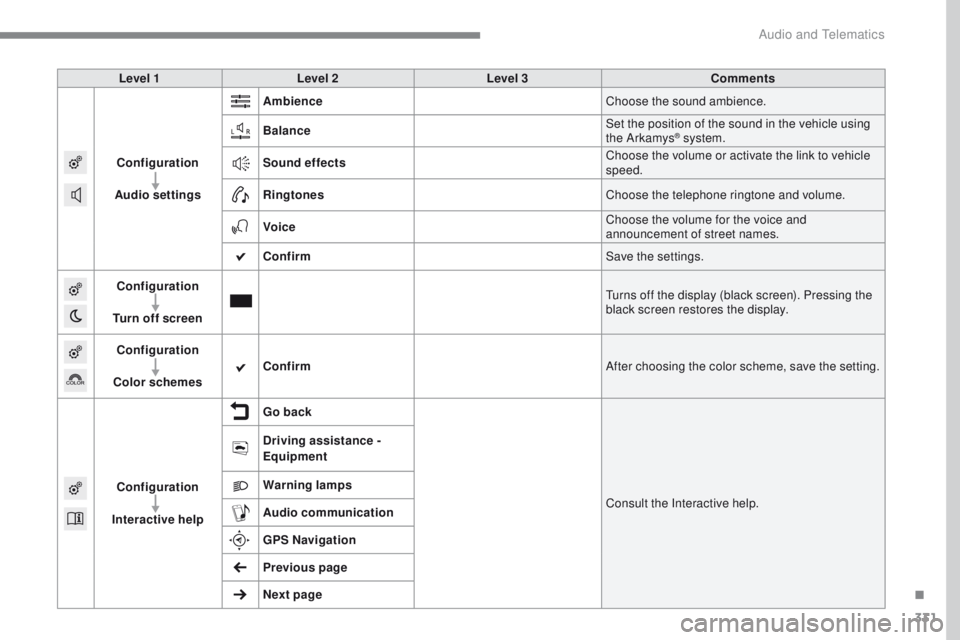
Level 1Level 2 Level 3 Comments
Configuration
Audio settings Ambience
Choose the sound ambience.
Balance Set the position of the sound in the vehicle using
the Arkamys
® system.
Sound effects Choose the volume or activate the link to vehicle
speed.
Ringtones Choose the telephone ringtone and volume.
Voice Choose the volume for the voice and
announcement of street names.
Confirm Save the settings.
Configuration
Turn off screen
tu
rns off the display (black screen). Pressing the
black screen restores the display.
Configuration
Color schemes Confirm
After choosing the color scheme, save the setting.
Configuration
Interactive help Go back
Consult the Interactive help.
Driving assistance
-
Equipment
Warning lamps
Audio communication
GPS Navigation
Previous page
Next page
.
Audio and telematics
Page 334 of 392
332
308_en_Chap10b_SMegplus_ed01-2016
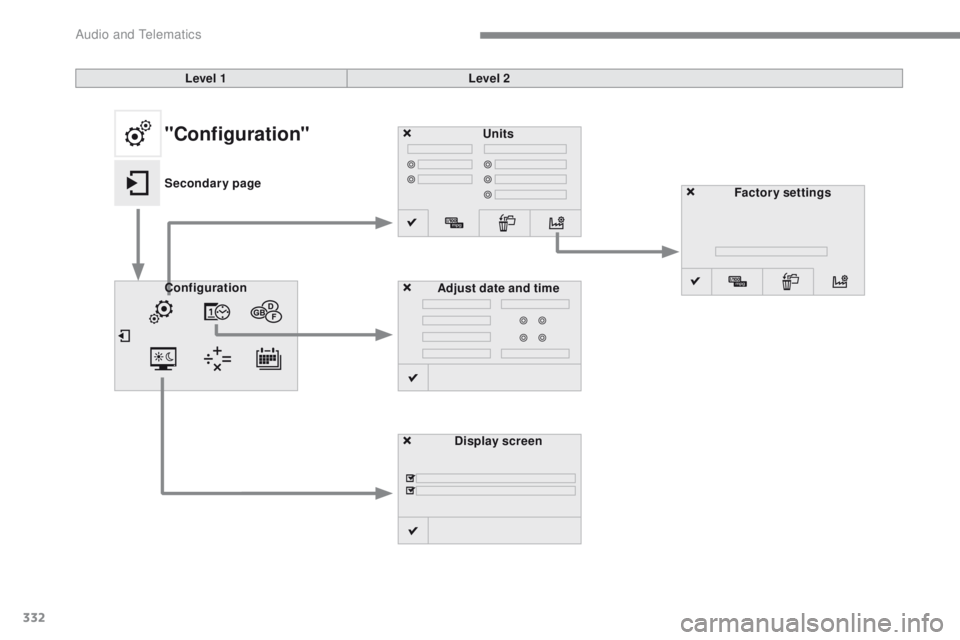
Units
Display screen
Configuration
Adjust date and time Factory settings
Level 1
Level 2"Configuration"
Secondary page
Audio and telematics
Page 335 of 392
333
308_en_Chap10b_SMegplus_ed01-2016
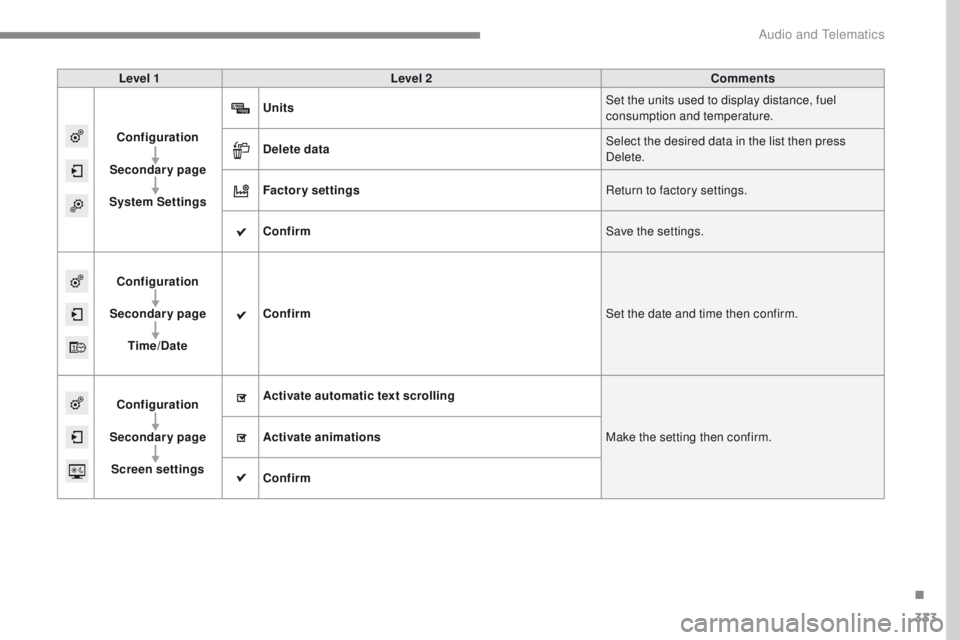
Level 1Level 2 Comments
Configuration
Secondary page
System Settings Units
Set the units used to display distance, fuel
consumption and temperature.
Delete data Select the desired data in the list then press
Delete.
Factory settings Return to factory settings.
Confirm Save the settings.
Configuration
Secondary page Time/Date Confirm
Set the date and time then confirm.
Configuration
Secondary page Screen settings Activate automatic text scrolling
Make the setting then confirm.
Activate animations
Confirm
.
Audio and telematics
Page 336 of 392
334
308_en_Chap10b_SMegplus_ed01-2016
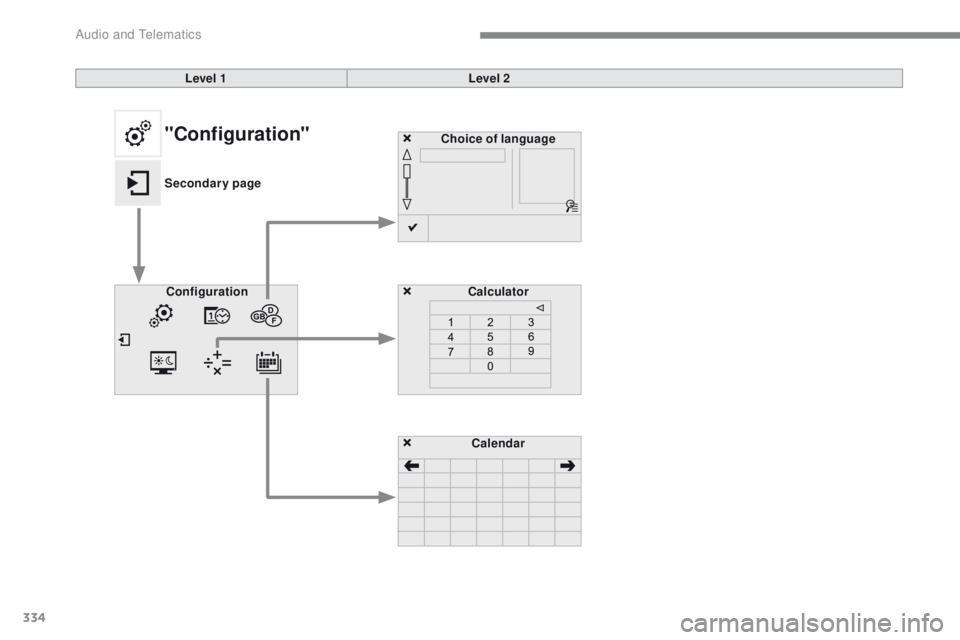
Choice of languageCalculator
Configuration
Calendar
Level 1
Level 2"Configuration"
Secondary page
Audio and telematics
Page 337 of 392
335
308_en_Chap10b_SMegplus_ed01-2016
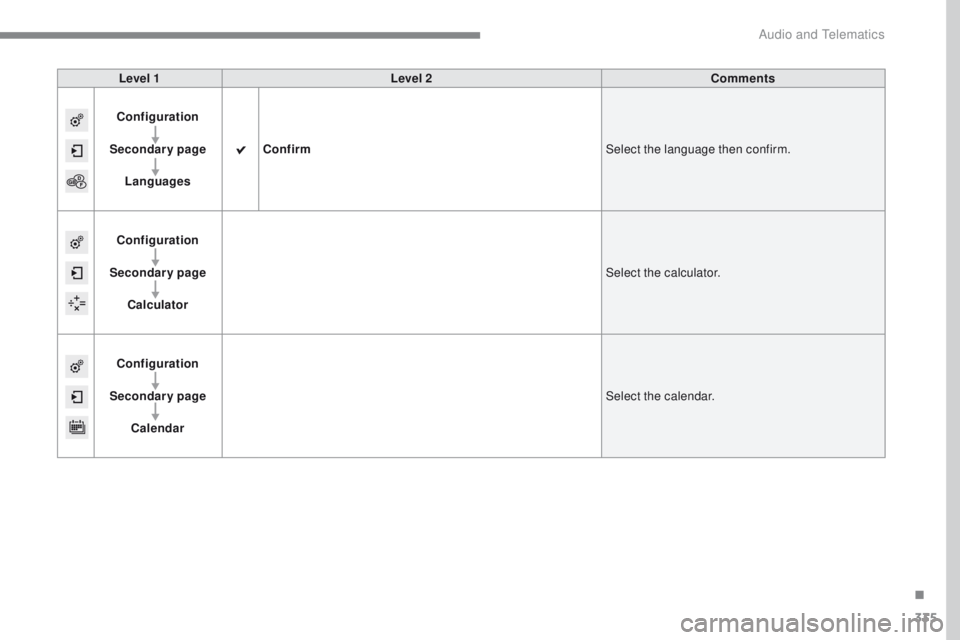
Level 1Level 2 Comments
Configuration
Secondary page Languages Confirm
Select the language then confirm.
Configuration
Secondary page Calculator Select the calculator.
Configuration
Secondary page Calendar Select the calendar.
.
Audio and telematics
Page 338 of 392
336
308_en_Chap10b_SMegplus_ed01-2016
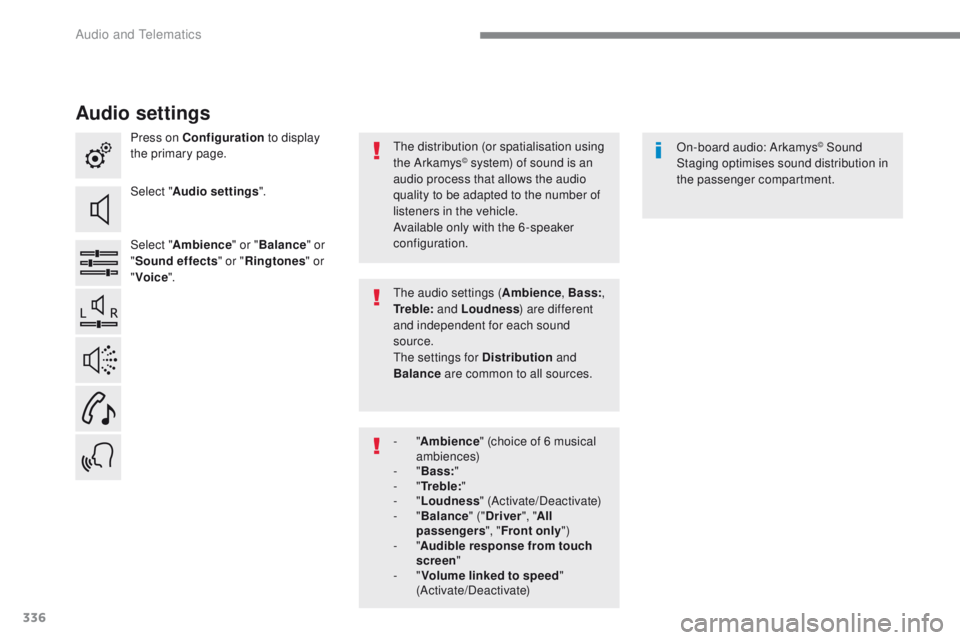
Audio settings
Press on Configuration to display
the primary page.
Select " Audio settings ".
Select " Ambience " or "Balance " or
" Sound effects " or "Ringtones " or
" Voice ". On-board audio: Arkamys© Sound
Staging optimises sound distribution in
the passenger compartment.th
e distribution (or spatialisation using
the Arkamys© system) of sound is an
audio process that allows the audio
quality to be adapted to the number of
listeners in the vehicle.
Available only with the 6 -speaker
configuration.
the
audio settings ( Ambience, Bass:,
Tr e b l e: and Loudness ) are different
and independent for each sound
source.
the
settings for Distribution and
Balance are common to all sources.
-
" Ambience " (choice of 6 musical
ambiences)
-
" Bass: "
-
" Tr e b l e: "
-
" Loudness " (Activate/Deactivate)
-
" Balance " ("Driver ", "All
passengers ", "Front only ")
-
" Audible response from touch
screen "
-
" Volume linked to speed "
(Activate/Deactivate)
Audio and telematics
Page 339 of 392
337
308_en_Chap10b_SMegplus_ed01-2016
At each change of colour scheme
the system restarts, showing a black
screen for a few moments.
th
e "Interactive help" included in
the system is not intended to be a
substitute for the more complete
content of the printed handbook.
As a safety measure, the procedure
for changing the color scheme is only
possible with the vehicle stationary. As a safety measure, consultation of
the handbook is only possible with the
vehicle stationary.
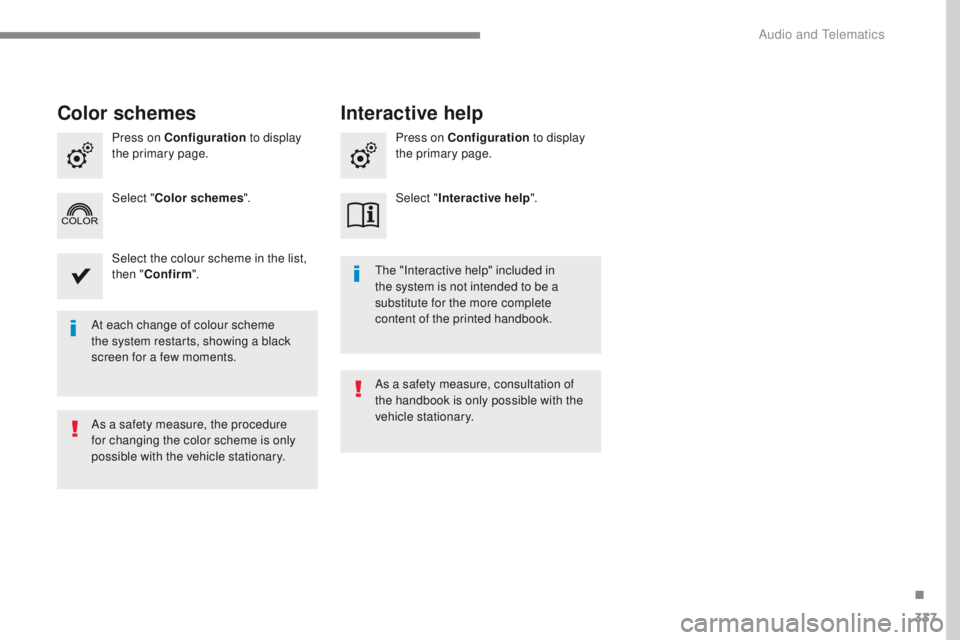
Press on Configuration
to display
the primary page. Press on Configuration
to display
the primary page.
Select " Color schemes ". Select "Interactive help ".
Select the colour scheme in the list,
then " Confirm ".
Color schemes Interactive help
.
Audio and telematics
Page 340 of 392
338
308_en_Chap10b_SMegplus_ed01-2016
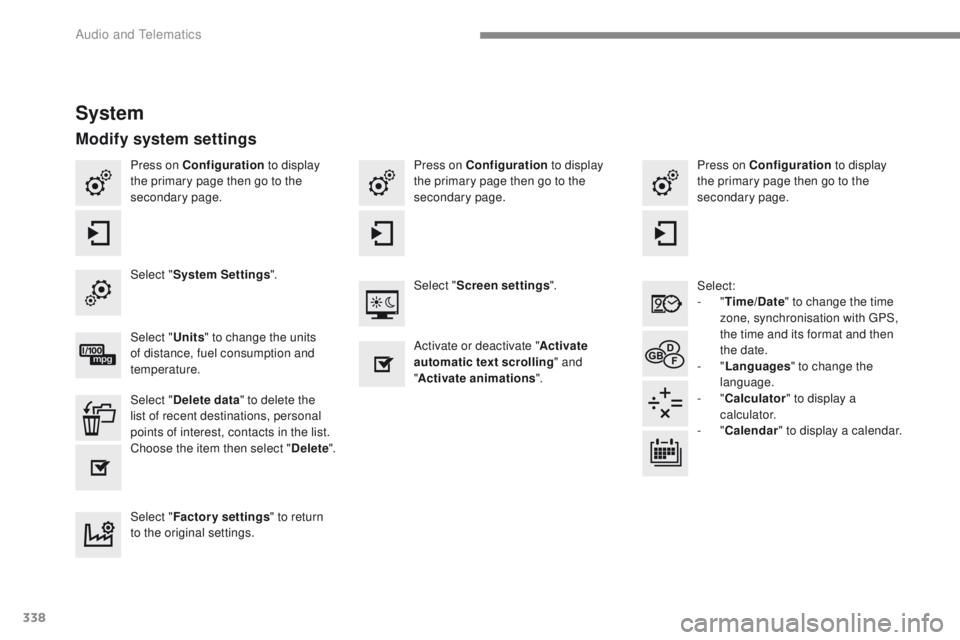
Press on Configuration to display
the primary page then go to the
secondary page. Press on Configuration
to display
the primary page then go to the
secondary page.
Press on Configuration
to display
the primary page then go to the
secondary page.
Select:
-
"Time/Date " to change the time
zone, synchronisation with
g
P
S,
the time and its format and then
the date.
-
"Languages " to change the
language.
-
"Calculator " to display a
calculator.
-
"Calendar " to display a calendar.
Select "
System Settings ".
Select "Screen settings ".
Select " Units" to change the units
of distance, fuel consumption and
temperature. Activate or deactivate "
Activate
automatic text scrolling " and
" Activate animations ".
Select " Delete data " to delete the
list of recent destinations, personal
points of interest, contacts in the list.
Choose the item then select " Delete".
Select " Factory settings " to return
to the original settings.
System
Modify system settings
Audio and telematics
Page 342 of 392
340
308_en_Chap10b_SMegplus_ed01-2016
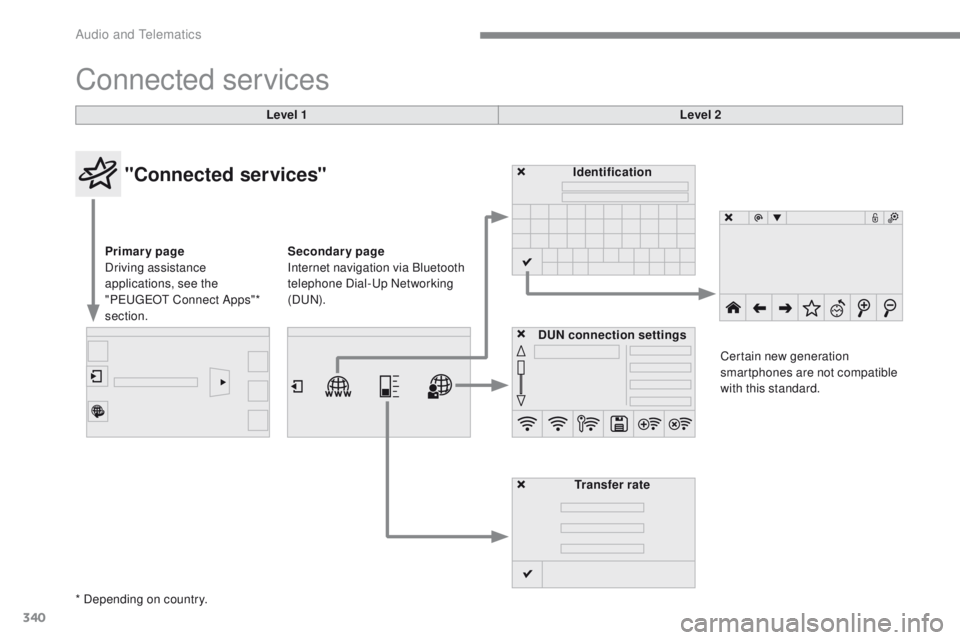
Connected services
Level 1Level 2
"Connected services"
Primary page
Driving assistance
applications, see the
"P
e
uge
Ot
Connect Apps"*
section. Identification
DUN connection settings Transfer rate Certain new generation
smartphones are not compatible
with this standard.
Secondary page
Internet navigation via Bluetooth
telephone Dial-
u
p Networking
(D
uN)
.
* Depending on country.
Audio and telematics
Page 343 of 392
341
308_en_Chap10b_SMegplus_ed01-2016
PeugeOt Connect Apps
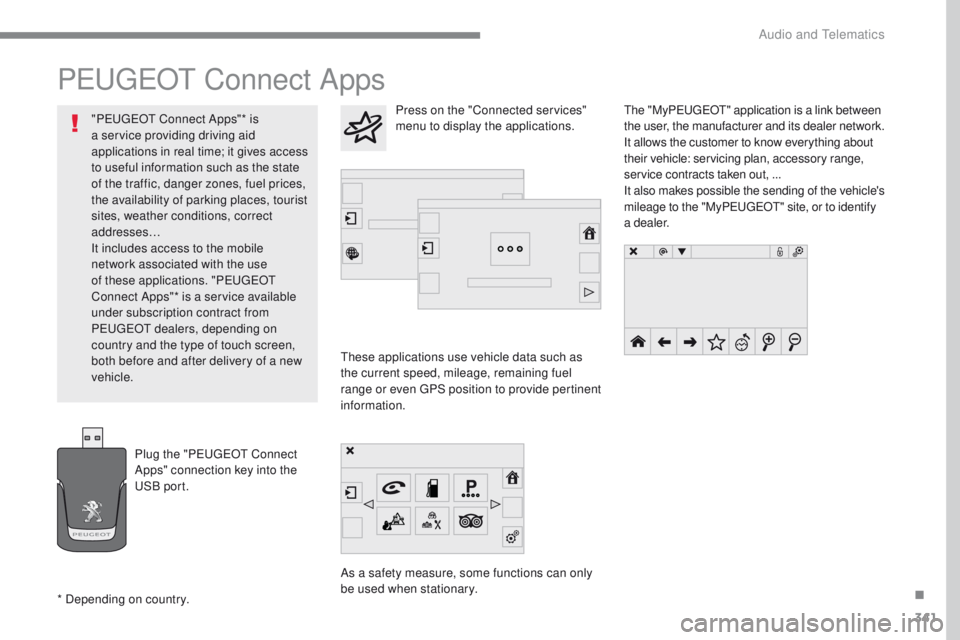
these applications use vehicle data such as
the current speed, mileage, remaining fuel
range or even
g
P
S position to provide pertinent
information.
As a safety measure, some functions can only
be used when stationary.
th
e "My
Peuge
O
t
" application is a link between
the user, the manufacturer and its dealer network.
It allows the customer to know everything about
their vehicle: servicing plan, accessory range,
service contracts taken out, ...
It also makes possible the sending of the vehicle's
mileage to the "My Peuge
O
t
" site, or to identify
a dealer.
Press on the "Connected services"
menu to display the applications.
Plug the "P
e
uge
Ot
Connect
Apps" connection key into the
uS
B port.
* Depending on country. "P
e
uge
Ot
Connect Apps"* is
a service providing driving aid
applications in real time; it gives access
to useful information such as the state
of the traffic, danger zones, fuel prices,
the availability of parking places, tourist
sites, weather conditions, correct
addresses…
It includes access to the mobile
network associated with the use
of these applications. "P
e
uge
Ot
Connect Apps"* is a service available
under subscription contract from
P
e
uge
Ot d
ealers, depending on
country and the type of touch screen,
both before and after delivery of a new
vehicle.
.
Audio and telematics