buttons Peugeot 308 2018 Owner's Guide
[x] Cancel search | Manufacturer: PEUGEOT, Model Year: 2018, Model line: 308, Model: Peugeot 308 2018Pages: 324, PDF Size: 10.72 MB
Page 139 of 324
137
F press button 5 again to save the suggested speed.
The speed displays immediately in the
instrument panel as the new speed setting.
Temporarily exceeding the
programmed speed
If needed (for overtaking, etc.) it is possible to
exceed the programmed speed by pressing the
accelerator pedal.
The cruise control is temporarily overridden
and the programmed speed setting flashes.
To return to the programmed speed, simply
release the accelerator pedal.
Once the vehicle has returned to the
programmed speed, the cruise control takes
over again: the display of the programmed
speed setting becomes fixed again.
When descending a steep hill, the cruise
control system cannot prevent the vehicle
from exceeding the programmed speed.
You may have to brake to control the
speed of your vehicle. In this case, the
cruise control is automatically paused.
To activate the system again, with the
speed of the vehicle above 25
mph
(40
km/h), press button 4 .
Switching off
F Turn the thumbwheel 1 to the " 0" position:
the cruise control information disappears
from the screen.
Malfunction
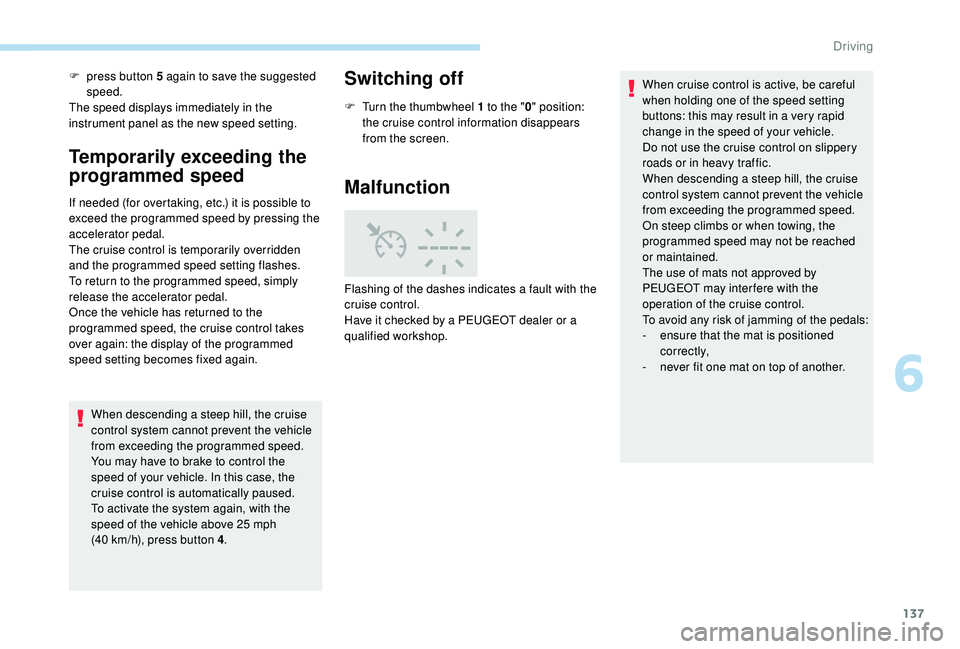
Flashing of the dashes indicates a fault with the
cruise control.
Have it checked by a PEUGEOT dealer or a
qualified workshop. When cruise control is active, be careful
when holding one of the speed setting
buttons: this may result in a very rapid
change in the speed of your vehicle.
Do not use the cruise control on slippery
roads or in heavy traffic.
When descending a steep hill, the cruise
control system cannot prevent the vehicle
from exceeding the programmed speed.
On steep climbs or when towing, the
programmed speed may not be reached
or maintained.
The use of mats not approved by
PEUGEOT may inter fere with the
operation of the cruise control.
To avoid any risk of jamming of the pedals:
-
e
nsure that the mat is positioned
c o r r e c t l y,
-
n
ever fit one mat on top of another.
6
Driving
Page 141 of 324
139
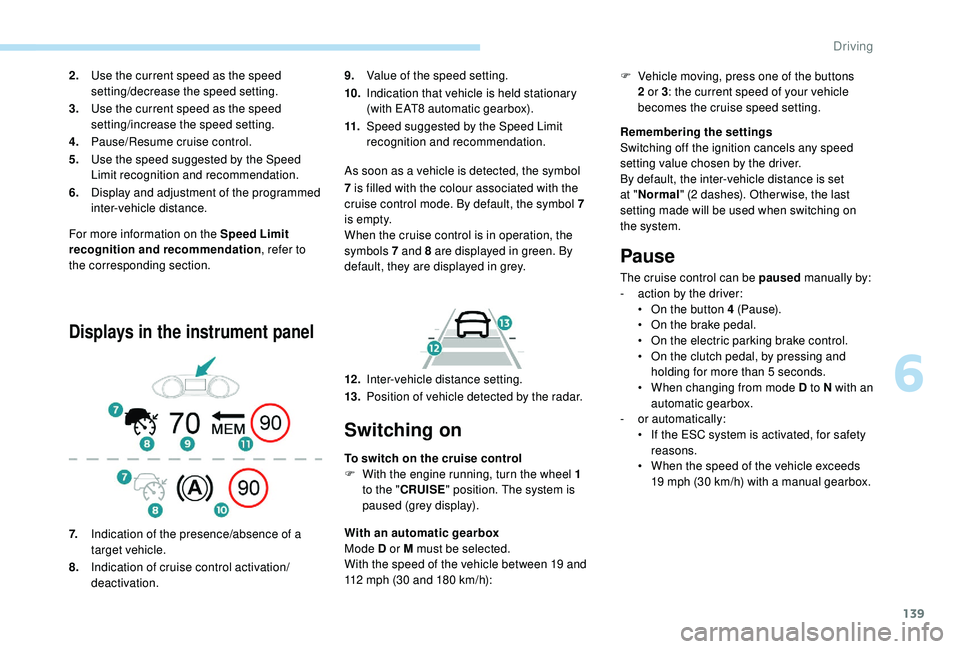
For more information on the Speed Limit
recognition and recommendation, refer to
the corresponding section.
Displays in the instrument panel
9. Value of the speed setting.
10. Indication that vehicle is held stationary
(with EAT8 automatic gearbox).
11. Speed suggested by the Speed Limit
recognition and recommendation.
As soon as a vehicle is detected, the symbol
2.
Use the current speed as the speed
setting/decrease the speed setting.
3. Use the current speed as the speed
setting/increase the speed setting.
4. Pause/Resume cruise control.
5. Use the speed suggested by the Speed
Limit recognition and recommendation.
6. Display and adjustment of the programmed
inter-vehicle distance.
7. Indication of the presence/absence of a
target vehicle.
8. Indication of cruise control activation/
deactivation. 7
is filled with the colour associated with the
cruise control mode. By default, the symbol 7
i s e m pt y.
When the cruise control is in operation, the
symbols 7 and 8 are displayed in green. By
default, they are displayed in grey.
12 . Inter-vehicle distance setting.
13. Position of vehicle detected by the radar.
Switching on
To switch on the cruise control
F
W ith the engine running, turn the wheel 1
to the " CRUISE " position. The system is
paused (grey display).
With an automatic gearbox
Mode D or M must be selected.
With the speed of the vehicle between 19 and
112
mph (30 and 180 km/h): Remembering the settings
Switching off the ignition cancels any speed
setting value chosen by the driver.
By default, the inter-vehicle distance is set
at "
Normal " (2 dashes). Other wise, the last
setting made will be used when switching on
the system.
Pause
The cruise control can be paused manually by:
- a ction by the driver:
•
O
n the button 4 (Pause).
•
O
n the brake pedal.
•
O
n the electric parking brake control.
•
O
n the clutch pedal, by pressing and
holding for more than 5
seconds.
•
W
hen changing from mode D to N with an
automatic gearbox.
-
o
r automatically:
•
I
f the ESC system is activated, for safety
reasons.
•
W
hen the speed of the vehicle exceeds
19
mph (30 km/h) with a manual gearbox.
F
V
ehicle moving, press one of the buttons
2 or 3 : the current speed of your vehicle
becomes the cruise speed setting.
6
Driving
Page 142 of 324
140
When the cruise control is paused, it
can only be reactivated when all of the
safety conditions are met. The "Activation
denied, conditions unsuitable" message is
displayed if reactivation is not possible.
Reactivating the function
With a manual gearbox
To reactivate the function, the driver must
accelerate to reach at least 19 mph (30 km/h),
then press one of the buttons 2 , 3 or 4.
With the EAT8 gearbox or with the BlueHDi
150 S&S EAT6 engine
Following braking of the vehicle bringing it to
a complete stop, the system holds the vehicle
stationary; the cruise control is paused.
The driver should press the accelerator pedal
to move off, then reactivate the system above
19
mph (30 km/h) by pressing button 2 , 3 or 4.
If the driver takes no action following this
immobilisation, the electric parking brake is
applied automatically after a while (approx. five
minutes).
As a safety measure, wait until the current
speed approaches the speed setting to
reactivate the function by pressing button 4 .
Modification of the speed
setting
With the engine running and cruise control on
(green), you can modify the speed setting.
Modification from the current
speed
F By successive short presses on button 2
or 3 , to lower or raise the setting in steps of
1
mph (km/h),
F
B
y a maintained press on button 2 or 3 , to
lower or raise the setting in steps of 5
mph
(km/h).
Take care: pressing and holding button 2
or 3
results in a rapid change in the speed
of your vehicle.
Modification from the speed Limit
recognition and recommendation
system
F The suggested speed is displayed in the instrument panel.
F
M
ake an initial press on button 5 ; a
message is displayed to confirm the
memorisation request.
F
P
ress button 5 again to save the suggested
speed.
The speed displays immediately in the
instrument panel as the new speed setting. For more information on the Speed Limit
recognition and recommendation
, refer to
the corresponding section.
As a precaution, it is recommended
that you select a cruise speed close to
the current speed of your vehicle, so
as to avoid any sudden acceleration or
deceleration of the vehicle.
Modification of the programmed
inter-vehicle distance
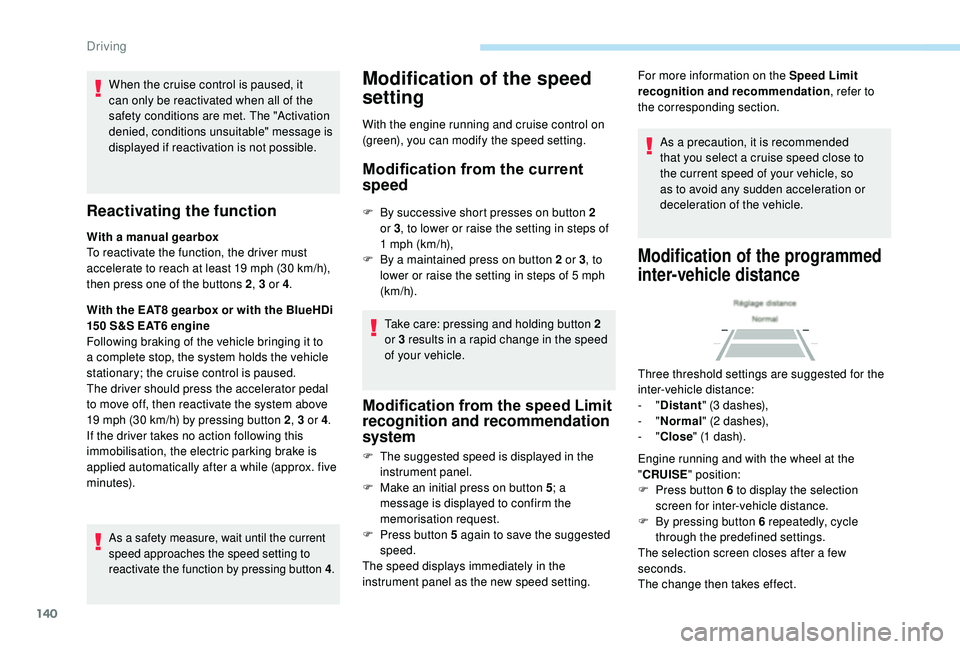
Three threshold settings are suggested for the
inter-vehicle distance:
- "Distant " (3 dashes),
-
"Normal " (2 dashes),
-
"Close " (1 dash).
Engine running and with the wheel at the
" CRUISE " position:
F
P
ress button 6 to display the selection
screen for inter-vehicle distance.
F
B
y pressing button 6 repeatedly, cycle
through the predefined settings.
The selection screen closes after a few
seconds.
The change then takes effect.
Driving
Page 238 of 324
2
First steps
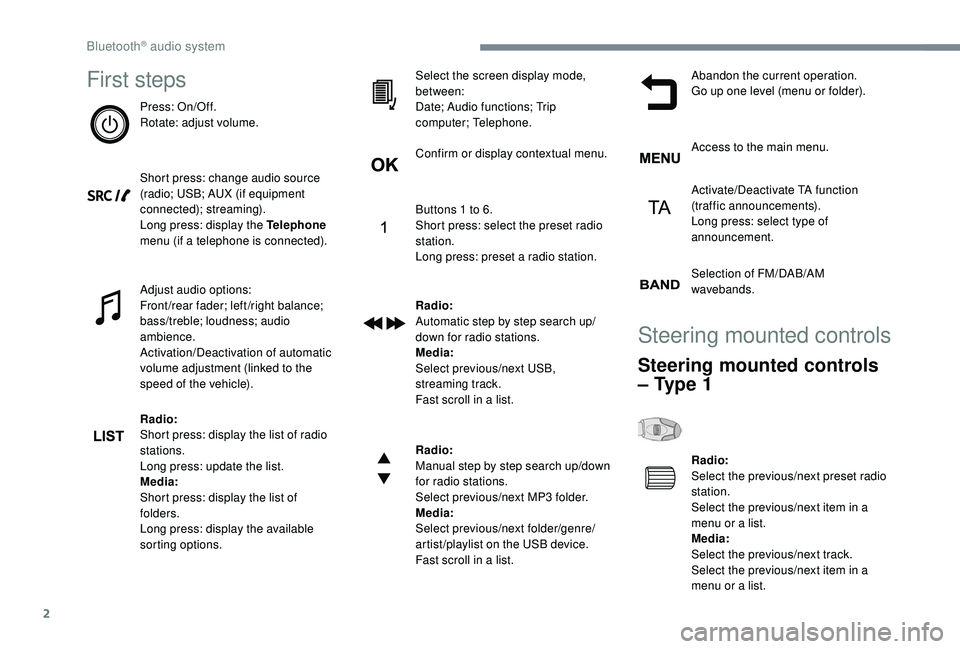
Press: On/Off.
Rotate: adjust volume.
Short press: change audio source
(radio; USB; AUX (if equipment
connected); streaming).
Long press: display the Telephone
menu (if a telephone is connected).
Adjust audio options:
Front/rear fader; left/right balance;
bass/treble; loudness; audio
ambience.
Activation/Deactivation of automatic
volume adjustment (linked to the
speed of the vehicle).
Radio:
Short press: display the list of radio
stations.
Long press: update the list.
Media:
Short press: display the list of
folders.
Long press: display the available
sorting options.Select the screen display mode,
between:
Date; Audio functions; Trip
computer; Telephone.
Confirm or display contextual menu.
Buttons 1 to 6.
Short press: select the preset radio
station.
Long press: preset a radio station.
Radio:
Automatic step by step search up/
down for radio stations.
Media:
Select previous/next USB,
streaming track.
Fast scroll in a list.
Radio:
Manual step by step search up/down
for radio stations.
Select previous/next MP3 folder.
Media:
Select previous/next folder/genre/
artist/playlist on the USB device.
Fast scroll in a list.Abandon the current operation.
Go up one level (menu or folder).
Access to the main menu.
Activate/Deactivate TA function
(traffic announcements).
Long press: select type of
announcement.
Selection of FM/DAB/AM
wavebands.
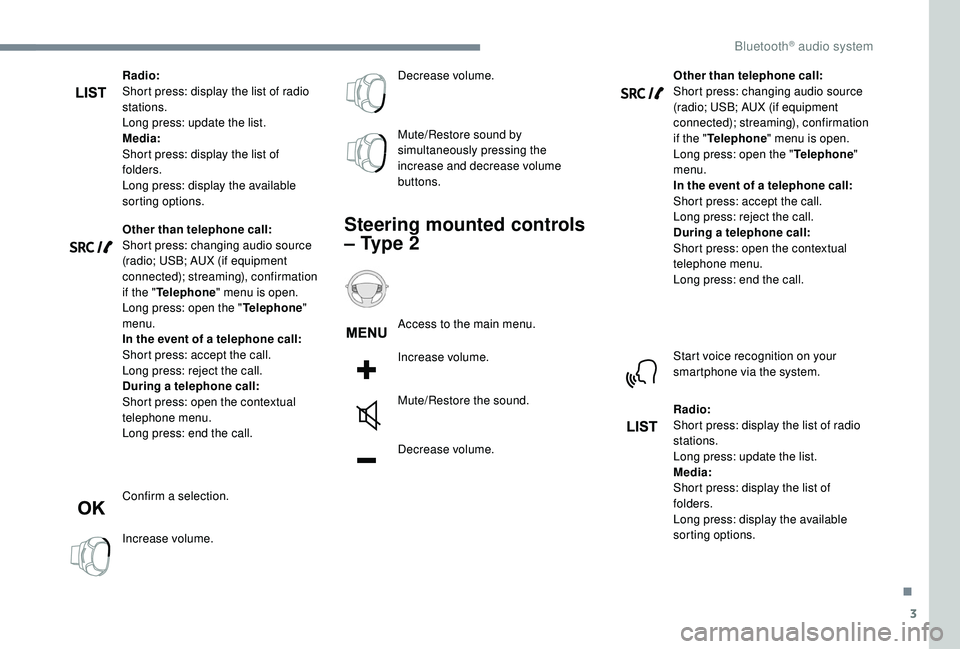
Steering mounted controls
Steering mounted controls
– Type 1
Radio:
Select the previous/next preset radio
station.
Select the previous/next item in a
menu or a list.
Media:
Select the previous/next track.
Select the previous/next item in a
menu or a list.
Bluetooth® audio system
Page 239 of 324
3
Radio:
Short press: display the list of radio
stations.
Long press: update the list.
Media:
Short press: display the list of
folders.
Long press: display the available
sorting options.
Other than telephone call:
Short press: changing audio source
(radio; USB; AUX (if equipment
connected); streaming), confirmation
if the "Telephone " menu is open.
Long press: open the " Telephone"
menu.
In the event of a telephone call:
Short press: accept the call.
Long press: reject the call.
During a telephone call:
Short press: open the contextual
telephone menu.
Long press: end the call.
Confirm a selection.
Increase volume. Decrease volume.
Mute/Restore sound by
simultaneously pressing the
increase and decrease volume
buttons.
Steering mounted controls
– Type 2
Access to the main menu.
Increase volume.
Mute/Restore the sound.
Decrease volume.
Other than telephone call:
Short press: changing audio source
(radio; USB; AUX (if equipment
connected); streaming), confirmation
if the "
Telephone " menu is open.
Long press: open the " Telephone"
menu.
In the event of a telephone call:
Short press: accept the call.
Long press: reject the call.
During a telephone call:
Short press: open the contextual
telephone menu.
Long press: end the call.
Start voice recognition on your
smartphone via the system.
Radio:
Short press: display the list of radio
stations.
Long press: update the list.
Media:
Short press: display the list of
folders.
Long press: display the available
sorting options.
.
Bluetooth® audio system
Page 240 of 324
4
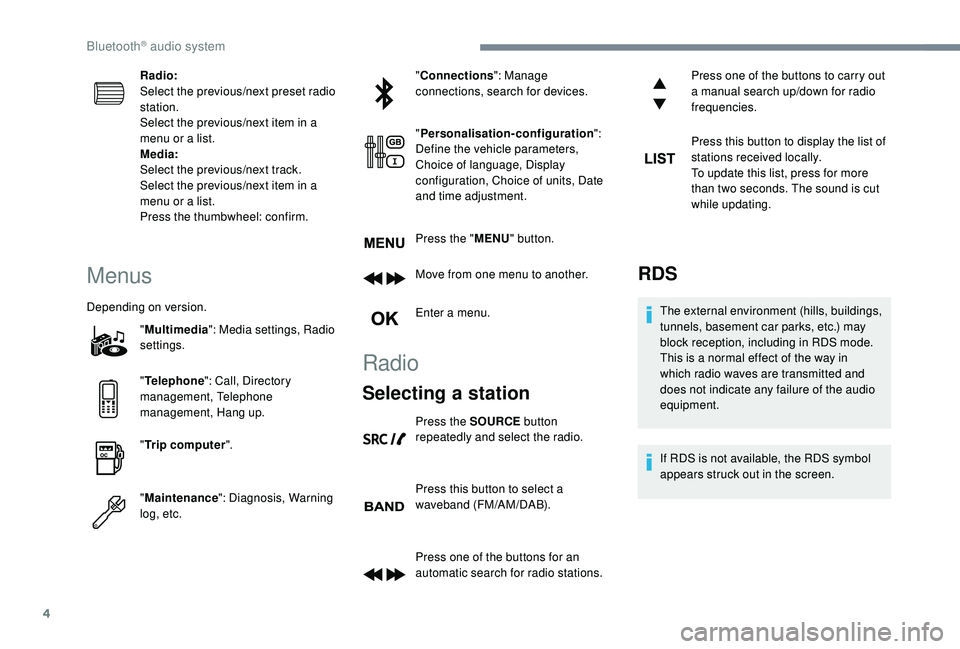
Radio:
Select the previous/next preset radio
station.
Select the previous/next item in a
menu or a list.
Media:
Select the previous/next track.
Select the previous/next item in a
menu or a list.
Press the thumbwheel: confirm.
Menus
Depending on version."Multimedia ": Media settings, Radio
settings.
" Telephone ": Call, Directory
management, Telephone
management, Hang up.
" Trip computer ".
" Maintenance ": Diagnosis, Warning
log, etc. "
Connections ": Manage
connections, search for devices.
" Personalisation-configuration ":
Define the vehicle parameters,
Choice of language, Display
configuration, Choice of units, Date
and time adjustment.
Press the " MENU" button.
Move from one menu to another.
Enter a menu.
Radio
Selecting a station
Press the SOURCE button
repeatedly and select the radio.
Press this button to select a
waveband (FM/AM/DAB).
Press one of the buttons for an
automatic search for radio stations. Press one of the buttons to carry out
a manual search up/down for radio
frequencies.
Press this button to display the list of
stations received locally.
To update this list, press for more
than two seconds. The sound is cut
while updating.
RDS
The external environment (hills, buildings,
tunnels, basement car parks, etc.) may
block reception, including in RDS mode.
This is a normal effect of the way in
which radio waves are transmitted and
does not indicate any failure of the audio
equipment.
If RDS is not available, the RDS symbol
appears struck out in the screen.
Bluetooth® audio system
Page 242 of 324
6
When the radio station is displayed
in the screen, press OK to display
the contextual menu.
Select " RadioText (TXT) display "
and confirm OK to save.
DAB (Digital Audio
Broadcasting) radio
Depending on version
If the current DAB radio station is not
available on FM, "DAB FM" is struck out. When changing region, an update of the
list of preset radio stations is advisable.
Display of the list of all radio stations
and "multiplexes".
Terrestrial digital radio
Digital radio provides a superior audio
quality and also additional categories of
traffic announcements (TA INFO).
The different "multiplex/ensemble"
ser vices offer a choice of radio stations in
alphabetical order.Change of band (FM1, FM2, DAB,
e t c .)
Change of station within the same
"multiplex/ensemble".
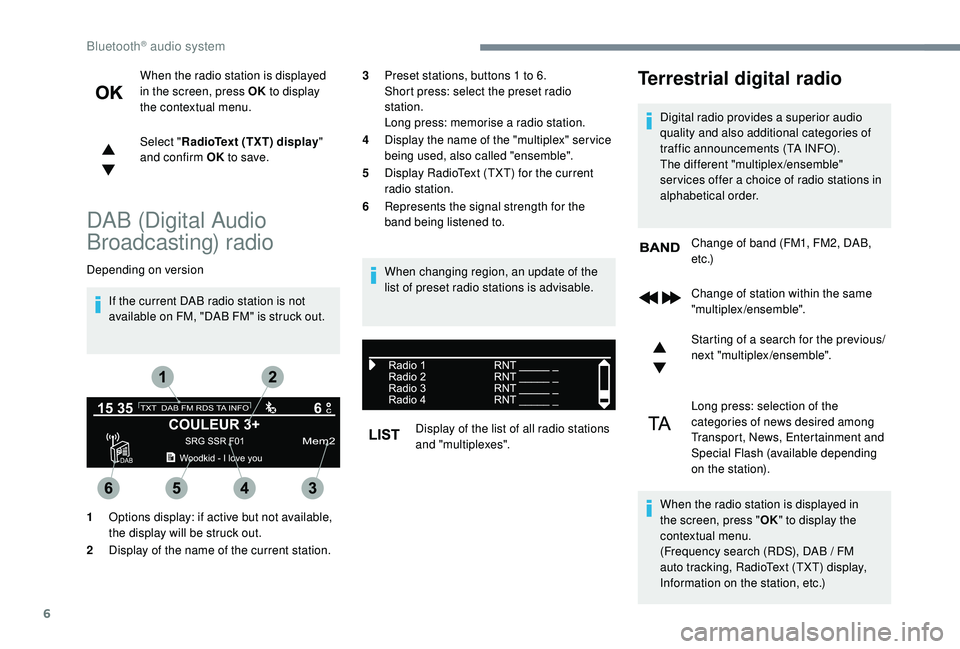
1 Options display: if active but not available,
the display will be struck out.
2 Display of the name of the current station. Starting of a search for the previous/
next "multiplex/ensemble".
Long press: selection of the
categories of news desired among
Transport, News, Entertainment and
Special Flash (available depending
on the station).
When the radio station is displayed in
the screen, press " OK" to display the
contextual menu.
(Frequency search (RDS), DAB
/ FM
auto tracking, RadioText (TXT) display,
Information on the station, etc.)
3
Preset stations, buttons 1 to 6.
Short press: select the preset radio
station.
Long press: memorise a radio station.
4 Display the name of the "multiplex" ser vice
being used, also called "ensemble".
5 Display RadioText (TXT) for the current
radio station.
6 Represents the signal strength for the
band being listened to.
Bluetooth® audio system
Page 244 of 324
8
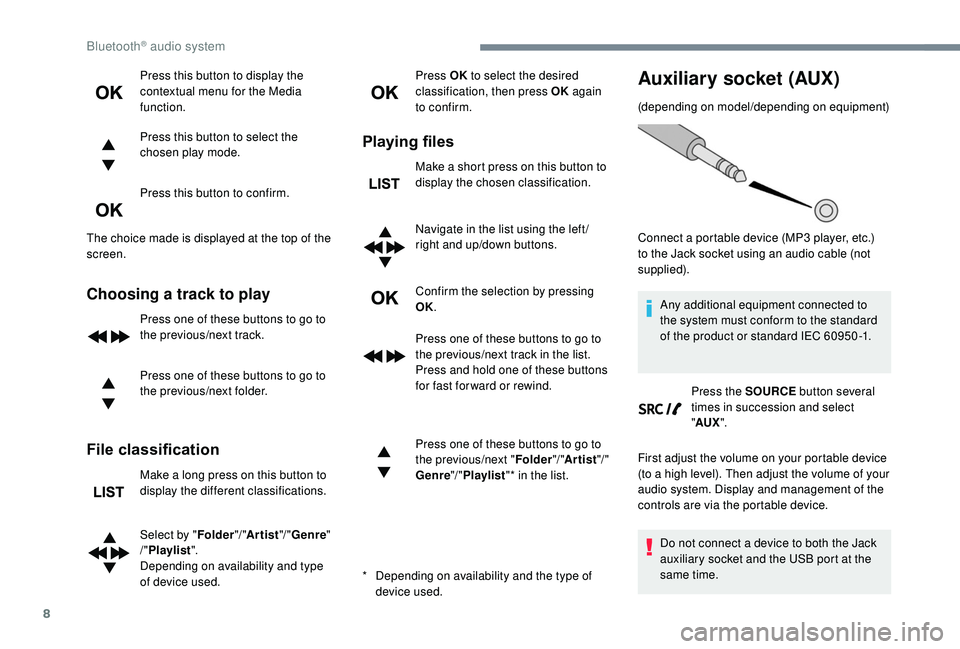
Press this button to display the
contextual menu for the Media
function.
Press this button to select the
chosen play mode.
Press this button to confirm.
The choice made is displayed at the top of the
screen.
Choosing a track to play
Press one of these buttons to go to
the previous/next track.
Press one of these buttons to go to
the previous/next folder.
File classification
Make a long press on this button to
display the different classifications.
Select by " Folder"/ "Artist "/ "Genre "
/" Playlist ".
Depending on availability and type
of device used. Press OK
to select the desired
classification, then press OK again
to confirm.
Playing files
Make a short press on this button to
display the chosen classification.
Navigate in the list using the left /
right and up/down buttons.
Confirm the selection by pressing
OK.
Press one of these buttons to go to
the previous/next track in the list.
Press and hold one of these buttons
for fast for ward or rewind.
Press one of these buttons to go to
the previous/next " Folder"/ "Artist "/ "
Genre "/ "Playlist "* in the list.
*
D
epending on availability and the type of
device used.
Auxiliary socket (AUX)
(depending on model/depending on equipment)
Any additional equipment connected to
the system must conform to the standard
of the product or standard IEC 60950 -1. Press the SOURCE button several
times in succession and select
" AUX ".
First adjust the volume on your portable device
(to a high level). Then adjust the volume of your
audio system. Display and management of the
controls are via the portable device.
Do not connect a device to both the Jack
auxiliary socket and the USB port at the
same time.
Connect a portable device (MP3 player, etc.)
to the Jack socket using an audio cable (not
supplied).
Bluetooth® audio system
Page 245 of 324
9
Bluetooth® audio streaming
Streaming allows music files on the telephone
to be played via the vehicle's loudspeakers.
Connect the telephone.
(Refer to the "Pairing a Bluetooth
®
telephone " section).
Activate the streaming source by
pressing SOURCE.
In certain cases, play of the audio
files must be initiated from the
keypad.
Audio files can be selected using the buttons
on the audio system control panel and the
steering mounted controls. The contextual
information can be displayed in the screen,
if the telephone supports the function. The
audio quality depends on the quality of
transmission by the telephone.
Connecting Apple® players
Connect the Apple® player to the USB port
using a suitable cable (not supplied).
Play starts automatically.
Control is via the audio system.
The classifications available are those of the
portable device connected (artists/albums/
genres/playlists). The version of software in the audio system
may not be compatible with the generation of
your Apple
® p l aye r.
Information and advice
Via the USB port, the system can play audio
files with the extension ".mp3", ".wma", ".wav",
".cbr", ".vbr" with a bit rate of 32 to 320
Kbps.
No other file types (".mp4", etc.) can be read.
Files of the ".wma" type should be to the wma
9 standard.
The sampling rates supported are 11, 22, 44
and 48
kHz.
File names should have fewer than 20
characters, avoiding special characters (e.g.
«
? ; ù) so as to avoid any reading or display
problems.
To protect the system, do not use a USB hub.
Use only USB memory sticks formatted
FAT32 (File Allocation Table).
It is recommended that you use genuine
Apple
® USB cables for correct operation.
Telephone
Pairing a Bluetooth®
telephone
As a safety measure and because they
require prolonged attention on the part
of the driver, the operations for pairing
of the Bluetooth mobile telephone with
the Bluetooth hands-free system of your
audio system must be carried out with the
vehicle stationary and the ignition on.
Activate the telephone's Bluetooth
function and ensure that it is "visible to all"
(telephone configuration).
The services available depend on
the network, the SIM card and the
compatibility of the Bluetooth telephone
used.
Check the instructions for your telephone
and with your ser vice provider for the
ser vices to which you have access.
Procedure from the telephone
Select the name of the system in the
list of devices detected.
.
Bluetooth® audio system
Page 247 of 324
11
Then select and confirm:
- "Connect telephone "/
" Disconnect telephone ":
to connect/disconnect the
telephone or the hands-free kit
o n l y.
-
"Connect media player "/
" Disconnect media player ":
to connect/disconnect streaming
o n l y.
-
"Connect telephone + media
player "/ "Disconnect telephone
+ media player ":
to connect/disconnect the
telephone (hands-free kit and
streaming).
-
"Delete connection ": to delete
the pairing.
When you delete a pairing in the system,
remember to delete it from your telephone
as well.
Confirm with OK.
Receiving a call
An incoming call is announced by a ring and a
superimposed display in the screen. Select the "
YES" tab in the screen
using the buttons.
Confirm with OK.
Press this button at the steering
mounted controls to accept the call.
Making a call
In the " Telephone " menu.
Select " Call".
Select " Dial".
Or
Select " Directory ".
Or
Select " Calls list ".
Confirm with OK.
Press this button for more than
two seconds for access to your
directory, then navigate using the
thumb wheel.
Ending a call
In the " Telephone " menu.
Select " End call".
Confirm with OK to end the call.
During a call, press one of these
buttons for more than two seconds.
The system accesses the telephone's contacts
directory, depending on its compatibility, and
while it is connected via Bluetooth.
With certain telephones connected by
Bluetooth you can send a contact to the
directory of the audio system.
Contacts imported in this way are saved
in a permanent directory visible to all,
whatever the telephone connected.
The menu for the directory is not
accessible if it is empty.
.
Bluetooth® audio system