light PEUGEOT 308 2024 Owners Manual
[x] Cancel search | Manufacturer: PEUGEOT, Model Year: 2024, Model line: 308, Model: PEUGEOT 308 2024Pages: 280, PDF Size: 8.13 MB
Page 233 of 280
231
PEUGEOT i-Connect Advanced - PEUGEOT i-Connect
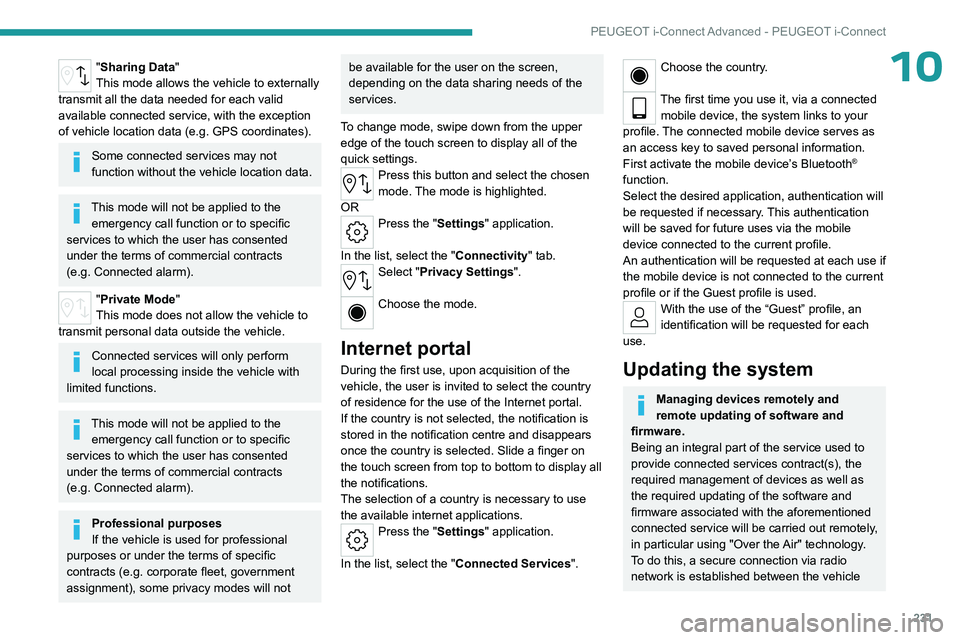
10"Sharing Data"
This mode allows the vehicle to externally
transmit all the data needed for each valid
available connected service, with the exception
of vehicle location data (e.g.
GPS coordinates).
Some connected services may not
function without the vehicle location data.
This mode will not be applied to the emergency call function or to specific
services to which the user has consented
under the terms of commercial contracts
(e.g.
Connected alarm).
"Private Mode"
This mode does not allow the vehicle to
transmit personal data outside the vehicle.
Connected services will only perform
local processing inside the vehicle with
limited functions.
This mode will not be applied to the emergency call function or to specific
services to which the user has consented
under the terms of commercial contracts
(e.g.
Connected alarm).
Professional purposes
If the vehicle is used for professional
purposes or under the terms of specific
contracts (e.g.
corporate fleet, government
assignment), some privacy modes will not
be available for the user on the screen,
depending on the data sharing needs of the
services.
To change mode, swipe down from the upper
edge of the touch screen to display all of the
quick settings.
Press this button and select the chosen
mode. The mode is highlighted.
OR
Press the "Settings" application.
In the list, select the "Connectivity" tab.
Select "Privacy Settings".
Choose the mode.
Internet portal
During the first use, upon acquisition of the
vehicle, the user is invited to select the country
of residence for the use of the Internet portal.
If the country is not selected, the notification is
stored in the notification centre and disappears
once the country is selected. Slide a finger on
the touch screen from top to bottom to display all
the notifications.
The selection of a country is necessary to use
the available internet applications.
Press the "Settings" application.
In the list, select the "Connected Services".
Choose the country.
The first time you use it, via a connected mobile device, the system links to your
profile. The connected mobile device serves as
an access key to saved personal information.
First activate the mobile device’s Bluetooth
®
function.
Select the desired application, authentication will
be requested if necessary. This authentication
will be saved for future uses via the mobile
device connected to the current profile.
An authentication will be requested at each use if
the mobile device is not connected to the current
profile or if the Guest profile is used.
With the use of the “Guest” profile, an
identification will be requested for each
use.
Updating the system
Managing devices remotely and
remote updating of software and
firmware.
Being an integral part of the
service used to
provide connected services contract(s), the
required management of devices as well as
the required updating of the software and
firmware associated with the aforementioned
connected service will be carried out remotely,
in particular using "Over the Air" technology.
To do this, a secure connection via radio
network is established between the vehicle
Page 242 of 280
240
PEUGEOT i-Connect Advanced - PEUGEOT i-Connect
If the device has already been connected to the
system via Bluetooth®, select the device settings
from the list of known devices and choose
Android Auto as the wireless connection mode.
The subsequent automatic connection of the
smartphone requires activation of Bluetooth
® on
your device.
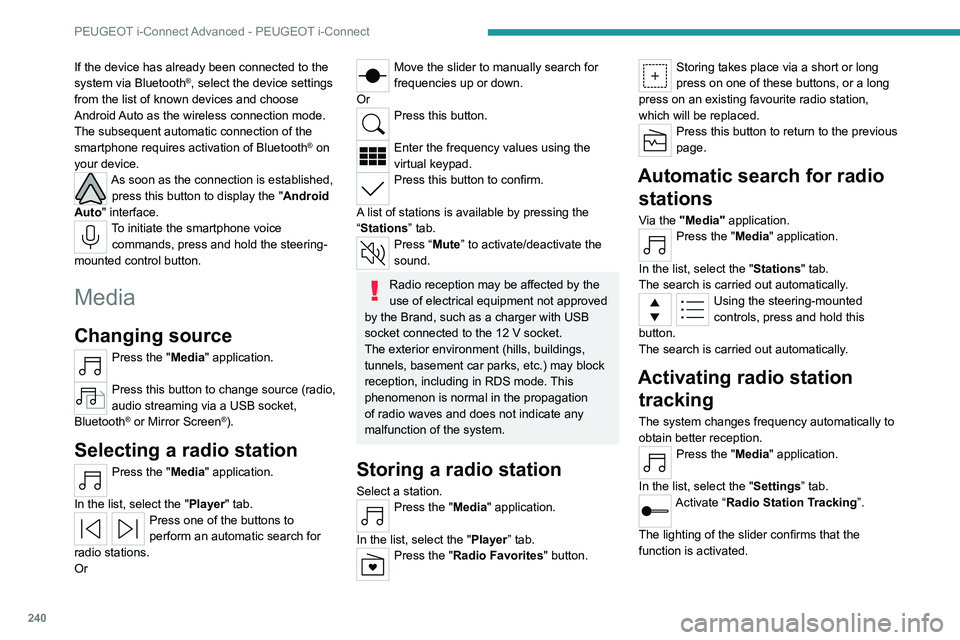
As soon as the connection is established, press this button to display the " Android
Auto" interface.
To initiate the smartphone voice commands, press and hold the steering-
mounted control button.
Media
Changing source
Press the "Media" application.
Press this button to change source (radio,
audio streaming via a USB socket,
Bluetooth
® or Mirror Screen®).
Selecting a radio station
Press the "Media" application.
In the list, select the "Player" tab.
Press one of the buttons to
perform an automatic search for
radio stations.
Or
Move the slider to manually search for
frequencies up or down.
Or
Press this button.
Enter the frequency values using the
virtual keypad.
Press this button to confirm.
A list of stations is available by pressing the
“Stations” tab.
Press “Mute” to activate/deactivate the
sound.
Radio reception may be affected by the
use of electrical equipment not approved
by the Brand, such as a charger with USB
socket connected to the 12
V socket.
The exterior environment (hills, buildings,
tunnels, basement car parks, etc.) may block
reception, including in RDS mode. This
phenomenon is normal in the propagation
of radio waves and does not indicate any
malfunction of the system.
Storing a radio station
Select a station.Press the "Media" application.
In the list, select the "Player” tab.
Press the "Radio Favorites" button.
Storing takes place via a short or long
press on one of these buttons, or a long
press on an existing favourite radio station,
which will be replaced.
Press this button to return to the previous
page.
Automatic search for radio stations
Via the "Media" application.Press the "Media" application.
In the list, select the "Stations" tab.
The search is carried out automatically.
Using the steering-mounted
controls, press and hold this
button.
The search is carried out automatically.
Activating radio station tracking
The system changes frequency automatically to
obtain better reception.
Press the "Media" application.
In the list, select the "Settings” tab.
Activate “Radio Station Tracking”.
The lighting of the slider confirms that the
function is activated.
Page 243 of 280
241
PEUGEOT i-Connect Advanced - PEUGEOT i-Connect
10Changing the waveband
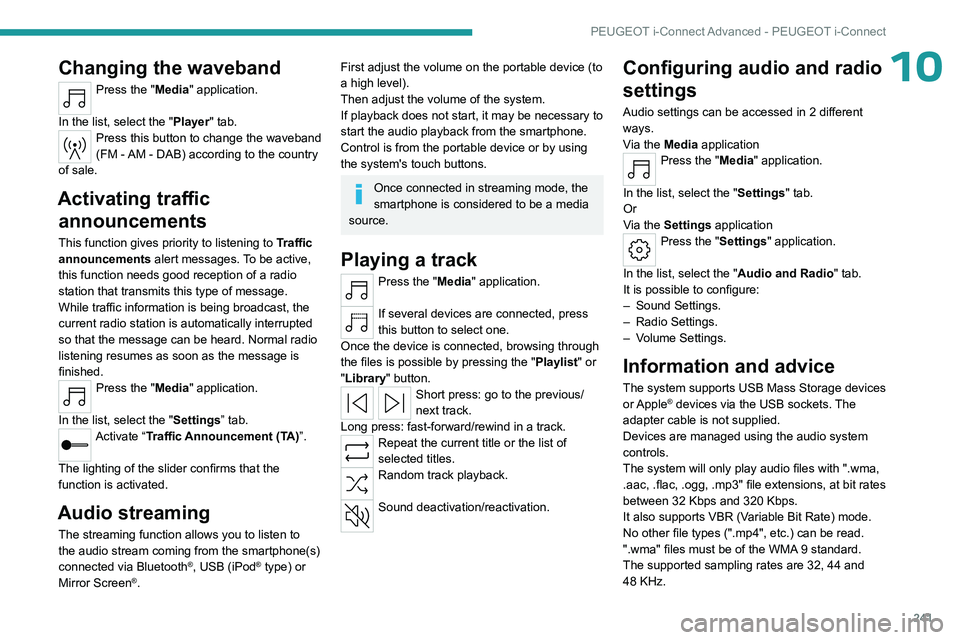
Press the "Media" application.
In the list, select the "Player" tab.
Press this button to change the waveband
(FM - AM - DAB) according to the country
of sale.
Activating traffic announcements
This function gives priority to listening to Traffic
announcements alert messages. To be active,
this function needs good reception of a radio
station that transmits this type of message.
While traffic information is being broadcast, the
current radio station is automatically interrupted
so that the message can be heard. Normal radio
listening resumes as soon as the message is
finished.
Press the "Media" application.
In the list, select the "Settings” tab.
Activate “Traffic Announcement (TA)”.
The lighting of the slider confirms that the
function is activated.
Audio streaming
The streaming function allows you to listen to
the audio stream coming from the smartphone(s)
connected via Bluetooth
®, USB (iPod® type) or
Mirror Screen®.
First adjust the volume on the portable device (to
a high level).
Then adjust the volume of the system.
If playback does not start, it may be necessary to
start the audio playback from the smartphone.
Control is from the portable device or by using
the system's touch buttons.
Once connected in streaming mode, the
smartphone is considered to be a media
source.
Playing a track
Press the "Media" application.
If several devices are connected, press
this button to select one.
Once the device is connected, browsing through
the files is possible by pressing the
"Playlist" or
"Library"
button.
Short press: go to the previous/
next track.
Long press: fast-forward/rewind in a track.
Repeat the current title or the list of
selected titles.
Random track playback.
Sound deactivation/reactivation.
Configuring audio and radio
settings
Audio settings can be accessed in 2 different
ways.
Via the Media application
Press the "Media" application.
In the list, select the "Settings" tab.
Or
Via the Settings application
Press the "Settings" application.
In the list, select the "Audio and Radio " tab.
It is possible to configure:
–
Sound Settings.
–
Radio Settings.
–
V
olume Settings.
Information and advice
The system supports USB Mass Storage devices
or Apple® devices via the USB sockets. The
adapter cable is not supplied.
Devices are managed using the audio system
controls.
The system will only play audio files with ".wma,
.aac,
.flac, .ogg, .mp3" file extensions, at bit rates
between 32 Kbps and 320 Kbps.
It also supports VBR (Variable Bit Rate) mode.
No other file types (".mp4", etc.) can be read.
".wma" files must be of the WMA 9 standard.
The supported sampling rates are 32, 44 and
48 KHz.
Page 245 of 280
243
PEUGEOT i-Connect Advanced - PEUGEOT i-Connect
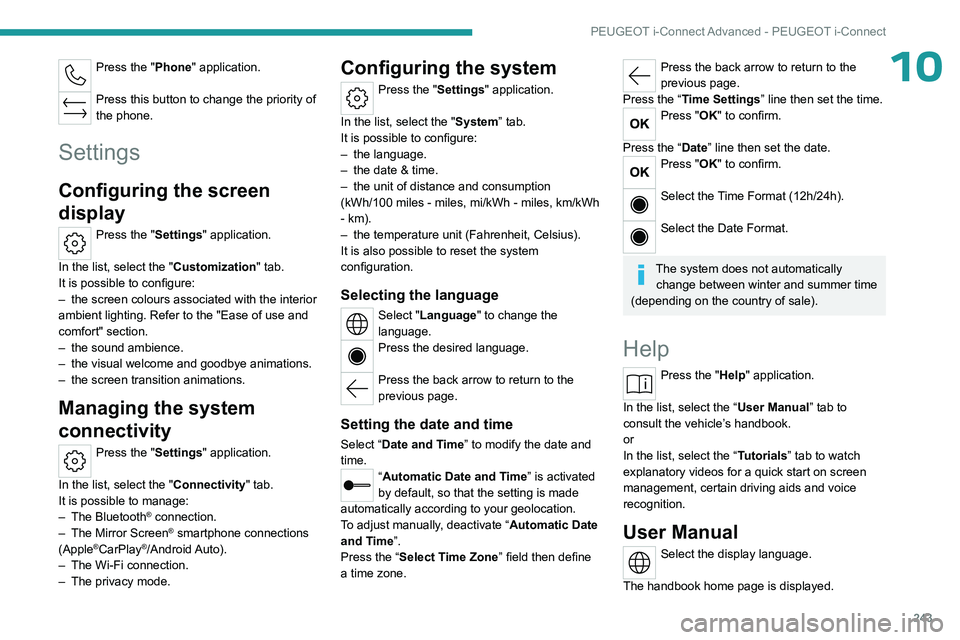
10Press the "Phone" application.
Press this button to change the priority of
the phone.
Settings
Configuring the screen
display
Press the "Settings" application.
In the list, select the "Customization" tab.
It is possible to configure:
–
the screen colours associated with the interior
ambient lighting. Refer to the "Ease of use and
comfort" section.
–
the sound ambience.
–
the visual welcome and goodbye animations.
–
the screen transition animations.
Managing the system
connectivity
Press the "Settings" application.
In the list, select the "Connectivity" tab.
It is possible to manage:
–
The Bluetooth® connection.
–
The Mirror Screen® smartphone connections
(Apple®CarPlay®/Android Auto).
–
The Wi-Fi connection.
–
The privacy mode.
Configuring the system
Press the "Settings" application.
In the list, select the "System” tab.
It is possible to configure:
–
the language.
–
the date & time.
–
the unit of distance and consumption
(kWh/100 miles - miles, mi/kWh - miles, km/kWh
- km).
–
the temperature unit (Fahrenheit, Celsius).
It is also possible to reset the system
configuration.
Selecting the language
Select "Language" to change the
language.
Press the desired language.
Press the back arrow to return to the
previous page.
Setting the date and time
Select “Date and Time” to modify the date and
time.
“Automatic Date and Time” is activated
by default, so that the setting is made
automatically according to your geolocation.
To adjust manually, deactivate “Automatic Date
and Time”.
Press the “Select Time Zone” field then define
a time zone.
Press the back arrow to return to the
previous page.
Press the “Time Settings” line then set the time.
Press "OK" to confirm.
Press the “Date” line then set the date.
Press "OK" to confirm.
Select the Time Format (12h/24h).
Select the Date Format.
The system does not automatically change between winter and summer time
(depending on the country of sale).
Help
Press the "Help" application.
In the list, select the “User Manual” tab to
consult the vehicle’s handbook.
or
In the list, select the “Tutorials” tab to watch
explanatory videos for a quick start on screen
management, certain driving aids and voice
recognition.
User Manual
Select the display language.
The handbook home page is displayed.
Page 248 of 280
246
Vehicle data recording and privacy
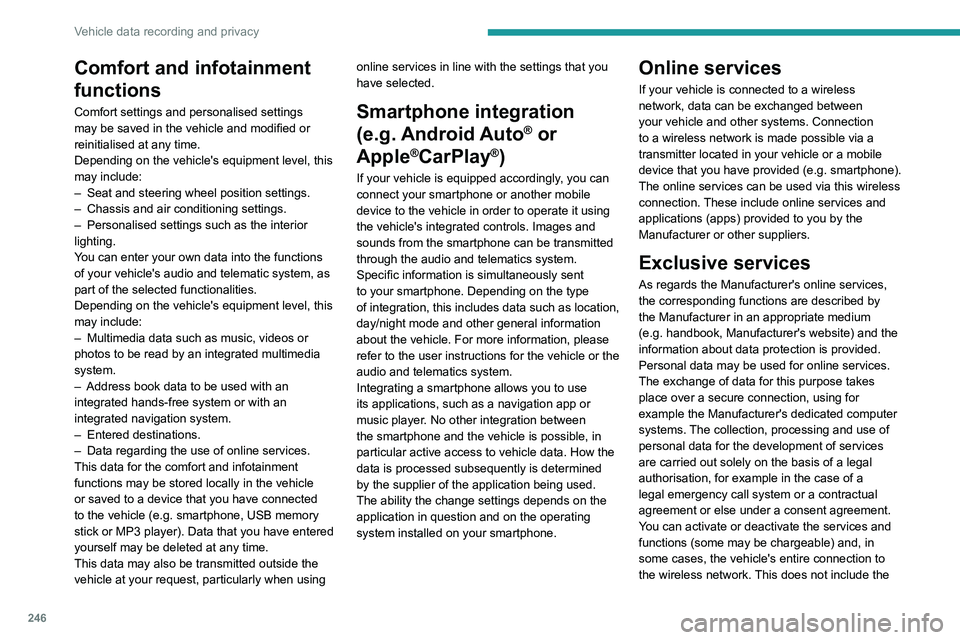
Comfort and infotainment
functions
Comfort settings and personalised settings
may be saved in the vehicle and modified or
reinitialised at any time.
Depending on the vehicle's equipment level,
this
may
include:
–
Seat and steering wheel position settings.
–
Chassis and air conditioning settings.
–
Personalised settings such as the interior
lighting.
Y
ou can enter your own data into the functions
of your vehicle's audio and telematic system, as
part of the selected functionalities.
Depending on the vehicle's equipment level,
this
may
include:
–
Multimedia data such as music, videos or
photos to be read by an integrated multimedia
system.
–
Address book data to be used with an
integrated hands-free system or with an
integrated navigation system.
–
Entered destinations.
–
Data regarding the use of online services.
This data for the comfort and infotainment
functions may be stored locally in the vehicle
or saved to a device that you have connected
to the vehicle (e.g.
smartphone, USB memory
stick or MP3 player). Data that you have entered
yourself may be deleted at any time.
This data may also be transmitted outside the
vehicle at your request, particularly when using online services in line with the settings that you
have selected. Smartphone integration
(e.g.
Android
Auto
® or
Apple
®CarPlay®)
If your vehicle is equipped accordingly, you can
connect your smartphone or another mobile
device to the vehicle in order to operate it using
the vehicle's integrated controls. Images and
sounds from the smartphone can be transmitted
through the audio and telematics system.
Specific information is simultaneously sent
to your smartphone. Depending on the type
of
integration, this includes data such as location,
day/night mode and other general information
about the vehicle. For more information, please
refer to the user instructions for the vehicle or the
audio and telematics system.
Integrating a smartphone allows you to use
its applications, such as a navigation app or
music player. No other
integration between
the smartphone and the vehicle is possible, in
particular active access to vehicle data. How the
data is processed subsequently is determined
by the supplier of the application being used.
The ability the change settings depends on the
application in question and on the operating
system installed on your smartphone.
Online services
If your vehicle is connected to a wireless
network, data can be exchanged between
your vehicle and other systems. Connection
to a wireless network is made possible
via a
transmitter located in your vehicle or a mobile
device that you have provided (e.g.
smartphone).
The online services can be used via this wireless
connection.
These include online services and
applications (apps) provided to you by the
Manufacturer or other suppliers.
Exclusive services
As regards the Manufacturer's online services,
the corresponding functions are described by
the Manufacturer in an appropriate medium
(e.g.
handbook, Manufacturer's website) and the
information about data protection is provided.
Personal data may be used for online services.
The exchange of data for this purpose takes
place over a secure connection, using for
example the Manufacturer's dedicated computer
systems. The collection, processing and use of
personal data for the development of services
are carried out solely on the basis of a legal
authorisation, for example in the case of a
legal emergency call system or a contractual
agreement or else under a consent agreement.
You can activate or deactivate the services and
functions (some may be chargeable) and, in
some cases, the vehicle's entire connection to
the wireless network. This does not include the
Page 251 of 280
249
Alphabetical index
Charging flap (Electric) 174, 177, 179–180
Charging flap (Rechargeable hybrid)
168, 170, 172–173
Charging system (Electric)
7, 173, 189
Charging the battery
214
Charging the traction battery
(Electric)
173, 177, 179–180
Charging the traction battery (Rechargeable
hybrid)
22, 167, 170, 172–173
CHECK
25
Checking the engine oil level
20
Checking the levels
190–191
Checking tyre pressures
(using the kit)
201, 203
Checks
189, 191–193
Checks, routine
191–192
Child lock
97
Children
87, 93–94
Children (safety)
97
Child seats
87, 90–92, 94
Child seats, conventional
94–96
Child seats, i-Size
94–96
Child seats, ISOFIX
93–96
Cleaning (advice)
163–164, 196–198
Closing the boot
33, 37
Closing the doors
33, 37
Collision Risk Alert
142–144
Configuration, vehicle
12, 27
Connection, Bluetooth
237–238
Connectivity
243
Consumptions
28
Container, AdBlue®
194Control, emergency boot release 37
Control, emergency door
35
Control, heated seats
49–50
Controls, steering mounted
106, 109
Control stalk, lighting
69–70
Control stalk, wipers
75–77
Control unit
165, 168–169, 172, 175
Courtesy lamps
64
Cruise control
124, 126, 128–129
Cruise control, adaptive
124, 126, 130–131
Cruise control by speed limit
recognition
124, 126
Cup holder
60
D
Date (setting) 243
Daytime running lamps
70
Deactivating the passenger airbag
89, 92
Deadlocking
31, 33
Deferred charging
29, 172, 178
Deferred charging (Electric)
174, 177
Deferred charging (Rechargeable
hybrid)
28–29, 168, 170
Defrosting
51, 59
Defrosting, front
59
Defrosting, rear screen
59
Demisting
51, 59
Demisting, front
59
Demisting, rear
59
Diagnosis, vehicle
25
Dials and gauges 11
Digital instrument panel
11
Dimensions
227
Dipstick
20, 190
Direction indicators (turn signals)
70, 208–209
Display screen, instrument panel
12
Domestic charging
165
Domestic charging (Electric)
178–180
Domestic charging (Rechargeable
hybrid)
172–173
Door pockets
60
Doors
37
Drive Assist Plus
130
Drive, electric
7, 173, 181, 189, 210, 218, 226
Driver’s attention warning
146–147
Drive selector (Electric)
11 2
Driving
46–47, 98–99, 121
Driving aids camera (warnings)
120
Driving aid shortcuts
121
Driving aids (recommendations)
119
Driving economically
9
Driving modes
11 3
Driving modes (Electric)
11 4
Driving positions (storing)
49
Dynamic stability control (DSC)
85
E
e-Auto mode 56, 117, 160
EBFD
84
Eco-driving (advice)
9
Page 252 of 280
250
Alphabetical index
ECO mode 113–114
Electronic brake force distribution (EBFD)
84
Emergency braking assistance (EBA)
84
Emergency call
81–82
Emergency switching off
102
Emergency warning lamps
80, 199
Emissions control system, SCR
22, 193
Energy economy (mode)
187
Energy economy mode
187
Energy flows
28
Energy recovery
22, 110, 112
Engine
193
Engine, 48 V hybrid
117, 163, 218, 223
Engine compartment
189
Engine, Diesel
160, 189, 199, 222
Engine, petrol
114, 189, 221
Engines
220–223
Environment
9, 36, 99
e-Save function (energy reserve)
29
ESC (electronic stability control)
84
Event data recorder
83
Expanded traffic sign recognition
126
Exterior lighting
72
F
Fatigue detection 146–147
Favourite driving functions
121
Filling the AdBlue® tank
191, 195
Filling the fuel tank
160–161
Filter, air
192
Filter, oil 192
Filter, particle
192
Filter, passenger compartment
55, 192
Fitting a wheel
205–206
Fitting roof bars
185
Fittings, boot
66
Fittings, front
60
Fittings, interior
61
Fittings, rear
64
Flap, charging
172, 178
Flap, fuel filler
160–161
Flap, ski
64
Flashing indicators
70
Flat bed (towing)
218
Floor, boot, adjustable
67
Fluid, brake
191
Fluid, engine coolant
191
Foglamps, rear
69, 209
Folding the rear seats
53–54
Frequency (radio)
240
Fuel
9, 160
Fuel consumption
9, 22
Fuel level, low
160
Fuel (tank)
160–161
Fuses
209
G
Gauge, fuel 160
Gearbox, automatic
105–109, 111, 192, 210
Gearbox, dual-clutch automatic
108
Gearbox, manual 105, 192
Gear lever
105, 115
Gear lever, manual gearbox
105
Gear shift indicator
11 5
Glove box
61
H
Hands-free access 39
Hands-free tailgate
39
Hazard warning lamps
80, 199
Headlamps (adjustment)
70
Headlamps, automatic dipping
72–73
Headlamps, automatic operation
71
Headlamps, main beam
72
Head restraints, front
47
Head restraints, rear
53–54
Heated steering wheel
51
Heating
55
Heating, programmable
29, 59
Hi-Fi system
63
High voltage
167, 173
Hill start assist
114–115
Histogramme, fuel consumption
28–29
Horn
81
Hybrid, 48 V mild
6, 117, 163, 218, 223
Hybrid system
6, 163
Page 253 of 280
251
Alphabetical index
I
Ignition 101, 242
Ignition on
101
Immobiliser, electronic
100
Indicator, AdBlue® range
21
Indicator, coolant temperature
21
Indicator, engine oil level
20
Indicators, direction
70
Indicator, service
19
Inflating tyres
193, 228
Inflating tyres and accessories
(using the kit)
201, 203
Information, vehicle
11, 245
Infrared camera
120
Instrument panel
11, 25, 25–26, 120
Instrument panels
11
ISOFIX mountings
93, 95–96
J
Jack 200–201, 204
Jump starting
210, 213
K
Key 30, 32, 35
Key, electronic
32–33
Keyless Entry and Starting
30, 32–33, 100–101
Key not recognised 102
Key with remote control
30, 100
Kit, hands-free
237
Kit, puncture repair
200–201
Kit, temporary puncture repair
200–203
Klaxon
81
L
Labels, identification 228
Lamps, parking
70
Lamps, rear
208–209
Lamps with Full LED technology
71, 73
Lane keeping assist
148
Lane positioning assist
130, 135–136
Leather (care)
198
LEDs - Light-emitting diodes
70, 208–209
Level, AdBlue®
191
Level, brake fluid
191
Level, Diesel additive
192
Level, engine coolant
21, 191
Level, engine oil
20, 190
Levels and checks
189–191
Level, screenwash fluid
76, 191
Light-emitting diodes - LEDs
70, 208–209
Lighting, boot
68
Lighting dimmer
25
Lighting, exterior
69, 72
Lighting, guide-me home
71
Lighting, interior
64
Lighting, mood
64
Lighting, welcome 71–72
Loading
185
Load reduction mode
188
Locating your vehicle
31
Locking
31–33
Locking from the inside
34
Locking the doors
34
Log, alerts
25
Long-distance blind spot monitoring
150
Long objects, transporting
64
Lumbar
48
M
Mains socket (domestic network) 168–169, 175
Maintenance (advice)
163–164, 196
Maintenance, routine
120, 191, 193
Manoeuvring aids (recommendations)
119
Map reading lamps
64
Markings, identification
228
Massage function
50
Massage, multi-point
50
Mat
63, 120
Menu, shortcuts
27
Minimum traction battery charge level
(Electric)
24
Mirror, rear view
52
Mirrors, door
51–52, 59, 150
Mirror, vanity
61
Misfuel prevention
161
Mobile application
29, 59, 170, 172, 177, 178
Page 254 of 280
252
Alphabetical index
Motor, electric 101, 114, 163, 167,
189, 224, 226
Motorised tailgate
37–38, 40
Mountings, ISOFIX
93, 95–96
N
Net, high load retaining 67
Net, luggage retaining
66
Normal mode
113–114
O
Obstacle detection 151
Oil change
190
Oil consumption
190
Oil, engine
190
On-board tools
68, 199–201
Opening the bonnet
188–189
Opening the boot
32, 37
Opening the doors
32, 37
P
Pads, brake 193
Paint
197, 228
Paint colour code
228
Parking brake, electric
102–104, 193
Parking (sensors)
151
Parking sensors, audible and visual 151
Parking sensors, front
152
Parking sensors, rear
151
Passenger compartment temperature pre-
conditioning (Rechargeable hybrid)
29, 59
Pedestrian horn (Electric)
99
Personalisation
12, 29
Plates, identification
228
Port, USB
61, 64
Post Collision Safety Brake
84
Power
22
Power indicator (Rechargeable hybrid)
22
Pressures, tyres
193, 202, 228
Pre-tensioning (seat belts)
87
Priming the fuel system
199
Profiles
230
Protecting children
89–94
Proximity Keyless Entry and Start
32
Public fast charging station
175, 178
Puncture
201–202, 204
R
Radar (warnings) 119
Radio
240
Range
10
Range, AdBlue®
21, 191
Reading lamps
64
Rear bench seat
53
Rear cross traffic alert
157
Rear screen (demisting)
59
Rechargeable hybrid engine 28, 218, 224
Rechargeable hybrid system
6, 28, 100, 114, 167
Recharging the battery
210–211, 213, 215
Recharging the traction battery
165
Recharging the traction battery
(Electric)
173, 177, 179–180
Recharging the traction battery
(Rechargeable hybrid)
167, 170, 172–173
Recirculation, air
58
Recorder, trip distance
25
Reduction of electrical load (mode)
188
Regeneration of the particle filter
192
Regenerative braking (deceleration
by engine braking)
110, 112
Reinitialising the remote control
36
Reinitialising the under-inflation detection
system
119
Reminder, lighting on
69
Remote control
30–33, 35
Remote functions
172, 178
Remotely operable functions (Rechargeable
hybrid)
29, 59
Removing a wheel
205–206
Removing the mat
63
Replacing bulbs
207–209
Replacing fuses
209
Replacing the air filter
192
Replacing the oil filter
192
Replacing the passenger compartment
filter
192
Reservoir, screenwash
191
Page 256 of 280
254
Alphabetical index
Towing another vehicle 219
Towing the vehicle
217–219
Traction battery
163
Traction battery charge
165
Traction battery (Electric)
173, 177
Traction battery (Rechargeable
hybrid)
24, 167, 170
Traction control (ASR)
85
Trailer
85, 180
Trailer stability assist (TSA)
85
Trajectory control systems
84
Triangle, warning
199
Trip computer
25–26
Tyres
193, 228
Tyre under-inflation detection
118, 202
U
Under-inflation (detection) 11 8
Unlocking
30, 32
Unlocking from the inside
34
Unlocking the boot
30, 33
Unlocking the doors
34
Unlocking the tailgate
30, 33
Updating the time
243
V
Vehicle data recording and privacy 245
Ventilation
55
Visibility
59
Visiopark 155
Visiopark 1
153
W
Wallbox (Electric) 175
Wallbox (Rechargeable hybrid)
168–169, 172
Warning and indicator lamps
12–13
Warning lamp, driver's seat belt
not fastened
87
Warning lamps
13
Warning lamp, seat belts
87
Warnings and indicators
12–13
Washing
120
Washing (advice)
163–164, 196–197
Weights
220, 223, 226
Welcome lighting
72
Wheel, spare
193, 200–201, 204
Window controls
43
Windscreen, heated
59
Wiper blades (changing)
78
Wiper, rear
76
Wipers
75
Wipers, automatic rain sensitive
77
Wipers, windscreen
75, 77