radio PEUGEOT 308 2024 User Guide
[x] Cancel search | Manufacturer: PEUGEOT, Model Year: 2024, Model line: 308, Model: PEUGEOT 308 2024Pages: 280, PDF Size: 8.13 MB
Page 235 of 280
233
PEUGEOT i-Connect Advanced - PEUGEOT i-Connect
10Press one of these buttons on the screen.
Select the desired Widget.
Press the back arrow to return to the
previous page.
Organising the Widgets on a home
page (HOME)
To move a Widget, press and hold it, then drag it
to the desired location.
Adding a page
To add a page, press "Page" on the left of the screen.
Press the back arrow to return to the
previous page.
Deleting a Widget
To move a Widget to the bin, press and hold it, then drag it to the bin.
Personalising the
instrument panel
Press the pencil in the "Customize
Driver Information" part.
The modification of the organisation of the
different Widget is displayed on the instrument
panel in real time.
A Widget is a reduced window of an application or service.
Adding a Widget
To add a Widget, press "Widget" on the left of the screen.
Or
Press one of these buttons on the screen.
Select the desired Widget.
Press the back arrow to return to the
previous page.
Deleting a Widget
To move a Widget to the bin, press and hold it, then drag it to the bin.
Personalising i-Toggles
(depending on equipment)
In the central screen, display the page containing
the button that you want to include.
The shortcuts are used to access an application (air conditioning page, radio
page, etc.) or to perform an action (set the
temperature to 21°, call a selected directory
contact, etc.).
Press and hold the shortcut you want to
replace.
A panel is displayed on the central screen with
all of the eligible shortcuts in boxes.
A notification also informs you of the next step to
perform.
Select the new shortcut required. It will be
duplicated in i-Toggles and will replace the one originally selected. A notification also informs you
of this.
To exit this function at any time, press this
button or press the main "Home" button.
Steering-mounted
controls
Voice control:
Short press, system voice commands
(depending on equipment).
Long press, voice commands of the smartphone
connected using Bluetooth
® or Mirror Screen®
(Apple®CarPlay®/Android Auto) via the system.Increase volume.
Decrease volume.
Mute the sound: long press on the
decrease volume button.
Restore the sound by pressing one of the two
volume buttons.
Incoming call (short press): accept the
call.
Call in progress (short press): hang up.
Incoming call (long press): refuse the incoming
call.
Out of call (short press): access the call log of
the telephone connected via
Bluetooth
®.
Mirror Screen® connected (short press): access
the projected view of the telephone application of
your Mirror Screen
® equipment.
Page 236 of 280
234
PEUGEOT i-Connect Advanced - PEUGEOT i-Connect
Radio: automatic search for the
previous/next station (in the list of
radio stations sorted by name or by frequencies).
Media: previous/next track, movement in the
lists.
Phone: browse the telephone's call log.
Short press: validate a selection. Out of
selection, display the lists.
Applications
From the home page, press this button to
access the applications wall.
From any page, press the touch screen
with three or more fingers to display the
applications wall.
Help
Access the handbook and watch tutorials.
Media
Select an audio source or radio station.
Mirror Screen®
Smartphone connected with Mirror
Screen®: access to the projected view of
Apple®CarPlay® or Android Auto.
Smartphone not connected: access the menu
allowing you to connect a smartphone.
Navigation
(depending on equipment)
Enter navigation settings and choose a
destination.
Use services available in real time, depending on
equipment.
Voice commands
(depending on equipment)
Use the system or smartphone voice recognition
via the system.
Phone
Telephone not connected: access the
menu allowing you to connect a telephone.
Telephone connected: access the call log,
contacts and telephone settings.
Two connected telephones: access the contents
of the priority telephone with the possibility of
changing the priority of the telephone.
Settings
Main settings for the audio system, touch
screen and digital instrument panel.
Voice commands
First steps
(depending on equipment)
The voice recognition service offers a
choice of 20 languages minimum (French,
German, English (UK), English (US), Arabic,
Brazilian, Chinese, Danish, Spanish, Hebrew,
Italian, Japanese, Dutch, Norwegian, Polish,
Portuguese, Russian, Swedish, Czech, Turkish)
available with the cellular network and in line
with the language chosen and previously
configured in the system. The system supports two languages
for cases
where the area in which the vehicle is travelling
is not covered by the cellular network.
These languages, referred to as on-board
languages,
are downloaded into the system.
If the chosen language has not been
downloaded, a message on the screen appears
as soon as the cellular network is not connected
for the first time and offers to download it.
T
o use this new language in all areas, download
it beforehand (ignition on without starting the
engine) via the Wi-Fi network.
Apply the download procedure displayed on the
screen.
Downloading this new language removes the
least used on-board language.
Information - Using the
system
When voice commands are activated, say
your command after the audible signal.
For commands in several stages, interaction
takes place with the system to complete the
initial request.
Some commands self-validate after 7
seconds.
If the system has not taken your command into
account, it will indicate this by a voice message
and an on-screen display.
Press the "Settings" application.
In the list, select the "Voice Assistant" tab.
Page 237 of 280
235
PEUGEOT i-Connect Advanced - PEUGEOT i-Connect
10Activate/Deactivate:
–
"Detect (Wake up Word)": to invoke the voice
recognition using the keyword " OK Peugeot".
–
"Data Usage ": to authorise our supplier to
re-use your data in order to let him globally
improve its capabilities in term of voice
recognition and voice assistance.
Voice Assistant/Data usage
Vehicle's location and voice recordings
are not concerned; only textual transcriptions
of your conversations with the voice assistant
are kept after to be pseudonymised.
Opening voice recognition
Voice commands can be used on any
screen page, provided there are no other
sources which take priority in use (reverse,
emergency or assistance call, telephone call,
other smartphone voice recognition already
launched).
Choice of opening voice recognition:
►
Say
"OK Peugeot".
or
►
Press the button located on the steering
wheel.
or
►
Press the touch screen button.
To ensure that voice commands are always recognised by the system, please
follow these recommendations:
–
Use natural language in a normal tone
without breaking up words or raising your
voice.
–
After opening voice recognition with the
steering wheel-mounted button or the button
on the touch screen, always wait for the
"beep" (audible signal) before talking. No
"beep" sounds when voice recognition is
opened using " OK Peugeot
".
–
For optimal operation, it is recommended
that you close the windows and the sunroof
(depending on equipment) to avoid any
external interference, and switch the
ventilation off.
–
Before speaking the voice commands, ask
the other passengers not to speak.
Voice command example for air
conditioning:
"raise the fan speed"
"Turn on air conditioning"
"i'm too hot"
Voice command example for radio and
media:
"I want to listen to michael jackson"
"switch to radio"
"tune to 88.5"
Media voice commands are only
available with an USB connection.
Voice command example for navigation:
"navigate home"
"Navigate me to gabrielle's house"
"search for public parking nearby"
Depending on the country, give
destination (address) instructions in the
language configured for the system.
Voice command example for telephone:
"Call Matthew's mobile"
"call 0113 345 9869"
"Call jonathan"
If there is no telephone connected by
Bluetooth®, a pop-up window appears:
"Connect a telephone by Bluetooth®", and
the voice session will be closed.
Voice command example for the weather:
"do i need a raincoat"
"how is the weather tonight"
"what is today's humidity level"
Page 242 of 280
240
PEUGEOT i-Connect Advanced - PEUGEOT i-Connect
If the device has already been connected to the
system via Bluetooth®, select the device settings
from the list of known devices and choose
Android Auto as the wireless connection mode.
The subsequent automatic connection of the
smartphone requires activation of Bluetooth
® on
your device.
As soon as the connection is established, press this button to display the " Android
Auto" interface.
To initiate the smartphone voice commands, press and hold the steering-
mounted control button.
Media
Changing source
Press the "Media" application.
Press this button to change source (radio,
audio streaming via a USB socket,
Bluetooth
® or Mirror Screen®).
Selecting a radio station
Press the "Media" application.
In the list, select the "Player" tab.
Press one of the buttons to
perform an automatic search for
radio stations.
Or
Move the slider to manually search for
frequencies up or down.
Or
Press this button.
Enter the frequency values using the
virtual keypad.
Press this button to confirm.
A list of stations is available by pressing the
“Stations” tab.
Press “Mute” to activate/deactivate the
sound.
Radio reception may be affected by the
use of electrical equipment not approved
by the Brand, such as a charger with USB
socket connected to the 12
V socket.
The exterior environment (hills, buildings,
tunnels, basement car parks, etc.) may block
reception, including in RDS mode. This
phenomenon is normal in the propagation
of radio waves and does not indicate any
malfunction of the system.
Storing a radio station
Select a station.Press the "Media" application.
In the list, select the "Player” tab.
Press the "Radio Favorites" button.
Storing takes place via a short or long
press on one of these buttons, or a long
press on an existing favourite radio station,
which will be replaced.
Press this button to return to the previous
page.
Automatic search for radio stations
Via the "Media" application.Press the "Media" application.
In the list, select the "Stations" tab.
The search is carried out automatically.
Using the steering-mounted
controls, press and hold this
button.
The search is carried out automatically.
Activating radio station tracking
The system changes frequency automatically to
obtain better reception.
Press the "Media" application.
In the list, select the "Settings” tab.
Activate “Radio Station Tracking”.
The lighting of the slider confirms that the
function is activated.
Page 243 of 280
241
PEUGEOT i-Connect Advanced - PEUGEOT i-Connect
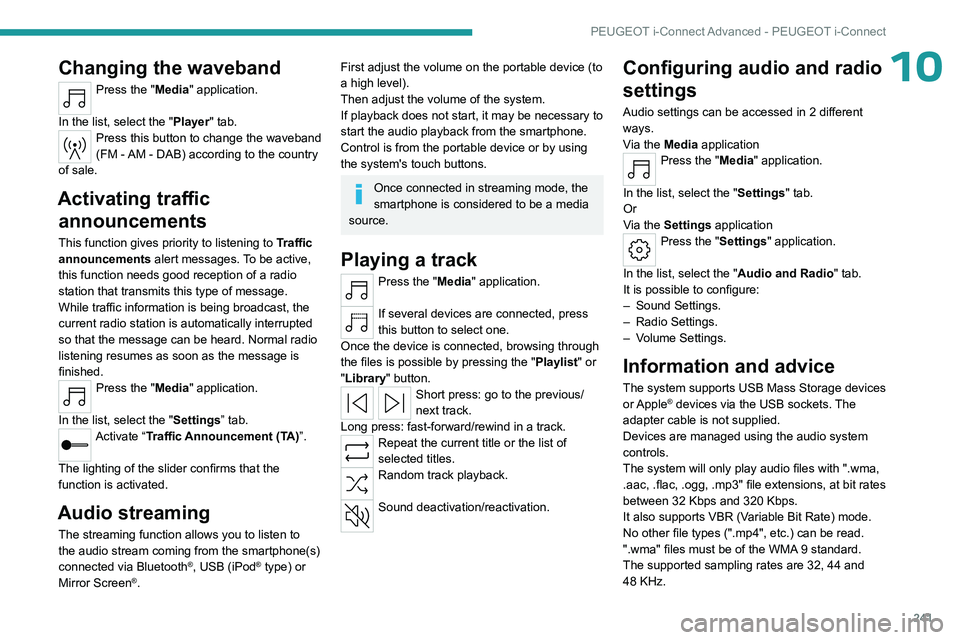
10Changing the waveband
Press the "Media" application.
In the list, select the "Player" tab.
Press this button to change the waveband
(FM - AM - DAB) according to the country
of sale.
Activating traffic announcements
This function gives priority to listening to Traffic
announcements alert messages. To be active,
this function needs good reception of a radio
station that transmits this type of message.
While traffic information is being broadcast, the
current radio station is automatically interrupted
so that the message can be heard. Normal radio
listening resumes as soon as the message is
finished.
Press the "Media" application.
In the list, select the "Settings” tab.
Activate “Traffic Announcement (TA)”.
The lighting of the slider confirms that the
function is activated.
Audio streaming
The streaming function allows you to listen to
the audio stream coming from the smartphone(s)
connected via Bluetooth
®, USB (iPod® type) or
Mirror Screen®.
First adjust the volume on the portable device (to
a high level).
Then adjust the volume of the system.
If playback does not start, it may be necessary to
start the audio playback from the smartphone.
Control is from the portable device or by using
the system's touch buttons.
Once connected in streaming mode, the
smartphone is considered to be a media
source.
Playing a track
Press the "Media" application.
If several devices are connected, press
this button to select one.
Once the device is connected, browsing through
the files is possible by pressing the
"Playlist" or
"Library"
button.
Short press: go to the previous/
next track.
Long press: fast-forward/rewind in a track.
Repeat the current title or the list of
selected titles.
Random track playback.
Sound deactivation/reactivation.
Configuring audio and radio
settings
Audio settings can be accessed in 2 different
ways.
Via the Media application
Press the "Media" application.
In the list, select the "Settings" tab.
Or
Via the Settings application
Press the "Settings" application.
In the list, select the "Audio and Radio " tab.
It is possible to configure:
–
Sound Settings.
–
Radio Settings.
–
V
olume Settings.
Information and advice
The system supports USB Mass Storage devices
or Apple® devices via the USB sockets. The
adapter cable is not supplied.
Devices are managed using the audio system
controls.
The system will only play audio files with ".wma,
.aac,
.flac, .ogg, .mp3" file extensions, at bit rates
between 32 Kbps and 320 Kbps.
It also supports VBR (Variable Bit Rate) mode.
No other file types (".mp4", etc.) can be read.
".wma" files must be of the WMA 9 standard.
The supported sampling rates are 32, 44 and
48 KHz.
Page 252 of 280
250
Alphabetical index
ECO mode 113–114
Electronic brake force distribution (EBFD)
84
Emergency braking assistance (EBA)
84
Emergency call
81–82
Emergency switching off
102
Emergency warning lamps
80, 199
Emissions control system, SCR
22, 193
Energy economy (mode)
187
Energy economy mode
187
Energy flows
28
Energy recovery
22, 110, 112
Engine
193
Engine, 48 V hybrid
117, 163, 218, 223
Engine compartment
189
Engine, Diesel
160, 189, 199, 222
Engine, petrol
114, 189, 221
Engines
220–223
Environment
9, 36, 99
e-Save function (energy reserve)
29
ESC (electronic stability control)
84
Event data recorder
83
Expanded traffic sign recognition
126
Exterior lighting
72
F
Fatigue detection 146–147
Favourite driving functions
121
Filling the AdBlue® tank
191, 195
Filling the fuel tank
160–161
Filter, air
192
Filter, oil 192
Filter, particle
192
Filter, passenger compartment
55, 192
Fitting a wheel
205–206
Fitting roof bars
185
Fittings, boot
66
Fittings, front
60
Fittings, interior
61
Fittings, rear
64
Flap, charging
172, 178
Flap, fuel filler
160–161
Flap, ski
64
Flashing indicators
70
Flat bed (towing)
218
Floor, boot, adjustable
67
Fluid, brake
191
Fluid, engine coolant
191
Foglamps, rear
69, 209
Folding the rear seats
53–54
Frequency (radio)
240
Fuel
9, 160
Fuel consumption
9, 22
Fuel level, low
160
Fuel (tank)
160–161
Fuses
209
G
Gauge, fuel 160
Gearbox, automatic
105–109, 111, 192, 210
Gearbox, dual-clutch automatic
108
Gearbox, manual 105, 192
Gear lever
105, 115
Gear lever, manual gearbox
105
Gear shift indicator
11 5
Glove box
61
H
Hands-free access 39
Hands-free tailgate
39
Hazard warning lamps
80, 199
Headlamps (adjustment)
70
Headlamps, automatic dipping
72–73
Headlamps, automatic operation
71
Headlamps, main beam
72
Head restraints, front
47
Head restraints, rear
53–54
Heated steering wheel
51
Heating
55
Heating, programmable
29, 59
Hi-Fi system
63
High voltage
167, 173
Hill start assist
114–115
Histogramme, fuel consumption
28–29
Horn
81
Hybrid, 48 V mild
6, 117, 163, 218, 223
Hybrid system
6, 163
Page 254 of 280
252
Alphabetical index
Motor, electric 101, 114, 163, 167,
189, 224, 226
Motorised tailgate
37–38, 40
Mountings, ISOFIX
93, 95–96
N
Net, high load retaining 67
Net, luggage retaining
66
Normal mode
113–114
O
Obstacle detection 151
Oil change
190
Oil consumption
190
Oil, engine
190
On-board tools
68, 199–201
Opening the bonnet
188–189
Opening the boot
32, 37
Opening the doors
32, 37
P
Pads, brake 193
Paint
197, 228
Paint colour code
228
Parking brake, electric
102–104, 193
Parking (sensors)
151
Parking sensors, audible and visual 151
Parking sensors, front
152
Parking sensors, rear
151
Passenger compartment temperature pre-
conditioning (Rechargeable hybrid)
29, 59
Pedestrian horn (Electric)
99
Personalisation
12, 29
Plates, identification
228
Port, USB
61, 64
Post Collision Safety Brake
84
Power
22
Power indicator (Rechargeable hybrid)
22
Pressures, tyres
193, 202, 228
Pre-tensioning (seat belts)
87
Priming the fuel system
199
Profiles
230
Protecting children
89–94
Proximity Keyless Entry and Start
32
Public fast charging station
175, 178
Puncture
201–202, 204
R
Radar (warnings) 119
Radio
240
Range
10
Range, AdBlue®
21, 191
Reading lamps
64
Rear bench seat
53
Rear cross traffic alert
157
Rear screen (demisting)
59
Rechargeable hybrid engine 28, 218, 224
Rechargeable hybrid system
6, 28, 100, 114, 167
Recharging the battery
210–211, 213, 215
Recharging the traction battery
165
Recharging the traction battery
(Electric)
173, 177, 179–180
Recharging the traction battery
(Rechargeable hybrid)
167, 170, 172–173
Recirculation, air
58
Recorder, trip distance
25
Reduction of electrical load (mode)
188
Regeneration of the particle filter
192
Regenerative braking (deceleration
by engine braking)
110, 112
Reinitialising the remote control
36
Reinitialising the under-inflation detection
system
119
Reminder, lighting on
69
Remote control
30–33, 35
Remote functions
172, 178
Remotely operable functions (Rechargeable
hybrid)
29, 59
Removing a wheel
205–206
Removing the mat
63
Replacing bulbs
207–209
Replacing fuses
209
Replacing the air filter
192
Replacing the oil filter
192
Replacing the passenger compartment
filter
192
Reservoir, screenwash
191
Page 255 of 280
253
Alphabetical index
Resetting the trip 25–26
Reversing camera
120, 153–155
Reversing lamps
208–209
Road sign recognition
122
Roof bars
185
Roof, opening
44
Running out of fuel (Diesel)
199
S
Safety, children 89–94
Saturation of the particle filter (Diesel)
192
Screens, very cold conditions
185
Screenwash
76
Screenwash, front
76
Screenwash, rear
76
SCR (Selective Catalytic Reduction)
22, 193
Seat angle
48
Seat belts
86–87
Seat belts, rear
86
Seats, electric
48–49
Seats, front
47–49
Seats, heated
49–50
Seats, rear
53–54, 91
Selector, gear
105–108, 111, 115
Semi-automatic lane changing
138
Sensors (warnings)
120
Serial number, vehicle
228
Servicing
19, 191, 193
Settings, equipment
12, 27
Shield, snow
185
Sidelamps
70, 208–209
Silent vehicle warning sound (Electric) 99
Smartphone
29, 62
Snow chains
118, 187
Snow screen
185
Socket, 12 V
61
Socket, 12 V accessory
61, 68
Socket, diagnostic
80
Speakers
63
Speed limiter
124, 126–127
Speed limit recognition
122
Speedometer
11, 120
Sport mode
113–114
Spotlamps, side
72
Stability control (ESC)
84–85
Starting a Diesel engine
160
Starting/Stopping the vehicle
100
Starting the engine
100–101
Starting the vehicle
100, 106
Starting using another battery
102, 210, 213
State of charge, battery
28
Station, radio
240
Stay, engine bonnet
188
Steering wheel
121
Steering wheel (adjustment)
51
Stickers, customising
197
Stopping the vehicle
101, 106, 111
Stop & Start
26, 56, 59, 115–117,
160, 192, 212
Storage
60–61, 63–65
Storage box
68
Storage wells
66, 68
Storing driving positions
49
Stowing rings
66–67Sunshine sensor 55
Sun visor
61
Super-fast charging (Electric)
179–180
Suspension
193
Switching off the engine
100–101
Synchronising the remote control
36
System, event data recording
83
T
Tables of engines 221–224, 226
Tailgate
37
Tank, fuel
160–161
Technical data
221–224, 226
Telephone
237–238, 242
Temperature, coolant
21
Thermal comfort consumption indicator
(Electric)
24
Thermal comfort equipment
24
Time (setting)
243
Tool box
68
Tools
199–201
Topping-up AdBlue®
195
Top Tether (fixing)
93, 95–96
Total distance recorder
25
Touch screen
26, 28–29, 59
Towball, quickly detachable
181–184
Towbar
85, 180
Towbar with quickly detachable
towball
181–184
Towed loads
220–224, 226
Towing
217, 219