key Peugeot 308 CC 2011 Service Manual
[x] Cancel search | Manufacturer: PEUGEOT, Model Year: 2011, Model line: 308 CC, Model: Peugeot 308 CC 2011Pages: 292, PDF Size: 40.04 MB
Page 218 of 292
216
08
14
5
2ABC3DEF5JKL4GHI6MNO8TUV7PQRS9WXYZ0*#
1NAV ESC TRAFFICADDR
BOOK2ABC3DEF5JKL4GHI6MNO8TUV7PQRS9WXYZ0*#
1SETUP2ABC3DEF5JKL4GHI6MNO8TUV7PQRS9WXYZ0*#
1
3
2ABC3DEF5JKL4GHI6MNO8TUV7PQRS9WXYZ0*#
1RADIO MEDIANAV ESC TRAFFIC
SETUPADDR
BOOK
2
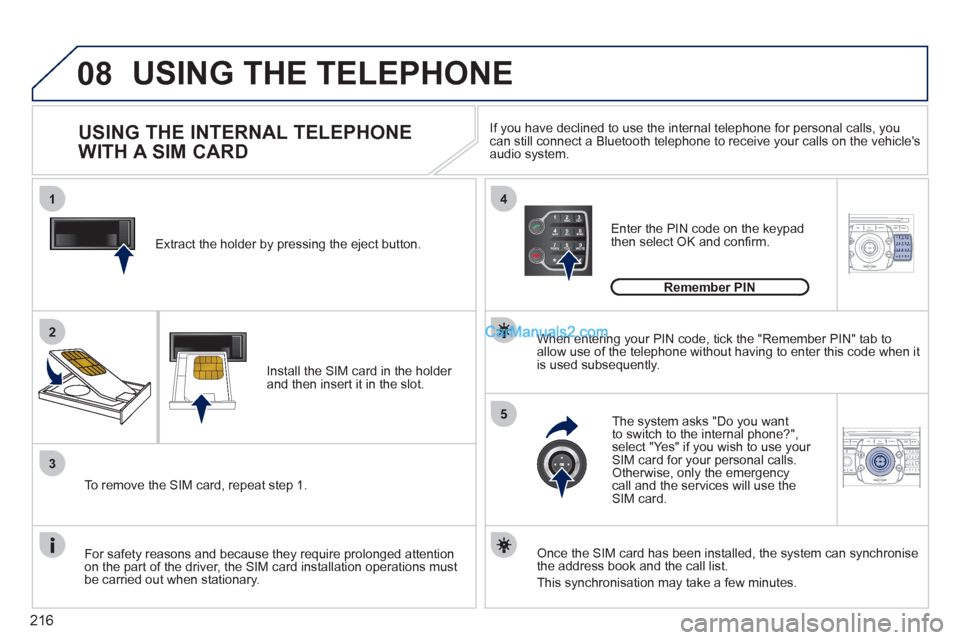
Extract the holder by pressing the eject button.
Install the SIM card in the holder
and then insert it in the slot.
To remove the SIM card, repeat step 1.
For safety reasons and because they require prolonged attention
on the part of the driver, the SIM card installation operations must
be carried out when stationary.
Enter the PIN code on the keypad
then select OK and confi rm.
The system asks "Do you want
to switch to the internal phone?",
select "Yes" if you wish to use your
SIM card for your personal calls.
Otherwise, only the emergency
call and the services will use the
SIM card.
Remember PIN
When entering your PIN code, tick the "Remember PIN" tab to
allow use of the telephone without having to enter this code when it
is used subsequently.
USING THE INTERNAL TELEPHONE
WITH A SIM CARD
USING THE TELEPHONE
Once the SIM card has been installed, the system can synchronise
the address book and the call list.
This synchronisation may take a few minutes.
If you have declined to use the internal telephone for personal calls, you
can still connect a Bluetooth telephone to receive your calls on the vehicle's
audio system.
Page 219 of 292
217
08
1
22ABC3DEF5JKL4GHI6MNO8TUV7PQRS9WXYZ0*#
1RADIO MEDIANAV ESC TRAFFIC
SETUPADDR
BOOK
2ABC3DEF5JKL4GHI6MNO8TUV7PQRS9WXYZ0*#
1RADIO MEDIANAV ESC TRAFFIC
SETUPADDR
BOOK
2ABC3DEF5JKL4GHI6MNO8TUV7PQRS9WXYZ0*#
1RADIO MEDIANAV ESC TRAFFIC
SETUPADDR
BOOK
3
1
3
2ABC3DEF5JKL4GHI6MNO8TUV7PQRS9WXYZ0*#
1RADIO MEDIANAV ESC TRAFFIC
SETUPADDR
BOOK2
2ABC3DEF5JKL4GHI6MNO8TUV7PQRS9WXYZ0*#
1RADIO MEDIANAV ESC TRAFFIC
SETUPADDR
BOOK
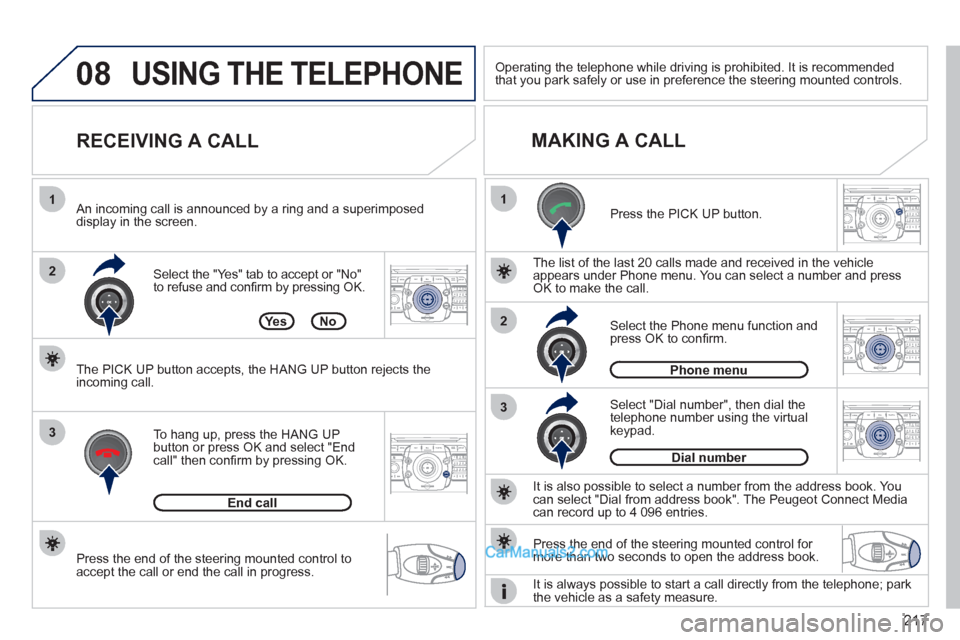
Press the end of the steering mounted control to
accept the call or end the call in progress.
Select the "Yes" tab to accept or "No"
to refuse and confi rm by pressing OK.
RECEIVING A CALL
MAKING A CALL
An incoming call is announced by a ring and a superimposed
display in the screen.
To hang up, press the HANG UP
button or press OK and select "End
call" then confi rm by pressing OK.
End call
Press the PICK UP button.
It is also possible to select a number from the address book. You
can select "Dial from address book". The Peugeot Connect Media
can record up to 4 096 entries.
Select "Dial number", then dial the
telephone number using the virtual
keypad.
Select the Phone menu function and
press OK to confi rm.
Dial number
Phone menu
The list of the last 20 calls made and received in the vehicle
appears under Phone menu. You can select a number and press
OK to make the call.
Ye s N o
The PICK UP button accepts, the HANG UP button rejects the
incoming call.
USING THE TELEPHONE
Press the end of the steering mounted control for
more than two seconds to open the address book.
Operating the telephone while driving is prohibited. It is recommended
that you park safely or use in preference the steering mounted controls.
It is always possible to start a call directly from the telephone; park
the vehicle as a safety measure.
Page 230 of 292
228
QUESTION
ANSWER
SOLUTION
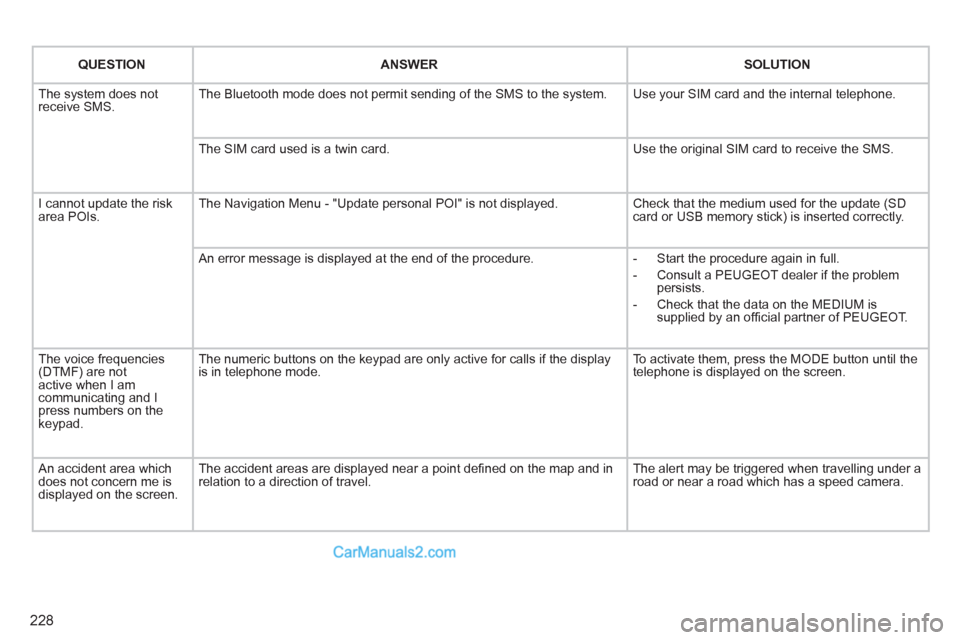
The system does not
receive SMS. The Bluetooth mode does not permit sending of the SMS to the system. Use your SIM card and the internal telephone.
The SIM card used is a twin card. Use the original SIM card to receive the SMS.
I cannot update the risk
area POIs. The Navigation Menu - "Update personal POI" is not displayed. Check that the medium used for the update (SD
card or USB memory stick) is inserted correctly.
An error message is displayed at the end of the procedure.
- Start the procedure again in full.
- Consult a PEUGEOT dealer if the problem
persists.
- Check that the data on the MEDIUM is
supplied by an offi cial partner of PEUGEOT.
The voice frequencies
(DTMF) are not
active when I am
communicating and I
press numbers on the
keypad. The numeric buttons on the keypad are only active for calls if the display
is in telephone mode. To activate them, press the MODE button until the
telephone is displayed on the screen.
An accident area which
does not concern me is
displayed on the screen. The accident areas are displayed near a point defi ned on the map and in
relation to a direction of travel. The alert may be triggered when travelling under a
road or near a road which has a speed camera.
Page 237 of 292
235
04
1
2
3
5
6
4
NAVIGATION - GUIDANCE
SELECTING A DESTINATION
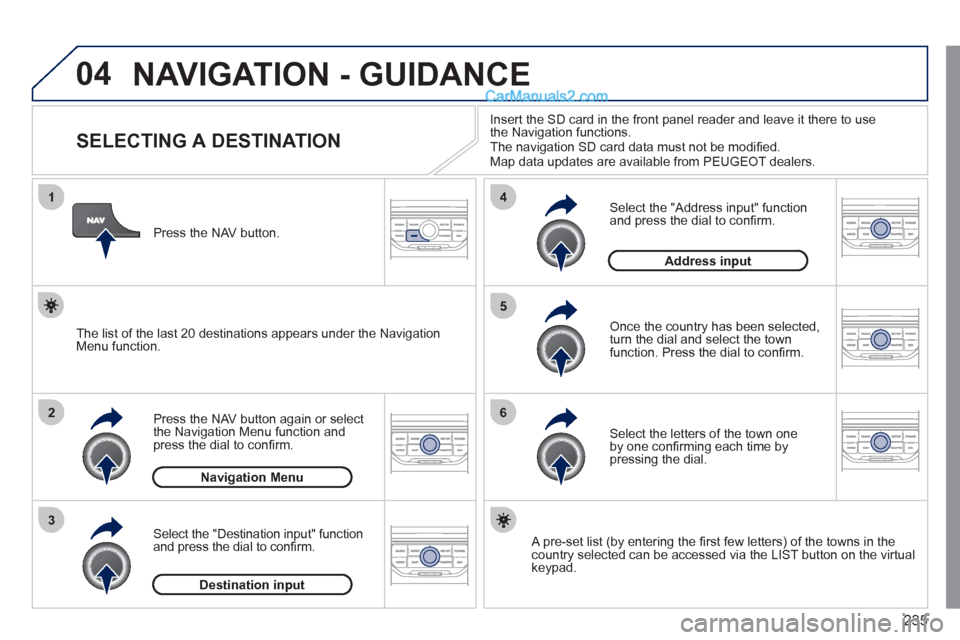
Press the NAV button again or select
the Navigation Menu function and
press the dial to confi rm.
Select the "Destination input" function
and press the dial to confi rm.
Press the NAV button.
Select the letters of the town one
by one confi rming each time by
pressing the dial.
Once the country has been selected,
turn the dial and select the town
function. Press the dial to confi rm.
Insert the SD card in the front panel reader and leave it there to use
the Navigation functions.
The navigation SD card data must not be modifi ed.
Map data updates are available from PEUGEOT dealers.
A pre-set list (by entering the fi rst few letters) of the towns in the
country selected can be accessed via the LIST button on the virtual
keypad.
Select the "Address input" function
and press the dial to confi rm.
The list of the last 20 destinations appears under the Navigation
Menu function.
Navigation Menu
Destination input
Address input
Page 238 of 292
236
04
7
8
9
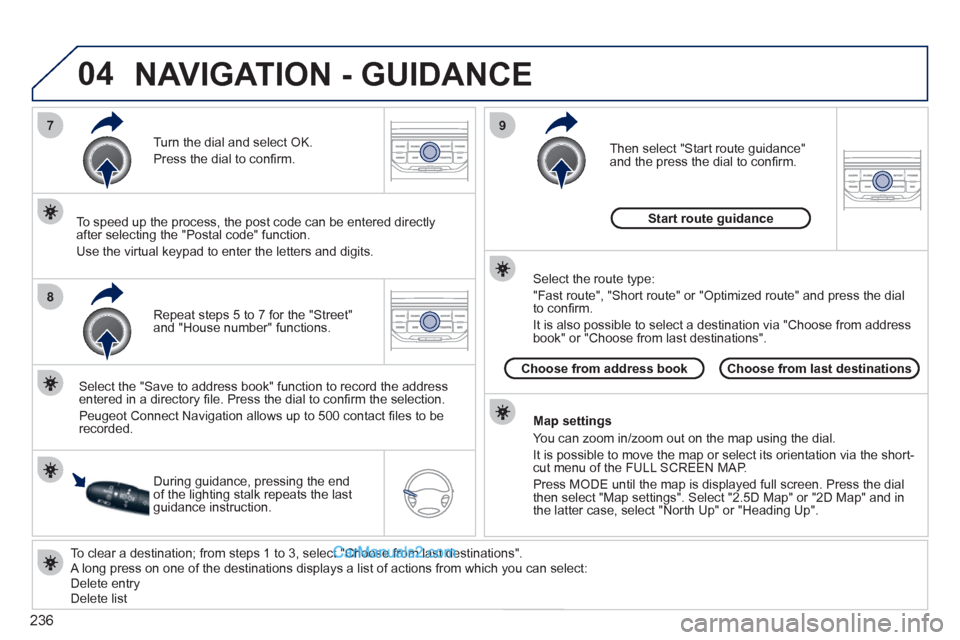
To clear a destination; from steps 1 to 3, select "Choose from last destinations".
A long press on one of the destinations displays a list of actions from which you can select:
Delete entry
Delete list
Repeat steps 5 to 7 for the "Street"
and "House number" functions.
Turn the dial and select OK.
Press the dial to confi rm.
Select the "Save to address book" function to record the address
entered in a directory fi le. Press the dial to confi rm the selection.
Peugeot Connect Navigation allows up to 500 contact fi les to be
recorded.
To speed up the process, the post code can be entered directly
after selecting the "Postal code" function.
Use the virtual keypad to enter the letters and digits.
Then select "Start route guidance"
and the press the dial to confi rm.
During guidance, pressing the end
of the lighting stalk repeats the last
guidance instruction.
Map settings
You can zoom in/zoom out on the map using the dial.
It is possible to move the map or select its orientation via the short-
cut menu of the FULL SCREEN MAP.
Press MODE until the map is displayed full screen. Press the dial
then select "Map settings". Select "2.5D Map" or "2D Map" and in
the latter case, select "North Up" or "Heading Up".
Select the route type:
"Fast route", "Short route" or "Optimized route" and press the dial
to confi rm.
It is also possible to select a destination via "Choose from address
book" or "Choose from last destinations".
Choose from last destinations
Choose from address book
Start route guidance
NAVIGATION - GUIDANCE
Page 242 of 292
240
04
8
6
7
4
3
5
2
1
NAVIGATION - GUIDANCE
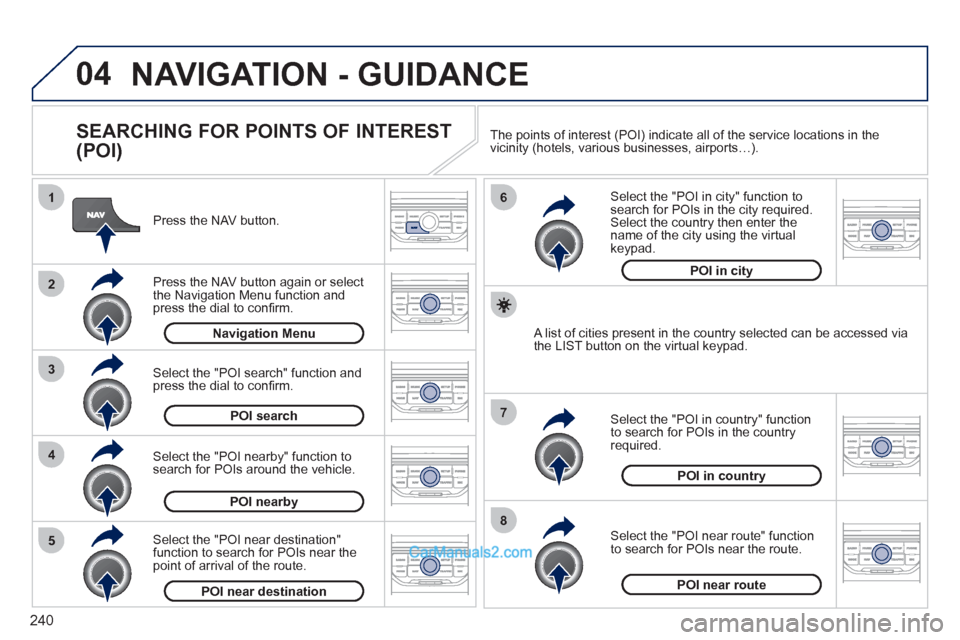
SEARCHING FOR POINTS OF INTEREST
(POI)
Press the NAV button.
Press the NAV button again or select
the Navigation Menu function and
press the dial to confi rm.
Select the "POI nearby" function to
search for POIs around the vehicle.
Select the "POI search" function and
press the dial to confi rm.
Navigation Menu
POI search
POI nearby
Select the "POI in city" function to
search for POIs in the city required.
Select the country then enter the
name of the city using the virtual
keypad.
Select the "POI near route" function
to search for POIs near the route.
Select the "POI in country" function
to search for POIs in the country
required.
Select the "POI near destination"
function to search for POIs near the
point of arrival of the route.
POI near destination
POI near route
POI in country
POI in city
A list of cities present in the country selected can be accessed via
the LIST button on the virtual keypad. The points of interest (POI) indicate all of the service locations in the
vicinity (hotels, various businesses, airports…).
Page 247 of 292
245
06
3 2 1 1
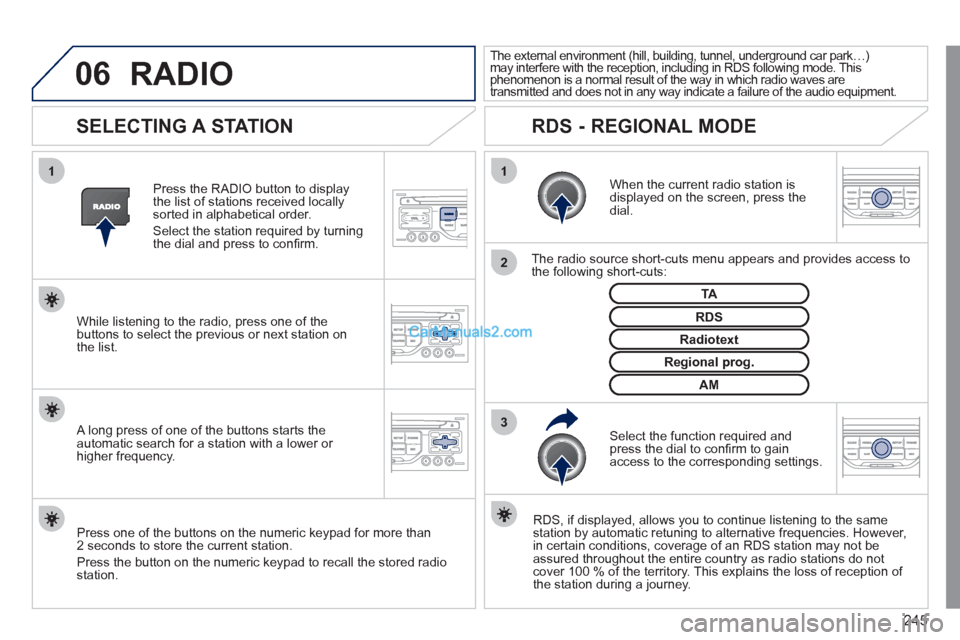
SELECTING A STATION
When the current radio station is
displayed on the screen, press the
dial.
The radio source short-cuts menu appears and provides access to
the following short-cuts:
Select the function required and
press the dial to confi rm to gain
access to the corresponding settings.
TA
RDS, if displayed, allows you to continue listening to the same
station by automatic retuning to alternative frequencies. However,
in certain conditions, coverage of an RDS station may not be
assured throughout the entire country as radio stations do not
cover 100 % of the territory. This explains the loss of reception of
the station during a journey.
The external environment (hill, building, tunnel, underground car park…)
may interfere with the reception, including in RDS following mode. This
phenomenon is a normal result of the way in which radio waves are
transmitted and does not in any way indicate a failure of the audio equipment.
RDS - REGIONAL MODE
Press the RADIO button to display
the list of stations received locally
sorted in alphabetical order.
Select the station required by turning
the dial and press to confi rm.
Regional prog.
Radiotext
RDS
While listening to the radio, press one of the
buttons to select the previous or next station on
the list.
Press one of the buttons on the numeric keypad for more than
2 seconds to store the current station.
Press the button on the numeric keypad to recall the stored radio
station.
AM
A long press of one of the buttons starts the
automatic search for a station with a lower or
higher frequency.
RADIO
Page 253 of 292
251
08
1
3 2
2 1
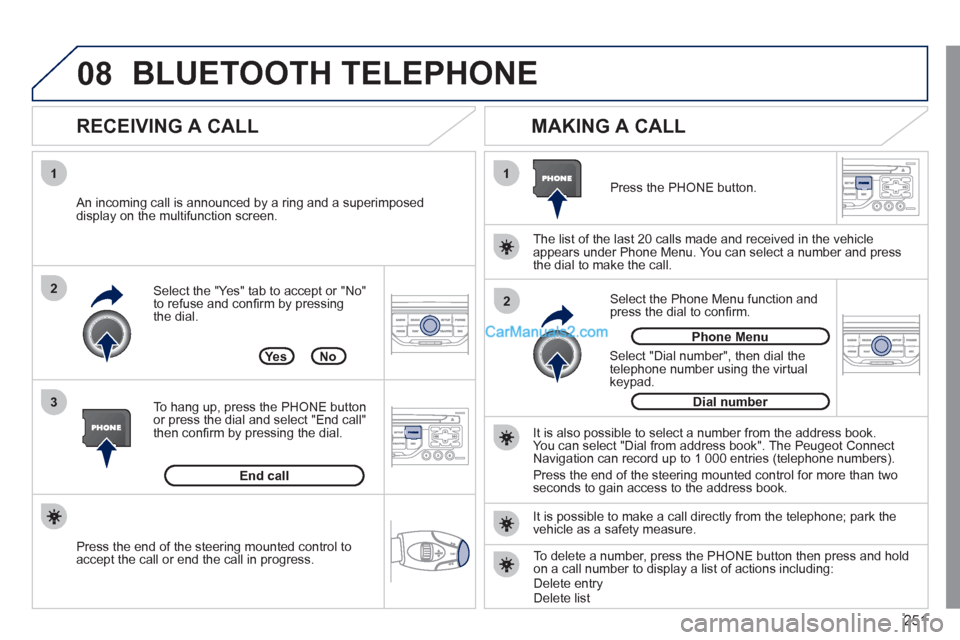
Select the "Yes" tab to accept or "No"
to refuse and confi rm by pressing
the dial.
RECEIVING A CALL
MAKING A CALL
An incoming call is announced by a ring and a superimposed
display on the multifunction screen.
Ye s
To hang up, press the PHONE button
or press the dial and select "End call"
then confi rm by pressing the dial.
End call
Press the PHONE button.
Select "Dial number", then dial the
telephone number using the virtual
keypad.
Select the Phone Menu function and
press the dial to confi rm.
The list of the last 20 calls made and received in the vehicle
appears under Phone Menu. You can select a number and press
the dial to make the call.
No
It is also possible to select a number from the address book.
You can select "Dial from address book". The Peugeot Connect
Navigation can record up to 1 000 entries (telephone numbers).
Press the end of the steering mounted control for more than two
seconds to gain access to the address book.
Phone Menu
Dial number
It is possible to make a call directly from the telephone; park the
vehicle as a safety measure.
BLUETOOTH TELEPHONE
Press the end of the steering mounted control to
accept the call or end the call in progress.
To delete a number, press the PHONE button then press and hold
on a call number to display a list of actions including:
Delete entry
Delete list
Page 273 of 292
271
06
1
2
3
4
5
6
7
8
9
10
BLUETOOTH
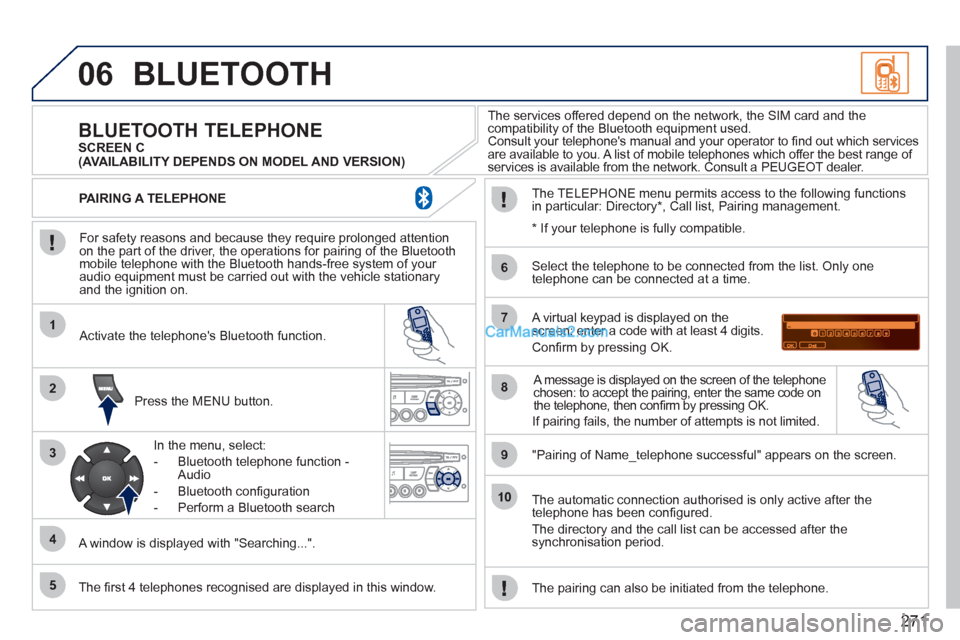
For safety reasons and because they require prolonged attention
on the part of the driver, the operations for pairing of the Bluetooth
mobile telephone with the Bluetooth hands-free system of your
audio equipment must be carried out with the vehicle stationary
and the ignition on.
Press the MENU button.
A window is displayed with "Searching...".
Activate the telephone's Bluetooth function.
In the menu, select:
- Bluetooth telephone function -
Audio
- Bluetooth confi guration
- Perform a Bluetooth search
The services offered depend on the network, the SIM card and the
compatibility of the Bluetooth equipment used.
Consult your telephone's manual and your operator to fi nd out which services
are available to you. A list of mobile telephones which offer the best range of
services is available from the network. Consult a PEUGEOT dealer.
BLUETOOTH TELEPHONE
SCREEN C
The TELEPHONE menu permits access to the following functions
in particular: Directory * , Call list, Pairing management.
The fi rst 4 telephones recognised are displayed in this window.
A virtual keypad is displayed on the
screen: enter a code with at least 4 digits.
Confi rm by pressing OK.
"Pairing of Name_telephone successful" appears on the screen.
Select the telephone to be connected from the list. Only one
telephone can be connected at a time.
A message is displayed on the screen of the telephone
chosen: to accept the pairing, enter the same code on
the telephone, then confi rm by pressing OK.
The automatic connection authorised is only active after the
telephone has been confi gured.
The directory and the call list can be accessed after the
synchronisation period.
PAIRING A TELEPHONE
The pairing can also be initiated from the telephone.
(AVAILABILITY DEPENDS ON MODEL AND VERSION)
* If your telephone is fully compatible.
If pairing fails, the number of attempts is not limited.
Page 274 of 292
272
06
1
2
1
2
1
2
3
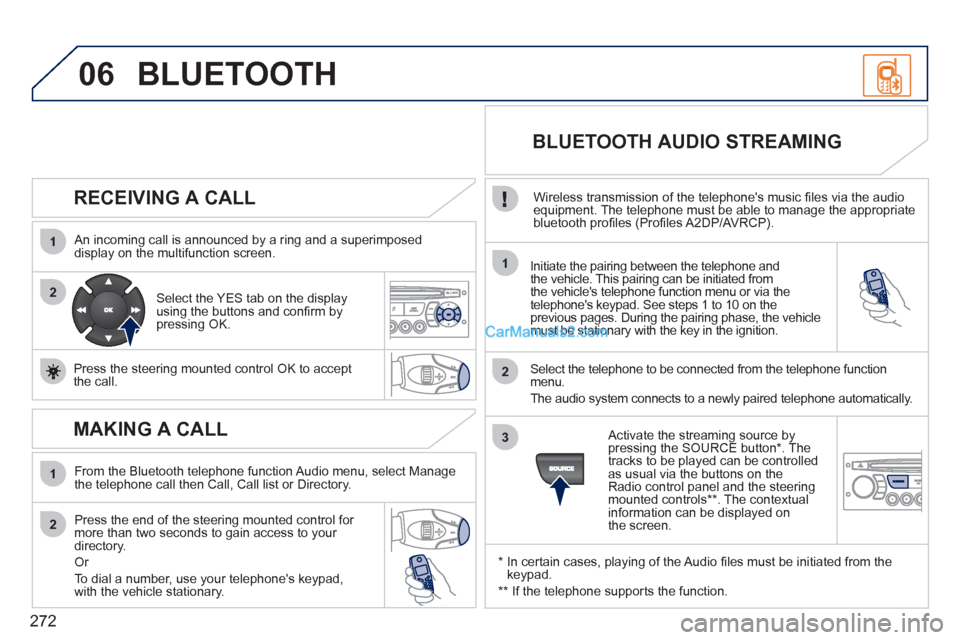
RECEIVING A CALL
An incoming call is announced by a ring and a superimposed
display on the multifunction screen.
Initiate the pairing between the telephone and
the vehicle. This pairing can be initiated from
the vehicle's telephone function menu or via the
telephone's keypad. See steps 1 to 10 on the
previous pages. During the pairing phase, the vehicle
must be stationary with the key in the ignition.
Select the telephone to be connected from the telephone function
menu.
The audio system connects to a newly paired telephone automatically.
Select the YES tab on the display
using the buttons and confi rm by
pressing OK.
Press the steering mounted control OK to accept
the call.
BLUETOOTH AUDIO STREAMING
Wireless transmission of the telephone's music fi les via the audio
equipment. The telephone must be able to manage the appropriate
bluetooth profi les (Profi les A2DP/AVRCP).
*
In certain cases, playing of the Audio fi les must be initiated from the
keypad.
** If the telephone supports the function.
Activate the streaming source by
pressing the SOURCE button * . The
tracks to be played can be controlled
as usual via the buttons on the
Radio control panel and the steering
mounted controls ** . The contextual
information can be displayed on
the screen.
BLUETOOTH
MAKING A CALL
From the Bluetooth telephone function Audio menu, select Manage
the telephone call then Call, Call list or Directory.
Press the end of the steering mounted control for
more than two seconds to gain access to your
directory.
Or
To dial a number, use your telephone's keypad,
with the vehicle stationary.