display Peugeot 308 CC 2011 Workshop Manual
[x] Cancel search | Manufacturer: PEUGEOT, Model Year: 2011, Model line: 308 CC, Model: Peugeot 308 CC 2011Pages: 292, PDF Size: 40.04 MB
Page 192 of 292
190
02 VOICE COMMANDS AND STEERING MOUNTED CONTROLS
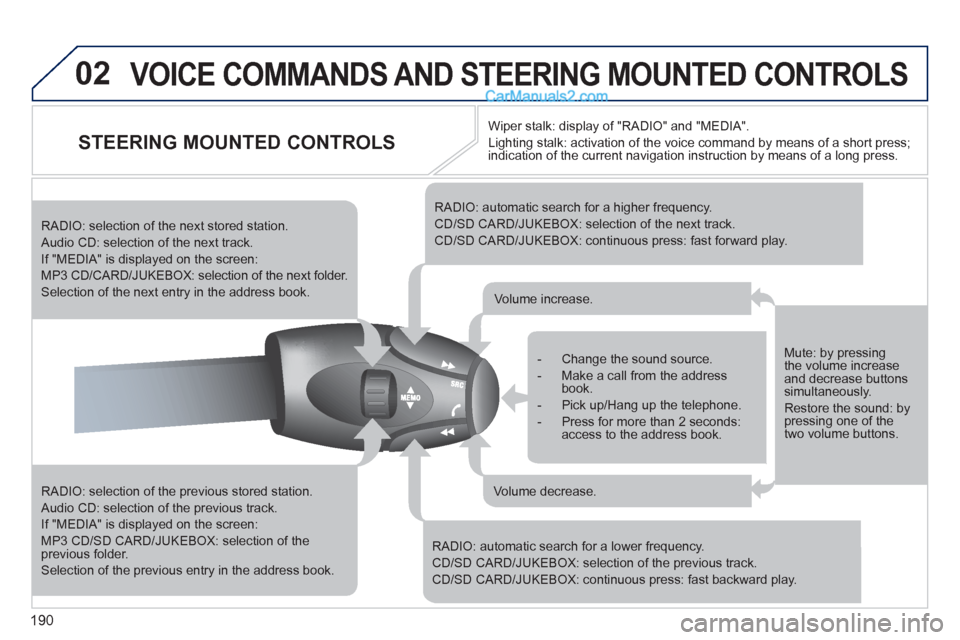
STEERING MOUNTED CONTROLS
RADIO: selection of the previous stored station.
Audio CD: selection of the previous track.
If "MEDIA" is displayed on the screen:
MP3 CD/SD CARD/JUKEBOX: selection of the
previous folder.
Selection of the previous entry in the address book.
RADIO: selection of the next stored station.
Audio CD: selection of the next track.
If "MEDIA" is displayed on the screen:
MP3 CD/CARD/JUKEBOX: selection of the next folder.
Selection of the next entry in the address book.
RADIO: automatic search for a higher frequency.
CD/SD CARD/JUKEBOX: selection of the next track.
CD/SD CARD/JUKEBOX: continuous press: fast forward play.
RADIO: automatic search for a lower frequency.
CD/SD CARD/JUKEBOX: selection of the previous track.
CD/SD CARD/JUKEBOX: continuous press: fast backward play.
- Change the sound source.
- Make a call from the address
book.
- Pick up/Hang up the telephone.
- Press for more than 2 seconds:
access to the address book.
Volume increase.
Volume decrease.
Mute: by pressing
the volume increase
and decrease buttons
simultaneously.
Restore the sound: by
pressing one of the
two volume buttons.
Wiper stalk: display of "RADIO" and "MEDIA".
Lighting stalk: activation of the voice command by means of a short press;
indication of the current navigation instruction by means of a long press.
Page 193 of 292
191
03
SETUP
TRAFFIC
MEDIA
GENERAL OPERATION
For a detailed global view of the menus available, refer to the
"Screen menu map" section of this handbook.
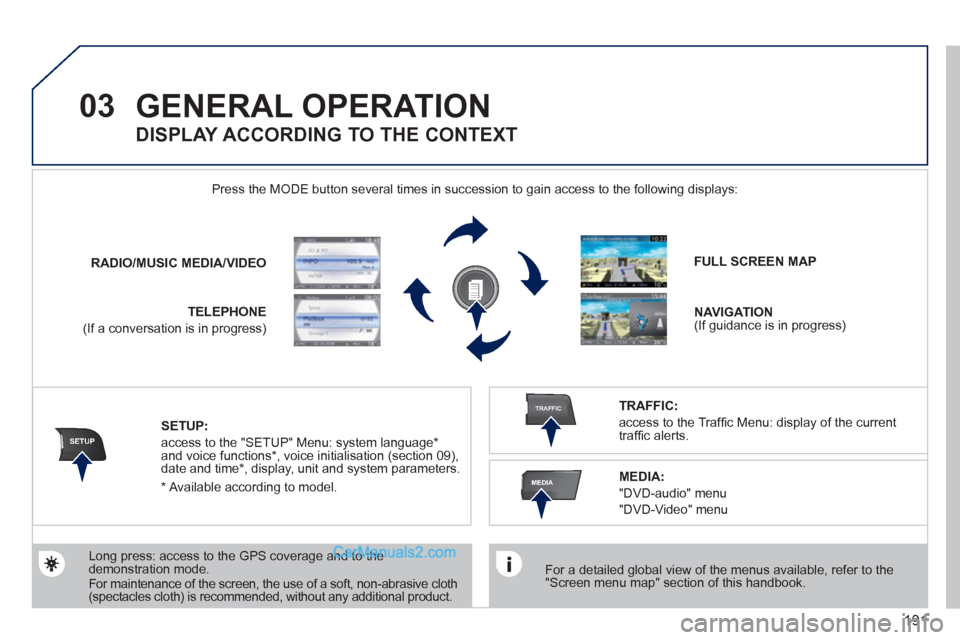
Press the MODE button several times in succession to gain access to the following displays:
Long press: access to the GPS coverage and to the
demonstration mode.
For maintenance of the screen, the use of a soft, non-abrasive cloth
(spectacles cloth) is recommended, without any additional product.
RADIO
/
MUSIC
MEDIA/VIDEO
TELEPHONE
(If a conversation is in progress)
FULL SCREEN MAP
NAVIGATION
(If guidance is in progress)
SETUP:
access to the "SETUP" Menu: system language *
and voice functions * , voice initialisation (section 09),
date and time * , display, unit and system parameters.
TRAFFIC:
access to the Traffi c Menu: display of the current
traffi c alerts.
DISPLAY ACCORDING TO THE CONTEXT
MEDIA:
"DVD-audio" menu
"DVD-Video" menu
*
Available according to model.
Page 194 of 292
192
03 GENERAL OPERATION
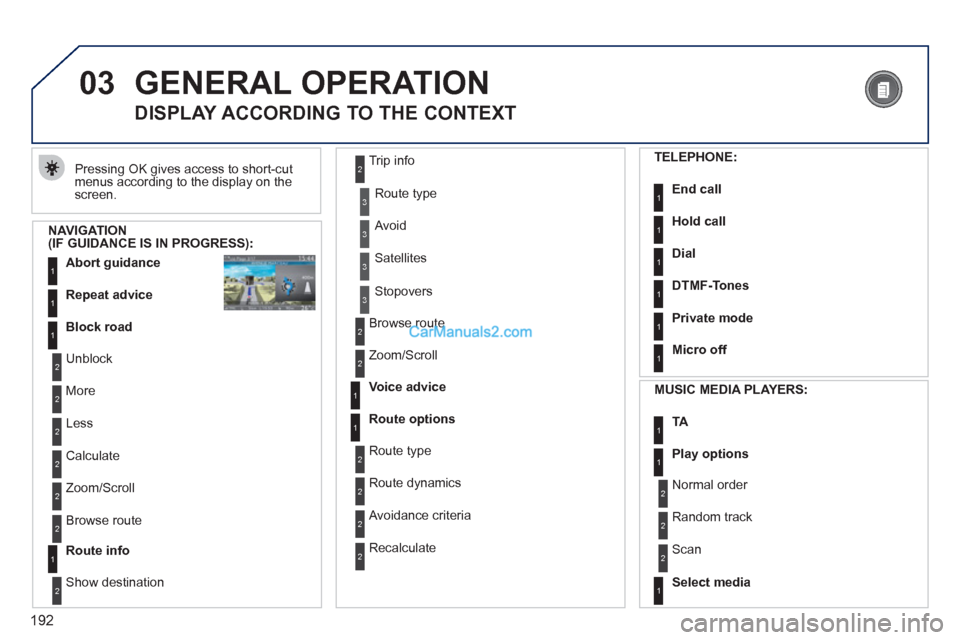
Pressing OK gives access to short-cut
menus according to the display on the
screen.
DISPLAY ACCORDING TO THE CONTEXT
NAVIGATION
(IF GUIDANCE IS IN PROGRESS):
Abort guidance
1
1
1
Repeat advice
Block road
2
2
Unblock
More
2
Less
3
3
Route type
Avoid
3
Satellites
2
2
Calculate
Zoom/Scroll
2
Browse route
1
Route info
2
2
Show destination Trip info
3
Stopovers
2
2
Browse route
Zoom/Scroll
1
1
Voice advice
Route options
2
2
Route type
Route dynamics
2
Avoidance criteria
2
Recalculate
TELEPHONE:
End call
1
1
1
1
Hold call
Dial
DTMF-Tones
1
Private mode
1
Micro off
MUSIC MEDIA PLAYERS:
TA
1
1
Play options
1
Select media
2
2
Normal order
Random track
2
Scan
Page 195 of 292
193
03 GENERAL OPERATION
DISPLAY ACCORDING TO THE CONTEXT
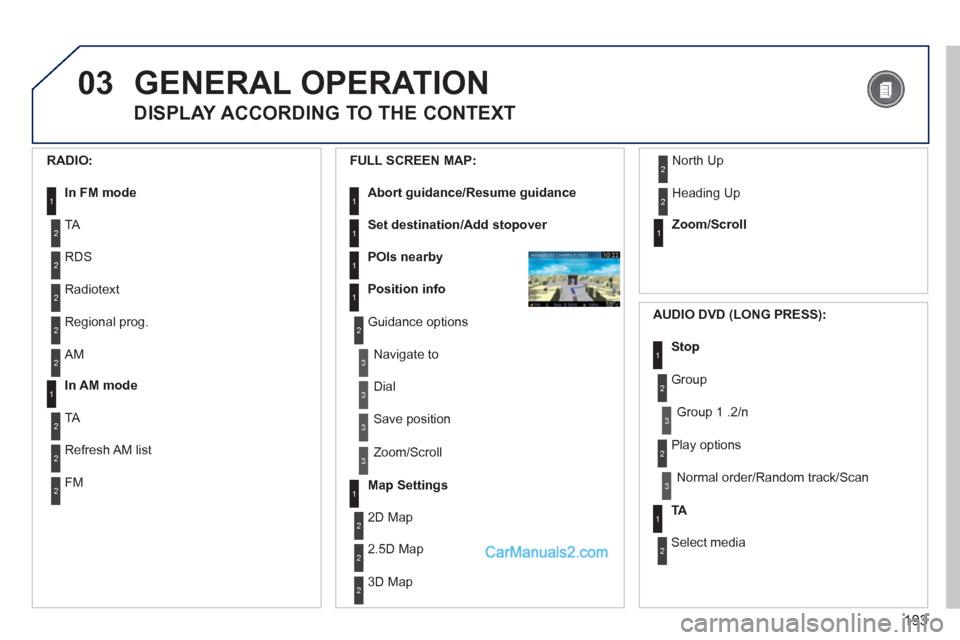
RADIO:
In FM mode
1
1
In AM mode
2
2
TA
RDS
2
Radiotext
2
Regional prog.
2
AM
2
2
TA
Refresh AM list
2
FM
FULL SCREEN MAP:
Abort guidance/Resume guidance
1
1
1
1
Set destination/Add stopover
POIs nearby
Position info
2
Guidance options
3
3
Navigate to
Dial
3
Save position
3
Zoom/Scroll
Map Settings
1
1
Zoom/Scroll
2
2
2D Map
2.5D Map
2
3D Map
2
North Up
2
Heading Up
AUDIO DVD (LONG PRESS):
1
Stop
2
Group
3
Group 1 .2/n
TA
1
2
Select media
2
Play options
3
Normal order/Random track/Scan
Page 196 of 292
194
03
3
3
DVD menu
DVD top menu
3
List of titles
3
List of chapters
VIDEO DVD (LONG PRESS):
Play
1
GENERAL OPERATION
DISPLAY ACCORDING TO THE CONTEXT
2
2
Stop
DVD menus
3
3
Audio
Subtitles
3
Angle
2
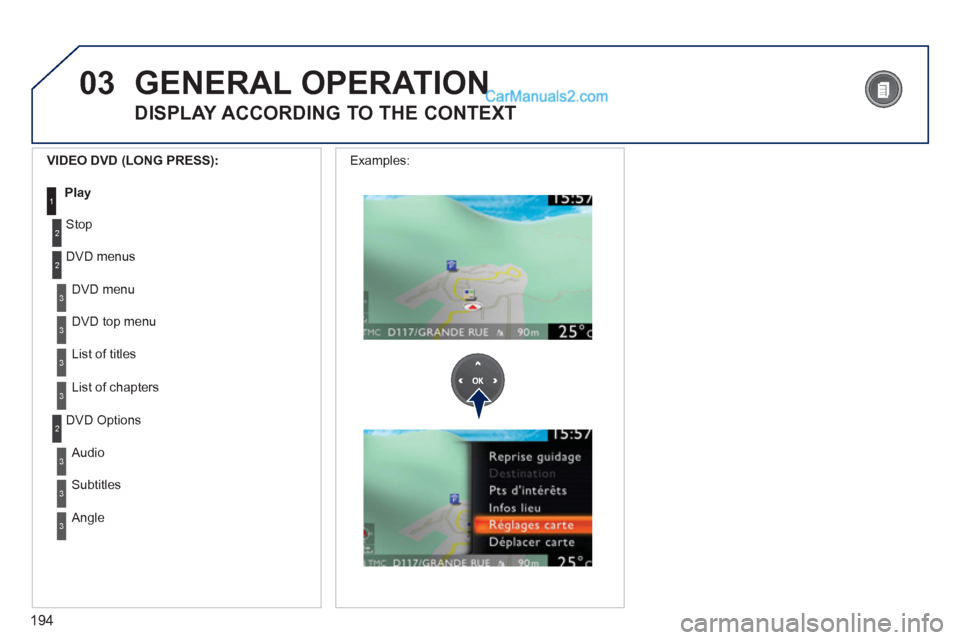
DVD Options Examples:
Page 197 of 292
195
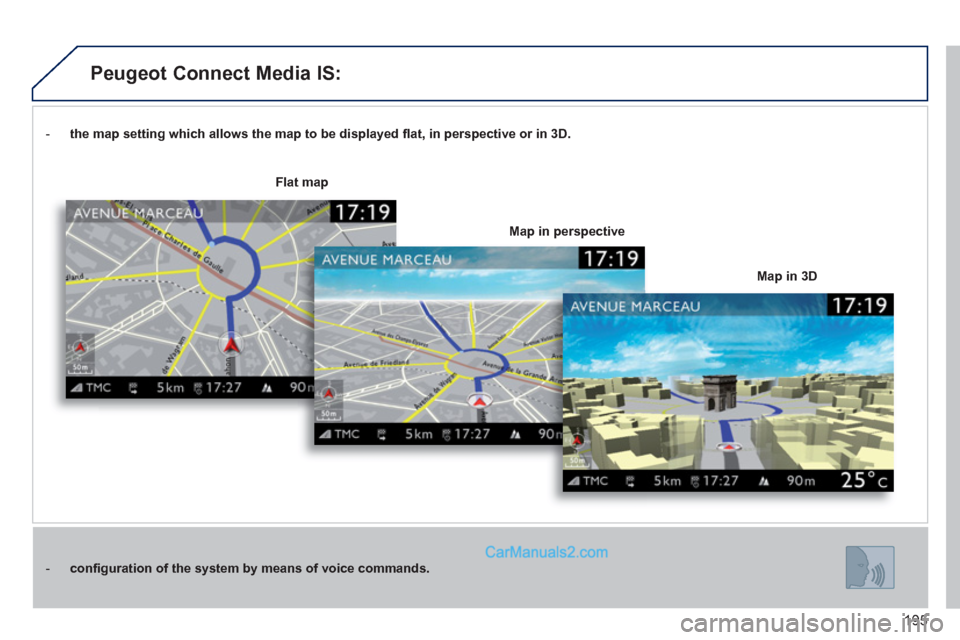
- the map setting which allows the map to be displayed fl at, in perspective or in 3D.
- confi guration of the system by means of voice commands.
Map in 3D
Flat map
Map in perspective
Peugeot Connect Media IS:
Page 199 of 292
197
04
2ABC3DEF5JKL4GHI6MNO8TUV7PQRS9WXYZ0*#
1RADIO MEDIANAV ESC TRAFFIC
SETUPADDR
BOOK7
8
9
10
11
2ABC3DEF5JKL4GHI6MNO8TUV7PQRS9WXYZ0*#
1RADIO MEDIANAV ESC TRAFFIC
SETUPADDR
BOOK
2ABC3DEF5JKL4GHI6MNO8TUV7PQRS9WXYZ0*#
1RADIO MEDIANAV ESC TRAFFIC
SETUPADDR
BOOK
2ABC3DEF5JKL4GHI6MNO8TUV7PQRS9WXYZ0*#
1RADIO MEDIANAV ESC TRAFFIC
SETUPADDR
BOOK
2ABC3DEF5JKL4GHI6MNO8TUV7PQRS9WXYZ0*#
1RADIO MEDIANAV ESC TRAFFIC
SETUPADDR
BOOK
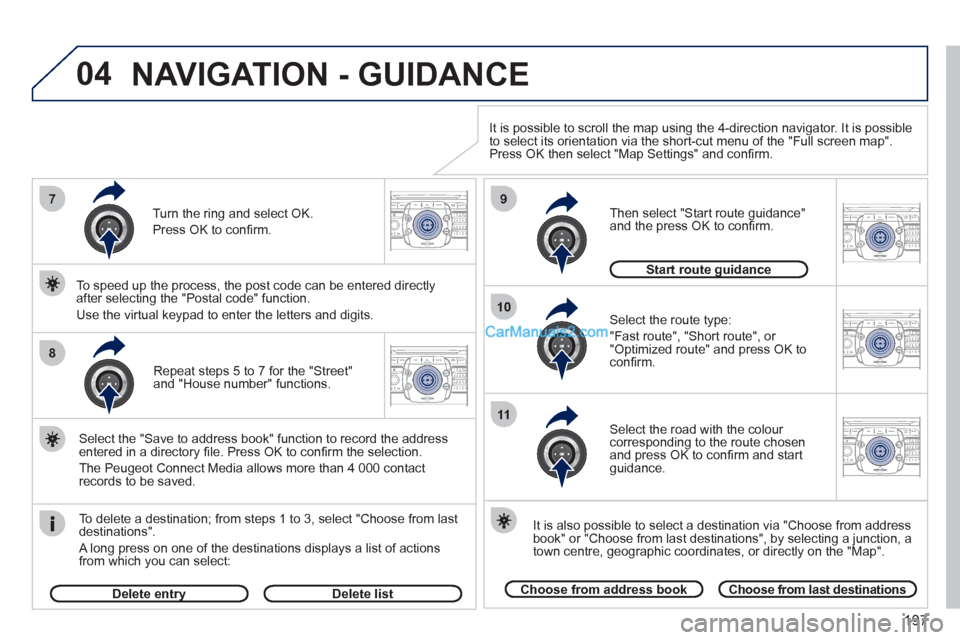
Repeat steps 5 to 7 for the "Street"
and "House number" functions.
To delete a destination; from steps 1 to 3, select "Choose from last
destinations".
A long press on one of the destinations displays a list of actions
from which you can select:
Select the "Save to address book" function to record the address
entered in a directory fi le. Press OK to confi rm the selection.
The Peugeot Connect Media allows more than 4 000 contact
records to be saved.
To speed up the process, the post code can be entered directly
after selecting the "Postal code" function.
Use the virtual keypad to enter the letters and digits.
Select the route type:
"Fast route", "Short route", or
"Optimized route" and press OK to
confi rm.
Then select "Start route guidance"
and the press OK to confi rm.
It is also possible to select a destination via "Choose from address
book" or "Choose from last destinations", by selecting a junction, a
town centre, geographic coordinates, or directly on the "Map".
Choose from address book
Choose from last destinations
Start route guidance
It is possible to scroll the map using the 4-direction navigator. It is possible
to select its orientation via the short-cut menu of the "Full screen map".
Press OK then select "Map Settings" and confi rm.
Select the road with the colour
corresponding to the route chosen
and press OK to confi rm and start
guidance.
Turn the ring and select OK.
Press OK to confi rm.
Delete entry
Delete list
NAVIGATION - GUIDANCE
Page 200 of 292
198
04
2ABC3DEF5JKL4GHI6MNO8TUV7PQRS9WXYZ0*#
1RADIO MEDIANAV ESC TRAFFIC
SETUPADDR
BOOK
1
2
3
4
2ABC3DEF5JKL4GHI6MNO8TUV7PQRS9WXYZ0*#
1RADIO MEDIANAV ESC TRAFFIC
SETUPADDR
BOOK
2ABC3DEF5JKL4GHI6MNO8TUV7PQRS9WXYZ0*#
1RADIO MEDIANAV ESC TRAFFIC
SETUPADDR
BOOK2ABC3DEF5JKL4GHI6MNO8TUV7PQRS9WXYZ0*#
1RADIO MEDIANAVESC TRAFFIC
SETUPADDR
BOOKNAV
NAVIGATION - GUIDANCE
SETTING AND NAVIGATING TO MY
"HOME ADDRESS"
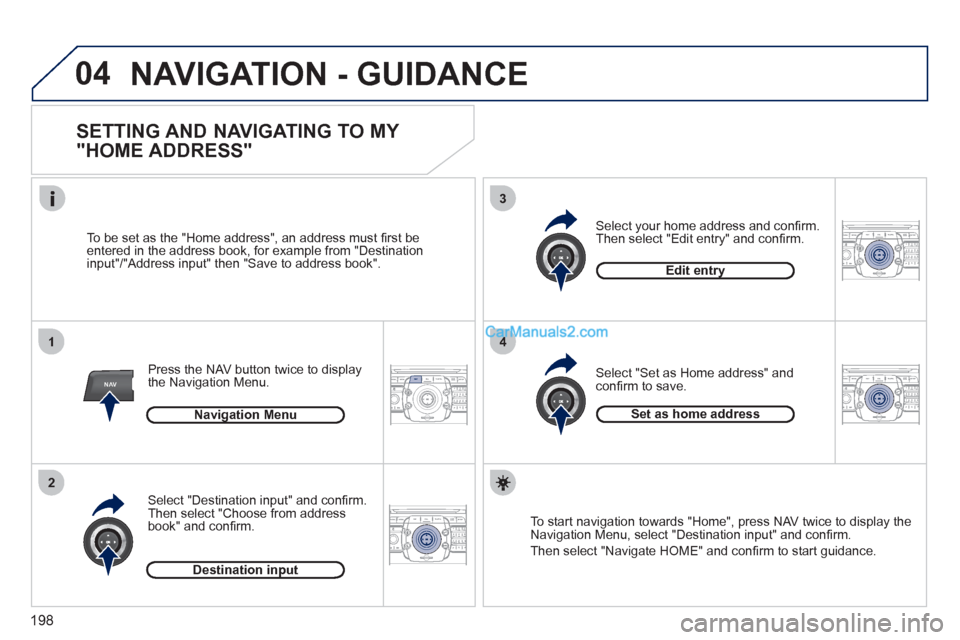
Press the NAV button twice to display
the Navigation Menu.
To be set as the "Home address", an address must fi rst be
entered in the address book, for example from "Destination
input"/"Address input" then "Save to address book".
Select "Destination input" and confi rm.
Then select "Choose from address
book" and confi rm.
Select "Set as Home address" and
confi rm to save.
Select your home address and confi rm.
Then select "Edit entry" and confi rm.
To start navigation towards "Home", press NAV twice to display the
Navigation Menu, select "Destination input" and confi rm.
Then select "Navigate HOME" and confi rm to start guidance.
Navigation Menu
Destination input
Edit entry
Set as home address
Page 201 of 292
199
04
2ABC3DEF5JKL4GHI6MNO8TUV7PQRS9WXYZ0*#
1RADIO MEDIANAVESC TRAFFIC
SETUPADDR
BOOK
2ABC3DEF5JKL4GHI6MNO8TUV7PQRS9WXYZ0*#
1RADIO MEDIANAV ESC TRAFFIC
SETUPADDR
BOOK
NAV
1
3
4
5
6
7
2ABC3DEF5JKL4GHI6MNO8TUV7PQRS9WXYZ0*#
1RADIO MEDIANAV ESC TRAFFIC
SETUPADDR
BOOK
2ABC3DEF5JKL4GHI6MNO8TUV7PQRS9WXYZ0*#
1RADIO MEDIANAV ESC TRAFFIC
SETUPADDR
BOOK
2ABC3DEF5JKL4GHI6MNO8TUV7PQRS9WXYZ0*#
1RADIO MEDIANAV ESC TRAFFIC
SETUPADDR
BOOK
2ABC3DEF5JKL4GHI6MNO8TUV7PQRS9WXYZ0*#
1RADIO MEDIANAV ESC TRAFFIC
SETUPADDR
BOOK
2
2ABC3DEF5JKL4GHI6MNO8TUV7PQRS9WXYZ0*#
1RADIO MEDIANAV ESC TRAFFIC
SETUPADDR
BOOK
NAVIGATION - GUIDANCE
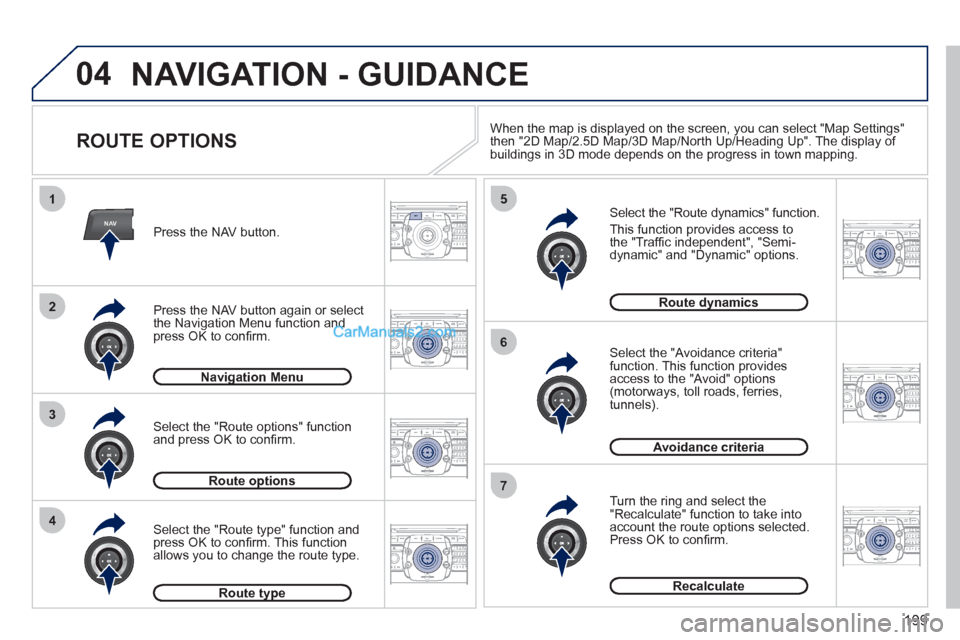
ROUTE OPTIONS
Select the "Route dynamics" function.
This function provides access to
the "Traffi c independent", "Semi-
dynamic" and "Dynamic" options.
Select the "Avoidance criteria"
function. This function provides
access to the "Avoid" options
(motorways, toll roads, ferries,
tunnels).
Turn the ring and select the
"Recalculate" function to take into
account the route options selected.
Press OK to confi rm.
Press the NAV button.
Press the NAV button again or select
the Navigation Menu function and
press OK to confi rm.
Select the "Route type" function and
press OK to confi rm. This function
allows you to change the route type.
Select the "Route options" function
and press OK to confi rm.
Navigation Menu
Route options
Route type
Route dynamics
Avoidance criteria
Recalculate
When the map is displayed on the screen, you can select "Map Settings"
then "2D Map/2.5D Map/3D Map/North Up/Heading Up". The display of
buildings in 3D mode depends on the progress in town mapping.
Page 206 of 292
204
2ABC3DEF5JKL4GHI6MNO8TUV7PQRS9WXYZ0*#
1RADIO MEDIANAVESC TRAFFIC
SETUPADDR
BOOKNAV
13
4
5
2ABC3DEF5JKL4GHI6MNO8TUV7PQRS9WXYZ0*#
1RADIO MEDIANAV ESC TRAFFIC
SETUPADDR
BOOK
2ABC3DEF5JKL4GHI6MNO8TUV7PQRS9WXYZ0*#
1RADIO MEDIANAV ESC TRAFFIC
SETUPADDR
BOOK
2ABC3DEF5JKL4GHI6MNO8TUV7PQRS9WXYZ0*#
1RADIO MEDIANAV ESC TRAFFIC
SETUPADDR
BOOK
2ABC3DEF5JKL4GHI6MNO8TUV7PQRS9WXYZ0*#
1RADIO MEDIANAV ESC TRAFFIC
SETUPADDR
BOOK
2ABC3DEF5JKL4GHI6MNO8TUV7PQRS9WXYZ0*#
1RADIO MEDIANAV ESC TRAFFIC
SETUPADDR
BOOK
1
2
04 NAVIGATION - GUIDANCE
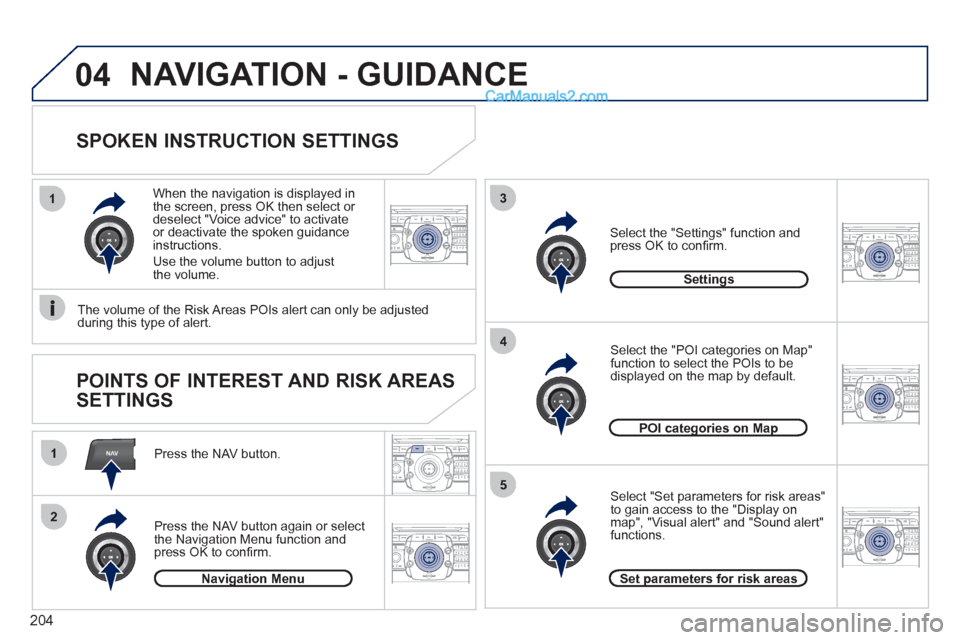
SPOKEN INSTRUCTION SETTINGS
Press the NAV button.
Press the NAV button again or select
the Navigation Menu function and
press OK to confi rm.
Select the "Settings" function and
press OK to confi rm.
Navigation Menu
Settings
When the navigation is displayed in
the screen, press OK then select or
deselect "Voice advice" to activate
or deactivate the spoken guidance
instructions.
Use the volume button to adjust
the volume.
POINTS OF INTEREST AND RISK AREAS
SETTINGS
The volume of the Risk Areas POIs alert can only be adjusted
during this type of alert.
POI categories on Map
Set parameters for risk areas
Select "Set parameters for risk areas"
to gain access to the "Display on
map", "Visual alert" and "Sound alert"
functions.
Select the "POI categories on Map"
function to select the POIs to be
displayed on the map by default.