phone PEUGEOT 4008 2017 Owner's Manual
[x] Cancel search | Manufacturer: PEUGEOT, Model Year: 2017, Model line: 4008, Model: PEUGEOT 4008 2017Pages: 368, PDF Size: 12.22 MB
Page 287 of 368
285
4008_EN_CHAP10B_MITSU6_ED01-2016
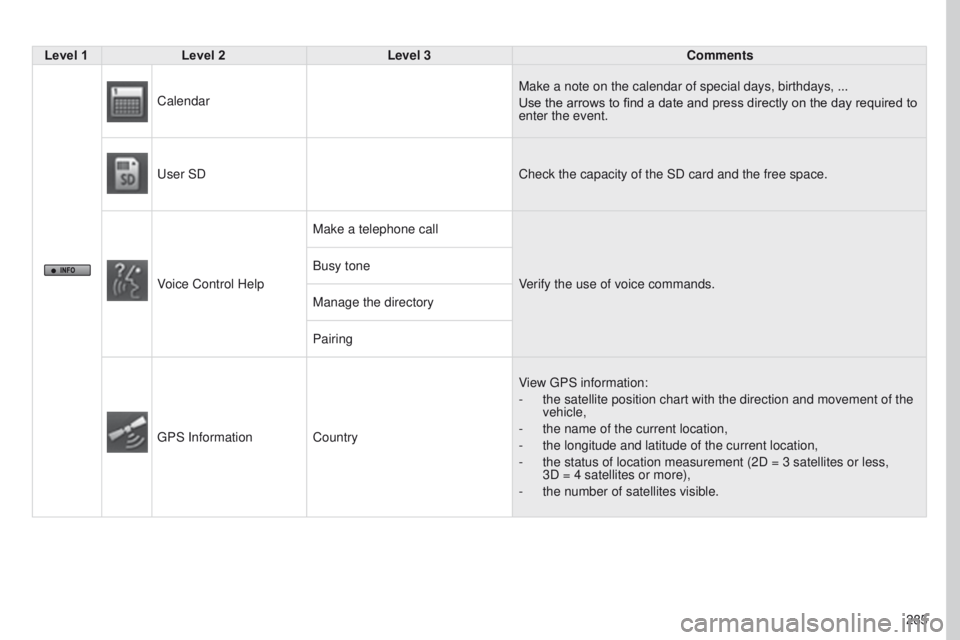
Level 1Level 2 Level 3 Comments
Calendar Make a note on the calendar of special days, birthdays, ...
Use the arrows to find a date and press directly on the day required to
enter the event.
u
ser SD Check the capacity of the SD card and the free space.
Voice Control Help Make a telephone call
Verify the use of voice commands.
Busy tone
Manage the directory
Pairing
g
PS Information Country View
g PS information:
-
the satellite position chart with the direction and movement of the
vehicle,
-
the name of the current location,
-
the longitude and latitude of the current location,
-
the status of location measurement (2D = 3 satellites or less,
3D = 4 satellites or more),
-
the number of satellites visible.
Page 289 of 368
287
4008_EN_CHAP10B_MITSU6_ED01-2016
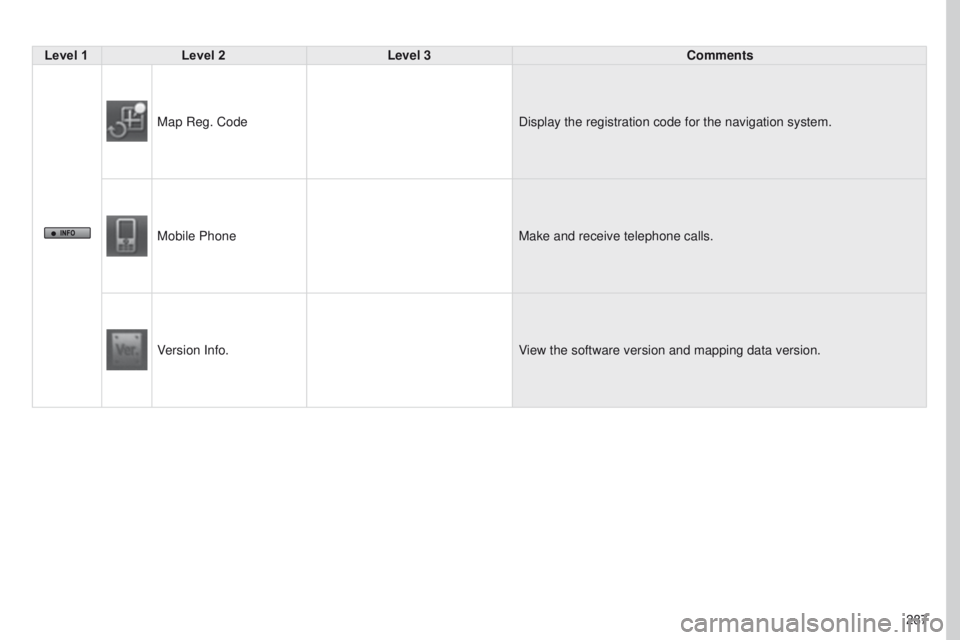
Level 1Level 2 Level 3 Comments
Map Reg. Code Display the registration code for the navigation system.
Mobile Phone Make and receive telephone calls.
Version Info. View the software version and mapping data version.
Page 290 of 368
08
288
4008_EN_CHAP10B_MITSU6_ED01-2016
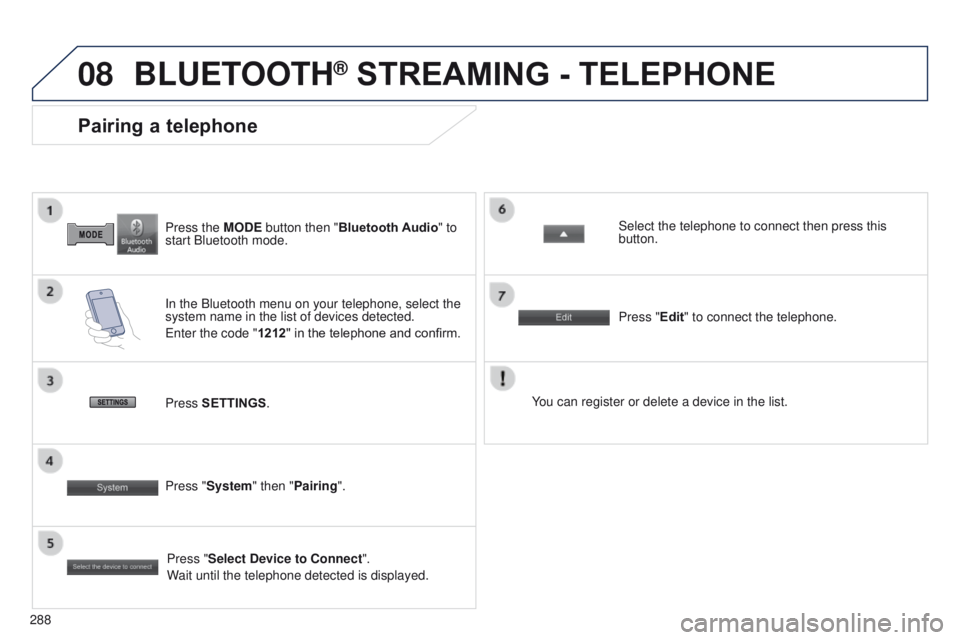
Press the MODE button then "Bluetooth Audio" to
start Bluetooth mode.
Pairing a telephone
In the Bluetooth menu on your telephone, select the
system name in the list of devices detected.
e
nter the code "1212 " in the telephone and confirm. Select the telephone to connect then press this
button.
Press "Select Device to Connect".
Wait until the telephone detected is displayed.
Press SETTINGS
. Press "Edit" to connect the telephone.
Press "System " then "Pairing". You can register or delete a device in the list.
BLUETOOTH® STREAMING - TELEPHONE
Page 291 of 368
289
4008_en_Chap10c_Mitsu5_ed01-2016
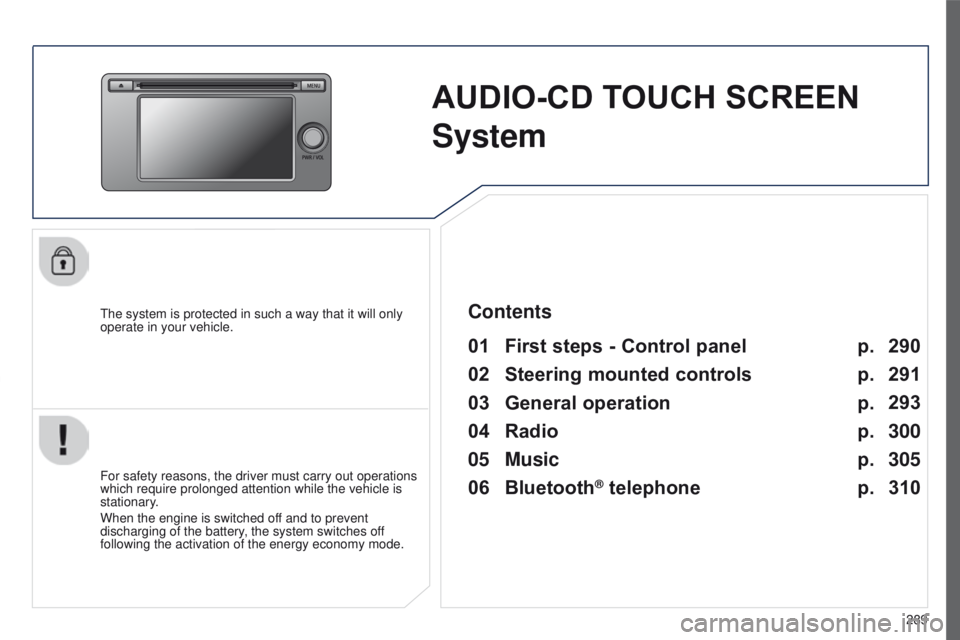
AUDIO-CD TOUCH SCREEN
S
ystem
the system is protected in such a way that it will only
operate in your vehicle.
01 First steps - Control panel
For safety reasons, the driver must carry out operations
which require prolonged attention while the vehicle is
stationary.
When the engine is switched off and to prevent
discharging of the battery, the system switches off
following the activation of the energy economy mode.
Contents
03
General
operation
02
Steering
mounted controls
04
Radio
05
Music
06
Bluetooth® telephone p.
p. p.
p.
p.
p. 290
291
293
300
305
310
Page 295 of 368
03
293
4008_en_Chap10c_Mitsu5_ed01-2016
GENERAL OPERATION
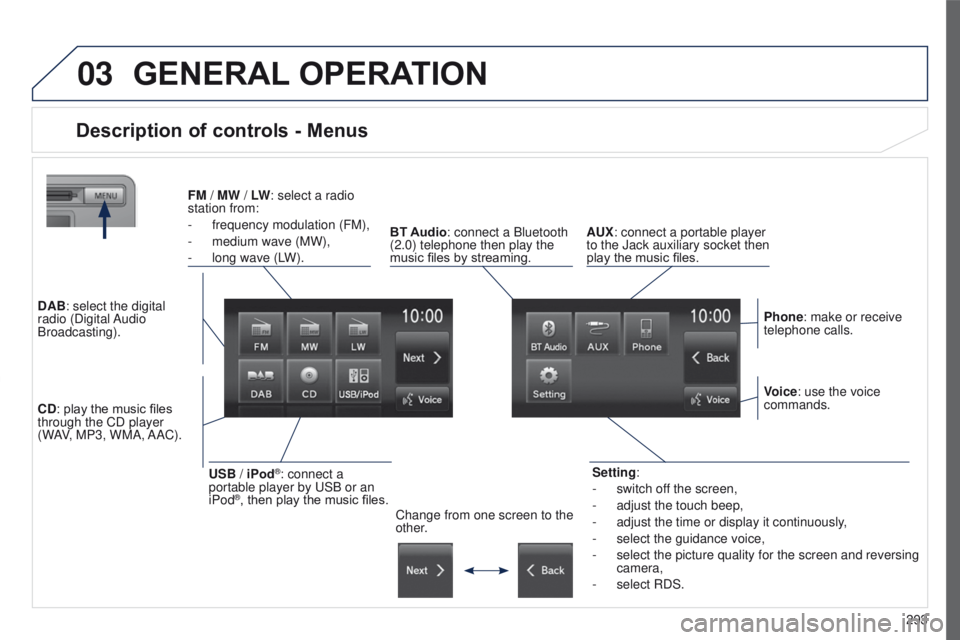
Description of controls - Menus
Setting:
-
switch of
f the screen,
-
adjust the touch beep,
-
adjust the time or display it continuously
,
-
select the guidance voice,
-
select the picture quality for the screen and reversing
camera,
-
select RDS.
FM
/
MW / LW: select a radio
station from:
-
frequency modulation (FM),
-
medium wave (MW),
-
long wave (L
W).
BT Audio: connect a Bluetooth
(2.0) telephone then play the
music files by streaming. AUX: connect a portable player
to the Jack auxiliary socket then
play the music files.
Phone: make or receive
telephone calls.
Change from one screen to the
other. Voice: use the voice
commands.
USB / iPod®: connect a
portable player by u SB or an
iPod
®, then play the music files.
CD: play the music files
through the CD player
(WAV, MP3, WMA, AAC). DAB: select the digital
radio (Digital Audio
Broadcasting).
Page 298 of 368
03
296
GENERAL OPERATION
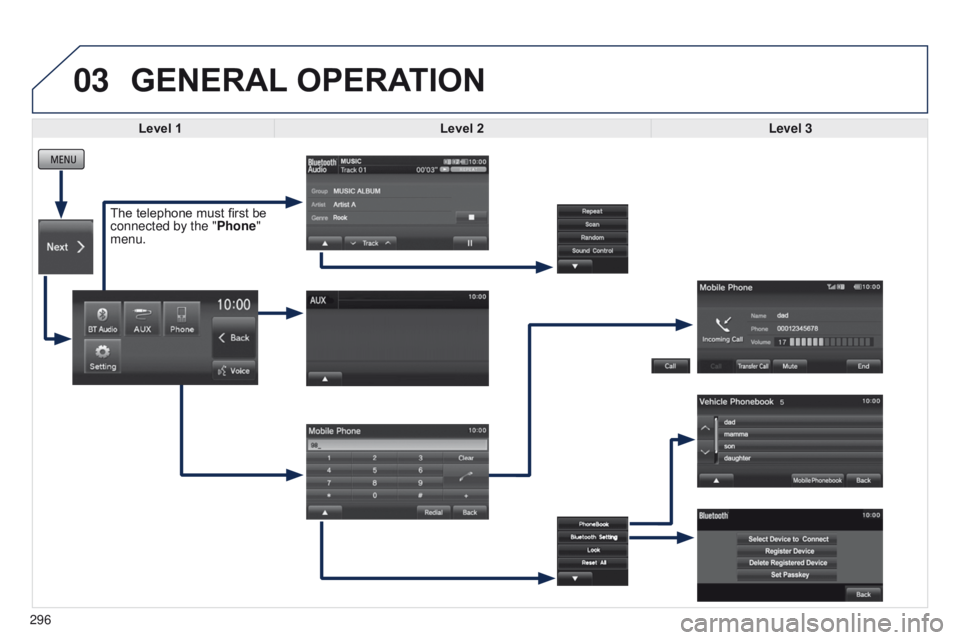
Level 1 Level 2 Level 3
The telephone must first be
connected by the "Phone"
menu.
Page 299 of 368
297
4008_en_Chap10c_Mitsu5_ed01-2016
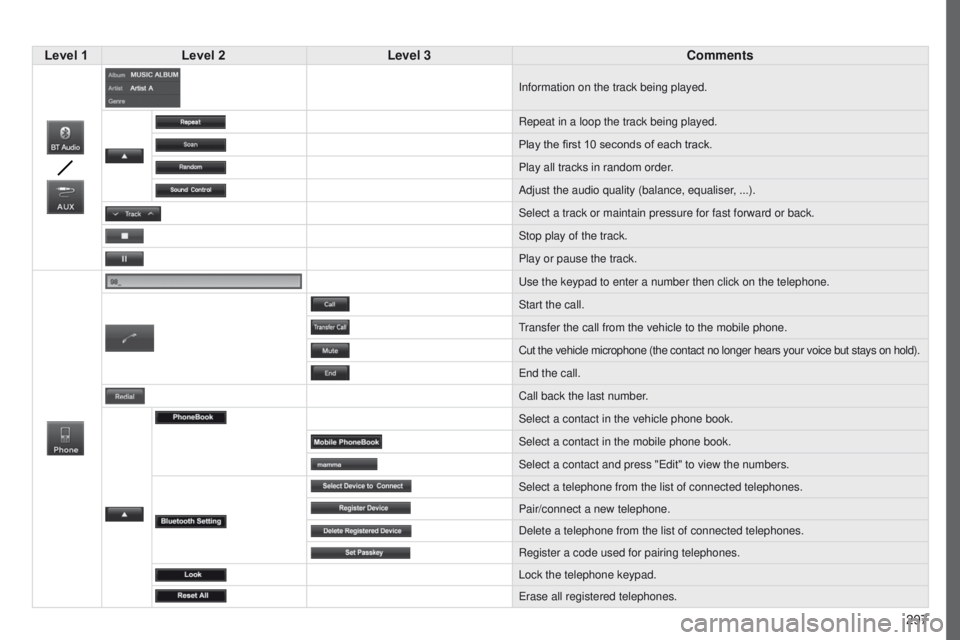
Level 1Level 2 Level 3 Comments
Information on the track being played.
Repeat in a loop the track being played.
Play the first 10
seconds of each track.
Play all tracks in random order.
Adjust the audio quality (balance, equaliser, ...).
Select a track or maintain pressure for fast forward or back.
Stop play of the track.
Play or pause the track.
u
se the keypad to enter a number then click on the telephone.
Start the call.
transfer the call from the vehicle to the mobile phone.
Cut the vehicle microphone (the contact no longer hears your voice but \
stays on hold).
e
nd the call.
Call back the last number.
Select a contact in the vehicle phone book.
Select a contact in the mobile phone book.
Select a contact and press "
e dit" to view the numbers.
Select a telephone from the list of connected telephones.
Pair/connect a new telephone.
Delete a telephone from the list of connected telephones.
Register a code used for pairing telephones.
Lock the telephone keypad.
e
rase all registered telephones.
Page 301 of 368
299
4008_en_Chap10c_Mitsu5_ed01-2016
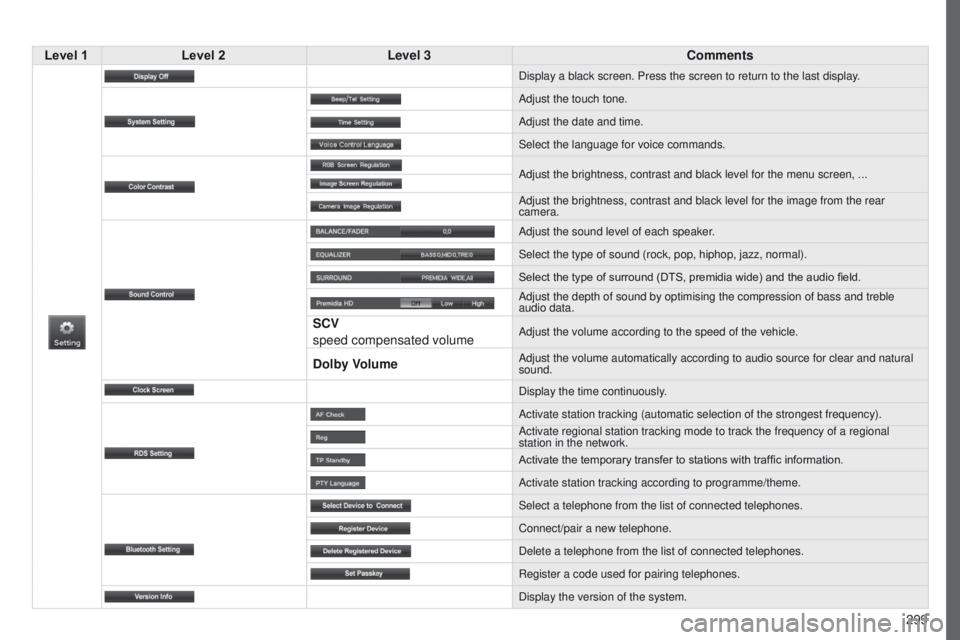
Level 1Level 2 Level 3 Comments
Display a black screen. Press the screen to return to the last display.
Adjust the touch tone.
Adjust the date and time.
Select the language for voice commands.
Adjust the brightness, contrast and black level for the menu screen, ...\
Adjust the brightness, contrast and black level for the image from the r\
ear
camera.
Adjust the sound level of each speaker.
Select the type of sound (rock, pop, hiphop, jazz, normal).
Select the type of surround (DTS, premidia wide) and the audio field.
Adjust the depth of sound by optimising the compression of bass and treb\
le
audio data.
SCV
speed compensated volumeAdjust the volume according to the speed of the vehicle.
Dolby VolumeAdjust the volume automatically according to audio source for clear and \
natural
sound.
Display the time continuously.
Activate station tracking (automatic selection of the strongest frequen\
cy).
Activate regional station tracking mode to track the frequency of a regi\
onal
station in the network.
Activate the temporary transfer to stations with traffic information.
Activate station tracking according to programme/theme.
Select a telephone from the list of connected telephones.
Connect/pair a new telephone.
Delete a telephone from the list of connected telephones.
Register a code used for pairing telephones.
Display the version of the system.
Page 303 of 368
04
301
4008_en_Chap10c_Mitsu5_ed01-2016
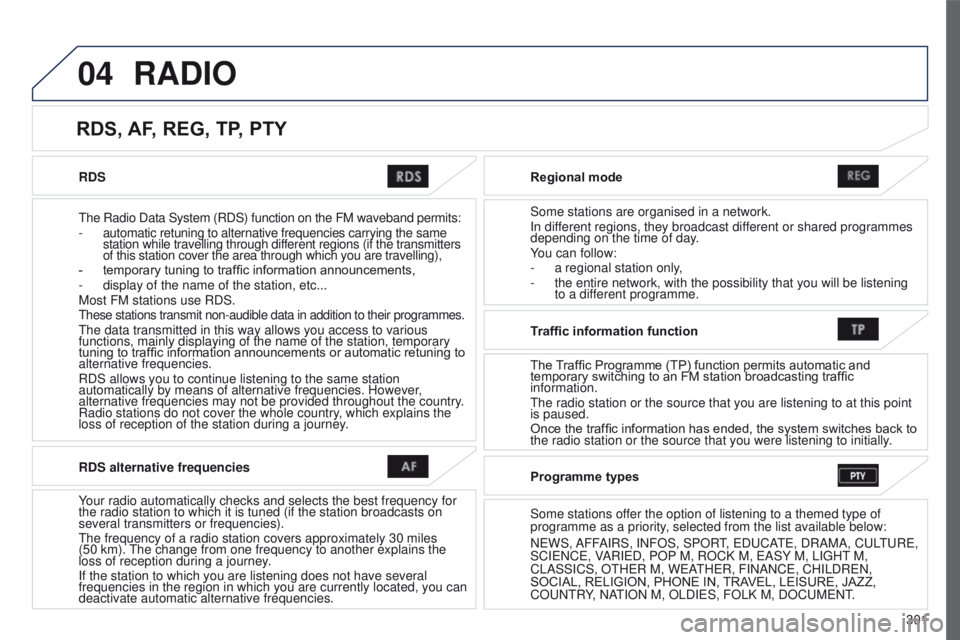
RDS
t
he Radio Data System (RDS) function on the FM waveband permits:
-
automatic retuning to alternative frequencies carrying the same
station while travelling through different regions (if the transmitters
of this station cover the area through which you are travelling),
-
temporary tuning to traffic information announcements,
-
display of the name of the station, etc...
Most FM stations use RDS.
these stations transmit non-audible data in addition to their programmes.\
the data transmitted in this way allows you access to various
functions, mainly displaying of the name of the station, temporary
tuning to traffic information announcements or automatic retuning to
alternative frequencies.
RDS allows you to continue listening to the same station
automatically by means of alternative frequencies. However
,
alternative frequencies may not be provided throughout the country.
Radio stations do not cover the whole country, which explains the
loss of reception of the station during a journey. Regional mode
Some stations are organised in a network.
In different regions, they broadcast different or shared programmes
depending on the time of day.
You can follow:
-
a regional station only
,
-
the entire network, with the possibility that you will be listening
to a dif
ferent programme.
RDS, AF, REG, TP, PTY
RADIO
RDS alternative frequencies
Your radio automatically checks and selects the best frequency for
the radio station to which it is tuned (if the station broadcasts on
several transmitters or frequencies).
t
he frequency of a radio station covers approximately 30 miles
(50
km).
t
he change from one frequency to another explains the
loss of reception during a journey.
If the station to which you are listening does not have several
frequencies in the region in which you are currently located, you can
deactivate automatic alternative frequencies. Traffic information function
The Traf
fi c Programme (TP) function permits automatic and
temporary switching to an FM station broadcasting traffic
information.
t
he radio station or the source that you are listening to at this point
is paused.
Once the traffic information has ended, the system switches back to
the radio station or the source that you were listening to initially.
Programme types
Some stations offer the option of listening to a themed type of
programme as a priority, selected from the list available below:
N
e WS, AFFAIRS, INFOS, SPOR
t,
e D u CA
te
, DRAMA, C u L
tu
R e ,
SCI
e NC e , VARI e D, POP M, ROCK M, e ASY M, LI g H t
M,
CLASSICS, O
t H e R M, W e A
t
H e R, FINANC e , CHILDR e N,
SOCIAL, RELIGION, PHONE IN, TRAVEL, LEISURE, JAZZ,
CO
u N t RY, NA
t
ION M, OLDI e S, FOLK M, DOC u M e N t
.
Page 312 of 368
06
310
BLUETOOTH® TELEPHONE
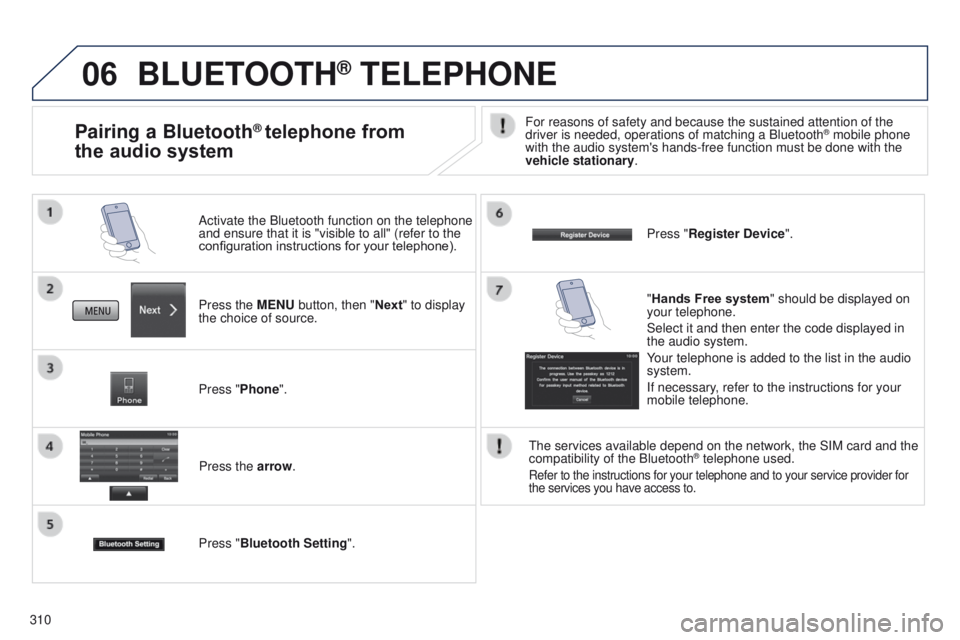
Press the MENU button, then "Next" to display
the choice of source. Activate the Bluetooth function on the telephone
and ensure that it is "visible to all" (refer to the
configuration instructions for your telephone).
Press "Phone".Press the arrow.
Press "Bluetooth Setting ". Press "Register Device
".
Pairing a Bluetooth® telephone from
the audio systemFor reasons of safety and because the sustained attention of the
driver is needed, operations of matching a Bluetooth® mobile phone
with the audio system's hands-free function must be done with the
vehicle stationary.
"Hands Free system " should be displayed on
your telephone.
Select it and then enter the code displayed in
the audio system.
Your telephone is added to the list in the audio
system.
If necessary, refer to the instructions for your
mobile telephone.
t
he services available depend on the network, the SIM card and the
compatibility of the Bluetooth
® telephone used.
Refer to the instructions for your telephone and to your service provide\
r for
the services you have access to.