phone PEUGEOT 4008 2017 User Guide
[x] Cancel search | Manufacturer: PEUGEOT, Model Year: 2017, Model line: 4008, Model: PEUGEOT 4008 2017Pages: 368, PDF Size: 12.22 MB
Page 243 of 368
241
4008_en_Chap10a_Mitsu3_ed01-2016
BLUETOOTH® TELEPHONE
WITH
VOICE
RECOGNITION
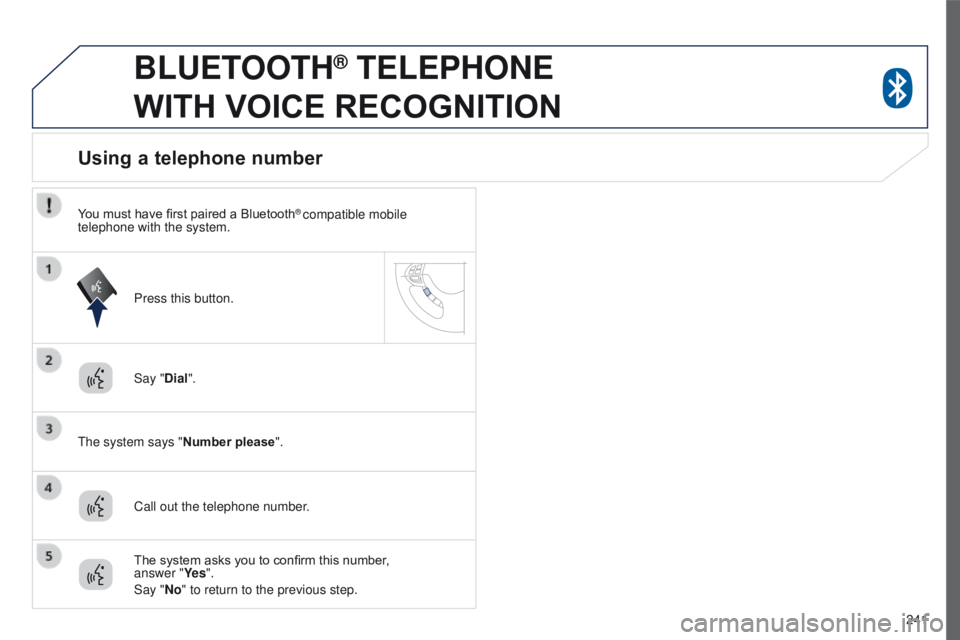
Say "Dial".
t
he system says "Number please".
Using a telephone number
Call out the telephone number. Press this button.
The system asks you to confirm this number,
answer "Ye s ".
Say "No" to return to the previous step.
You must have first paired a Bluetooth
® compatible mobile
telephone with the system.
Page 244 of 368
242
4008_en_Chap10a_Mitsu3_ed01-2016
BLUETOOTH® TELEPHONE
WITH
VOICE
RECOGNITION
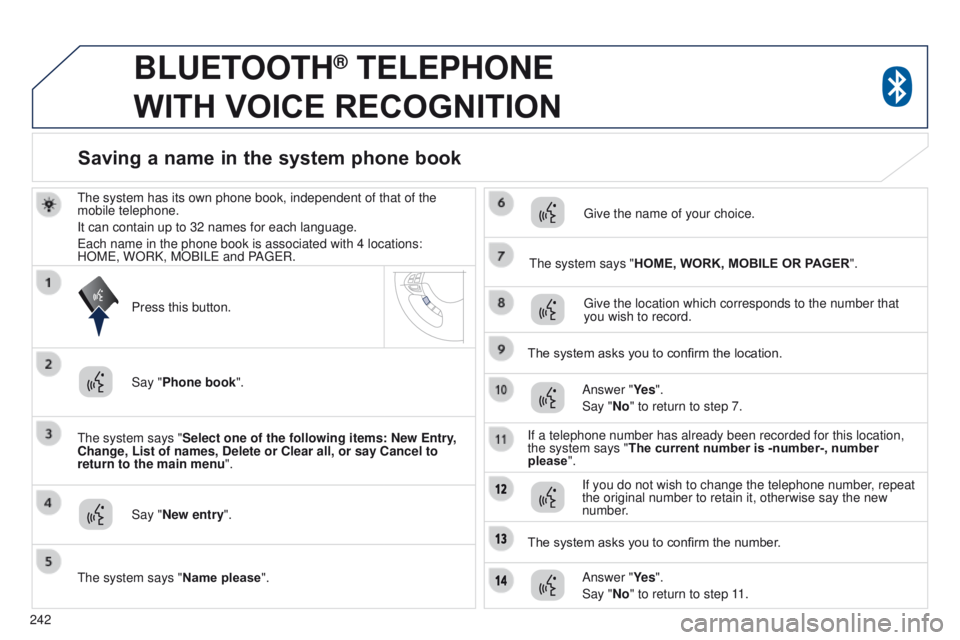
the system has its own phone book, independent of that of the
mobile telephone.
It can contain up to 32 names for each language.
e
ach name in the phone book is associated with 4 locations:
HOM
e , WORK, MOBIL e and PA ge R.
t
he system says "Select one of the following items: New Entry,
Change, List of names, Delete or Clear all, or say Cancel to
return to the main menu ".
Say "New entry".
t
he system says "HOME, WORK, MOBILE OR PAGER".
g
ive the location which corresponds to the number that
you wish to record.
The system asks you to confirm the location. Answer "Ye s ".
Say "No" to return to step 7.
If a telephone number has already been recorded for this location,
the system says "The current number is -number-, number
please".
Saving a name in the system phone book
Press this button.
Say "Phone book ".
t
he system says "Name please ".
g
ive the name of your choice.
If you do not wish to change the telephone number, repeat
the original number to retain it, otherwise say the new
number.
Answer "Ye s ".
Say "No" to return to step 11.
The system asks you to confirm the number.
Page 245 of 368
243
4008_en_Chap10a_Mitsu3_ed01-2016
BLUETOOTH® TELEPHONE
WITH
VOICE
RECOGNITION
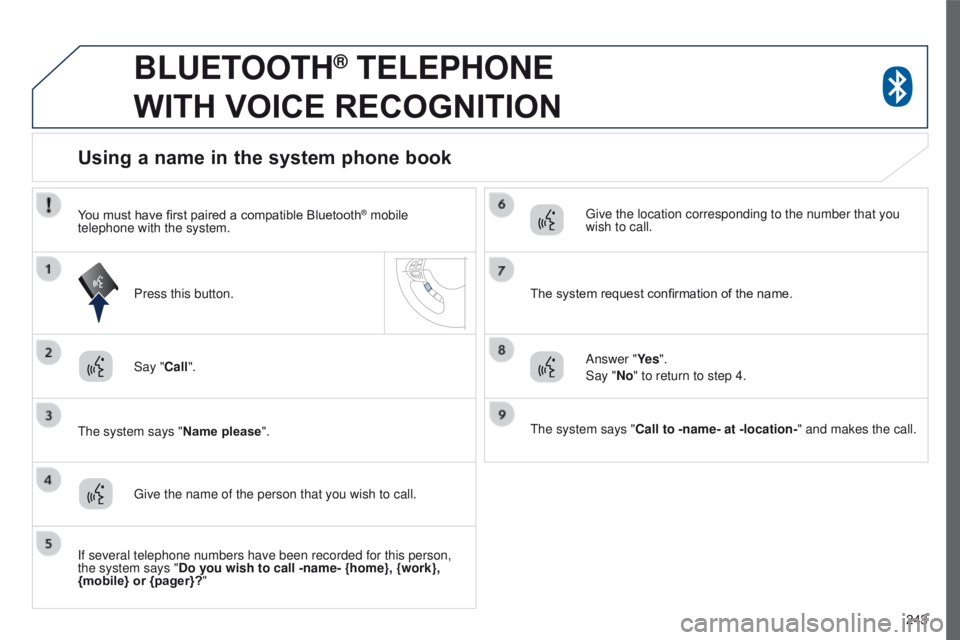
Say "Call".
t
he system says "Name please ".
Using a name in the system phone book
give the name of the person that you wish to call.
Press this button.
g
ive the location corresponding to the number that you
wish to call.
You must have first paired a compatible Bluetooth
® mobile
telephone with the system.
If several telephone numbers have been recorded for this person,
the system says "Do you wish to call -name- {home}, {work},
{mobile} or {pager}?" The system request confirmation of the name.
Answer "Ye s ".
Say "No" to return to step 4.
t
he system says "Call to -name- at -location -" and makes the call.
Page 246 of 368
244
4008_en_Chap10a_Mitsu3_ed01-2016
BLUETOOTH® TELEPHONE
WITH
VOICE
RECOGNITION
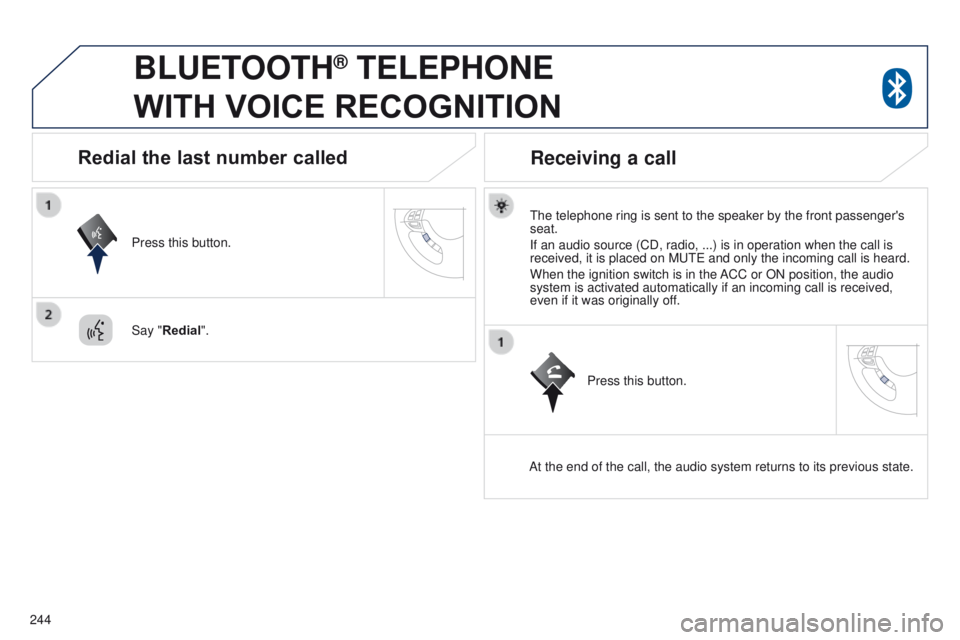
the telephone ring is sent to the speaker by the front passenger's
seat.
If an audio source (CD, radio, ...) is in operation when the call is
received, it is placed on M
ute and only the incoming call is heard.
When the ignition switch is in the ACC or ON position, the audio
system is activated automatically if an incoming call is received,
even if it was originally off.
At the end of the call, the audio system returns to its previous state.
Redial the last number called
Press this button.
Say "Redial".
Receiving a call
Press this button.
Page 247 of 368
245
4008_en_Chap10a_Mitsu3_ed01-2016
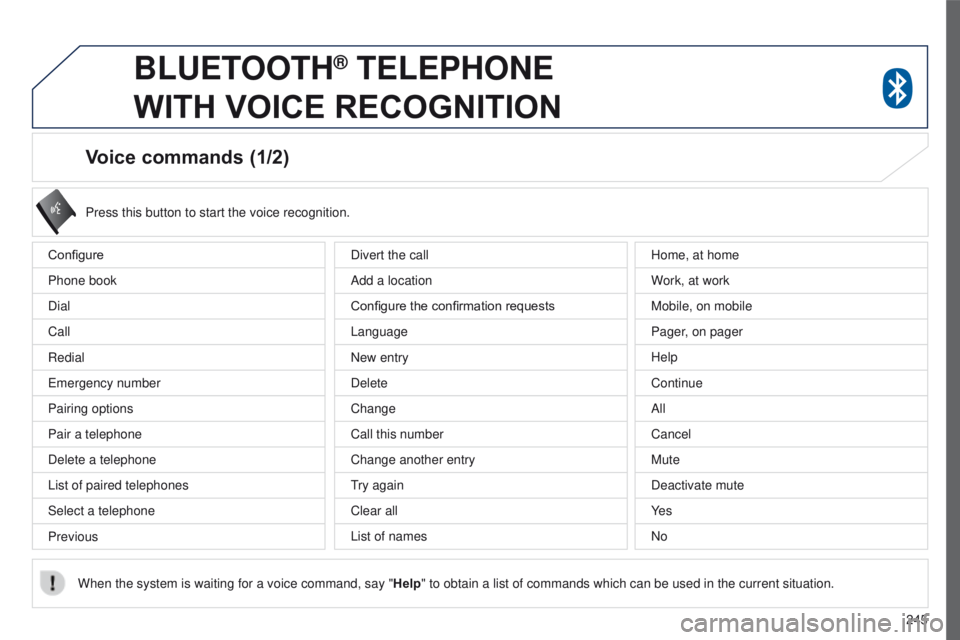
Voice commands (1/2)
Configure
Phone book
Dial
Call
Redial
e
mergency number
Pairing options
Pair a telephone
Delete a telephone
List of paired telephones
Select a telephone
Previous Press this button to start the voice recognition.
When the system is waiting for a voice command, say " Help" to obtain a list of commands which can be used in the current situatio\
n.
Divert the call
Add a location
Configure the confirmation requests
Language
New entry
Delete
Change
Call this number
Change another entry
try again
Clear all
List of names Home, at home
W
ork, at work
Mobile, on mobile
Pager, on pager
Help
Continue
All
Cancel
Mute
Deactivate mute
Ye s
No
BLUETOOTH® TELEPHONE
WITH
VOICE
RECOGNITION
Page 248 of 368
246
4008_en_Chap10a_Mitsu3_ed01-2016
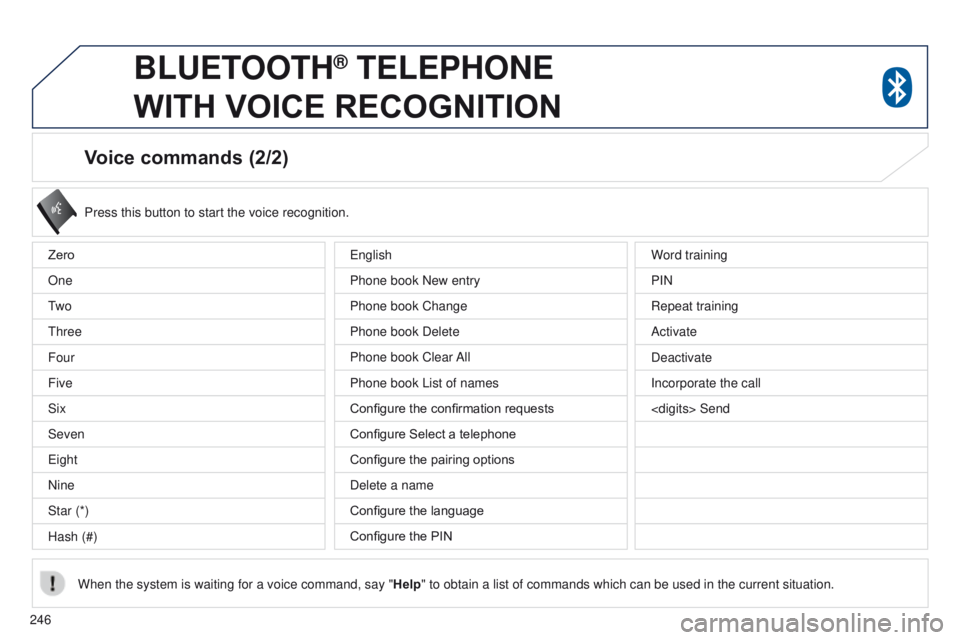
Voice commands (2/2)
Press this button to start the voice recognition.
When the system is waiting for a voice command, say " Help" to obtain a list of commands which can be used in the current situatio\
n.
Zero
One
t
w o
t
hree
Four
Five
Six
Seven
e
ight
Nine
Star (*)
Hash (#) Word training
PIN
Repeat training
Activate
Deactivate
Incorporate the call
e
nglish
Phone book New entry
Phone book Change
Phone book Delete
Phone book Clear All
Phone book List of names
Configure the confirmation requests
Configure Select a telephone
Configure the pairing options
Delete a name
Configure the language
Configure the PIN
BLUETOOTH® TELEPHONE
WITH
VOICE
RECOGNITION
BLUETOOTH® TELEPHONE WITH VOICE RECOGNITION
Page 249 of 368
247
4008_EN_CHAP10B_MITSU6_ED01-2016
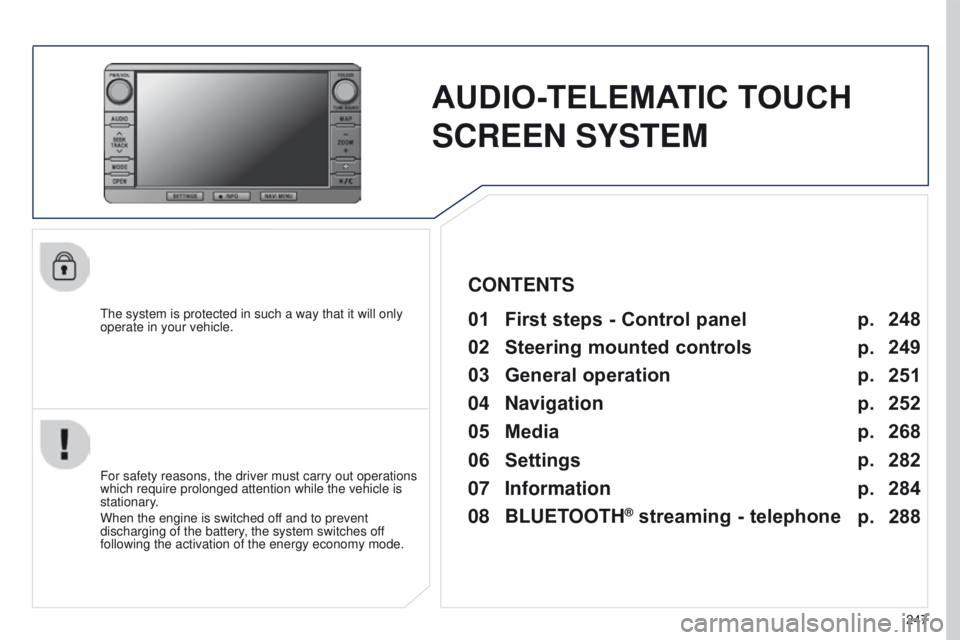
AUDIO-TELEMATIC TOUCH
SCREEN SYSTEM
the system is protected in such a way that it will only
operate in your vehicle.01 First steps - Control panel
For safety reasons, the driver must carry out operations
which require prolonged attention while the vehicle is
stationary.
When the engine is switched off and to prevent
discharging of the battery, the system switches off
following the activation of the energy economy mode.
CONTENTS
03
General
operation
04
Navigation
05
Media
06
Settings
07
Information p.
p.
p.
p.
p.
p.
p. 248
249
251
252
268
282
284
02
Steering
mounted controls p.
288
08
BLUETOOTH
® streaming - telephone
Page 250 of 368
01
248
4008_EN_CHAP10B_MITSU6_ED01-2016
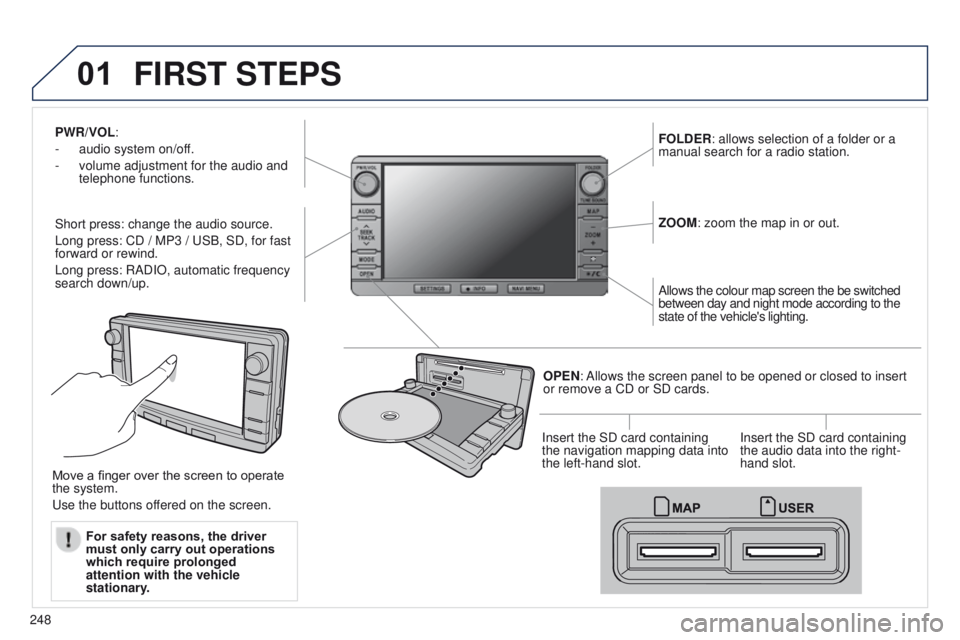
PWR/VOL:
-
audio system on/of
f.
-
volume adjustment for the audio and
telephone functions.
Short press: change the audio source.
Long press: CD / MP3 /
u SB, SD, for fast
forward or rewind.
Long press: RADIO, automatic frequency
search down/up. FOLDER: allows selection of a folder or a
manual search for a radio station.
OPEN: Allows the screen panel to be opened or closed to insert
or remove a CD or SD cards. ZOOM: zoom the map in or out.
Allows the colour map screen the be switched
between day and night mode according to the
state of the vehicle's lighting.
Move a finger over the screen to operate
the system.
u
se the buttons offered on the screen. For safety reasons, the driver
must only carry out operations
which require prolonged
attention with the vehicle
stationary. Insert the SD card containing
the navigation mapping data into
the left-hand slot.
Insert the SD card containing
the audio data into the right-
hand slot.
FIRST STEPS
Page 257 of 368
255
4008_EN_CHAP10B_MITSU6_ED01-2016
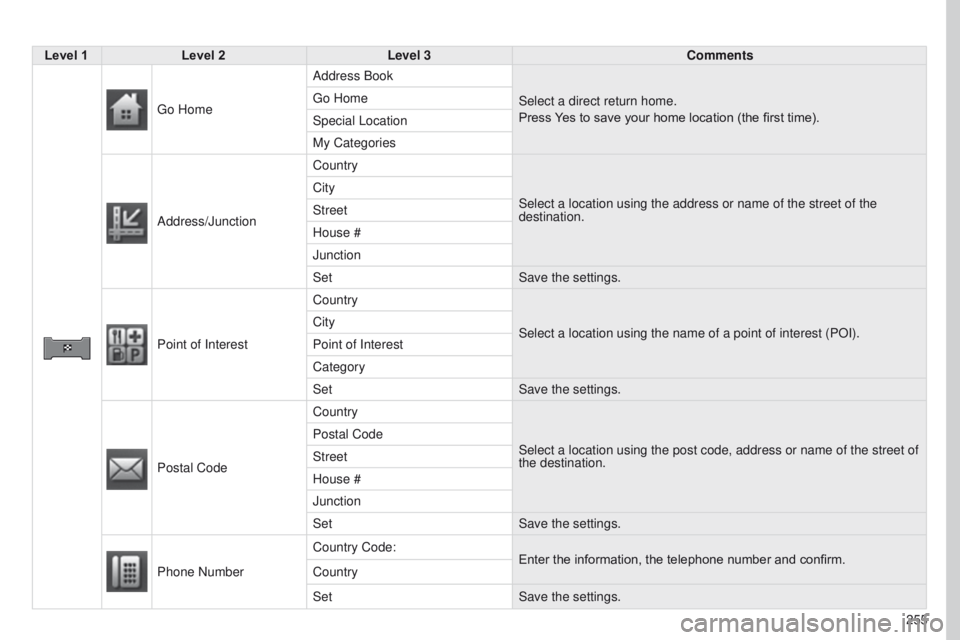
Level 1Level 2 Level 3 Comments
g
o Home Address Book
Select a direct return home.
Press Yes to save your home location (the first time).
g
o Home
Special Location
My Categories
Address/Junction Country
Select a location using the address or name of the street of the
destination.
City
Street
House #
Junction
Set
Save the settings.
Point of Interest Country
Select a location using the name of a point of interest (POI).
City
Point of Interest
Category
Set
Save the settings.
Postal Code Country
Select a location using the post code, address or name of the street of \
the destination.
Postal Code
Street
House #
Junction
Set
Save the settings.
Phone Number Country Code:
Enter the information, the telephone number and confirm.
Country
Set Save the settings.
Page 274 of 368
05
272
4008_EN_CHAP10B_MITSU6_ED01-2016
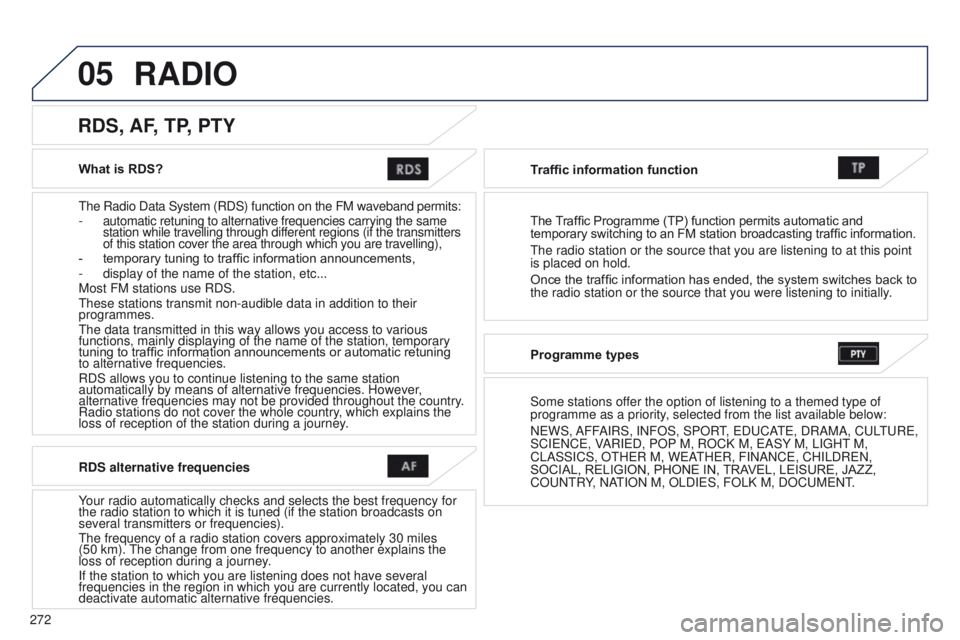
What is RDS?
t
he Radio Data System (RDS) function on the FM waveband permits:
-
automatic retuning to alternative frequencies carrying the same
station while travelling through different regions (if the transmitters
of this station cover the area through which you are travelling),
-
temporary tuning to traffic information announcements,
-
display of the name of the station, etc...
Most FM stations use RDS.
t
hese stations transmit non-audible data in addition to their
programmes.
t
he data transmitted in this way allows you access to various
functions, mainly displaying of the name of the station, temporary
tuning to traffic information announcements or automatic retuning
to alternative frequencies.
RDS allows you to continue listening to the same station
automatically by means of alternative frequencies. However,
alternative frequencies may not be provided throughout the country.
Radio stations do not cover the whole country, which explains the
loss of reception of the station during a journey.
RDS, AF, TP, PTY
RDS alternative frequencies
Your radio automatically checks and selects the best frequency for
the radio station to which it is tuned (if the station broadcasts on
several transmitters or frequencies).
t
he frequency of a radio station covers approximately 30 miles
(50
km).
t
he change from one frequency to another explains the
loss of reception during a journey.
If the station to which you are listening does not have several
frequencies in the region in which you are currently located, you can
deactivate automatic alternative frequencies. Traffic information function
The Traf
fi c Programme (TP) function permits automatic and
temporary switching to an FM station broadcasting traffic information.
t
he radio station or the source that you are listening to at this point
is placed on hold.
Once the traffic information has ended, the system switches back to
the radio station or the source that you were listening to initially.
Programme types
Some stations offer the option of listening to a themed type of
programme as a priority, selected from the list available below:
N e WS, AFFAIRS, INFOS, SPOR
t,
e D u CA
te
, DRAMA, C u L
tu
R e ,
SCI e NC e , VARI e D, POP M, ROCK M, e ASY M, LI g H t
M,
CLASSICS, O
t H e R M, W e At H e R, FINANC e , CHILDR e N,
SOCIAL, RELIGION, PHONE IN, TRAVEL, LEISURE, JAZZ,
CO
u N t RY, NAt ION M, OLDI e S, FOLK M, DOC u M e N t.
RADIO