display PEUGEOT 408 2023 Owners Manual
[x] Cancel search | Manufacturer: PEUGEOT, Model Year: 2023, Model line: 408, Model: PEUGEOT 408 2023Pages: 244, PDF Size: 7.37 MB
Page 203 of 244
201
PEUGEOT i-Connect Advanced - PEUGEOT i-Connect
10First adjust the volume on the portable device (to
a high level).
Then adjust the volume of the system.
If playback does not start, it may be necessary to
start the audio playback from the smartphone.
Control is from the portable device or by using
the system's touch buttons.
Once connected in streaming mode, the
smartphone is considered to be a media
source.
Playing a track
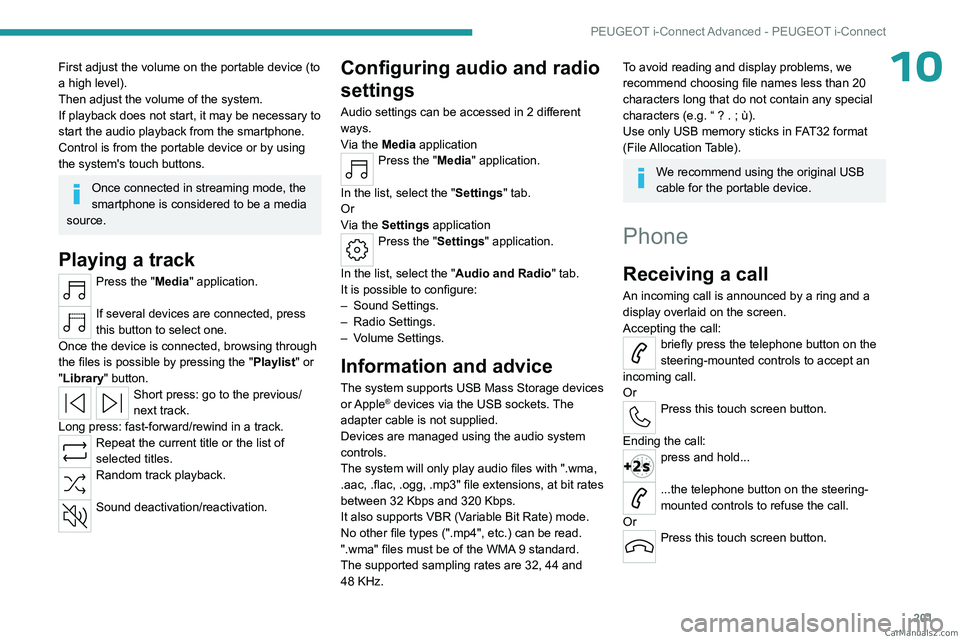
Press the "Media" application.
If several devices are connected, press
this button to select one.
Once the device is connected, browsing through
the files is possible by pressing the
"Playlist" or
"Library"
button.
Short press: go to the previous/
next track.
Long press: fast-forward/rewind in a track.
Repeat the current title or the list of
selected titles.
Random track playback.
Sound deactivation/reactivation.
Configuring audio and radio
settings
Audio settings can be accessed in 2 different
ways.
Via the Media application
Press the "Media" application.
In the list, select the "Settings" tab.
Or
Via the Settings application
Press the "Settings" application.
In the list, select the "Audio and Radio " tab.
It is possible to configure:
–
Sound Settings.
–
Radio Settings.
–
V
olume Settings.
Information and advice
The system supports USB Mass Storage devices
or Apple® devices via the USB sockets. The
adapter cable is not supplied.
Devices are managed using the audio system
controls.
The system will only play audio files with ".wma,
.aac,
.flac, .ogg, .mp3" file extensions, at bit rates
between 32 Kbps and 320 Kbps.
It also supports VBR (Variable Bit Rate) mode.
No other file types (".mp4", etc.) can be read.
".wma" files must be of the WMA 9 standard.
The supported sampling rates are 32, 44 and
48 KHz.
To avoid reading and display problems, we
recommend choosing file names less than 20
characters long that do not contain any special
characters (e.g. “ ? .
; ù).
Use only USB memory sticks in FAT32 format
(File Allocation Table).
We recommend using the original USB
cable for the portable device.
Phone
Receiving a call
An incoming call is announced by a ring and a
display overlaid on the screen.
Accepting the call:
briefly press the telephone button on the
steering-mounted controls to accept an
incoming call.
Or
Press this touch screen button.
Ending the call:
press and hold...
...the telephone button on the steering-
mounted controls to refuse the call.
Or
Press this touch screen button. CarM an uals 2 .c o m
Page 204 of 244
202
PEUGEOT i-Connect Advanced - PEUGEOT i-Connect
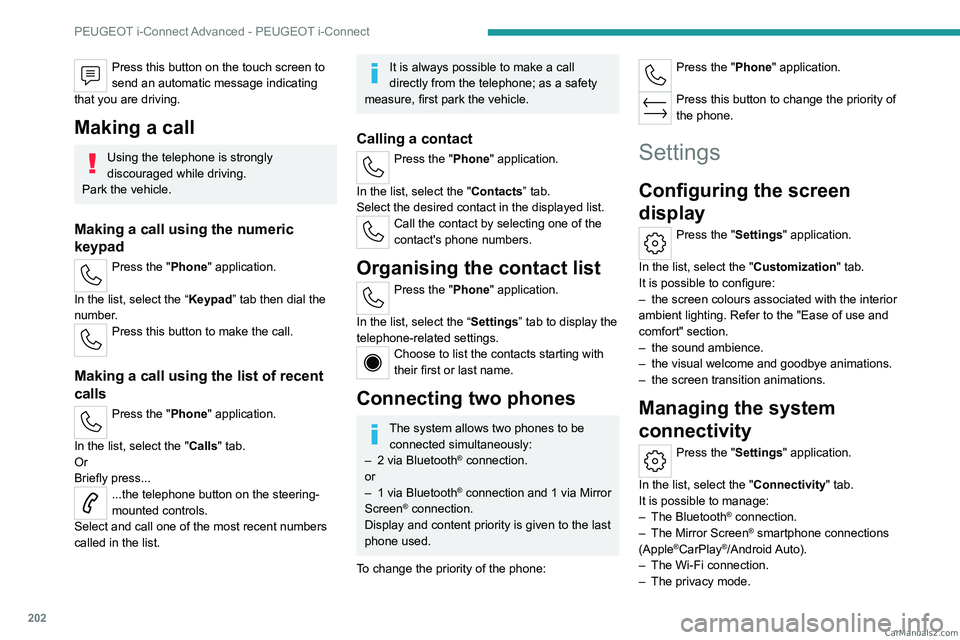
Press this button on the touch screen to
send an automatic message indicating
that you are driving.
Making a call
Using the telephone is strongly
discouraged while driving.
Park the vehicle.
Making a call using the numeric
keypad
Press the "Phone" application.
In the list, select the “Keypad” tab then dial the
number.
Press this button to make the call.
Making a call using the list of recent
calls
Press the "Phone" application.
In the list, select the "Calls" tab.
Or
Briefly press...
...the telephone button on the steering-
mounted controls.
Select and call one of the most recent numbers
called in the list.
It is always possible to make a call
directly from the telephone; as a safety
measure, first park the vehicle.
Calling a contact
Press the "Phone" application.
In the list, select the "Contacts” tab.
Select the desired contact in the displayed list.
Call the contact by selecting one of the
contact's phone numbers.
Organising the contact list
Press the "Phone" application.
In the list, select the “Settings” tab to display the
telephone-related settings.
Choose to list the contacts starting with
their first or last name.
Connecting two phones
The system allows two phones to be connected simultaneously:
–
2 via
Bluetooth
® connection.
or
–
1 via
Bluetooth
® connection and 1 via Mirror
Screen® connection.
Display and content priority is given to the last
phone used.
To change the priority of the phone:
Press the "Phone" application.
Press this button to change the priority of
the phone.
Settings
Configuring the screen
display
Press the "Settings" application.
In the list, select the "Customization" tab.
It is possible to configure:
–
the screen colours associated with the interior
ambient lighting. Refer to the "Ease of use and
comfort" section.
–
the sound ambience.
–
the visual welcome and goodbye animations.
–
the screen transition animations.
Managing the system
connectivity
Press the "Settings" application.
In the list, select the "Connectivity" tab.
It is possible to manage:
–
The Bluetooth® connection.
–
The Mirror Screen® smartphone connections
(Apple®CarPlay®/Android Auto).
–
The Wi-Fi connection.
–
The privacy mode. CarM an uals 2 .c o m
Page 205 of 244
203
PEUGEOT i-Connect Advanced - PEUGEOT i-Connect
10Configuring the system
Press the "Settings" application.
In the list, select the "System” tab.
It is possible to configure:
–
the language.
–
the date & time.
–
the unit of distance and consumption
(kWh/100 miles - miles, mi/kWh - miles, km/kWh
- km).
–
the temperature unit (Fahrenheit, Celsius).
It is also possible to reset the system
configuration.
Selecting the language
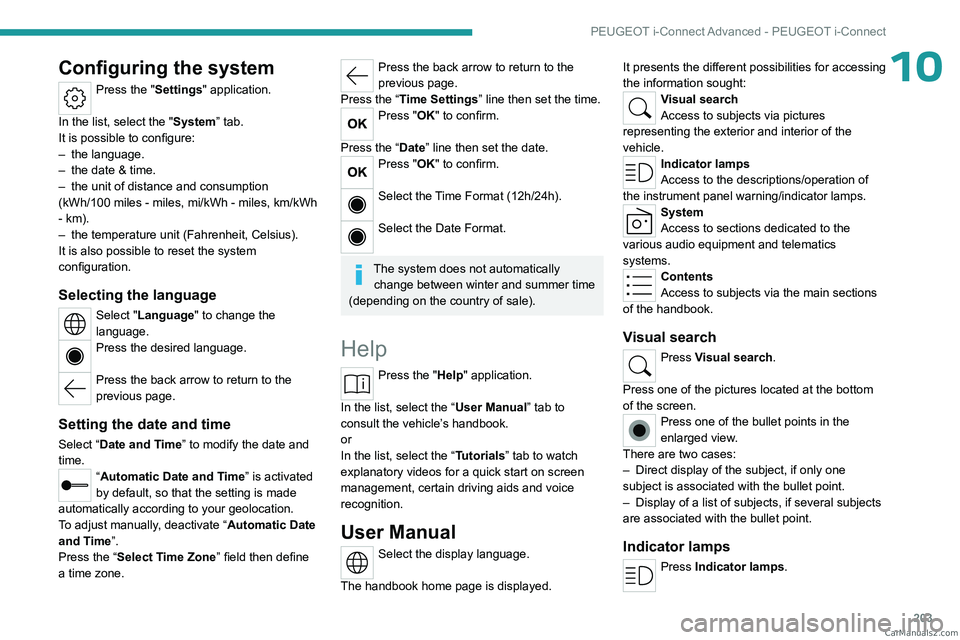
Select "Language" to change the
language.
Press the desired language.
Press the back arrow to return to the
previous page.
Setting the date and time
Select “Date and Time” to modify the date and
time.
“Automatic Date and Time” is activated
by default, so that the setting is made
automatically according to your geolocation.
To adjust manually, deactivate “Automatic Date
and Time”.
Press the “Select Time Zone” field then define
a time zone.
Press the back arrow to return to the
previous page.
Press the “Time Settings” line then set the time.
Press "OK" to confirm.
Press the “Date” line then set the date.
Press "OK" to confirm.
Select the Time Format (12h/24h).
Select the Date Format.
The system does not automatically change between winter and summer time
(depending on the country of sale).
Help
Press the "Help" application.
In the list, select the “User Manual” tab to
consult the vehicle’s handbook.
or
In the list, select the “Tutorials” tab to watch
explanatory videos for a quick start on screen
management, certain driving aids and voice
recognition.
User Manual
Select the display language.
The handbook home page is displayed. It presents the different possibilities for accessing
the information sought:
Visual search
Access to subjects via pictures
representing the exterior and interior of the
vehicle.
Indicator lamps
Access to the descriptions/operation of
the instrument panel warning/indicator lamps.
System
Access to sections dedicated to the
various audio equipment and telematics
systems.
Contents
Access to subjects via the main sections
of the handbook.
Visual search
Press Visual search.
Press one of the pictures located at the bottom
of the screen.
Press one of the bullet points in the
enlarged view.
There are two cases:
–
Direct display of the subject, if only one
subject is associated with the bullet point.
–
Display of a list of subjects, if several subjects
are associated with the bullet point.
Indicator lamps
Press Indicator lamps. CarM an uals 2 .c o m
Page 206 of 244
204
PEUGEOT i-Connect Advanced - PEUGEOT i-Connect
The mosaic of warning/indicator lamps is
displayed.
The warning/indicator lamps are sorted by
colour.
Press the warning/indicator lamp concerned; the
corresponding content is displayed.
Back to the mosaic of warning/indicator
lamps.
System
Press System.
The list of audio and telematics systems is
displayed.
Press on the section concerned; the list of
subjects is displayed.
Press on the subject concerned;
the
corresponding content is displayed.
If the subject has more than one page,
drag horizontally.
Back to the list of subjects.
Contents
Press Contents.
The list of sections is displayed.
Press on the section concerned;
the list of
subjects is displayed.
Press on the subject concerned;
the
corresponding content is displayed.
If the subject has more than one page,
drag horizontally.
Back to the list of subjects. CarM an uals 2 .c o m
Page 207 of 244
205
Vehicle data recording and privacy
11Vehicle data recording
and privacy
Electronic control units are installed in your
vehicle. These control units process data
received from the vehicle's sensors, for example,
or data they generate themselves or exchange
with each other. Some of these control units are
required for the correct operation of your vehicle,
some others assist you while driving (driving or
manoeuvring aids), while others provide comfort
or infotainment functions.
The following contains general information about
how data is processed within the vehicle.
You will find additional information about the
specific data which is downloaded, stored
and transmitted to third parties and what it is
used for in your vehicle under the keyword
"Data protection". This information is directly
associated with the references for the functions
in question contained in the corresponding
vehicle handbook, or in the general terms and
conditions of sale.
This information is also available online.
Vehicle operating data
The control units process the data used for the
operation of the vehicle.
This data includes, for example:
–
Information about the state of the vehicle
(e.g.
speed, travel time, lateral acceleration,
wheel rotation rate, fastened seat belts display). –
Environmental conditions (e.g.
temperature,
rain sensor, distance sensor).
As a general rule, this data is temporary, is
not stored for longer than one operating cycle
and is only used within the vehicle itself. The
control units often record this data (including the
vehicle's key). This function allows either the
temporary or permanent storage of information
about the state of the vehicle, stresses on
components, servicing requirements, as well as
events and technical errors.
Depending on the vehicle's equipment level, the
data stored is as follows:
–
Operating state of system components
(e.g.
filling level, tyre pressures, battery charge
status).
–
Faults and malfunctions in important system
components (e.g.
lamps, brakes).
–
System reactions in specific driving situations
(e.g.
deployment of an airbag, triggering of
stability control and braking systems).
–
Information about events which have
damaged the vehicle.
–
For electric and rechargeable hybrid vehicles,
the traction battery charge level and the
estimated driving range.
In particular circumstances (e.g.
if the vehicle
has detected a malfunction), it may be necessary
to record data which would otherwise simply not
be stored.
When taking your vehicle in for servicing
(e.g.
repairs, maintenance), the stored operating
data may be read along with the vehicle's identification number and used if necessary.
The personnel working for the servicing network
(e.g.
garages, manufacturers) or third parties
(e.g. roadside assistance agents) may read
the vehicle's data. This also applies to work
carried out under warranty and quality assurance
measures.
This data is generally read via the OBD
(On-Board Diagnostics) port fitted by law to
the vehicle. It is used to report on the technical
state of the vehicle or its components and
facilitates the diagnosis of malfunctions, in
compliance with warranty obligations and for
quality improvement. This data, in particular the
information relating to stress on components,
technical events, operator errors and other
malfunctions, is sent to the Manufacturer, if
necessary, along with the vehicle's identification
number. The Manufacturer's liability may also be
engaged. The Manufacturer may also use the
operating data taken from the vehicle for product
recalls. This data may also be used to check the
customer's warranty and any claims made under
warranty.
Any malfunctions stored in the vehicle may be
reset by an after-sales service company during
servicing or repair work, or at your request. CarM an uals 2 .c o m
Page 211 of 244
209
Alphabetical index
Children (safety) 90
Child seats
79, 83–85
Child seats, conventional
85, 88–89
Child seats, i-Size
87–89
Child seats, ISOFIX
85–86, 88–89
Cleaning (advice)
145, 165–167
Closing the boot
27, 31
Closing the doors
27, 31
Collision Risk Alert
126–128
Configuration, vehicle
10, 21
Connection, Bluetooth
197–198
Connectivity
202
Consumptions
22
Control, emergency boot release
31
Control, emergency door
29
Control, heated seats
43–44
Controls, steering mounted
97–98
Control stalk, lighting
61–62
Control stalk, wipers
68, 70
Control unit
146–148, 152
Courtesy lamp, front
58
Courtesy lamps
57–58
Cruise control
109–110, 112–114
Cruise control, adaptive
109–110, 114–115
Cruise control by speed limit
recognition
109–110
D
Date (setting) 203
Daytime running lamps
62
Deactivating the passenger airbag
80, 84–85
Deadlocking 25, 27
Deferred charging
22, 153
Deferred charging (Rechargeable
hybrid)
21–22, 146, 151
Defrosting
45, 52
Defrosting, front
52
Defrosting, rear screen
52
Demisting
45, 52
Demisting, front
52
Demisting, rear
52
Diagnosis, vehicle
19
Dials and gauges
10
Digital instrument panel
10
Dimensions
188
Dipstick
17, 161
Direction indicators (turn signals)
62, 176
Display, head-up
67
Display screen, instrument panel
10
Domestic charging
148
Domestic charging (Rechargeable
hybrid)
152–153
Doors
31
Drive Assist Plus
114–115
Driver’s attention warning
130–131
Driving
40–41, 91–92, 106
Driving abroad
66
Driving aids camera (warnings)
105
Driving aid shortcuts
106
Driving aids (recommendations)
104
Driving economically
8
Driving modes
99
Driving positions (storing)
43
Dynamic stability control (DSC)
76E
EBFD 75
Eco-driving (advice)
8
ECO mode
99
Electric automatic gearbox (Rechargeable
hybrid)
96
Electronic brake force distribution (EBFD)
75
Emergency braking assistance (EBA)
76
Emergency call
73–74
Emergency switching off
94
Emergency warning lamps
72, 168
Energy economy (mode)
159
Energy economy mode
159
Energy flows
21
Energy recovery
18, 98
Engine
164
Engine compartment
160–161
Engine, petrol
100, 161, 186
Engines
185–186
Environment
8, 30
e-Save function (energy reserve)
22
ESC (electronic stability control)
75
Expanded traffic sign recognition
11 0
Exterior lighting
64
F
Fatigue detection 130–131
Favourite driving functions
106
Filling the fuel tank
143
Filter, air
163 CarM an uals 2 .c o m
Page 212 of 244
210
Alphabetical index
Filter, oil 163
Filter, passenger compartment
49, 163
Fitting a wheel
172, 174
Fitting roof bars
157–158
Fittings, boot
59
Fittings, interior
54
Fittings, rear
58
Flap, charging
153
Flap, fuel filler
143
Flap, ski
59
Flashing indicators
62
Flat bed (towing)
183
Fluid, brake
162
Fluid, engine coolant
162
Foglamps, rear
61, 176
Folding the rear seats
47–48
Frequency (radio)
200
Fuel
8, 143
Fuel consumption
8, 18
Fuel level, low
143
Fuel (tank)
143
Fuses
177
G
Gauge, fuel 143
Gearbox, automatic
96–99, 101, 163, 177
Gearbox, manual
101
Gear shift indicator
101
Glove box
54
H
Hands-free access 33–34
Hands-free tailgate
33–34
Hazard warning lamps
72, 168
Headlamps (adjustment)
62
Headlamps, automatic dipping
64–65
Headlamps, automatic operation
63
Headlamps, halogen
62
Headlamps, main beam
64
Head restraints, front
41
Head restraints, rear
47–48
Head-up display
67
Heated steering wheel
45
Heating
48
Heating, programmable
22, 53
Hi-Fi system
57
High voltage
144
Hill start assist
100–101
Histogramme, fuel consumption
22
Horn
73
I
Ignition 93, 202
Ignition on
93
Immobiliser, electronic
92
Indicator, coolant temperature
18
Indicator, engine oil level
17
Indicators, direction
62
Indicator, service
17
Inflating tyres
164, 188
Inflating tyres and accessories
(using the kit)
169, 171
Information, vehicle
10, 205
Infrared camera
67, 105
Instrument panel
10, 19, 19–20, 106
Instrument panels
10
ISOFIX mountings
85, 88–89
J
Jack 168–169, 172
Jump starting
178
K
Key 24–25, 29
Key, electronic
26–27
Keyless Entry and Starting
24, 26–27, 92–93
Key not recognised
94
Key with remote control
24, 92
Kit, hands-free
197
Kit, puncture repair
168–169
Kit, temporary puncture repair
168–171
Klaxon
73
L
Labels, identification 188
Lamps, parking
62
Lamps, rear
176 CarM an uals 2 .c o m