sensor PEUGEOT 408 2023 Owner's Manual
[x] Cancel search | Manufacturer: PEUGEOT, Model Year: 2023, Model line: 408, Model: PEUGEOT 408 2023Pages: 244, PDF Size: 7.37 MB
Page 138 of 244
136
Driving
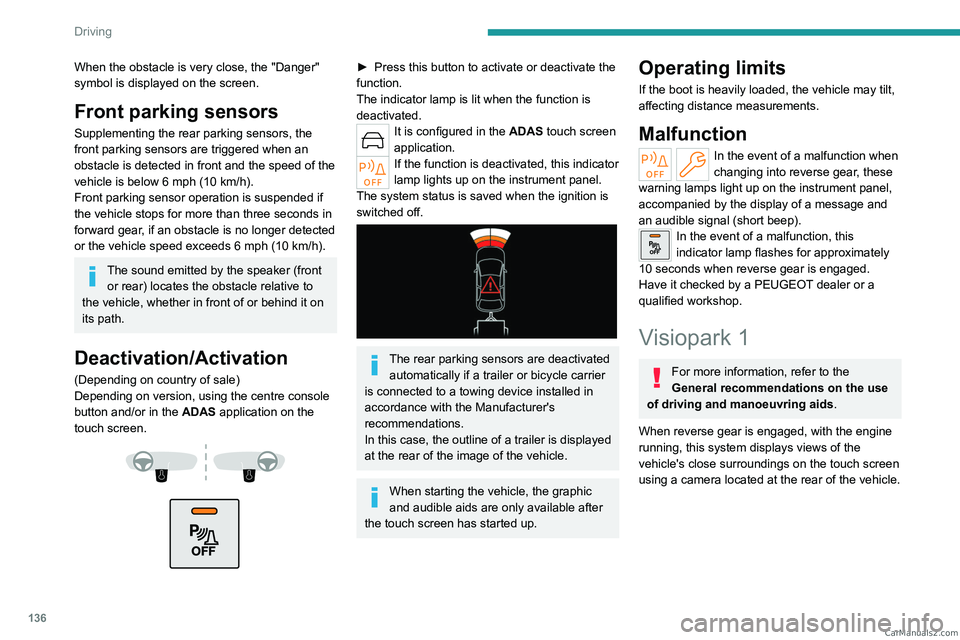
When the obstacle is very close, the "Danger"
symbol is displayed on the screen.
Front parking sensors
Supplementing the rear parking sensors, the
front parking sensors are triggered when an
obstacle is detected in front and the speed of the
vehicle is below 6 mph (10 km/h).
Front parking sensor operation is suspended if
the vehicle stops for more than three seconds in
forward gear, if an obstacle is no longer detected
or the vehicle speed exceeds 6
mph (10 km/h).
The sound emitted by the speaker (front or rear) locates the obstacle relative to
the vehicle, whether in front of or behind it on
its path.
Deactivation/Activation
(Depending on country of sale)
Depending on version, using the centre console
button and/or in the ADAS application on the
touch screen.
► Press this button to activate or deactivate the
function.
The indicator lamp is lit when the function is
deactivated.
It is configured in the ADAS touch screen
application.
If the function is deactivated, this indicator
lamp lights up on the instrument panel.
The system status is saved when the ignition is
switched off.
The rear parking sensors are deactivated automatically if a trailer or bicycle carrier
is connected to a towing device installed in
accordance with the Manufacturer's
recommendations.
In this case, the outline of a trailer is displayed
at the rear of the image of the vehicle.
When starting the vehicle, the graphic
and audible aids are only available after
the touch screen has started up.
Operating limits
If the boot is heavily loaded, the vehicle may tilt,
affecting distance measurements.
Malfunction
In the event of a malfunction when
changing into reverse gear, these
warning lamps light up on the instrument panel,
accompanied by the display of a message and
an audible signal (short beep).
In the event of a malfunction, this
indicator lamp flashes for approximately
10 seconds when reverse gear is engaged.
Have it checked by a PEUGEOT dealer or a
qualified workshop.
Visiopark 1
For more information, refer to the
General recommendations on the use
of driving and manoeuvring aids .
When reverse gear is engaged, with the engine
running, this system displays views of the
vehicle's close surroundings
on the touch screen
using a camera located at the rear of the vehicle. CarM an uals 2 .c o m
Page 139 of 244
137
Driving
6
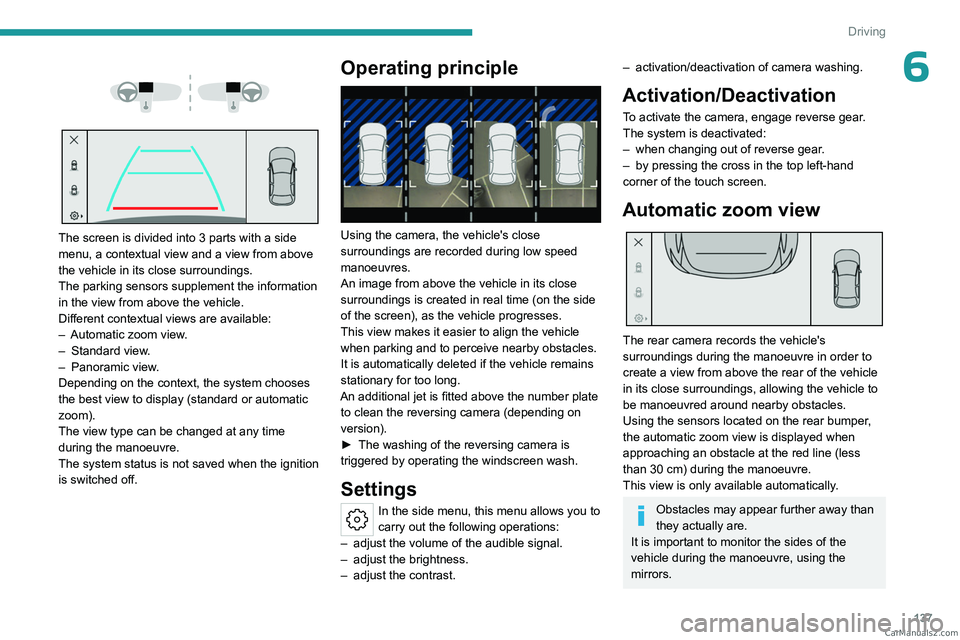
The screen is divided into 3 parts with a side
menu, a contextual view and a view from above
the vehicle in its close surroundings.
The parking sensors supplement the information
in the view from above the vehicle.
Different contextual views are available:
–
Automatic zoom view
.
–
Standard view
.
–
Panoramic view
.
Depending on the context, the system chooses
the best view to display (standard or automatic
zoom).
The view type can be changed at any time
during the manoeuvre.
The system status is not saved when the ignition
is switched off.
Operating principle
Using the camera, the vehicle's close
surroundings are recorded during low speed
manoeuvres.
An image from above the vehicle in its close
surroundings is created in real time (on the side
of the screen), as the vehicle progresses.
This view makes it easier to align the vehicle
when parking and to perceive nearby obstacles.
It is automatically deleted if the vehicle remains
stationary for too long.
An additional jet is fitted above the number plate to clean the reversing camera (depending on
version).
►
The washing of the reversing camera is
triggered by operating the windscreen wash.
Settings
In the side menu, this menu allows you to
carry out the following operations:
–
adjust the volume of the audible signal.
–
adjust the brightness.
–
adjust the contrast.
– activation/deactivation of camera washing.
Activation/Deactivation
To activate the camera, engage reverse gear.
The system is deactivated:
–
when changing out of reverse gear
.
–
by pressing the cross in the top left-hand
corner of the touch screen.
Automatic zoom view
The rear camera records the vehicle's
surroundings during the manoeuvre in order to
create a view from above the rear of the vehicle
in its close surroundings, allowing the vehicle to
be manoeuvred around nearby obstacles.
Using the sensors located on the rear bumper,
the automatic zoom view is displayed when
approaching an obstacle at the red line (less
than 30 cm) during the manoeuvre.
This view is only available automatically.
Obstacles may appear further away than
they actually are.
It is important to monitor the sides of the
vehicle during the manoeuvre, using the
mirrors. CarM an uals 2 .c o m
Page 140 of 244

138
Driving
Parking sensors also provide additional
information about the area around the vehicle.
Standard view
The area behind the vehicle is displayed on the
screen.
The blue lines 1 represent the width of your
vehicle, with the mirrors unfolded; their direction
changes according to the position of the steering
wheel.
The red line 2 represents a distance of 30
cm
from the rear bumper; the two blue lines 3 and 4
represent 1
m and 2 m, respectively.
This view is available automatically or by
selection in the side menu.
Panoramic view
The panoramic view allows you to leave, in
reverse, a parking space by anticipating the
arrival of vehicles, pedestrians or cyclists.
This view is not recommended for carrying out a
complete manoeuvre.
This view is only available by selection in the
side menu.
Visiopark 3
For more information, refer to the
General recommendations on the use
of driving and manoeuvring aids .
This system allows you to view your vehicle's
close surroundings
on the touch screen using
cameras, located at the front and rear of the
vehicle, as well as under the door mirrors.
The screen is divided into 4 parts with two side
menus, a contextual view and a view from above
the vehicle in its close surroundings.
The parking sensors supplement the information
in the view from above the vehicle. Depending on the view angle chosen in the
left-hand side menu, the system provides
specific visual assistance in particular driving
conditions, such as entering a blind intersection
or manoeuvring in areas with reduced visibility.
Different contextual views are available for the
rear or for the front:
–
Automatic zoom view
.
–
Standard view
.
–
Panoramic view
.
Depending on the context, the system chooses
the best view to display (standard or automatic
zoom).
The view type can be changed at any time
during the manoeuvre.
The system status is not saved when the ignition
is switched off.
Operating principle
Reconstructed view
The cameras are activated and a reconstruction
of a view from above your vehicle in its close
surroundings is displayed on the touch screen.
Live view
CarM an uals 2 .c o m
Page 141 of 244

139
Driving
6The front, rear and side views automatically
appear in the view from above the vehicle.
It is also possible to display any live view by
selecting the corresponding zone.
The front view can be selected in forward gear
up to 10 mph (16 km/h).
Installing the very cold climate screen
can alter the image transmitted by the
front camera.
An additional jet is fitted above the number plate to clean the reversing camera (depending on
version).
►
The washing of the reversing camera is
triggered by operating the windscreen wash.
Settings
In the side menu, this menu allows you to
carry out the following operations:
–
adjust the volume of the audible signal.
–
adjust the brightness.
–
adjust the contrast.
–
activation/deactivation of camera washing.
Activation/Deactivation
Automatic
With the rear camera, engine running and
vehicle stationary, rear vision is displayed
automatically if reverse gear is engaged.
With the front camera, engine running and speed
below 10 mph (16 km/h), rear vision is displayed
automatically if a gear is engaged.
Manual
► In the ADAS touch screen application,
select Functions>Panoramic Camera
The system is deactivated:
–
automatically for the rear
, when changing out
of reverse gear.
–
automatically for the front, above
approximately 10 mph (16 km/h).
–
by pressing the cross in the top left-hand
corner of the touch screen.
Automatic zoom view
The front or rear camera records the
surroundings during the manoeuvre to create
a front or rear view from above the vehicle in
its close surroundings, making it possible to
manoeuvre the vehicle around the surrounding
obstacles.
Using the sensors located on the front or
rear
bumper, the automatic zoom view is
displayed when approaching an obstacle at the
red line (less than 30 cm) during the manoeuvre.
This view is only available automatically.
Depending on version, it can be activated/
deactivated in the ADAS application of the touch
screen.
Obstacles may appear further away than
they actually are.
It is important to monitor the sides of the
vehicle during the manoeuvre, using the
mirrors.
Parking sensors also provide additional
information about the area around the vehicle.
Standard view
Depending on the context, the area behind or in
front of your vehicle is displayed on the screen.
The blue lines (at the rear)/orange lines (at the
front) 1 represent the width of your vehicle, with
the mirrors unfolded;
their direction changes
according to the position of the steering wheel.
The red line 2 represents a distance of 30 cm
from the rear or front bumper; the two blue lines
(at the rear)/orange lines (at the front)
3
and
4
represent 1 m and 2 m respectively.
This view is available automatically or by
selection in the left-hand side menu. CarM an uals 2 .c o m
Page 142 of 244

140
Driving
Panoramic view
The rear or front panoramic view allows you to
leave a parking space by anticipating the arrival
of vehicles, pedestrians or cyclists.
This view is not recommended for carrying out a
complete manoeuvre.
This view is only available by selection in the left-
hand side menu.
Side views
The left-hand/right-hand side view allows you to
view the surroundings of each side of the vehicle
(e.g. pavement, low wall, other vehicle parked
next to it).
► Select the relevant view in the view from
above the vehicle.
The selected area turns yellow and the side view
appears in the middle of the screen.
This view is not recommended for carrying out a
complete manoeuvre.
Rear cross traffic alert
For more information, refer to the
General recommendations on the use
of driving and manoeuvring aids .
When engaging reverse gear with the engine
running, or when reversing at up to 6 mph
(10
km/h), this system warns of approaching
obstacles (e.g.
pedestrian, cyclist, vehicle, truck,
motorcycle) in the rear blind spots of the vehicle,
using the radars installed in the bumper.
The system detects obstacles moving more than
2 mph (3
km/h) at a maximum distance of 40 m.
The system operates in addition to the Parking
sensors, Visiopark 1 or Visiopark 3 functions
(depending on version).
For more information about the Parking
sensors, Visiopark 1 or Visiopark 3 functions,
refer to the corresponding sections.
The driver must monitor their surroundings before and during the
whole manoeuvre. Drive slowly and carefully
in reverse gear in case of reduced or no
visibility.
Operating principle
When an approaching obstacle is detected, the
symbol 1 or 2 flashes on the touch screen, in the
Parking sensors view or in the various contextual
views of the Visiopark 1 or Visiopark 3 functions
(depending on version).
The symbol is complemented by an audible
signal when the vehicle is reversing. CarM an uals 2 .c o m
Page 167 of 244
165
Practical information
7► Release the brake pedal to switch on the
ignition and deactivate the electric parking brake.
A message is displayed on the instrument panel to confirm the unlocking
of the wheels for 15
minutes.
When the vehicle is free-wheeling, the
audio system cannot be updated (message
displayed on the instrument panel).
After 15 minutes or reverting to normal
operation
► While depressing the brake pedal, restart the
engine and select mode P .
Keyless Entry and Start
You must not depress the brake pedal
while switching the ignition on again, then
switching it off. If you do, the engine will start,
requiring you to restart the procedure.
Advice on care and maintenance
General recommendations
Observe the following recommendations to avoid
damaging the vehicle.
Exterior
Never use a high-pressure jet wash in
the engine compartment - risk of
damaging the electrical components!
Do not wash the vehicle in bright sunshine or
extremely cold conditions.
When washing the vehicle in an
automatic roller-brush car wash, be sure
to lock the doors and, depending on version,
move the electronic key away and deactivate
the "hands-free" function (Hands-Free
Tailgate Access).
When using a pressure washer, keep the jet
nozzle at a minimum distance of 30 cm from
the vehicle (particularly when cleaning areas
containing chipped paint, sensors or seals).
Promptly clean up any stains containing
chemicals liable to damage the vehicle's
paintwork (including tree resin, bird
droppings, insect secretions, pollen and tar).
Depending on the environment, clean the
vehicle frequently to remove salty deposits
(in coastal areas), soot (in industrial areas)
and mud/salts (in wet or cold areas). These
substances can be highly corrosive.
Contact a PEUGEOT dealer or a qualified
workshop for advice on removing stubborn
stains requiring special products (such as tar
or insect removers).
Preferably, have paint touch-ups performed
by a PEUGEOT dealer or a qualified
workshop.
Interior
When washing the vehicle, never use a
water hose or high-pressure jet to clean
the interior.
Liquids carried in cups or other open
containers can spill, presenting a risk of
damage to the instruments and controls and
the controls located on the centre console. Be
vigilant!
To clean instrument panels, touch screens
or other displays, wipe gently with a soft,
dry cloth. Do not use products (e.g. alcohol,
disinfectant) or soapy water directly on these
surfaces - risk of damage!
Bodywork
High-gloss paint
Do not use abrasive products, solvents,
petrol or oil to clean the bodywork.
Never use an abrasive sponge to clean
stubborn stains - risk of scratching the
paintwork!
Do not apply polish in strong sunshine, or to
plastic or rubber parts. CarM an uals 2 .c o m
Page 191 of 244

189
PEUGEOT i-Connect Advanced - PEUGEOT i-Connect
10PEUGEOT i-Connect
Advanced - PEUGEOT
i-Connect
GPS navigation -
Applications - Multimedia
audio system - Bluetooth
®
telephone
The functions and settings described
vary according to the version and
configuration of the vehicle, and according to
the country of sale.
For safety reasons and because they
require continued attention on the part of
the driver, the following operations must be
carried out with the vehicle stationary and
the ignition on:
–
Pairing the smartphone with the system via
Bluetooth®.
–
Using the smartphone.
–
Connecting to Mirror Screen
(Apple®CarPlay® or Android Auto).
–
Changing the system settings and
configuration.
The message Energy economy mode is displayed when the system is about to go
into standby.
For more information on Energy economy
mode, refer to the "Practical information"
section.
Warning
Navigation is a driving aid. It cannot
replace the driver. All guidance instructions
should be carefully checked by the user.
By using the navigation, you accept the
following terms and conditions:
https://www.tomtom.com/en_gb/legal/
eula-automotive/?388448
First steps
The system starts when the ignition is switched on.
Short press, ignition off: system on/off.
Short press, ignition on: mute/restore sound.
Long press, ignition on: start standby mode
(mute sound, screens and clock display off).
Rotation: volume adjustment.
Information
This system gives access to the following
elements:
–
Audio equipment and telephone controls with
display of associated information. –
Connected services and display of associated
information.
–
Navigation system controls and display
of associated information (depending on
equipment).
–
V
oice recognition (depending on equipment).
–
T
ime and outside temperature.
–
Heating/air conditioning system controls and
reminders of settings.
–
Settings for driving aid functions, comfort
and safety functions, extended head-up display
(depending on equipment and version), audio
equipment and digital instrument panel.
–
Settings for functions specific to rechargeable
hybrid vehicles.
–
Display of visual manoeuvring aid functions.
–
Interactive handbook.
–
V
ideo tutorials (e.g. screen management,
driving aids, voice recognition).
Upper banner
Certain information is displayed permanently in
the upper banner of the touch screen:
–
Outside temperature from the vehicle's
sensors (associated with a blue symbol if there is
a risk of ice).
–
T
emperature setting reminder for the air
conditioning on the driver's and passenger sides.
–
Charge level of the connected smartphone.
–
System connection status (Bluetooth®, Wi-Fi,
mobile telephone network).
–
Time. CarM an uals 2 .c o m
Page 207 of 244
205
Vehicle data recording and privacy
11Vehicle data recording
and privacy
Electronic control units are installed in your
vehicle. These control units process data
received from the vehicle's sensors, for example,
or data they generate themselves or exchange
with each other. Some of these control units are
required for the correct operation of your vehicle,
some others assist you while driving (driving or
manoeuvring aids), while others provide comfort
or infotainment functions.
The following contains general information about
how data is processed within the vehicle.
You will find additional information about the
specific data which is downloaded, stored
and transmitted to third parties and what it is
used for in your vehicle under the keyword
"Data protection". This information is directly
associated with the references for the functions
in question contained in the corresponding
vehicle handbook, or in the general terms and
conditions of sale.
This information is also available online.
Vehicle operating data
The control units process the data used for the
operation of the vehicle.
This data includes, for example:
–
Information about the state of the vehicle
(e.g.
speed, travel time, lateral acceleration,
wheel rotation rate, fastened seat belts display). –
Environmental conditions (e.g.
temperature,
rain sensor, distance sensor).
As a general rule, this data is temporary, is
not stored for longer than one operating cycle
and is only used within the vehicle itself. The
control units often record this data (including the
vehicle's key). This function allows either the
temporary or permanent storage of information
about the state of the vehicle, stresses on
components, servicing requirements, as well as
events and technical errors.
Depending on the vehicle's equipment level, the
data stored is as follows:
–
Operating state of system components
(e.g.
filling level, tyre pressures, battery charge
status).
–
Faults and malfunctions in important system
components (e.g.
lamps, brakes).
–
System reactions in specific driving situations
(e.g.
deployment of an airbag, triggering of
stability control and braking systems).
–
Information about events which have
damaged the vehicle.
–
For electric and rechargeable hybrid vehicles,
the traction battery charge level and the
estimated driving range.
In particular circumstances (e.g.
if the vehicle
has detected a malfunction), it may be necessary
to record data which would otherwise simply not
be stored.
When taking your vehicle in for servicing
(e.g.
repairs, maintenance), the stored operating
data may be read along with the vehicle's identification number and used if necessary.
The personnel working for the servicing network
(e.g.
garages, manufacturers) or third parties
(e.g. roadside assistance agents) may read
the vehicle's data. This also applies to work
carried out under warranty and quality assurance
measures.
This data is generally read via the OBD
(On-Board Diagnostics) port fitted by law to
the vehicle. It is used to report on the technical
state of the vehicle or its components and
facilitates the diagnosis of malfunctions, in
compliance with warranty obligations and for
quality improvement. This data, in particular the
information relating to stress on components,
technical events, operator errors and other
malfunctions, is sent to the Manufacturer, if
necessary, along with the vehicle's identification
number. The Manufacturer's liability may also be
engaged. The Manufacturer may also use the
operating data taken from the vehicle for product
recalls. This data may also be used to check the
customer's warranty and any claims made under
warranty.
Any malfunctions stored in the vehicle may be
reset by an after-sales service company during
servicing or repair work, or at your request. CarM an uals 2 .c o m
Page 213 of 244
2 11
Alphabetical index
Lamps with Full LED technology 63, 65
Lane assist
114–115, 119–121
Lane keeping assist
131
Leather (care)
167
LEDs - Light-emitting diodes
62, 176
Level, brake fluid
162
Level, engine coolant
18, 162
Level, engine oil
17, 161
Levels and checks
161–162
Level, screenwash fluid
69, 162
Light-emitting diodes - LEDs
62, 176
Lighting, boot
60
Lighting dimmer
19
Lighting, exterior
61, 64
Lighting, guide-me home
63
Lighting, interior
57–58
Lighting, mood
58
Lighting, welcome
63–64
Loading
157–158
Load reduction mode
160
Load space cover
59
Locating your vehicle
25
Locking
25, 27
Locking from the inside
28
Locking the doors
28
Log, alerts
19
Long-distance blind spot monitoring
134
Long objects, transporting
59
Lumbar
42M
Mains socket (domestic network) 146–147
Maintenance (advice)
145, 165
Maintenance, routine
105, 163–164
Manoeuvring aids (recommendations)
104
Map reading lamps
57
Markings, identification
188
Massage function
44
Massage, multi-point
44
Mat
57, 106
Menu, shortcuts
21
Mirror, rear view
46
Mirrors, door
45–46, 52, 134
Mirror, vanity
54
Mobile application
22, 53, 151, 153
Motor, electric
100, 144, 187
Motorised tailgate
31–32, 34
Mountings, ISOFIX
85, 88–89
N
Net, luggage retaining 59
Night vision
67
Night Vision
67
O
Obstacle detection 135
Oil change
161
Oil consumption
161
Oil, engine 161
On-board tools
60, 168–169
Opening the bonnet
160
Opening the boot
26, 31
Opening the doors
26, 31
P
Pads, brake 163
Paint
165, 188
Paint colour code
188
Parcel shelf, rear
59
Parking brake, electric
94–96, 164
Parking (sensors)
135
Parking sensors, audible and visual
135
Parking sensors, front
136
Parking sensors, rear
135
Passenger compartment temperature pre-
conditioning (Rechargeable hybrid)
22, 53
Pedestrian horn (Rechargeable hybrid)
73
Personalisation
10, 22
Plates, identification
188
Port, USB
55, 58
Post Collision Safety Brake
76
Power
18
Power indicator (Rechargeable hybrid)
9, 18
Pressures, tyres
164, 170, 188
Pre-tensioning (seat belts)
79
Profiles
190
Protecting children
80, 83–87
Proximity Keyless Entry and Start
26
Puncture
169–170, 172 CarM an uals 2 .c o m
Page 214 of 244
212
Alphabetical index
R
Radar (warnings) 105
Radio
199–200
Reading lamps
57
Reading lamps, touch-sensitive
58
READY (warning lamp)
160
Rear bench seat
47
Rear cross traffic alert
140
Rear screen (demisting)
52
Rechargeable
hybrid engine
9, 21, 160, 183, 187
Rechargeable
hybrid system
6, 9, 21, 93, 100, 144
Recharging the battery
177–178, 181
Recharging the traction battery
148
Recharging the traction battery
(Rechargeable hybrid)
144, 151–153
Recirculation, air
51–52
Recorder, trip distance
19
Reduction of electrical load (mode)
160
Regenerative braking (deceleration by
engine braking)
98
Reinitialising the remote control
30
Reinitialising the under-inflation detection
system
104
Reminder, lighting on
61
Remote control
24–27, 29
Remote functions
153
Remotely operable functions (Rechargeable
hybrid)
22, 53
Removing a wheel
172–174
Removing the mat
57
Replacing bulbs 175–176
Replacing fuses
177
Replacing the air filter
163
Replacing the oil filter
163
Replacing the passenger compartment
filter
163
Reservoir, screenwash
162
Resetting the trip
19–20
Reversing camera
105, 136–138
Reversing lamps
176
Roof bars
157–158
Roof, opening
38
S
Safety, children 80, 83–87
Screen, cold climate
158
Screenwash
69
Screenwash, front
69
Seat angle
42
Seat belts
78–79, 85
Seat belts, rear
78
Seats, electric
42–43
Seats, front
41–43
Seats, heated
43–44
Seats, rear
47–48, 83
Selector, gear
96–99
Semi-automatic lane changing
122
Sensors (warnings)
105
Serial number, vehicle
188
Servicing
17, 163–164
Settings, equipment
10, 21
Shield, snow 158
Sidelamps
62, 176
Silent vehicle warning sound (Rechargeable
hybrid)
73
Smartphone
22–23, 55
Snow chains
103, 159
Snow screen
158
Socket, 12 V
54
Socket, 12 V accessory
54, 60
Speakers
57
Speed limiter
109–112
Speed limit recognition
107, 109
Speedometer
10, 106
Sport mode
99–100
Spotlamps, side
64
Stability control (ESC)
75, 77
Starting/Stopping the vehicle
92
Starting the engine
92–93
Starting the vehicle
93, 98
Starting using another battery
94, 178
State of charge, battery
21
Station, radio
199–200
Stay, engine bonnet
160
Steering wheel
106
Steering wheel (adjustment)
45
Stickers, customising
166
Stopping the vehicle
93, 98–99
Stop & Start
20, 49, 52, 101–103,
143, 160, 163, 180
Storage
54, 56, 58
Storage box
60
Storage wells
60
Storing driving positions
43 CarM an uals 2 .c o m