USB port PEUGEOT 408 2023 Owners Manual
[x] Cancel search | Manufacturer: PEUGEOT, Model Year: 2023, Model line: 408, Model: PEUGEOT 408 2023Pages: 244, PDF Size: 7.37 MB
Page 57 of 244
55
Ease of use and comfort
3Observe the maximum power rating to
avoid damaging the accessory.
The connection of an electrical device not approved by PEUGEOT, such as a
USB charger, may adversely affect the
operation of vehicle electrical systems,
causing faults such as poor radio reception or
interference with displays in the screens.
USB sockets
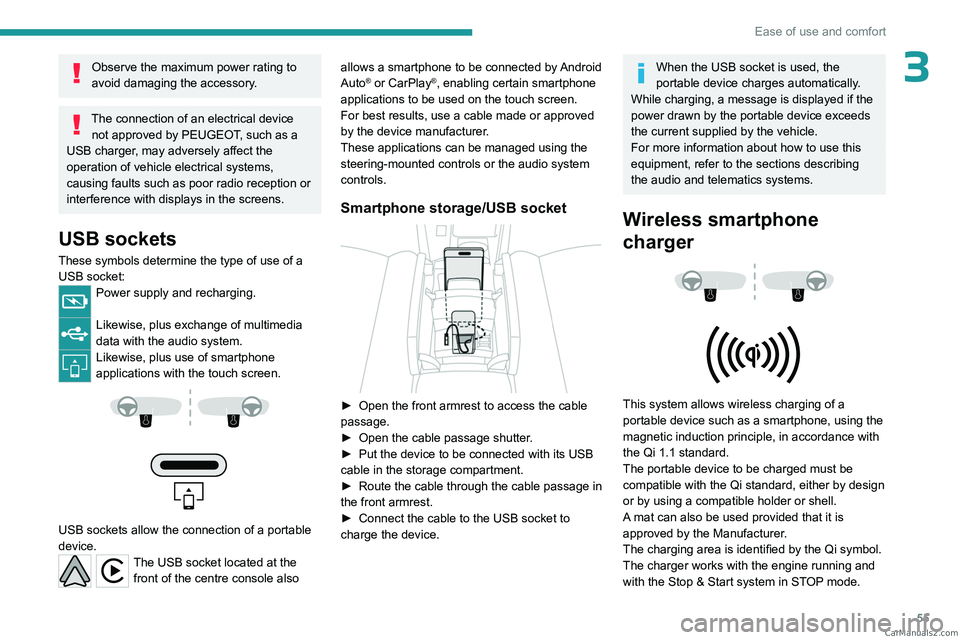
These symbols determine the type of use of a USB socket:
Power supply and recharging.
Likewise, plus exchange of multimedia
data with the audio system.
Likewise, plus use of smartphone
applications with the touch screen.
USB sockets allow the connection of a portable
device.
The USB socket located at the front of the centre console also allows a smartphone to be connected by Android
Auto
® or CarPlay®, enabling certain smartphone
applications to be used on the touch screen.
For best results, use a cable made or approved
by the device manufacturer.
These applications can be managed using the
steering-mounted controls or the audio system
controls.
Smartphone storage/USB socket
► Open the front armrest to access the cable
passage.
►
Open the cable passage shutter
.
►
Put the device to be connected with its USB
cable in the storage compartment.
►
Route the cable through the cable passage in
the front armrest.
►
Connect the cable to the USB socket to
charge the device.
When the USB socket is used, the
portable device charges automatically.
While charging, a message is displayed if the
power drawn by the portable device exceeds
the current supplied by the vehicle.
For more information about how to use this
equipment, refer to the sections describing
the audio and telematics systems.
Wireless smartphone
charger
This system allows wireless charging of a
portable device such as a smartphone, using the
magnetic induction principle, in accordance with
the Qi 1.1 standard.
The portable device to be charged must be
compatible with the Qi standard, either by design
or by using a compatible holder or shell.
A mat can also be used provided that it is
approved by the Manufacturer.
The charging area is identified by the Qi symbol.
The charger works with the engine running and
with the Stop & Start system in STOP mode. CarM an uals 2 .c o m
Page 60 of 244
58
Ease of use and comfort
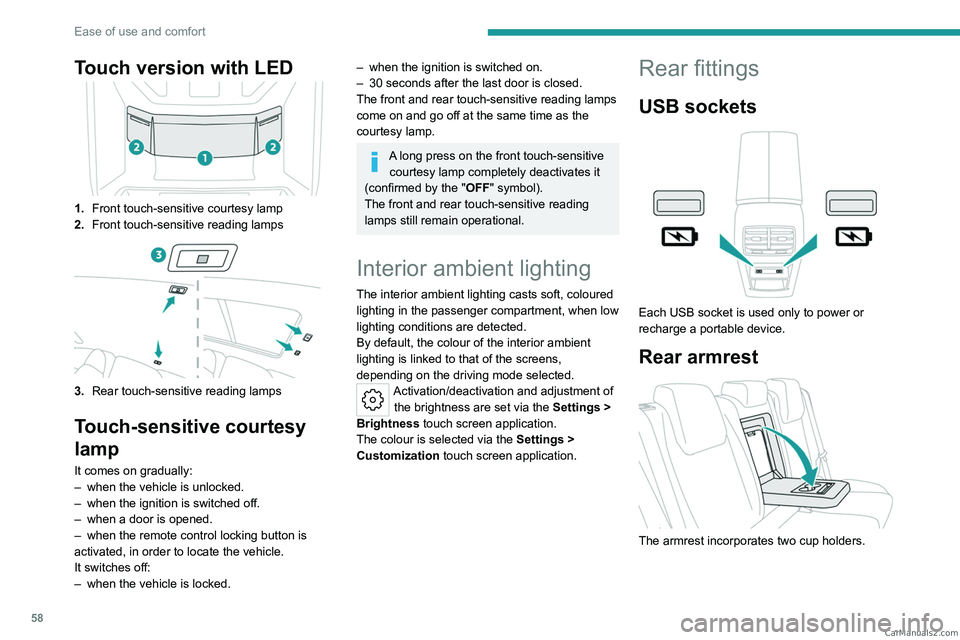
Touch version with LED
1.Front touch-sensitive courtesy lamp
2. Front touch-sensitive reading lamps
3.Rear touch-sensitive reading lamps
Touch-sensitive courtesy
lamp
It comes on gradually:
–
when the vehicle is unlocked.
–
when the ignition is switched off.
–
when a door is opened.
–
when the remote control locking button is
activated, in order to locate the vehicle.
It switches off:
–
when the vehicle is locked.
– when the ignition is switched on.
– 30 seconds after the last door is closed.
The front and rear touch-sensitive reading lamps
come on and go off at the same time as the
courtesy lamp.
A long press on the front touch-sensitive courtesy lamp completely deactivates it
(confirmed by the "OFF" symbol).
The front and rear touch-sensitive reading
lamps still remain operational.
Interior ambient lighting
The interior ambient lighting casts soft, coloured
lighting in the passenger compartment, when low
lighting conditions are detected.
By default, the colour of the interior ambient
lighting is linked to that of the screens,
depending on the driving mode selected.
Activation/deactivation and adjustment of the brightness are set via the Settings >
Brightness
touch screen application.
The colour is selected via the Settings >
Customization touch screen application.
Rear fittings
USB sockets
Each USB socket is used only to power or
recharge a portable device.
Rear armrest
The armrest incorporates two cup holders. CarM an uals 2 .c o m
Page 198 of 244
196
PEUGEOT i-Connect Advanced - PEUGEOT i-Connect
Select "Search" to enter an address,
name or some points of interest.
Select "Go home" using an address
previously saved in "Add home".
Select "Go to work" using an address
previously saved in "My places".
Select "Recent destinations" to display
the latest destinations searched.
Select "Current trip" to open another
menu and perform various actions for the
current planned route.
Select "My places" for quick access to
saved places as well as favourite
destinations.
Select "My trips" to display your favourite
routes.
Select "Parking" to display the various
parking options in the area.
Select "Service station" to display the
different service stations on the current
route or near the current location.
Select "TomTom service" to check the
network status.
Select "Settings" to enter the vehicle type
and to personalise the display, voice
instructions, map options, trip planning, sounds
and alerts, and system information.
Select this button to display details on
software versions as well as legal
information. Details of the Open Source software
libraries used and their licence URLs.
Regular connection to a secure Wi-Fi
access point automatically updates the
installed mapping globally.
The mapping is also updated using a cellular
network, depending on version, country of
sale, the vehicle's level of equipment, as well
as the subscription to connected services and
options.
However, using your smartphone's Wi-Fi
and/or cellular networks may incur additional
charges if you exceed your data plan.
These charges, if any, will be passed on to
your telephone operator's bill.
Connectivity
Connecting a wired device
by USB
The USB connection of a mobile device allows it
to be recharged. It makes its authorised media
content available to the system (Media content
of iPod
® type).Only one USB socket will allow a Mirror
Screen connection (Apple®CarPlay® or
Android Auto) for the compatible connected
mobile devices and to use some of the device's
applications on the touch screen.
For more information on the USB socket
compatible with the Mirror Screen
® function,
refer to the "Ease of use and comfort - Fittings"
section.
The mobile device is in charging mode when
connected with the USB cable.
It is recommended that you use your
device's original USB cables, preferably
with a short cable to ensure optimum
performance.
To protect the system, do not use a USB hub.
Bluetooth® connection
Connecting a mobile device to the vehicle's
system via Bluetooth® provides access to its
contents and its "Media" streaming. It also
enables the Phone function to be activated.
The connection can be initiated either from the
mobile device's Bluetooth
® menu or from the
vehicle's system, which requires opening the "My
Devices" menu for the first connection.
In some cases, you will need to unlock
your device and check the authorisation
to synchronise contacts and recent calls.
Some features may not be supported by your
device.
For information on the partial or full
compatibility of device models or
smartphones, please connect to the Brand’s
national website. CarM an uals 2 .c o m
Page 199 of 244
197
PEUGEOT i-Connect Advanced - PEUGEOT i-Connect
10Pairing procedure from a device
From the Bluetooth® menu on your mobile
device, select the system’s name from the
list of detected devices.
In order to make your system’s
Bluetooth® visible, first open the "My
Devices " menu on the system.
Continue the first connection procedure
proposed by the system and on the device.
For example: validating pairing codes.
Pairing procedure from the system
Press the "Settings" application.
In the list, select the "Connectivity" tab.
Select "My Devices ".
Select the name of the mobile device that
you want to connect, from:
–
The list of known devices (if the device has
already been connected to the system).
or
–
The list of detected devices (if the device
has never been connected to the system or
previously deleted from the system).
A mobile device already connected to the system will be able to reconnect
automatically when the vehicle is started,
once the user profile has been selected.
Automatic reconnection is put on hold as
soon as the "My Devices" menu is opened.
This is to allow the system to make its
Bluetooth® visible for the connection of a new
device.
The system is disconnected when the driver’s
door is opened and the ignition is switched
off.
Automatic reconnection
The system allows automatic reconnection of
devices already connected and detected when a
user profile is selected.
The priority
reconnected devices are those which
have been linked to the selected user profile or,
failing this, the last connected devices.
Wi-Fi connection
The system has an external Wi-Fi connection
mode for performing system updates.
Press the "Settings" application.
In the list, select the "Connectivity" tab.
Select "Wi-Fi".
Activate/Deactivate "Wi-Fi". The system starts a search for
nearby
Wi-Fi networks. This may take a few
seconds.
Select the Wi-Fi network to connect to and enter
its password.
To protect your system, only networks with a sufficient level of security are
allowed to connect. WPA2 encryption level,
equivalent to a domestic level, is required.
Any network already connected to the system will reconnect automatically as
soon as it is detected by the system and after
having previously activated the Wi-Fi function.
The Wi-Fi connection of the system to a device already connected using a Mirror
Screen
® wireless connection is not possible.
In this case, favour a Mirror
Screen
® connection using the USB socket.
Device management
For each device already connected to the
system using a wireless connection (Bluetooth®
or wireless Mirror Screen® connection), it is
possible to determine a preferred connection
mode (depending on the functions the device
can support). It is therefore possible to determine
whether the device should be connected using
a wireless Bluetooth
® connection or a wireless
Mirror Screen® connection each time the system
is started once the profile is chosen.
Press the "Settings" application.
In the list, select the "Connectivity".
Select "My Devices " to display the list of
paired devices.
Press this button to manage the
connection of a device. CarM an uals 2 .c o m
Page 203 of 244
201
PEUGEOT i-Connect Advanced - PEUGEOT i-Connect
10First adjust the volume on the portable device (to
a high level).
Then adjust the volume of the system.
If playback does not start, it may be necessary to
start the audio playback from the smartphone.
Control is from the portable device or by using
the system's touch buttons.
Once connected in streaming mode, the
smartphone is considered to be a media
source.
Playing a track
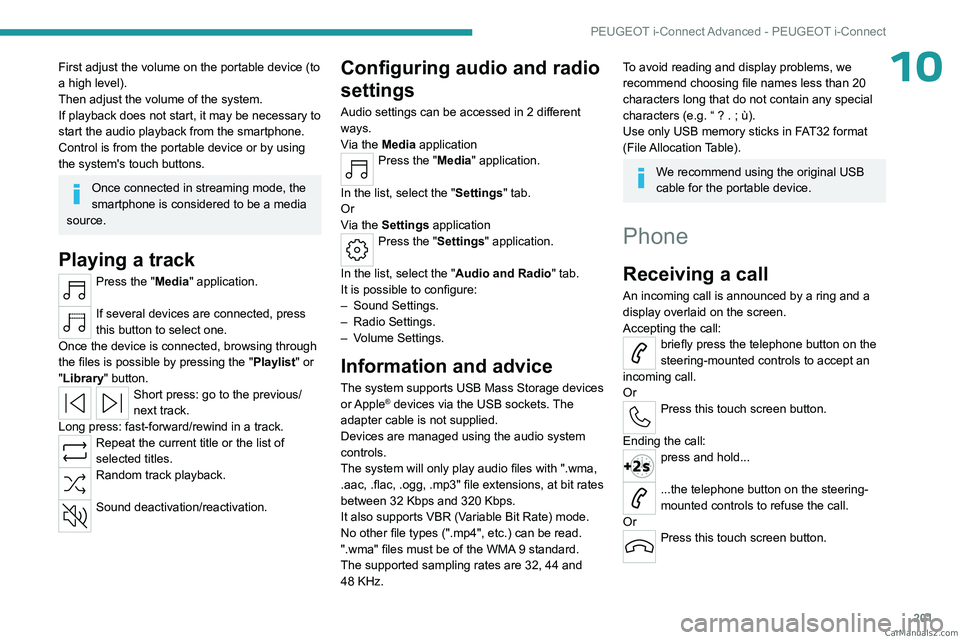
Press the "Media" application.
If several devices are connected, press
this button to select one.
Once the device is connected, browsing through
the files is possible by pressing the
"Playlist" or
"Library"
button.
Short press: go to the previous/
next track.
Long press: fast-forward/rewind in a track.
Repeat the current title or the list of
selected titles.
Random track playback.
Sound deactivation/reactivation.
Configuring audio and radio
settings
Audio settings can be accessed in 2 different
ways.
Via the Media application
Press the "Media" application.
In the list, select the "Settings" tab.
Or
Via the Settings application
Press the "Settings" application.
In the list, select the "Audio and Radio " tab.
It is possible to configure:
–
Sound Settings.
–
Radio Settings.
–
V
olume Settings.
Information and advice
The system supports USB Mass Storage devices
or Apple® devices via the USB sockets. The
adapter cable is not supplied.
Devices are managed using the audio system
controls.
The system will only play audio files with ".wma,
.aac,
.flac, .ogg, .mp3" file extensions, at bit rates
between 32 Kbps and 320 Kbps.
It also supports VBR (Variable Bit Rate) mode.
No other file types (".mp4", etc.) can be read.
".wma" files must be of the WMA 9 standard.
The supported sampling rates are 32, 44 and
48 KHz.
To avoid reading and display problems, we
recommend choosing file names less than 20
characters long that do not contain any special
characters (e.g. “ ? .
; ù).
Use only USB memory sticks in FAT32 format
(File Allocation Table).
We recommend using the original USB
cable for the portable device.
Phone
Receiving a call
An incoming call is announced by a ring and a
display overlaid on the screen.
Accepting the call:
briefly press the telephone button on the
steering-mounted controls to accept an
incoming call.
Or
Press this touch screen button.
Ending the call:
press and hold...
...the telephone button on the steering-
mounted controls to refuse the call.
Or
Press this touch screen button. CarM an uals 2 .c o m
Page 213 of 244
2 11
Alphabetical index
Lamps with Full LED technology 63, 65
Lane assist
114–115, 119–121
Lane keeping assist
131
Leather (care)
167
LEDs - Light-emitting diodes
62, 176
Level, brake fluid
162
Level, engine coolant
18, 162
Level, engine oil
17, 161
Levels and checks
161–162
Level, screenwash fluid
69, 162
Light-emitting diodes - LEDs
62, 176
Lighting, boot
60
Lighting dimmer
19
Lighting, exterior
61, 64
Lighting, guide-me home
63
Lighting, interior
57–58
Lighting, mood
58
Lighting, welcome
63–64
Loading
157–158
Load reduction mode
160
Load space cover
59
Locating your vehicle
25
Locking
25, 27
Locking from the inside
28
Locking the doors
28
Log, alerts
19
Long-distance blind spot monitoring
134
Long objects, transporting
59
Lumbar
42M
Mains socket (domestic network) 146–147
Maintenance (advice)
145, 165
Maintenance, routine
105, 163–164
Manoeuvring aids (recommendations)
104
Map reading lamps
57
Markings, identification
188
Massage function
44
Massage, multi-point
44
Mat
57, 106
Menu, shortcuts
21
Mirror, rear view
46
Mirrors, door
45–46, 52, 134
Mirror, vanity
54
Mobile application
22, 53, 151, 153
Motor, electric
100, 144, 187
Motorised tailgate
31–32, 34
Mountings, ISOFIX
85, 88–89
N
Net, luggage retaining 59
Night vision
67
Night Vision
67
O
Obstacle detection 135
Oil change
161
Oil consumption
161
Oil, engine 161
On-board tools
60, 168–169
Opening the bonnet
160
Opening the boot
26, 31
Opening the doors
26, 31
P
Pads, brake 163
Paint
165, 188
Paint colour code
188
Parcel shelf, rear
59
Parking brake, electric
94–96, 164
Parking (sensors)
135
Parking sensors, audible and visual
135
Parking sensors, front
136
Parking sensors, rear
135
Passenger compartment temperature pre-
conditioning (Rechargeable hybrid)
22, 53
Pedestrian horn (Rechargeable hybrid)
73
Personalisation
10, 22
Plates, identification
188
Port, USB
55, 58
Post Collision Safety Brake
76
Power
18
Power indicator (Rechargeable hybrid)
9, 18
Pressures, tyres
164, 170, 188
Pre-tensioning (seat belts)
79
Profiles
190
Protecting children
80, 83–87
Proximity Keyless Entry and Start
26
Puncture
169–170, 172 CarM an uals 2 .c o m