navigation system PEUGEOT 5008 2012 User Guide
[x] Cancel search | Manufacturer: PEUGEOT, Model Year: 2012, Model line: 5008, Model: PEUGEOT 5008 2012Pages: 340, PDF Size: 16.42 MB
Page 230 of 340
228
01FIRST STEPS
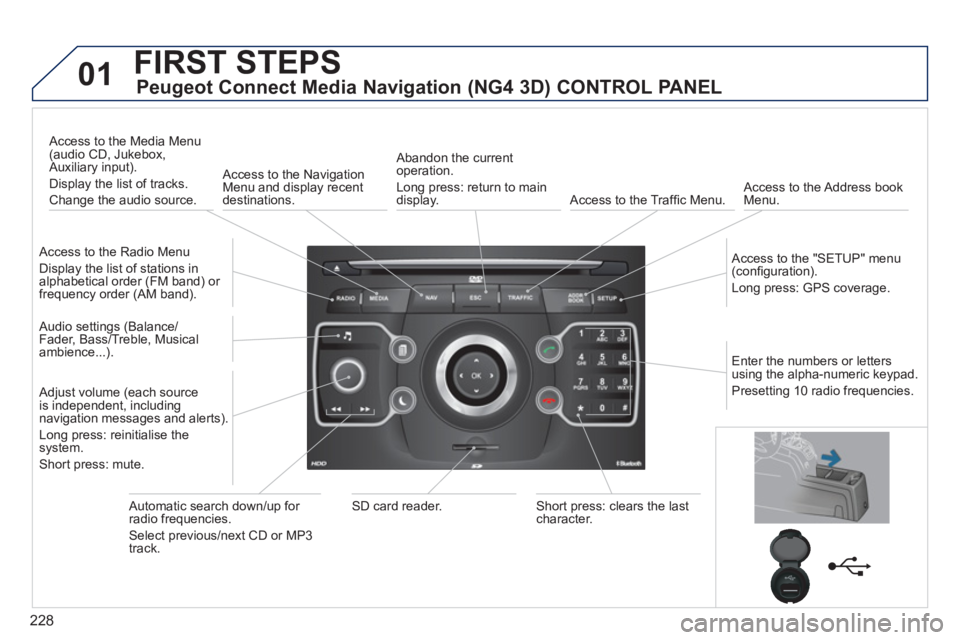
Peugeot Connect Media Navigation (NG4 3D) CONTROL PANEL
Access to the Radio Menu
Display the list of stations in
alphabetical order (FM band) or frequency order (AM band).
Access to the Media Menu(audio CD, Jukebox,
Auxiliary input).
Display the list o
f tracks.
Change the audio source.
Access to the NavigationMenu and display recentdestinations.
Abandon the current
operation.
Long press: return to main
displa
y. Access to the Traffi c Menu.
Access to the Address book Menu.
A
ccess to the "SETUP" menu (confi guration).
Lon
g press: GPS coverage.
Audio settings (Balance/
Fader, Bass/Treble, Musical
ambience...
).
Adjust volume (each source
is independent, including
navigation messages and alerts).
Lon
g press: reinitialise thesystem.
Short press: mute.
Automatic search down/up for radio frequencies.
Select
previous/next CD or MP3
track.
SD card reader.Short press: clears the last character.
Enter the numbers or lettersusing the alpha-numeric keypad.
Presettin
g 10 radio frequencies.
Page 232 of 340
230
02
1
SETUP2ABC3DEF5JKL4GHI6MNO8TUV7PQRS9WXYZ0*#
1NAV ESC TRAFFICADDR
BOOKSETUP
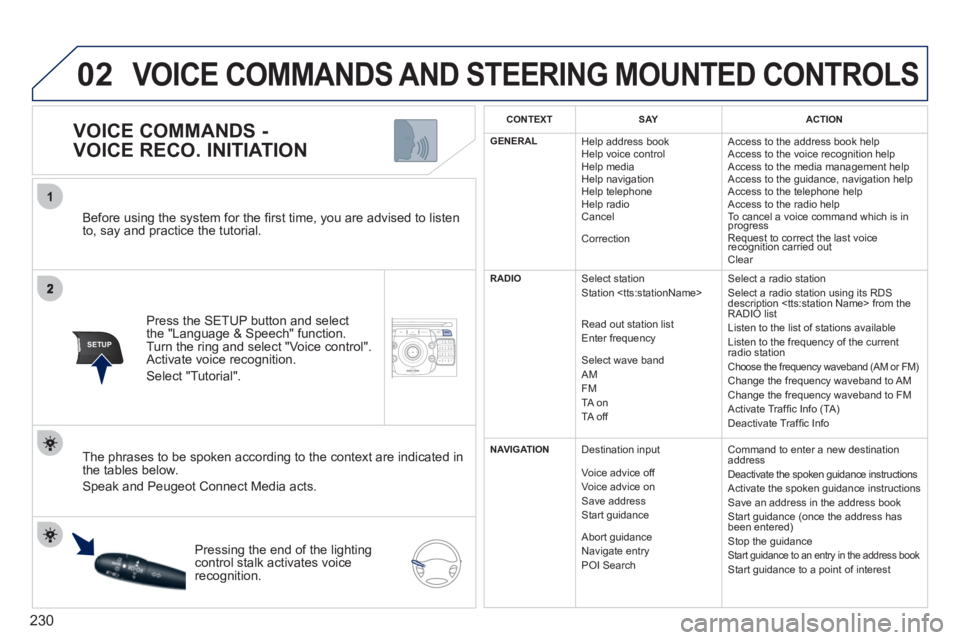
Before using the system for the fi rst time, you are advised to listen
to, say and practice the tutorial.
Press the
SETUP button and select
the "Language & Speech" function.Turn the ring and select "Voice control". Activate voice recognition.
Select "Tutorial".
VOICE COMMANDS -
VOICE RECO. INITIATION
The phrases to be spoken according to the context are indicated in
the tables below.
Speak and Peugeot Connect Media acts.
Pressing the end o
f the lightingcontrol stalk activates voice
recognition.
CONTEXTSAYACTION
GENERAL
Help address book
Help voice control
Help media
Help navi
gation
Help telephone
Help radio
Cancel
Correction Access to the address book help
Access to the voice reco
gnition help
Access to the media management help
Access to the guidance, navigation help
Access to the telephone help Access to the radio help To cancel a voice command which is inprogress
Request to correct the last voice recognition carried outq
Clear
RADIO
Select station
Station
R
ead out station list
Enter frequency
Select wave band AMFM TA on
TA off Select a radio station
Select a radio station usin
g its RDS
description
Listen to the list of stations available
Listen to the frequency of the current
radio station Choose the frequency waveband (AM or FM) Change the frequency waveband to AM
Change the frequency waveband to FM
Activate Traffi c Info (TA)
D
eactivate Traffi c Info
NAVIGATION
Destination input
V
oice advice off
Voice advice on
Save address
Start guidance
Abort guidance
Navigate entry POI Search Command to enter a new destination
address
Deactivate the spoken guidance instructions
Activate the spoken guidance instructions
Save an address in the address book
Start guidance (once the address has
been entered
)
Stop the guidance Start guidance to an entry in the address book Start guidance to a point of interest
VOICE COMMANDS AND STEERING MOUNTED CONTROLS
Page 235 of 340
233
03
SETUP
TRAFFIC
MEDIA
GENERAL OPERATION
For a detailed global view of the menus available, refer to the "Screen menu map" section of this handbook.
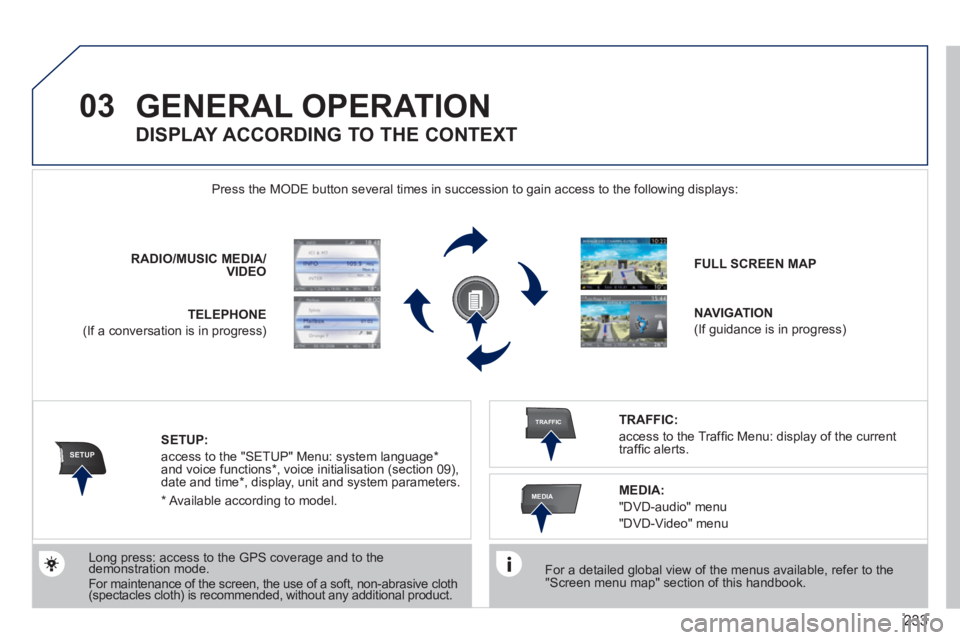
Press the M
ODE button several times in succession to gain access to the following displays:
Long press: access to the GPS coverage and to the demonstration mode. gpgp
For maintenance of the screen, the use of a soft, non-abrasive cloth (spectacles cloth) is recommended, without any additional product. RADIO
/MUSICMEDIA/VIDEO
TELEPHONE
(If a conversation is in progress)
FULL SCREEN MAP
NAVIGATION
(If guidance is in progress)
SETUP:
access to the "SETUP" Menu: system language *
and voice functions * , voice initialisation (section 09),
date and time * , display, unit and system parameters.
TRAFFIC:
access to the Traffi c Menu: display of the current
traffi c alerts.
DISPLAY ACCORDING TO THE CONTEXT
MEDIA:
"DVD-audio" menu
"DVD-Video" menu
*
Available accordin
g to model.
Page 247 of 340
245
04
13
4
2
5
NAV2ABC3DEF5JKL4GHI6MNO8TUV7PQRS9WXYZ0*#
1RADIO MEDIANAV ESC TRAFFIC
SETUPADDR
BOOK
2ABC3DEF5JKL4GHI6MNO8TUV7PQRS9WXYZ0*#
1RADIO MEDIANAV ESC TRAFFIC
SETUPADDR
BOOK
NAVIGATION - GUIDANCE
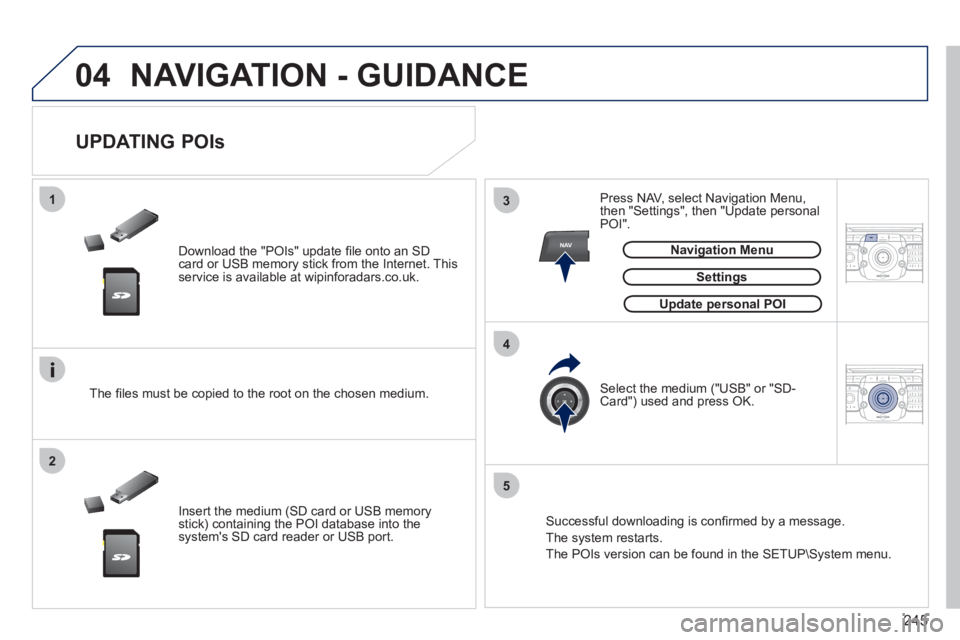
Download the "POIs" update fi le onto an SDcard or USB memory stick from the Internet. Thisservice is available at wipinforadars.co.uk.
UPDATING POIs
Settings
The fi les must be copied to the root on the chosen medium.
Insert the medium
(SD card or USB memory stick) containing the POI database into the system's SD card reader or USB port. Select the medium
("USB" or "SD-Card") used and press OK. Press NAV, select Navi
gation Menu,
then "Settings", then "Update personal
POI".
Successful downloadin
g is confi rmed by a message.
The system restarts.
The P
OIs version can be found in the SETUP\System menu.
Update personal POIpp
Navigation Menug
Page 249 of 340
247
05
TRAFFIC
1
3
4
5
2
2ABC3DEF5JKL4GHI6MNO8TUV7PQRS9WXYZ0*#
1RADIO MEDIANAV ESC TRAFFIC
SETUPADDR
BOOK
2ABC3DEF5JKL4GHI6MNO8TUV7PQRS9WXYZ0*#
1RADIO MEDIANAV ESC TRAFFIC
SETUPADDR
BOOK
2ABC3DEF5JKL4GHI6MNO8TUV7PQRS9WXYZ0*#
1RADIO MEDIANAV ESC TRAFFIC
SETUPADDR
BOOK
2ABC3DEF5JKL4GHI6MNO8TUV7PQRS9WXYZ0*#
1RADIO MEDIANAV ESC TRAFFIC
SETUPADDR
BOOK
2ABC3DEF5JKL4GHI6MNO8TUV7PQRS9WXYZ0*#
1RADIO MEDIANAV ESC TRAFFIC
SETUPADDR
BOOK
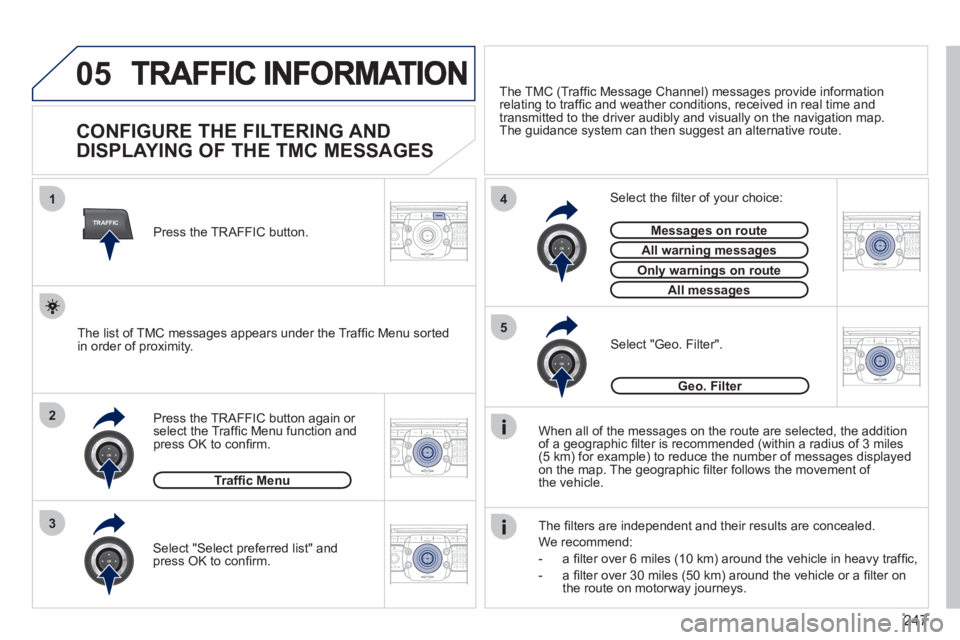
CONFIGURE THE FILTERING AND
DISPLAYING OF THE TMC MESSAGES
When all of the messages on the route are selected, the addition
of a geographic fi lter is recommended (within a radius of 3 miles(5 km) for example) to reduce the number of messages displayed
on the map. The geographic fi lter follows the movement ofthe vehicle.
The
fi lters are independent and their results are concealed.
W
e recommend:
- a
fi lter over 6 miles (10 km) around the vehicle in heavy traffi c,
- a
fi lter over 30 miles (50 km) around the vehicle or a fi lter on
the route on motorway journeys. Press the TRAFFI
C button again or select the Traffi c Menu function andpress OK to confi rm.
Select "Geo. Filter".
The list of TMC messages appears under the Traffi c Menu sorted
in order of proximity.
Select the fi lter of your choice:
Messages on routeg
All warning messagesgg
Only warnings on routeyg
All messagesg
Traffi c Menu
Select "Select preferred list" andpress OK to confi rm.
The TM
C (Traffi c Message Channel) messages provide information
relating to traffi c and weather conditions, received in real time and
transmitted to the driver audibly and visually on the navigation map.
The guidance system can then suggest an alternative route.
Pr
ess the TRAFFIC button.
Geo. Filter
Page 270 of 340
268
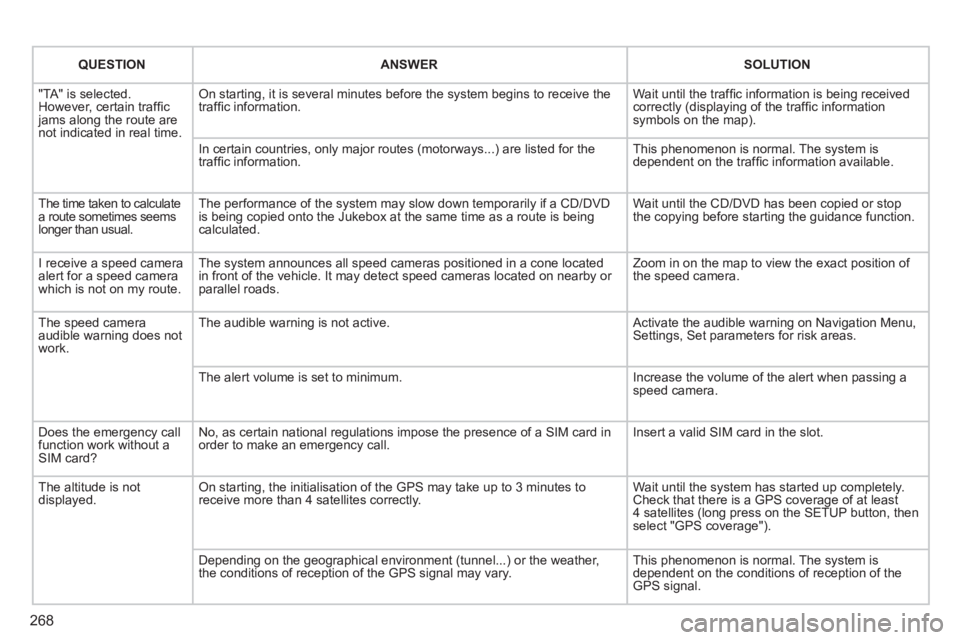
QUESTIONANSWERSOLUTION
"TA" is selected. However, certain traffi c jams along the route arenot indicated in real time.
On starting, it is several minutes before the system begins to receive thetraffi c information.
Wait until the traffi c information is being received correctly (displaying of the traffi c information symbols on the map).
In certain countries, only major routes (motorways...) are listed for thetraffi c information.
This phenomenon is normal. The system isdependent on the traffi c information available.
The time taken to calculatea route sometimes seemslonger than usual.
The performance of the system may slow down temporarily if a CD/DVDis being copied onto the Jukebox at the same time as a route is being calculated.
Wait until the CD/DVD has been copied or stop the copying before starting the guidance function.
I receive a speed camera alert for a speed camera which is not on my route.
The system announces all speed cameras positioned in a cone located in front of the vehicle. It may detect speed cameras located on nearby or parallel roads.
Zoom in on the map to view the exact position of the speed camera.
The speed camera audible warning does not work.
The audible warning is not active. Activate the audible warning on Navigation Menu,Settings, Set parameters for risk areas.
The alert volume is set to minimum.
Increase the volume of the alert when passing aspeed camera.
Does the emergency call function work without a SIM card?
No, as certain national regulations impose the presence of a SIM card inorder to make an emergency call.
Insert a valid SIM card in the slot.
The altitude is not displayed. On starting, the initialisation of the GPS may take up to 3 minutes toreceive more than 4 satellites correctly.
Wait until the system has started up completely. Check that there is a GPS coverage of at least4 satellites (long press on the SETUP button, then select "GPS coverage").
Depending on the geographical environment (tunnel...) or the weather, the conditions of reception of the GPS signal may vary.
This phenomenon is normal. The system isdependent on the conditions of reception of the GPS signal.
Page 271 of 340
269
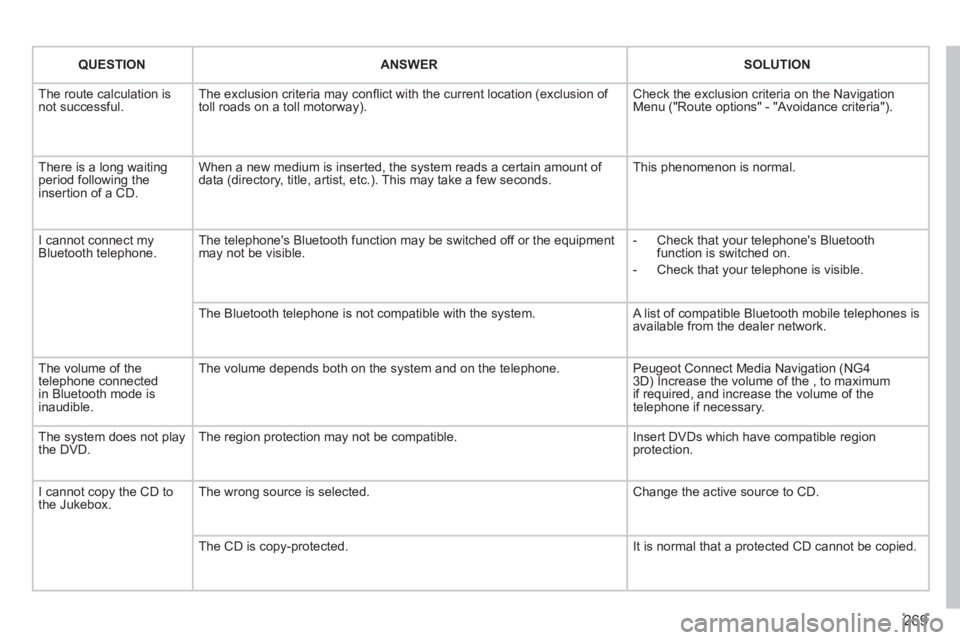
QUESTIONANSWERSOLUTION
The route calculation is not successful. The exclusion criteria may confl ict with the current location (exclusion of toll roads on a toll motorway). Check the exclusion criteria on the NavigationMenu ("Route options" - "Avoidance criteria").
There is a long waiting period following theinsertion of a CD.
When a new medium is inserted, the system reads a certain amount of data (directory, title, artist, etc.). This may take a few seconds. This phenomenon is normal.
I cannot connect myBluetooth telephone.The telephone's Bluetooth function may be switched off or the equipmentmay not be visible.
- Check that your telephone's Bluetoothfunction is switched on.
- Check that your telephone is visible.
The Bluetooth telephone is not compatible with the system. A list of compatible Bluetooth mobile telephones is available from the dealer network.
The volume of thetelephone connectedin Bluetooth mode isinaudible.
The volume depends both on the system and on the telephone.
Peugeot Connect Media Navigation (NG43D) Increase the volume of the , to maximum if required, and increase the volume of thetelephone if necessary.
The system does not play the DVD. The region protection may not be compatible. Insert DVDs which have compatible region protection.
I cannot copy the CD tothe Jukebox. The wrong source is selected.
Change the active source to CD.
The CD is copy-protected.
It is normal that a protected CD cannot be copied.
Page 272 of 340
270
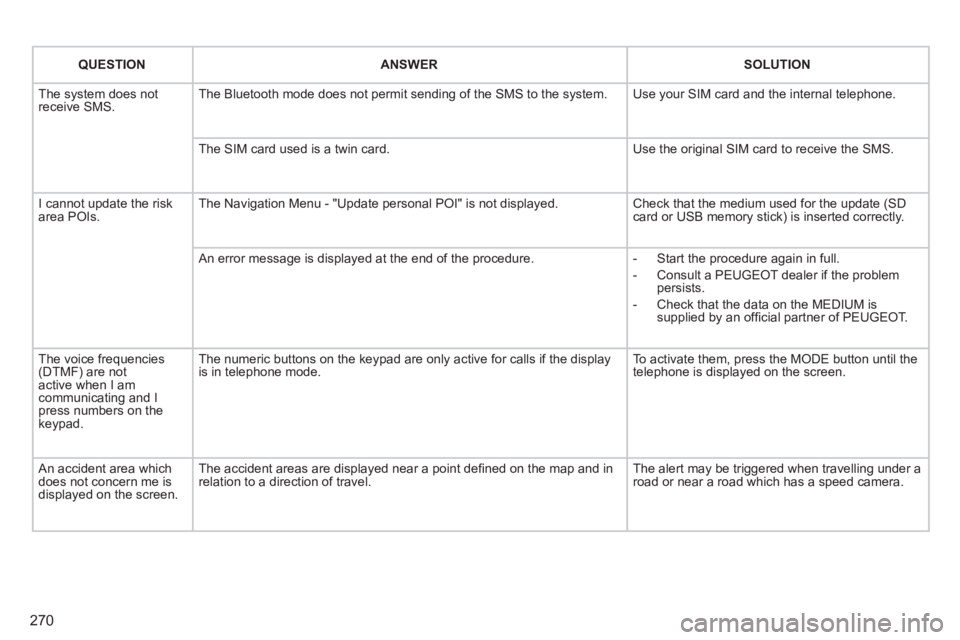
QUESTIONANSWERSOLUTION
The system does notreceive SMS. The Bluetooth mode does not permit sending of the SMS to the system.
Use your SIM card and the internal telephone.
The SIM card used is a twin card.
Use the original SIM card to receive the SMS.
I cannot update the risk area POIs. The Navigation Menu - "Update personal POI" is not displayed. Check that the medium used for the update (SDcard or USB memory stick) is inserted correctly.
An error message is displayed at the end of the procedure.
- Start the procedure again in full.
- Consult a PEUGEOT dealer if the problempersists.
- Check that the data on the MEDIUM issupplied by an offi cial partner of PEUGEOT.
The voice frequencies(DTMF) are not active when I am communicating and I press numbers on thekeypad.
The numeric buttons on the keypad are only active for calls if the display is in telephone mode.
To activate them, press the MODE button until the telephone is displayed on the screen.
An accident area which does not concern me isdisplayed on the screen.
The accident areas are displayed near a point defi ned on the map and inrelation to a direction of travel.
The alert may be triggered when travelling under a road or near a road which has a speed camera.
Page 273 of 340
271
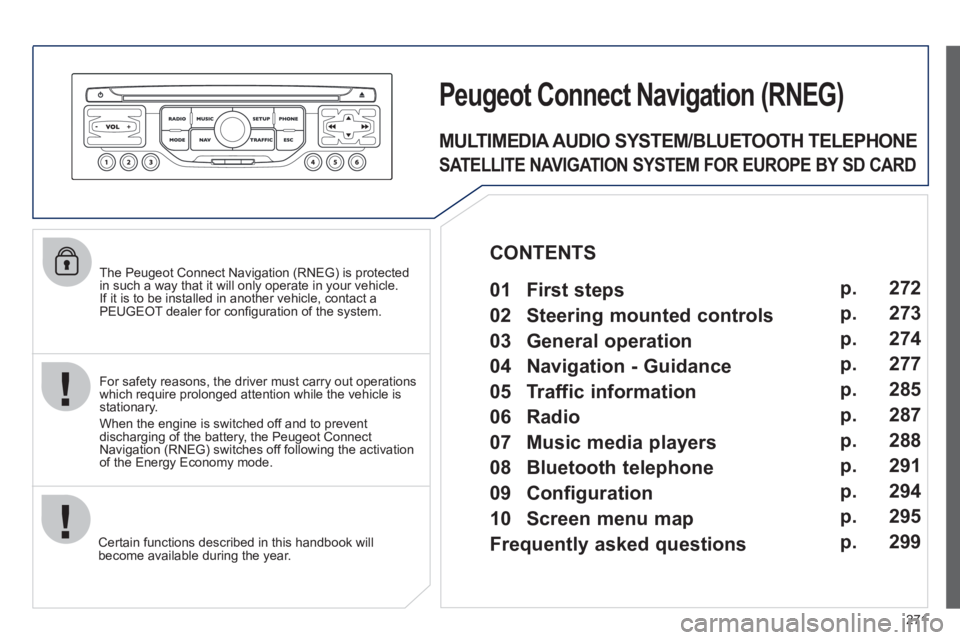
The Peugeot Connect Navigation (RNEG) is protected in such a way that it will only operate in your vehicle.
If it is to be installed in another vehicle, contact aPEUGEOT dealer for confi guration of the system.
Certain functions described in this handbook will
become available during the year.
Peugeot CtonnectNtavigation (RNEG)
For safety reasons, the driver must carry out operations which require prolonged attention while the vehicle is stationary.
When the en
gine is switched off and to prevent
discharging of the battery, the Peugeot Connect
Navigation (RNEG) switches off following the activation of the Energy Economy mode.
MULTIMEDIA AUDIO SYSTEM/BLUETOOTH TELEPHONE
SATELLITE NAVIGATION SYSTEM FOR EUROPE BY SD CARD
01 First steps
CONTENTS
02 Steering mounted controls
03 General operation
04 Navigation - Guidance
05 Traffic information
06 Radio
07 Music media players
08 Bluetooth telephone
09 Configuration
10 Screen menu map p.
p.
p.
p.
p.
p.
p.
p.
p.
p.
Frequently asked questions p. 272
273
274
277
285
287
288
291
294
295
299
Page 274 of 340
272
01 FIRST STEPS
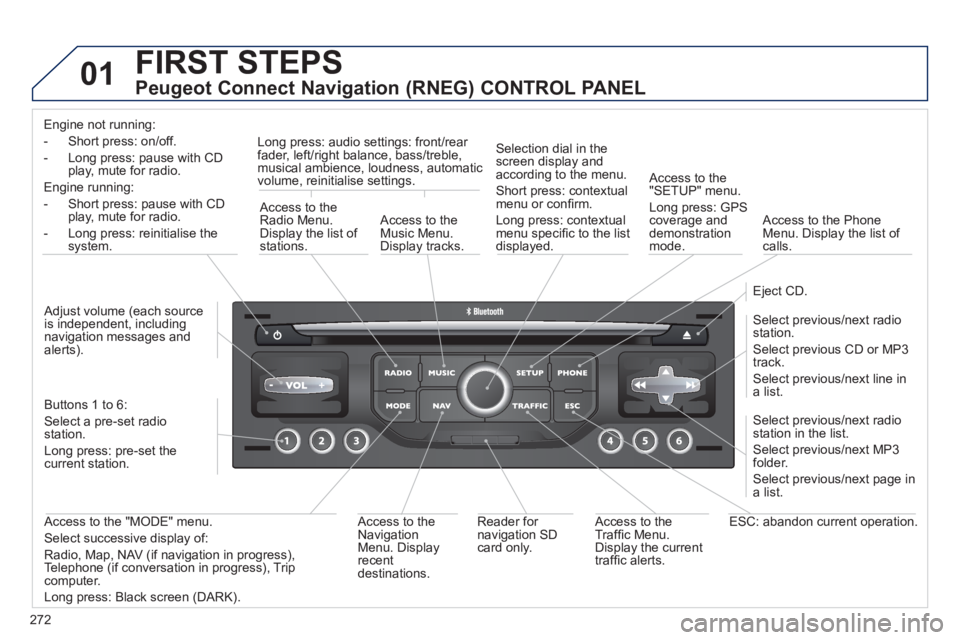
Peugeot Connect Navigation (RNEG) CONTROL PANEL
Engine not running:
-
Short press: on/off.
- Long press: pause with
CD play, mute for radio.
Engine running:
- Short
press: pause with CD play, mute for radio.
-
Long press: reinitialise thesystem.
Access to theRadio Menu.Display the list of stations.
Access to theMusic Menu. Display tracks. Lon
g press: audio settings: front/rear fader, left/right balance, bass/treble,
musical ambience, loudness, automatic
volume, reinitialise settings.
Selection dial in the
screen display and according to the menu.
Short press: contextual
menu or confi rm.
Long press: contextual
menu specifi c to the list
displayed.
A
ccess to the"SETUP" menu.
Lon
g press: GPS coverage anddemonstration
mode.
Access to the PhoneMenu. Display the list of calls.
E
ject CD.
Select previous/next radio station.
Select previous CD or MP3
track.
Select previous/next line in a list.
Select
previous/next radio station in the list.
Select previous/next MP3
folder.
Select previous/next page in a list.
E
SC: abandon current operation.
Access to theTraffi c Menu. Display the current
traffi c alerts. R
eader for navigation SDcard only.
A
ccess to theNavigation Menu. Displayrecent destinations.
A
ccess to the "MODE" menu.
Select successive display of:
Radio, Map, NAV (if navigation in progress),
Telephone (if conversation in progress), Tripcomputer.
Long press: Black screen (DARK). Buttons 1 to
6:
Select a pre-set radiostation.
Long press: pre-set the current station.
Ad
just volume (each source
is independent, including
navigation messages andalerts).