change time PEUGEOT 5008 2013 Owner's Manual
[x] Cancel search | Manufacturer: PEUGEOT, Model Year: 2013, Model line: 5008, Model: PEUGEOT 5008 2013Pages: 364, PDF Size: 16.24 MB
Page 269 of 364
267
SETUP
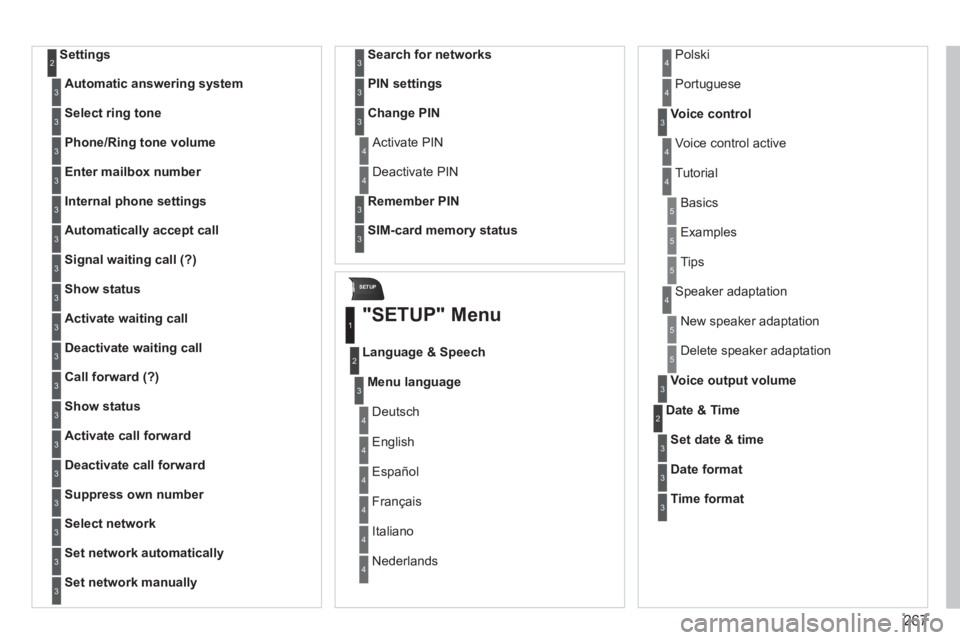
Settings2
Automatic answering system3
Select ring tone3
Phone/Ring tone volume3
Enter mailbox number3
Internal phone settings3
Automatically accept call3
Signal waiting call (?)3
Show status3
Activate waiting call3
Deactivate waiting call3
Call forward (?)3
Show status3
Activate call forward3
Deactivate call forward3
Suppress own number3
Select network3
Set network automatically3
Set network manually3
Search for networks3
PIN settings3
Change PIN3
Activate PIN4
Deactivate PIN 4
Remember PIN3
SIM-card memory status3
"SETUP" Menu
Menu language
Language & Speech
1
2
3
Deutsch 4
English4
Español4
Français4
Italiano4
Nederlands 4
Polski4
Voice control3
Voice control active 4
Tutorial4
Portuguese 4
Basics5
Examples5
Tips5
Speaker adaptation 4
New speaker adaptation 5
Delete speaker adaptation 5
Voice output volume3
Date & Time2
Set date & time3
Date format3
Time format3
Page 314 of 364
312
08MUSIC MEDIA PLAYERS
Insert the CD in the player, insert the USBmemory stick in the USB player or connect theUSB peripheral to the USB port using a suitablecable (not supplied)
The system builds playlists (in temporarymemory), an operation which can take froma few seconds to several minutes at the fi rstconnection.
R
educe the number of non-music fi les and the number of folders to reduce the waiting time.
The pla
ylists are updated every time the ignition
is switched off or connection of a USB memory stick. However, the system memorises these
lists and if they are not modifi ed, the loadingtime will be shorter.
Pla
y starts automatically after a period which
depends on the capacity of the USB memory stick. SELECTION OF SOURCE
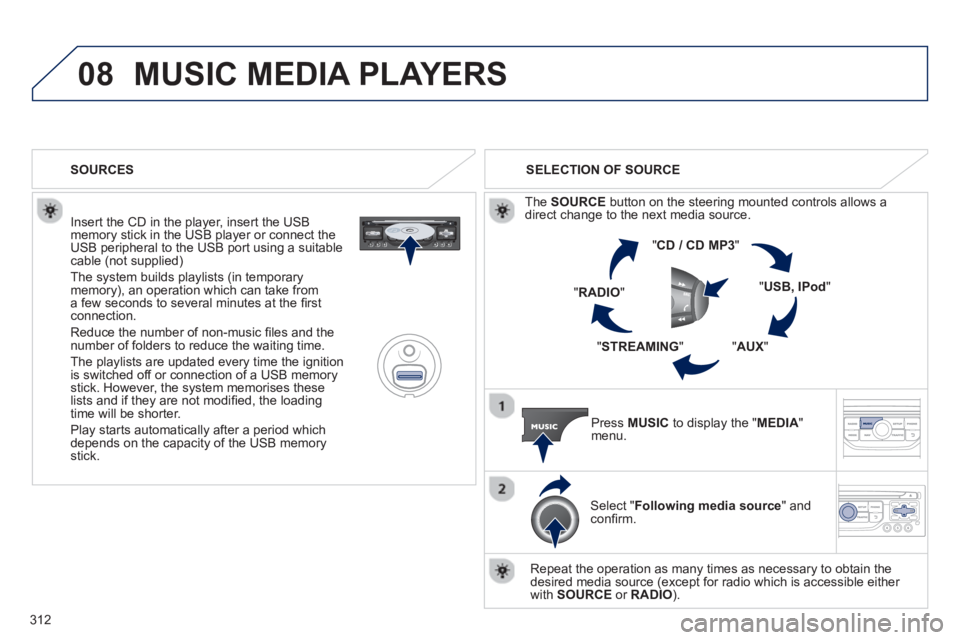
Th
e SOURCE
button on the steering mounted controls allows adirect change to the next media source.
" CD / CD MP
3
"
"
USB, IPod"
"AUX
" "
STREAMING
" "RADIO
"
Pr
ess MUSICto display the "MEDIA
" menu.
Select "Following media source " and confi rm.
Repeat the operation as many times as necessary to obtain the
desired media source (except for radio which is accessible either
with SOURCE
or RADIO). SOURCES
Page 335 of 364
333
04 AUDIO
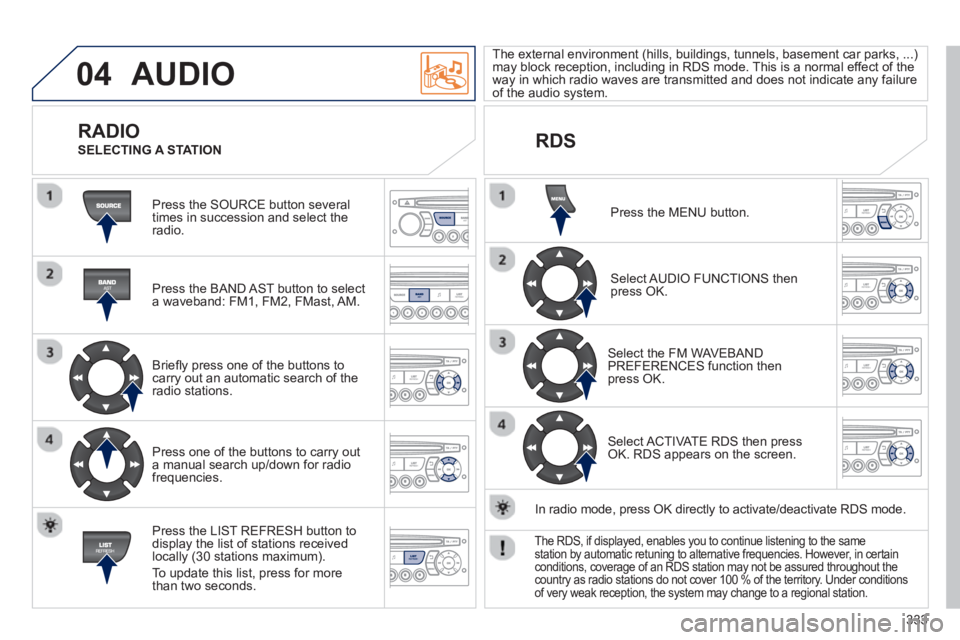
Press the SOURCE button several
times in succession and select theradio.
Press the BAND A
ST button to select
a waveband: FM1, FM2, FMast, AM.
Briefl
y press one of the buttons tocarry out an automatic search of theradio stations.
Press one o
f the buttons to carry out
a manual search up/down for radiofrequencies.
Press the LI
ST REFRESH button to
display the list of stations received
locally (30 stations maximum).
To update this list, press for more
t
han two seconds.
The external environment
(hills, buildings, tunnels, basement car parks, ...)may block reception, including in RDS mode. This is a normal effect of the
way in which radio waves are transmitted and does not indicate any failure of the audio system.
RDS
RADIO
SELECTING A STATION
Press the MENU button.
Select AUDIO FUNCTIONS thenpress OK.
Select the FM WAVEBANDPREFERENCES function thenpress OK.
Select ACTIVATE RDS then pressOK. RDS appears on the screen.
In radio mode, press
OK directly to activate/deactivate RDS mode.
The RDS, if displayed, enables you to continue listening to the samestation by automatic retuning to alternative frequencies. However, in certainconditions, coverage of an RDS station may not be assured throughout thecountry as radio stations do not cover 100 % of the territory. Under conditions
of very weak reception, the system may change to a regional station.