ECO mode PEUGEOT 5008 2017 Service Manual
[x] Cancel search | Manufacturer: PEUGEOT, Model Year: 2017, Model line: 5008, Model: PEUGEOT 5008 2017Pages: 404, PDF Size: 15.31 MB
Page 207 of 404
205
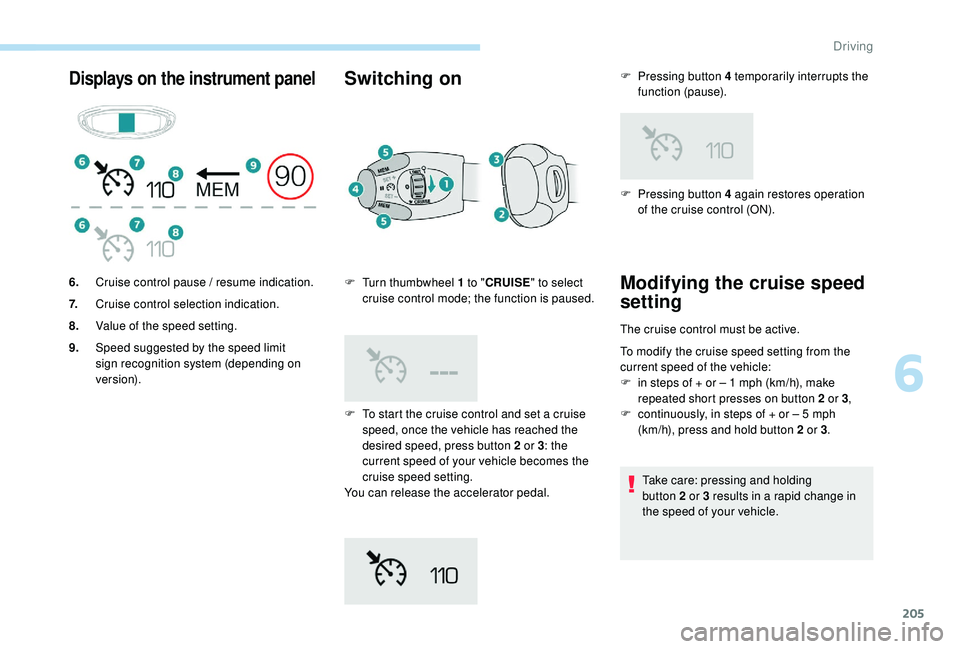
Displays on the instrument panelSwitching on
F To start the cruise control and set a cruise speed, once the vehicle has reached the
desired speed, press button 2
or 3: the
current speed of your vehicle becomes the
cruise speed setting.
You can release the accelerator pedal.
6.
Cruise control pause / resume indication.
7. Cruise control selection indication.
8. Value of the speed setting.
9. Speed suggested by the speed limit
sign recognition system (depending on
ve r s i o n). F
T
urn thumbwheel 1 to "
CRUISE " to select
cruise control mode; the function is paused. F
P
ressing button 4 again restores operation
of the cruise control (ON).
Modifying the cruise speed
setting
The cruise control must be active.
To modify the cruise speed setting from the
current speed of the vehicle:
F
i
n steps of + or – 1 mph (km/h), make
repeated short presses on button 2
or 3,
F
c
ontinuously, in steps of + or – 5 mph
(km/h), press and hold button 2
or 3.
Take care: pressing and holding
button 2
or 3 results in a rapid change in
the speed of your vehicle.
F
P
ressing button 4 temporarily interrupts the
function (pause).
6
Driving
Page 210 of 404
208
The brake lamps illuminate as soon as
the braking system is activated with
deceleration of the vehicle.
The dynamic cruise control system
is a driving aid that cannot, in any
circumstances, replace the need to obser ve
speed limits and safety distances, nor the
need for vigilance on the part of the driver.
It is recommended that you always keep
your feet close to the pedals.
The driver must be ready to take back
control of their vehicle at any time, using the
brake or accelerator pedal as appropriate.Steering mounted controls
For more information on Recognition of
speed limit signs and recommendation,
refer to the corresponding section.
Displays on the instrument panel
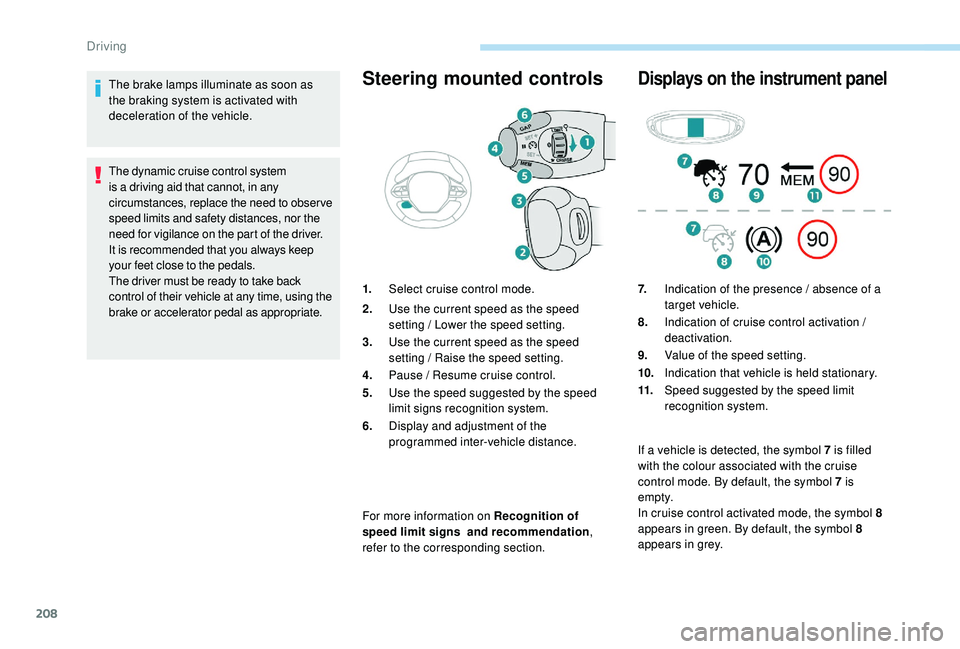
1. Select cruise control mode.
2. Use the current speed as the speed
setting / Lower the speed setting.
3. Use the current speed as the speed
setting / Raise the speed setting.
4. Pause / Resume cruise control.
5. Use the speed suggested by the speed
limit signs recognition system.
6. Display and adjustment of the
programmed inter-vehicle distance. 7.
Indication of the presence / absence of a
target vehicle.
8. Indication of cruise control activation /
deactivation.
9. Value of the speed setting.
10. Indication that vehicle is held stationary.
11. Speed suggested by the speed limit
recognition system.
If a vehicle is detected, the symbol 7
is filled
with the colour associated with the cruise
control mode. By default, the symbol 7
is
e m pt y.
In cruise control activated mode, the symbol 8
appears in green. By default, the symbol 8
appears in grey.
Driving
Page 211 of 404
209
Switching on
The cruise control is switched on manually.
The speed of the vehicle must be between
18
and 110 mph (30 and 180 km/h).
Automatic gearbox: in D or M mode. When the cruise control is operating, Stop
& Start is automatically deactivated.
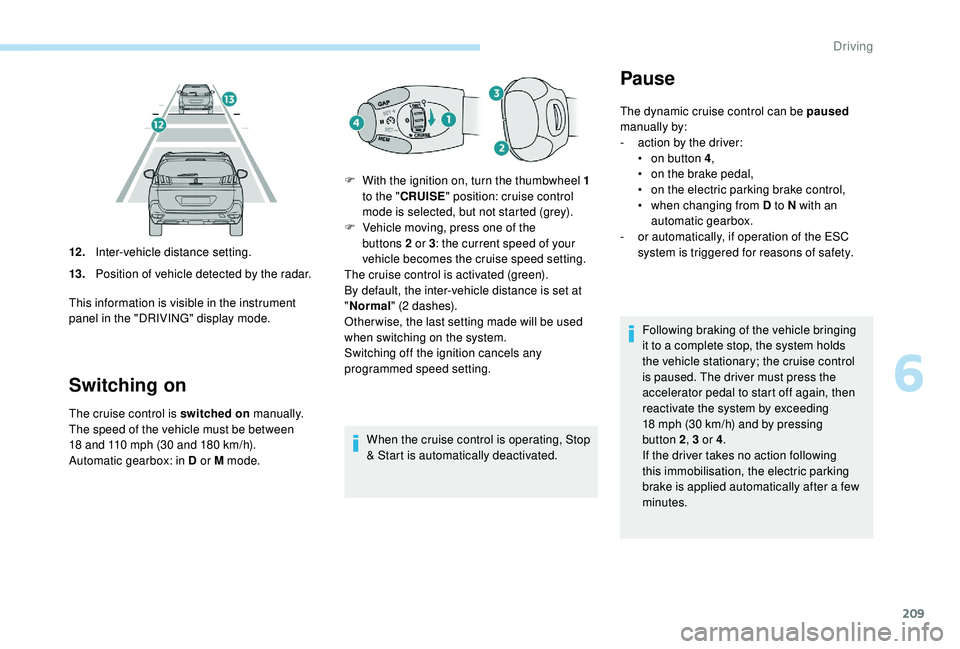
12 .
Inter-vehicle distance setting.
13. Position of vehicle detected by the radar.
This information is visible in the instrument
panel in the "DRIVING" display mode. F
W
ith the ignition on, turn the thumbwheel 1
to the " CRUISE " position: cruise control
mode is selected, but not started (grey).
F
V
ehicle moving, press one of the
buttons 2 or 3
: the current speed of your
vehicle becomes the cruise speed setting.
The cruise control is activated (green).
By default, the inter-vehicle distance is set at
" Normal " (2 dashes).
Other wise, the last setting made will be used
when switching on the system.
Switching off the ignition cancels any
programmed speed setting.
Pause
The dynamic cruise control can be paused
manually by:
-
a
ction by the driver:
•
o
n button 4 ,
•
o
n the brake pedal,
•
o
n the electric parking brake control,
•
w
hen changing from D to N with an
automatic gearbox.
-
o
r automatically, if operation of the ESC
system is triggered for reasons of safety.
Following braking of the vehicle bringing
it to a complete stop, the system holds
the vehicle stationary; the cruise control
is paused. The driver must press the
accelerator pedal to start off again, then
reactivate the system by exceeding
18
mph (30 km/h) and by pressing
button 2, 3
or 4.
If the driver takes no action following
this immobilisation, the electric parking
brake is applied automatically after a few
minutes.
6
Driving
Page 213 of 404
211
This setting remains in memory, whatever the
state of the system and when the ignition is
switched off. Engine running and cruise control selected
(grey), you can change the inter-vehicle
distance setting:
F
P
ress button 6 to display the selection
screen for inter-vehicle distance,
F
B
y repeatedly pressing button 6
, scroll
through the predefined setting levels.
The selection screen closes after a few
seconds.
The change then takes effect.
Exceeding the programmed
setting
It is possible to exceed the speed setting
temporarily by depressing the accelerator
pedal.
The cruise control no longer manages the
braking system during this period.
Simply release the accelerator pedal to return
to the programmed speed.
If the programmed speed setting is exceeded,
the display of the speed setting disappears
and a message "Cruise control suspended"
is displayed until the accelerator pedal is
released.
Driving situations and
associated alerts
To benefit from all necessary information on
the instrument panel, you must previously
select the "DRIVING" display mode.
The table below describes the alerts and
messages displayed depending on the driving
situation.
The display of these alerts is not sequential.
6
Driving
Page 216 of 404
214
Operating limits
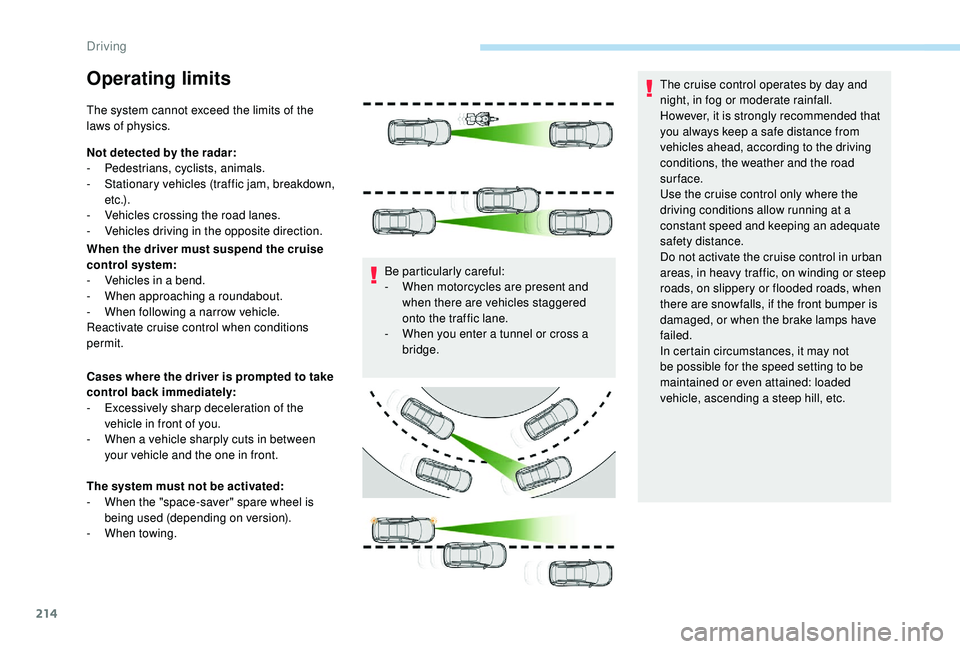
The system cannot exceed the limits of the
laws of physics.
Not detected by the radar:
-
Pe
destrians, cyclists, animals.
-
S
tationary vehicles (traffic jam, breakdown,
e t c .) .
-
V
ehicles crossing the road lanes.
-
V
ehicles driving in the opposite direction.
When the driver must suspend the cruise
control system:
-
V
ehicles in a bend.
-
W
hen approaching a roundabout.
-
W
hen following a narrow vehicle.
Reactivate cruise control when conditions
permit.
Cases where the driver is prompted to take
control back immediately:
-
E
xcessively sharp deceleration of the
vehicle in front of you.
-
W
hen a vehicle sharply cuts in between
your vehicle and the one in front.
The system must not be activated:
-
W
hen the "space-saver" spare wheel is
being used (depending on version).
-
W
hen towing. Be particularly careful:
-
W
hen motorcycles are present and
when there are vehicles staggered
onto the traffic lane.
-
W
hen you enter a tunnel or cross a
bridge. The cruise control operates by day and
night, in fog or moderate rainfall.
However, it is strongly recommended that
you always keep a safe distance from
vehicles ahead, according to the driving
conditions, the weather and the road
sur face.
Use the cruise control only where the
driving conditions allow running at a
constant speed and keeping an adequate
safety distance.
Do not activate the cruise control in urban
areas, in heavy traffic, on winding or steep
roads, on slippery or flooded roads, when
there are snowfalls, if the front bumper is
damaged, or when the brake lamps have
failed.
In certain circumstances, it may not
be possible for the speed setting to be
maintained or even attained: loaded
vehicle, ascending a steep hill, etc.
Driving
Page 225 of 404
223
If the driver wishes to maintain the
trajectory of the vehicle, they can prevent
the correction by keeping a firm grip on
the wheel (during an avoiding manoeuvre,
for example).
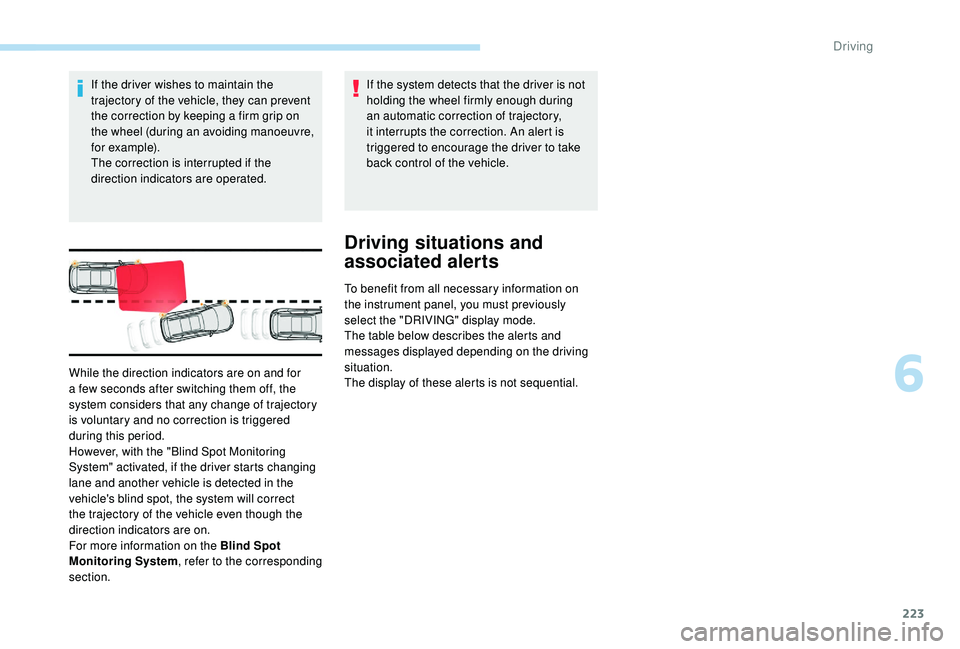
The correction is interrupted if the
direction indicators are operated.If the system detects that the driver is not
holding the wheel firmly enough during
an automatic correction of trajectory,
it interrupts the correction. An alert is
triggered to encourage the driver to take
back control of the vehicle.
Driving situations and
associated alerts
To benefit from all necessary information on
the instrument panel, you must previously
select the "DRIVING" display mode.
The table below describes the alerts and
messages displayed depending on the driving
situation.
The display of these alerts is not sequential.
While the direction indicators are on and for
a few seconds after switching them off, the
system considers that any change of trajectory
is voluntary and no correction is triggered
during this period.
However, with the "Blind Spot Monitoring
System" activated, if the driver starts changing
lane and another vehicle is detected in the
vehicle's blind spot, the system will correct
the trajectory of the vehicle even though the
direction indicators are on.
For more information on the Blind Spot
Monitoring System
, refer to the corresponding
section.
6
Driving
Page 234 of 404
232
The state of the system is not kept in memory
when the ignition is switched off.
Principle of operation
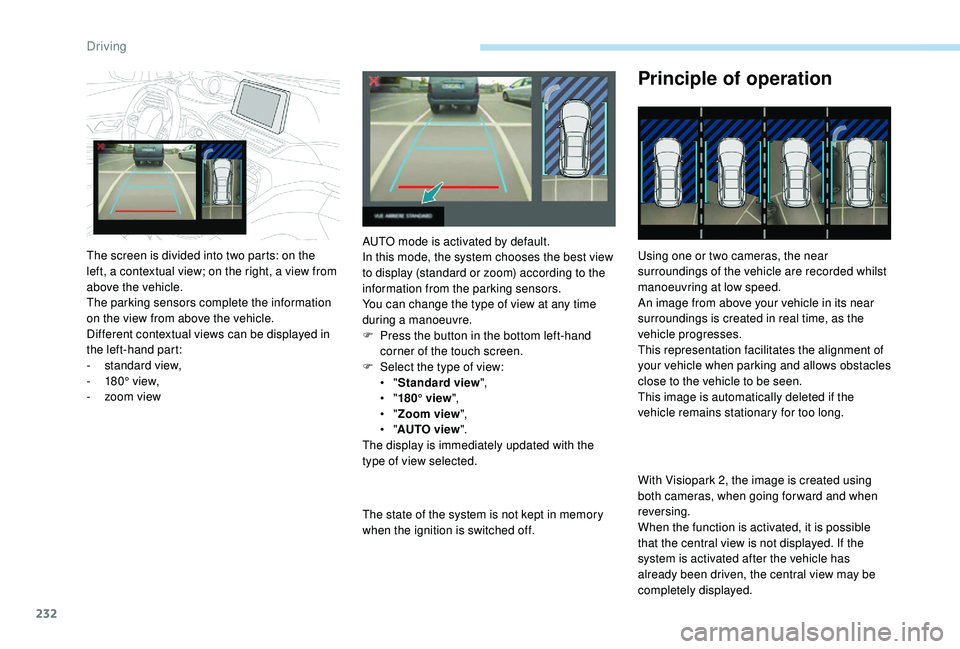
Using one or two cameras, the near
surroundings of the vehicle are recorded whilst
manoeuvring at low speed.
An image from above your vehicle in its near
surroundings is created in real time, as the
vehicle progresses.
This representation facilitates the alignment of
your vehicle when parking and allows obstacles
close to the vehicle to be seen.
This image is automatically deleted if the
vehicle remains stationary for too long.
With Visiopark 2, the image is created using
both cameras, when going for ward and when
reversing.
When the function is activated, it is possible
that the central view is not displayed. If the
system is activated after the vehicle has
already been driven, the central view may be
completely displayed.
The screen is divided into two parts: on the
left, a contextual view; on the right, a view from
above the vehicle.
The parking sensors complete the information
on the view from above the vehicle.
Different contextual views can be displayed in
the left-hand part:
-
s
tandard view,
-
1
80° view,
-
z
oom view AUTO mode is activated by default.
In this mode, the system chooses the best view
to display (standard or zoom) according to the
information from the parking sensors.
You can change the type of view at any time
during a manoeuvre.
F
P
ress the button in the bottom left-hand
corner of the touch screen.
F
Sel
ect the type of view:
•
" Standard view ",
•
" 180° view ",
•
" Zoom view ",
•
" AUTO view ".
The display is immediately updated with the
type of view selected.
Driving
Page 235 of 404
233
This system is a visual aid that cannot in
any circumstances replace the need for
vigilance on the part of the driver.
The images provided by the camera(s)
may be distorted by the relief.
In the presence of areas in shade, or in
conditions of bright sunlight or inadequate
lighting, the image may be darkened and
with lower contrast.
Maintenance
In bad or wintry weather, ensure that the
sensors and camera lenses are not covered
with mud, ice or snow.
Check the cleanliness of the camera lenses
regularly.
If necessary, clean the camera lenses with a
soft, dry cloth.
High pressure jet wash
When washing your vehicle, keep the tip of the
lance at least 30 cm from the cameras.
Visiopark 1
Rear vision
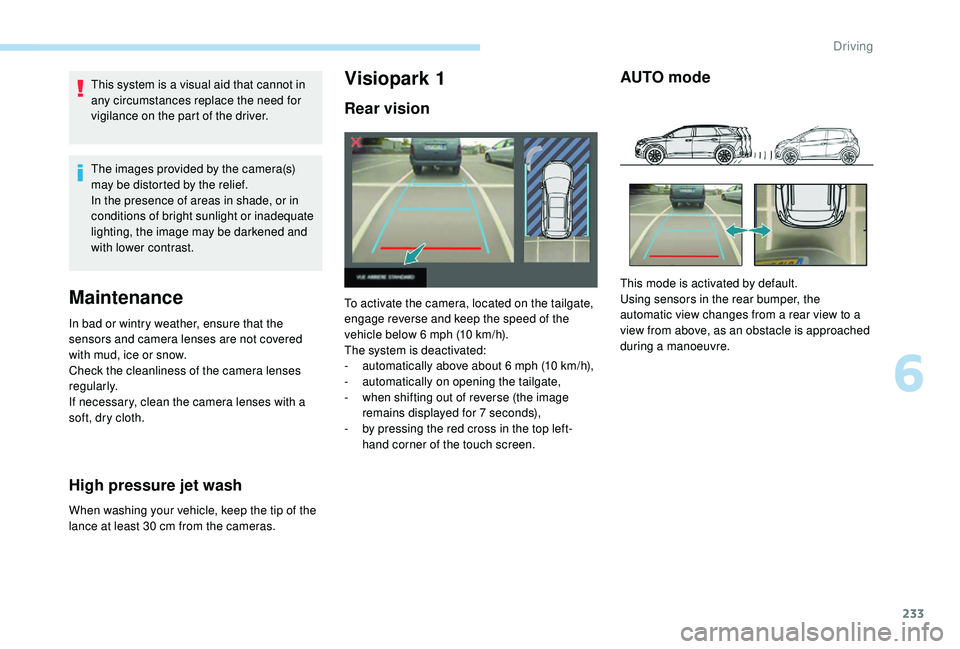
To activate the camera, located on the tailgate,
engage reverse and keep the speed of the
vehicle below 6
mph (10 km/h).
The system is deactivated:
-
a
utomatically above about 6 mph (10 km/h),
-
a
utomatically on opening the tailgate,
-
w
hen shifting out of reverse (the image
remains displayed for 7
seconds),
-
b
y pressing the red cross in the top left-
hand corner of the touch screen.
AUTO mode
This mode is activated by default.
Using sensors in the rear bumper, the
automatic view changes from a rear view to a
view from above, as an obstacle is approached
during a manoeuvre.
6
Driving
Page 236 of 404
234
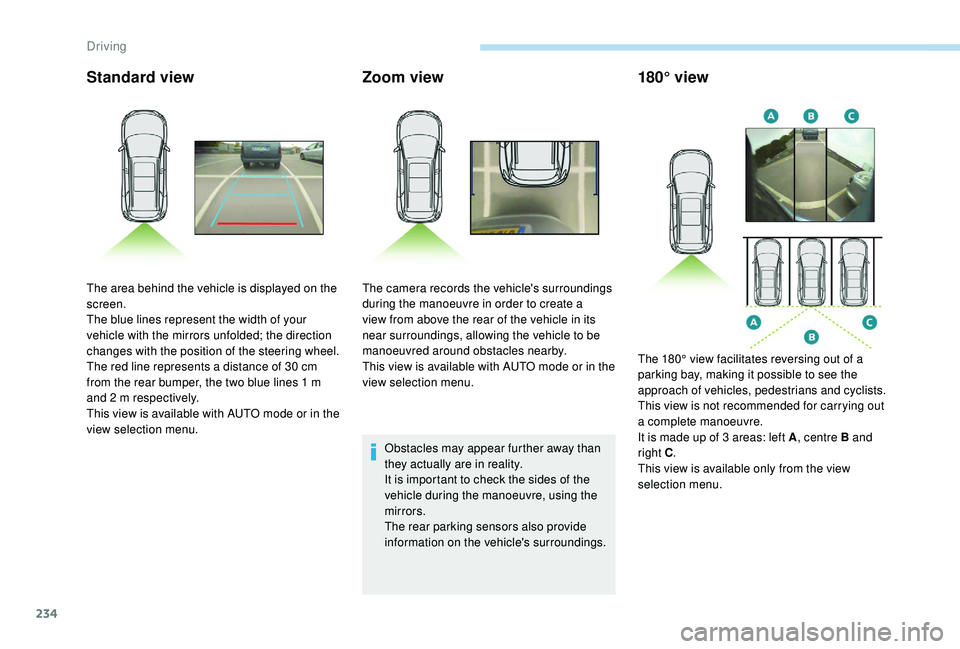
Standard viewZoom view
Obstacles may appear further away than
they actually are in reality.
It is important to check the sides of the
vehicle during the manoeuvre, using the
mirrors.
The rear parking sensors also provide
information on the vehicle's surroundings.
180° view
The area behind the vehicle is displayed on the
screen.
The blue lines represent the width of your
vehicle with the mirrors unfolded; the direction
changes with the position of the steering wheel.
The red line represents a distance of 30
cm
from the rear bumper, the two blue lines 1
m
and 2
m respectively.
This view is available with AUTO mode or in the
view selection menu. The camera records the vehicle's surroundings
during the manoeuvre in order to create a
view from above the rear of the vehicle in its
near surroundings, allowing the vehicle to be
manoeuvred around obstacles nearby.
This view is available with AUTO mode or in the
view selection menu.
The 180° view facilitates reversing out of a
parking bay, making it possible to see the
approach of vehicles, pedestrians and cyclists.
This view is not recommended for carrying out
a complete manoeuvre.
It is made up of 3
areas: left A, centre B and
right C .
This view is available only from the view
selection menu.
Driving
Page 237 of 404
235
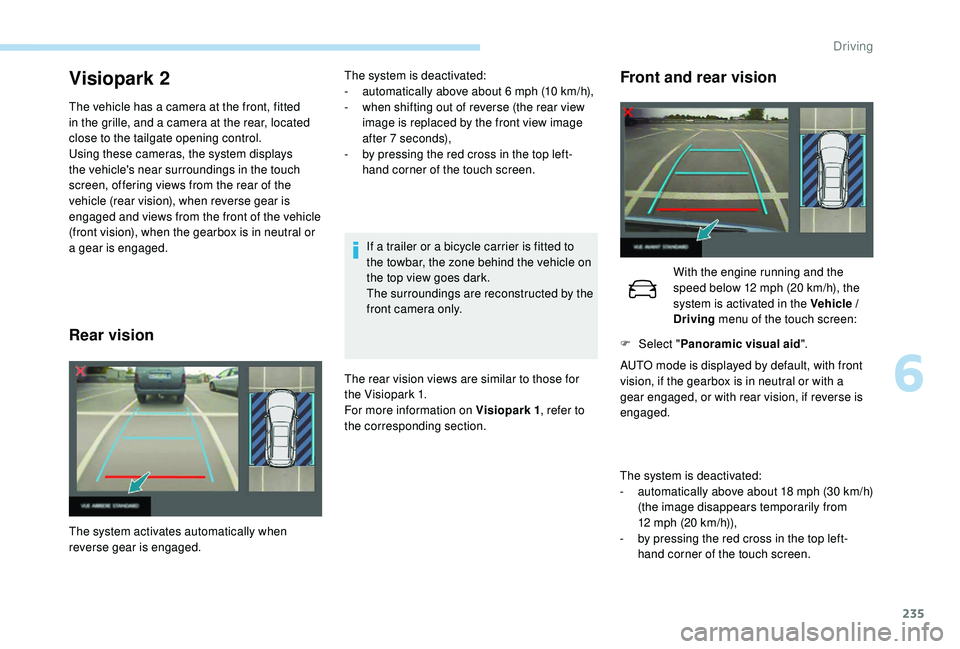
Visiopark 2
The vehicle has a camera at the front, fitted
in the grille, and a camera at the rear, located
close to the tailgate opening control.
Using these cameras, the system displays
the vehicle's near surroundings in the touch
screen, offering views from the rear of the
vehicle (rear vision), when reverse gear is
engaged and views from the front of the vehicle
(front vision), when the gearbox is in neutral or
a gear is engaged.
Rear vision
If a trailer or a bicycle carrier is fitted to
the towbar, the zone behind the vehicle on
the top view goes dark.
The surroundings are reconstructed by the
front camera only.
The rear vision views are similar to those for
the Visiopark 1.
For more information on Visiopark 1 , refer to
the corresponding section.
The system activates automatically when
reverse gear is engaged. The system is deactivated:
-
a
utomatically above about 6 mph (10 km/h),
-
w
hen shifting out of reverse (the rear view
image is replaced by the front view image
after 7
seconds),
-
b
y pressing the red cross in the top left-
hand corner of the touch screen.
Front and rear vision
The system is deactivated:
- a utomatically above about 18 mph (30 km/h)
(the image disappears temporarily from
12
mph (20 km/h)),
-
b
y pressing the red cross in the top left-
hand corner of the touch screen. With the engine running and the
speed below 12
mph (20 km/h), the
system is activated in the Vehicle /
Driving menu of the touch screen:
F
Sel
ect "
Panoramic visual aid ".
AUTO mode is displayed by default, with front
vision, if the gearbox is in neutral or with a
gear engaged, or with rear vision, if reverse is
engaged.
6
Driving