ECO mode PEUGEOT 5008 2017 Manual PDF
[x] Cancel search | Manufacturer: PEUGEOT, Model Year: 2017, Model line: 5008, Model: PEUGEOT 5008 2017Pages: 404, PDF Size: 15.31 MB
Page 354 of 404
10
Media
USB port
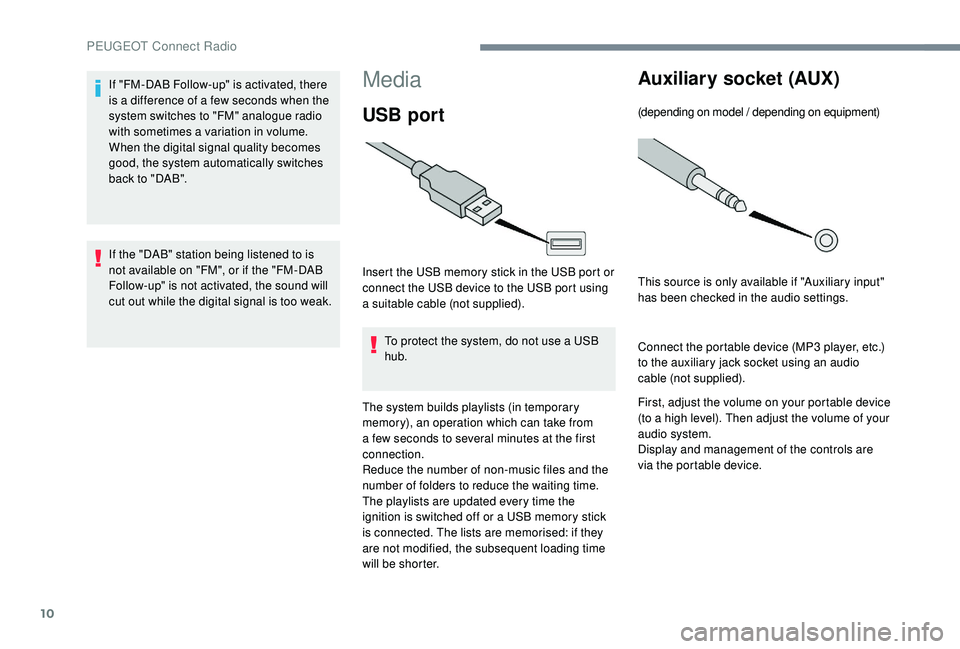
Insert the USB memory stick in the USB port or
connect the USB device to the USB port using
a suitable cable (not supplied).To protect the system, do not use a USB
hub.
The system builds playlists (in temporary
memory), an operation which can take from
a few seconds to several minutes at the first
connection.
Reduce the number of non-music files and the
number of folders to reduce the waiting time.
The playlists are updated every time the
ignition is switched off or a USB memory stick
is connected. The lists are memorised: if they
are not modified, the subsequent loading time
will be shorter.
Auxiliary socket (AUX)
(depending on model / depending on equipment)
This source is only available if "Auxiliary input"
has been checked in the audio settings.
Connect the portable device (MP3
player, etc.)
to the auxiliary jack socket using an audio
cable (not supplied).
First, adjust the volume on your portable device
(to a high level). Then adjust the volume of your
audio system.
Display and management of the controls are
via the portable device.
If "FM-DAB Follow-up" is activated, there
is a difference of a few seconds when the
system switches to "FM" analogue radio
with sometimes a variation in volume.
When the digital signal quality becomes
good, the system automatically switches
back to "DAB".
If the "DAB" station being listened to is
not available on "FM", or if the "FM-DAB
Follow-up" is not activated, the sound will
cut out while the digital signal is too weak.
PEUGEOT Connect Radio
Page 355 of 404
11
Selecting the source
Press "Radio Media" to display the
primary page.
Press the " SOURCES " button.
Choose the source.
Bluetooth® audio streaming
Streaming allows you to listen to music from
your smartphone.
The Bluetooth profile must be activated, first
adjust the volume on your portable device (to a
high level).
Then adjust the volume of your system.
If play does not start automatically, it may be
necessary to start the audio playback from the
smartphone.
Control is from the portable device or by using
the system's touch buttons.
Once connected in Streaming mode, the
smartphone is considered to be a media
source.
Connecting Apple® players
Connect the Apple® player to the USB port
using a suitable cable (not supplied).
Play starts automatically.
Control is via the audio system.
The classifications available are those
of the portable device connected
(artists / albums / genres / playlists /
audiobooks / podcasts), you can also use
a classification structured in the form of a
library.
The default classification used is by artist.
To modify the classification used, return
to the first level of the menu then select
the desired classification (playlists for
example) and confirm to go down through
the menu to the desired track.
The version of software in the audio system
may not be compatible with the generation of
your Apple
® p l aye r.
Information and advice
The system supports USB Mass Storage
devices, BlackBerry® devices or Apple®
players via USB ports. The adapter cable
is not supplied.
Device management is done by the audio
system controls.
Other peripherals, not recognised on
connection, must be connected to the
auxiliary socket using a Jack cable (not
supplied) or via Bluetooth streaming,
depending on compatibility.
To protect the system, do not use a USB
hub.
The audio equipment will only play audio files
with ".wav", ".wma", ".aac", ".ogg" and ".mp3"
file extensions and with a bit rate of between
32
Kbps and 320
Kbps.
It also supports VBR (Variable Bit Rate) mode.
No other file types (.mp4, etc.) can be read.
".wma" files must be of the standard wma
9
type.
Sampling frequencies supported are 11, 22,
44
and 48
kHz.
.
PEUGEOT Connect Radio
Page 358 of 404
14
Connect a USB cable. The
smartphone charges when
connected by a USB cable.
From the system, press
"Telephone " to display the primary
page.
Press the " PHONE" button to go to the
secondary page.
Press on " CarPlay" to display the
CarPlay
® inter face.
On connecting the USB cable, the
CarPlay
® function deactivates the
system's Bluetooth® mode.
You can go to the CarPlay
®
navigation at any time by pressing
the system's Navigation button.
Android Auto smartphone
connection
As a safety measure and because it
requires sustained attention by the driver,
using a smartphone when driving is
prohibited.
All operations must be done with the
vehicle stationary.
On your smartphone, download the
Android Auto application.
The synchronisation of a personal
smartphone allows users to display
applications adapted for the smartphone's
Android Auto technology on the vehicle
screen.
The principles and standards
are constantly changing, for the
communication process between the
smartphone and the system to operate,
it is essential that the smartphone is
unlocked; update the operating system
of the smar tphone as well as the date
and time of the smar tphone and the
system.
For the list of eligible smartphones, go
to the Brand's internet website in your
c o u nt r y. As a safety measure, applications can
only be viewed with the vehicle stationary;
display is interrupted once the vehicle is
moving.
The "Android Auto" function requires the
use of a compatible smartphone and
applications.
Telephone not connected by
Bluetooth®
Connect a USB cable. The
smartphone charges when
connected by a USB cable.
From the system, press
"
Telephone " to display the primary
page.
Press " Android Auto " to start the
application in the system.
Depending on the smartphone, it may be
necessary to activate the " Android Auto"
function.
PEUGEOT Connect Radio
Page 369 of 404
25
Settings
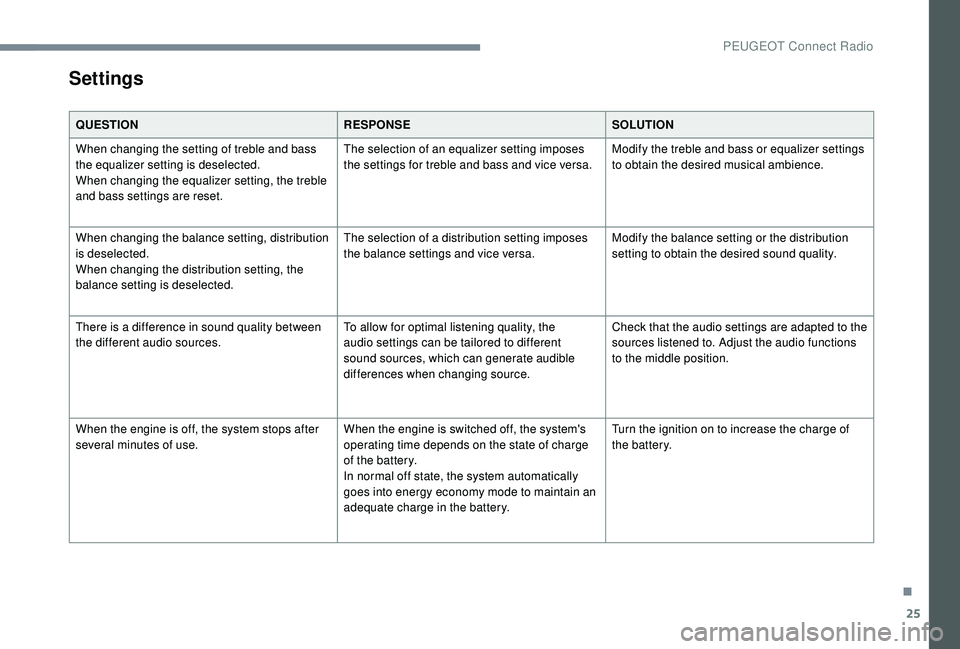
QUESTIONRESPONSESOLUTION
When changing the setting of treble and bass
the equalizer setting is deselected.
When changing the equalizer setting, the treble
and bass settings are reset. The selection of an equalizer setting imposes
the settings for treble and bass and vice versa.
Modify the treble and bass or equalizer settings
to obtain the desired musical ambience.
When changing the balance setting, distribution
is deselected.
When changing the distribution setting, the
balance setting is deselected. The selection of a distribution setting imposes
the balance settings and vice versa.
Modify the balance setting or the distribution
setting to obtain the desired sound quality.
There is a difference in sound quality between
the different audio sources. To allow for optimal listening quality, the
audio settings can be tailored to different
sound sources, which can generate audible
differences when changing source.Check that the audio settings are adapted to the
sources listened to. Adjust the audio functions
to the middle position.
When the engine is off, the system stops after
several minutes of use. When the engine is switched off, the system's
operating time depends on the state of charge
of the battery.
In normal off state, the system automatically
goes into energy economy mode to maintain an
adequate charge in the battery.Turn the ignition on to increase the charge of
the battery.
.
PEUGEOT Connect Radio
Page 380 of 404
8
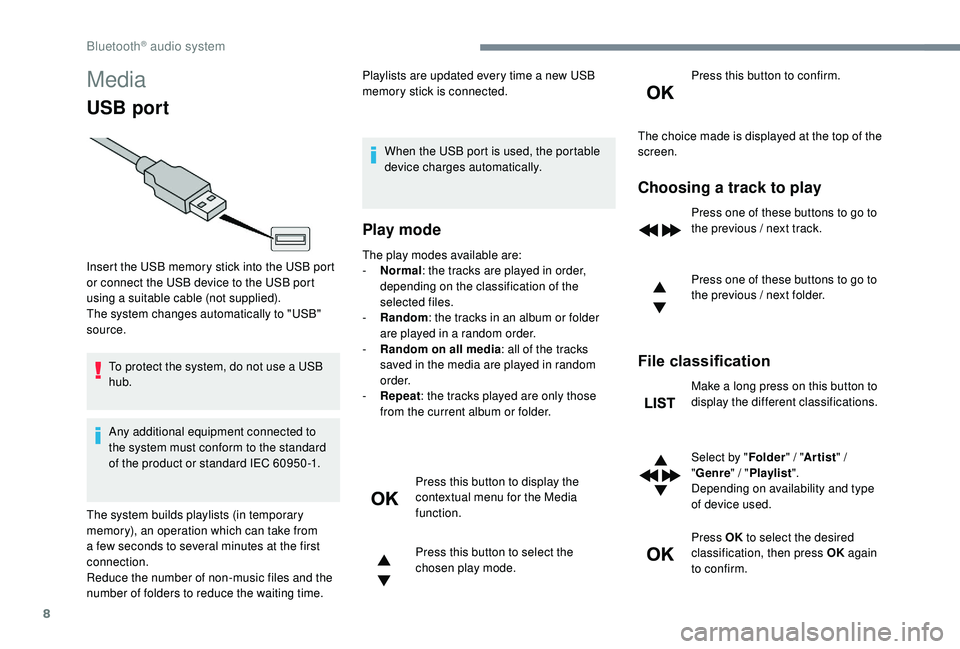
Media
USB port
To protect the system, do not use a USB
hub.
Any additional equipment connected to
the system must conform to the standard
of the product or standard IEC 60950 -1.Playlists are updated every time a new USB
memory stick is connected.
When the USB port is used, the portable
device charges automatically.
Play mode
The play modes available are:
- No rmal: the tracks are played in order,
depending on the classification of the
selected files.
-
Ra
ndom: the tracks in an album or folder
are played in a random order.
-
R
andom on all media: all of the tracks
saved in the media are played in random
o r d e r.
-
R
epeat : the tracks played are only those
from the current album or folder.
Press this button to display the
contextual menu for the Media
function.
Press this button to select the
chosen play mode. Press this button to confirm.
Insert the USB memory stick into the USB port
or connect the USB device to the USB port
using a suitable cable (not supplied).
The system changes automatically to "USB"
source.
The system builds playlists (in temporary
memory), an operation which can take from
a few seconds to several minutes at the first
connection.
Reduce the number of non-music files and the
number of folders to reduce the waiting time. The choice made is displayed at the top of the
screen.
Choosing a track to play
Press one of these buttons to go to
the previous / next track.
Press one of these buttons to go to
the previous / next folder.
File classification
Make a long press on this button to
display the different classifications.
Select by "
Folder" / "Artist " /
" Genre " / "Playlist ".
Depending on availability and type
of device used.
Press OK to select the desired
classification, then press OK again
to confirm.
Bluetooth® audio system
Page 381 of 404
9
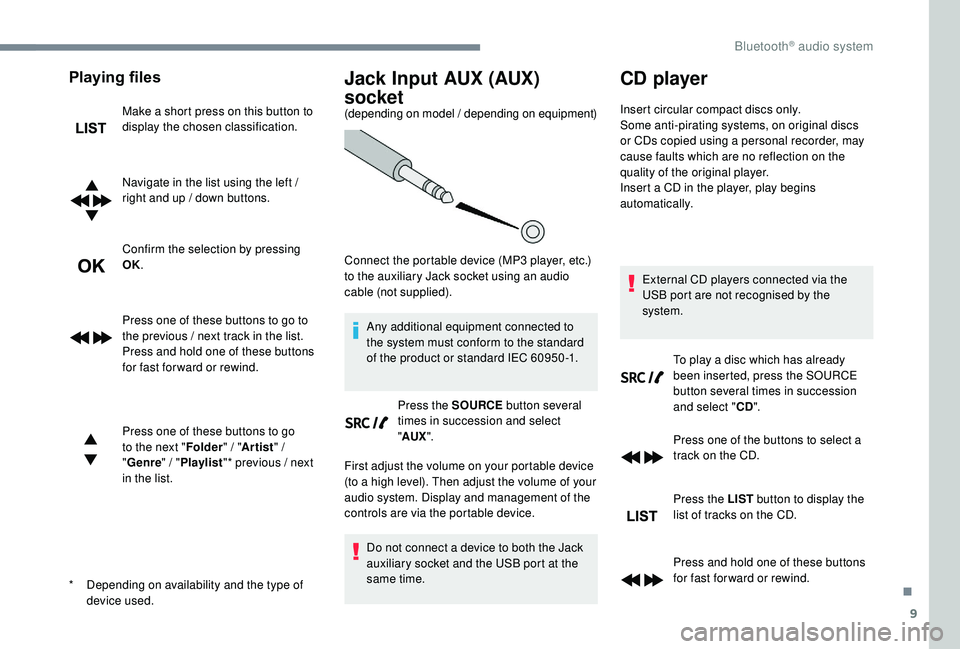
Playing files
Make a short press on this button to
display the chosen classification.
Navigate in the list using the left /
right and up / down buttons.
Confirm the selection by pressing
OK.
Press one of these buttons to go to
the previous / next track in the list.
Press and hold one of these buttons
for fast for ward or rewind.
Press one of these buttons to go
to the next "Folder" / "Artist " /
" Genre " / "Playlist "* previous / next
in the list.
Jack Input AUX (AUX)
socket
(depending on model / depending on equipment)
Any additional equipment connected to
the system must conform to the standard
of the product or standard IEC 60950 -1. Press the SOURCE button several
times in succession and select
" AUX ".
First adjust the volume on your portable device
(to a high level). Then adjust the volume of your
audio system. Display and management of the
controls are via the portable device.
Do not connect a device to both the Jack
auxiliary socket and the USB port at the
same time.
CD player
Insert circular compact discs only.
Some anti-pirating systems, on original discs
or CDs copied using a personal recorder, may
cause faults which are no reflection on the
quality of the original player.
Insert a CD in the player, play begins
automatically.
External CD players connected via the
USB port are not recognised by the
system. To play a disc which has already
been inserted, press the SOURCE
button several times in succession
and select " CD".
Press one of the buttons to select a
track on the CD.
Press the LIST button to display the
list of tracks on the CD.
Press and hold one of these buttons
for fast for ward or rewind.
*
D
epending on availability and the type of
device used. Connect the portable device (MP3
player, etc.)
to the auxiliary Jack socket using an audio
cable (not supplied).
.
Bluetooth® audio system
Page 382 of 404
10
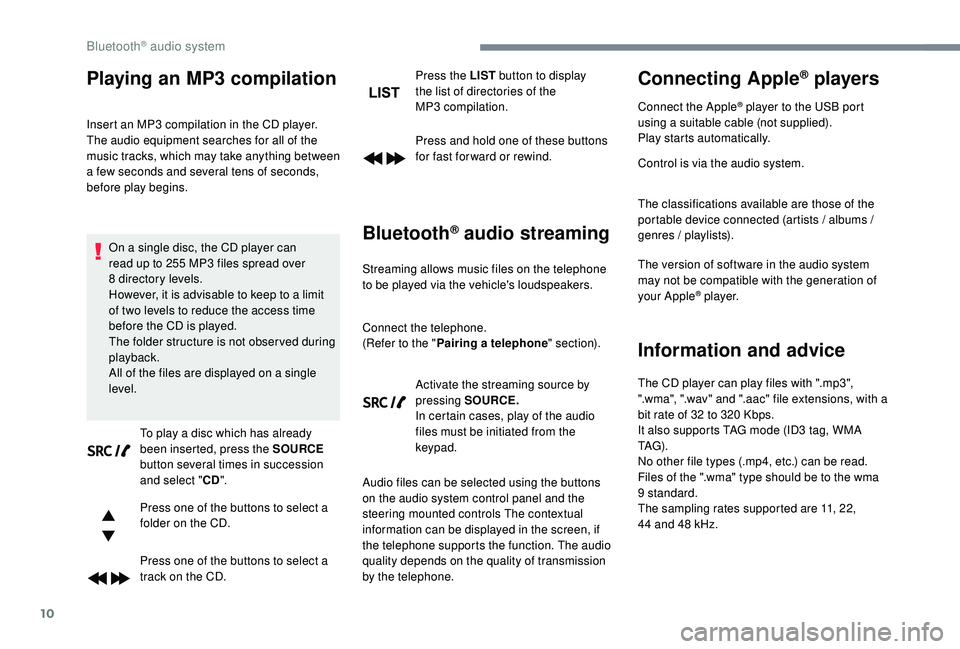
Playing an MP3 compilation
Insert an MP3 compilation in the CD player.
T he audio equipment searches for all of the
music tracks, which may take anything between
a few seconds and several tens of seconds,
before play begins.
On a single disc, the CD player can
read up to 255
MP3 files spread over
8
directory levels.
However, it is advisable to keep to a limit
of two levels to reduce the access time
before the CD is played.
The folder structure is not obser ved during
playback.
All of the files are displayed on a single
level.
To play a disc which has already
been inserted, press the SOURCE
button several times in succession
and select " CD".
Press one of the buttons to select a
folder on the CD.
Press one of the buttons to select a
track on the CD. Press the LIST
button to display
the list of directories of the
MP3
compilation.
Press and hold one of these buttons
for fast for ward or rewind.
Bluetooth® audio streaming
Streaming allows music files on the telephone
to be played via the vehicle's loudspeakers.
Connect the telephone.
(Refer to the " Pairing a telephone " section).
Activate the streaming source by
pressing SOURCE.
In certain cases, play of the audio
files must be initiated from the
keypad.
Audio files can be selected using the buttons
on the audio system control panel and the
steering mounted controls The contextual
information can be displayed in the screen, if
the telephone supports the function. The audio
quality depends on the quality of transmission
by the telephone.
Connecting Apple® players
Connect the Apple® player to the USB port
using a suitable cable (not supplied).
Play starts automatically.
Control is via the audio system.
The classifications available are those of the
portable device connected (artists / albums /
genres / playlists).
The version of software in the audio system
may not be compatible with the generation of
your Apple
® p l aye r.
Information and advice
The CD player can play files with ".mp3",
".wma", ".wav" and ".aac" file extensions, with a
bit rate of 32
to 320 Kbps.
It also supports TAG mode (ID3
tag, WMA
TAG) .
No other file types (.mp4, etc.) can be read.
Files of the ".wma" type should be to the wma
9
standard.
The sampling rates supported are 11, 22,
44
and 48 kHz.
Bluetooth® audio system
Page 386 of 404
14
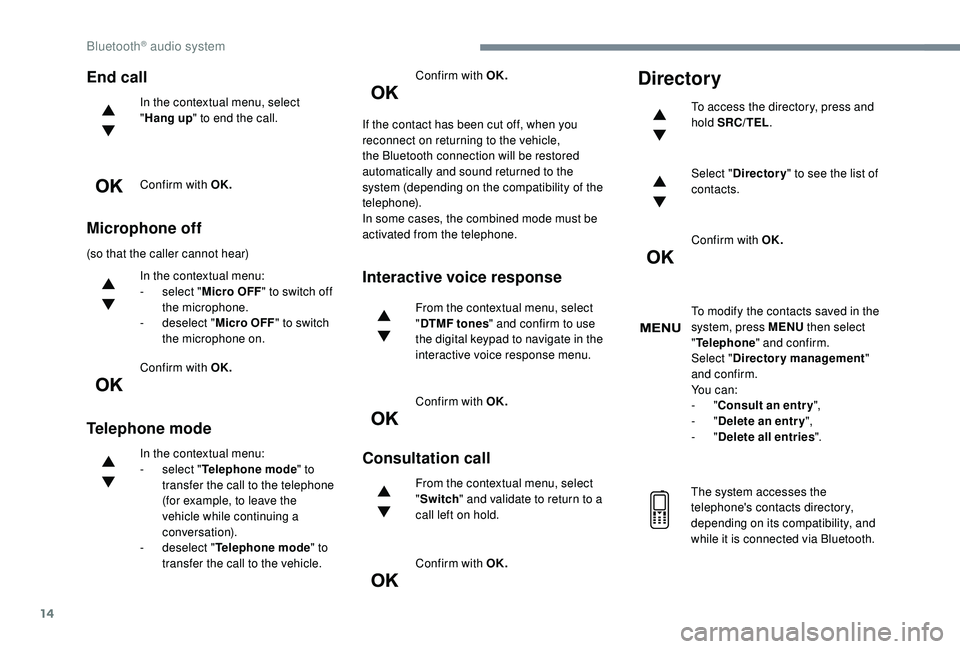
End call
In the contextual menu, select
"Hang up " to end the call.
Confirm with OK.
Microphone off
(so that the caller cannot hear) In the contextual menu:
-
s
elect "Micro OFF " to switch off
the microphone.
-
d
eselect "Micro OFF " to switch
the microphone on.
Confirm with OK.
Telephone mode
In the contextual menu:
- s elect " Telephone mode " to
transfer the call to the telephone
(for example, to leave the
vehicle while continuing a
conversation).
-
d
eselect " Telephone mode " to
transfer the call to the vehicle. Confirm with OK.
If the contact has been cut off, when you
reconnect on returning to the vehicle,
the Bluetooth connection will be restored
automatically and sound returned to the
system (depending on the compatibility of the
telephone).
In some cases, the combined mode must be
activated from the telephone.
Interactive voice response
From the contextual menu, select
" DTMF tones " and confirm to use
the digital keypad to navigate in the
interactive voice response menu.
Confirm with OK.
Consultation call
From the contextual menu, select
" Switch " and validate to return to a
call left on hold.
Confirm with OK.
Directory
To access the directory, press and
hold SRC/TEL .
Select " Directory " to see the list of
contacts.
Confirm with OK.
To modify the contacts saved in the
system, press MENU then select
" Telephone " and confirm.
Select " Directory management "
and confirm.
Yo u c a n :
-
"Consult an entr y ",
-
"Delete an entry ",
-
"Delete all entries ".
The system accesses the
telephone's contacts directory,
depending on its compatibility, and
while it is connected via Bluetooth.
Bluetooth® audio system
Page 388 of 404
16
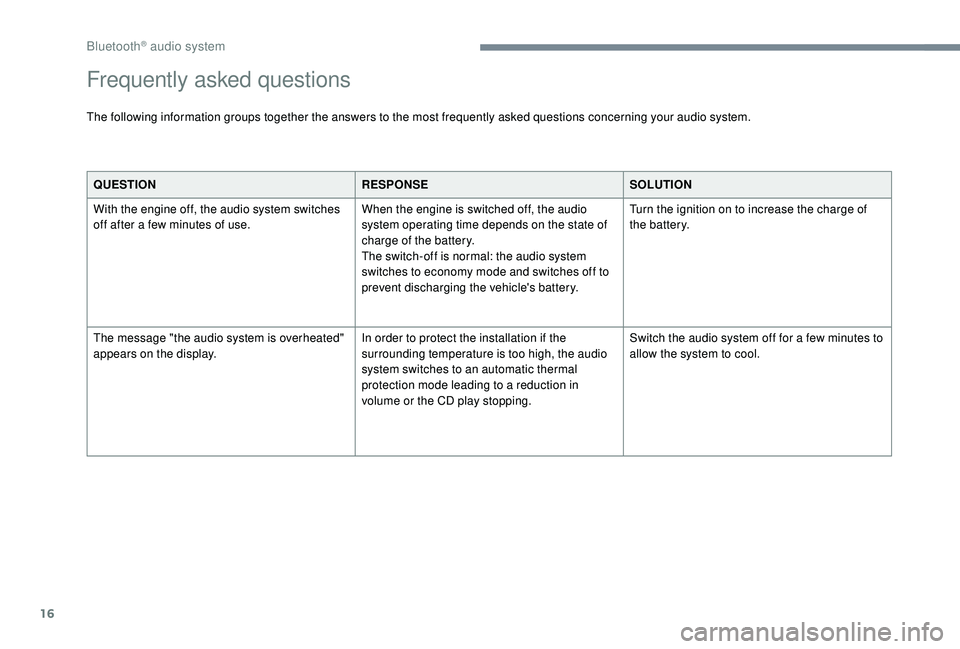
QUESTIONRESPONSESOLUTION
With the engine off, the audio system switches
off after a few minutes of use. When the engine is switched off, the audio
system operating time depends on the state of
charge of the battery.
The switch-off is normal: the audio system
switches to economy mode and switches off to
prevent discharging the vehicle's battery.Turn the ignition on to increase the charge of
the battery.
The message "the audio system is overheated"
appears on the display. In order to protect the installation if the
surrounding temperature is too high, the audio
system switches to an automatic thermal
protection mode leading to a reduction in
volume or the CD play stopping.Switch the audio system off for a few minutes to
allow the system to cool.
Frequently asked questions
The following information groups together the answers to the most frequently asked questions concerning your audio system.
Bluetooth® audio system
Page 389 of 404
17
Radio
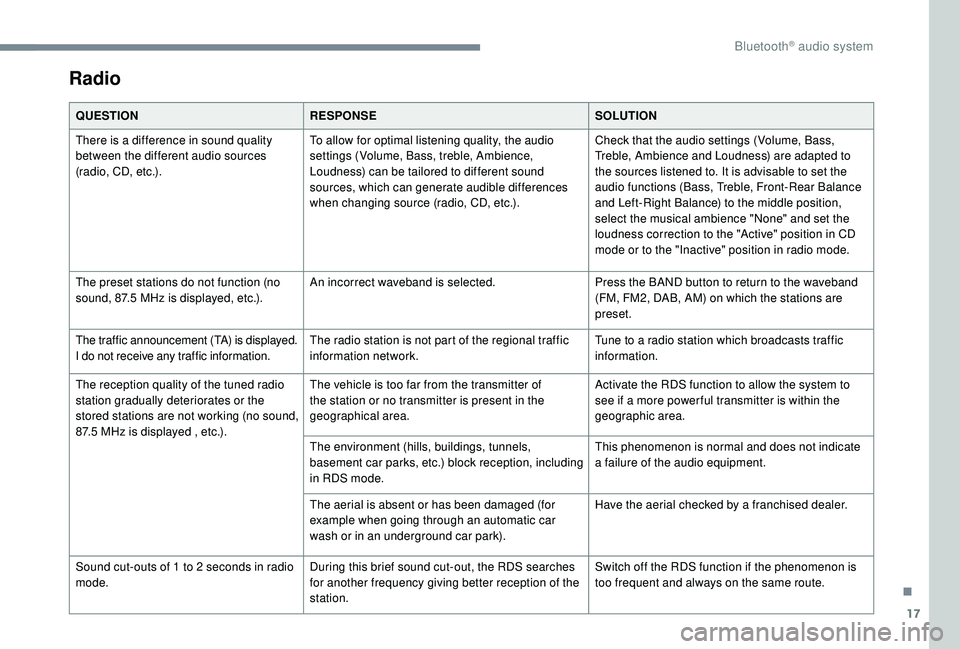
QUESTIONRESPONSE SOLUTION
There is a difference in sound quality
between the different audio sources
(radio, CD, etc.). To allow for optimal listening quality, the audio
settings (Volume, Bass, treble, Ambience,
Loudness) can be tailored to different sound
sources, which can generate audible differences
when changing source (radio, CD, etc.). Check that the audio settings (Volume, Bass,
Treble, Ambience and Loudness) are adapted to
the sources listened to. It is advisable to set the
audio functions (Bass, Treble, Front-Rear Balance
and Left-Right Balance) to the middle position,
select the musical ambience "None" and set the
loudness correction to the "Active" position in CD
mode or to the "Inactive" position in radio mode.
The preset stations do not function (no
sound, 87.5
MHz is displayed, etc.). An incorrect waveband is selected.
Press the BAND button to return to the waveband
(FM, FM2, DAB, AM) on which the stations are
preset.
The traffic announcement (TA) is displayed.
I do not receive any traffic information. The radio station is not part of the regional traffic
information network. Tune to a radio station which broadcasts traffic
information.
The reception quality of the tuned radio
station gradually deteriorates or the
stored stations are not working (no sound,
87.5
MHz is displayed , etc.). The vehicle is too far from the transmitter of
the station or no transmitter is present in the
geographical area.
Activate the RDS function to allow the system to
see if a more power ful transmitter is within the
geographic area.
The environment (hills, buildings, tunnels,
basement car parks, etc.) block reception, including
in RDS mode. This phenomenon is normal and does not indicate
a failure of the audio equipment.
The aerial is absent or has been damaged (for
example when going through an automatic car
wash or in an underground car park). Have the aerial checked by a franchised dealer.
Sound cut-outs of 1
to 2 seconds in radio
mode. During this brief sound cut-out, the RDS searches
for another frequency giving better reception of the
station. Switch off the RDS function if the phenomenon is
too frequent and always on the same route.
.
Bluetooth® audio system