phone PEUGEOT 5008 2017 Workshop Manual
[x] Cancel search | Manufacturer: PEUGEOT, Model Year: 2017, Model line: 5008, Model: PEUGEOT 5008 2017Pages: 404, PDF Size: 15.31 MB
Page 361 of 404
17
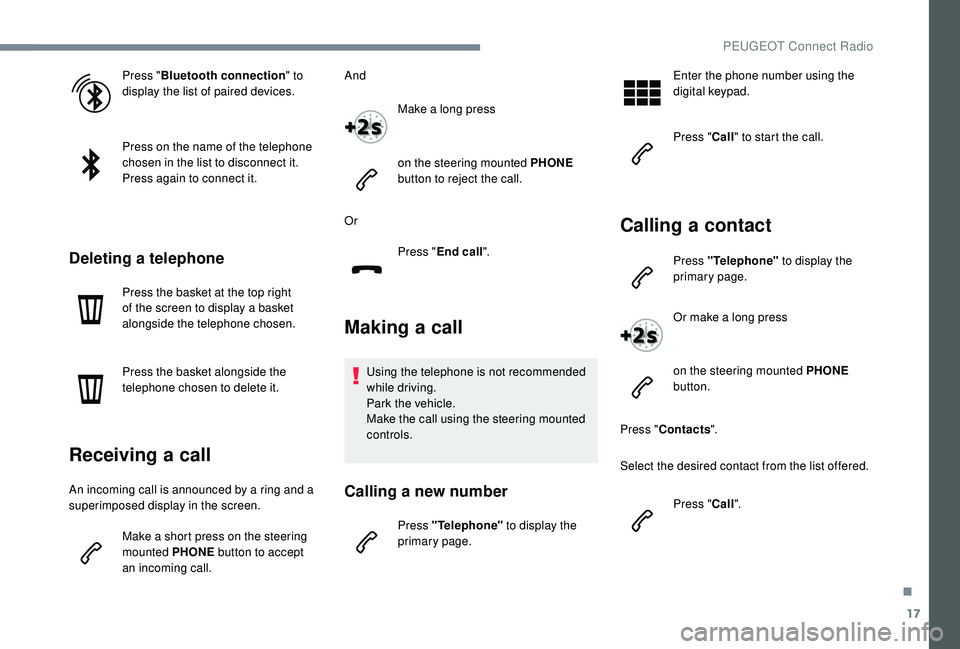
Press "Bluetooth connection " to
display the list of paired devices.
Press on the name of the telephone
chosen in the list to disconnect it.
Press again to connect it.
Deleting a telephone
Press the basket at the top right
of the screen to display a basket
alongside the telephone chosen.
Press the basket alongside the
telephone chosen to delete it.
Receiving a call
An incoming call is announced by a ring and a
superimposed display in the screen.
Make a short press on the steering
mounted PHONE button to accept
an incoming call. And
Make a long press
on the steering mounted PHONE
button to reject the call.
Or Press "End call".
Making a call
Using the telephone is not recommended
while driving.
Park the vehicle.
Make the call using the steering mounted
controls.
Calling a new number
Press "Telephone" to display the
primary page. Enter the phone number using the
digital keypad.
Press "
Call" to start the call.
Calling a contact
Press "Telephone" to display the
primary page.
Or make a long press
on the steering mounted PHONE
button.
Press " Contacts ".
Select the desired contact from the list offered.
Press "Call".
.
PEUGEOT Connect Radio
Page 362 of 404
18
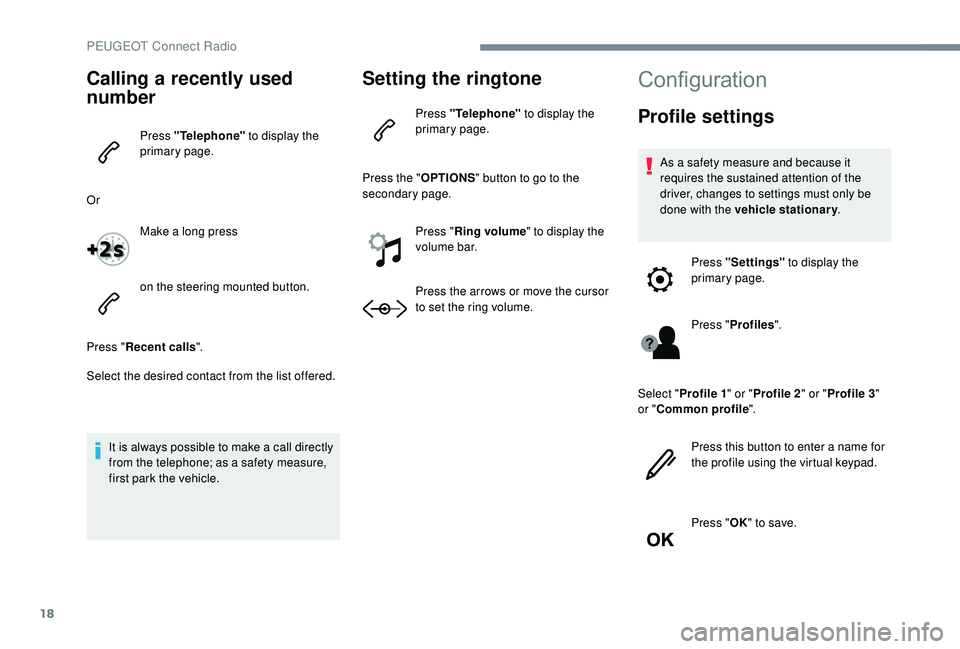
Calling a recently used
number
Press "Telephone" to display the
primary page.
Or Make a long press
on the steering mounted button.
Press " Recent calls ".
Select the desired contact from the list offered.
It is always possible to make a call directly
from the telephone; as a safety measure,
first park the vehicle.
Setting the ringtone
Press "Telephone" to display the
primary page.
Press the " OPTIONS" button to go to the
secondary page.
Press "Ring volume " to display the
volume bar.
Press the arrows or move the cursor
to set the ring volume.
Configuration
Profile settings
As a safety measure and because it
requires the sustained attention of the
driver, changes to settings must only be
done with the vehicle stationary .
Press "Settings" to display the
primary page.
Press " Profiles ".
Select " Profile 1 " or "Profile 2 " or "Profile 3 "
or " Common profile ".
Press this button to enter a name for
the profile using the virtual keypad.
Press " OK" to save.
PEUGEOT Connect Radio
Page 368 of 404
24
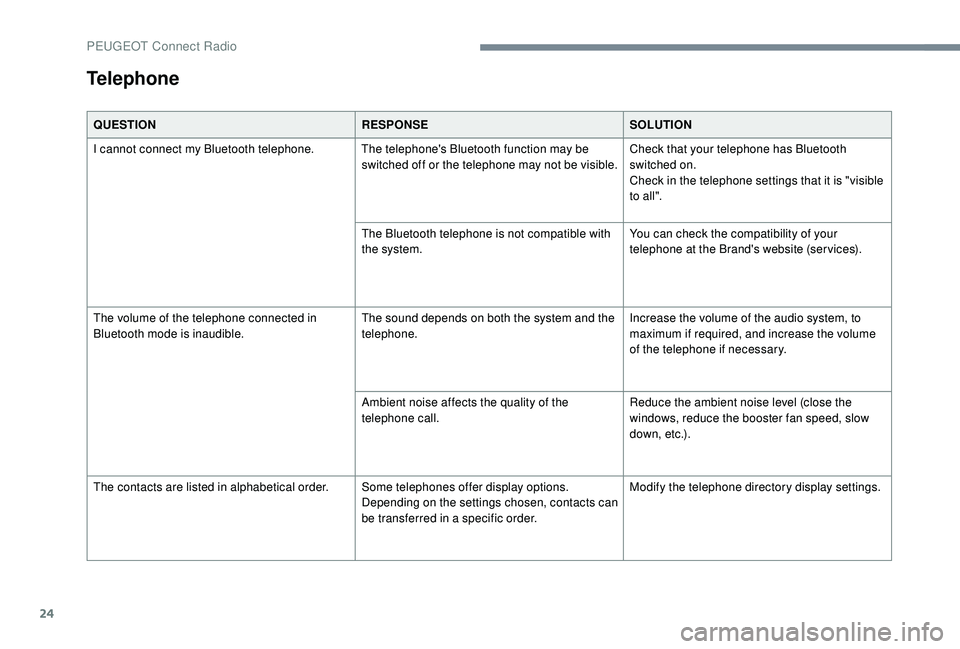
QUESTIONRESPONSESOLUTION
I cannot connect my Bluetooth telephone. The telephone's Bluetooth function may be switched off or the telephone may not be visible.Check that your telephone has Bluetooth
switched on.
Check in the telephone settings that it is "visible
to all".
The Bluetooth telephone is not compatible with
the system. You can check the compatibility of your
telephone at the Brand's website (services).
The volume of the telephone connected in
Bluetooth mode is inaudible. The sound depends on both the system and the
telephone.Increase the volume of the audio system, to
maximum if required, and increase the volume
of the telephone if necessary.
Ambient noise affects the quality of the
telephone call. Reduce the ambient noise level (close the
windows, reduce the booster fan speed, slow
down, etc.).
The contacts are listed in alphabetical order. Some telephones offer display options.
Depending on the settings chosen, contacts can
be transferred in a specific order.Modify the telephone directory display settings.
Telephone
PEUGEOT Connect Radio
Page 373 of 404
1
Bluetooth® audio system
Contents
First steps
2
S
teering mounted controls
3
M
enus
4
R
adio
4
D
AB radio (Digital Audio Broadcasting)
6
M
edia
8
T
elephone
1
1
Frequently asked questions
1
6 The different functions and settings
described vary according to the version
and configuration of your vehicle.
As a safety measure and because it
requires sustained attention by the
driver, the pairing of a Bluetooth mobile
telephone with the Bluetooth hands-free
system of your audio system must be
done with the vehicle stationary
and the
ignition on.
Your audio system is coded in such a way
that it will only operate in your vehicle.
All work on the system must be
carried out exclusively by a dealer or a
qualified workshop, to avoid any risk of
electrocution, fire or mechanical faults.
To avoid discharging the battery, the audio
system may switch off after a few minutes
if the engine is not running.
.
Bluetooth® audio system
Page 374 of 404
2
First steps
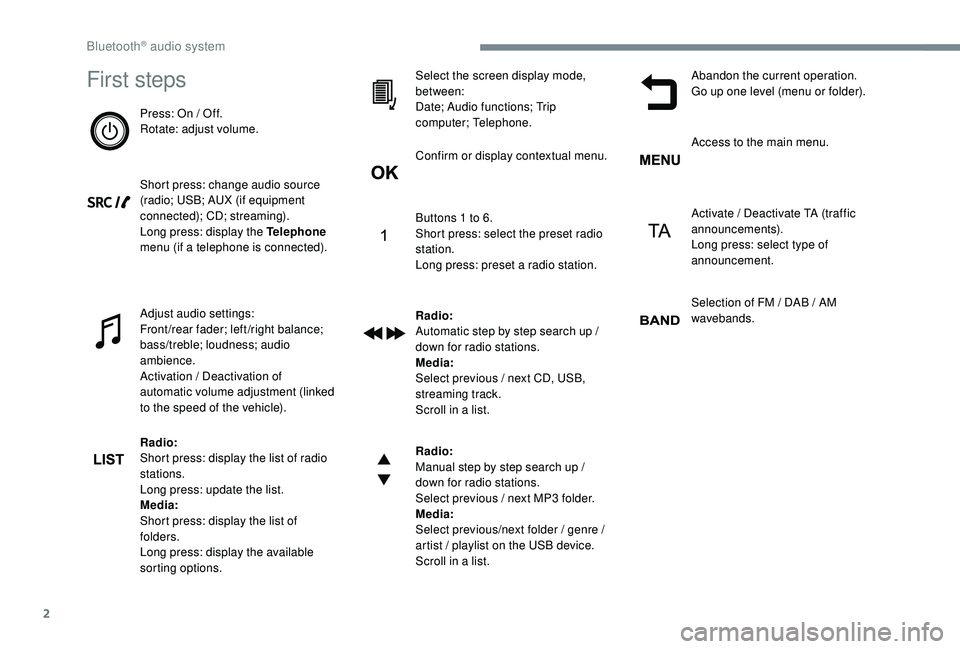
Press: On / Off.
Rotate: adjust volume.
Short press: change audio source
(radio; USB; AUX (if equipment
connected); CD; streaming).
Long press: display the Telephone
menu (if a telephone is connected).
Adjust audio settings:
Front/rear fader; left/right balance;
bass/treble; loudness; audio
ambience.
Activation / Deactivation of
automatic volume adjustment (linked
to the speed of the vehicle).
Radio:
Short press: display the list of radio
stations.
Long press: update the list.
Media:
Short press: display the list of
folders.
Long press: display the available
sorting options.Select the screen display mode,
between:
Date; Audio functions; Trip
computer; Telephone.
Confirm or display contextual menu.
Buttons 1
to 6.
Short press: select the preset radio
station.
Long press: preset a radio station.
Radio:
Automatic step by step search up /
down for radio stations.
Media:
Select previous / next CD, USB,
streaming track.
Scroll in a list.
Radio:
Manual step by step search up /
down for radio stations.
Select previous / next MP3
folder.
Media:
Select previous/next folder / genre /
artist / playlist on the USB device.
Scroll in a list. Abandon the current operation.
Go up one level (menu or folder).
Access to the main menu.
Activate / Deactivate TA (traffic
announcements).
Long press: select type of
announcement.
Selection of FM / DAB / AM
wavebands.
Bluetooth® audio system
Page 375 of 404
3
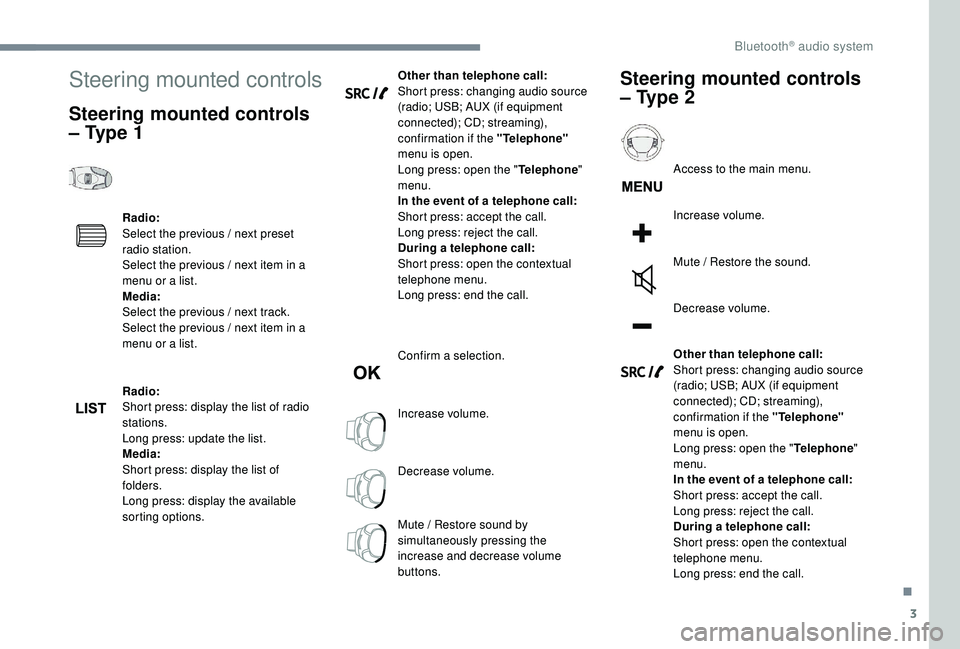
Steering mounted controls
Steering mounted controls
– Type 1
Radio:
Select the previous / next preset
radio station.
Select the previous / next item in a
menu or a list.
Media:
Select the previous / next track.
Select the previous / next item in a
menu or a list.
Radio:
Short press: display the list of radio
stations.
Long press: update the list.
Media:
Short press: display the list of
folders.
Long press: display the available
sorting options.Other than telephone call:
Short press: changing audio source
(radio; USB; AUX (if equipment
connected); CD; streaming),
confirmation if the "Telephone"
menu is open.
Long press: open the " Telephone"
menu.
In the event of a telephone call:
Short press: accept the call.
Long press: reject the call.
During a telephone call:
Short press: open the contextual
telephone menu.
Long press: end the call.
Confirm a selection.
Increase volume.
Decrease volume.
Mute / Restore sound by
simultaneously pressing the
increase and decrease volume
buttons.
Steering mounted controls
– Type 2
Access to the main menu.
Increase volume.
Mute / Restore the sound.
Decrease volume.
Other than telephone call:
Short press: changing audio source
(radio; USB; AUX (if equipment
connected); CD; streaming),
confirmation if the "Telephone"
menu is open.
Long press: open the " Telephone"
menu.
In the event of a telephone call:
Short press: accept the call.
Long press: reject the call.
During a telephone call:
Short press: open the contextual
telephone menu.
Long press: end the call.
.
Bluetooth® audio system
Page 376 of 404
4
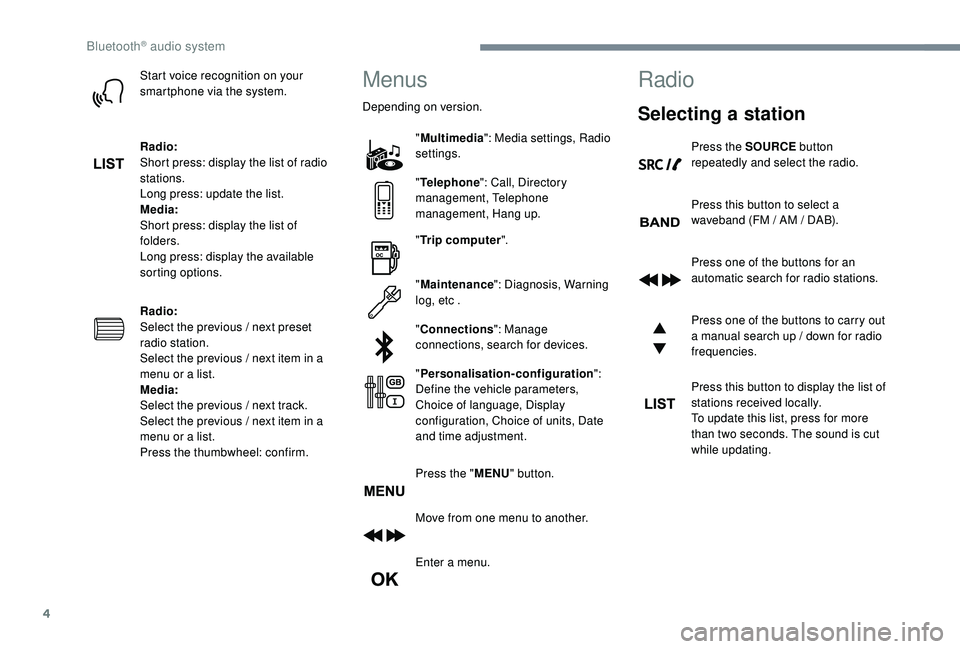
Start voice recognition on your
smartphone via the system.
Radio:
Short press: display the list of radio
stations.
Long press: update the list.
Media:
Short press: display the list of
folders.
Long press: display the available
sorting options.
Radio:
Select the previous / next preset
radio station.
Select the previous / next item in a
menu or a list.
Media:
Select the previous / next track.
Select the previous / next item in a
menu or a list.
Press the thumbwheel: confirm.Menus
Depending on version."Multimedia ": Media settings, Radio
settings.
" Telephone ": Call, Directory
management, Telephone
management, Hang up.
" Trip computer ".
" Maintenance ": Diagnosis, Warning
log, etc .
" Connections ": Manage
connections, search for devices.
" Personalisation-configuration ":
Define the vehicle parameters,
Choice of language, Display
configuration, Choice of units, Date
and time adjustment.
Press the " MENU" button.
Move from one menu to another.
Enter a menu.
Radio
Selecting a station
Press the SOURCE button
repeatedly and select the radio.
Press this button to select a
waveband (FM / AM / DAB).
Press one of the buttons for an
automatic search for radio stations.
Press one of the buttons to carry out
a manual search up / down for radio
frequencies.
Press this button to display the list of
stations received locally.
To update this list, press for more
than two seconds. The sound is cut
while updating.
Bluetooth® audio system
Page 382 of 404
10
Playing an MP3 compilation
Insert an MP3 compilation in the CD player.
T he audio equipment searches for all of the
music tracks, which may take anything between
a few seconds and several tens of seconds,
before play begins.
On a single disc, the CD player can
read up to 255
MP3 files spread over
8
directory levels.
However, it is advisable to keep to a limit
of two levels to reduce the access time
before the CD is played.
The folder structure is not obser ved during
playback.
All of the files are displayed on a single
level.
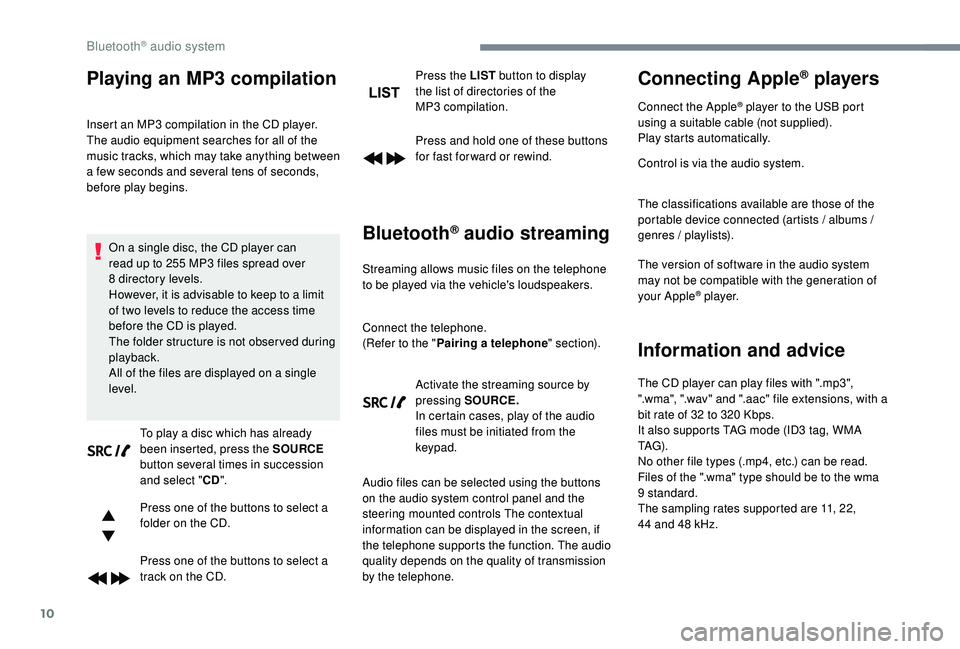
To play a disc which has already
been inserted, press the SOURCE
button several times in succession
and select " CD".
Press one of the buttons to select a
folder on the CD.
Press one of the buttons to select a
track on the CD. Press the LIST
button to display
the list of directories of the
MP3
compilation.
Press and hold one of these buttons
for fast for ward or rewind.
Bluetooth® audio streaming
Streaming allows music files on the telephone
to be played via the vehicle's loudspeakers.
Connect the telephone.
(Refer to the " Pairing a telephone " section).
Activate the streaming source by
pressing SOURCE.
In certain cases, play of the audio
files must be initiated from the
keypad.
Audio files can be selected using the buttons
on the audio system control panel and the
steering mounted controls The contextual
information can be displayed in the screen, if
the telephone supports the function. The audio
quality depends on the quality of transmission
by the telephone.
Connecting Apple® players
Connect the Apple® player to the USB port
using a suitable cable (not supplied).
Play starts automatically.
Control is via the audio system.
The classifications available are those of the
portable device connected (artists / albums /
genres / playlists).
The version of software in the audio system
may not be compatible with the generation of
your Apple
® p l aye r.
Information and advice
The CD player can play files with ".mp3",
".wma", ".wav" and ".aac" file extensions, with a
bit rate of 32
to 320 Kbps.
It also supports TAG mode (ID3
tag, WMA
TAG) .
No other file types (.mp4, etc.) can be read.
Files of the ".wma" type should be to the wma
9
standard.
The sampling rates supported are 11, 22,
44
and 48 kHz.
Bluetooth® audio system
Page 383 of 404
11
File names should have fewer than
20 characters, avoiding special characters (e.g.
"
? ; ù) so as to avoid any reading or display
problems.
In order to be able to play a burned CDR or
CDRW, select standards ISO 9660
level 1, 2 or
Joliet if possible when burning the CD.
If the disc is burned in another format, it may
not be played correctly.
It is recommended that the same burning
standard is always used on an individual disc,
with the lowest speed possible (4x maximum)
for the best acoustic quality.
In the particular case of a multi-session CD, the
Joliet standard is recommended.
To protect the system, do not use a USB hub. Use only USB memory sticks formatted
FAT 32
(File Allocation Table).
It is recommended that you use genuine
Apple
® USB cables for correct operation.
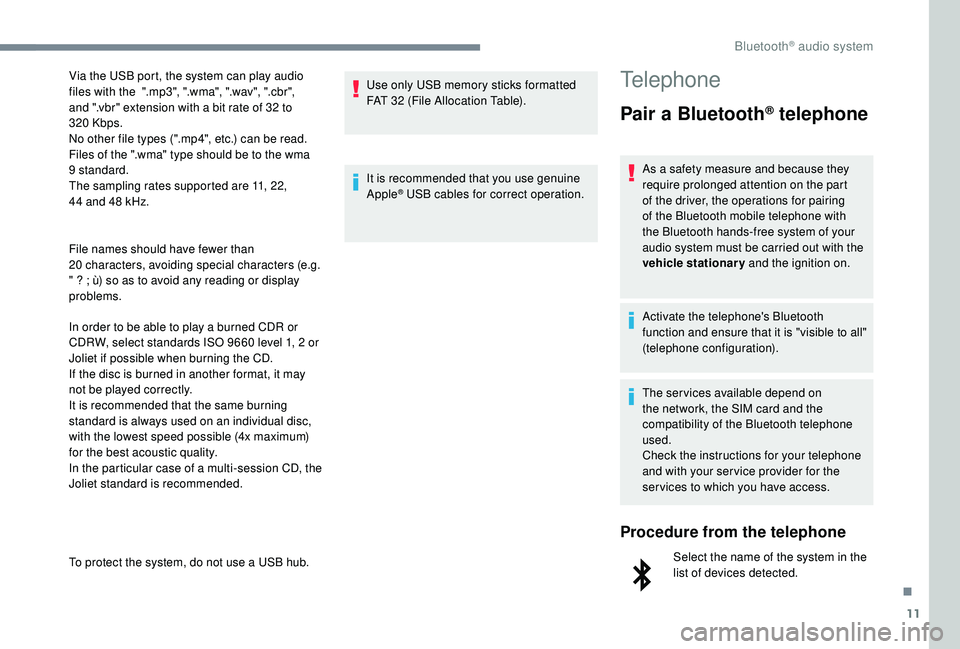
Telephone
Pair a Bluetooth® telephone
As a safety measure and because they
require prolonged attention on the part
of the driver, the operations for pairing
of the Bluetooth mobile telephone with
the Bluetooth hands-free system of your
audio system must be carried out with the
vehicle stationary and the ignition on.
Activate the telephone's Bluetooth
function and ensure that it is "visible to all"
(telephone configuration).
The services available depend on
the network, the SIM card and the
compatibility of the Bluetooth telephone
used.
Check the instructions for your telephone
and with your ser vice provider for the
ser vices to which you have access.
Procedure from the telephone
Select the name of the system in the
list of devices detected.
Via the USB port, the system can play audio
files with the ".mp3", ".wma", ".wav", ".cbr",
and ".vbr" extension with a bit rate of 32
to
320
Kbps.
No other file types (".mp4", etc.) can be read.
Files of the ".wma" type should be to the wma
9
standard.
The sampling rates supported are 11, 22,
44
and 48
kHz.
.
Bluetooth® audio system
Page 384 of 404
12
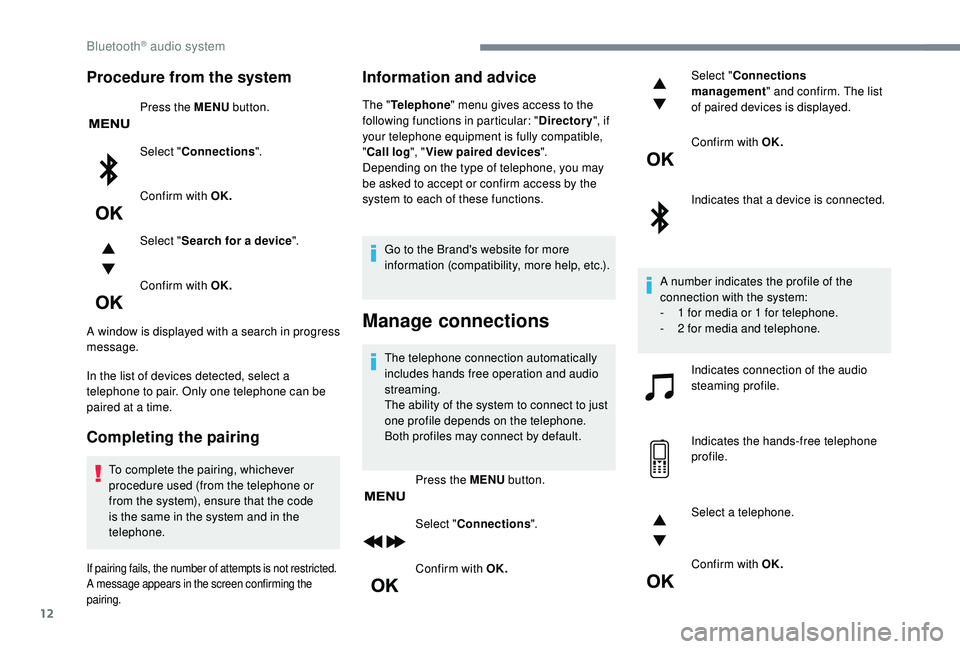
Procedure from the system
Press the MENU button.
Select " Connections ".
Confirm with OK.
Select " Search for a device ".
Confirm with OK.
A window is displayed with a search in progress
message.
In the list of devices detected, select a
telephone to pair. Only one telephone can be
paired at a time.
Completing the pairing
To complete the pairing, whichever
procedure used (from the telephone or
from the system), ensure that the code
is the same in the system and in the
telephone.
If pairing fails, the number of attempts is not restricted.
A message appears in the screen confirming the
pairing.
Information and advice
The " Telephone " menu gives access to the
following functions in particular: " Directory", if
your telephone equipment is fully compatible,
" Call log ", "View paired devices ".
Depending on the type of telephone, you may
be asked to accept or confirm access by the
system to each of these functions.
Go to the Brand's website for more
information (compatibility, more help, etc.).
Manage connections
The telephone connection automatically
includes hands free operation and audio
streaming.
The ability of the system to connect to just
one profile depends on the telephone.
Both profiles may connect by default. Press the MENU button.
Select " Connections ".
Confirm with OK. Select "
Connections
management " and confirm. The list
of paired devices is displayed.
Confirm with OK.
Indicates that a device is connected.
A number indicates the profile of the
connection with the system:
-
1
for media or 1 for telephone.
-
2
for media and telephone.
Indicates connection of the audio
steaming profile.
Indicates the hands-free telephone
profile.
Select a telephone.
Confirm with OK.
Bluetooth® audio system