usb PEUGEOT 5008 2018 Owner's Manual
[x] Cancel search | Manufacturer: PEUGEOT, Model Year: 2018, Model line: 5008, Model: PEUGEOT 5008 2018Pages: 364, PDF Size: 13.03 MB
Page 323 of 364
9
If the "DAB" station being listened to is
not available on FM, or if the "FM-DAB
Tracking" is not activated, the sound will
cut out while the digital signal is too weak.
Media
USB port
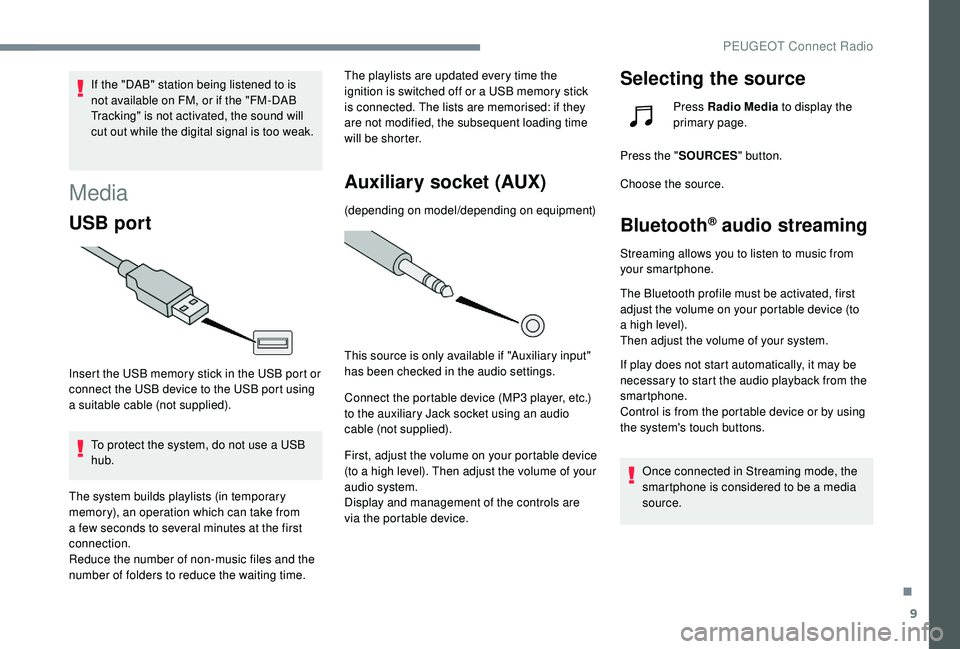
Insert the USB memory stick in the USB port or
connect the USB device to the USB port using
a
suitable cable (not supplied).
To protect the system, do not use a
USB
hub.
The system builds playlists (in temporary
memory), an operation which can take from
a
few seconds to several minutes at the first
connection.
Reduce the number of non-music files and the
number of folders to reduce the waiting time. The playlists are updated every time the
ignition is switched off or a
USB memory stick
is connected. The lists are memorised: if they
are not modified, the subsequent loading time
will be shorter.
Auxiliary socket (AUX)
(depending on model/depending on equipment)
This source is only available if "Auxiliary input"
has been checked in the audio settings.
Connect the portable device (MP3
player, etc.)
to the auxiliary Jack socket using an audio
cable (not supplied).
First, adjust the volume on your portable device
(to a
high level). Then adjust the volume of your
audio system.
Display and management of the controls are
via the portable device.
Selecting the source
Press Radio Media to display the
primary page.
Press the " SOURCES " button.
Choose the source.
Bluetooth® audio streaming
Streaming allows you to listen to music from
your smartphone.
The Bluetooth profile must be activated, first
adjust the volume on your portable device (to
a
high level).
Then adjust the volume of your system.
If play does not start automatically, it may be
necessary to start the audio playback from the
smartphone.
Control is from the portable device or by using
the system's touch buttons.
Once connected in Streaming mode, the
smartphone is considered to be a
media
source.
.
PEUGEOT Connect Radio
Page 324 of 364
10
Connecting Apple® players
Connect the Apple® player to the USB port
using a
suitable cable (not supplied).
Play starts automatically.
Control is via the audio system.
The classifications available are those
of the portable device connected
(artists/albums/genres/playlists/
audiobooks/podcasts), you can also use
a
classification structured in the form of
a
library.
The default classification used is by artist.
To modify the classification used, return
to the first level of the menu then select
the desired classification (playlists for
example) and confirm to go down through
the menu to the desired track.
The version of software in the audio system
may not be compatible with the generation of
your Apple
® p l aye r.
Information and advice
The system supports USB Mass Storage
devices, BlackBerry® devices or Apple®
players via USB ports. The adapter cable
is not supplied.
Device management is done by the audio
system controls.
Other peripherals, not recognised on
connection, must be connected to the
auxiliary socket using a
Jack cable (not
supplied) or via Bluetooth streaming,
depending on compatibility.
To protect the system, do not use a
USB
hub.
The audio equipment will only play audio files
with ".wav", ".wma", ".aac", ".ogg" and ".mp3"
file extensions and with a
bit rate of between
32
Kbps and 320
Kbps.
It also supports VBR (Variable Bit Rate) mode.
No other file types (".mp4", etc.) can be read.
Files of the ".wma" type should be to the wma
9
standard.
Sampling frequencies supported are 11, 22,
44
and 48
kHz. It is advisable to restrict file names to
20
characters, without using special characters
(e.g. " " ?.; ù) so as to avoid any reading or
display problems.
Use only USB memory sticks in FAT32 format
(File Allocation Table).
It is recommended that the original USB
cable for the portable device be used.
In order to be able to play a
burned CDR or
CDRW, select standards ISO
9660 level 1, 2 or
Joliet if possible when burning the CD.
If the disc is burned in another format, it may
not be played correctly.
It is recommended that the same burning
standard be always used on an individual disc,
with the lowest speed possible (4x maximum)
for the best acoustic quality.
In the particular case of a
multi-session CD, the
Joliet standard is recommended.
PEUGEOT Connect Radio
Page 325 of 364
11
Telephone
MirrorLinkTM smartphone
connection
As a safety measure and because it
r equires sustained attention by the driver,
using a
smartphone when driving is
prohibited.
All operations must be done with the
vehicle stationary .
The synchronisation of a
personal
smartphone allows users to display
applications adapted for the smartphone's
MirrorLink
TM technology on the vehicle
screen.
The processes and standards
are constantly changing. For the
communication process between the
smartphone and the system to operate,
it is essential that the smartphone be
unlocked; update the operating system
of the smar tphone as well as the date
and time of the smar tphone and the
system .
For the list of eligible smartphones, go
to the Brand's internet website in your
c o u nt r y. As a
safety measure, applications can
only be viewed with the vehicle stationary;
display is interrupted once the vehicle is
moving.
The "MirrorLink
TM" function requires
a
compatible smartphone and
applications.
Telephone not connected by
Bluetooth®
Connect a USB cable. The
sm artphone charges when
connected by a
USB cable.
From the system, press
" Telephone " to display the primary
page.
Press " MirrorLink
TM" to start the
application in the system.
Depending on the smartphone, it may be
necessary to activate the " MirrorLink
™"
function.
During the procedure, several
screen pages relating to certain
functions are displayed.
Accept to start and complete the
connection. When connecting a
smartphone
to the system, it is recommended
that Bluetooth
® be started on the
smartphone.
Telephone connected by
Bluetooth®
From the system, press
" Telephone " to display the primary
page.
Press the " PHONE" button to display the
secondary page.
Press "MirrorLink
TM" to start the
application in the system.
Once the connection is established, a page
is displayed with the applications already
downloaded to your smartphone and adapted
to MirrorLink
TM technology.
Access to the different audio sources remains
accessible in the margin of the MirrorLink
TM
display, using touch buttons in the upper bar.
Access to the menus for the system is possible
at any time using the dedicated buttons.
There may be a
wait for the availability of
applications, depending on the quality of
your network.
.
PEUGEOT Connect Radio
Page 326 of 364
12
CarPlay® smartphone
connection
As a safety measure and because it
r equires sustained attention by the driver,
using a
smartphone when driving is
prohibited.
All operations must be done with the
vehicle stationary .
The synchronisation of a
personal
smartphone allows users to display
applications compatible with the
smartphone's CarPlay
® technology on the
vehicle screen when the smartphone's
CarPlay
® function has been previously
activated.
As the processes and standards are
constantly changing, it is recommended
that you keep your smar tphone's
operating system updated .
For the list of eligible smartphones, go
to the Brand's internet website in your
c o u nt r y.
Connect a
USB cable. The
smartphone charges when
connected by a
USB cable.
From the system, press Telephone
to display the CarPlay
® inter face. Or
If the smartphone is already
connected by Bluetooth
®.
Connect a
USB cable. The
smartphone charges when
connected by a
USB cable.
From the system, press
" Telephone " to display the primary
page.
Press the " PHONE" button to go to the
secondary page.
Press "CarPlay " to display the
CarPlay
® inter face.
On connecting the USB cable, the
CarPlay
® function deactivates the
system's Bluetooth® mode.
You can go to the CarPlay
®
navigation at any time by pressing
the system's Navigation button.
Android Auto smartphone
connection
As a safety measure and because it
r equires sustained attention by the driver,
using a
smartphone when driving is
prohibited.
All operations must be done with the
vehicle stationary .
On your smartphone, download the
Android Auto application.
The synchronisation of a
personal
smartphone allows users to display
applications adapted for the smartphone's
Android Auto technology on the vehicle
screen.
The processes and standards
are constantly changing. For the
communication process between the
smartphone and the system to operate,
it is essential that the smartphone be
unlocked; update the operating system
of the smar tphone as well as the date
and time of the smar tphone and the
system .
For the list of eligible smartphones, go
to the Brand's internet website in your
c o u nt r y.
PEUGEOT Connect Radio
Page 327 of 364
13
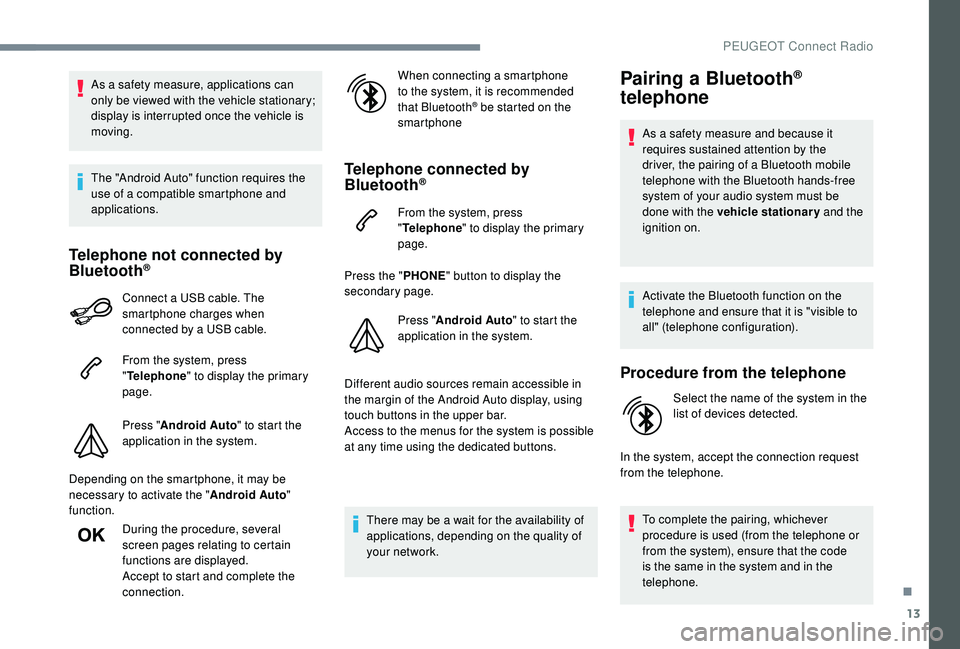
As a safety measure, applications can
o nly be viewed with the vehicle stationary;
display is interrupted once the vehicle is
moving.
The "Android Auto" function requires the
use of a
compatible smartphone and
applications.
Telephone not connected by
Bluetooth®
Connect a USB cable. The
sm artphone charges when
connected by a
USB cable.
From the system, press
" Telephone " to display the primary
page.
Press " Android Auto " to start the
application in the system.
Depending on the smartphone, it may be
necessary to activate the " Android Auto"
function.
During the procedure, several
screen pages relating to certain
functions are displayed.
Accept to start and complete the
connection. When connecting a
smartphone
to the system, it is recommended
that Bluetooth
® be started on the
smartphone
Telephone connected by
Bluetooth®
From the system, press
" Telephone " to display the primary
page.
Press the " PHONE" button to display the
secondary page.
Press "Android Auto " to start the
application in the system.
Different audio sources remain accessible in
the margin of the Android Auto display, using
touch buttons in the upper bar.
Access to the menus for the system is possible
at any time using the dedicated buttons.
There may be a
wait for the availability of
applications, depending on the quality of
your network.
Pairing a Bluetooth®
telephone
As a safety measure and because it
r equires sustained attention by the
driver, the pairing of a
Bluetooth mobile
telephone with the Bluetooth hands-free
system of your audio system must be
done with the vehicle stationary and the
ignition on.
Activate the Bluetooth function on the
telephone and ensure that it is "visible to
all" (telephone configuration).
Procedure from the telephone
Select the name of the system in the
list of devices detected.
In the system, accept the connection request
from the telephone.
To complete the pairing, whichever
procedure is used (from the telephone or
from the system), ensure that the code
is the same in the system and in the
telephone.
.
PEUGEOT Connect Radio
Page 334 of 364
20
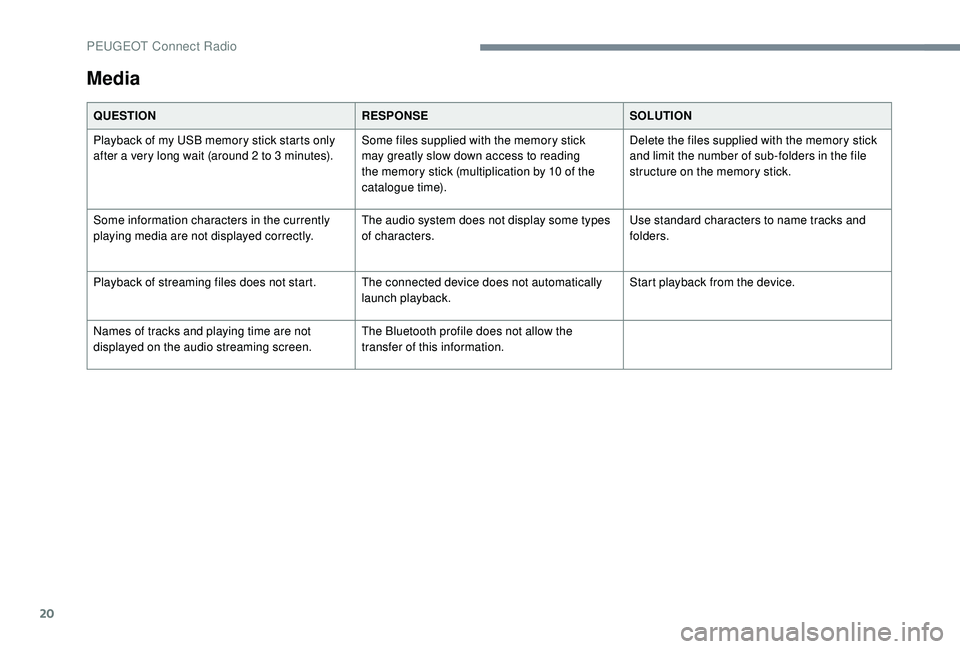
Media
QUESTIONRESPONSESOLUTION
Playback of my USB memory stick starts only
after a
very long wait (around 2 to 3 minutes).Some files supplied with the memory stick
may greatly slow down access to reading
the memory stick (multiplication by 10
of the
catalogue time). Delete the files supplied with the memory stick
and limit the number of sub-folders in the file
structure on the memory stick.
Some information characters in the currently
playing media are not displayed correctly. The audio system does not display some types
of characters.Use standard characters to name tracks and
folders.
Playback of streaming files does not start. The connected device does not automatically launch playback.Start playback from the device.
Names of tracks and playing time are not
displayed on the audio streaming screen. The Bluetooth profile does not allow the
transfer of this information.
PEUGEOT Connect Radio
Page 338 of 364
2
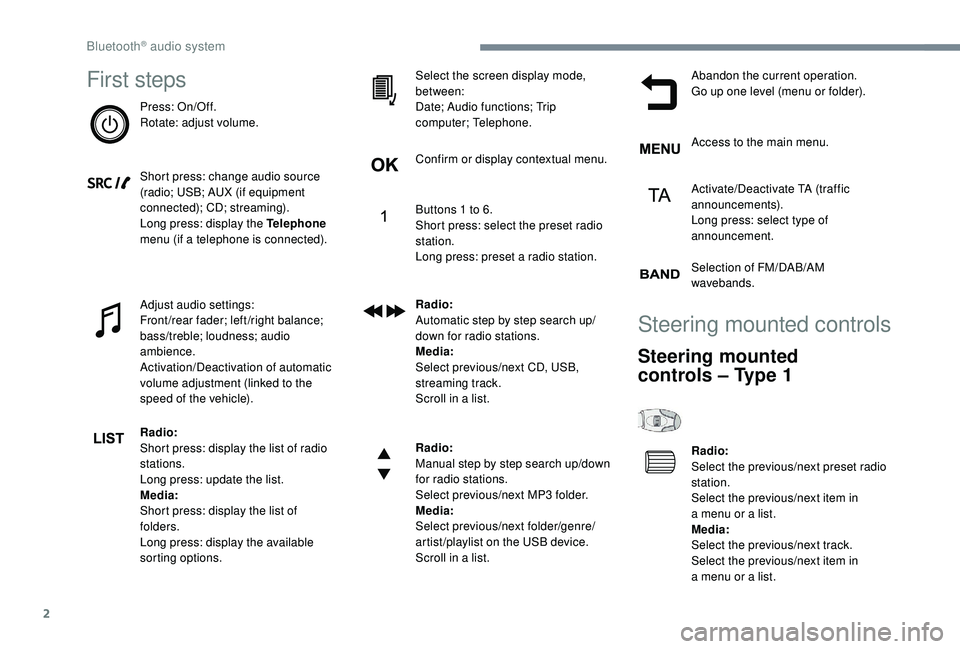
First steps
Press: On/Off.
Rotate: adjust volume.
Short press: change audio source
(radio; USB; AUX (if equipment
connected); CD; streaming).
Long press: display the Telephone
menu (if a
telephone is connected).
Adjust audio settings:
Front/rear fader; left/right balance;
bass/treble; loudness; audio
ambience.
Activation/Deactivation of automatic
volume adjustment (linked to the
speed of the vehicle).
Radio:
Short press: display the list of radio
stations.
Long press: update the list.
Media:
Short press: display the list of
folders.
Long press: display the available
sorting options. Select the screen display mode,
between:
Date; Audio functions; Trip
computer; Telephone.
Confirm or display contextual menu.
Buttons 1
to 6.
Short press: select the preset radio
station.
Long press: preset a
radio station.
Radio:
Automatic step by step search up/
down for radio stations.
Media:
Select previous/next CD, USB,
streaming track.
Scroll in a
list.
Radio:
Manual step by step search up/down
for radio stations.
Select previous/next MP3
folder.
Media:
Select previous/next folder/genre/
artist/playlist on the USB device.
Scroll in a
list.Abandon the current operation.
Go up one level (menu or folder).
Access to the main menu.
Activate/Deactivate TA (traffic
announcements).
Long press: select type of
announcement.
Selection of FM/DAB/AM
wavebands.
Steering mounted controls
Steering mounted
controls – Type 1
Radio:
Select the previous/next preset radio
station.
Select the previous/next item in
a
menu or a list.
Media:
Select the previous/next track.
Select the previous/next item in
a
menu or a list.
Bluetooth® audio system
Page 339 of 364
3
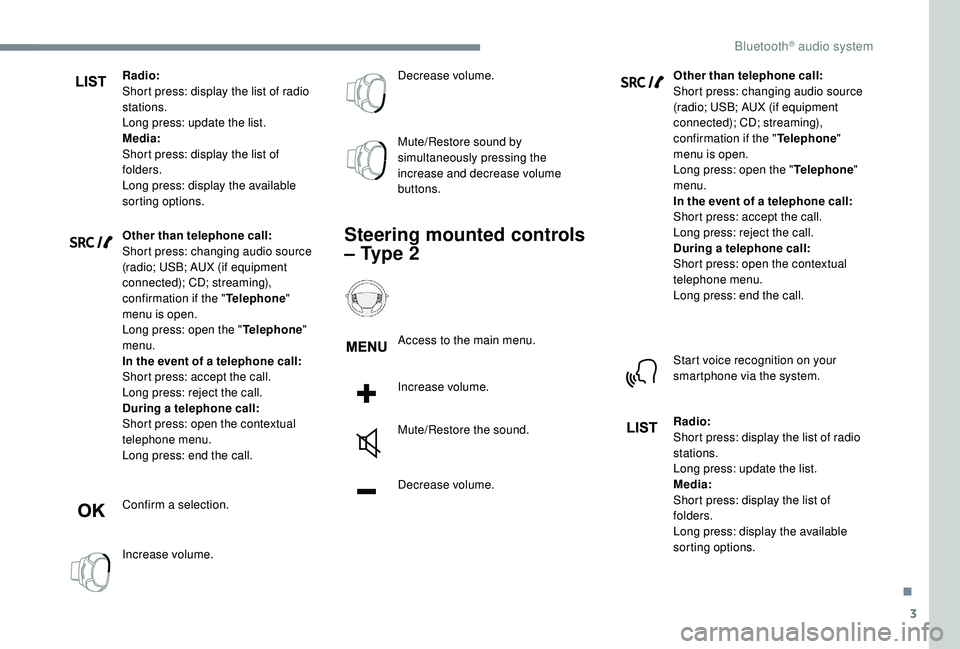
Radio:
Short press: display the list of radio
stations.
Long press: update the list.
Media:
Short press: display the list of
folders.
Long press: display the available
sorting options.
Other than telephone call:
Short press: changing audio source
(radio; USB; AUX (if equipment
connected); CD; streaming),
confirmation if the "Telephone"
menu is open.
Long press: open the " Telephone"
menu.
In the event of a
telephone call:
Short press: accept the call.
Long press: reject the call.
During a
telephone call:
Short press: open the contextual
telephone menu.
Long press: end the call.
Confirm a
selection.
Increase volume. Decrease volume.
Mute/Restore sound by
simultaneously pressing the
increase and decrease volume
buttons.
Steering mounted controls
– Type 2
Access to the main menu.
Increase volume.
Mute/Restore the sound.
Decrease volume.
Other than telephone call:
Short press: changing audio source
(radio; USB; AUX (if equipment
connected); CD; streaming),
confirmation if the "
Telephone"
menu is open.
Long press: open the " Telephone"
menu.
In the event of a telephone call:
Short press: accept the call.
Long press: reject the call.
During a
telephone call:
Short press: open the contextual
telephone menu.
Long press: end the call.
Start voice recognition on your
smartphone via the system.
Radio:
Short press: display the list of radio
stations.
Long press: update the list.
Media:
Short press: display the list of
folders.
Long press: display the available
sorting options.
.
Bluetooth® audio system
Page 341 of 364
5
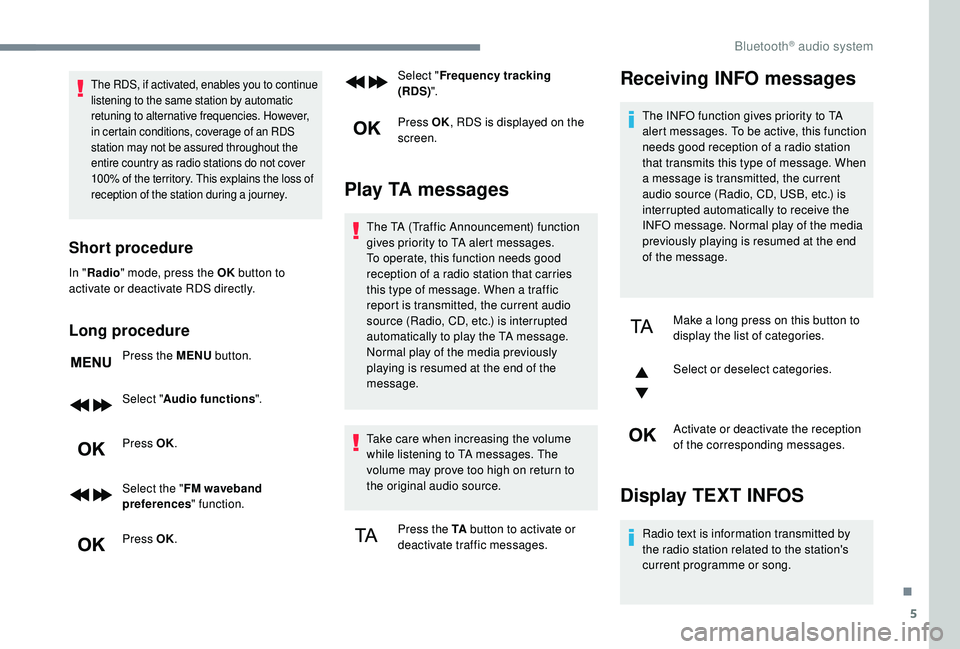
The RDS, if activated, enables you to continue
listening to the same station by automatic
retuning to alternative frequencies. However,
in certain conditions, coverage of an RDS
station may not be assured throughout the
entire country as radio stations do not cover
100% of the territory. This explains the loss of
reception of the station during a journey.
Short procedure
In "Radio " mode, press the OK button to
activate or deactivate RDS directly.
Long procedure
Press the MENU button.
Select " Audio functions ".
Press OK.
Select the " FM waveband
preferences " function.
Press OK. Select "
Frequency tracking
(RDS) ".
Press OK , RDS is displayed on the
screen.
Play TA messages
The TA (Traffic Announcement) function
gives priority to TA alert messages.
To operate, this function needs good
reception of a
radio station that carries
this type of message. When a
traffic
report is transmitted, the current audio
source (Radio, CD, etc.) is interrupted
automatically to play the TA message.
Normal play of the media previously
playing is resumed at the end of the
message.
Take care when increasing the volume
while listening to TA messages. The
volume may prove too high on return to
the original audio source.
Press the TA button to activate or
deactivate traffic messages.
Receiving INFO messages
The INFO function gives priority to TA
alert messages. To be active, this function
needs good reception of a
radio station
that transmits this type of message. When
a
message is transmitted, the current
audio source (Radio, CD, USB, etc.) is
interrupted automatically to receive the
INFO message. Normal play of the media
previously playing is resumed at the end
of the message.
Make a
long press on this button to
display the list of categories.
Select or deselect categories.
Activate or deactivate the reception
of the corresponding messages.
Display TEXT INFOS
Radio text is information transmitted by
the radio station related to the station's
current programme or song.
.
Bluetooth® audio system
Page 343 of 364
7
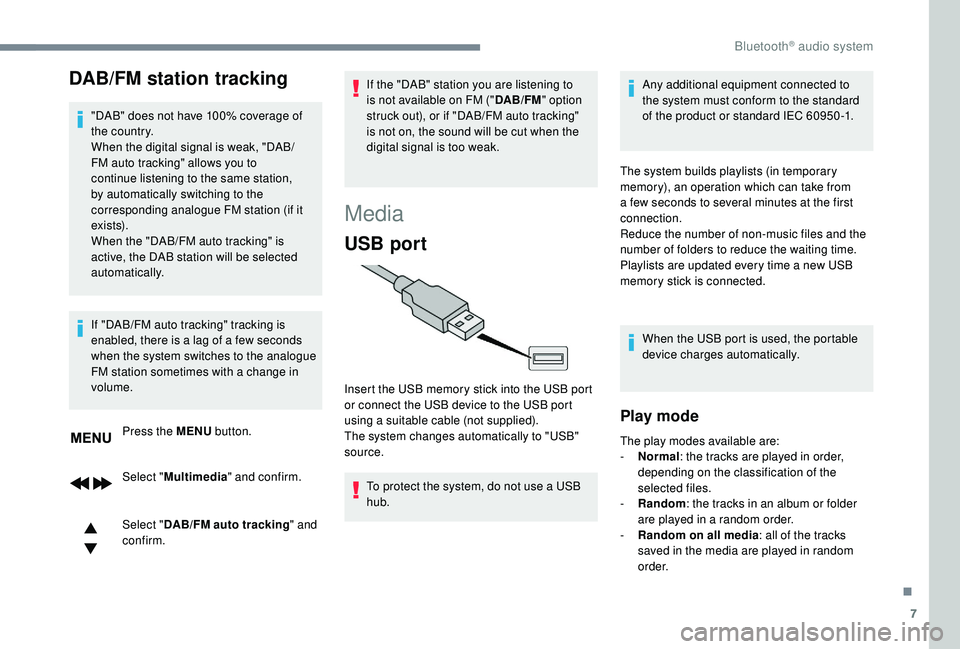
DAB/FM station tracking
"DAB" does not have 100% coverage of
the country.
When the digital signal is weak, "DAB/
FM auto tracking" allows you to
continue listening to the same station,
by automatically switching to the
corresponding analogue FM station (if it
ex i st s).
When the "DAB/FM auto tracking" is
active, the DAB station will be selected
automatically.Press the MENU button.
Select " Multimedia " and confirm.
Select " DAB/FM auto tracking " and
confirm.
If "DAB/FM auto tracking" tracking is
enabled, there is a
lag of a few seconds
when the system switches to the analogue
FM station sometimes with a
change in
volume. If the "DAB" station you are listening to
is not available on FM ("
DAB/FM" option
struck out), or if "DAB/FM auto tracking"
is not on, the sound will be cut when the
digital signal is too weak.
Media
USB port
To protect the system, do not use a USB
hub . Any additional equipment connected to
the system must conform to the standard
of the product or standard IEC 60950 -1.
Insert the USB memory stick into the USB port
or connect the USB device to the USB port
using a
suitable cable (not supplied).
The system changes automatically to "USB"
source. The system builds playlists (in temporary
memory), an operation which can take from
a few seconds to several minutes at the first
connection.
Reduce the number of non-music files and the
number of folders to reduce the waiting time.
Playlists are updated every time a new USB
memory stick is connected.
When the USB port is used, the portable
device charges automatically.
Play mode
The play modes available are:
- No rmal: the tracks are played in order,
depending on the classification of the
selected files.
-
Ra
ndom: the tracks in an album or folder
are played in a
random order.
-
R
andom on all media: all of the tracks
saved in the media are played in random
o r d e r.
.
Bluetooth® audio system