key PEUGEOT 5008 2018 Service Manual
[x] Cancel search | Manufacturer: PEUGEOT, Model Year: 2018, Model line: 5008, Model: PEUGEOT 5008 2018Pages: 364, PDF Size: 13.03 MB
Page 241 of 364
239
If any AdBlue® is splashed, or if there are
any spillages on the side of the bodywork,
rinse immediately with cold water or wipe
with a
damp cloth.
If the fluid has crystallised, clean it off
using a
sponge and hot water.
Important: in the event of a
top-up after
a
breakdown because of a lack of
AdBlue, you must wait around 5
minutes
before switching on the ignition, without
opening the driver's door, locking the
vehicle, introducing the key into the
ignition switch, or introducing the key of
the
K
eyless Entr y and Star ting system
into the passenger compartment .
Switch on the ignition, then wait for
10
seconds before starting the engine.
F
S
witch off the ignition and remove the key
from the switch to switch off the engine.
or
F
W
ith
K
eyless Entry and Starting, press the
" START/STOP " button to switch off the
engine. F
O
btain an
AdBlue
® container. After first
checking the use-by date, read the
instructions on the label carefully before
pouring the contents of the container or
bottle into your vehicle's AdBlue tank.
Or
F
I
nsert the AdBlue
® pump nozzle and refill
the tank until the nozzle stops automatically. Important:
-
T
o avoid over flowing the AdBlue
® tank,
it is recommended:
•
T
o top up between 10
and 13
litres
using AdBlue
® containers.
Or
•
N
ot to keep on trying after the
nozzle's first automatic stop if you
are refuelling at a
filling station.
-
I
f your vehicle's AdBlue
® tank is
completely empty – which is confirmed
by the alert messages and the
impossibility of starting the engine –
you must add at least 5
litres.
After refilling
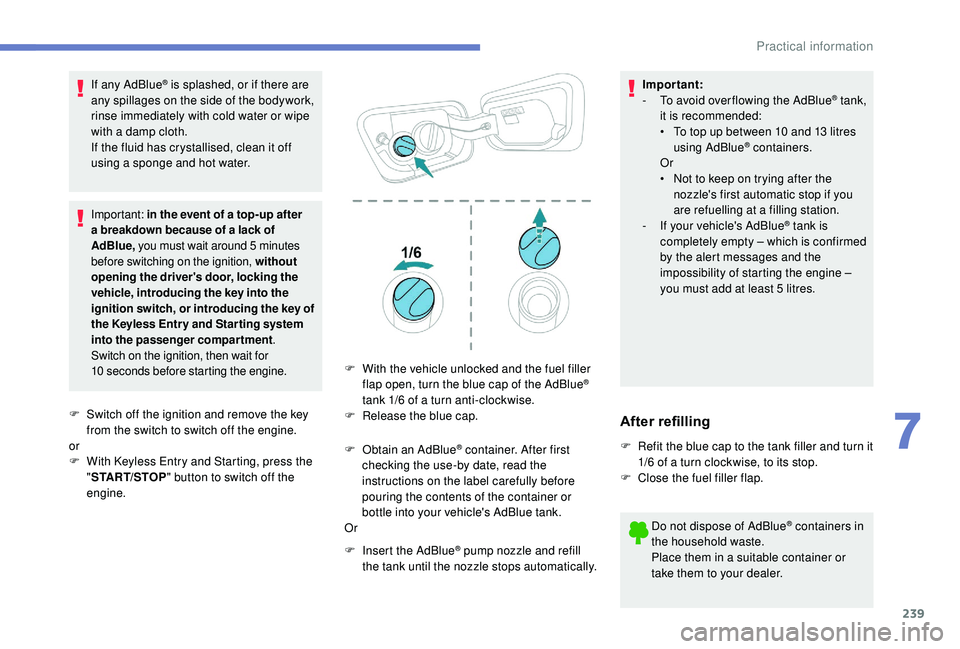
F Refit the blue cap to the tank filler and turn it 1/6 of a turn clockwise, to its stop.
F
C
lose the fuel filler flap.
Do not dispose of AdBlue
® containers in
the household waste.
Place them in a
suitable container or
take them to your dealer.
F
W
ith the vehicle unlocked and the fuel filler
flap open, turn the blue cap of the AdBlue
®
tank 1/6
of a
turn anti-clockwise.
F
R
elease the blue cap.
7
Practical information
Page 267 of 364
265
For right-hand drive vehicles, when the
total distance recorder has reached
62 miles (100 km), it is necessary to wait
approx. 15
minutes before starting the
engine.
However, if minor problems persist following
this operation, contact a
PEUGEOT dealer or
a
qualified workshop.
Referring to the corresponding section, you
must yourself reinitialise or reset certain
systems, such as:
-
t
he key with remote control or electronic key
(depending on version),
-
t
he sunroof and its electric blind,
-
t
he electric windows,
-
t
he date and time,
-
t
he preset radio stations. The Stop & Start system may not be
operational during the trip following the
first engine start.
In this case, the system will only be
available again after a
continuous
period of immobilisation of the vehicle,
a period which depends on the exterior
temperature and the state of charge of the
battery (up to about 8 hours).
Do not force the lever as locking will not
be possible if the clamp is not positioned
correctly; start the procedure again.
Following reconnection of the
battery
After reconnecting the battery, turn on the
ignition and wait 1
minute before starting
the engine, in order to enable the electronic
systems to initialise.
Towing the vehicle
Procedure for having your vehicle towed or
for towing another vehicle using a removable
towing eye.
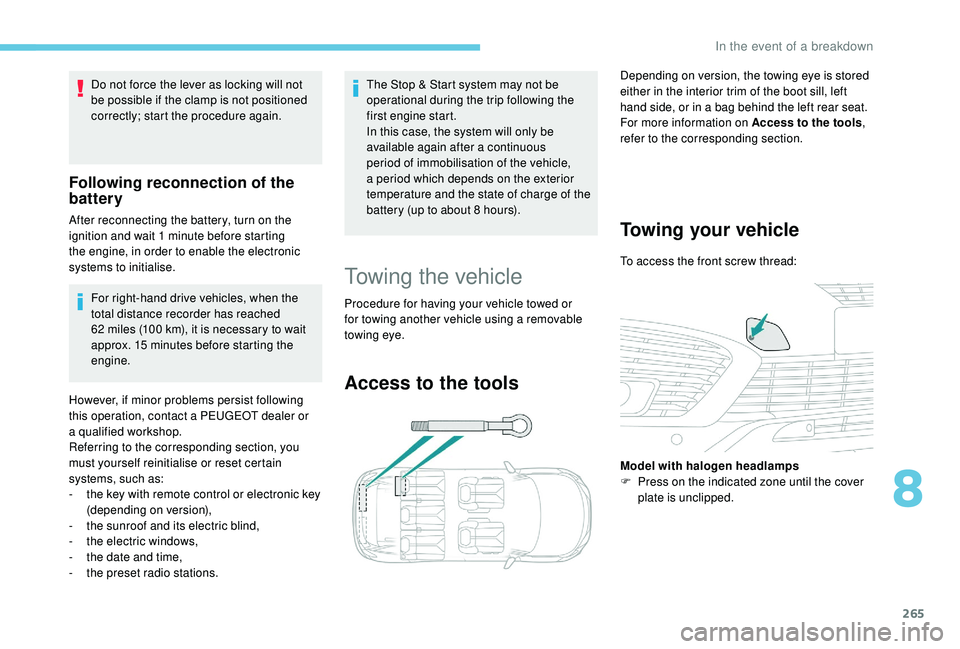
Access to the tools
Depending on version, the towing eye is stored
either in the interior trim of the boot sill, left
hand side, or in a
bag behind the left rear seat.
For more information on Access to the tools ,
refer to the corresponding section.
Towing your vehicle
To access the front screw thread:
Model with halogen headlamps
F
P
ress on the indicated zone until the cover
plate is unclipped.
8
In the event of a breakdown
Page 287 of 364
11
Navigation
Choice of a destination
To a new destination
or Press Navigation
to display the
primary page.
Press the " MENU" button to go to the
secondary page.
Select "Enter address ".
Select the " Country".
Enter the " City", the " Street " and the
" Number " and confirm by pressing
on the suggestions displayed.
Press " OK" to select the " Guidance
criteria ".
And/Or Select "See on map " to select the
" Guidance criteria ".
Press " OK" to start navigation. Zoom out /zoom in using the touch buttons
or with two fingers on the screen.
In order to be able to use the navigation,
it is necessary to fill in the "
City", the
" Street " and the " Number" on the
virtual keyboard or take it from the list in
" Contact " or in the " History" of addresses.
Without confirmation of the street number,
you will be guided to one end of the street.
To a recent destination
or Press Navigation
to display the
primary page.
Press the " MENU" button to go to the
secondary page.
Select "My destinations ".
Select the " Recent" tab.
Select the address chosen in the list to display
the " Guidance criteria ". Press "
OK" to start navigation.
Select " Position " to visualise the arrival
point geographically.
To "My home " or "My work "
or Press Navigation
to display the
primary page.
Press the " MENU" button to go to the
secondary page.
Select "My destinations ".
Select the " Preferred" tab.
Select " My home ".
Or Select "My work ".
Or
Select a
preset favourite destination.
.
PEUGEOT Connect Nav
Page 289 of 364
13
A marker is displayed in the middle
of the screen, with the "Latitude"
and " Longitude " coordinates.
Press this button to start navigation.
Or Press this button to save the
address displayed.
OR Press this button to enter the value
for "Latitude " using the virtual
keypad.
And Press this button to enter the value
for "Longitude " using the virtual
keypad.TMC (Traffic Message
Channel)
TMC (Traffic Message Channel)
messages are linked to a European
standard on the broadcasting of traffic
information via the RDS system on FM
radio, transmitting traffic information in
real time.
The TMC information is then displayed
on a
GPS Navigation system map and
taken into account straight away during
navigation, so as to avoid accidents, traffic
jams and closed roads.
The display of danger zones depends on
the legislation in force and subscription to
the service.
Connected navigation
Depending on version
Depending on the equipment level of the
vehicle
Network connection provided by
the vehicle
OR
Network connection provided by
the user
Connected navigation
connection
As a safety measure and because it
r equires sustained attention by the driver,
using a
smartphone when driving is
prohibited.
All operations must be done with the
vehicle stationary .
For access to connected navigation, you
can use the connection provided by the
vehicle via the "Emergency or assistance
call" ser vices or use your smartphone as
a
modem.
Activate and enter settings for sharing
the smartphone connection.
.
PEUGEOT Connect Nav
Page 291 of 364
15
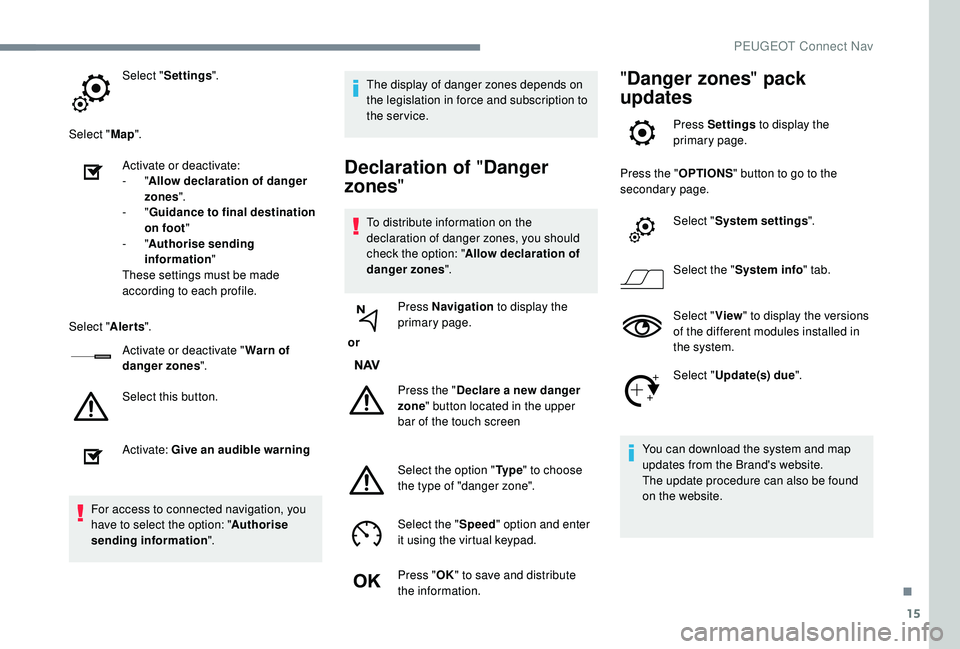
Select "Settings ".
Select " Map".
Activate or deactivate:
-
"Allow declaration of danger
zones ".
-
"Guidance to final destination
on foot "
-
"Authorise sending
information "
These settings must be made
according to each profile.
Select " Alerts".
Activate or deactivate " Warn of
danger zones ".
Select this button.
Activate: Give an audible warning
For access to connected navigation, you
have to select the option: " Authorise
sending information ". The display of danger zones depends on
the legislation in force and subscription to
the service.
Declaration of "
Danger
zones "
To distribute information on the
declaration of danger zones, you should
check the option: " Allow declaration of
danger zones ".
or Press Navigation
to display the
primary page.
Press the " Declare a
new danger
zone " button located in the upper
bar of the touch screen
Select the option " Ty p e" to choose
the type of "danger zone".
Select the " Speed" option and enter
it using the virtual keypad.
Press " OK" to save and distribute
the information.
" Danger zones " pack
updates
Press Settings to display the
primary page.
Press the " OPTIONS" button to go to the
secondary page.
Select "System settings ".
Select the " System info " tab.
Select " View" to display the versions
of the different modules installed in
the system.
Select " Update(s) due ".
You can download the system and map
updates from the Brand's website.
The update procedure can also be found
on the website.
.
PEUGEOT Connect Nav
Page 296 of 364
20
The "Mobile internet data " profile
must be activated for connected
navigation (where the vehicle does not
have "Emergency and assistance call"
services), having first activated sharing of
this connection on your smartphone.
Select one or more profiles.
Press " OK" to confirm.
Wi-Fi connection
Network connection by the smartphone's Wi-Fi.
or Press Applications
to display the
primary page.
Press the " OPTIONS" button to go to the
secondary page.
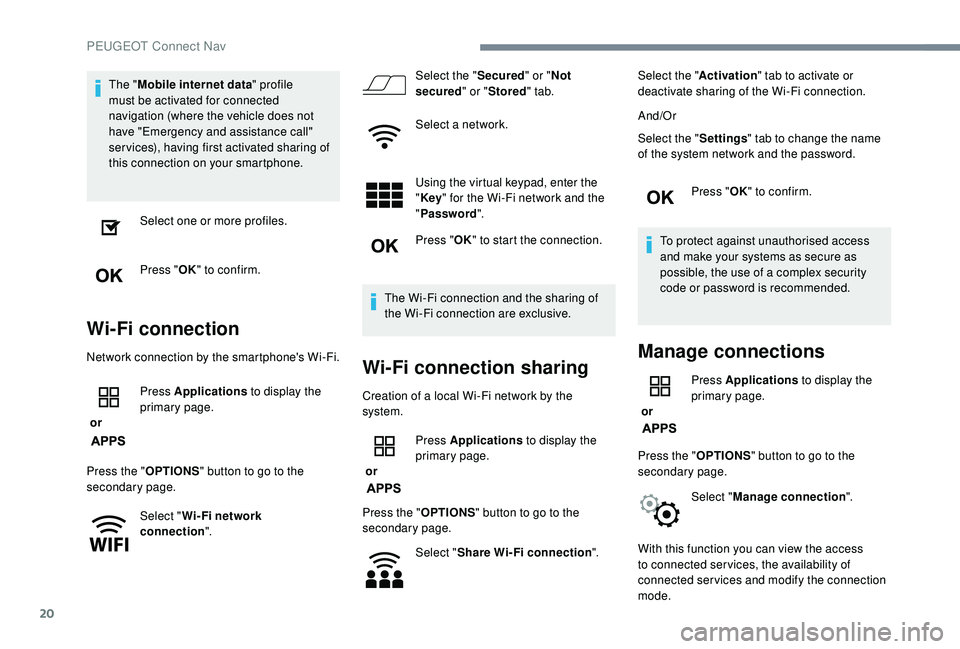
Select "Wi- Fi network
connection ". Select the "
Secured" or "Not
secured " or "Stored " tab.
Select a
network.
Using the virtual keypad, enter the
" Key " for the Wi-Fi network and the
" Password ".
Press " OK" to start the connection.
The Wi-Fi connection and the sharing of
the Wi-Fi connection are exclusive.Wi-Fi connection sharing
Creation of a local Wi-Fi network by the
s ystem.
or Press Applications
to display the
primary page.
Press the " OPTIONS" button to go to the
secondary page.
Select "Share Wi-Fi connection ".Select the "
Activation" tab to activate or
deactivate sharing of the Wi-Fi connection.
And/Or
Select the " Settings" tab to change the name
of the system network and the password.
Press "OK" to confirm.
To protect against unauthorised access
and make your systems as secure as
possible, the use of a complex security
code or password is recommended.
Manage connections
or Press Applications
to display the
primary page.
Press the " OPTIONS" button to go to the
secondary page.
Select "Manage connection ".
With this function you can view the access
to connected ser vices, the availability of
connected services and modify the connection
mode.
PEUGEOT Connect Nav
Page 297 of 364
21
Radio
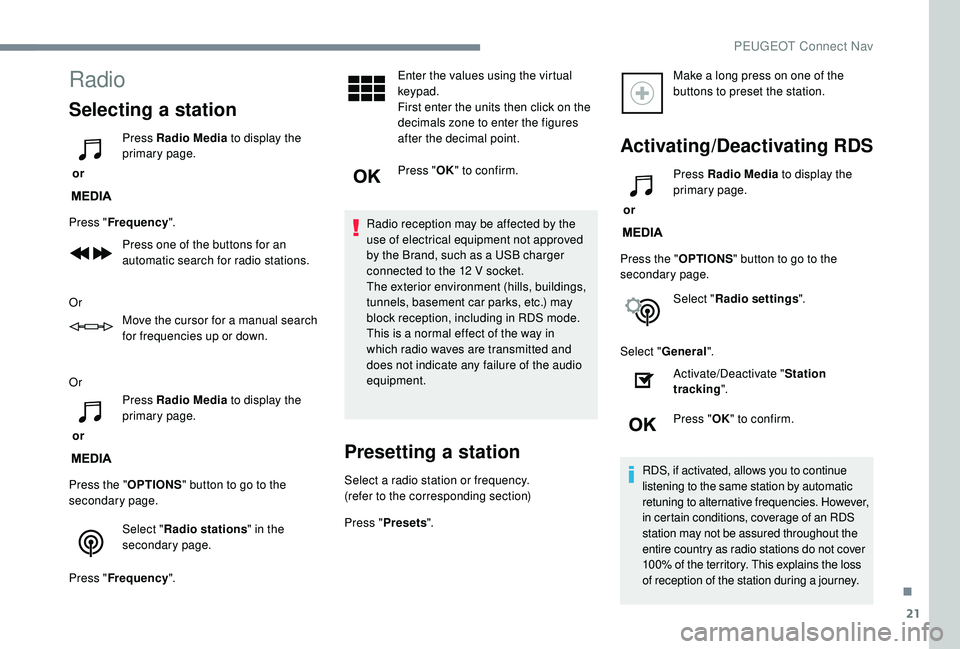
Selecting a station
or Press Radio Media
to display the
primary page.
Press " Frequency ".
Press one of the buttons for an
automatic search for radio stations.
Or Move the cursor for a
manual search
for frequencies up or down.
Or
or Press Radio Media
to display the
primary page.
Press the " OPTIONS" button to go to the
secondary page.
Select "Radio stations " in the
secondary page.
Press " Frequency ". Enter the values using the virtual
keypad.
First enter the units then click on the
decimals zone to enter the figures
after the decimal point.
Press "
OK" to confirm.
Radio reception may be affected by the
use of electrical equipment not approved
by the Brand, such as a
USB charger
connected to the 12
V socket.
The exterior environment (hills, buildings,
tunnels, basement car parks, etc.) may
block reception, including in RDS mode.
This is a
normal effect of the way in
which radio waves are transmitted and
does not indicate any failure of the audio
equipment.
Presetting a station
Select a radio station or frequency.
(refer to the corresponding section)
Press " Presets ". Make a
long press on one of the
buttons to preset the station.
Activating/Deactivating RDS
or Press Radio Media
to display the
primary page.
Press the " OPTIONS" button to go to the
secondary page.
Select "Radio settings ".
Select " General ".
Activate/Deactivate " Station
tracking ".
Press " OK" to confirm.
RDS, if activated, allows you to continue
listening to the same station by automatic
retuning to alternative frequencies. However,
in certain conditions, coverage of an RDS
station may not be assured throughout the
entire country as radio stations do not cover
100% of the territory. This explains the loss
of reception of the station during a
journey.
.
PEUGEOT Connect Nav
Page 301 of 364
25
It is advisable to restrict file names to
20 characters, without using special characters
(e.g. " " ?.; ù) so as to avoid any reading or
display problems.
Use only USB keys in FAT32
format (File
Allocation Table).
It is recommended that the original USB
cable for the portable device be used.
In order to be able to play a
burned CDR or
CDRW, select standards ISO
9660 level 1, 2 or
Joliet if possible when burning the CD.
If the disc is burned in another format, it may
not be played correctly.
It is recommended that the same burning
standard be always used on an individual disc,
with the lowest speed possible (4x maximum)
for the best acoustic quality.
In the particular case of a
multi-session CD, the
Joliet standard is recommended.Telephone
Pairing a Bluetooth®
telephone
As a safety measure and because it
r equires sustained attention by the
driver, the pairing of a
Bluetooth mobile
telephone with the Bluetooth hands-free
system of your audio system must be
done with the vehicle stationary and the
ignition on.
Activate the Bluetooth function on the
telephone and ensure that it is "visible to
all" (telephone configuration).
Procedure from the telephone
Select the system name in the list of
devices detected.
In the system, accept the connection request
from the telephone. To complete the pairing, whichever
procedure is used (from the telephone or
from the system), ensure that the code
is the same in the system and in the
telephone.
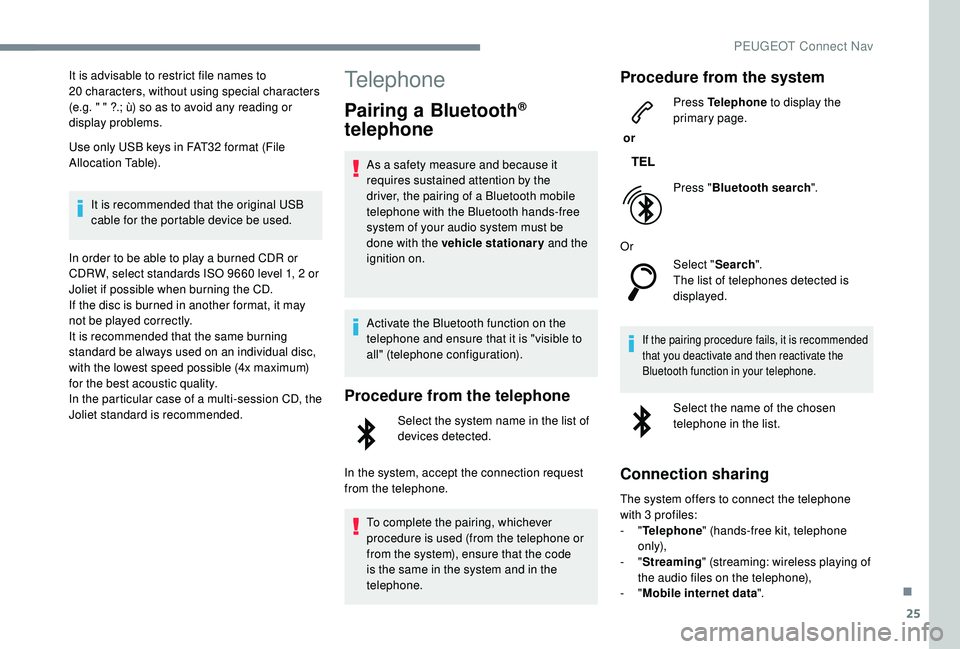
Procedure from the system
or Press Telephone
to display the
primary page.
Press " Bluetooth search ".
Or Select "Search".
The list of telephones detected is
displayed.
If the pairing procedure fails, it is recommended
that you deactivate and then reactivate the
Bluetooth function in your telephone.
Select the name of the chosen
telephone in the list.
Connection sharing
The system offers to connect the telephone
with 3 profiles:
-
"Telephone " (hands-free kit, telephone
only),
-
"Streaming " (streaming: wireless playing of
the audio files on the telephone),
-
"Mobile internet data ".
.
PEUGEOT Connect Nav
Page 303 of 364
27
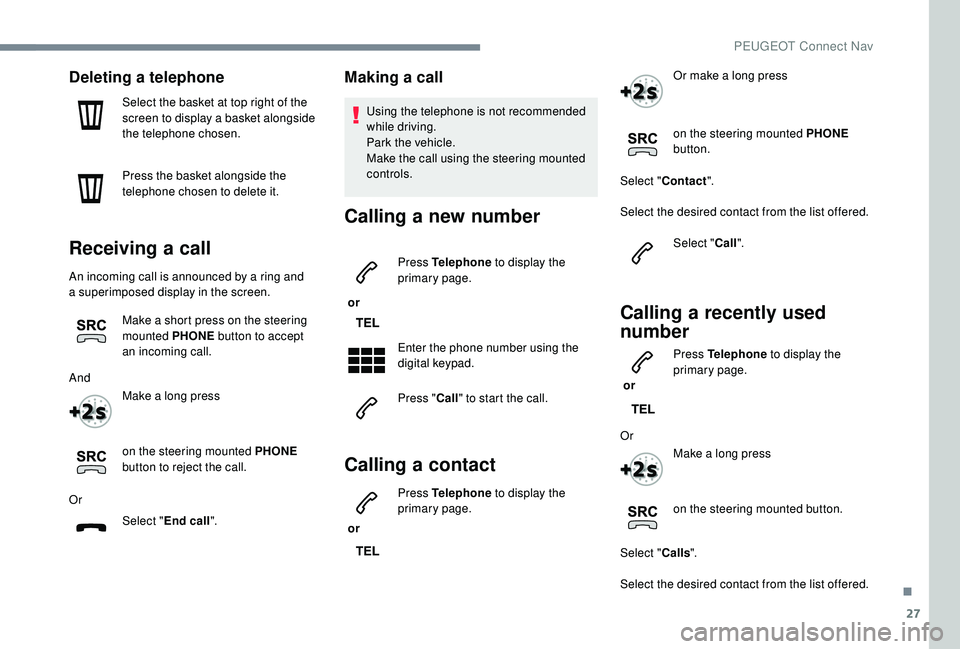
Deleting a telephone
Select the basket at top right of the
screen to display a
basket alongside
the telephone chosen.
Press the basket alongside the
telephone chosen to delete it.
Receiving a call
An incoming call is announced by a ring and
a superimposed display in the screen.
Make a
short press on the steering
mounted PHONE button to accept
an incoming call.
And Make a
long press
on the steering mounted PHONE
button to reject the call.
Or Select "End call".
Making a call
Using the telephone is not recommended
while driving.
Park the vehicle.
Make the call using the steering mounted
controls.
Calling a new number
or Press Telephone
to display the
primary page.
Enter the phone number using the
digital keypad.
Press " Call" to start the call.
Calling a contact
or Press Telephone
to display the
primary page. Or make a long press
on the steering mounted PHONE
button.
Select " Contact ".
Select the desired contact from the list offered. Select "Call".
Calling a recently used
n umber
or Press Telephone
to display the
primary page.
Or Make a
long press
on the steering mounted button.
Select " Calls".
Select the desired contact from the list offered.
.
PEUGEOT Connect Nav
Page 306 of 364
30
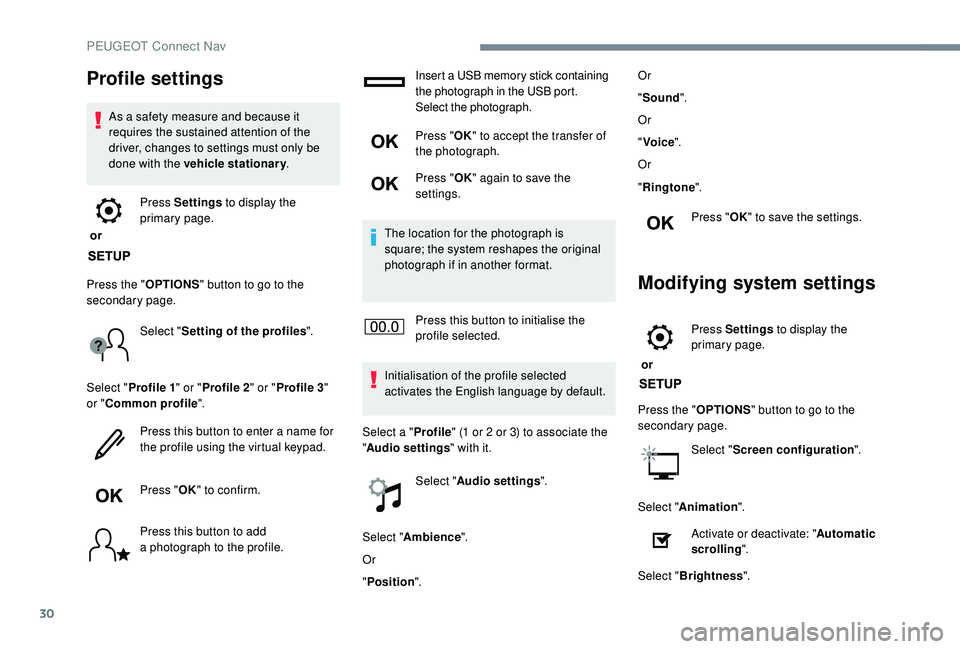
Profile settings
As a safety measure and because it
r equires the sustained attention of the
driver, changes to settings must only be
done with the vehicle stationary .
or Press Settings
to display the
primary page.
Press the " OPTIONS" button to go to the
secondary page.
Select "Setting of the profiles ".
Select " Profile 1 " or "Profile 2 " or "Profile 3 "
or " Common profile ".
Press this button to enter a
name for
the profile using the virtual keypad.
Press " OK" to confirm.
Press this button to add
a
photograph to the profile. Insert a
USB memory stick containing
the photograph in the USB port.
Select the photograph.
Press " OK" to accept the transfer of
the photograph.
Press " OK" again to save the
settings.
The location for the photograph is
square; the system reshapes the original
photograph if in another format.
Press this button to initialise the
profile selected.
Initialisation of the profile selected
activates the English language by default.
Select a " Profile" (1
or 2 or 3) to associate the
" Audio settings " with it.
Select " Audio settings ".
Select " Ambience ".
Or
" Position ". Or
"
Sound ".
Or
" Voice ".
Or
" Ringtone ".
Press " OK" to save the settings.
Modifying system settings
or Press Settings
to display the
primary page.
Press the " OPTIONS" button to go to the
secondary page.
Select "Screen configuration ".
Select " Animation ".
Activate or deactivate: " Automatic
scrolling ".
Select " Brightness ".
PEUGEOT Connect Nav