radio controls PEUGEOT 5008 2018 Owners Manual
[x] Cancel search | Manufacturer: PEUGEOT, Model Year: 2018, Model line: 5008, Model: PEUGEOT 5008 2018Pages: 364, PDF Size: 13.03 MB
Page 6 of 364
4
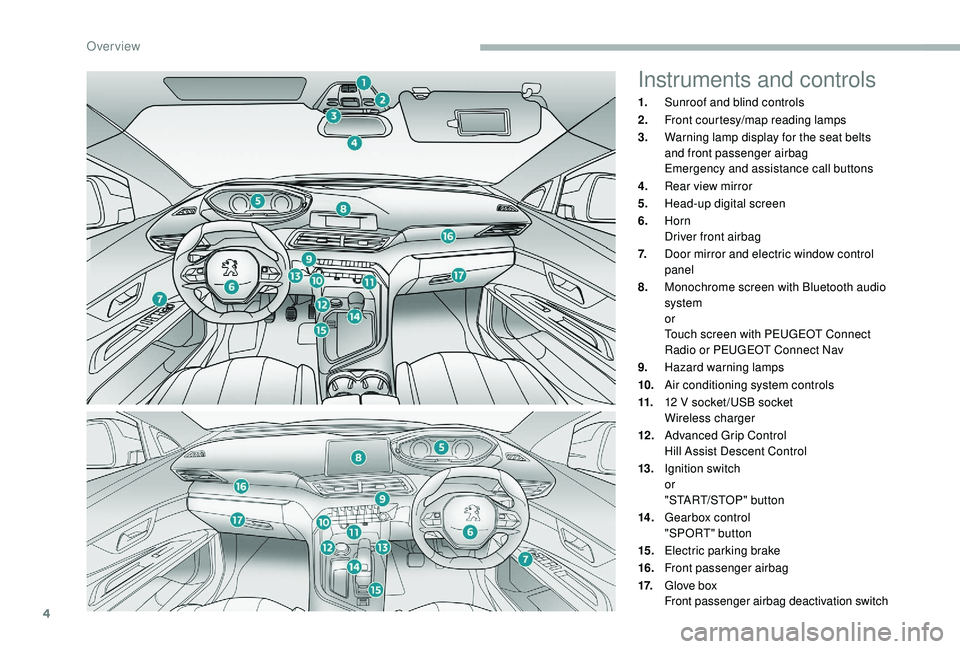
Instruments and controls
1.Sunroof and blind controls
2. Front courtesy/map reading lamps
3. Warning lamp display for the seat belts
and front passenger airbag
Emergency and assistance call buttons
4. Rear view mirror
5. Head-up digital screen
6. Horn
Driver front airbag
7. Door mirror and electric window control
panel
8. Monochrome screen with Bluetooth audio
system
or
Touch screen with PEUGEOT Connect
Radio or PEUGEOT Connect Nav
9. Hazard warning lamps
10. Air conditioning system controls
11. 12
V socket /USB socket
Wireless charger
12 . Advanced Grip Control
Hill Assist Descent Control
13. Ignition switch
or
"START/STOP" button
14 . Gearbox control
"SPORT" button
15. Electric parking brake
16. Front passenger airbag
17. Glove box
Front passenger airbag deactivation switch
Over view
Page 7 of 364
5
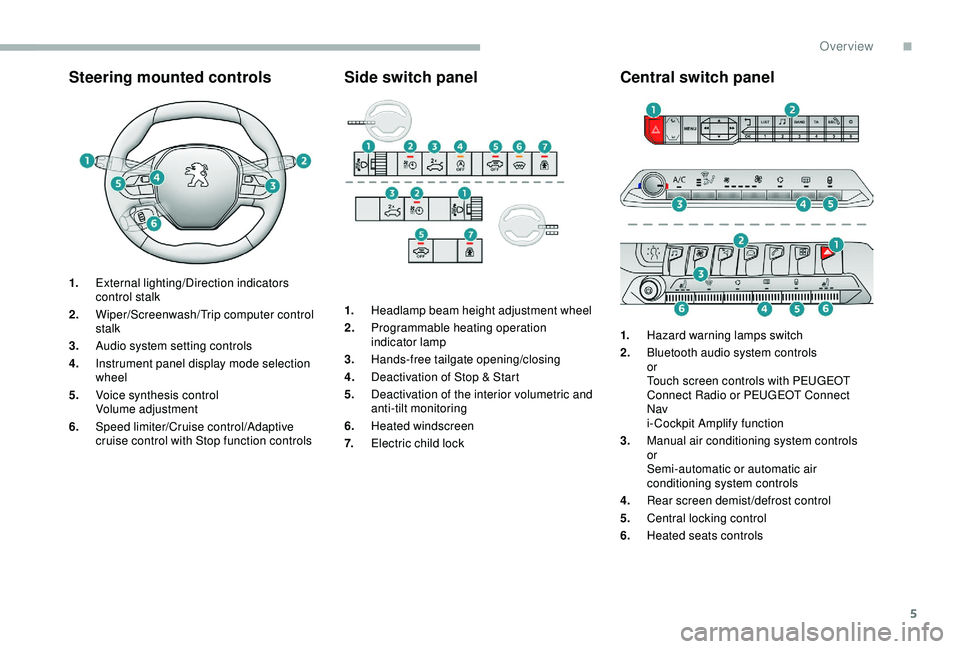
Steering mounted controls
1.External lighting/Direction indicators
control stalk
2. Wiper/Screenwash/ Trip computer control
stalk
3. Audio system setting controls
4. Instrument panel display mode selection
wheel
5. Voice synthesis control
Volume adjustment
6. Speed limiter/Cruise control/Adaptive
cruise control with Stop function controls
Side switch panel
1.Headlamp beam height adjustment wheel
2. Programmable heating operation
indicator lamp
3. Hands-free tailgate opening/closing
4. Deactivation of Stop & Start
5. Deactivation of the interior volumetric and
anti-tilt monitoring
6. Heated windscreen
7. Electric child lock
Central switch panel
1.Hazard warning lamps switch
2. Bluetooth audio system controls
or
Touch screen controls with PEUGEOT
Connect Radio or PEUGEOT Connect
Nav
i- Cockpit Amplify function
3. Manual air conditioning system controls
or
Semi-automatic or automatic air
conditioning system controls
4. Rear screen demist/defrost control
5. Central locking control
6. Heated seats controls
.
Over view
Page 41 of 364
39
Controls
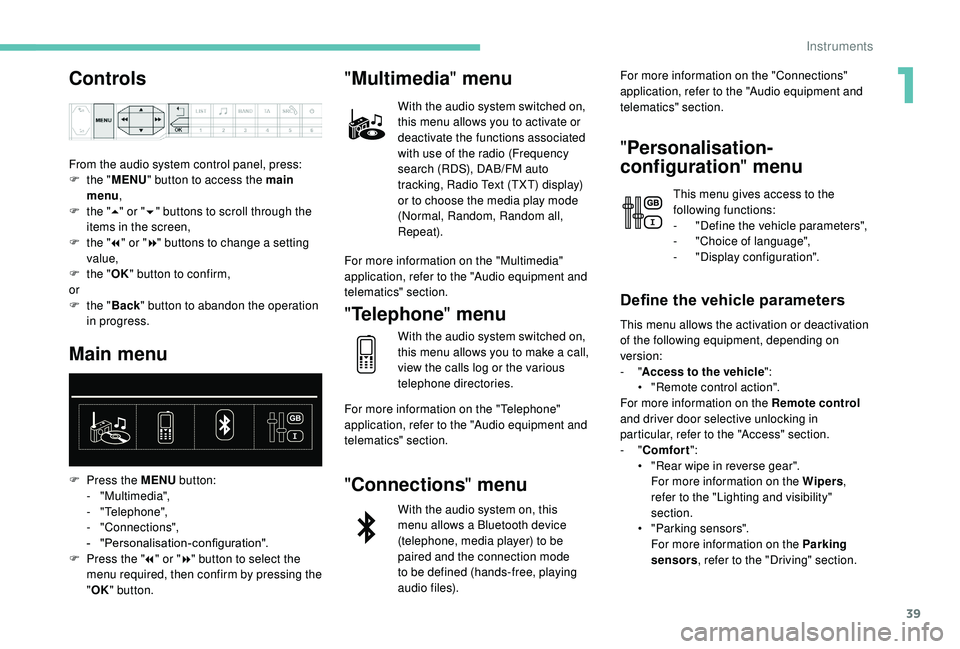
From the audio system control panel, press:
F t he "MENU " button to access the main
menu ,
F
t
he "5" or " 6" buttons to scroll through the
items in the screen,
F
t
he "7" or " 8" buttons to change a
setting
value,
F
t
he "OK" button to confirm,
or
F
t
he "Back " button to abandon the operation
in progress.
Main menu
F Press the MENU button:
- "Multimedia",
-
"Telephone",
-
"Connections",
-
"
Personalisation-configuration".
F
P
ress the " 7" or " 8" button to select the
menu required, then confirm by pressing the
" OK " button.
"Multimedia " menu
With the audio system switched on,
this menu allows you to activate or
deactivate the functions associated
with use of the radio (Frequency
search (RDS), DAB/FM auto
tracking, Radio Text (TXT) display)
or to choose the media play mode
(Normal, Random, Random all,
Repeat).
For more information on the "Multimedia"
application, refer to the "Audio equipment and
telematics" section.
" Telephone " menu
With the audio system switched on,
this menu allows you to make a
call,
view the calls log or the various
telephone directories.
For more information on the "Telephone"
application, refer to the "Audio equipment and
telematics" section.
" Connections " menu
With the audio system on, this
menu allows a
Bluetooth device
(telephone, media player) to be
paired and the connection mode
to be defined (hands-free, playing
audio files). For more information on the "Connections"
application, refer to the "Audio equipment and
telematics" section.
"
Personalisation-
configuration " menu
This menu gives access to the
following functions:
-
"
Define the vehicle parameters",
-
"
Choice of language",
-
"
Display configuration".
Define the vehicle parameters
This menu allows the activation or deactivation
of the following equipment, depending on
version:
- "Access to the vehicle ":
•
"
Remote control action".
For more information on the Remote control
and driver door selective unlocking in
particular, refer to the "Access" section.
-
"Comfort ":
•
"
Rear wipe in reverse gear".
For more information on the Wipers ,
refer to the "Lighting and visibility"
section.
•
"
Parking sensors".
For more information on the Parking
sensors , refer to the "Driving" section.
1
Instruments
Page 102 of 364
100
Glove box
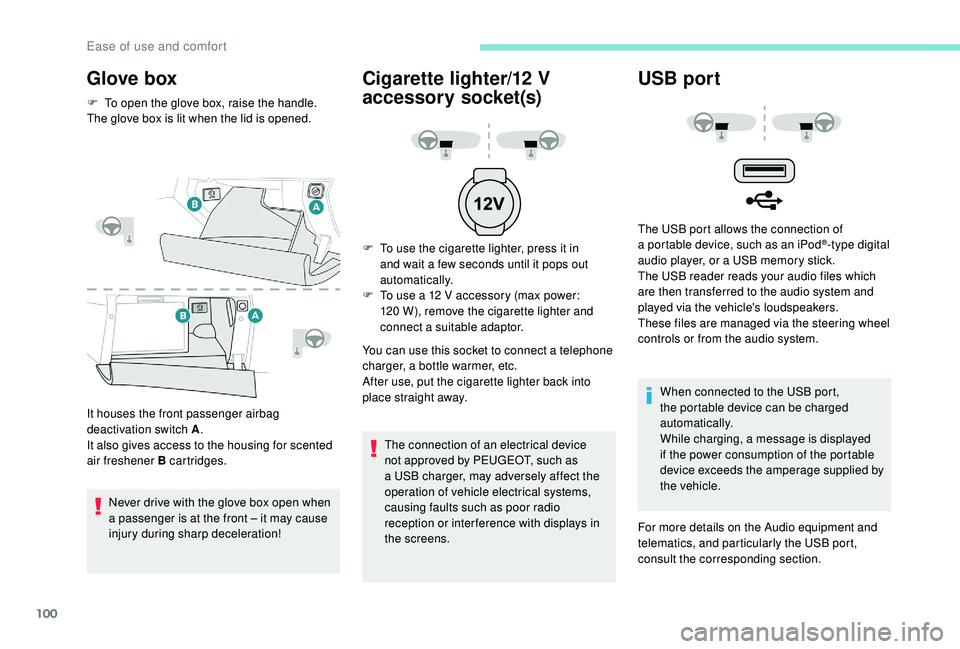
F To open the glove box, raise the handle.
The glove box is lit when the lid is opened.
It houses the front passenger airbag
deactivation switch A .
It also gives access to the housing for scented
air freshener B cartridges.
Never drive with the glove box open when
a
passenger is at the front – it may cause
injury during sharp deceleration!
Cigarette lighter/12 V
a ccessory socket(s)
F To use the cigarette lighter, press it in
and wait a few seconds until it pops out
automatically.
F
T
o use a 12 V accessory (max power:
120
W), remove the cigarette lighter and
connect a
suitable adaptor.
You can use this socket to connect a
telephone
charger, a bottle warmer, etc.
After use, put the cigarette lighter back into
place straight away.
The connection of an electrical device
not approved by PEUGEOT, such as
a
USB charger, may adversely affect the
operation of vehicle electrical systems,
causing faults such as poor radio
reception or inter ference with displays in
the screens.
USB port
The USB port allows the connection of
a portable device, such as an iPod®-type digital
audio player, or a
USB memory stick.
The USB reader reads your audio files which
are then transferred to the audio system and
played via the vehicle's loudspeakers.
These files are managed via the steering wheel
controls or from the audio system.
When connected to the USB port,
the portable device can be charged
automatically.
While charging, a message is displayed
if the power consumption of the portable
device exceeds the amperage supplied by
the vehicle.
For more details on the Audio equipment and
telematics, and particularly the USB port,
consult the corresponding section.
Ease of use and comfort
Page 277 of 364
1
PEUGEOT Connect Nav
GPS satellite navigation –
Applications – Multimedia
audio system – Bluetooth
®
telephone
Contents
First steps
2
S
teering mounted controls
3
M
enus
3
V
oice commands
5
N
avigation
1
1
Connected navigation
1
3
Applications
1
6
Radio
21
D
AB radio (Digital Audio Broadcasting)
2
2
Media
23
T
elephone
2
5
Settings
2
9
Frequently asked questions
3
2The different functions and settings
described vary according to the version
and configuration of your vehicle.
As a
safety measure and because it
requires sustained attention by the
driver, the pairing of a Bluetooth mobile
telephone with the Bluetooth hands-free
system of your audio system must be
done with the vehicle stationary and the
ignition on.
The system is protected in such a way that
it will only operate in your vehicle.
The display of the message Energy
Economy Mode signals that a change to
standby is imminent.
The link below gives access to OSS (Open
Source Software) codes for the system.
https://www.groupe-psa.com/fr/oss/
https://www.groupe-psa.com/en/oss/
.
PEUGEOT Connect Nav
Page 279 of 364
3
21,518,5
12:1323 °C
In the "Settings" menu you can create
a profile for just one person or a group
of people with shared interests, with
the possibility of entering multiple
settings (radio presets, audio settings,
navigation history, contact favourites,
etc.); these settings are taken into account
automatically.
In very hot conditions, the volume may
be limited to protect the system. It may go
into standby (screen and sound off) for at
least 5
minutes.
The return to normal takes place after
the temperature in the passenger
compartment drops.
Steering mounted controls
Depending on model.
Voice commands :
This control is located on the
steering wheel or at the end of the
lighting control stalk (depending on
model).
Short press, system voice
commands.
Long press, smartphone voice
commands via the system. or
Increase volume.
or Mute/Restore the sound.
Or
Mute by pressing the volume
increase and decrease buttons
simultaneously.
Restore the sound by pressing one
of the two volume buttons.
or Decrease volume.
or Media
(short press): change the
multimedia source.
Telephone (short press): start
telephone call.
Call in progress (short press):
access telephone menu.
Telephone (long press): reject an
incoming call, end call; when no call
is in progress, access telephone
menu. or
Radio
(rotate): automatic search for
the previous/next station.
Media (rotate): previous/next track,
move in a list.
Short press : confirm a selection; if
nothing selected, access to presets.
Radio : display the list of stations.
Media : display the list of tracks.
Radio (press and hold): update the
list of stations received.
Menus
Depending on model/Depending on version
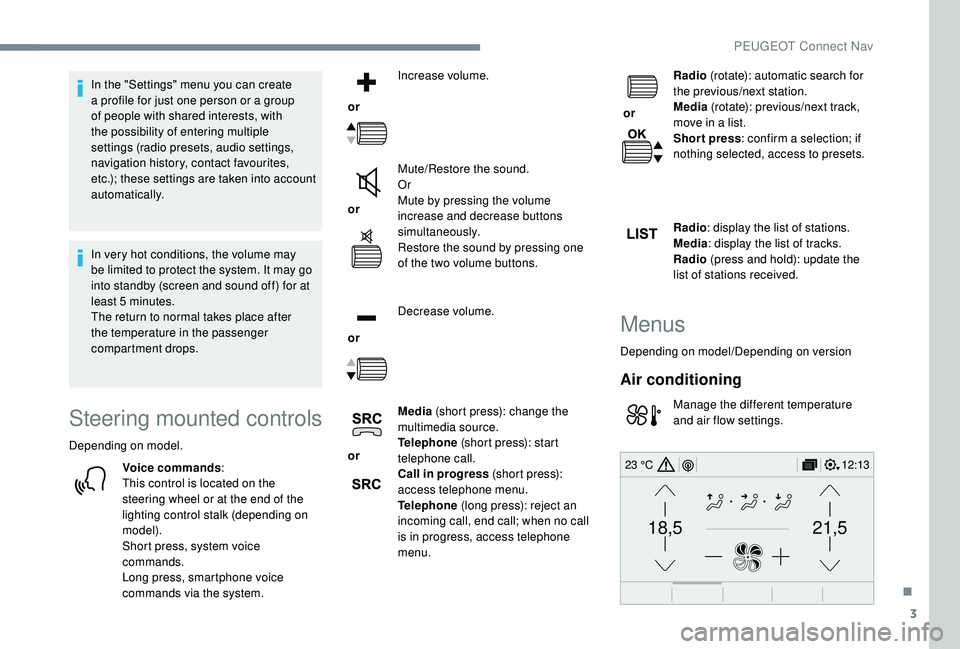
Air conditioning
Manage the different temperature
and air flow settings.
.
PEUGEOT Connect Nav
Page 281 of 364
5
12:13
18,5 21,5
23 °C
12:13
18,5 21,5
23 °C
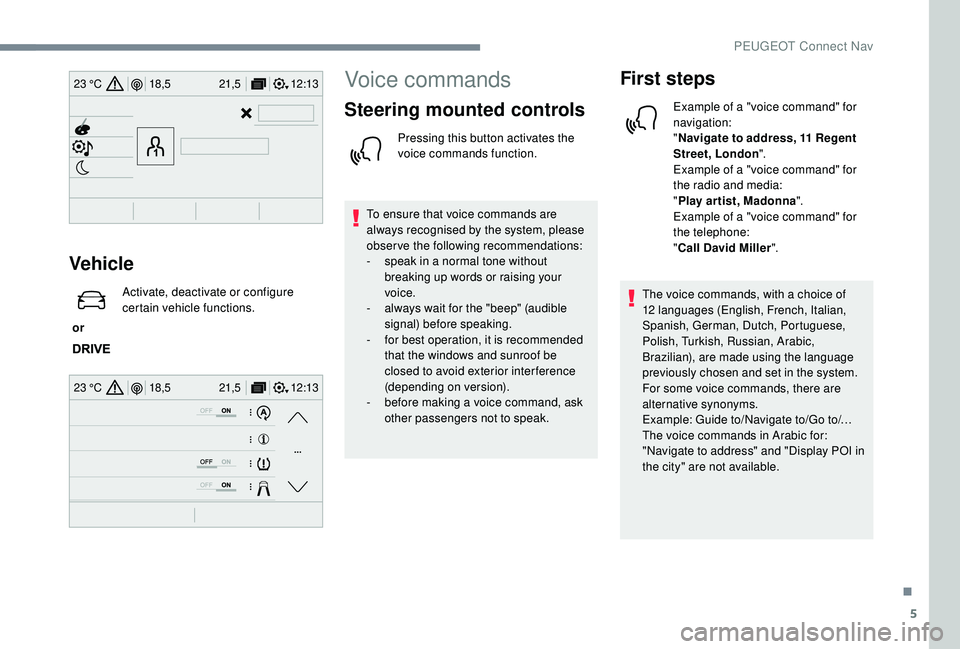
Vehicle
or Activate, deactivate or configure
certain vehicle functions.
Voice commands
Steering mounted controls
Pressing this button activates the
voice commands function.
To ensure that voice commands are
always recognised by the system, please
observe the following recommendations:
-
s
peak in a normal tone without
breaking up words or raising your
voice.
-
a
lways wait for the "beep" (audible
signal) before speaking.
-
f
or best operation, it is recommended
that the windows and sunroof be
closed to avoid exterior inter ference
(depending on version).
-
b
efore making a voice command, ask
other passengers not to speak.
First steps
Example of a "voice command" for
navigation:
" Navigate to address, 11
Regent
Street, London ".
Example of a "voice command" for
the radio and media:
" Play ar tist, Madonna ".
Example of a "voice command" for
the telephone:
" Call David Miller ".
The voice commands, with a
choice of
12
languages (English, French, Italian,
Spanish, German, Dutch, Portuguese,
Polish, Turkish, Russian, Arabic,
Brazilian), are made using the language
previously chosen and set in the system.
For some voice commands, there are
alternative synonyms.
Example: Guide to/Navigate to/Go to/…
The voice commands in Arabic for:
"Navigate to address" and "Display POI in
the city" are not available.
.
PEUGEOT Connect Nav
Page 282 of 364
6
Information – Using the system
Press the Push To Talk voice
command button and tell me
what you'd like after the tone.
Remember you can interrupt
me at any time by pressing
this button. If you press it
again while I'm waiting for
you to speak, it'll end the
conversation. If you need to
start over, say "cancel". If you
want to undo something, say
"undo". And to get information
and tips at any time, just say
"help". If you ask me to do
something and there's some
information missing that I need,
I'll give you some examples
or take you through it step by
step. There's more information
available in "beginner" mode.
You can set the dialogue mode
to "expert" when you feel
comfortable.
Global voice commands
These commands can be made from any
screen page after pressing the " Voice
command" or "Telephone" button located
on the steering wheel, as long as there is
no telephone call in progress.Voice commands Help messages
Help There are lots of topics I can help you with.
You can say: "help with phone", "help with
navigation", "help with media" or "help with
radio". For an over view on how to use voice
controls, you can say "help with voice controls".
Voice command help
Navigation help
Radio help
Media help
Telephone help
Set dialogue mode as <…>
Choose "beginner" or "expert" mode.
Select profile <…> Select profile 1, 2
or 3.
Ye s Say "yes" if I got that right. Other wise, say "no"
and we'll start that again.
No
PEUGEOT Connect Nav
Page 299 of 364
23
Select "Radio settings ".
Select " General ".
Activate/Deactivate " Station
tracking ".
Press " OK".
If "DAB-FM tracking" is activated, there
is a
difference of a few seconds when the
system switches to FM analogue radio
with sometimes a
variation in volume.
Once the digital signal quality is restored,
the system automatically changes back
to " DA B ".
If the "DAB" station being listened to is
not available on FM (" DAB- FM" option
greyed out), or "DAB-FM tracking" is not
activated, the sound will cut out while the
digital signal is too weak.Media
USB
Insert the USB memory stick in the USB port or
connect the USB device to the USB port using
a
suitable cable (not supplied).
To protect the system, do not use a
USB
hub.
The system builds playlists (in temporary
memory), an operation which can take from
a
few seconds to several minutes at the first
connection.
Reduce the number of non-music files and the
number of folders to reduce the waiting time.
The playlists are updated every time the
ignition is switched off or a
USB memory stick
is connected. The lists are memorised: if they
are not modified, the subsequent loading time
will be shorter.
Auxiliary socket (AUX)
(depending on model/depending on equipment)
This source is only available if "Auxiliary input"
has been checked in the audio settings.
Connect the portable device (MP3
player, etc.)
to the auxiliary Jack socket using an audio
cable (not supplied).
First adjust the volume on your portable device
(to a
high level). Then adjust the volume of your
audio system.
Display and management of the controls are
via the portable device.
CD player
(depending on model/depending on equipment)
Insert the CD in the player.
.
PEUGEOT Connect Nav
Page 300 of 364
24
Selecting the source
or Press Radio Media
to display the
primary page.
Select " Source".
Choose the source.
Bluetooth® audio streaming
Streaming allows you to listen to music from
your smartphone.
The Bluetooth profile must be activated, first
adjust the volume on your portable device (to
a
high level).
Then adjust the volume of your audio system.
If play does not start automatically, it may be
necessary to start the audio playback from the
telephone.
Control is from the portable device or by using
the system's touch buttons.
Once connected in streaming mode, the
telephone is considered to be a
media
source.
Connecting Apple® players
Connect the Apple® player to the USB port
using a
suitable cable (not supplied).
Play starts automatically.
Control is via the audio system.
The classifications available are those of
the portable device connected (artists/
albums/genres/playlists/audiobooks/
podcasts).
The default classification used is by
artists. To modify the classification used,
return to the first level of the menu then
select the desired classification (playlists
for example) and confirm to go down
through the menu to the desired track.
The version of software in the audio system
may not be compatible with the generation of
your Apple
® p l aye r.
Information and advice
The system supports USB mass storage
devices, BlackBerry® devices or Apple®
players via USB ports. The adapter cable
is not supplied.
Device management is done by the audio
system controls.
Other peripherals, not recognised on
connection, must be connected to the
auxiliary socket using a
Jack cable (not
supplied) or via Bluetooth streaming,
depending on compatibility.
To protect the system, do not use a
USB
hub.
The audio equipment will only play audio files
with ".wma", ".aac", ".flac", ".ogg" and ".mp3"
file extensions and with a
bit rate of between
32
Kbps and 320
Kbps.
It also supports VBR (Variable Bit Rate) mode.
No other file types (".mp4", etc.) can be read.
Files of the ".wma" type should be to the wma
9
standard.
The sampling rates supported are 32, 44
and
48
kHz.
PEUGEOT Connect Nav