audio PEUGEOT 5008 2018 Owners Manual
[x] Cancel search | Manufacturer: PEUGEOT, Model Year: 2018, Model line: 5008, Model: PEUGEOT 5008 2018Pages: 364, PDF Size: 13.03 MB
Page 5 of 364
3
.
bit.ly/helpPSA
.
Driving recommendations 155
Anti-theft protection 1 56
Starting/Switching off the engine with
the key
1
56
Starting/Switching off the engine with
K
eyless Entry and Starting
1
58
Electric parking brake
1
61
Manual gearbox
1
64
Automatic gearbox
1
65
Hill start assist
1
69
Dynamic pack
1
70
Gear shift indicator
1
70
Stop & Start
1
71
Under-inflation detection
1
74
Memorising speeds
1
75
Recognition of speed limit signs and
recommendation
1
76
Speed limiter
1
79
Cruise control
1
81
Adaptive cruise control
1
84
Distance Alert and Active Safety Brake
1
92
Fatigue detection system
1
96
Lane Departure Warning System
1
98
Active Lane Departure Warning System
1
98
Blind Spot Monitoring System
2
03
Parking sensors
2
05
Visiopark 1 - Visiopark 2
2
07
Park Assist
2
12Fuel
220
Misfuel prevention (Diesel) 2 21
Compatibility of fuels
2
22
Towing device
2
23
Towbar with quickly detachable towball
2
24
Load reduction mode
2
27
Energy economy mode
2
27
Very cold climate screen
2
28
Snow chains
2
28
Fitting roof bars
2
29
Bonnet
23
0
Engine compartment
2
31
Checking levels
23
2
Checks
235
AdBlue
® (BlueHDi engines) 2 37
Warning triangle
2
40
Running out of fuel (Diesel)
2
40
Tool kit
2
41
Temporary puncture repair kit
2
43
Spare wheel
2
46
Changing a
bulb
2
52
Changing a
wiper blade
2
57
Changing a
fuse
2
57
12
V battery
2
62
Towing the vehicle
2
65Engine technical data and towed loads
2
67
Petrol engines and towed loads
2
68
Diesel engines and towed loads
2
69
Dimensions
272
Identification markings
2
73
Driving
Practical information Technical data
Alphabetical index
In the event of a
breakdownAudio equipment and telematics
PEUGEOT Connect Nav
PEUGEOT Connect Radio
Bluetooth audio system
Access to additional videos
.
Contents
Page 6 of 364
4
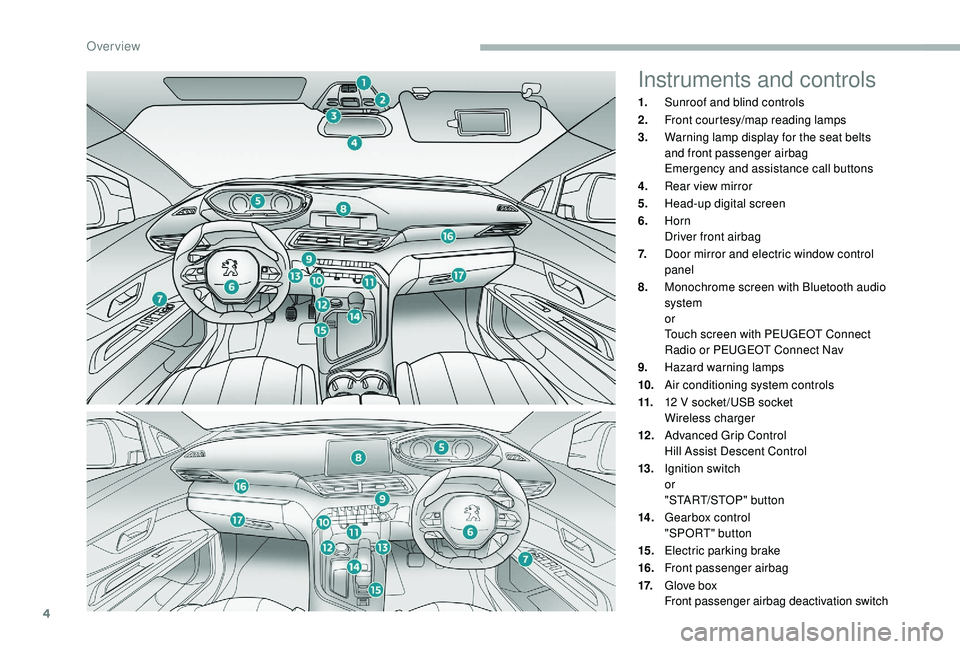
Instruments and controls
1.Sunroof and blind controls
2. Front courtesy/map reading lamps
3. Warning lamp display for the seat belts
and front passenger airbag
Emergency and assistance call buttons
4. Rear view mirror
5. Head-up digital screen
6. Horn
Driver front airbag
7. Door mirror and electric window control
panel
8. Monochrome screen with Bluetooth audio
system
or
Touch screen with PEUGEOT Connect
Radio or PEUGEOT Connect Nav
9. Hazard warning lamps
10. Air conditioning system controls
11. 12
V socket /USB socket
Wireless charger
12 . Advanced Grip Control
Hill Assist Descent Control
13. Ignition switch
or
"START/STOP" button
14 . Gearbox control
"SPORT" button
15. Electric parking brake
16. Front passenger airbag
17. Glove box
Front passenger airbag deactivation switch
Over view
Page 7 of 364
5
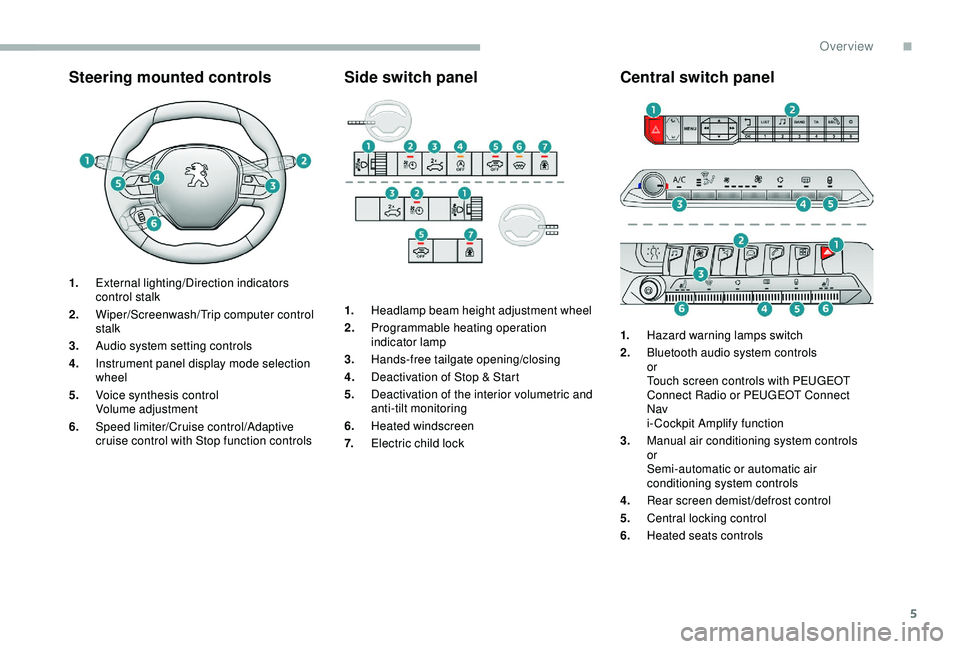
Steering mounted controls
1.External lighting/Direction indicators
control stalk
2. Wiper/Screenwash/ Trip computer control
stalk
3. Audio system setting controls
4. Instrument panel display mode selection
wheel
5. Voice synthesis control
Volume adjustment
6. Speed limiter/Cruise control/Adaptive
cruise control with Stop function controls
Side switch panel
1.Headlamp beam height adjustment wheel
2. Programmable heating operation
indicator lamp
3. Hands-free tailgate opening/closing
4. Deactivation of Stop & Start
5. Deactivation of the interior volumetric and
anti-tilt monitoring
6. Heated windscreen
7. Electric child lock
Central switch panel
1.Hazard warning lamps switch
2. Bluetooth audio system controls
or
Touch screen controls with PEUGEOT
Connect Radio or PEUGEOT Connect
Nav
i- Cockpit Amplify function
3. Manual air conditioning system controls
or
Semi-automatic or automatic air
conditioning system controls
4. Rear screen demist/defrost control
5. Central locking control
6. Heated seats controls
.
Over view
Page 41 of 364
39
Controls
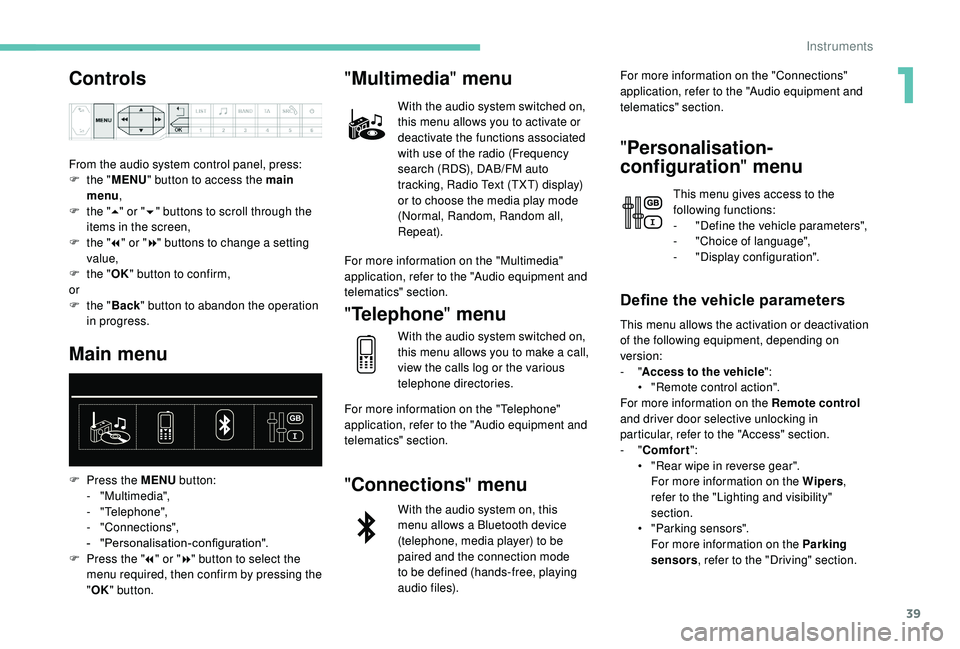
From the audio system control panel, press:
F t he "MENU " button to access the main
menu ,
F
t
he "5" or " 6" buttons to scroll through the
items in the screen,
F
t
he "7" or " 8" buttons to change a
setting
value,
F
t
he "OK" button to confirm,
or
F
t
he "Back " button to abandon the operation
in progress.
Main menu
F Press the MENU button:
- "Multimedia",
-
"Telephone",
-
"Connections",
-
"
Personalisation-configuration".
F
P
ress the " 7" or " 8" button to select the
menu required, then confirm by pressing the
" OK " button.
"Multimedia " menu
With the audio system switched on,
this menu allows you to activate or
deactivate the functions associated
with use of the radio (Frequency
search (RDS), DAB/FM auto
tracking, Radio Text (TXT) display)
or to choose the media play mode
(Normal, Random, Random all,
Repeat).
For more information on the "Multimedia"
application, refer to the "Audio equipment and
telematics" section.
" Telephone " menu
With the audio system switched on,
this menu allows you to make a
call,
view the calls log or the various
telephone directories.
For more information on the "Telephone"
application, refer to the "Audio equipment and
telematics" section.
" Connections " menu
With the audio system on, this
menu allows a
Bluetooth device
(telephone, media player) to be
paired and the connection mode
to be defined (hands-free, playing
audio files). For more information on the "Connections"
application, refer to the "Audio equipment and
telematics" section.
"
Personalisation-
configuration " menu
This menu gives access to the
following functions:
-
"
Define the vehicle parameters",
-
"
Choice of language",
-
"
Display configuration".
Define the vehicle parameters
This menu allows the activation or deactivation
of the following equipment, depending on
version:
- "Access to the vehicle ":
•
"
Remote control action".
For more information on the Remote control
and driver door selective unlocking in
particular, refer to the "Access" section.
-
"Comfort ":
•
"
Rear wipe in reverse gear".
For more information on the Wipers ,
refer to the "Lighting and visibility"
section.
•
"
Parking sensors".
For more information on the Parking
sensors , refer to the "Driving" section.
1
Instruments
Page 43 of 364
41
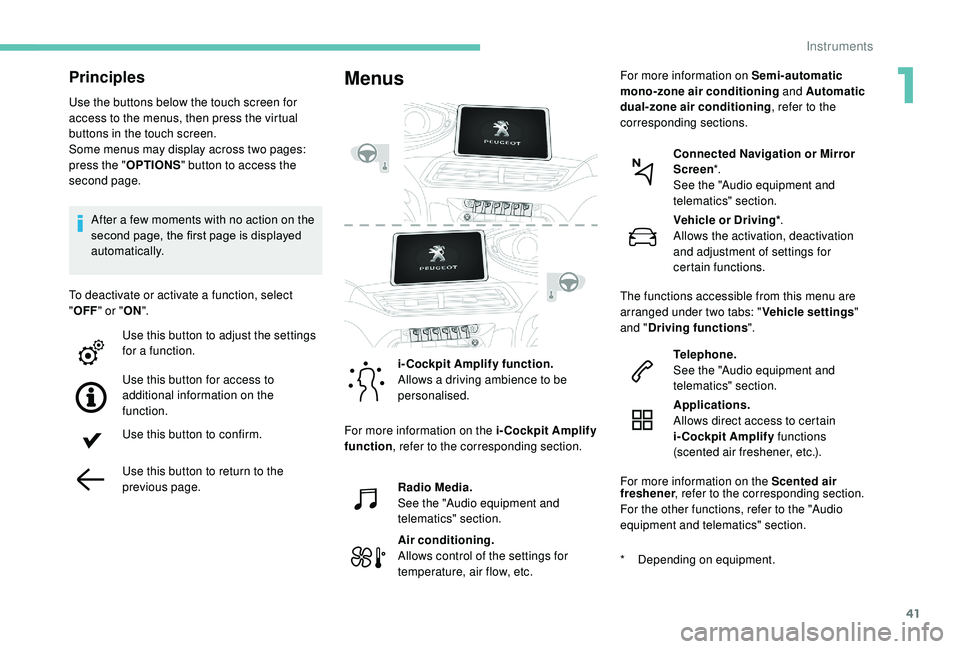
Principles
Use the buttons below the touch screen for
access to the menus, then press the virtual
buttons in the touch screen.
Some menus may display across two pages:
press the "OPTIONS" button to access the
second page.
After a
few moments with no action on the
second page, the first page is displayed
automatically.
To deactivate or activate a
function, select
" OFF " or " ON".
Use this button to adjust the settings
for a
function.
Use this button for access to
additional information on the
function.
Use this button to confirm.
Use this button to return to the
previous page.
Menus
i-Cockpit Amplify function.
Allows a driving ambience to be
personalised.
Radio Media.
See the "Audio equipment and
telematics" section.
Air conditioning.
Allows control of the settings for
temperature, air flow, etc. Connected Navigation or Mirror
Screen
*.
See the "Audio equipment and
telematics" section.
Telephone.
See the "Audio equipment and
telematics" section.
Applications.
Allows direct access to certain
i-Cockpit Amplify functions
(scented air freshener, etc.).
For more information on the Scented air
*
D
epending on equipment.Vehicle or Driving*
.
Allows the activation, deactivation
and adjustment of settings for
certain functions.
The functions accessible from this menu are
arranged under two tabs: " Vehicle settings"
and " Driving functions ".
For more information on the i-Cockpit Amplify
function , refer to the corresponding section. For more information on
Semi-automatic
mono-zone air conditioning and Automatic
dual-zone air conditioning , refer to the
corresponding sections.
freshener , refer to the corresponding section.
For the other functions, refer to the "Audio
equipment and telematics" section.
1
Instruments
Page 44 of 364
42
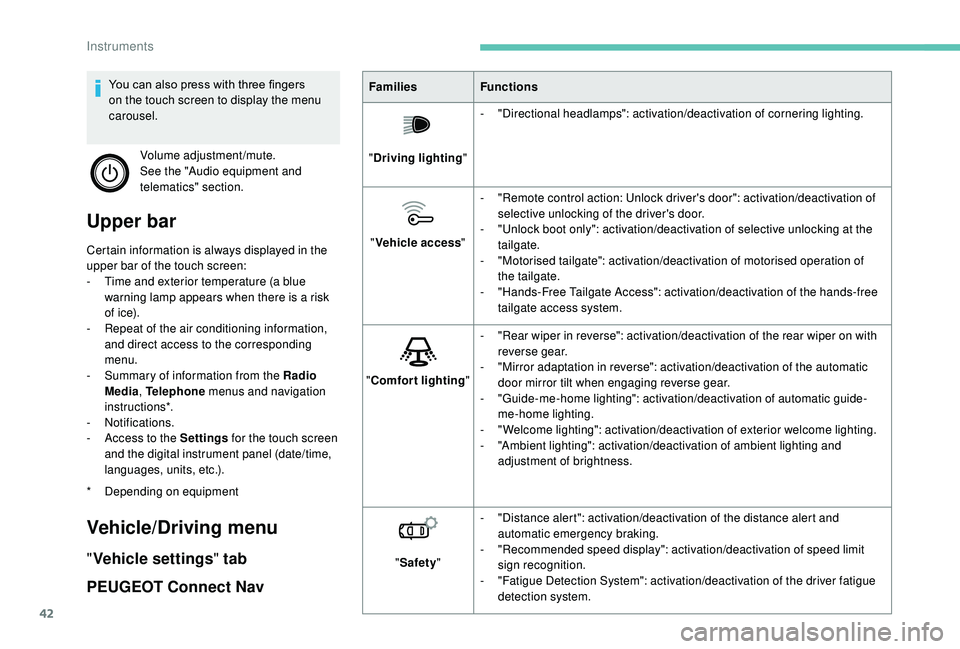
Upper bar
Certain information is always displayed in the
upper bar of the touch screen:
-
T
ime and exterior temperature (a blue
warning lamp appears when there is a
risk
of i c e).
-
R
epeat of the air conditioning information,
and direct access to the corresponding
menu.
-
S
ummary of information from the Radio
Media , Telephone menus and navigation
instructions*.
-
Notifications.
-
A
ccess to the Settings for the touch screen
and the digital instrument panel (date/time,
languages, units, etc.).
Vehicle/Driving menu
" Vehicle settings " tab
PEUGEOT Connect Nav
* Depending on equipment Families
Functions
" Driving lighting "-
"
Directional headlamps": activation/deactivation of cornering lighting.
" Vehicle access "-
"
Remote control action: Unlock driver's door": activation/deactivation of
selective unlocking of the driver's door.
-
"
Unlock boot only": activation/deactivation of selective unlocking at the
tailgate.
-
"
Motorised tailgate": activation/deactivation of motorised operation of
the tailgate.
-
"
Hands-Free Tailgate Access": activation/deactivation of the hands-free
tailgate access system.
" Comfort lighting "-
"
Rear wiper in reverse": activation/deactivation of the rear wiper on with
reverse gear.
-
"
Mirror adaptation in reverse": activation/deactivation of the automatic
door mirror tilt when engaging reverse gear.
-
"
Guide-me-home lighting": activation/deactivation of automatic guide-
me-home lighting.
-
"
Welcome lighting": activation/deactivation of exterior welcome lighting.
-
"
Ambient lighting": activation/deactivation of ambient lighting and
adjustment of brightness.
" Safety " -
"
Distance alert": activation/deactivation of the distance alert and
automatic emergency braking.
-
"
Recommended speed display": activation/deactivation of speed limit
sign recognition.
-
"
Fatigue Detection System": activation/deactivation of the driver fatigue
detection system.
You can also press with three fingers
on the touch screen to display the menu
carousel.
Volume adjustment/mute.
See the "Audio equipment and
telematics" section.
Instruments
Page 46 of 364
44
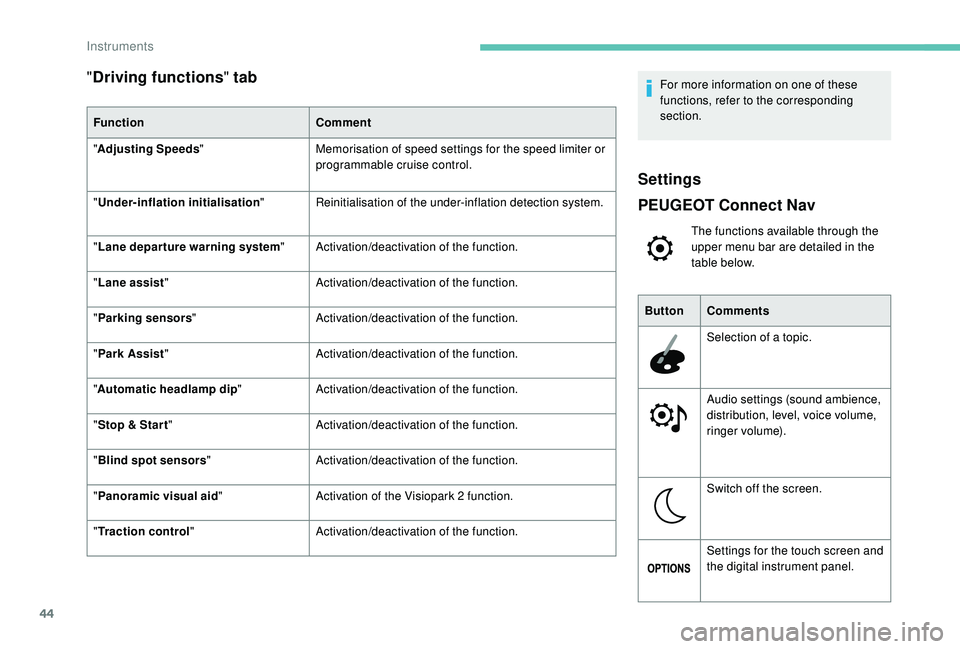
"Driving functions " tab
Function Comment
" Adjusting Speeds " Memorisation of speed settings for the speed limiter or
programmable cruise control.
"
Under-inflation initialisation "Reinitialisation of the under-inflation detection system.
" Lane departure warning system "Activation/deactivation of the function.
" Lane assist " Activation/deactivation of the function.
" Parking sensors " Activation/deactivation of the function.
" Park Assist " Activation/deactivation of the function.
" Automatic headlamp dip "Activation/deactivation of the function.
" Stop & Star t " Activation/deactivation of the function.
" Blind spot sensors " Activation/deactivation of the function.
" Panoramic visual aid "Activation of the Visiopark 2
function.
" Traction control" Activation/deactivation of the function. For more information on one of these
functions, refer to the corresponding
section.
Settings
PEUGEOT Connect Nav
The functions available through the
upper menu bar are detailed in the
table below.
Button Comments
Selection of a
topic.
Audio settings (sound ambience,
distribution, level, voice volume,
ringer volume).
Switch off the screen.
Settings for the touch screen and
the digital instrument panel.
Instruments
Page 85 of 364
83
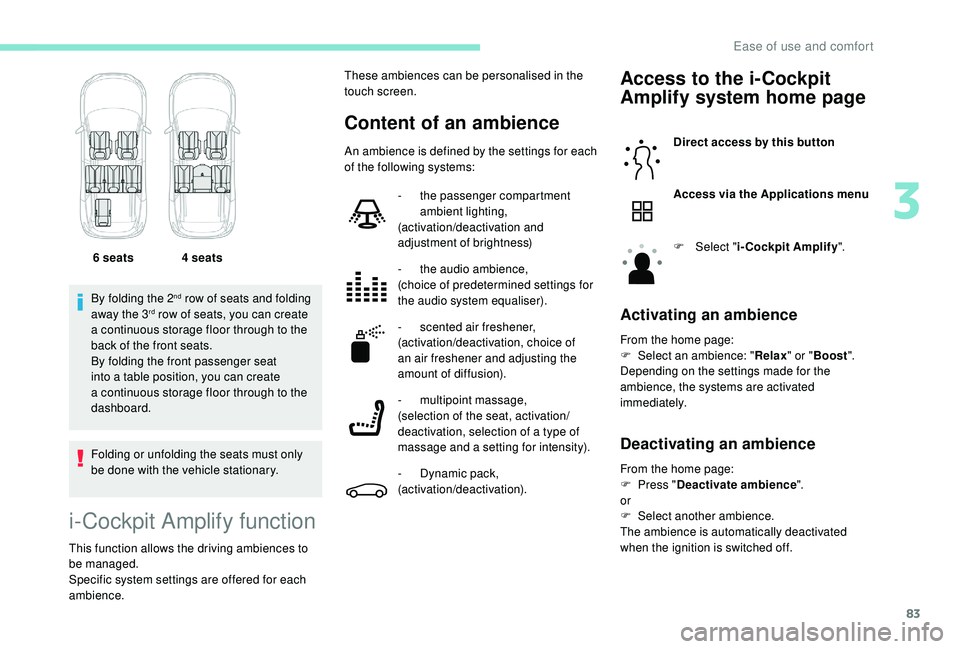
By folding the 2nd row of seats and folding
away the 3rd row of seats, you can create
a
continuous storage floor through to the
back of the front seats.
By folding the front passenger seat
into a
table position, you can create
a
continuous storage floor through to the
dashboard.
Folding or unfolding the seats must only
be done with the vehicle stationary. 6
seats 4 seats
i-Cockpit Amplify function
This function allows the driving ambiences to
be managed.
Specific system settings are offered for each
ambience.
Content of an ambience
Access to the i-Cockpit
Amplify system home page
Direct access by this button
Access via the Applications menu
F
Sel
ect "i-Cockpit Amplify ".
Activating an ambience
From the home page:
F
Sel ect an ambience: " Relax" or "Boost ".
Depending on the settings made for the
ambience, the systems are activated
immediately.
Deactivating an ambience
These ambiences can be personalised in the
touch screen.
An ambience is defined by the settings for each
of the following systems:
-
t
he passenger compartment
ambient lighting,
(activation/deactivation and
adjustment of brightness)
-
t
he audio ambience,
(choice of predetermined settings for
the audio system equaliser).
-
s
cented air freshener,
(activation/deactivation, choice of
an air freshener and adjusting the
amount of diffusion).
-
m
ultipoint massage,
(selection of the seat, activation/
deactivation, selection of a
type of
massage and a
setting for intensity).
-
D
ynamic pack,
(activation/deactivation). From the home page:
F
P
ress "Deactivate ambience ".
or
F
Sel
ect another ambience.
The ambience is automatically deactivated
when the ignition is switched off.
3
Ease of use and comfort
Page 102 of 364
100
Glove box
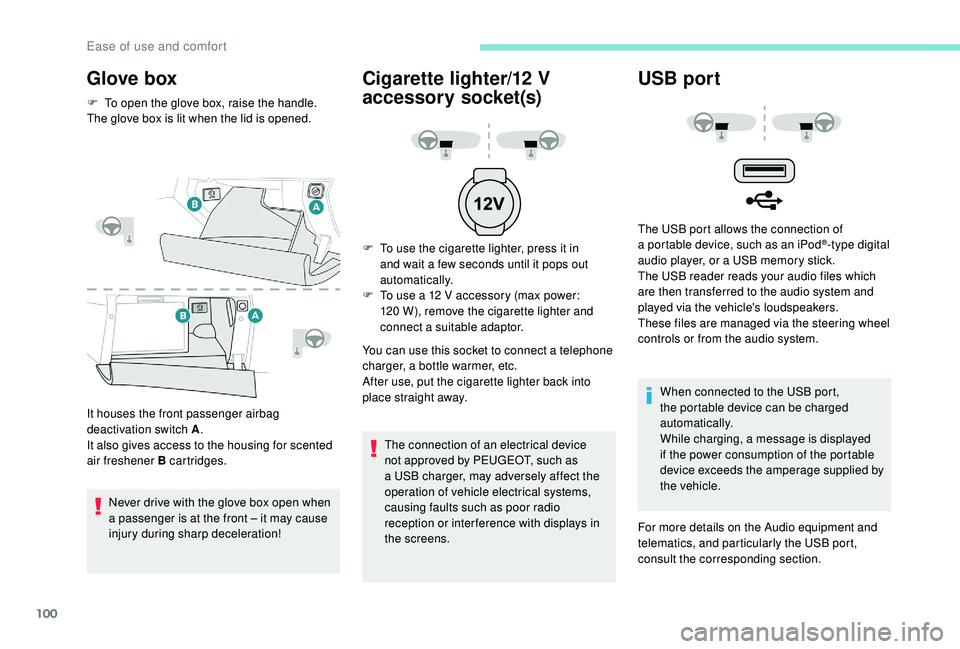
F To open the glove box, raise the handle.
The glove box is lit when the lid is opened.
It houses the front passenger airbag
deactivation switch A .
It also gives access to the housing for scented
air freshener B cartridges.
Never drive with the glove box open when
a
passenger is at the front – it may cause
injury during sharp deceleration!
Cigarette lighter/12 V
a ccessory socket(s)
F To use the cigarette lighter, press it in
and wait a few seconds until it pops out
automatically.
F
T
o use a 12 V accessory (max power:
120
W), remove the cigarette lighter and
connect a
suitable adaptor.
You can use this socket to connect a
telephone
charger, a bottle warmer, etc.
After use, put the cigarette lighter back into
place straight away.
The connection of an electrical device
not approved by PEUGEOT, such as
a
USB charger, may adversely affect the
operation of vehicle electrical systems,
causing faults such as poor radio
reception or inter ference with displays in
the screens.
USB port
The USB port allows the connection of
a portable device, such as an iPod®-type digital
audio player, or a
USB memory stick.
The USB reader reads your audio files which
are then transferred to the audio system and
played via the vehicle's loudspeakers.
These files are managed via the steering wheel
controls or from the audio system.
When connected to the USB port,
the portable device can be charged
automatically.
While charging, a message is displayed
if the power consumption of the portable
device exceeds the amperage supplied by
the vehicle.
For more details on the Audio equipment and
telematics, and particularly the USB port,
consult the corresponding section.
Ease of use and comfort
Page 103 of 364
101
The USB port also allows a smartphone to be
c onnected by MirrorLinkTM, Android Auto® or
CarPlay®, so that certain applications on the
smartphone can be used on the touch screen.
FOCAL® premium Hi-Fi
system
- TNF tweeters: Inverted dome aluminium
technology giving optimum sound
dispersion and very detailed treble.
-
S
ub-woofer: 200 mm triple coil Power
Flower™ technology for defined and
dynamic reproduction of low frequencies.
-
1
2-way active amplification – 515 Watts:
Hybrid Class AB/Class D technology
providing breadth and finesse in the high
frequency signals, as well as real power in
the bass.
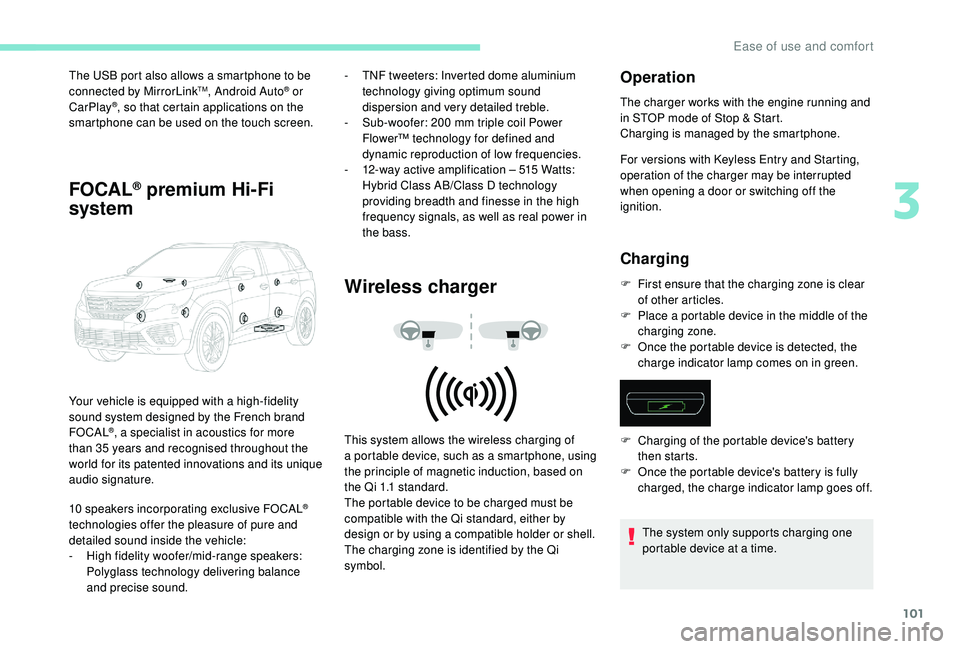
Wireless charger
Your vehicle is equipped with a high-fidelity
s ound system designed by the French brand
FOCAL
®, a specialist in acoustics for more
than 35
years and recognised throughout the
world for its patented innovations and its unique
audio signature.
10
speakers incorporating exclusive FOCAL
®
technologies offer the pleasure of pure and
detailed sound inside the vehicle:
-
H
igh fidelity woofer/mid-range speakers:
Polyglass technology delivering balance
and precise sound. This system allows the wireless charging of
a
portable device, such as a smartphone, using
the principle of magnetic induction, based on
the Qi 1.1 standard.
The portable device to be charged must be
compatible with the Qi standard, either by
design or by using a
compatible holder or shell.
The charging zone is identified by the Qi
symbol.
Operation
The charger works with the engine running and
in STOP mode of Stop & Start.
Charging is managed by the smartphone.
For versions with
K
eyless Entry and Starting,
operation of the charger may be interrupted
when opening a
door or switching off the
ignition.
Charging
F First ensure that the charging zone is clear of other articles.
F
P
lace a portable device in the middle of the
charging zone.
F
O
nce the portable device is detected, the
charge indicator lamp comes on in green.
The system only supports charging one
portable device at a
time.
F
C
harging of the portable device's battery
then starts.
F
O
nce the portable device's battery is fully
charged, the charge indicator lamp goes off.
3
Ease of use and comfort