phone Peugeot 508 2012 Owner's Guide
[x] Cancel search | Manufacturer: PEUGEOT, Model Year: 2012, Model line: 508, Model: Peugeot 508 2012Pages: 340, PDF Size: 11.11 MB
Page 287 of 340
285
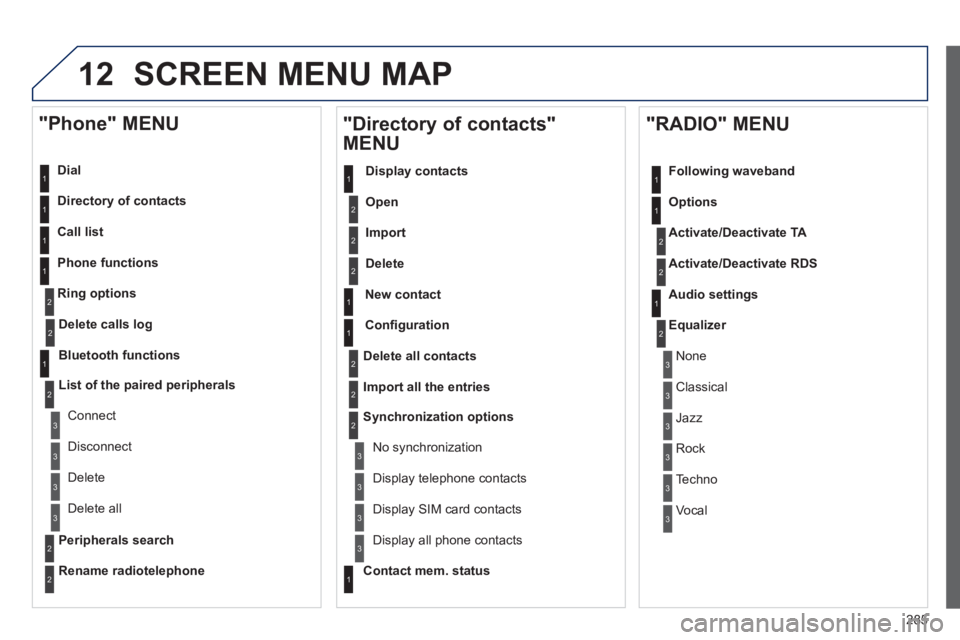
12 SCREEN MENU MAP
Dial
Director
y of contacts
Call list
Phone functions
Rin
g options
"Phone" MENU
1
1
2
1
1
2
3
3
2
1
3
3
2
2
1
2
2
2
1
1
2
2
2
1
3
3
3
3
1
2
2
1
1
3
3
3
3
3
3
2
Confi guration
Delete all contacts
Import all the entries
S
ynchronization options
No s
ynchronization
"Directory of contacts"
MENU
Display contacts
Open
Import
Delete
New contact
Equalizer
"RADIO" MENU
Following waveband
Options
Activate/Deactivate TA
Activate/Deactivate RD
S
Audio settings
Displa
y telephone contacts
Displa
y SIM card contacts
Contact mem. status
Displa
y all phone contacts
Delete calls log
Bluetooth functions
List of the paired peripherals
Connect
Di
sconnect
D
elete
Peripherals searchD
elete all
Rename radiotelephon
e
None
Classical
Jazz
Rock
Techno
Vocal
Page 290 of 340
288
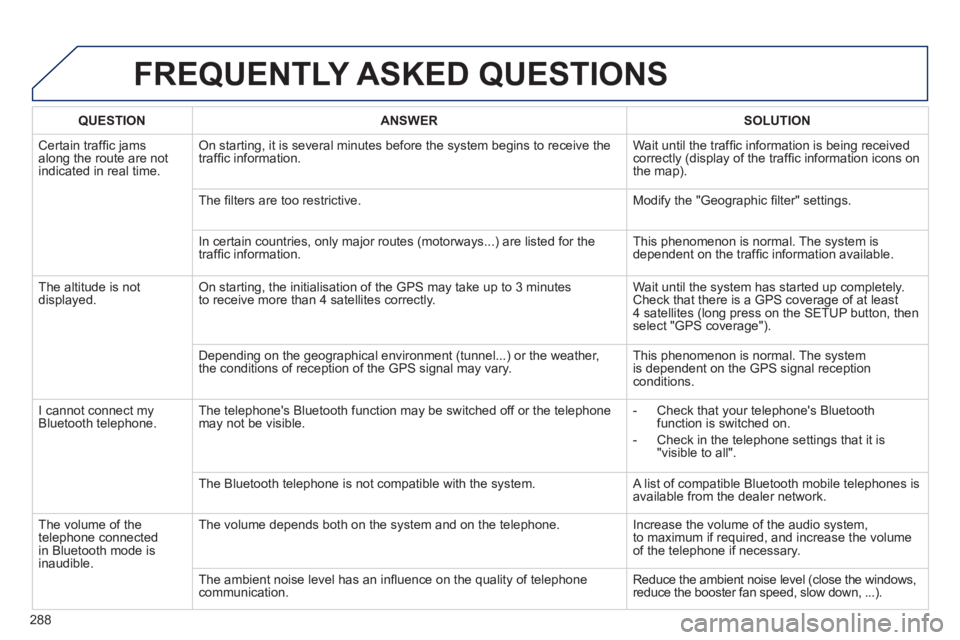
FREQUENTLY ASKED QUESTIONS
QUESTIONANSWER SOLUTION
Certain traffi c jams
along the route are notindicated in real time.
On starting, it is several minutes before the system begins to receive the
traffi c information. Wait until the traffi c information is being received correctly (display of the traffi c information icons on
the map).
Th
e fi lters are too restrictive. Modify the "Geographic fi lter" settings.
In certain countries, onl
y major routes (motorways...) are listed for the
traffi c information. This phenomenon is normal. The system is
dependent on the traffi c information available.
The altitude is not
displayed. On starting, the initialisation of the GPS may take up to 3 minutes
to receive more than 4 satellites correctly. Wait until the system has started up completely. Check that there is a GPS coverage of at least
4 satellites (long press on the SETUP button, then select "GPS coverage").
Dependin
g on the geographical environment (tunnel...) or the weather,
the conditions of reception of the GPS signal may vary. This phenomenon is normal. The system
is dependent on the GPS signal receptionconditions.
I cannot connect my
Bluetooth telephone.The telephone's Bluetooth
function may be switched off or the telephone
may not be visible.
- Check that your telephone's Bluetoothfunction is switched on.
-
Check in the telephone settings that it is "visible to all".
The Bluetooth telephone is not compatible with the system. A list of compatible Bluetooth mobile telephones is available from the dealer network.
Th
e volume of thetelephone connected
in Bluetooth mode isinaudible. The volume depends both on the system and on the telephone. Increase the volume o
f the audio system,
to maximum if required, and increase the volume
of the telephone if necessary.
The ambient noise level has an infl uence on the qualit
y of telephone communication. Reduce the ambient noise level (close the windows,reduce the booster fan speed, slow down, ...).
Page 291 of 340
289
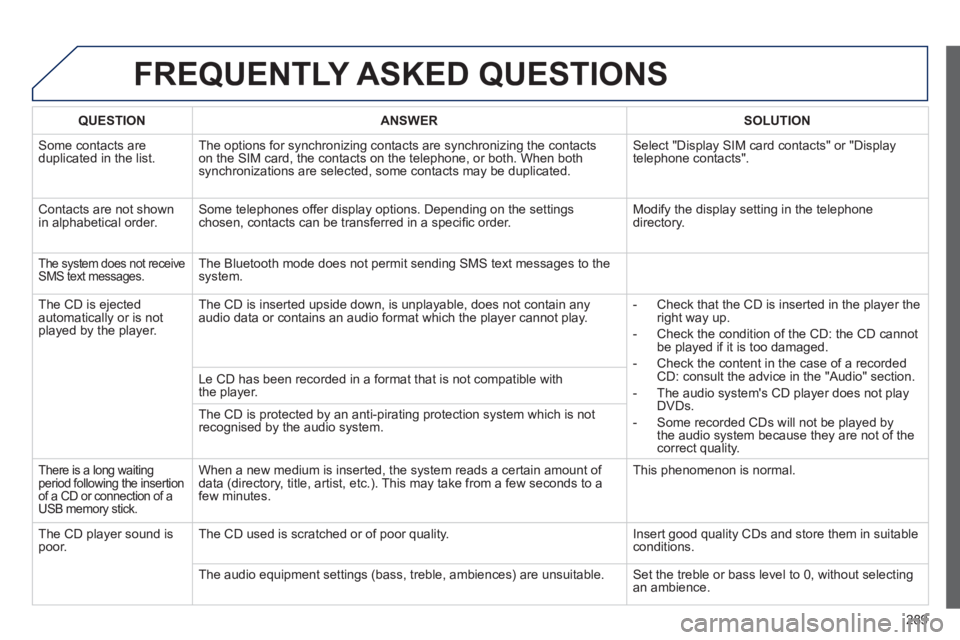
FREQUENTLY ASKED QUESTIONS
QUESTIONANSWER SOLUTION
Some contacts areduplicated in the list.The options for synchronizing contacts are synchronizing the contacts
on the SIM card, the contacts on the telephone, or both. When both
synchronizations are selected, some contacts may be duplicated. Select "Displa
y SIM card contacts" or "Displaytelephone contacts".
Contacts are not shown
in alphabetical order.Some telephones offer display options. Depending on the settingschosen, contacts can be transferred in a specifi c order. Modify the display setting in the telephone
directory.
The system does not receiveSMS text messages.The Bluetooth mode does not permit sending SMS text messages to the
system.
The CD is e
jected
automatically or is not played by the player. The CD is inserted upside down, is unpla
yable, does not contain any audio data or contains an audio format which the player cannot play.
- Check that the CD is inserted in the player the
right way up.
-
Check the condition of the CD: the CD cannot
be played if it is too damaged.
-
Check the content in the case of a recordedCD: consult the advice in the "Audio" section.
- The audio s
ystem's CD player does not play
DVDs.
- Some recorded CDs will not be pla
yed by
the audio system because they are not of thecorrect quality. Le CD has been recorded in a format that is not com
patible with
the player.
The CD is protected b
y an anti-pirating protection system which is not recognised by the audio system.
There is a long waitingperiod following the insertion of a CD or connection of a USB memory stick.
When a new medium is inserted, the system reads a certain amount of
data (directory, title, artist, etc.). This may take from a few seconds to afew minutes.
This phenomenon is normal.
The
CD player sound ispoor.The CD used is scratched or of poor quality. Insert good quality CDs and store them in suitable conditions.
The audio equipment settings
(bass, treble, ambiences) are unsuitable. Set the treble or bass level to 0, without selectingan ambience.
Page 294 of 340
292
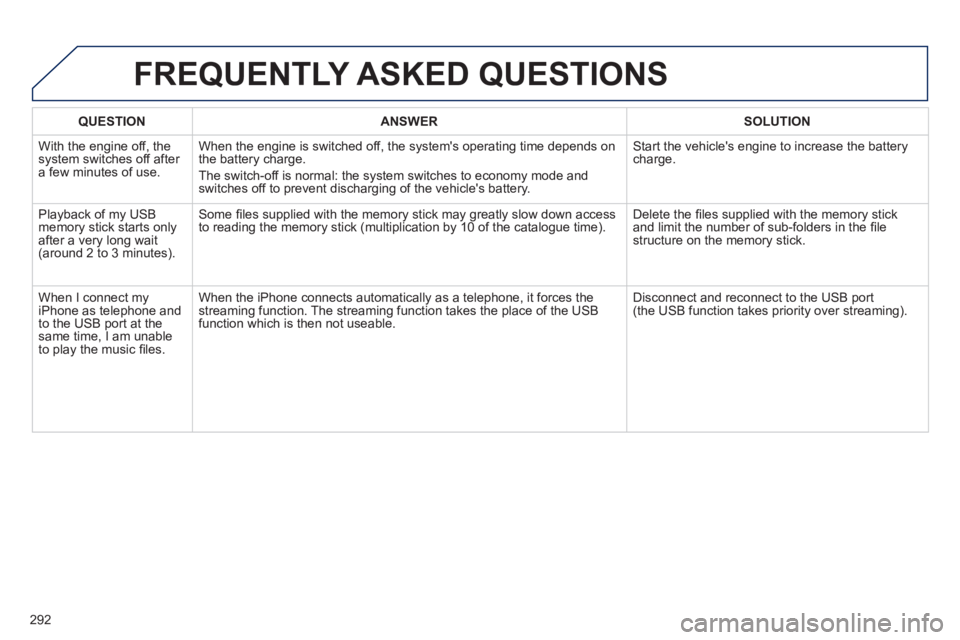
QUESTIONANSWERSOLUTION
With the engine off, the system switches off after a few minutes of use.When the en
gine is switched off, the system's operating time depends on
the battery charge.
The switch-o
ff is normal: the system switches to economy mode and
switches off to prevent discharging of the vehicle's battery. Start the vehicle's en
gine to increase the batterycharge.
Pla
yback of my USB memory stick starts only
after a very long wait (around 2 to 3 minutes).Some fi les supplied with the memor
y stick may greatly slow down access
to reading the memory stick (multiplication by 10 of the catalogue time). Delete the fi les supplied with the memory stickand limit the number of sub-folders in the fi le structure on the memory stick.
When I connect m
yiPhone as telephone and
to the USB port at thesame time, I am unable
to play the music fi les. When the iPhone connects automaticall
y as a telephone, it forces the
streaming function. The streaming function takes the place of the USB
function which is then not useable. Disconnect and reconnect to the U
SB port(the USB function takes priority over streaming).
FREQUENTLY ASKED QUESTIONS
Page 295 of 340
293
The system is coded in such a way that it will only
operate in your vehicle.
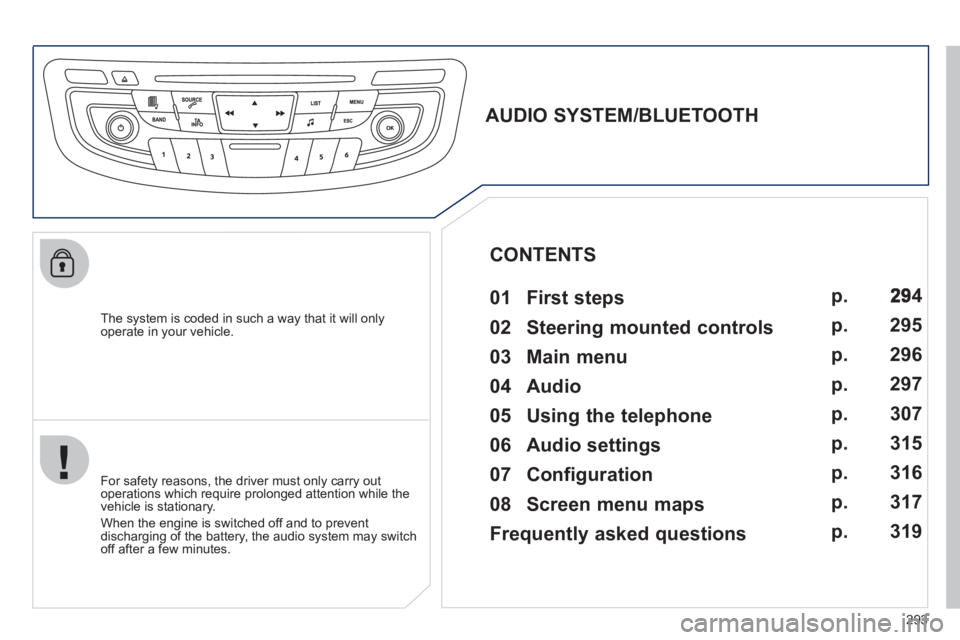
AUDIO SYSTEM/BLUETOOTH
01 First steps
For safety reasons, the driver must only carry out
operations which require prolonged attention while the
vehicle is stationary.
When the engine is switched o
ff and to prevent
discharging of the battery, the audio system may switch off after a few minutes.
CONTENTS
02 Steering mounted controls
03 Main menu
04 Audio
05 Using the telephone
06 Audio settings
07 Configuration
08 Screen menu maps
Frequently asked questions p.
p.
p.
p.
p.
p.
p.
p.
p.
4
295
296
297
3
07
315
316
317
3
19
Page 296 of 340
294
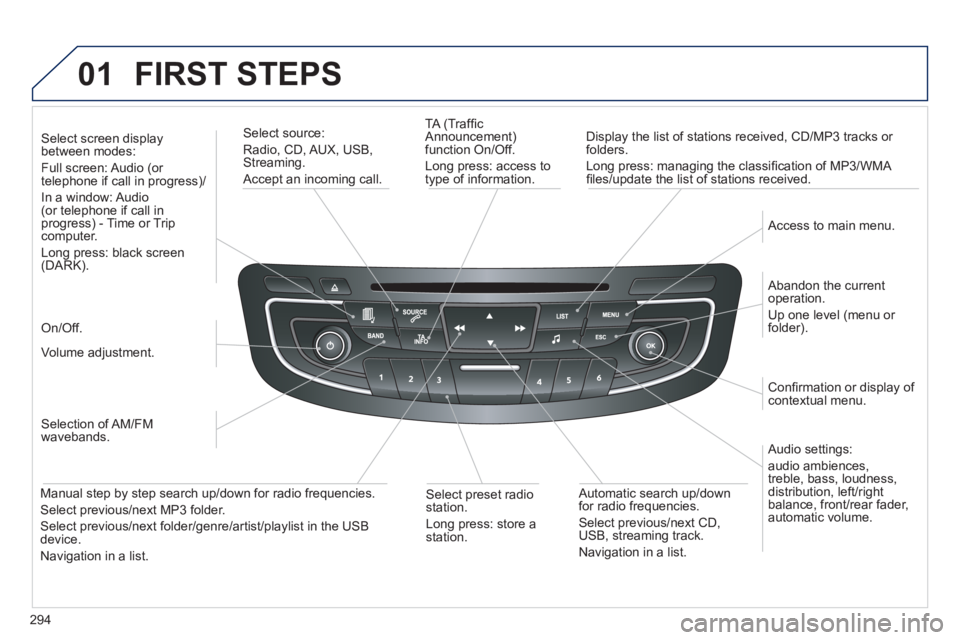
01 FIRST STEPS
TA (Traffi c
Announcement)
function On/Off.
Long press: access to
type of information.
Displa
y the list of stations received, CD/MP3 tracks or
folders.
Lon
g press: managing the classifi cation of MP3/WMA fi les/update the list of stations received.
Select source:
Radio, CD, AUX, USB, Streaming.
Accept an incoming call.
Audio settings:
audio ambiences,
treble, bass, loudness,
distribution, left/ri
ght
balance, front/rear fader, automatic volume.
Abandon the current
operation.
Up one level (menu or folder).
Access to main menu.
Selection of AM/FM
wavebands.
Select screen display between modes:
Full screen: Audio (or
telephone if call in progress)/
In
a window: Audio (or telephone if call in
progress) - Time or Tripcomputer.
Long press: black screen (DARK).
Volume adjustment.
Select preset radio
station.
Long press: store astation.
Automatic search up/down
for radio frequencies.
Select previous/next CD,USB, streaming track.
Navigation in a list.
Manual step b
y step search up/down for radio frequencies.
Select previous/next MP3 folder.
Select previous/next folder/genre/artist/playlist in the USB device.
Navigation in a list.
On/Off.
Confi rmation or displa
y of contextual menu.
Page 297 of 340
02
295
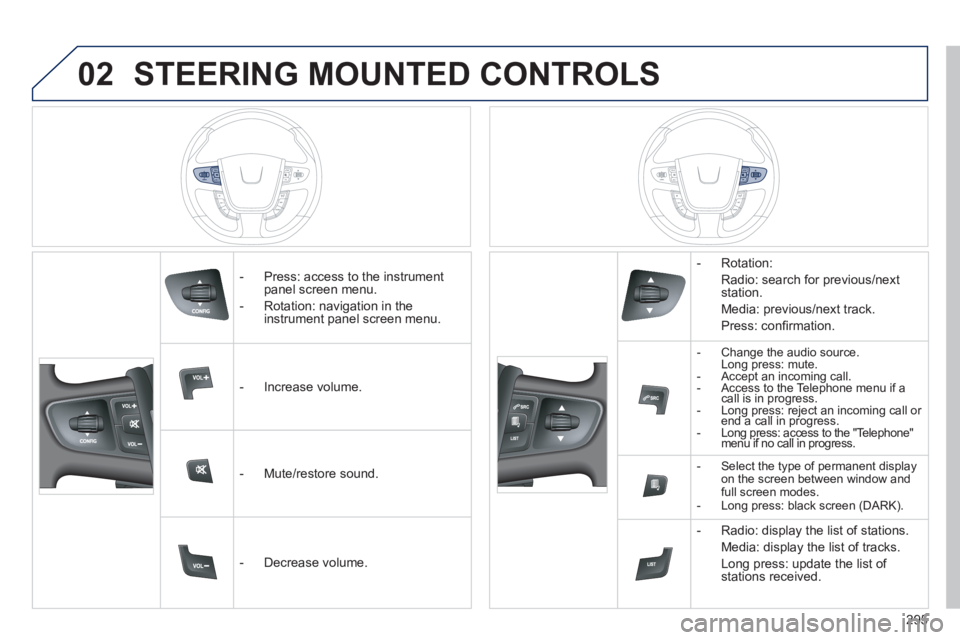
STEERING MOUNTED CONTROLS
- Press: access to the instrumentpanel screen menu.
- Rotation: navi
gation in the
instrument panel screen menu.
- In
crease volume.
- Mute
/restore sound.
- D
ecrease volume. - R
otation:
Radio: search for previous/next
station.
Media: previous
/next track.
Pr
ess: confi rmation.
-Change the audio source.
Long press: mute.
- Accept an incoming call.
- Access to the Telephone menu if acall is in progress.- Long press: reject an incoming call or end a call in progress. gp jgp
- Long press: access to the "Telephone" menu if no call in progress. gpp
- Select the type of permanent displayon the screen between window and full screen modes.
- Long press: black screen (DARK).
- Radio: display the list of stations.
Media: displa
y the list of tracks.
Lon
g press: update the list of stations received.
Page 298 of 340
296
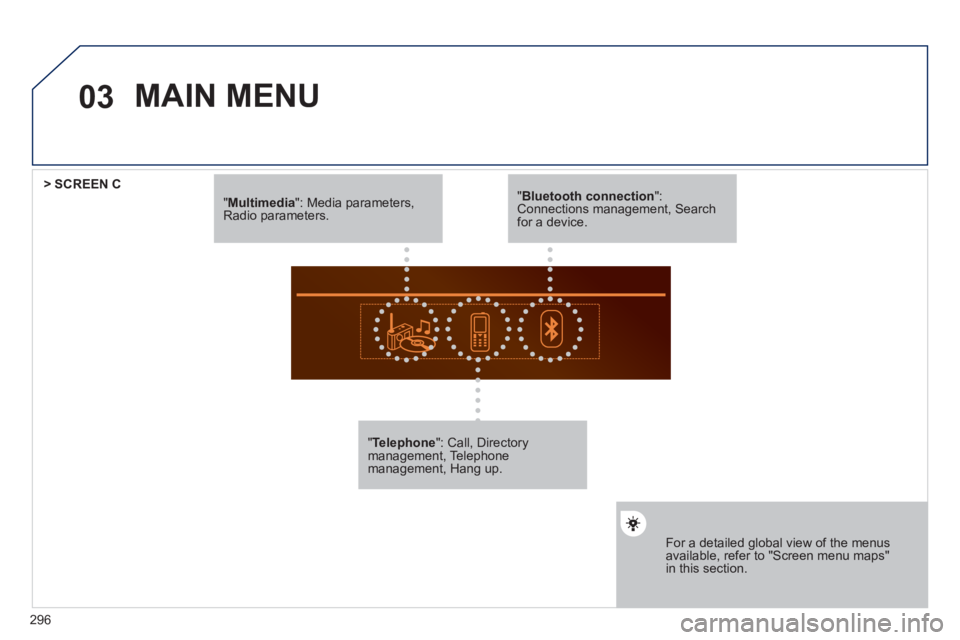
03
"Multimedia": Media parameters, Radio parameters.
"Telephone ": Call, Directory management, Telephonemanagement, Hang up.
For a detailed global view of the menus available, refer to "Screen menu maps"in this section.
> SCREEN C
"Bluetooth connection ": Connections management, Search for a device.
MAIN MENU
Page 308 of 340
306
04
1
2
1
2
3
4
5
AUDIO
STREAMING - PLAYING AUDIO FILES
VIA BLUETOOTH
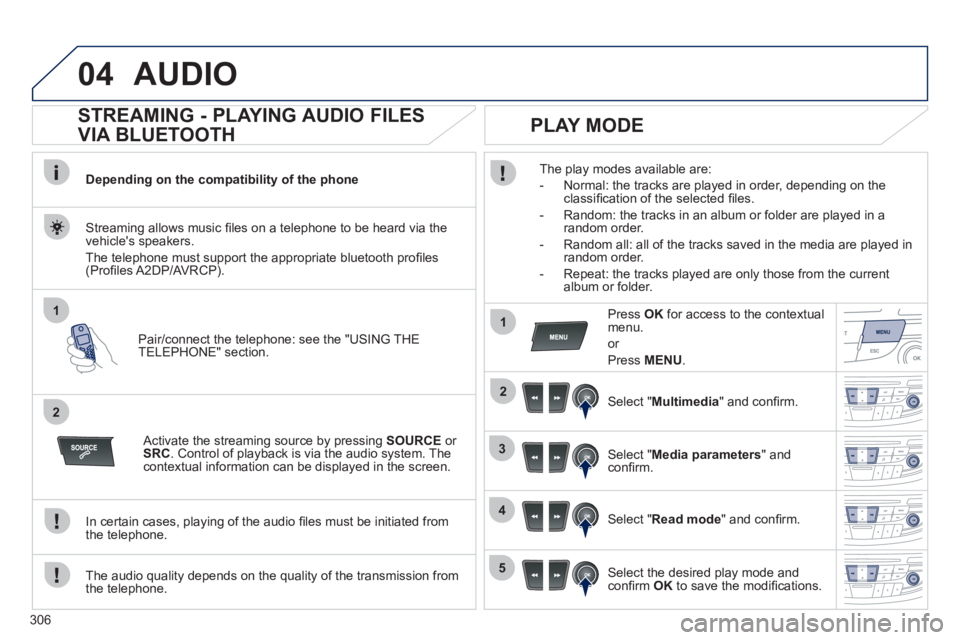
Depending on the compatibility of the phone
Pair
/connect the telephone: see the "USING THE
TELEPHONE" section.
Streaming allows music fi les on a telephone to be heard via the
vehicle's speakers.
The telephone must support the appropriate bluetooth pro
fi les (Profi les A2DP/AV RCP).
Activate the streaming source by pressing SOURCEor
SRC
. Control of playback is via the audio system. Thecontextual information can be displayed in the screen.
In certain cases, pla
ying of the audio fi les must be initiated from
the telephone.
The audio quality depends on the quality o
f the transmission from
the telephone.
PLAY MODE
The play modes available are:
- Normal: the tracks are pla
yed in order, depending on theclassifi cation of the selected fi les.
- Random: the tracks in an album or
folder are played in arandom order.
- Random all: all o
f the tracks saved in the media are played inrandom order.
- Repeat: the tracks pla
yed are only those from the currentalbum or folder.
Press OKfor access to the contextualmenu.
or
Pr
ess MENU.
Select "Multimedia" and confi rm.
Select "Media parameters
" and confi rm.
Select "Read mode
" and confi rm.
Select the desired play mode and confi rm OKto save the modifi cations.
Page 309 of 340
307
05
1
25
3
4
6
USING THE TELEPHONE
PAIRING A TELEPHONE
FIRST CONNECTION
The services offered depend on the network, the SIM card and the compatibility of the Bluetooth telephone used.
Consult
your telephone's manual and your operator to fi nd out which services are available to you.
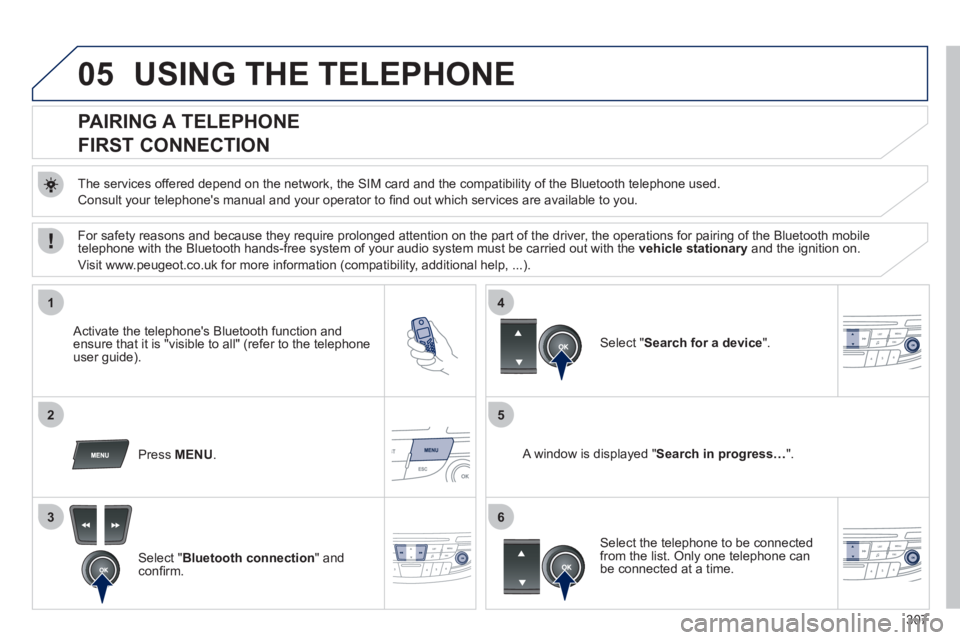
Activate the telephone's Bluetooth function andensure that it is "visible to all" (refer to the telephone
user guide).
Press MENU. A window is displayed "Search in progress…".
Select the telephone to be connected from the list. Only one telephone can be connected at a time.
Select " Search for a device".
For safety reasons and because they require prolonged attention on the part of the driver, the operations for pairing of the Bluetooth mobile
telephone with the Bluetooth hands-free system of your audio system must be carried out with the vehicle stationaryand the ignition on.
Visit www.peu
geot.co.uk for more information (compatibility, additional help, ...).
Select " Bluetooth connection" andconfi rm.