mirror Peugeot 508 2020 Owner's Guide
[x] Cancel search | Manufacturer: PEUGEOT, Model Year: 2020, Model line: 508, Model: Peugeot 508 2020Pages: 276, PDF Size: 8.43 MB
Page 138 of 276
136
Driving
– Your vehicle is not pulling a trailer, a caravan,
etc.
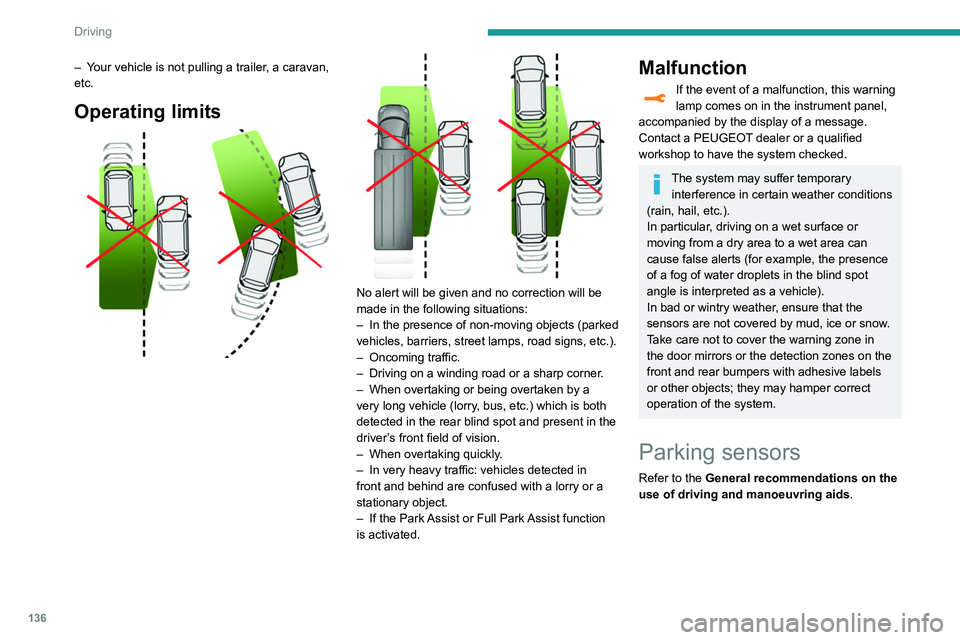
Operating limits
No alert will be given and no correction will be
made in the following situations:
–
In the presence of non-moving objects (parked
vehicles, barriers, street lamps, road signs, etc.).
–
Oncoming traffic.
–
Driving on a winding road or a sharp corner
.
–
When overtaking or being overtaken by a
very long vehicle (lorry
, bus, etc.) which is both
detected in the rear blind spot and present in the
driver’s front field of vision.
–
When overtaking quickly
.
–
In very heavy traffic: vehicles detected in
front and behind are confused with a lorry or a
stationary object.
–
If the Park
Assist or Full Park Assist function
is activated.
Malfunction
If the event of a malfunction, this warning
lamp comes on in the instrument panel,
accompanied by the display of a message.
Contact a PEUGEOT dealer or a qualified
workshop to have the system checked.
The system may suffer temporary interference in certain weather conditions
(rain, hail, etc.).
In particular, driving on a wet surface or
moving from a dry area to a wet area can
cause false alerts (for example, the presence
of a fog of water droplets in the blind spot
angle is interpreted as a vehicle).
In bad or wintry weather, ensure that the
sensors are not covered by mud, ice or snow.
Take care not to cover the warning zone in
the door mirrors or the detection zones on the
front and rear bumpers with adhesive labels
or other objects; they may hamper correct
operation of the system.
Parking sensors
Refer to the General recommendations on the
use of driving and manoeuvring aids .
Using sensors located in the bumper, this
system signals the proximity of obstacles
(e.g. pedestrian, vehicle, tree, barrier) present in
their field of detection.
Rear parking sensors
The system is switched on by engaging reverse
gear, which is confirmed by an audible signal.
The system is switched off when disengaging
reverse gear.
Audible assistance
The system signals the presence of obstacles
which are both within the sensors’ detection zone
and in the vehicle path defined by the direction of
the steering wheel.
Page 141 of 276
139
Driving
6– 180° view.
– Zoom view .
AUTO mode is activated by default.
In this mode, the system chooses to display the
best view (standard or zoom).
You can change the type of view at any time
during a manoeuvre.
►
Press the button in the bottom left-hand
corner of the touch screen.
►
Select the type of view:
•
"Standard view".
•
"180° view".
•
"Zoom view".
•
"AUTO view".
The display is immediately updated with the type
of view selected.
The state of the function is not saved when the
ignition is switched off.
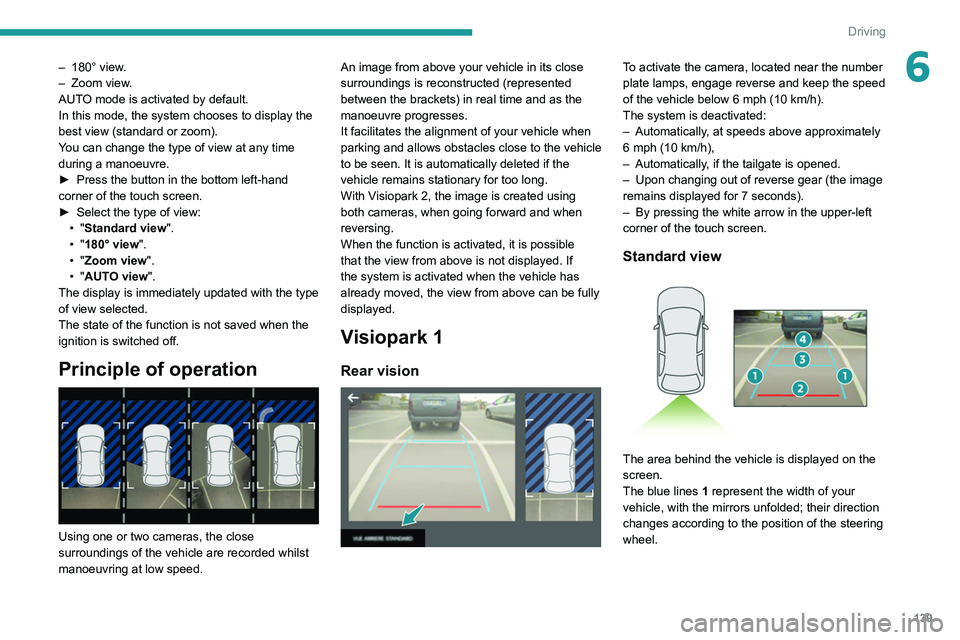
Principle of operation
Using one or two cameras, the close
surroundings of the vehicle are recorded whilst
manoeuvring at low speed. An image from above your vehicle in its close
surroundings is reconstructed (represented
between the brackets) in real time and as the
manoeuvre progresses.
It facilitates the alignment of your vehicle when
parking and allows obstacles close to the vehicle
to be seen. It is automatically deleted if the
vehicle remains stationary for too long.
With Visiopark 2, the image is created using
both cameras, when going forward and when
reversing.
When the function is activated, it is possible
that the view from above is not displayed. If
the system is activated when the vehicle has
already moved, the view from above can be fully
displayed.
Visiopark 1
Rear vision
To activate the camera, located near the number
plate lamps, engage reverse and keep the speed
of the vehicle below 6 mph (10
km/h).
The system is deactivated:
–
Automatically
, at speeds above approximately
6 mph (10
km/h),
–
Automatically
, if the tailgate is opened.
–
Upon changing out of reverse gear (the image
remains displayed for 7
seconds).
–
By pressing the white arrow in the upper-left
corner of the touch screen.
Standard view
The area behind the vehicle is displayed on the
screen.
The blue lines 1 represent the width of your
vehicle, with the mirrors unfolded; their direction
changes according to the position of the steering
wheel.
Page 142 of 276
140
Driving
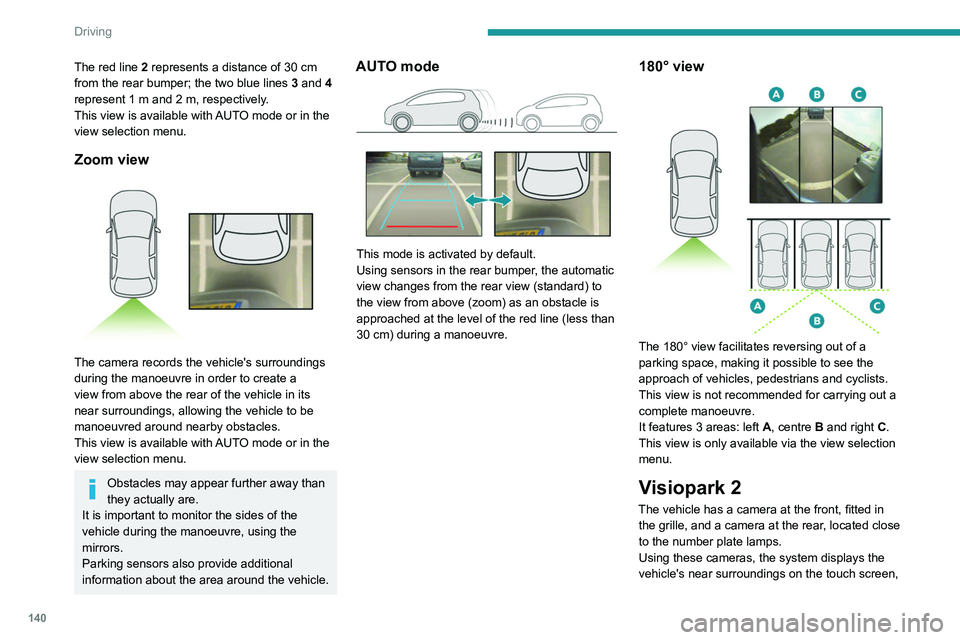
The red line 2 represents a distance of 30 cm
from the rear bumper; the two blue lines 3 and 4
represent 1
m and 2 m, respectively.
This view is available with AUTO mode or in the
view selection menu.
Zoom view
The camera records the vehicle's surroundings
during the manoeuvre in order to create a
view from above the rear of the vehicle in its
near surroundings, allowing the vehicle to be
manoeuvred around nearby obstacles.
This view is available with AUTO mode or in the
view selection menu.
Obstacles may appear further away than
they actually are.
It is important to monitor the sides of the
vehicle during the manoeuvre, using the
mirrors.
Parking sensors also provide additional
information about the area around the vehicle.
AUTO mode
This mode is activated by default.
Using sensors in the rear bumper, the automatic
view changes from the rear view (standard) to
the view from above (zoom) as an obstacle is
approached at the level of the red line (less than
30
cm) during a manoeuvre.
180° view
The 180° view facilitates reversing out of a
parking space, making it possible to see the
approach of vehicles, pedestrians and cyclists.
This view is not recommended for carrying out a
complete manoeuvre.
It features 3 areas: left A, centre B and right C.
This view is only available via the view selection
menu.
Visiopark 2
The vehicle has a camera at the front, fitted in the grille, and a camera at the rear, located close
to the number plate lamps.
Using these cameras, the system displays the
vehicle's near surroundings on the touch screen,
offering views from the rear of the vehicle (rear
vision) when reverse gear is engaged and views
from the front of the vehicle (front vision) when
the gearbox is in neutral or a gear is engaged.
Rear vision
The system activates automatically when
reverse gear is engaged.
The system is deactivated:
– automatically above about 6 mph (10 km/h).
– when shifting out of reverse (the rear view
image is replaced by the front view image after
7 seconds).
– by pressing the white arrow in the upper-left
corner of the touch screen.
If a trailer or a bicycle carrier is fitted to
the towball, the area behind the vehicle
on the view from above goes dark.
The surroundings are reconstructed by the
front camera only.
Page 143 of 276
141
Driving
6offering views from the rear of the vehicle (rear
vision) when reverse gear is engaged and views
from the front of the vehicle (front vision) when
the gearbox is in neutral or a gear is engaged.
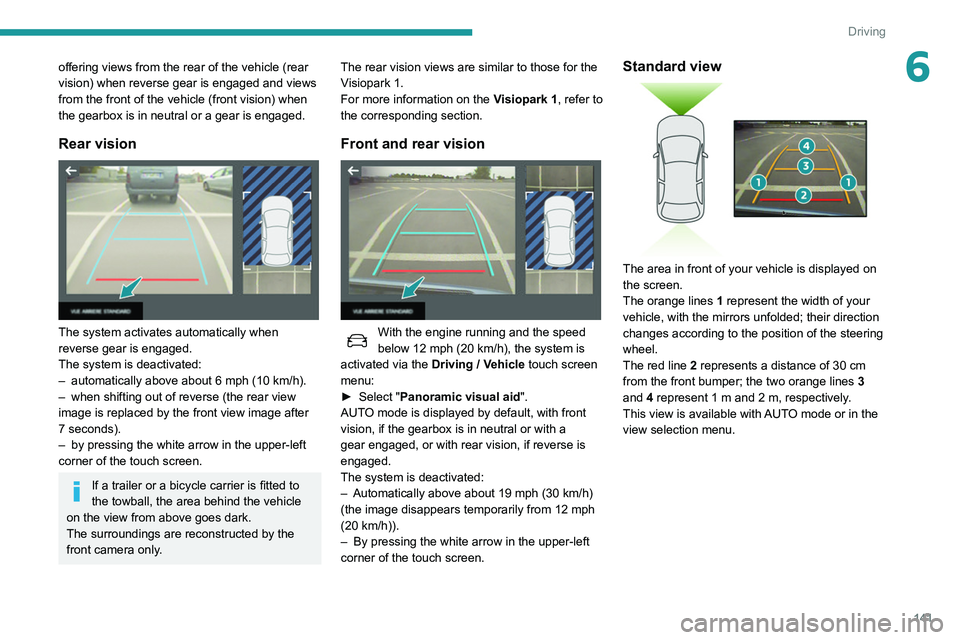
Rear vision
The system activates automatically when
reverse gear is engaged.
The system is deactivated:
–
automatically above about 6 mph (10
km/h).
–
when shifting out of reverse (the rear view
image is replaced by the front view image after
7 seconds).
–
by pressing the white arrow in the upper-left
corner of the touch screen.
If a trailer or a bicycle carrier is fitted to
the towball, the area behind the vehicle
on the view from above goes dark.
The surroundings are reconstructed by the
front camera only. The rear vision views are similar to those for the
Visiopark 1.
For more information on the
Visiopark 1, refer to
the corresponding section.
Front and rear vision
With the engine running and the speed
below 12 mph (20 km/h), the system is
activated via the Driving
/ Vehicle touch screen
menu:
►
Select "
Panoramic visual aid".
AUTO mode is displayed by default, with front
vision, if the gearbox is in neutral or with a
gear engaged, or with rear vision, if reverse is
engaged.
The system is deactivated:
–
Automatically above about 19 mph (30
km/h)
(the image disappears temporarily from 12 mph
(20
km/h)).
–
By pressing the white arrow in the upper-left
corner of the touch screen.
Standard view
The area in front of your vehicle is displayed on
the screen.
The orange lines 1 represent the width of your
vehicle, with the mirrors unfolded; their direction
changes according to the position of the steering
wheel.
The red line 2 represents a distance of 30 cm
from the front bumper; the two orange lines 3
and 4 represent 1 m and 2 m, respectively.
This view is available with AUTO mode or in the
view selection menu.
Page 144 of 276
142
Driving
Zoom view
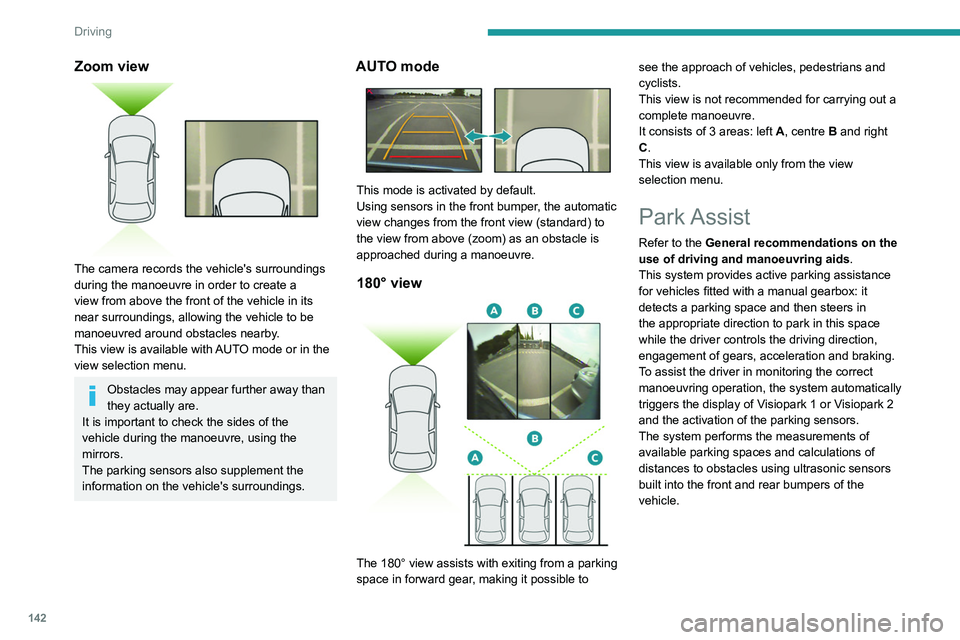
The camera records the vehicle's surroundings
during the manoeuvre in order to create a
view from above the front of the vehicle in its
near surroundings, allowing the vehicle to be
manoeuvred around obstacles nearby.
This view is available with AUTO mode or in the
view selection menu.
Obstacles may appear further away than
they actually are.
It is important to check the sides of the
vehicle during the manoeuvre, using the
mirrors.
The parking sensors also supplement the
information on the vehicle's surroundings.
AUTO mode
This mode is activated by default.
Using sensors in the front bumper, the automatic
view changes from the front view (standard) to
the view from above (zoom) as an obstacle is
approached during a manoeuvre.
180° view
The 180° view assists with exiting from a parking
space in forward gear, making it possible to see the approach of vehicles, pedestrians and
cyclists.
This view is not recommended for carrying out a
complete manoeuvre.
It consists of 3 areas: left
A, centre B and right
C.
This view is available only from the view
selection menu.
Park Assist
Refer to the General recommendations on the
use of driving and manoeuvring aids .
This system provides active parking assistance
for vehicles fitted with a manual gearbox: it
detects a parking space and then steers in
the appropriate direction to park in this space
while the driver controls the driving direction,
engagement of gears, acceleration and braking.
To assist the driver in monitoring the correct
manoeuvring operation, the system automatically
triggers the display of Visiopark 1 or Visiopark 2
and the activation of the parking sensors.
The system performs the measurements of
available parking spaces and calculations of
distances to obstacles using ultrasonic sensors
built into the front and rear bumpers of the
vehicle.
The system assists with the following
manoeuvres:
A. Entering a "parallel" parking space
B. Leaving a "parallel" parking space
C. Entering a "bay" parking space
Operation
► When approaching a parking area, reduce
the speed of your vehicle to 19 mph (30 km/h)
or less.
Activating the function
The function is activated in the Vehicle /
Driving touch screen menu.
Select "Park Assist".
Activating the function deactivates the Blind Spot Monitoring System.
You can deactivate the function at any time until the parking space entry or exit
manoeuvre begins, by pressing the arrow
located in the top left-hand corner of the
display page.
Page 187 of 276
185
In the event of a breakdown
8
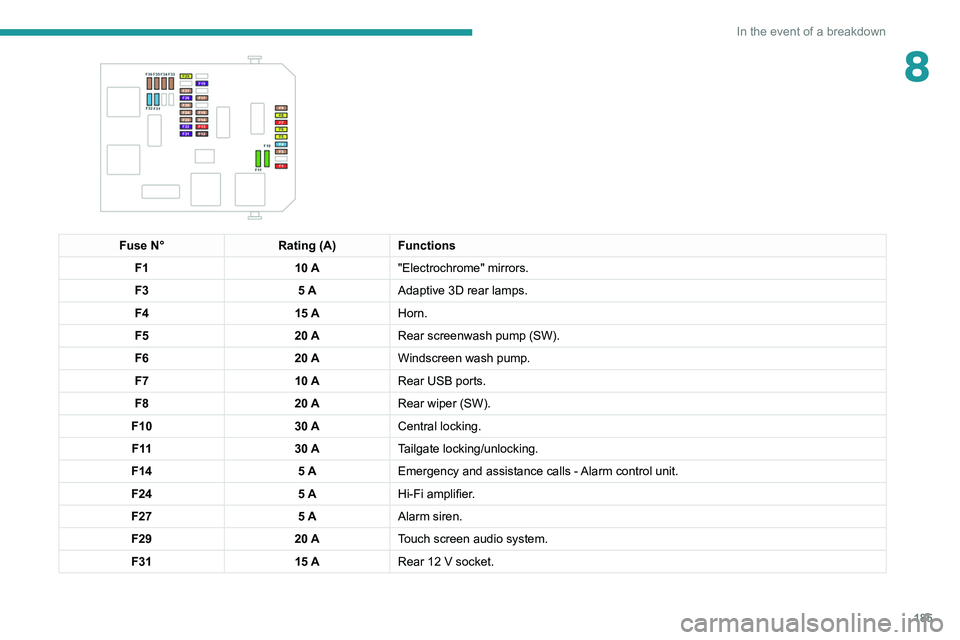
Fuse N°Rating (A)Functions
F1 10 A"Electrochrome" mirrors.
F3 5 AAdaptive 3D rear lamps.
F4 15 AHorn.
F5 20 ARear screenwash pump (SW).
F6 20 AWindscreen wash pump.
F7 10 ARear USB ports.
F8 20 ARear wiper (SW).
F10 30 ACentral locking.
F 11 30 ATailgate locking/unlocking.
F14 5 AEmergency and assistance calls - Alarm control unit.
F24 5 AHi-Fi amplifier.
F27 5 AAlarm siren.
F29 20 ATouch screen audio system.
F31 15 ARear 12
V socket.
Page 188 of 276
186
In the event of a breakdown
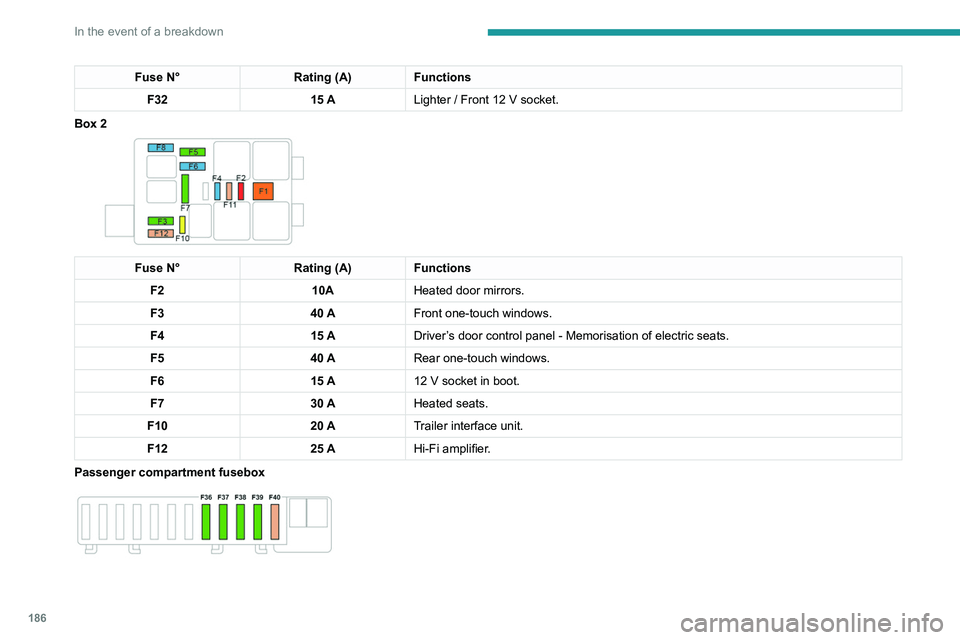
Fuse N°Rating (A)Functions
F32 15 ALighter / Front 12
V socket.
Box 2
Fuse N° Rating (A)Functions
F2 10AHeated door mirrors.
F3 40 AFront one-touch windows.
F4 15 ADriver’s door control panel - Memorisation of electric seats.
F5 40 ARear one-touch windows.
F6 15 A12
V socket in boot.
F7 30 AHeated seats.
F10 20 ATrailer interface unit.
F12 25 AHi-Fi amplifier.
Passenger compartment fusebox
Page 207 of 276
205
PEUGEOT Connect Radio
10PEUGEOT Connect
Radio
Multimedia audio system -
Applications - Bluetooth
®
telephone
The functions and settings described
vary according to the vehicle version and
configuration.
For safety reasons and because they
require sustained attention by the driver,
the following operations must be carried out
with the vehicle stationary and the ignition
on:
–
Pairing the smartphone with the system in
Bluetooth mode.
–
Using the smartphone.
–
Connection to the CarPlay®, MirrorLinkTM
or Android Auto applications (certain
applications interrupt their display while the
vehicle is moving).
–
Changing the system settings and
configuration.
The system is protected in such a way that it will only operate in the vehicle.
The Energy Economy Mode message is
displayed when the system is about to enter
the corresponding mode.
The system’s Open Source Software (OSS) source codes are available at the
following addresses:
https://www.groupe-psa.com/fr/oss/
https://www.groupe-psa.com/en/oss/
First steps
With the engine running, a press mutes
the sound.
With the ignition off, a press turns the system on.
Increase or decrease the volume using
the wheel or the "plus" or "minus" buttons
(depending on the equipment).
Use the buttons on either side of or below the
touch screen for access to the menus, then
press the virtual buttons in the touch screen.
Depending on the model, use the "Source" or
"Menu" buttons on the left of the touch screen
for access to the menus, then press the virtual
buttons in the touch screen.
At all times it is possible to display the rolling
menus by pressing the screen briefly with three
fingers.
All of the touch areas of the screen are white.
For pages with multiple tabs at the bottom of the
screen, it is possible to switch between pages
either by tapping the tab for the desired page, or
by using a finger, sliding the pages to the left or
to the right.
Press in the grey zone to go back up a level or
to confirm.
Press the back arrow to go back a level or
confirm.
The touch screen is of the "capacitive" type.
To clean the screen, use a soft, non-abrasive
cloth (e.g. spectacles cloth) with no additional
product.
Do not use sharp objects on the screen.
Do not touch the screen with wet hands.
Certain information is displayed permanently in
the upper bar of the touch screen:
–
Air conditioning status information (depending
on version), and direct access to the
corresponding menu.
–
Radio Media and
Telephone menu status
information.
–
Privacy status information.
–
Access to the touch screen and digital
instrument panel settings.
Audio source selection (depending on
equipment):
Page 209 of 276
207
PEUGEOT Connect Radio
10Short press: confirm a selection; if nothing
selected, access to presets.
Radio: display the list of stations.
Media: display the list of tracks.
Radio (press and hold): update the list of
stations received.
Menus
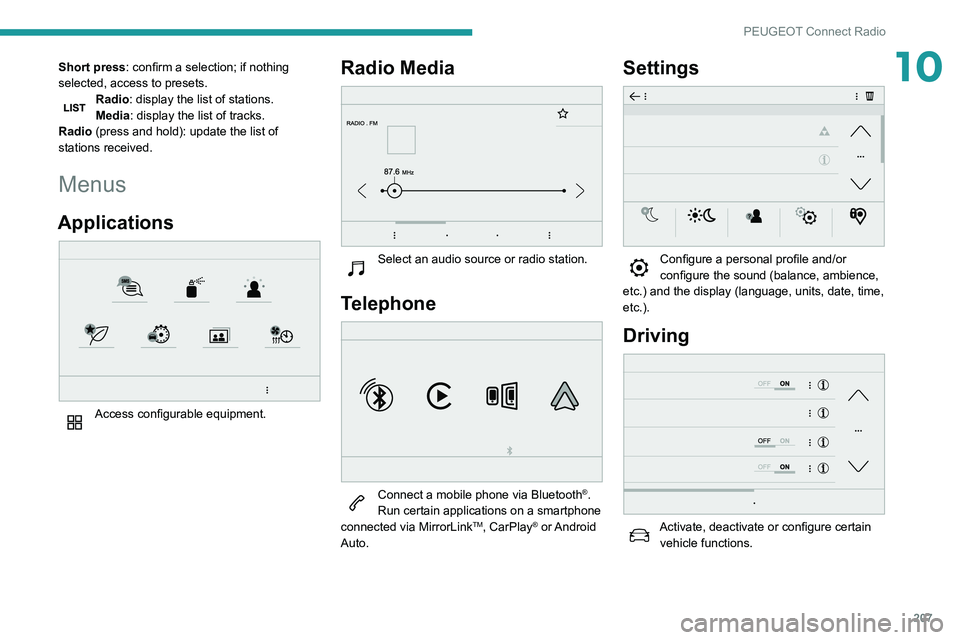
Applications
Access configurable equipment.
Radio Media
Select an audio source or radio station.
Telephone
Connect a mobile phone via Bluetooth®.
Run certain applications on a smartphone
connected via MirrorLink
TM, CarPlay® or Android
Auto.
Settings
Configure a personal profile and/or
configure the sound (balance, ambience,
etc.) and the display (language, units, date, time,
etc.).
Driving
Activate, deactivate or configure certain vehicle functions.
Page 210 of 276
208
PEUGEOT Connect Radio
Enter the FM and AM waveband values
using the virtual keypad.
Press "OK" to confirm.
Radio reception may be affected by the
use of electrical equipment not approved
by the Brand, such as a USB charger
connected to the 12 V socket.
The exterior environment (hills, buildings,
tunnels, basement car parks, etc.) may
block reception, including in RDS mode.
This phenomenon is perfectly normal in the
context of radio wave transmission, and
in no way indicative of an audio system
malfunction.
Changing the waveband
Press Radio Media to display the main
page.
Press the "OPTIONS " button to access the
secondary page.
Press "Band" to change waveband.
Press in the shaded area to confirm.
Presetting a station
Select a radio station or frequency.Make a short press on the star outline. If
the star is solid, the radio station is
already preset.
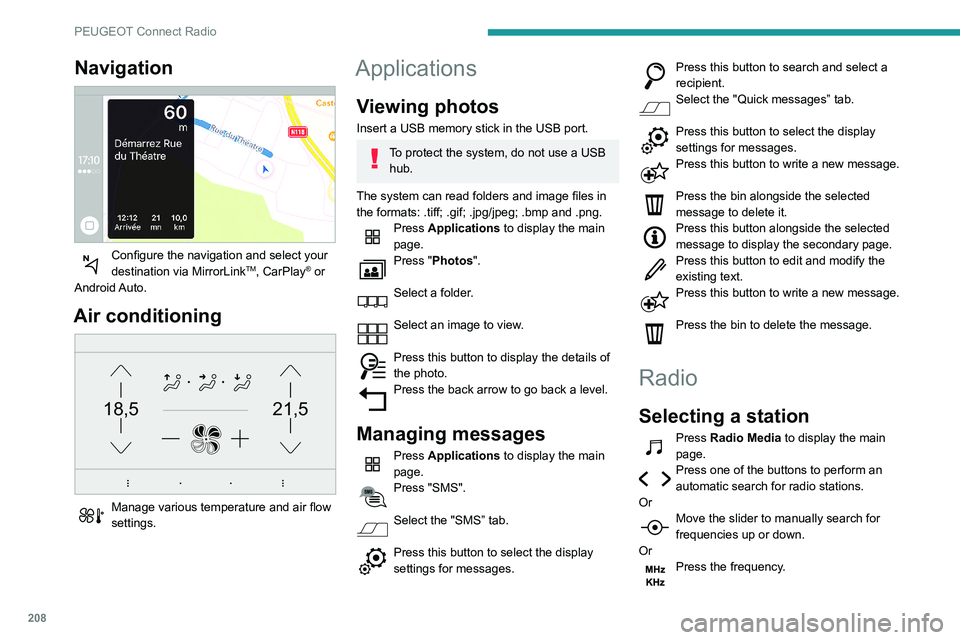
Navigation
Configure the navigation and select your
destination via MirrorLinkTM, CarPlay® or
Android Auto.
Air conditioning
21,518,5
Manage various temperature and air flow
settings.
Applications
Viewing photos
Insert a USB memory stick in the USB port.
To protect the system, do not use a USB hub.
The system can read folders and image files in
the formats: .tiff; .gif; .jpg/jpeg; .bmp and .png.
Press Applications to display the main
page.
Press "Photos".
Select a folder.
Select an image to view.
Press this button to display the details of
the photo.
Press the back arrow to go back a level.
Managing messages
Press Applications to display the main
page.
Press "SMS".
Select the "SMS” tab.
Press this button to select the display
settings for messages.
Press this button to search and select a
recipient.
Select the "Quick messages” tab.
Press this button to select the display
settings for messages.
Press this button to write a new message.
Press the bin alongside the selected
message to delete it.
Press this button alongside the selected
message to display the secondary page.
Press this button to edit and modify the
existing text.
Press this button to write a new message.
Press the bin to delete the message.
Radio
Selecting a station
Press Radio Media to display the main
page.
Press one of the buttons to perform an
automatic search for radio stations.
Or
Move the slider to manually search for
frequencies up or down.
Or
Press the frequency.