mirror PEUGEOT 508 2023 Owner's Manual
[x] Cancel search | Manufacturer: PEUGEOT, Model Year: 2023, Model line: 508, Model: PEUGEOT 508 2023Pages: 244, PDF Size: 7.38 MB
Page 143 of 244
141
Driving
6Activation/Deactivation
To activate the camera, engage reverse gear.
The system is deactivated:
–
when changing out of reverse gear
.
–
by pressing the cross in the top left-hand
corner of the touch screen.
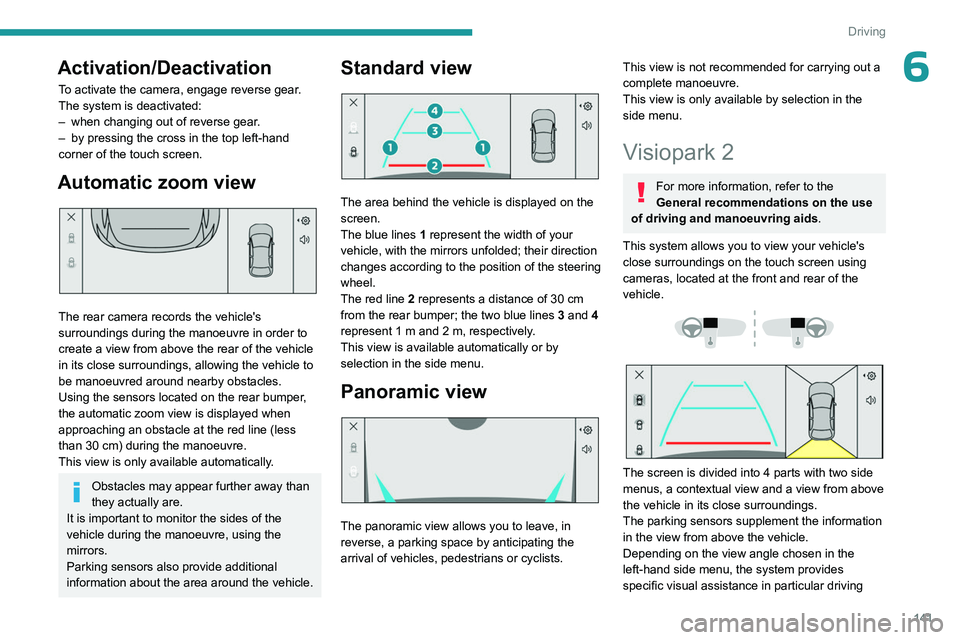
Automatic zoom view
The rear camera records the vehicle's
surroundings during the manoeuvre in order to
create a view from above the rear of the vehicle
in its close surroundings, allowing the vehicle to
be manoeuvred around nearby obstacles.
Using the sensors located on the rear bumper,
the automatic zoom view is displayed when
approaching an obstacle at the red line (less
than 30 cm) during the manoeuvre.
This view is only available automatically.
Obstacles may appear further away than
they actually are.
It is important to monitor the sides of the
vehicle during the manoeuvre, using the
mirrors.
Parking sensors also provide additional
information about the area around the vehicle.
Standard view
The area behind the vehicle is displayed on the
screen.
The blue lines 1 represent the width of your
vehicle, with the mirrors unfolded; their direction
changes according to the position of the steering
wheel.
The red line 2 represents a distance of 30
cm
from the rear bumper; the two blue lines 3 and 4
represent 1
m and 2 m, respectively.
This view is available automatically or by
selection in the side menu.
Panoramic view
The panoramic view allows you to leave, in
reverse, a parking space by anticipating the
arrival of vehicles, pedestrians or cyclists.
This view is not recommended for carrying out a
complete manoeuvre.
This view is only available by selection in the
side menu.
Visiopark 2
For more information, refer to the
General recommendations on the use
of driving and manoeuvring aids .
This system allows you to view your vehicle's
close surroundings on the touch screen using
cameras, located at the front and rear of the
vehicle.
The screen is divided into 4 parts with two side
menus, a contextual view and a view from above
the vehicle in its close surroundings.
The parking sensors supplement the information
in the view from above the vehicle.
Depending on the view angle chosen in the
left-hand side menu, the system provides
specific visual assistance in particular driving
Page 145 of 244
143
Driving
6Obstacles may appear further away than
they actually are.
It is important to monitor the sides of the
vehicle during the manoeuvre, using the
mirrors.
Parking sensors also provide additional
information about the area around the vehicle.
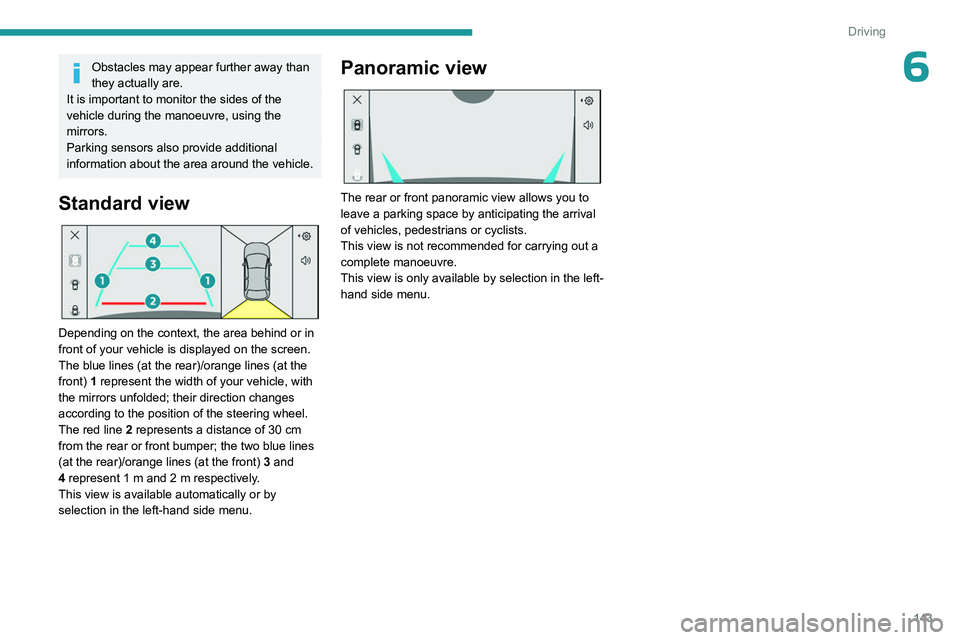
Standard view
Depending on the context, the area behind or in
front of your vehicle is displayed on the screen.
The blue lines (at the rear)/orange lines (at the
front) 1 represent the width of your vehicle, with
the mirrors unfolded;
their direction changes
according to the position of the steering wheel.
The red line 2 represents a distance of 30 cm
from the rear or front bumper; the two blue lines
(at the rear)/orange lines (at the front)
3
and
4
represent 1 m and 2 m respectively.
This view is available automatically or by
selection in the left-hand side menu.
Panoramic view
The rear or front panoramic view allows you to
leave a parking space by anticipating the arrival
of vehicles, pedestrians or cyclists.
This view is not recommended for carrying out a
complete manoeuvre.
This view is only available by selection in the left-
hand side menu.
Page 198 of 244
196
PEUGEOT i-Connect Advanced - PEUGEOT i-Connect
PEUGEOT i-Connect
Advanced - PEUGEOT
i-Connect
GPS navigation -
Applications - Multimedia
audio system - Bluetooth
®
telephone
The functions and settings described
vary according to the version and
configuration of the vehicle, and according to
the country of sale.
For safety reasons and because they
require continued attention on the part of
the driver, the following operations must be
carried out with the vehicle stationary and
the ignition on:
–
Pairing the smartphone with the system via
Bluetooth®.
–
Using the smartphone.
–
Connecting to Mirror Screen
(Apple®CarPlay® or Android Auto).
–
Changing the system settings and
configuration.
The message Energy economy mode is displayed when the system is about to go
into standby.
For more information on Energy economy
mode, refer to the "Practical information"
section.
Warning
Navigation is a driving aid. It cannot
replace the driver. All guidance instructions
should be carefully checked by the user.
By using the navigation, you accept the
following terms and conditions:
https://www.tomtom.com/en_gb/legal/
eula-automotive/?388448
First steps
The system starts when the ignition is switched on.
Short press, ignition off: system on/off.
Short press, ignition on: mute/restore sound.
Long press, ignition on: start standby mode
(mute sound, screens and clock display off).
Rotation: volume adjustment.
Information
This system gives access to the following
elements:
–
Audio equipment and telephone controls with
display of associated information. –
Connected services and display of associated
information.
–
Navigation system controls and display
of associated information (depending on
equipment).
–
V
oice recognition (depending on equipment).
–
T
ime and outside temperature.
–
Heating/air conditioning system controls and
reminders of settings.
–
Settings for driving aid functions, comfort
and safety functions, extended head-up display
(depending on equipment and version), audio
equipment and digital instrument panel.
–
Settings for functions specific to rechargeable
hybrid vehicles.
–
Display of visual manoeuvring aid functions.
–
Interactive handbook.
–
V
ideo tutorials (e.g. screen management,
driving aids, voice recognition).
Upper banner
Certain information is displayed permanently in
the upper banner of the touch screen:
–
Outside temperature from the vehicle's
sensors (associated with a blue symbol if there is
a risk of ice).
–
T
emperature setting reminder for the air
conditioning on the driver's and passenger sides.
–
Charge level of the connected smartphone.
–
System connection status (Bluetooth®, Wi-Fi,
mobile telephone network).
–
Time.
Page 199 of 244
197
PEUGEOT i-Connect Advanced - PEUGEOT i-Connect
10– Quick access to the Mirror Screen® functions
(associated with a connected smartphone).
Swipe down from the upper edge of the touch
screen to access the notifications centre and
display a list of quick settings :Guest, Privacy
Settings, Brightness, My Devices, night mode,
etc.
Principles
► Use this button (HOME) to display the
most recent home page used; a second
press displays the first home page, then press
the virtual buttons displayed
on the touch screen.
Scroll through the home pages by sliding
your finger along the screen to the right or
to the left.
Principle of movement in the system
Depending on the pages displayed on the
screen, scroll through the text or the menu (on
the left side of the screen) by sliding your finger,
as with a smartphone.
Touch buttons
Display/hide the context menu.
Return to the previous page.
►
T
o change the status of a function, press the
description for the corresponding line (change
confirmed by the slider moving to the right/left:
function activated/deactivated).
Access to additional information about the function.
Access to a function’s settings.
Add/delete shortcuts.
Configuring profiles
Press the "Settings" application.
In the list, select the "Profile" tab.
The screen displays a "Guest" profile built
into the system and allows you to create and
personalise several new profiles with or without
an associated mobile device.
The "Guest" profile has a default display with the possibility of adding to it and/or
returning it to its initial configuration. This profile
is built into the system and cannot be deleted.
Each profile created can be associated
with a mobile device of your choice
connected via Bluetooth
®; the Bluetooth® function
of the mobile device must first be activated. This
association allows the system to detect your
presence in the vehicle when it starts and to
propose the activation of your personalised
profile.
If a profile is not connected to the mobile device,
the last profile used will be highlighted.
Select "Create Profile", then follow the
procedure.
Creating a new profile allows you to personalise:
–
Language, units, Privacy Settings.
–
Screen configuration, appearance, i-T
oggles
(depending on equipment).
– Audio settings, favourite radio stations.
– Lighting, interior ambience (refer to the "Ease
of use and comfort" section).
–
Navigation history
, favourite points of interest
(POIs), navigation settings.
–
Some driving aids and the list of favourites.
To delete a profile, select it from the list of profiles then press the bin.
Privacy Settings
The "Privacy Settings" management is
associated with each profile. This function is
used with:
a "Guest" profile configured by default in "Private
Mode",
or
a profile to be created in the system, with or
without connection to a mobile device.
For each profile (even "Guest"), the last privacy
mode saved value will be restored.
"Sharing Data and Location"
This mode allows the vehicle to externally
transmit all the personal data needed for each
valid available connected service.
The personal data required to use the connected services is sent to the
providers of these services.
"Sharing Data"
This mode allows the vehicle to externally
transmit all the data needed for each valid
available connected service, with the exception
of vehicle location data (e.g.
GPS coordinates).
Page 202 of 244
200
PEUGEOT i-Connect Advanced - PEUGEOT i-Connect
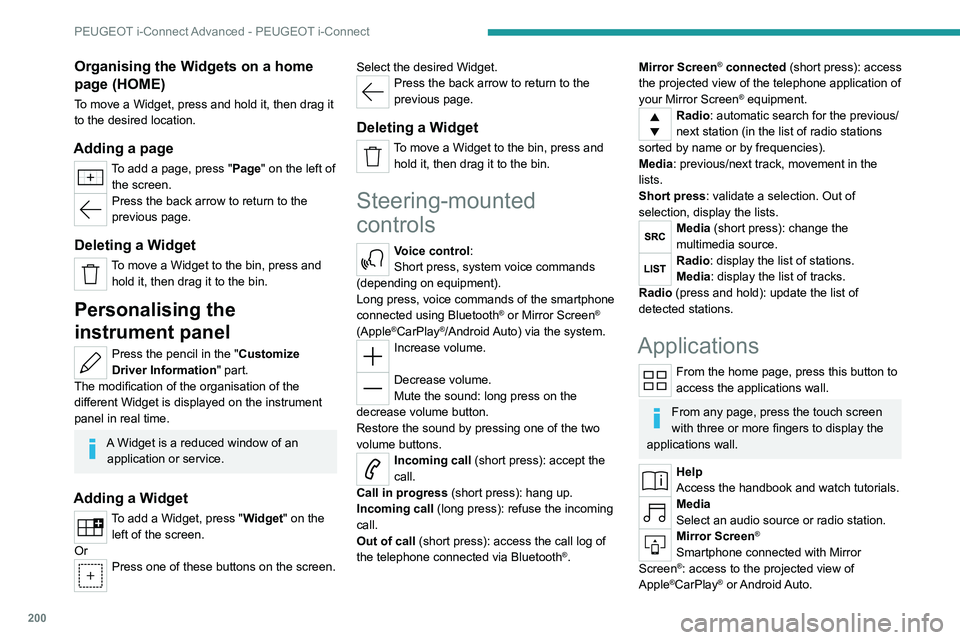
Organising the Widgets on a home
page (HOME)
To move a Widget, press and hold it, then drag it
to the desired location.
Adding a page
To add a page, press "Page" on the left of the screen.
Press the back arrow to return to the
previous page.
Deleting a Widget
To move a Widget to the bin, press and hold it, then drag it to the bin.
Personalising the
instrument panel
Press the pencil in the "Customize
Driver Information" part.
The modification of the organisation of the
different Widget is displayed on the instrument
panel in real time.
A Widget is a reduced window of an application or service.
Adding a Widget
To add a Widget, press "Widget" on the left of the screen.
Or
Press one of these buttons on the screen. Select the desired Widget.
Press the back arrow to return to the
previous page.
Deleting a Widget
To move a Widget to the bin, press and
hold it, then drag it to the bin.
Steering-mounted
controls
Voice control:
Short press, system voice commands
(depending on equipment).
Long press, voice commands of the smartphone
connected using Bluetooth
® or Mirror Screen®
(Apple®CarPlay®/Android Auto) via the system.Increase volume.
Decrease volume.
Mute the sound: long press on the
decrease volume button.
Restore the sound by pressing one of the two
volume buttons.
Incoming call (short press): accept the
call.
Call in progress (short press): hang up.
Incoming call (long press): refuse the incoming
call.
Out of call (short press): access the call log of
the telephone connected via
Bluetooth
®.
Mirror Screen® connected (short press): access
the projected view of the telephone application of
your Mirror Screen
® equipment.Radio: automatic search for the previous/
next station (in the list of radio stations
sorted by name or by frequencies).
Media: previous/next track, movement in the
lists.
Short press: validate a selection. Out of
selection, display the lists.
Media (short press): change the
multimedia source.
Radio: display the list of stations.
Media: display the list of tracks.
Radio (press and hold): update the list of
detected stations.
Applications
From the home page, press this button to
access the applications wall.
From any page, press the touch screen
with three or more fingers to display the
applications wall.
Help
Access the handbook and watch tutorials.
Media
Select an audio source or radio station.
Mirror Screen®
Smartphone connected with Mirror
Screen®: access to the projected view of
Apple®CarPlay® or Android Auto.
Page 205 of 244
203
PEUGEOT i-Connect Advanced - PEUGEOT i-Connect
10Select "TomTom service" to check the
network status.
Select "Settings" to enter the vehicle type
and to personalise the display, voice
instructions, map options, trip planning, sounds
and alerts, and system information.
Select this button to display details on
software versions as well as legal
information. Details of the Open Source software
libraries used and their licence URLs.
Regular connection to a secure Wi-Fi
access point automatically updates the
installed mapping globally.
The mapping is also updated using a cellular
network, depending on version, country of
sale, the vehicle's level of equipment, as well
as the subscription to connected services and
options.
However, using your smartphone's Wi-Fi
and/or cellular networks may incur additional
charges if you exceed your data plan.
These charges, if any, will be passed on to
your telephone operator's bill.
Connectivity
Connecting a wired device
by USB
The USB connection of a mobile device allows it
to be recharged. It makes its authorised media
content available to the system (Media content
of iPod® type).Only one USB socket will allow a Mirror
Screen connection (Apple®CarPlay® or
Android Auto) for the compatible connected
mobile devices and to use some of the device's
applications on the touch screen.
For more information on the USB socket
compatible with the Mirror Screen
® function,
refer to the "Ease of use and comfort - Fittings"
section.
The mobile device is in charging mode when
connected with the USB cable.
It is recommended that you use your
device's original USB cables, preferably
with a short cable to ensure optimum
performance.
To protect the system, do not use a USB hub.
Bluetooth® connection
Connecting a mobile device to the vehicle's
system via Bluetooth® provides access to its
contents and its "Media" streaming. It also
enables the Phone function to be activated.
The connection can be initiated either from the
mobile device's Bluetooth
® menu or from the
vehicle's system, which requires opening the "My
Devices" menu for the first connection.
In some cases, you will need to unlock
your device and check the authorisation
to synchronise contacts and recent calls.
Some features may not be supported by your
device.
For information on the partial or full
compatibility of device models or
smartphones, please connect to the Brand’s
national website.
Pairing procedure from a device
From the Bluetooth® menu on your mobile
device, select the system’s name from the
list of detected devices.
In order to make your system’s
Bluetooth® visible, first open the "My
Devices " menu on the system.
Continue the first connection procedure
proposed by the system and on the device.
For example: validating pairing codes.
Pairing procedure from the system
Press the "Settings" application.
In the list, select the "Connectivity" tab.
Select "My Devices ".
Select the name of the mobile device that
you want to connect, from:
–
The list of known devices (if the device has
already been connected to the system).
or
Page 206 of 244
204
PEUGEOT i-Connect Advanced - PEUGEOT i-Connect
– The list of detected devices (if the device
has never been connected to the system or
previously deleted from the system).
A mobile device already connected to the system will be able to reconnect
automatically when the vehicle is started,
once the user profile has been selected.
Automatic reconnection is put on hold as
soon as the "My Devices" menu is opened.
This is to allow the system to make its
Bluetooth
® visible for the connection of a new
device.
The system is disconnected when the driver’s
door is opened and the ignition is switched
off.
Automatic reconnection
The system allows automatic reconnection of
devices already connected and detected when a
user profile is selected.
The priority
reconnected devices are those which
have been linked to the selected user profile or,
failing this, the last connected devices.
Wi-Fi connection
The system has an external Wi-Fi connection
mode for performing system updates.
Press the "Settings" application.
In the list, select the "Connectivity" tab.
Select "Wi-Fi".
Activate/Deactivate "Wi-Fi". The system starts a search for
nearby
Wi-Fi networks. This may take a few
seconds.
Select the Wi-Fi network to connect to and enter
its password.
To protect your system, only networks with a sufficient level of security are
allowed to connect. WPA2 encryption level,
equivalent to a domestic level, is required.
Any network already connected to the system will reconnect automatically as
soon as it is detected by the system and after
having previously activated the Wi-Fi function.
The Wi-Fi connection of the system to a device already connected using a Mirror
Screen
® wireless connection is not possible.
In this case, favour a Mirror
Screen
® connection using the USB socket.
Device management
For each device already connected to the
system using a wireless connection (Bluetooth®
or wireless Mirror Screen® connection), it is
possible to determine a preferred connection
mode (depending on the functions the device
can support). It is therefore possible to determine
whether the device should be connected using
a wireless Bluetooth
® connection or a wireless
Mirror Screen® connection each time the system
is started once the profile is chosen.
Press the "Settings" application.
In the list, select the "Connectivity".
Select "My Devices " to display the list of
paired devices.
Press this button to manage the
connection of a device.
Choose a connection type then confirm this
choice by pressing “ APPLY".
Deleting a device
Press the "Settings" application.
In the list, select the "Connectivity".
Select "My Devices " to display the list of
paired devices.
Press this button.
Press "DELETE".
Confirm by pressing “ YES”.
Some devices that have just been
deleted from the system request a
connection, refuse this request.
Mirror Screen®
When a smartphone is connected using
Mirror Screen®, the vehicle's location and
some vehicle data is sent to the smartphone
Page 207 of 244
205
PEUGEOT i-Connect Advanced - PEUGEOT i-Connect
10(e.g. brand, left-hand or right-hand drive, day/
night mode, physical speed).
Apple®CarPlay® smartphone
connection
Connecting just one Apple®CarPlay® smartphone
can be carried out either by USB cable or using
a wireless connection.
First activate the Siri® function on your
Apple® smartphone.
If the device fails to connect, refer to the
Apple website to check that the device is
compatible with this function.
If the problem persists, delete all saved
connections on the smartphone and on the
system before attempting a new connection.
The cable connection requires that you
deactivate the CarPlay function in the Settings,
Bluetooth menu of your smartphone.
In the Bluetooth menu, click on the "i" next to
the relevant vehicle and deactivate CarPlay.
Connect the smartphone to the system
using the USB socket compatible with
Mirror Screen.
Apple
®CarPlay® is automatically launched a few
seconds after the USB connection has been
established. In some cases, it may be necessary
to unlock your device.
The smartphone charges when connected by the
USB cable.
The cable connection allows you to avoid
disconnections, especially when passing through
toll booths.
Only one USB socket enables the Mirror
Screen® connection (Apple®CarPlay®);
refer to the "Ease of use and comfort
- Fittings" section.
It is recommended that you use the device's
original USB cables, preferably with a short
cable to ensure optimum performance.
The wireless connection of an Apple
®CarPlay®
smartphone can be initiated from the " My
Devices " menu.
First activate the smartphone’s CarPlay
®
function.
In the Bluetooth menu, click on the "i" next to
the relevant vehicle and activate CarPlay.
Press the "Settings" application.
In the list, select the "Connectivity".
Select "My Devices " to display the device
to be connected to Apple®CarPlay®.
If the device has already been connected to the
system via Bluetooth
®, select the device settings
from the list of known devices and choose
Apple
®CarPlay® as the wireless connection
mode.
If the device has never been connected to the
system before, it will have to be paired (refer to
the "Bluetooth
® connection" section).
The system detects if the smartphone is
compatible with Apple®CarPlay® and offers to
connect to it following the pairing process.
Subsequent automatic connection of the
smartphone requires activation of the Bluetooth
®
on your device.
As soon as the connection is established, press this button to display the
"Apple
®CarPlay®" interface.To initiate the smartphone voice commands, press and hold the steering-
mounted control button.
Android Auto smartphone connection
Connecting just one Android Auto smartphone
can be carried out either by USB cable or using
a wireless connection.
First install the "Android Auto"
application via "Play Store" on your
smartphone.
The "Android Auto" function requires a
compatible smartphone.
If the device fails to connect, refer to the
Android Auto website to check that the device
is compatible with this function.
If the problem persists, delete all saved
connections on the smartphone and on the
system before attempting a new connection.
To ensure an optimum wireless connection,
we recommend avoiding placing your
Page 208 of 244
206
PEUGEOT i-Connect Advanced - PEUGEOT i-Connect
smartphone too close to other Wi-Fi networks
to which it can connect automatically.
The cable connection requires that you
deactivate the Android Auto wireless function,
in the Settings menu of the "Android Auto"
application of your smartphone.
Connect the smartphone to the system
using the USB socket compatible with
Mirror Screen
®.
Android Auto is automatically launched a few
seconds after the USB connection has been
established. A validation procedure on the
smartphone has to be followed for the first
connection, with the vehicle stationary.
The smartphone charges when connected by the
USB cable.
The cable connection allows you to avoid
disconnections, especially when passing through
toll booths.
Only one USB socket enables the Mirror
Screen® connection (Android Auto); refer
to the "Ease of use and comfort - Fittings"
section.
It is recommended that you use the device's
original USB cables, preferably with a short
cable to ensure optimum performance.
The wireless connection of an Android Auto
smartphone can be initiated from the " My
Devices " menu. First activate the smartphone’s Android Auto
®
wireless function, in the Settings menu of the
"Android Auto" application of your smartphone.
Press the "Settings" application.
In the list, select the "Connectivity" tab.
Select "My Devices " to display the device
to be connected to Android Auto.
If the device has never been connected to the
system before, it will have to be paired (refer to
the "Bluetooth
® connection" section).
The system detects if the smartphone is
compatible with Android Auto and offers to
connect to it following the pairing process.
If the device has already been connected to the
system via Bluetooth
®, select the device settings
from the list of known devices and choose
Android Auto as the wireless connection mode.
The subsequent automatic connection of the
smartphone requires activation of Bluetooth
® on
your device.
As soon as the connection is established, press this button to display the " Android
Auto" interface.
To initiate the smartphone voice commands, press and hold the steering-
mounted control button.
Media
Changing source
Press the "Media" application.
Press this button to change source (radio,
audio streaming via a USB socket,
Bluetooth
® or Mirror Screen®).Using the steering-mounted controls,
press this button to change source.
Selecting a radio station
Press the "Media" application.
In the list, select the "Player" tab.
Press one of the buttons to
perform an automatic search for
radio stations.
Or
Move the slider to manually search for
frequencies up or down.
Or
Press this button.
Enter the frequency values using the
virtual keypad.
Press this button to confirm.
A list of stations is available by pressing the
“Stations” tab.
Press “Mute” to activate/deactivate the
sound.
Page 209 of 244
207
PEUGEOT i-Connect Advanced - PEUGEOT i-Connect
10Radio reception may be affected by the
use of electrical equipment not approved
by the Brand, such as a charger with USB
socket connected to the 12
V socket.
The exterior environment (hills, buildings,
tunnels, basement car parks, etc.) may block
reception, including in RDS mode. This
phenomenon is normal in the propagation
of radio waves and does not indicate any
malfunction of the system.
Storing a radio station
Select a station.Press the "Media" application.
In the list, select the "Player” tab.
Press the "Radio Favorites" button.
Storing takes place via a short or long
press on one of these buttons, or a long
press on an existing favourite radio station,
which will be replaced.
Press this button to return to the previous
page.
Automatic search for radio stations
Via the "Media" application.Press the "Media" application.
In the list, select the "Stations" tab.
The search is carried out automatically.
Using the steering-mounted controls,
press and hold this button.
The search is carried out automatically.
Activating radio station tracking
The system changes frequency automatically to
obtain better reception.
Press the "Media" application.
In the list, select the "Settings” tab.
Activate “Radio Station Tracking”.
The lighting of the slider confirms that the
function is activated.
Changing the waveband
Press the "Media" application.
In the list, select the "Player" tab.
Press this button to change the waveband
(FM - AM - DAB) according to the country
of sale.
Activating traffic announcements
This function gives priority to listening to Traffic
announcements alert messages. To be active,
this function needs good reception of a radio
station that transmits this type of message.
While traffic information is being broadcast, the
current radio station is automatically interrupted
so that the message can be heard. Normal radio
listening resumes as soon as the message is
finished.
Press the "Media" application.
In the list, select the "Settings” tab.
Activate “Traffic Announcement (TA)”.
The lighting of the slider confirms that the
function is activated.
Audio streaming
The streaming function allows you to listen to
the audio stream coming from the smartphone(s)
connected via Bluetooth
®, USB (iPod® type) or
Mirror Screen®.
First adjust the volume on the portable device (to
a high level).
Then adjust the volume of the system.
If playback does not start, it may be necessary to
start the audio playback from the smartphone.
Control is from the portable device or by using
the system's touch buttons.
Once connected in streaming mode, the
smartphone is considered to be a media
source.
Playing a track
Press the "Media" application.