phone PEUGEOT 508 2023 Owner's Manual
[x] Cancel search | Manufacturer: PEUGEOT, Model Year: 2023, Model line: 508, Model: PEUGEOT 508 2023Pages: 244, PDF Size: 7.38 MB
Page 204 of 244
202
PEUGEOT i-Connect Advanced - PEUGEOT i-Connect
(depending on equipment) to avoid any
external interference, and switch the
ventilation off.
–
Before speaking the voice commands, ask
the other passengers not to speak.
Voice command example for air
conditioning:
"raise the fan speed"
"Turn on air conditioning"
"i'm too hot"
Voice command example for radio
and media:
"I want to listen to michael jackson"
"switch to radio"
"tune to 88.5"
Media voice commands are only
available with an USB connection.
Voice command example for
navigation:
"navigate home"
"Navigate me to gabrielle's house"
"search for public parking nearby"
Depending on the country, give
destination (address) instructions in the
language configured for the system.
Voice command example for
telephone:
"Call Matthew's mobile"
"call 0113 345 9869"
"Call jonathan"
If there is no telephone connected by
Bluetooth®, a voice message announces:
"Connect a telephone by Bluetooth®", and the
voice session will be closed.
Voice command example for the
weather:
"do i need a raincoat"
"how is the weather tonight"
"what is today's humidity level"
Navigation
Navigation home screen
(depending on equipment)
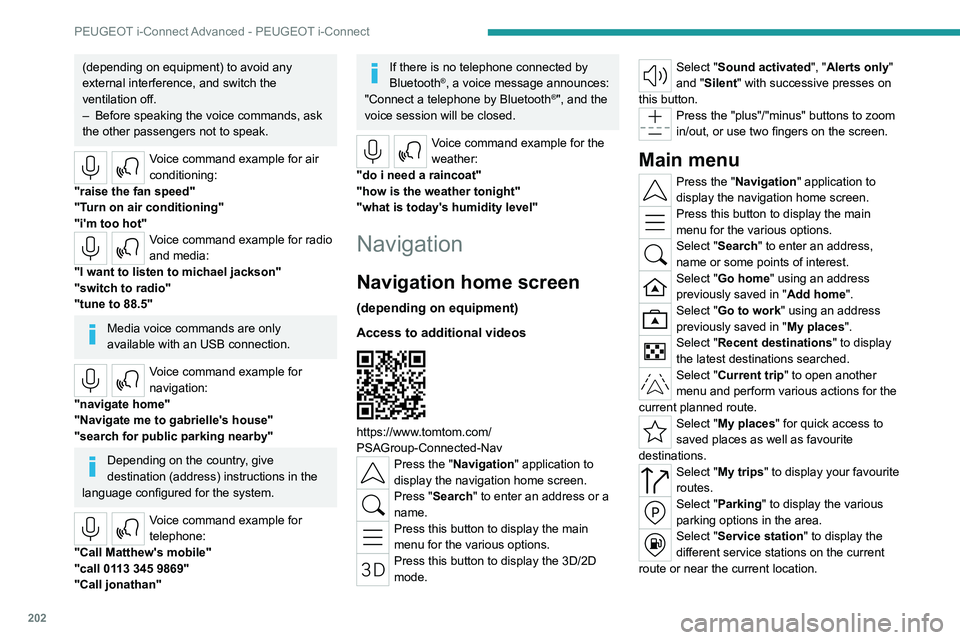
Access to additional videos
https://www.tomtom.com/
PSAGroup-Connected-Nav
Press the "Navigation" application to
display the navigation home screen.
Press "Search" to enter an address or a
name.
Press this button to display the main
menu for the various options.
Press this button to display the 3D/2D
mode.
Select "Sound activated", "Alerts only"
and "Silent" with successive presses on
this button.
Press the "plus"/"minus" buttons to zoom
in/out, or use two fingers on the screen.
Main menu
Press the "Navigation" application to
display the navigation home screen.
Press this button to display the main
menu for the various options.
Select "Search" to enter an address,
name or some points of interest.
Select "Go home" using an address
previously saved in " Add home".
Select "Go to work" using an address
previously saved in "My places".
Select "Recent destinations" to display
the latest destinations searched.
Select "Current trip" to open another
menu and perform various actions for the
current planned route.
Select "My places" for quick access to
saved places as well as favourite
destinations.
Select "My trips" to display your favourite
routes.
Select "Parking" to display the various
parking options in the area.
Select "Service station" to display the
different service stations on the current
route or near the current location.
Page 205 of 244
203
PEUGEOT i-Connect Advanced - PEUGEOT i-Connect
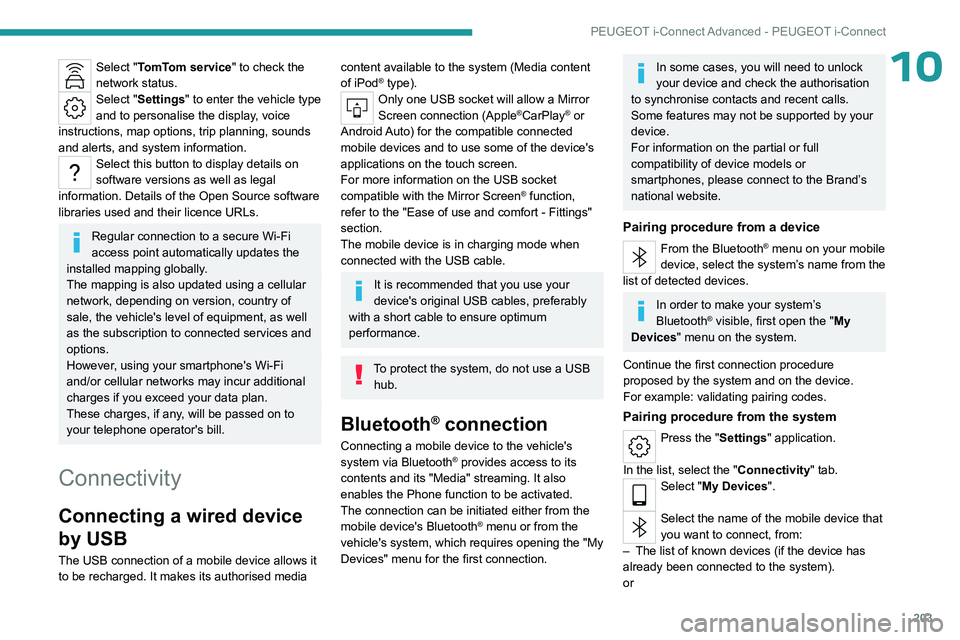
10Select "TomTom service" to check the
network status.
Select "Settings" to enter the vehicle type
and to personalise the display, voice
instructions, map options, trip planning, sounds
and alerts, and system information.
Select this button to display details on
software versions as well as legal
information. Details of the Open Source software
libraries used and their licence URLs.
Regular connection to a secure Wi-Fi
access point automatically updates the
installed mapping globally.
The mapping is also updated using a cellular
network, depending on version, country of
sale, the vehicle's level of equipment, as well
as the subscription to connected services and
options.
However, using your smartphone's Wi-Fi
and/or cellular networks may incur additional
charges if you exceed your data plan.
These charges, if any, will be passed on to
your telephone operator's bill.
Connectivity
Connecting a wired device
by USB
The USB connection of a mobile device allows it
to be recharged. It makes its authorised media
content available to the system (Media content
of iPod® type).Only one USB socket will allow a Mirror
Screen connection (Apple®CarPlay® or
Android Auto) for the compatible connected
mobile devices and to use some of the device's
applications on the touch screen.
For more information on the USB socket
compatible with the Mirror Screen
® function,
refer to the "Ease of use and comfort - Fittings"
section.
The mobile device is in charging mode when
connected with the USB cable.
It is recommended that you use your
device's original USB cables, preferably
with a short cable to ensure optimum
performance.
To protect the system, do not use a USB hub.
Bluetooth® connection
Connecting a mobile device to the vehicle's
system via Bluetooth® provides access to its
contents and its "Media" streaming. It also
enables the Phone function to be activated.
The connection can be initiated either from the
mobile device's Bluetooth
® menu or from the
vehicle's system, which requires opening the "My
Devices" menu for the first connection.
In some cases, you will need to unlock
your device and check the authorisation
to synchronise contacts and recent calls.
Some features may not be supported by your
device.
For information on the partial or full
compatibility of device models or
smartphones, please connect to the Brand’s
national website.
Pairing procedure from a device
From the Bluetooth® menu on your mobile
device, select the system’s name from the
list of detected devices.
In order to make your system’s
Bluetooth® visible, first open the "My
Devices " menu on the system.
Continue the first connection procedure
proposed by the system and on the device.
For example: validating pairing codes.
Pairing procedure from the system
Press the "Settings" application.
In the list, select the "Connectivity" tab.
Select "My Devices ".
Select the name of the mobile device that
you want to connect, from:
–
The list of known devices (if the device has
already been connected to the system).
or
Page 206 of 244
204
PEUGEOT i-Connect Advanced - PEUGEOT i-Connect
– The list of detected devices (if the device
has never been connected to the system or
previously deleted from the system).
A mobile device already connected to the system will be able to reconnect
automatically when the vehicle is started,
once the user profile has been selected.
Automatic reconnection is put on hold as
soon as the "My Devices" menu is opened.
This is to allow the system to make its
Bluetooth
® visible for the connection of a new
device.
The system is disconnected when the driver’s
door is opened and the ignition is switched
off.
Automatic reconnection
The system allows automatic reconnection of
devices already connected and detected when a
user profile is selected.
The priority
reconnected devices are those which
have been linked to the selected user profile or,
failing this, the last connected devices.
Wi-Fi connection
The system has an external Wi-Fi connection
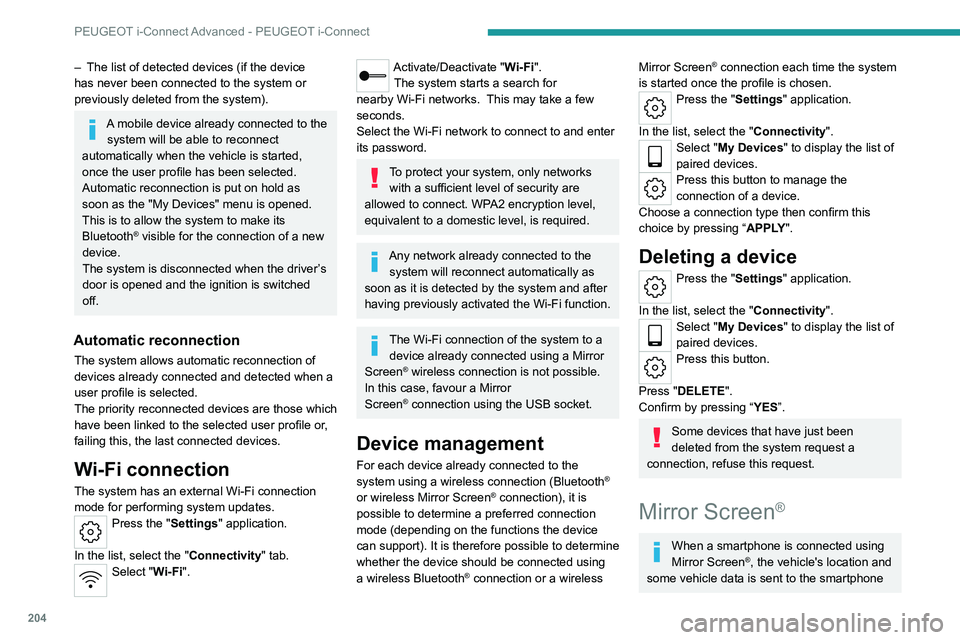
mode for performing system updates.
Press the "Settings" application.
In the list, select the "Connectivity" tab.
Select "Wi-Fi".
Activate/Deactivate "Wi-Fi". The system starts a search for
nearby
Wi-Fi networks. This may take a few
seconds.
Select the Wi-Fi network to connect to and enter
its password.
To protect your system, only networks with a sufficient level of security are
allowed to connect. WPA2 encryption level,
equivalent to a domestic level, is required.
Any network already connected to the system will reconnect automatically as
soon as it is detected by the system and after
having previously activated the Wi-Fi function.
The Wi-Fi connection of the system to a device already connected using a Mirror
Screen
® wireless connection is not possible.
In this case, favour a Mirror
Screen
® connection using the USB socket.
Device management
For each device already connected to the
system using a wireless connection (Bluetooth®
or wireless Mirror Screen® connection), it is
possible to determine a preferred connection
mode (depending on the functions the device
can support). It is therefore possible to determine
whether the device should be connected using
a wireless Bluetooth
® connection or a wireless
Mirror Screen® connection each time the system
is started once the profile is chosen.
Press the "Settings" application.
In the list, select the "Connectivity".
Select "My Devices " to display the list of
paired devices.
Press this button to manage the
connection of a device.
Choose a connection type then confirm this
choice by pressing “ APPLY".
Deleting a device
Press the "Settings" application.
In the list, select the "Connectivity".
Select "My Devices " to display the list of
paired devices.
Press this button.
Press "DELETE".
Confirm by pressing “ YES”.
Some devices that have just been
deleted from the system request a
connection, refuse this request.
Mirror Screen®
When a smartphone is connected using
Mirror Screen®, the vehicle's location and
some vehicle data is sent to the smartphone
Page 207 of 244
205
PEUGEOT i-Connect Advanced - PEUGEOT i-Connect
10(e.g. brand, left-hand or right-hand drive, day/
night mode, physical speed).
Apple®CarPlay® smartphone
connection
Connecting just one Apple®CarPlay® smartphone
can be carried out either by USB cable or using
a wireless connection.
First activate the Siri® function on your
Apple® smartphone.
If the device fails to connect, refer to the
Apple website to check that the device is
compatible with this function.
If the problem persists, delete all saved
connections on the smartphone and on the
system before attempting a new connection.
The cable connection requires that you
deactivate the CarPlay function in the Settings,
Bluetooth menu of your smartphone.
In the Bluetooth menu, click on the "i" next to
the relevant vehicle and deactivate CarPlay.
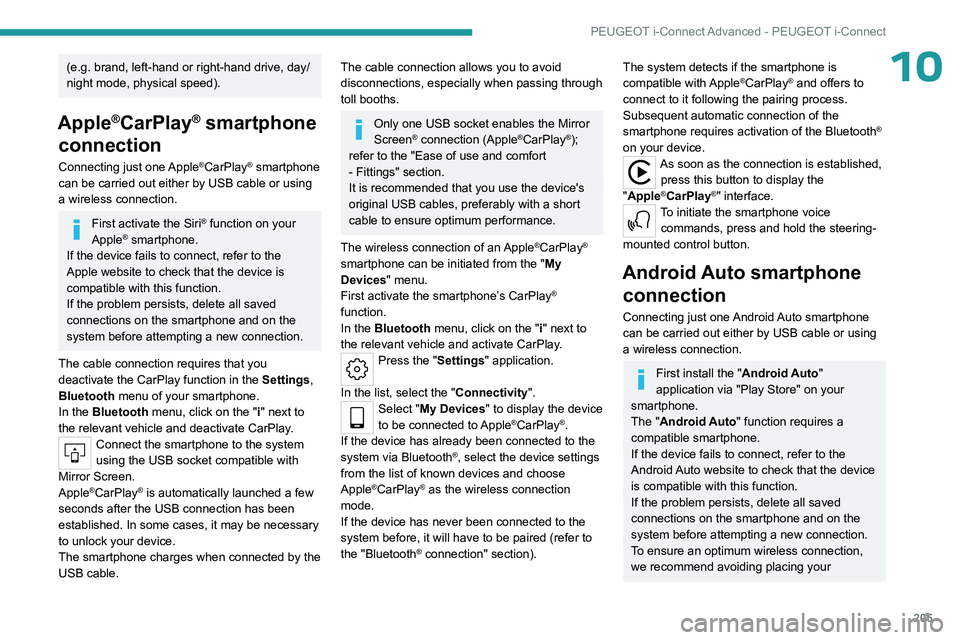
Connect the smartphone to the system
using the USB socket compatible with
Mirror Screen.
Apple
®CarPlay® is automatically launched a few
seconds after the USB connection has been
established. In some cases, it may be necessary
to unlock your device.
The smartphone charges when connected by the
USB cable.
The cable connection allows you to avoid
disconnections, especially when passing through
toll booths.
Only one USB socket enables the Mirror
Screen® connection (Apple®CarPlay®);
refer to the "Ease of use and comfort
- Fittings" section.
It is recommended that you use the device's
original USB cables, preferably with a short
cable to ensure optimum performance.
The wireless connection of an Apple
®CarPlay®
smartphone can be initiated from the " My
Devices " menu.
First activate the smartphone’s CarPlay
®
function.
In the Bluetooth menu, click on the "i" next to
the relevant vehicle and activate CarPlay.
Press the "Settings" application.
In the list, select the "Connectivity".
Select "My Devices " to display the device
to be connected to Apple®CarPlay®.
If the device has already been connected to the
system via Bluetooth
®, select the device settings
from the list of known devices and choose
Apple
®CarPlay® as the wireless connection
mode.
If the device has never been connected to the
system before, it will have to be paired (refer to
the "Bluetooth
® connection" section).
The system detects if the smartphone is
compatible with Apple®CarPlay® and offers to
connect to it following the pairing process.
Subsequent automatic connection of the
smartphone requires activation of the Bluetooth
®
on your device.
As soon as the connection is established, press this button to display the
"Apple
®CarPlay®" interface.To initiate the smartphone voice commands, press and hold the steering-
mounted control button.
Android Auto smartphone connection
Connecting just one Android Auto smartphone
can be carried out either by USB cable or using
a wireless connection.
First install the "Android Auto"
application via "Play Store" on your
smartphone.
The "Android Auto" function requires a
compatible smartphone.
If the device fails to connect, refer to the
Android Auto website to check that the device
is compatible with this function.
If the problem persists, delete all saved
connections on the smartphone and on the
system before attempting a new connection.
To ensure an optimum wireless connection,
we recommend avoiding placing your
Page 208 of 244
206
PEUGEOT i-Connect Advanced - PEUGEOT i-Connect
smartphone too close to other Wi-Fi networks
to which it can connect automatically.
The cable connection requires that you
deactivate the Android Auto wireless function,
in the Settings menu of the "Android Auto"
application of your smartphone.
Connect the smartphone to the system
using the USB socket compatible with
Mirror Screen
®.
Android Auto is automatically launched a few
seconds after the USB connection has been
established. A validation procedure on the
smartphone has to be followed for the first
connection, with the vehicle stationary.
The smartphone charges when connected by the
USB cable.
The cable connection allows you to avoid
disconnections, especially when passing through
toll booths.
Only one USB socket enables the Mirror
Screen® connection (Android Auto); refer
to the "Ease of use and comfort - Fittings"
section.
It is recommended that you use the device's
original USB cables, preferably with a short
cable to ensure optimum performance.
The wireless connection of an Android Auto
smartphone can be initiated from the " My
Devices " menu. First activate the smartphone’s Android Auto
®
wireless function, in the Settings menu of the
"Android Auto" application of your smartphone.
Press the "Settings" application.
In the list, select the "Connectivity" tab.
Select "My Devices " to display the device
to be connected to Android Auto.
If the device has never been connected to the
system before, it will have to be paired (refer to
the "Bluetooth
® connection" section).
The system detects if the smartphone is
compatible with Android Auto and offers to
connect to it following the pairing process.
If the device has already been connected to the
system via Bluetooth
®, select the device settings
from the list of known devices and choose
Android Auto as the wireless connection mode.
The subsequent automatic connection of the
smartphone requires activation of Bluetooth
® on
your device.
As soon as the connection is established, press this button to display the " Android
Auto" interface.
To initiate the smartphone voice commands, press and hold the steering-
mounted control button.
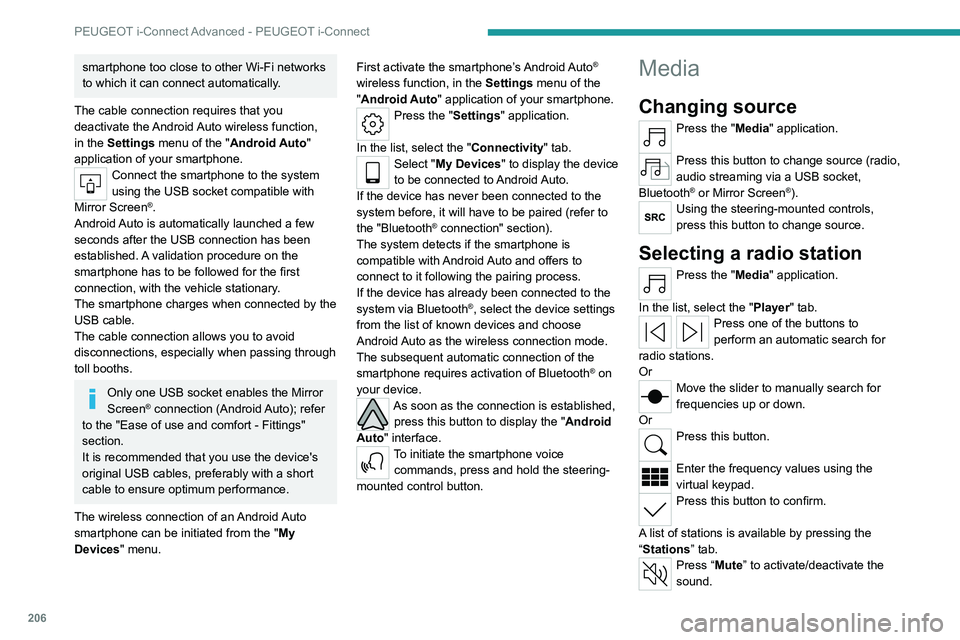
Media
Changing source
Press the "Media" application.
Press this button to change source (radio,
audio streaming via a USB socket,
Bluetooth
® or Mirror Screen®).Using the steering-mounted controls,
press this button to change source.
Selecting a radio station
Press the "Media" application.
In the list, select the "Player" tab.
Press one of the buttons to
perform an automatic search for
radio stations.
Or
Move the slider to manually search for
frequencies up or down.
Or
Press this button.
Enter the frequency values using the
virtual keypad.
Press this button to confirm.
A list of stations is available by pressing the
“Stations” tab.
Press “Mute” to activate/deactivate the
sound.
Page 209 of 244
207
PEUGEOT i-Connect Advanced - PEUGEOT i-Connect
10Radio reception may be affected by the
use of electrical equipment not approved
by the Brand, such as a charger with USB
socket connected to the 12
V socket.
The exterior environment (hills, buildings,
tunnels, basement car parks, etc.) may block
reception, including in RDS mode. This
phenomenon is normal in the propagation
of radio waves and does not indicate any
malfunction of the system.
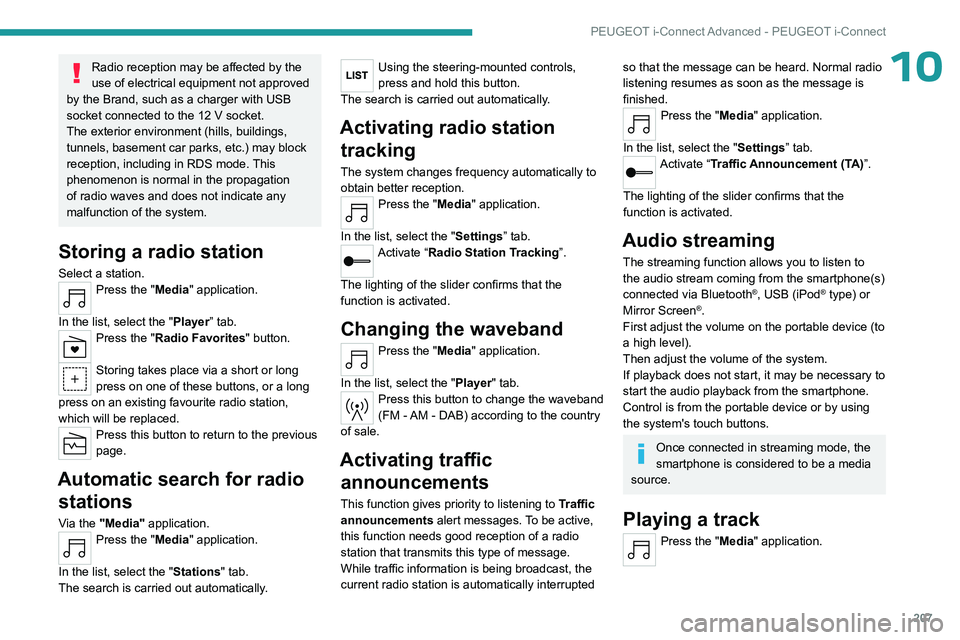
Storing a radio station
Select a station.Press the "Media" application.
In the list, select the "Player” tab.
Press the "Radio Favorites" button.
Storing takes place via a short or long
press on one of these buttons, or a long
press on an existing favourite radio station,
which will be replaced.
Press this button to return to the previous
page.
Automatic search for radio stations
Via the "Media" application.Press the "Media" application.
In the list, select the "Stations" tab.
The search is carried out automatically.
Using the steering-mounted controls,
press and hold this button.
The search is carried out automatically.
Activating radio station tracking
The system changes frequency automatically to
obtain better reception.
Press the "Media" application.
In the list, select the "Settings” tab.
Activate “Radio Station Tracking”.
The lighting of the slider confirms that the
function is activated.
Changing the waveband
Press the "Media" application.
In the list, select the "Player" tab.
Press this button to change the waveband
(FM - AM - DAB) according to the country
of sale.
Activating traffic announcements
This function gives priority to listening to Traffic
announcements alert messages. To be active,
this function needs good reception of a radio
station that transmits this type of message.
While traffic information is being broadcast, the
current radio station is automatically interrupted
so that the message can be heard. Normal radio
listening resumes as soon as the message is
finished.
Press the "Media" application.
In the list, select the "Settings” tab.
Activate “Traffic Announcement (TA)”.
The lighting of the slider confirms that the
function is activated.
Audio streaming
The streaming function allows you to listen to
the audio stream coming from the smartphone(s)
connected via Bluetooth
®, USB (iPod® type) or
Mirror Screen®.
First adjust the volume on the portable device (to
a high level).
Then adjust the volume of the system.
If playback does not start, it may be necessary to
start the audio playback from the smartphone.
Control is from the portable device or by using
the system's touch buttons.
Once connected in streaming mode, the
smartphone is considered to be a media
source.
Playing a track
Press the "Media" application.
Page 210 of 244
208
PEUGEOT i-Connect Advanced - PEUGEOT i-Connect
If several devices are connected, press
this button to select one.
Once the device is connected, browsing through
the files is possible by pressing the
"Playlist" or
"Library"
button.
Short press: go to the previous/
next track.
Long press: fast-forward/rewind in a track.
Repeat the current title or the list of
selected titles.
Random track playback.
Sound deactivation/reactivation.
Configuring audio and radio
settings
Audio settings can be accessed in 2 different
ways.
Via the Media application
Press the "Media" application.
In the list, select the "Settings" tab.
Or
Via the Settings application
Press the "Settings" application.
In the list, select the "Audio and Radio " tab.
It is possible to configure:
–
Sound Settings.
–
Radio Settings.
–
V
olume Settings.
Information and advice
The system supports USB Mass Storage devices
or Apple® devices via the USB sockets. The
adapter cable is not supplied.
Devices are managed using the audio system
controls.
The system will only play audio files with ".wma,
.aac,
.flac, .ogg, .mp3" file extensions, at bit rates
between 32 Kbps and 320 Kbps.
It also supports VBR (Variable Bit Rate) mode.
No other file types (".mp4", etc.) can be read.
".wma" files must be of the WMA 9 standard.
The supported sampling rates are 32, 44 and
48 KHz.
To avoid reading and display problems, we
recommend choosing file names less than 20
characters long that do not contain any special
characters (e.g. “ ? .
; ù).
Use only USB memory sticks in FAT32 format
(File Allocation Table).
We recommend using the original USB
cable for the portable device.
Phone
Receiving a call
An incoming call is announced by a ring and a
display overlaid on the screen.
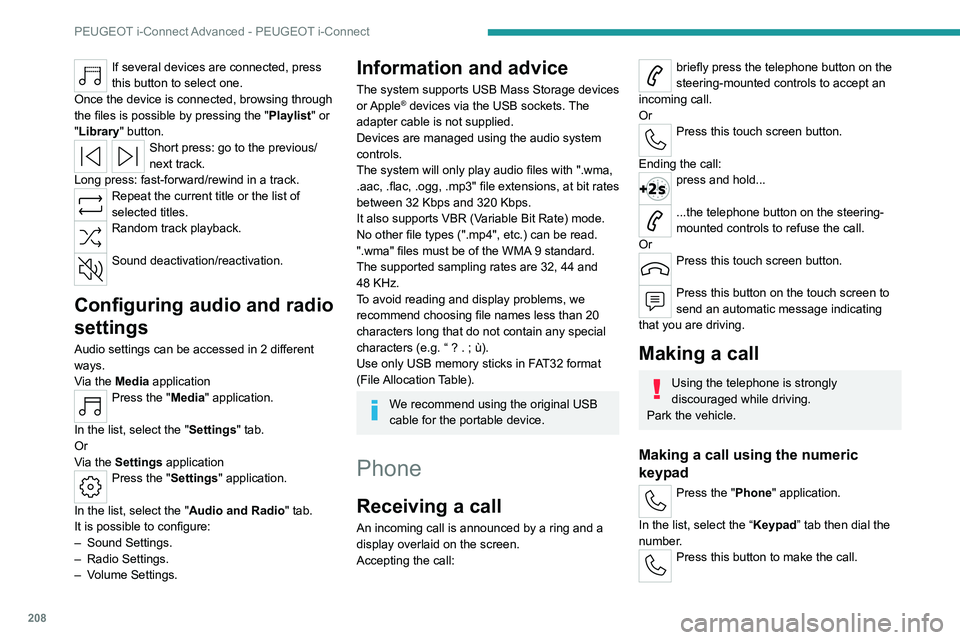
Accepting the call:
briefly press the telephone button on the
steering-mounted controls to accept an
incoming call.
Or
Press this touch screen button.
Ending the call:
press and hold...
...the telephone button on the steering-
mounted controls to refuse the call.
Or
Press this touch screen button.
Press this button on the touch screen to
send an automatic message indicating
that you are driving.
Making a call
Using the telephone is strongly
discouraged while driving.
Park the vehicle.
Making a call using the numeric
keypad
Press the "Phone" application.
In the list, select the “Keypad” tab then dial the
number.
Press this button to make the call.
Page 211 of 244
209
PEUGEOT i-Connect Advanced - PEUGEOT i-Connect
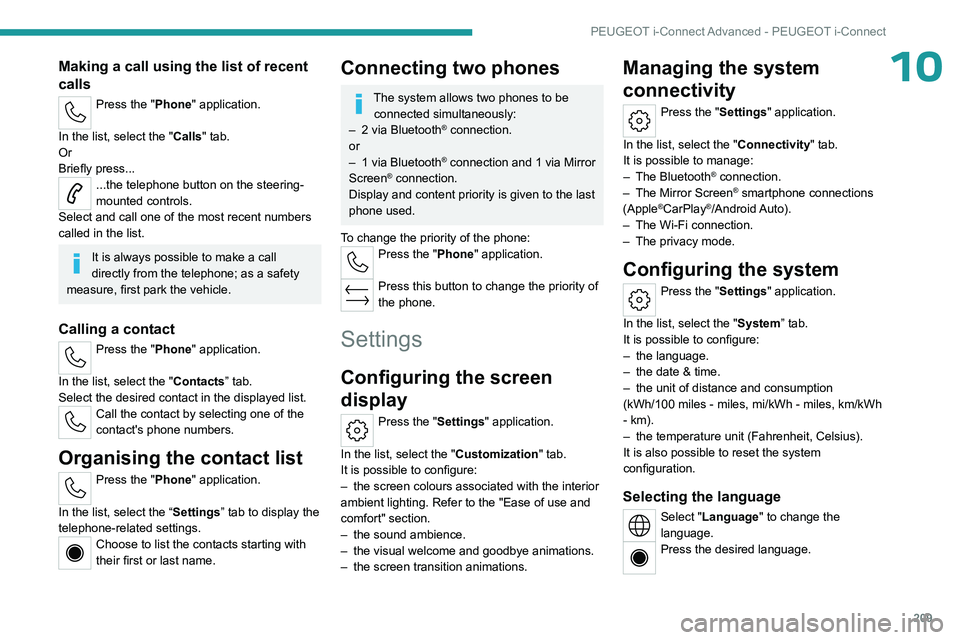
10Making a call using the list of recent
calls
Press the "Phone" application.
In the list, select the "Calls" tab.
Or
Briefly press...
...the telephone button on the steering-
mounted controls.
Select and call one of the most recent numbers
called in the list.
It is always possible to make a call
directly from the telephone; as a safety
measure, first park the vehicle.
Calling a contact
Press the "Phone" application.
In the list, select the "Contacts” tab.
Select the desired contact in the displayed list.
Call the contact by selecting one of the
contact's phone numbers.
Organising the contact list
Press the "Phone" application.
In the list, select the “Settings” tab to display the
telephone-related settings.
Choose to list the contacts starting with
their first or last name.
Connecting two phones
The system allows two phones to be connected simultaneously:
–
2 via
Bluetooth
® connection.
or
–
1 via
Bluetooth
® connection and 1 via Mirror
Screen® connection.
Display and content priority is given to the last
phone used.
To change the priority of the phone:
Press the "Phone" application.
Press this button to change the priority of
the phone.
Settings
Configuring the screen
display
Press the "Settings" application.
In the list, select the "Customization" tab.
It is possible to configure:
–
the screen colours associated with the interior
ambient lighting. Refer to the "Ease of use and
comfort" section.
–
the sound ambience.
–
the visual welcome and goodbye animations.
–
the screen transition animations.
Managing the system
connectivity
Press the "Settings" application.
In the list, select the "Connectivity" tab.
It is possible to manage:
–
The Bluetooth® connection.
–
The Mirror Screen® smartphone connections
(Apple®CarPlay®/Android Auto).
–
The Wi-Fi connection.
–
The privacy mode.
Configuring the system
Press the "Settings" application.
In the list, select the "System” tab.
It is possible to configure:
–
the language.
–
the date & time.
–
the unit of distance and consumption
(kWh/100 miles - miles, mi/kWh - miles, km/kWh
- km).
–
the temperature unit (Fahrenheit, Celsius).
It is also possible to reset the system
configuration.
Selecting the language
Select "Language" to change the
language.
Press the desired language.
Page 215 of 244
213
Vehicle data recording and privacy
11Comfort and infotainment
functions
Comfort settings and personalised settings
may be saved in the vehicle and modified or
reinitialised at any time.
Depending on the vehicle's equipment level,
this
may
include:
–
Seat and steering wheel position settings.
–
Chassis and air conditioning settings.
–
Personalised settings such as the interior
lighting.
Y
ou can enter your own data into the functions
of your vehicle's audio and telematic system, as
part of the selected functionalities.
Depending on the vehicle's equipment level,
this
may
include:
–
Multimedia data such as music, videos or
photos to be read by an integrated multimedia
system.
–
Address book data to be used with an
integrated hands-free system or with an
integrated navigation system.
–
Entered destinations.
–
Data regarding the use of online services.
This data for the comfort and infotainment
functions may be stored locally in the vehicle
or saved to a device that you have connected
to the vehicle (e.g.
smartphone, USB memory
stick or MP3 player). Data that you have entered
yourself may be deleted at any time.
This data may also be transmitted outside the
vehicle at your request, particularly when using online services in line with the settings that you
have selected. Smartphone integration
(e.g.
Android
Auto
® or
Apple
®CarPlay®)
If your vehicle is equipped accordingly, you can
connect your smartphone or another mobile
device to the vehicle in order to operate it using
the vehicle's integrated controls. Images and
sounds from the smartphone can be transmitted
through the audio and telematics system.
Specific information is simultaneously sent
to your smartphone. Depending on the type
of
integration, this includes data such as location,
day/night mode and other general information
about the vehicle. For more information, please
refer to the user instructions for the vehicle or the
audio and telematics system.
Integrating a smartphone allows you to use
its applications, such as a navigation app or
music player. No other
integration between
the smartphone and the vehicle is possible, in
particular active access to vehicle data. How the
data is processed subsequently is determined
by the supplier of the application being used.
The ability the change settings depends on the
application in question and on the operating
system installed on your smartphone.
Online services
If your vehicle is connected to a wireless
network, data can be exchanged between
your vehicle and other systems. Connection
to a wireless network is made possible
via a
transmitter located in your vehicle or a mobile
device that you have provided (e.g.
smartphone).
The online services can be used via this wireless
connection.
These include online services and
applications (apps) provided to you by the
Manufacturer or other suppliers.
Exclusive services
As regards the Manufacturer's online services,
the corresponding functions are described by
the Manufacturer in an appropriate medium
(e.g.
handbook, Manufacturer's website) and the
information about data protection is provided.
Personal data may be used for online services.
The exchange of data for this purpose takes
place over a secure connection, using for
example the Manufacturer's dedicated computer
systems. The collection, processing and use of
personal data for the development of services
are carried out solely on the basis of a legal
authorisation, for example in the case of a
legal emergency call system or a contractual
agreement or else under a consent agreement.
You can activate or deactivate the services and
functions (some may be chargeable) and, in
some cases, the vehicle's entire connection to
the wireless network. This does not include the
Page 217 of 244
215
Alphabetical index
A
ABS 81
Accelerated charging unit (Wallbox)
149–150
Accessories
77, 160
Accessories, electrical
77
Active Safety Brake
129–131
Active suspension
106
Active Suspension Control
106
Adaptive headlamp lighting
70
Adaptive LED Technology
29
AdBlue®
19, 167
AdBlue® tank
168
Additive, Diesel
165–166
Adjusting headlamps
67
Adjusting head restraints
44
Adjusting seat
44–45
Adjusting the air distribution
51, 53
Adjusting the air flow
51, 53
Adjusting the headlamp beam height
67
Adjusting the height and reach of
the steering wheel
47
Adjusting the lumbar support
44–45
Adjusting the seat angle
44
Adjusting the temperature
52
Adjusting the time
210
Advice on care and maintenance
148, 169
Advice on driving
8, 97–98
Airbags
85–87, 89
Airbags, curtain
86–87
Airbags, front
85–86, 90
Airbags, lateral
86–87
Air conditioning 51, 54
Air conditioning, automatic
54
Air conditioning, dual-zone automatic
51
Air intake
53–54
Air vents
50
Alarm
32–33
Amplifier, audio
58
Anti-lock braking system (ABS)
81
Antitheft / Immobiliser
27
Applications
24
Armrest, front
58
Armrest, rear
60
Assistance call
78–79
Assistance, emergency braking
81, 131
Audio streaming (Bluetooth)
207
B
Battery, 12 V 161, 165–166, 182–186
Battery, ancillaries
182
Battery, charging
182–183, 186
Battery, remote control
31
Bicycle carrier
160
Blanking screen (snow shield)
161
Blind
41–42
Blind spot monitoring
136
BlueHDi
19, 165, 172
Bluetooth (hands-free)
204
Bluetooth (telephone)
204
Bodywork
170
Bonnet
162–163
Bonnet, active 87
Boot
35–37, 65
Brake discs
166–167
Brake lamps
181
Brakes
166–167
Braking
104
Braking assistance system
81
Braking, automatic emergency
129–131
Braking, dynamic emergency
101–103
Bulbs (changing)
180–181
C
Capacity, fuel tank 145
Care of the bodywork
170
Central locking
29–30
Changing a bulb
180–181
Changing a fuse
182
Changing a wheel
172–173, 176
Changing a wiper blade
74–75
Changing the remote control battery
31
Changing to free-wheeling
169
Charge level indicator (Rechargeable
hybrid)
21
Charger, induction
57
Charger, wireless
57
Charging cable
151
Charging cable (Rechargeable
hybrid)
149–150, 156
Charging connector (Rechargeable
hybrid)
149, 155–157