CD player Peugeot 508 Hybrid 2014 Owner's Manual
[x] Cancel search | Manufacturer: PEUGEOT, Model Year: 2014, Model line: 508 Hybrid, Model: Peugeot 508 Hybrid 2014Pages: 380, PDF Size: 10.94 MB
Page 8 of 380
6
15 4 12487 3 41 269
89
92
508_en_Chap00b_vue-ensemble_ed02-2014
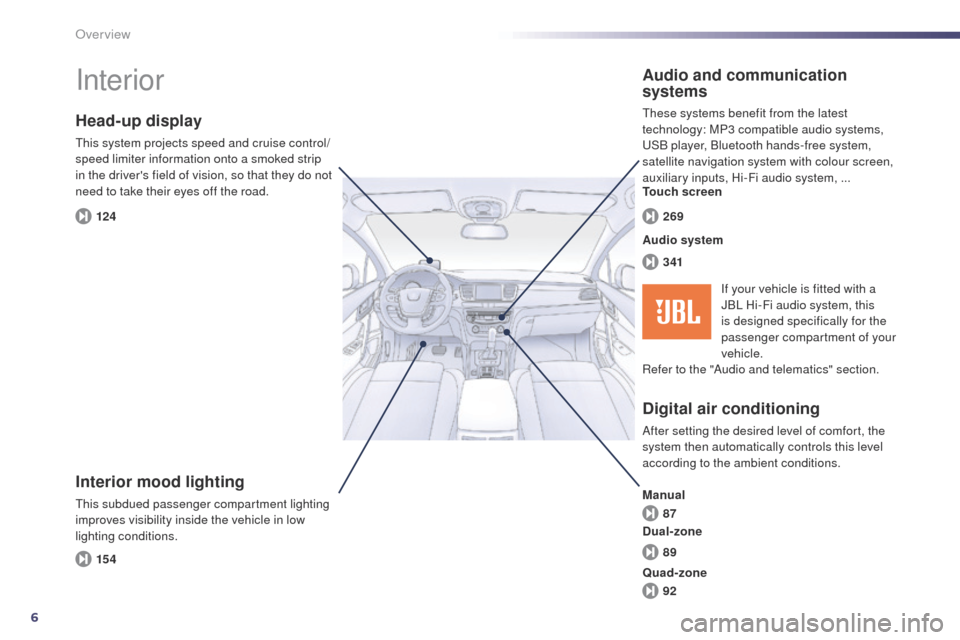
Interior
Interior mood lighting
this subdued passenger compartment lighting
improves visibility inside the vehicle in low
lighting conditions.
Head-up display
this system projects speed and cruise control/
speed limiter information onto a smoked strip
in the driver's field of vision, so that they do not
need to take their eyes off the road.
Digital air conditioning
After setting the desired level of comfort, the
system then automatically controls this level
according to the ambient conditions.
Audio and communication
systems
these systems benefit from the latest
technology: MP3 compatible audio systems,
uS
B player, Bluetooth hands-free system,
satellite navigation system with colour screen,
auxiliary inputs, Hi-Fi audio system, ...
Audio system Touch screen
Manual
Dual-zone If your vehicle is fitted with a
JBL Hi-Fi audio system, this
is designed specifically for the
passenger compartment of your
vehicle.
Refer to the "Audio and telematics" section.
Quad-zone
Over view
Page 80 of 380
78
508_en_Chap03_confort_ed02-2014
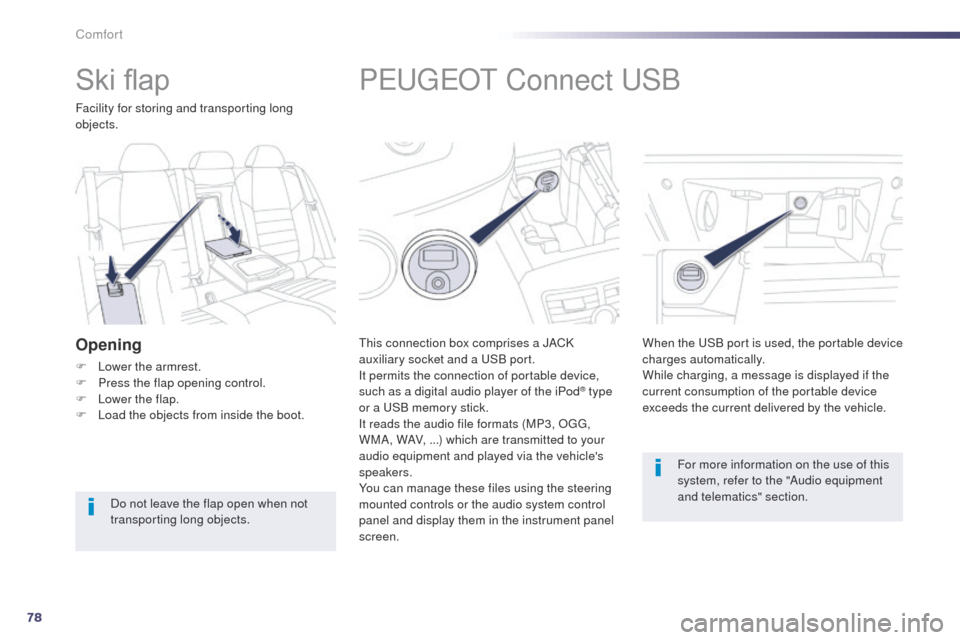
PeugeOt Connect uSB
this connection box comprises a JACK
auxiliary socket and a
uS B port.
It permits the connection of portable device,
such as a digital audio player of the iPod
® type
or a
uS
B memory stick.
It reads the audio file formats (MP3, O
g
g
,
W
MA, WAV, ...) which are transmitted to your
audio equipment and played via the vehicle's
speakers.
You can manage these files using the steering
mounted controls or the audio system control
panel and display them in the instrument panel
screen. When the
u
S
B port is used, the portable device
charges automatically.
While charging, a message is displayed if the
current consumption of the portable device
exceeds the current delivered by the vehicle.
For more information on the use of this
system, refer to the "Audio equipment
and telematics" section.
Ski flap
Facility for storing and transporting long
objects.
Opening
F Lower the armrest.
F P ress the flap opening control.
F
L
ower the flap.
F
L
oad the objects from inside the boot.
Do not leave the flap open when not
transporting long objects.
Comfort
Page 230 of 380
228
508_en_Chap08_info-pratiques_ed02-2014
the fitting of electrical equipment
or accessories which are not
recommended by P
e
uge
Ot
may result
in a failure of your vehicle's electronic
system and excessive electrical
consumption.
Please note this precaution. You
are advised to contact a P
e
uge
Ot
representative to be shown the range
of recommended equipment and
accessories.Installation of radio
communication
transmitters
Before installing any after-market radio
communication transmitter, you can
contact a P
e
uge
Ot
dealer for the
specification of transmitters which can
be fitted (frequency, maximum power,
aerial position, specific installation
requirements), in line with the Vehicle
el
ectromagnetic Compatibility Directive
(2004/104/
eC
). Depending on the legislation in force in
the country, certain safety equipment
may be compulsory: high visibility
safety vests, warning triangles,
breathalyzers, spare bulbs, spare fuses,
a fire extinguisher, a first aid kit, mud
flaps at the rear of the vehicle.
You can also obtain products for cleaning and
maintenance (exterior and interior) and topping
up fluids (screenwash, ...), as well as refills
(cartridge for temporary tyre repair kit...) from
P
e
uge
Ot d
ealers.
"Multimedia":
audio systems, portable navigation system, ta
kara/Sony portable video screen, Bluetooth
system, speakers, DVD player, Wi-Fi, driving
aids, video support, microwave unit...
Practical information
Page 274 of 380
272
02
508_en_Chap11c_SMegplus-i_ed02-2014
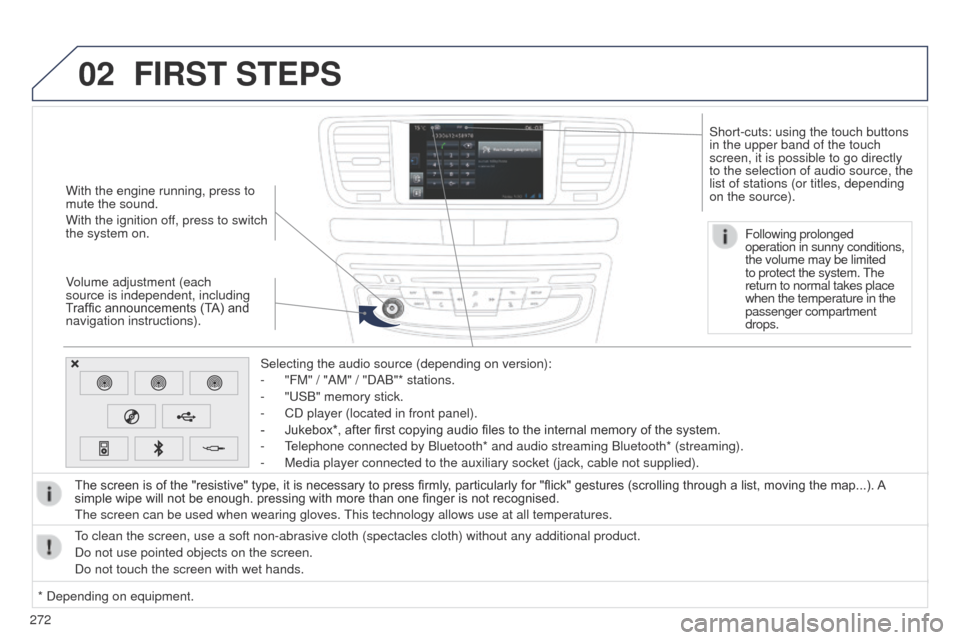
With the engine running, press to
mute the sound.
With the ignition off, press to switch
the system on.
Volume adjustment (each
source is independent, including
Traffic announcements (TA) and
navigation instructions).Selecting the audio source (depending on version):
-
"FM" / "AM" / "DAB"* stations.
-
"
u SB" memory stick.
-
CD player (located in front panel).
-
Jukebox*, after first copying audio files to the internal memory of the system.
-
t
elephone connected by Bluetooth* and audio streaming Bluetooth* (stream\
ing).
-
Media player connected to the auxiliary socket (jack, cable not supplie\
d).
The screen is of the "resistive" type, it is necessary to press firmly , particularly for "flick" gestures (scrolling through a list, moving the map...). A
simple wipe will not be enough. pressing with more than one finger is not recognised.
t
he screen can be used when wearing gloves.
t
his technology allows use at all temperatures.
FIRST STEPS
* Depending on equipment.
to clean the screen, use a soft non-abrasive cloth (spectacles cloth) w\
ithout any additional product.
Do not use pointed objects on the screen.
Do not touch the screen with wet hands. Following prolonged
operation in sunny conditions,
the volume may be limited
to protect the system.
t
he
return to normal takes place
when the temperature in the
passenger compartment
drops.
Short-cuts: using the touch buttons
in the upper band of the touch
screen, it is possible to go directly
to the selection of audio source, the
list of stations (or titles, depending
on the source).
Page 288 of 380
286
04
508_en_Chap11c_SMegplus-i_ed02-2014
CD, MP3 CD, USB player, auxiliary input
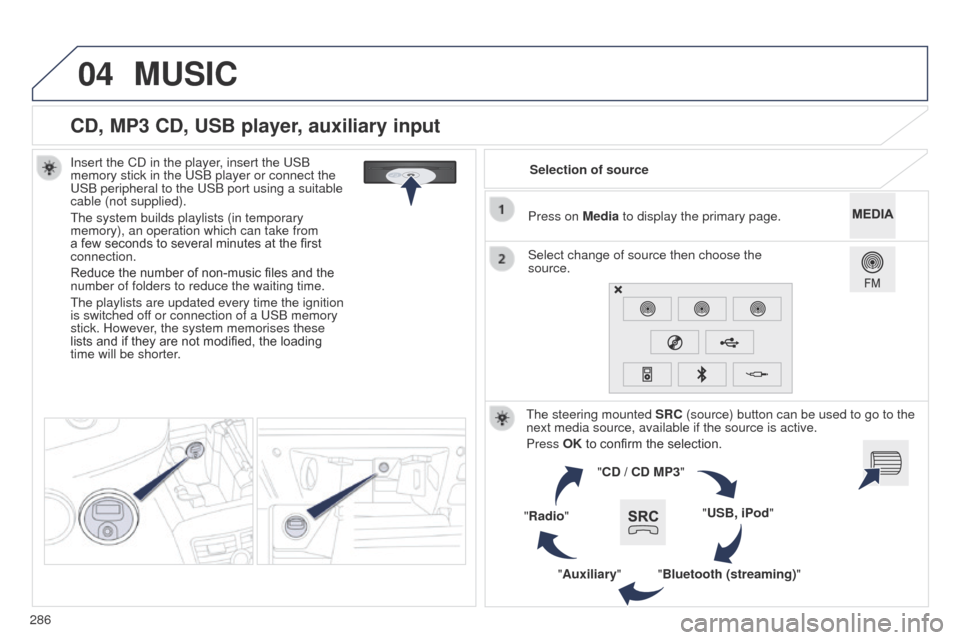
Insert the CD in the player, insert the uSB
memory stick in the u SB player or connect the
u
SB peripheral to the u SB port using a suitable
cable (not supplied).
t
he system builds playlists (in temporary
memory), an operation which can take from
a few seconds to several minutes at the first
connection.
Reduce the number of non-music files and the
number of folders to reduce the waiting time.
t
he playlists are updated every time the ignition
is switched off or connection of a
u SB memory
stick. However, the system memorises these
lists and if they are not modified, the loading
time will be shorter. Selection of source
t
he steering mounted SRC (source) button can be used to go to the
next media source, available if the source is active.
Press OK to confirm the selection.
"CD / CD MP3"
"USB, iPod"
"Bluetooth (streaming)"
"Auxiliary"
"Radio" Select change of source then choose the
source. Press on Media to display the primary page.
MUSIC
Page 289 of 380
287
04
508_en_Chap11c_SMegplus-i_ed02-2014
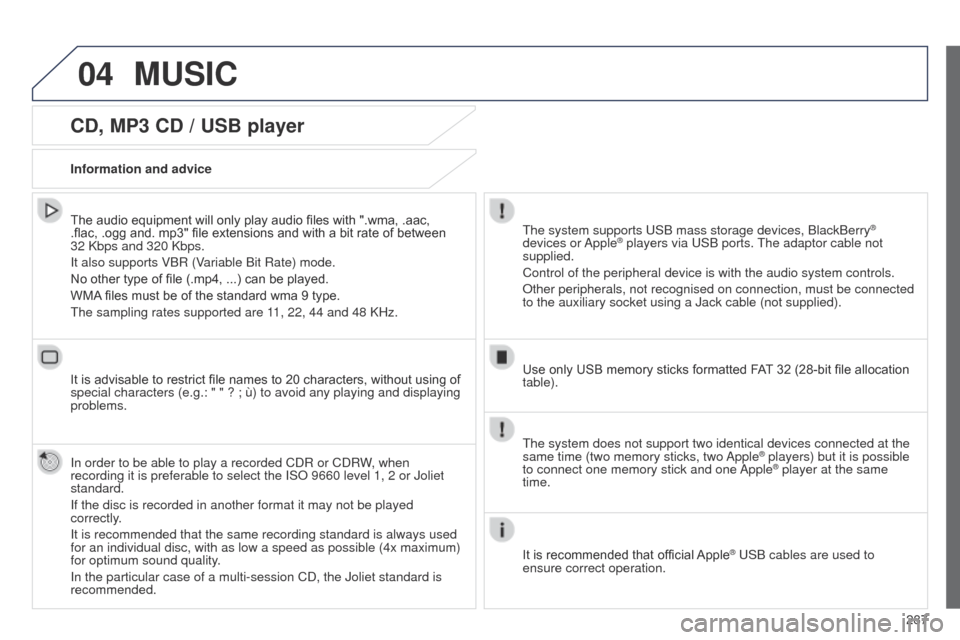
CD, MP3 CD / USB player
The audio equipment will only play audio files with ".wma, .aac,
.flac, .ogg and. mp3" file extensions and with a bit rate of between
32 Kbps and 320 Kbps.
It also supports VBR (Variable Bit Rate) mode.
No other type of file (.mp4, ...) can be played.
WMA files must be of the standard wma 9 type.
t
he sampling rates supported are 11, 22, 44 and 48 KHz.
It is advisable to restrict file names to 20 characters, without using of
special characters (e.g.: " " ? ; ù) to avoid any playing and displ\
aying
problems.
In order to be able to play a recorded CDR or CDRW, when
recording it is preferable to select the ISO 9660 level 1, 2 or Joliet
standard.
If the disc is recorded in another format it may not be played
correctly.
It is recommended that the same recording standard is always used
for an individual disc, with as low a speed as possible (4x maximum)
for optimum sound quality.
In the particular case of a multi-session CD, the Joliet standard is
recommended. Information and advicet he system supports u SB mass storage devices, BlackBerry®
devices or Apple® players via uSB ports. t he adaptor cable not
supplied.
Control of the peripheral device is with the audio system controls.
Other peripherals, not recognised on connection, must be connected
to the auxiliary socket using a Jack cable (not supplied).
Use only USB memory sticks formatted FAT 32 (28-bit file allocation
table).
MUSIC
the system does not support two identical devices connected at the
same time (two memory sticks, two Apple® players) but it is possible
to connect one memory stick and one
Apple® player at the same
time.
It is recommended that official Apple
® uSB cables are used to
ensure correct operation.
Page 291 of 380
289
04
508_en_Chap11c_SMegplus-i_ed02-2014
Audio streaming
Streaming allows audio files on your telephone to be played via the
vehicle's speakers.
Connect the telephone: see the "Telephone" section, then
"Bluetooth".
Choose the " Audio" or "All" profile.
If play does not start automatically, it may be necessary to start the
audio playback from the telephone.
Control is from the peripheral device or by using the audio system
buttons.
Once connected in streaming mode, the telephone is considered to
be a media source.
It is recommended that you activate "Repeat" on the Bluetooth
peripheral.
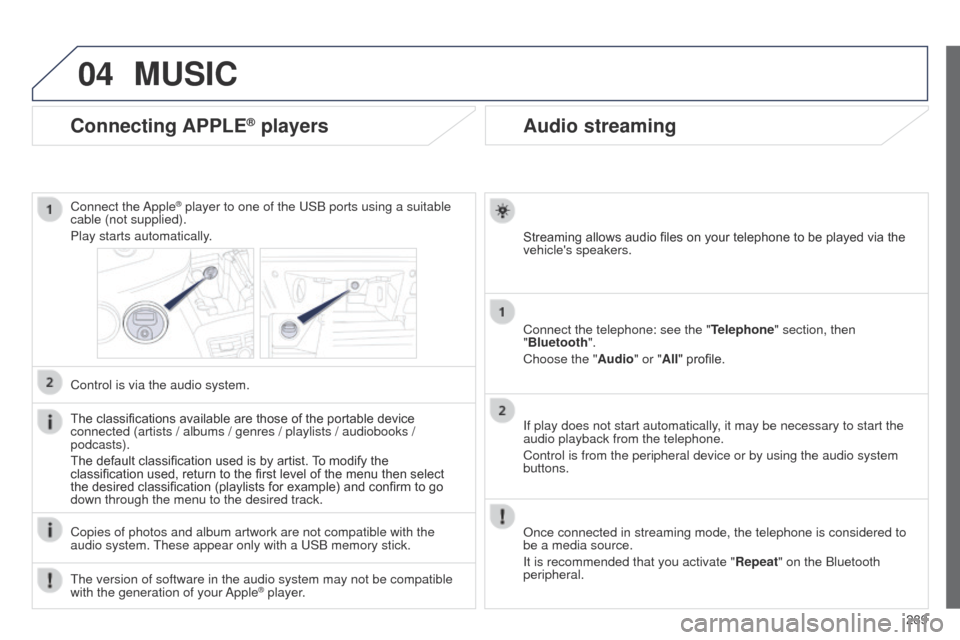
Connecting APPLE® players
Connect the Apple® player to one of the uSB ports using a suitable
cable (not supplied).
Play starts automatically
.
Control is via the audio system.
The classifications available are those of the portable device
connected (artists / albums / genres / playlists / audiobooks /
podcasts).
The default classification used is by artist. To modify the
classification used, return to the first level of the menu then select
the desired classification (playlists for example) and confirm to go
down through the menu to the desired track.
Copies of photos and album artwork are not compatible with the
audio system.
t
hese appear only with a u SB memory stick.
MUSIC
the version of software in the audio system may not be compatible
with the generation of your Apple® player.
Page 292 of 380
290
04
508_en_Chap11c_SMegplus-i_ed02-2014
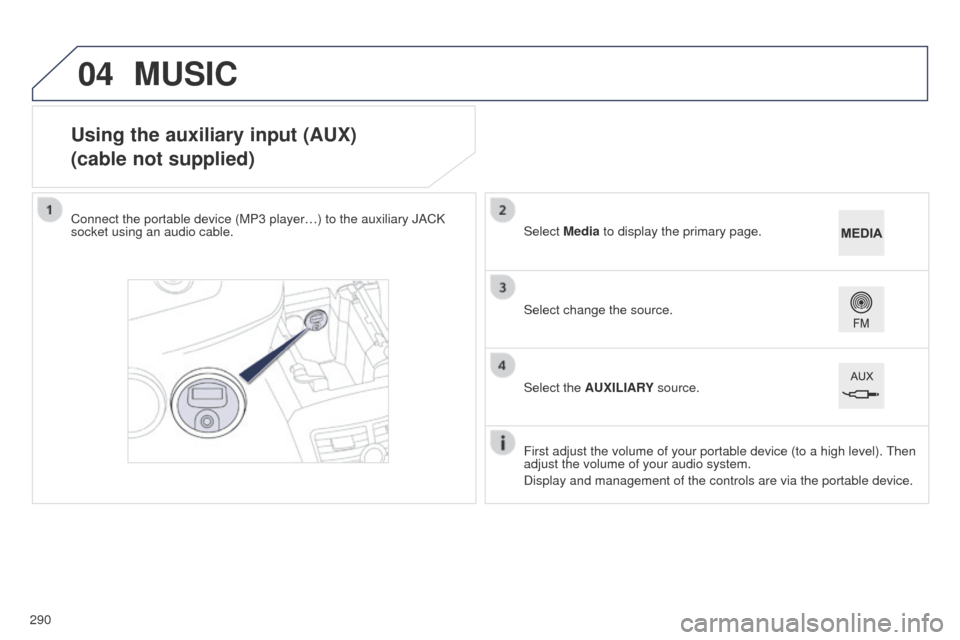
Using the auxiliary input (AUX)
(cable not supplied)
Connect the portable device (MP3 player…) to the auxiliary JACK
socket using an audio cable.First adjust the volume of your portable device (to a high level).
t
hen
adjust the volume of your audio system.
Display and management of the controls are via the portable device. Select change the source. Select Media to display the primary page.
Select the AUXILIARY source.
MUSIC
Page 293 of 380
291
04
508_en_Chap11c_SMegplus-i_ed02-2014
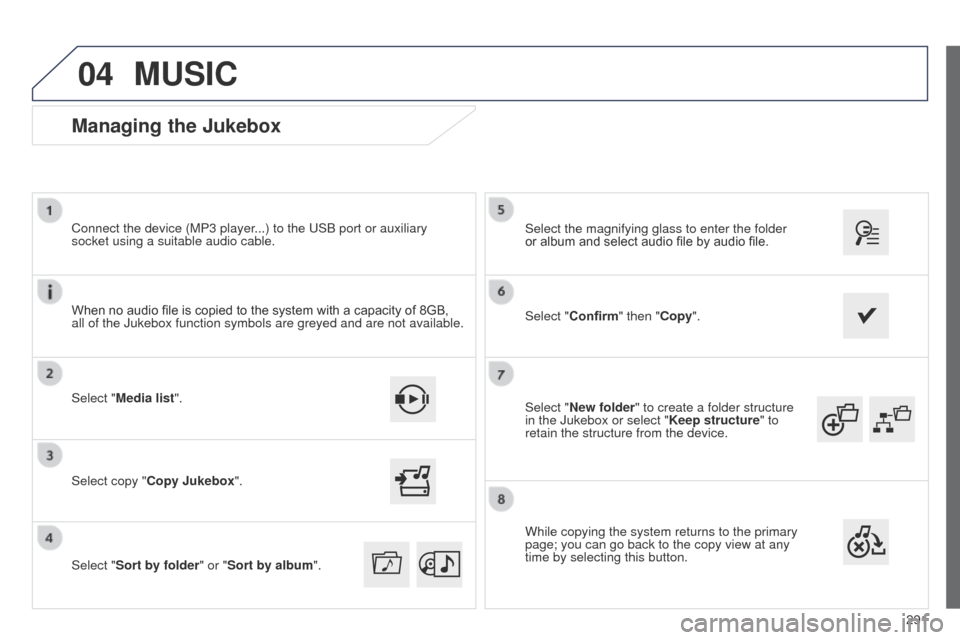
Select "New folder" to create a folder structure
in the Jukebox or select "Keep structure" to
retain the structure from the device. Select the magnifying glass to enter the folder
or album and select audio file by audio file.
Managing the Jukebox
Select "Media list". Connect the device (MP3 player...) to the u SB port or auxiliary
socket using a suitable audio cable.
Select copy "Copy Jukebox".
MUSIC
When no audio file is copied to the system with a capacity of 8GB,
all of the Jukebox function symbols are greyed and are not available.
Select "Sort by folder" or "Sort by album ".Select "Confirm" then "Copy".
While copying the system returns to the primary
page; you can go back to the copy view at any
time by selecting this button.
Page 320 of 380
318
06
508_en_Chap11c_SMegplus-i_ed02-2014
CONFIGURATION
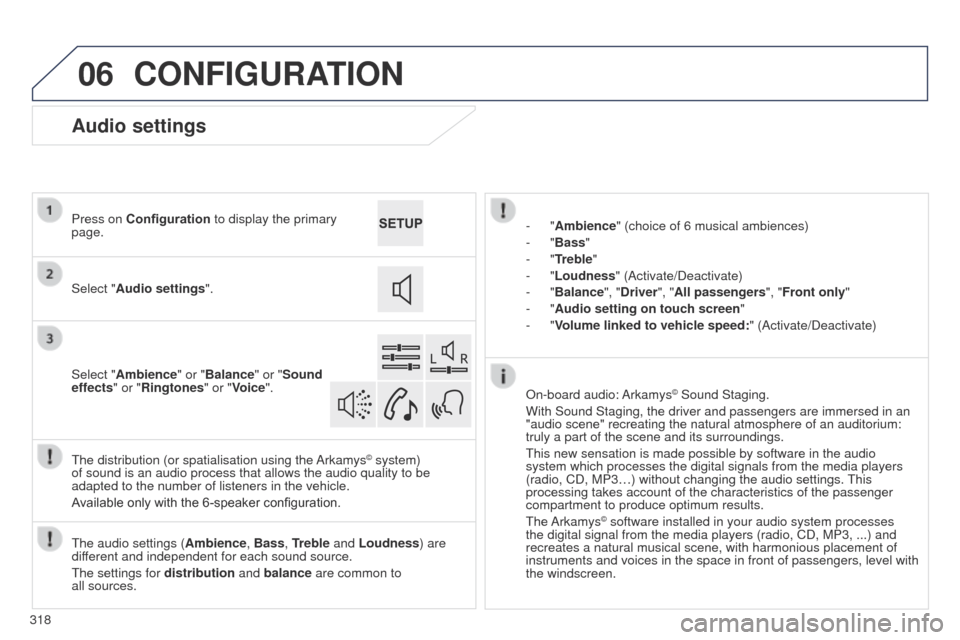
- "Ambience" (choice of 6 musical ambiences)
- "Bass "
-
"Treble"
-
"Loudness" (Activate/Deactivate)
-
"Balance", "Driver ", "All passengers", "Front only "
-
"Audio setting on touch screen "
-
"Volume linked to vehicle speed: " (Activate/Deactivate)
t
he audio settings ( Ambience, Bass, Treble and Loudness) are
different and independent for each sound source.
t
he settings for distribution and balance are common to
all
sources.
t
he distribution (or spatialisation using the Arkamys
© system)
of sound is an audio process that allows the audio quality to be
adapted to the number of listeners in the vehicle.
Available only with the 6-speaker configuration. On-board audio: Arkamys
© Sound Staging.
With Sound Staging, the driver and passengers are immersed in an
"audio scene" recreating the natural atmosphere of an auditorium:
truly a part of the scene and its surroundings.
t
his new sensation is made possible by software in the audio
system which processes the digital signals from the media players
(radio, CD, MP3…) without changing the audio settings.
t
his
processing takes account of the characteristics of the passenger
compartment to produce optimum results.
t
he Arkamys
© software installed in your audio system processes
the digital signal from the media players (radio, CD, MP3, ...) and
recreates a natural musical scene, with harmonious placement of
instruments and voices in the space in front of passengers, level with
the windscreen.
Audio settings
Select "Audio settings ".
Press on Configuration
to display the primary
page.
Select "Ambience" or "Balance" or "Sound
effects " or "Ringtones" or "Voice".