navigation Peugeot 807 2013 Owner's Guide
[x] Cancel search | Manufacturer: PEUGEOT, Model Year: 2013, Model line: 807, Model: Peugeot 807 2013Pages: 234, PDF Size: 9.8 MB
Page 162 of 234
9.22
06TRAFFIC INFORMATION
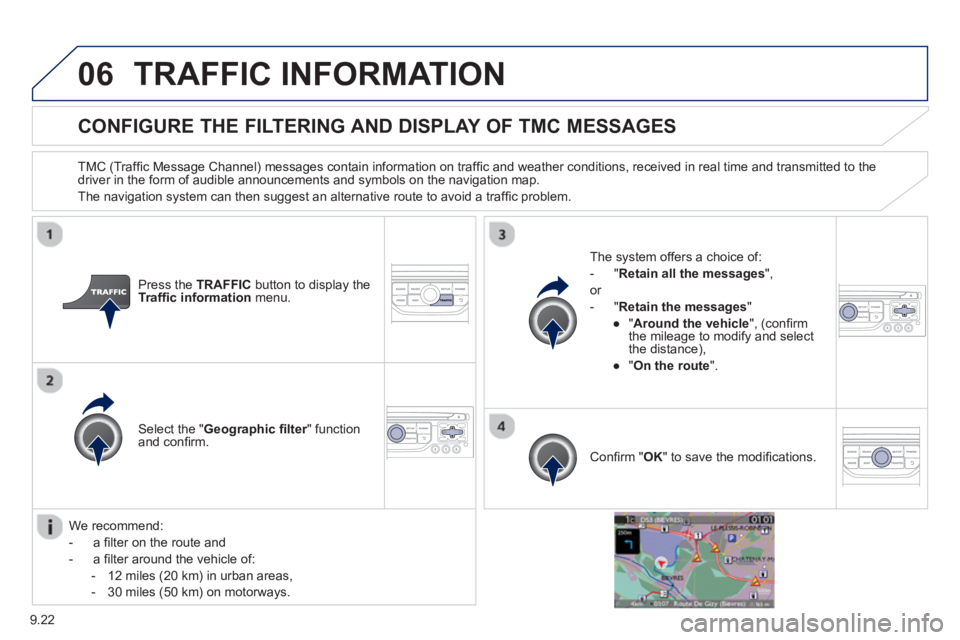
CONFIGURE THE FILTERING AND DISPLAY OF TMC MESSAGES
TMC (Traffi c Message Channel) messages contain information on traffi c and weather conditions, received in real time and transmitted to the
driver in the form of audible announcements and symbols on the navigation map.
The navi
gation system can then suggest an alternative route to avoid a traffi c problem.
Pr
ess the TRAFFICbutton to display the Traffi c informationmenu.
Select the "Geographic fi lter" function rand confi rm. The s
ystem offers a choice of:
- " Retain all the messa
ges",
or
-"Retain the messa
ges"
●
"Around the vehicle ", (confi rm
the mileage to modify and select
the distance),
●
" On the rout
e".
Confi rm " OK
" to save the modifi cations.
We recommend:
-
a fi lter on the route and
-
a fi lter around the vehicle of:
- 12 miles
(20 km) in urban areas,
- 30 miles
(50 km) on motorways.
Page 189 of 234
9.49
11TRIP COMPUTER
TRIP COMPUTER
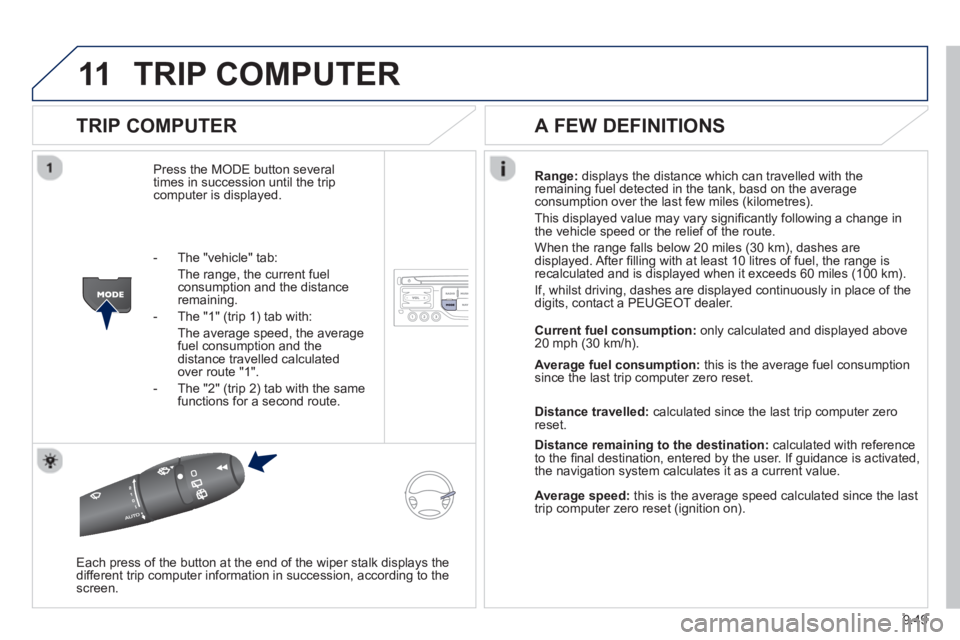
Press the MODE button several
times in succession until the tripcomputer is displayed.Ran
ge: displays the distance which can travelled with the
remaining fuel detected in the tank, basd on the averageconsumption over the last few miles (kilometres).
This displa
yed value may vary signifi cantly following a change in
the vehicle speed or the relief of the route.
When the ran
ge falls below 20 miles (30 km), dashes are
displayed. After fi lling with at least 10 litres of fuel, the range is
recalculated and is displayed when it exceeds 60 miles (100 km).
I
f, whilst driving, dashes are displayed continuously in place of the
digits, contact a PEUGEOT dealer.
Each press o
f the button at the end of the wiper stalk displays the
different trip computer information in succession, according to the screen.
A FEW DEFINITIONS
- The "vehicle" tab:
The ran
ge, the current fuelconsumption and the distance remaining.
- The "1"
(trip 1) tab with:
The average speed, the average fuel consumption and the distance travelled calculatedover route "1".
- The "2"
(trip 2) tab with the same
functions for a second route. Current fuel consum
ption:only calculated and displayed above
20 mph (30 km/h).
Avera
ge fuel consumption:this is the average fuel consumption since the last trip computer zero reset.
Distance travelled:calculated since the last trip computer zero
reset.
Distance remaining to the destination:calculated with referenceto the fi nal destination, entered by the user. If guidance is activated,
the navigation system calculates it as a current value.
Average speed:this is the average speed calculated since the last
trip computer zero reset (ignition on).
Page 190 of 234
9.50
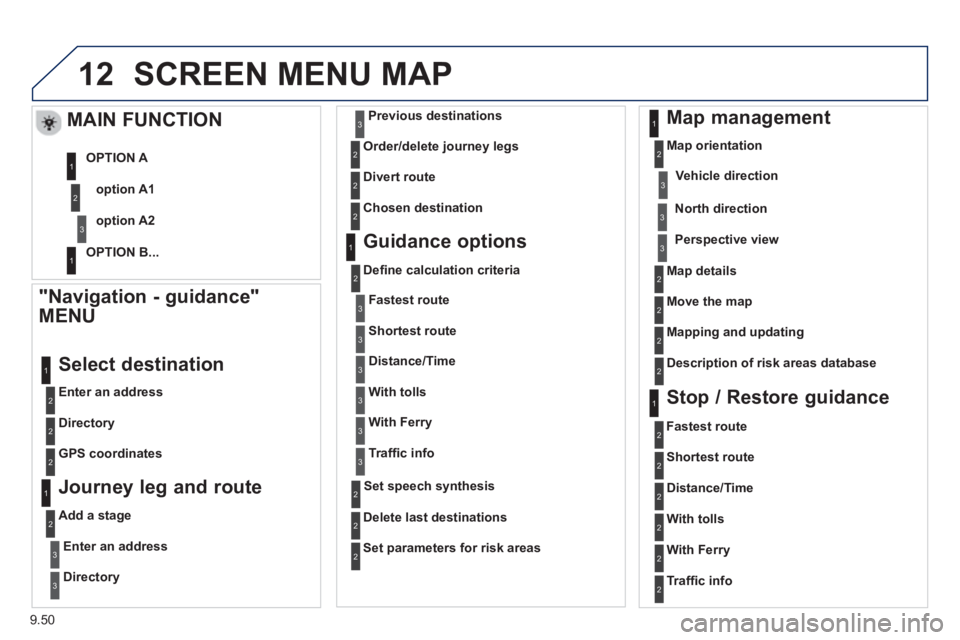
12SCREEN MENU MAP
"Navigation - guidance"
MENU
Enter an address
Select destination
Directory
GPS coordinates
Journey leg and route
Add a stage
Enter an address
Directory
Previous destinations
Order/delete
journey legs
Divert route
Chosen destination
Guidance options
Defi ne calculation criteria
Delete last destinations
Map management
Map orientation
MAIN FUNCTION
option A1
option A2 OPTION A
OPTION B...
Map details
Move the map
Mapping and updating
Description of risk areas database
Stop / Restore guidance
1
2
3
1
3
3
2
2
2
2
1
3
1
1
2
2
2
2
2
2
2
2
2
2
1
1
Set parameters for risk areas
2
Fastest route2
Shortest route
Distance/Time
With tolls
2
2
2
With Ferry2
Traffi c info2
Set speech synthesis Fastest rout
e
Shortest route
3
3
2
Distance/Time
With tolls
3
3
With Ferry
Traffi c info
3
3
3
3
3
North direction
Vehicle direction
Perspective view
Page 194 of 234
9.54
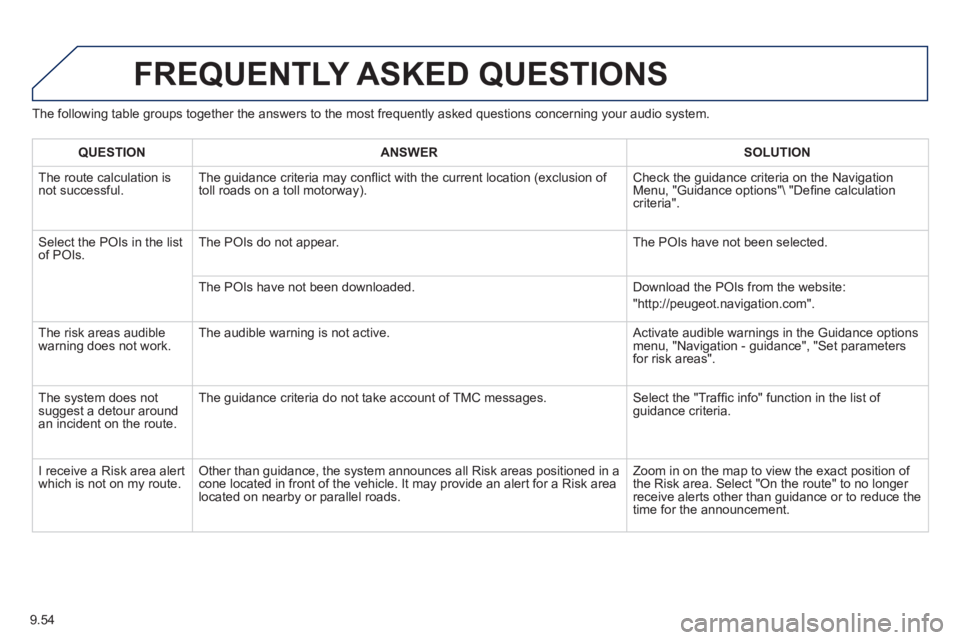
The following table groups together the answers to the most frequently asked questions concerning your audio system.
FREQUENTLY ASKED QUESTIONS
QUESTIONANSWER SOLUTION
The route calculation is not successful. The guidance criteria may confl ict with the current location (exclusion of
toll roads on a toll motorway). Check the guidance criteria on the Navigation Menu, "Guidance options"\ "Defi ne calculation criteria".
Select the POIs in the list
of POIs.The POIs do not appear. The POIs have not been selected.
The P
OIs have not been downloaded. Download the POIs from the website:
"http://peugeot.navigation.com".
Th
e risk areas audiblewarning does not work. The audible warning is not active. Activate audible warnings in the Guidance options menu, "Navigation - guidance", "Set parameters
for risk areas".
The s
ystem does notsuggest a detour around an incident on the route. The
guidance criteria do not take account of TMC messages. Select the "Traffi c info" function in the list of guidance criteria.
I r
eceive a Risk area alert
which is not on my route. Other than guidance, the system announces all Risk areas positioned in a cone located in front of the vehicle. It may provide an alert for a Risk area located on nearby or parallel roads. Zoom in on the map to view the exact position o
f
the Risk area. Select "On the route" to no longer receive alerts other than guidance or to reduce the
time for the announcement.
Page 209 of 234
9.69
05
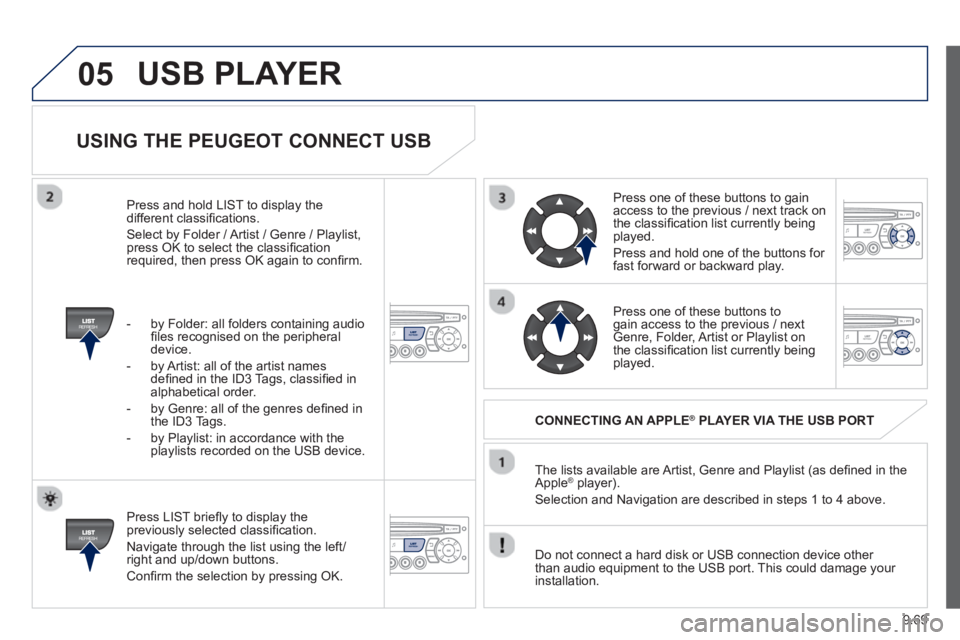
USING THE PEUGEOT CONNECT USB
Press LIST briefl y to display thepreviously selected classifi cation.
Navi
gate through the list using the left/right and up/down buttons.
Confi rm the selection by pressing OK. The lists available are Artist, Genre and Pla
ylist (as defi ned in the
Apple ®player).
Selection and Navigation are described in steps 1 to 4 above.
Do not connect a hard disk or
USB connection device other
than audio equipment to the USB port. This could damage your
installation.
CONNECTING AN APPLE®PLAYER VIA THE USB PORT®
Press one of these buttons to gain
access to the previous / next track on
the classifi cation list currently beingplayed.
Pr
ess and hold one of the buttons for fast forward or backward play.
Pr
ess one of these buttons to gain access to the previous / next
Genre, Folder, Artist or Playlist on
the classifi cation list currently beingplayed.
Press and hold LI
ST to display the different classifi cations.
Select b
y Folder / Artist / Genre / Playlist,press OK to select the classifi cation required, then press OK again to confi rm.
- b
y Folder: all folders containing audio fi les recognised on the peripheraldevice.
- by Artist: all o
f the artist names
defi ned in the ID3 Tags, classifi ed in alphabetical order.
- b
y Genre: all of the genres defi ned in
the ID3 Tags.
- b
y Playlist: in accordance with the
playlists recorded on the USB device.
USB PLAYER
Page 215 of 234
9.75
08
13
TRIP COMPUTER
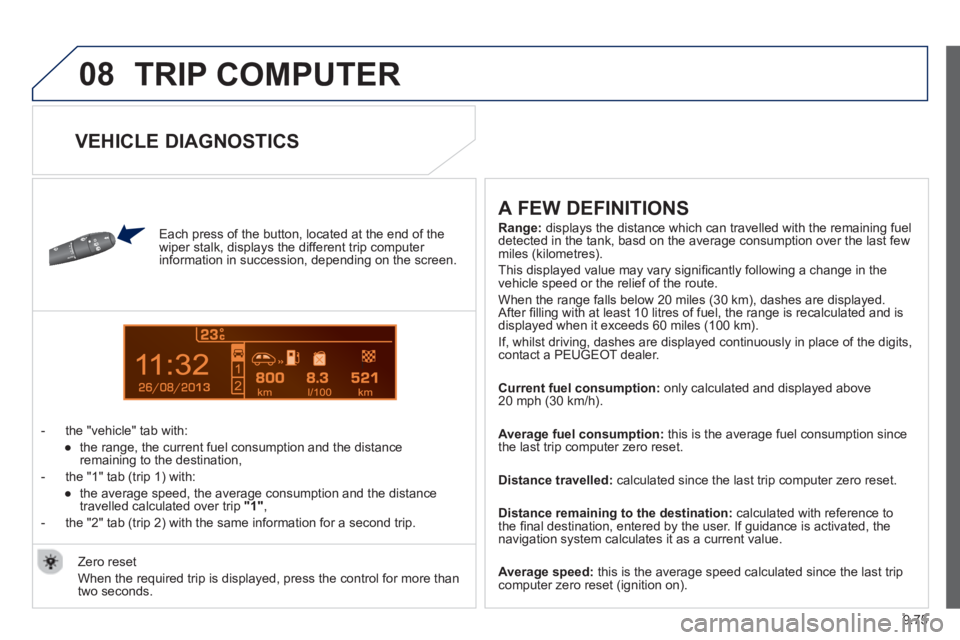
Each press of the button, located at the end of the
wiper stalk, displays the different trip computer
information in succession, depending on the screen.
- t
he "vehicle" tab with:
●
the ran
ge, the current fuel consumption and the distance
remaining to the destination,
- the "1" tab
(trip 1) with:
●
the avera
ge speed, the average consumption and the distance
travelled calculated over trip "1"
,
- the "2" tab
(trip 2) with the same information for a second trip.
A FEW DEFINITIONS
Range:displays the distance which can travelled with the remaining fuel
detected in the tank, basd on the average consumption over the last few miles (kilometres).
This displa
yed value may vary signifi cantly following a change in the
vehicle speed or the relief of the route.
When the range
falls below 20 miles (30 km), dashes are displayed.After fi lling with at least 10 litres of fuel, the range is recalculated and is
displayed when it exceeds 60 miles (100 km).
If, whilst drivin
g, dashes are displayed continuously in place of the digits, contact a PEUGEOT dealer.
Current fuel consum
ption: only calculated and displayed above
20 mph (30 km/h).
Avera
ge fuel consumption: this is the average fuel consumption since
the last trip computer zero reset.
Distance travelled:calculated since the last trip computer zero reset.
Distance remaining to the destination: calculated with reference to
the fi nal destination, entered by the user. If guidance is activated, thenavigation system calculates it as a current value.
Avera
ge speed: this is the average speed calculated since the last tripcomputer zero reset (ignition on). Z
ero reset
When the required trip is displa
yed, press the control for more than
two seconds.
VEHICLE DIAGNOSTICS
Page 225 of 234
141
VISUAL SEARC
H
10
Front interior
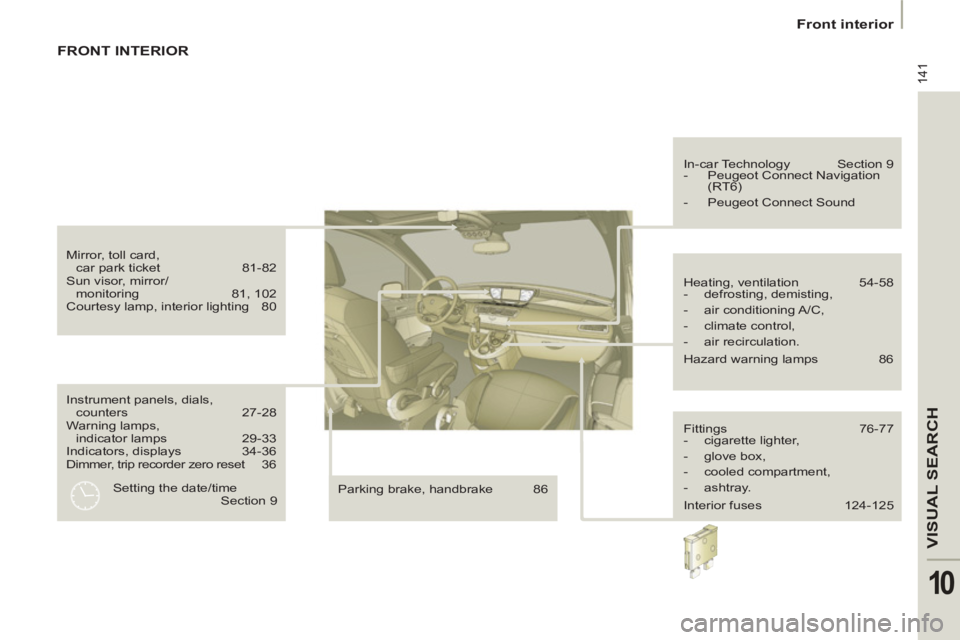
Instrument panels, dials,
counters 27-28
Warning lamps,
indicator lamps 29-33
Indicators, displays 34-36
Dimmer, trip recorder zero reset 36
Parking brake, handbrake 86 Heating, ventilation 54-58
- defrosting, demisting,
- air conditioning A/C,
- climate control,
- air recirculation.
Hazard warning lamps 86 In-car Technology Section 9
- Peugeot Connect Navigation
(RT6)
- Peugeot Connect Sound
Fittings 76-77
- cigarette lighter,
- glove box,
- cooled compartment,
- ashtray.
Interior fuses 124-125
Mirror, toll card,
car park ticket 81-82
Sun visor, mirror/
monitoring 81, 102
Courtesy lamp, interior lighting 80
Setting the date/time
Section 9
FRONT INTERIOR