lock PEUGEOT BOXER 2015 Workshop Manual
[x] Cancel search | Manufacturer: PEUGEOT, Model Year: 2015, Model line: BOXER, Model: PEUGEOT BOXER 2015Pages: 276, PDF Size: 8.99 MB
Page 168 of 276
166
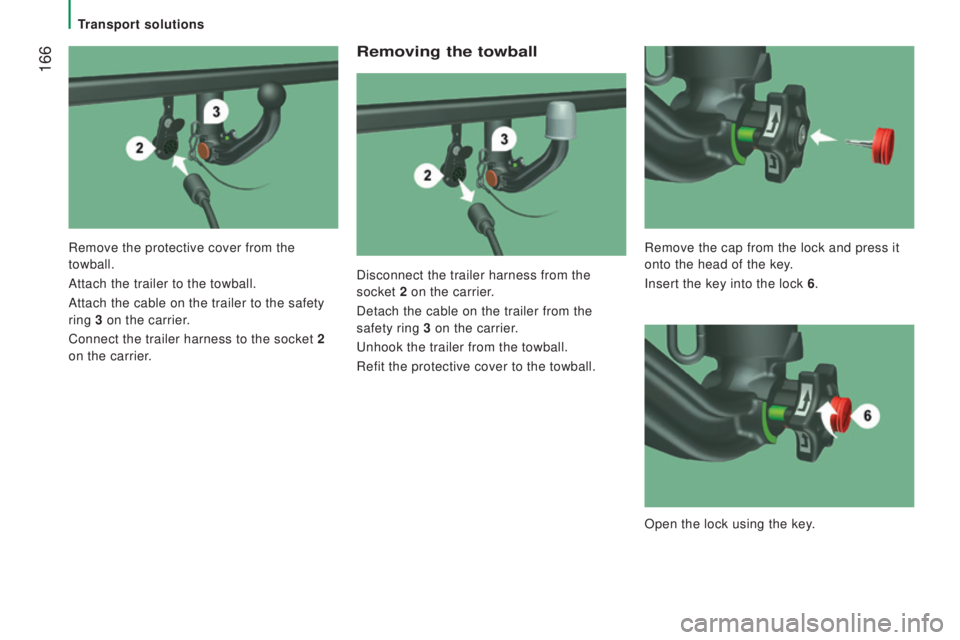
removing the towball
Disconnect the trailer harness from the
socket 2 on the carrier.
Detach the cable on the trailer from the
safety ring 3 on the carrier.
unhook the trailer from the towball.
Refit the protective cover to the towball.
Remove the protective cover from the
towball.
Attach the trailer to the towball.
Attach the cable on the trailer to the safety
ring 3 on the carrier.
Connect the trailer harness to the socket 2
on the carrier. Remove the cap from the lock and press it
onto the head of the key.
Insert the key into the lock 6
.
Open the lock using the key.
transport solutions
Page 169 of 276
167
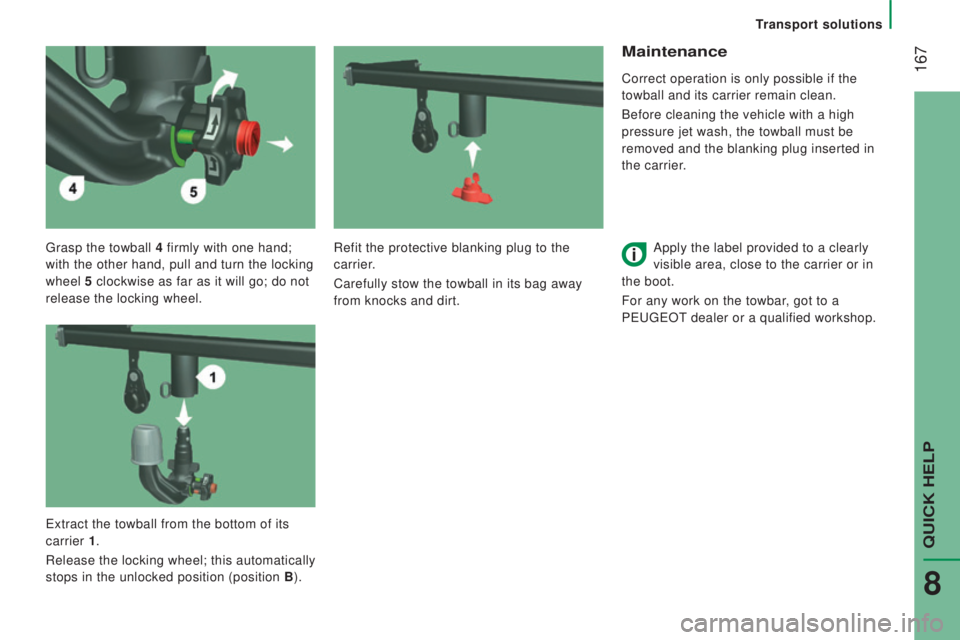
grasp the towball 4 firmly with one hand;
with the other hand, pull and turn the locking
wheel 5 clockwise as far as it will go; do not
release the locking wheel.
Maintenance
Correct operation is only possible if the
towball and its carrier remain clean.
Before cleaning the vehicle with a high
pressure jet wash, the towball must be
removed and the blanking plug inserted in
the carrier.
Apply the label provided to a clearly
visible area, close to the carrier or in
the boot.
For any work on the towbar, got to a
P
eugeOt dealer or a qualified workshop.
Refit the protective blanking plug to the
carrier
.
Carefully stow the towball in its bag away
from knocks and dirt.
extract the towball from the bottom of its
carrier 1.
Release the locking wheel; this automatically
stops in the unlocked position (position B ).
transport solutions
QuICK HeLP
8
Page 189 of 276
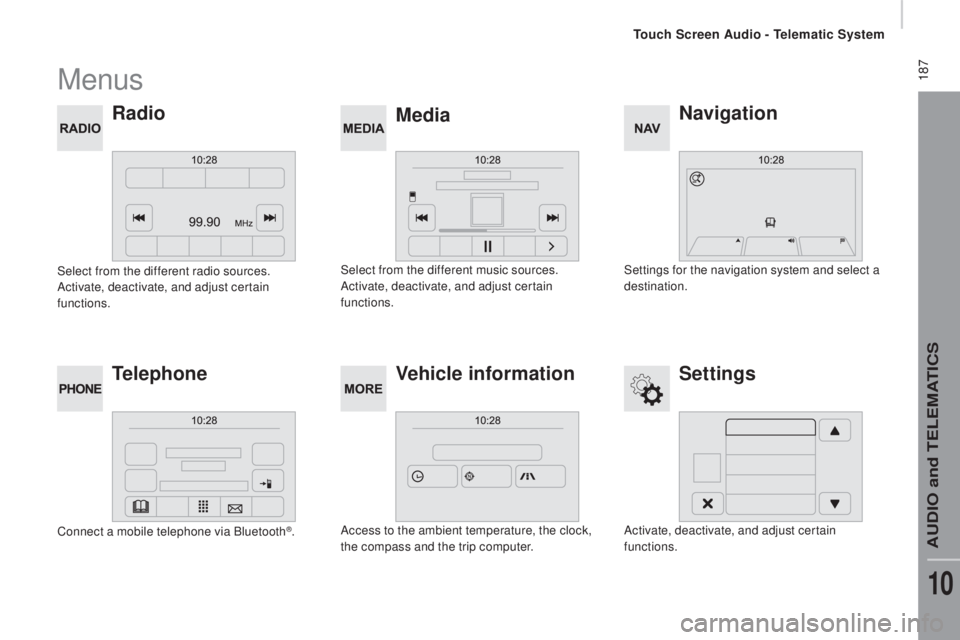
187Menus
navigation
M
ediaradio
Settings
tele
phone Vehicle information
Settings for the navigation system and select a
destination.
Select from the different music sources.
Activate, deactivate, and adjust certain
functions.
Select from the different radio sources.
Activate, deactivate, and adjust certain
functions.
Activate, deactivate, and adjust certain
functions.
Connect a mobile telephone via Bluetooth
®.
Access to the ambient temperature, the clock,
the compass and the trip computer.
touch Screen Audio - telematic System
AuDIO and teLeMAtICS
10
Page 207 of 276
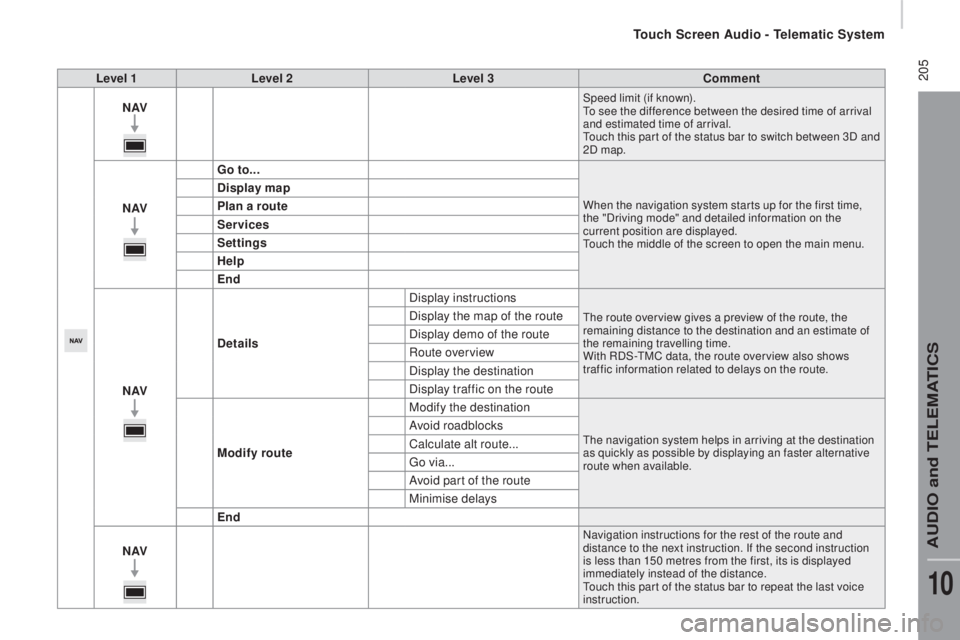
205Level 1Level 2 Level 3com ment
nAVSpeed limit (if known).to se
e the difference between the desired time of arrival
and estimated time of arrival.
tou
ch this par t of the status bar to switch between 3D and
2D map.
nAV Go to...When the navigation system star ts up for the first time,
the "Driving mode" and detailed information on the
current position are displayed.
tou
ch the middle of the screen to open the main menu.
display map
Pl an a route
Services
Settings
Help
End
nAV
det
ails Display instructions
the route over view gives a preview of the route, the
r emaining distance to the destination and an estimate of
the remaining travelling time.
With RDS-
tMC d
ata, the route over view also shows
traffic information related to delays on the route.Display the map of the route
Display demo of the route
Route overview
Display the destination
Display traffic on the route
Modify route Modify the destination
the navigation system helps in arriving at the destination
a s quickly as possible by displaying an faster alternative
route when available.Avoid roadblocks
Calculate alt route...
go v
ia...
Avoid part of the route
Minimise delays
End
nAV
Navigation instructions for the rest of the route and
distance to the next instruction. If the second instruction
is less than 150 metres from the first, its is displayed
immediately instead of the distance.
tou
ch this par t of the status bar to repeat the last voice
instruction.
touch Screen Audio - telematic System
AuDIO and teLeMAtICS
10
Page 213 of 276
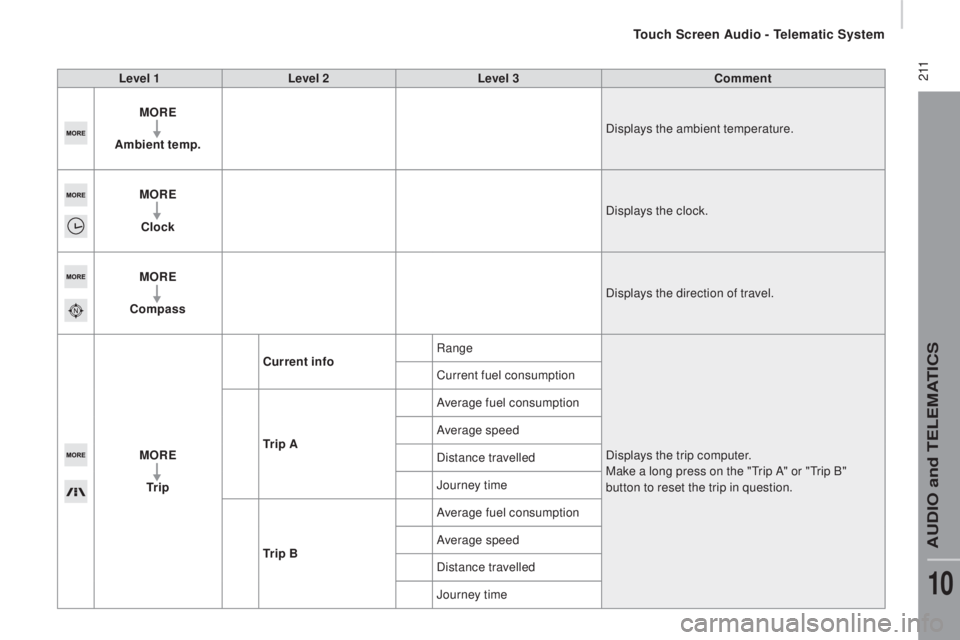
2 11Level 1Level 2 Level 3com ment
M
orE
Am
bient temp. Displays the ambient temperature.
M
orE
cl
ock Displays the clock.
M
orE
com
pass Displays the direction of travel.
M
orE
tr i
p
curr
ent infoRange
Displays the trip computer.
Make a long press on the "
tri
p A" or "
tri
p B"
button to reset the trip in question.
Current fuel consumption
tr i
p AAverage fuel consumption
Average speed
Distance travelled
Journey time
tr i
p BAverage fuel consumption
Average speed
Distance travelled
Journey time
touch Screen Audio - telematic System
AuDIO and teLeMAtICS
10
Page 217 of 276
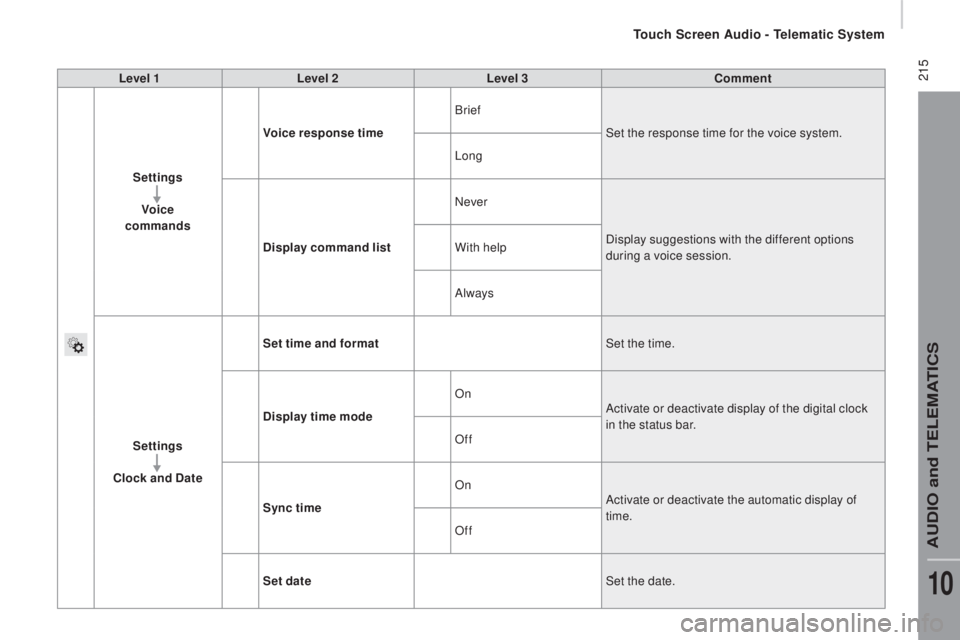
215Level 1Level 2 Level 3com ment
Settings Voice
commands Voice response time
Brief
Set the response time for the voice system.
Long
di
splay command list Never
Display suggestions with the different options
during a voice session.
With help
Always
Settings
cloc
k and
date S
et time and format Set the time.
di
splay time mode On
Activate or deactivate display of the digital clock
in the status bar.
Off
Sync time On
Activate or deactivate the automatic display of
time.
Off
Set date Set the date.
touch Screen Audio - telematic System
AuDIO and teLeMAtICS
10
Page 219 of 276
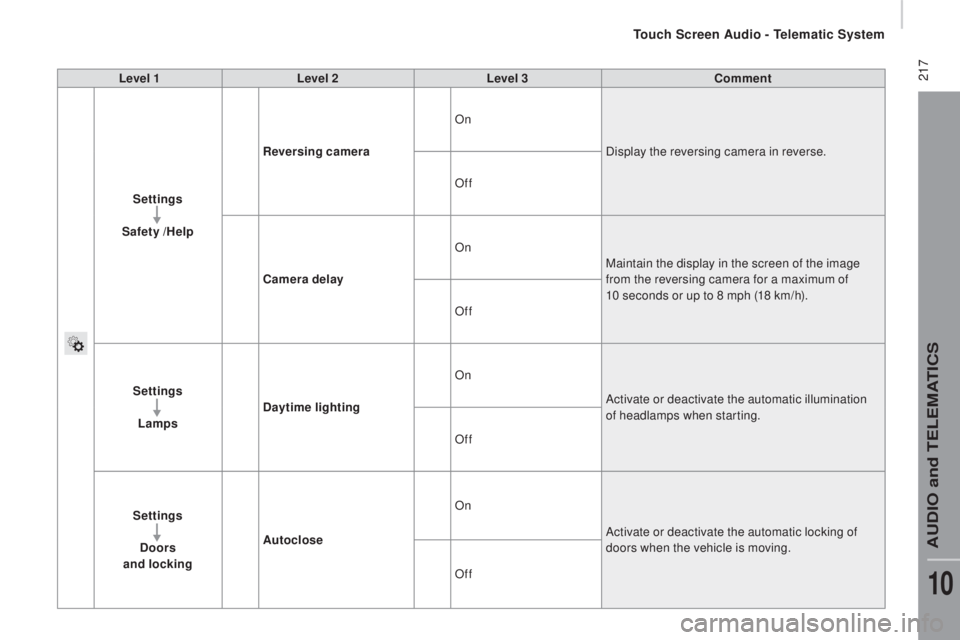
217Level 1Level 2 Level 3com ment
Settings
Safety /Help
rev
ersing camera On
Display the reversing camera in reverse.
Off
cam
era delayOn
Maintain the display in the screen of the image
from the reversing camera for a maximum of
10 seconds or up to 8 mph (18 km/h).
Off
Settings Lamps
day
time lighting On
Activate or deactivate the automatic illumination
of headlamps when starting.
Off
Settings
doo
rs
and locking Autoclose On
Activate or deactivate the automatic locking of
doors when the vehicle is moving.
Off
touch Screen Audio - telematic System
AuDIO and teLeMAtICS
10
Page 223 of 276
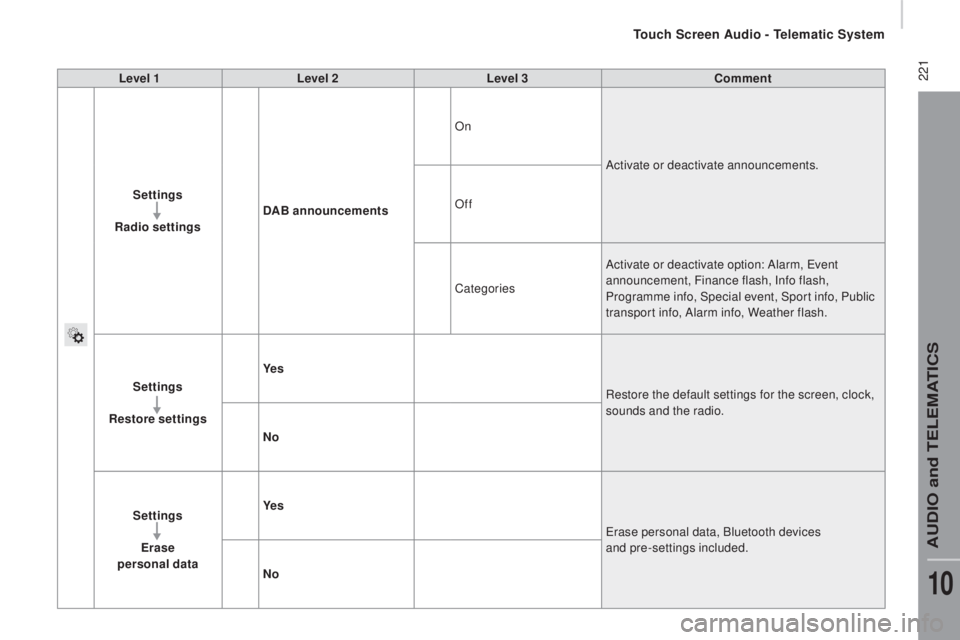
221Level 1Level 2 Level 3com ment
Settings
ra
dio settings
dAB
announcementsOn
Activate or deactivate announcements.
Off
Categories Activate or deactivate option: Alarm,
eve
nt
announcement, Finance flash, Info flash,
Programme info, Special event, Sport info, Public
transport info, Alarm info, Weather flash.
Settings
resto
re settings Ye s
Restore the default settings for the screen, clock,
sounds and the radio.
no
S
ettings
Erase
personal data Ye s
era
se personal data, Bluetooth devices
and pre-settings included.
no
touch Screen Audio - telematic System
AuDIO and teLeMAtICS
10
Page 252 of 276
250
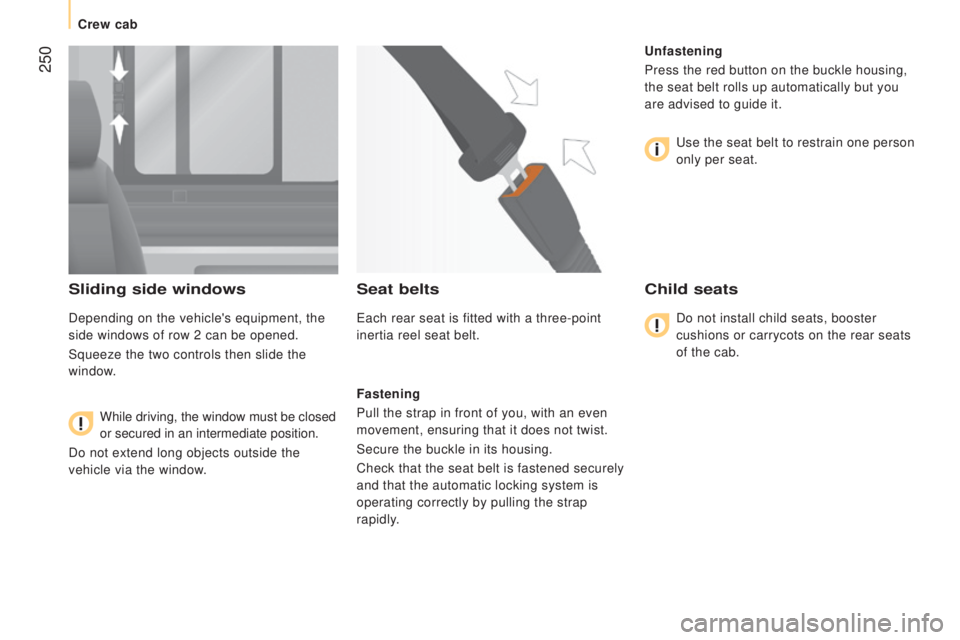
Sliding side windows
Depending on the vehicle's equipment, the
side windows of row 2 can be opened.
Squeeze the two controls then slide the
window.While driving, the window must be closed
or secured in an intermediate position.
Do not extend long objects outside the
vehicle via the window.
Seat belts
each rear seat is fitted with a three-point
inertia reel seat belt.
Fastening
Pull the strap in front of you, with an even
movement, ensuring that it does not twist.
Secure the buckle in its housing.
Check that the seat belt is fastened securely
and that the automatic locking system is
operating correctly by pulling the strap
rapidly.
unfastening
Press the red button on the buckle housing,
the seat belt rolls up automatically but you
are advised to guide it.
use the seat belt to restrain one person
only per seat.
child seats
Do not install child seats, booster
cushions or carrycots on the rear seats
of the cab.
Crew cab
Page 257 of 276
255
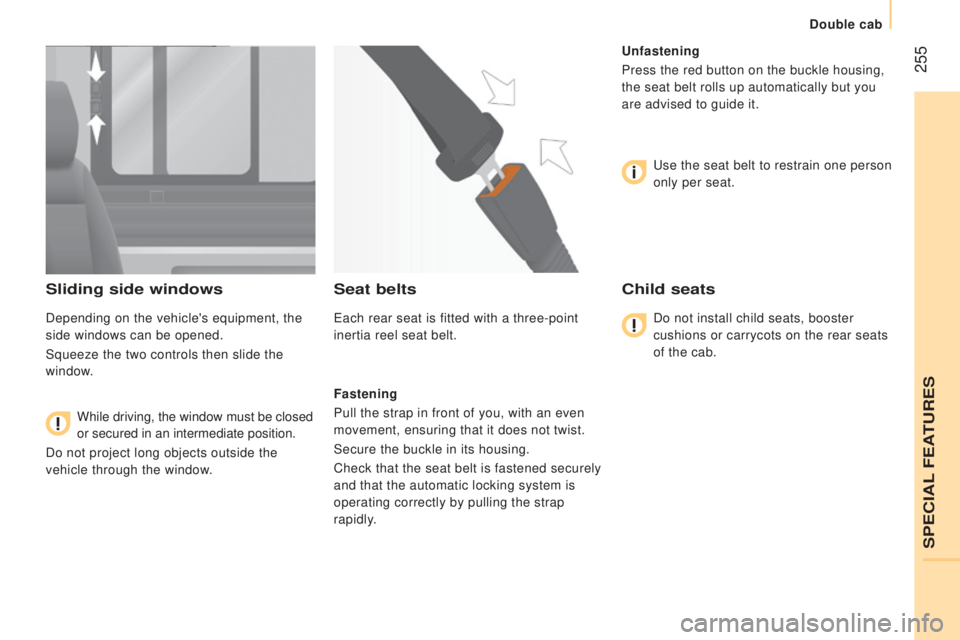
Sliding side windows
Depending on the vehicle's equipment, the
side windows can be opened.
Squeeze the two controls then slide the
window.While driving, the window must be closed
or secured in an intermediate position.
Do not project long objects outside the
vehicle through the window.
Seat belts
each rear seat is fitted with a three-point
inertia reel seat belt.
Fastening
Pull the strap in front of you, with an even
movement, ensuring that it does not twist.
Secure the buckle in its housing.
Check that the seat belt is fastened securely
and that the automatic locking system is
operating correctly by pulling the strap
rapidly.
unfastening
Press the red button on the buckle housing,
the seat belt rolls up automatically but you
are advised to guide it.
use the seat belt to restrain one person
only per seat.
child seats
Do not install child seats, booster
cushions or carrycots on the rear seats
of the cab.
SPeCIAL FeAtuReS
Double cab