phone Peugeot Boxer 2018 Owner's Guide
[x] Cancel search | Manufacturer: PEUGEOT, Model Year: 2018, Model line: Boxer, Model: Peugeot Boxer 2018Pages: 232, PDF Size: 9.09 MB
Page 207 of 232
21
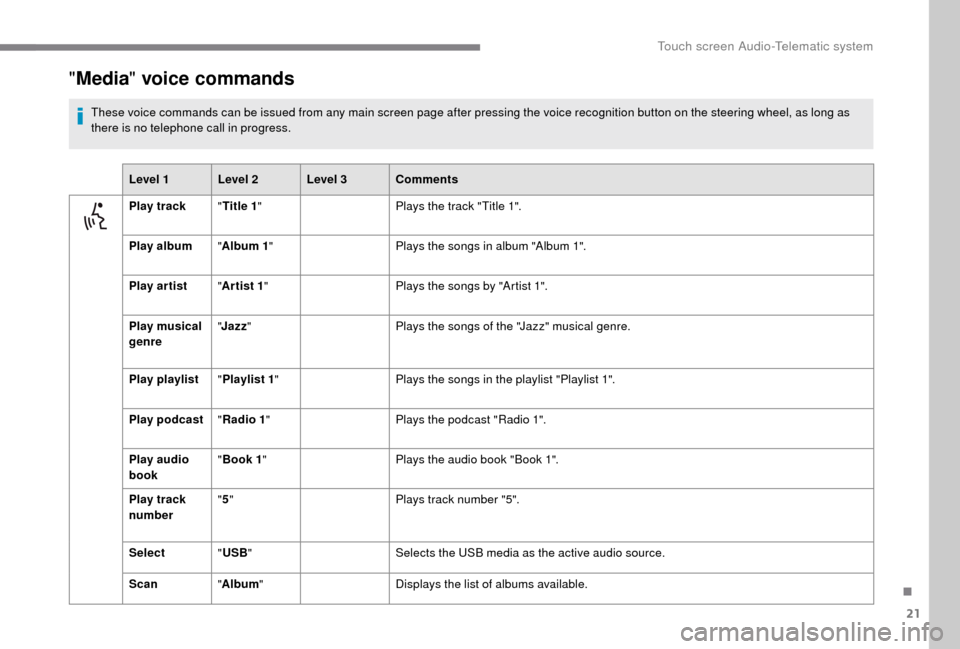
"Media " voice commands
These voice commands can be issued from any main screen page after pressing the voice recognition button on the steering wheel, as long as
there is no telephone call in progress.
Level 1 Level 2 Level 3 Comments
Play track "Title 1 " Plays the track "Title 1".
Play album "Album 1 " Plays the songs in album "Album 1".
Play ar tist "Ar tist 1 " Plays the songs by "Artist 1".
Play musical
genre "
Jazz " Plays the songs of the "Jazz" musical genre.
Play playlist "Playlist 1 " Plays the songs in the playlist "Playlist 1".
Play podcast "Radio 1 " Plays the podcast "Radio 1".
Play audio
book "
Book 1 " Plays the audio book "Book 1".
Play track
number "
5 " Plays track number "5".
Select "USB " Selects the USB media as the active audio source.
Scan "Album " Displays the list of albums available.
.
Touch screen Audio-Telematic system
Page 208 of 232
22
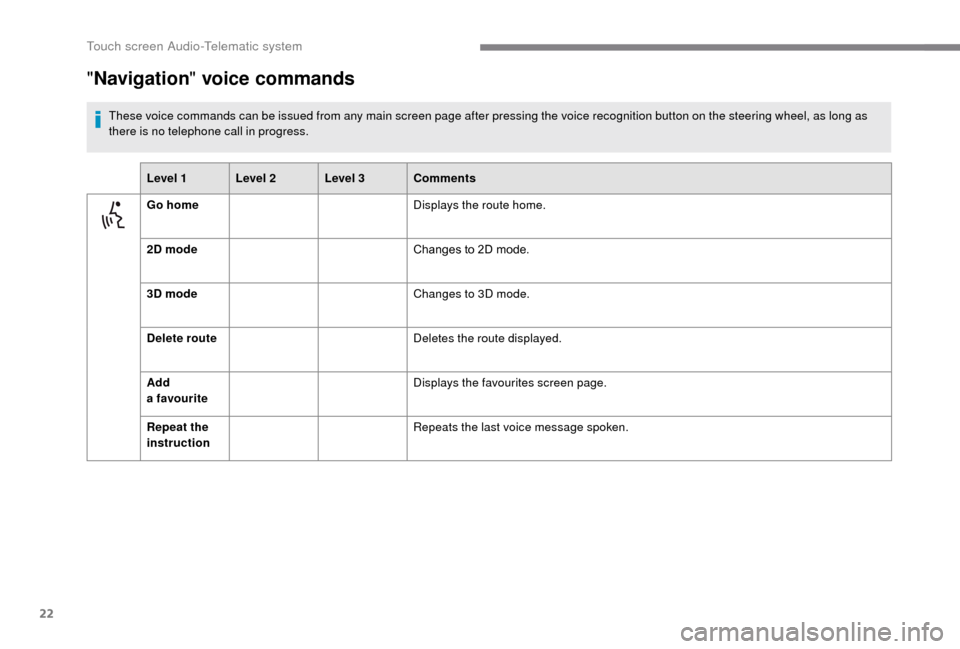
"Navigation " voice commands
These voice commands can be issued from any main screen page after pressing the voice recognition button on the steering wheel, as long as
there is no telephone call in progress.
Level 1 Level 2 Level 3 Comments
Go home Displays the route home.
2D mode Changes to 2D mode.
3D mode Changes to 3D mode.
Delete route Deletes the route displayed.
Add
a
favourite Displays the favourites screen page.
Repeat the
instruction Repeats the last voice message spoken.
Touch screen Audio-Telematic system
Page 209 of 232
23
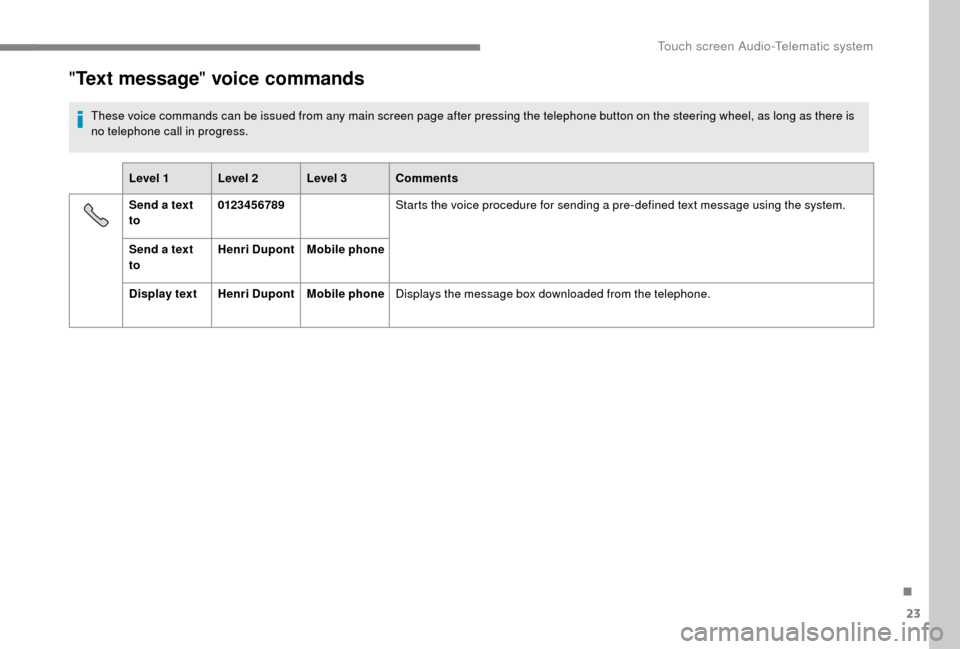
"Text message " voice commands
These voice commands can be issued from any main screen page after pressing the telephone button on the steering wheel, as long as there is
no telephone call in progress.
Level 1 Level 2 Level 3 Comments
Send a
text
to 0123 4 5 6789
Starts the voice procedure for sending a
pre-defined text message using the system.
Send a
text
to Henri Dupont
Mobile phone
Display text Henri DupontMobile phoneDisplays the message box downloaded from the telephone.
.
Touch screen Audio-Telematic system
Page 210 of 232
24
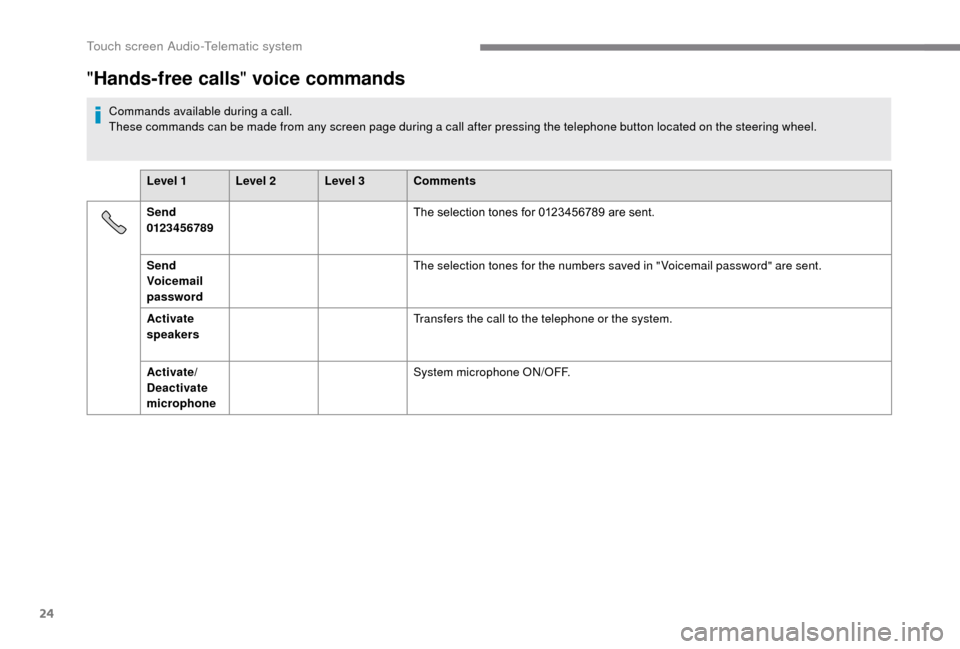
"Hands-free calls " voice commands
Commands available during a call.
These commands can be made from any screen page during a call after pressing the telephone button located on the steering wheel.
Level 1 Level 2 Level 3 Comments
Send
0123 4 5 6789 The selection tones for 0123456789
are sent.
Send
Voicemail
password The selection tones for the numbers saved in " Voicemail password" are sent.
Activate
speakers Transfers the call to the telephone or the system.
Activate/
Deactivate
microphone System microphone ON/OFF.
Touch screen Audio-Telematic system
Page 211 of 232
1
Audio system
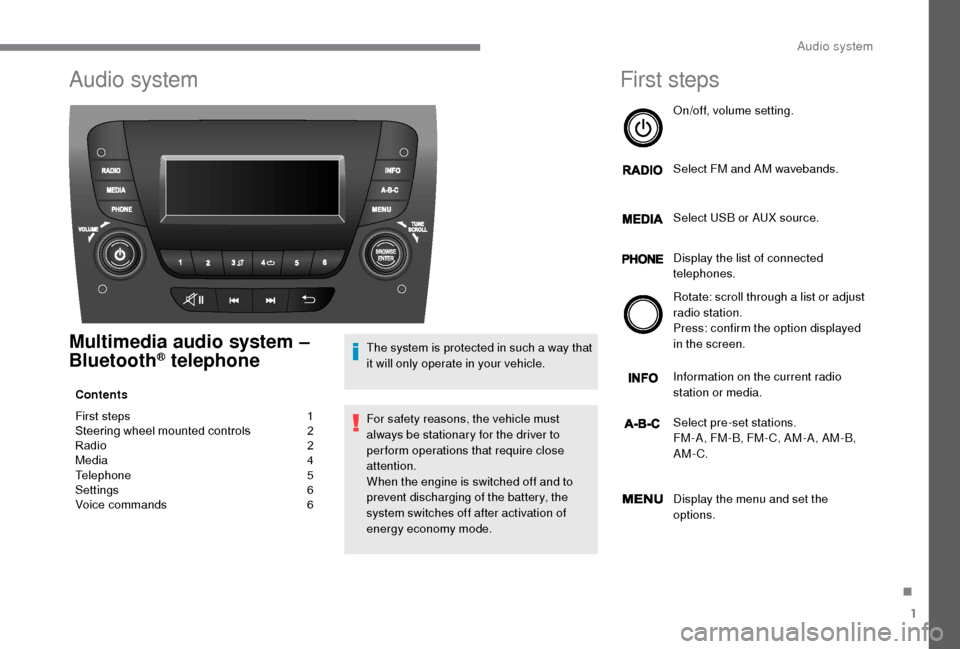
Multimedia audio system –
Bluetooth® telephone
Contents
First steps
1
S
teering wheel mounted controls
2
R
adio
2
M
edia
4
T
elephone
5
S
ettings
6
V
oice commands
6T
he system is protected in such a way that
it will only operate in your vehicle.
For safety reasons, the vehicle must
always be stationary for the driver to
perform operations that require close
attention.
When the engine is switched off and to
prevent discharging of the battery, the
system switches off after activation of
energy economy mode.
First steps
On/off, volume setting.
Select FM and AM wavebands.
Select USB or AUX source.
Display the list of connected
telephones.
Rotate: scroll through a
list or adjust
radio station.
Press: confirm the option displayed
in the screen.
Information on the current radio
station or media.
Select pre-set stations.
FM-A, FM-B, FM- C, AM-A, AM-B,
AM-C.
Display the menu and set the
options.
.
Audio system
Page 212 of 232
2
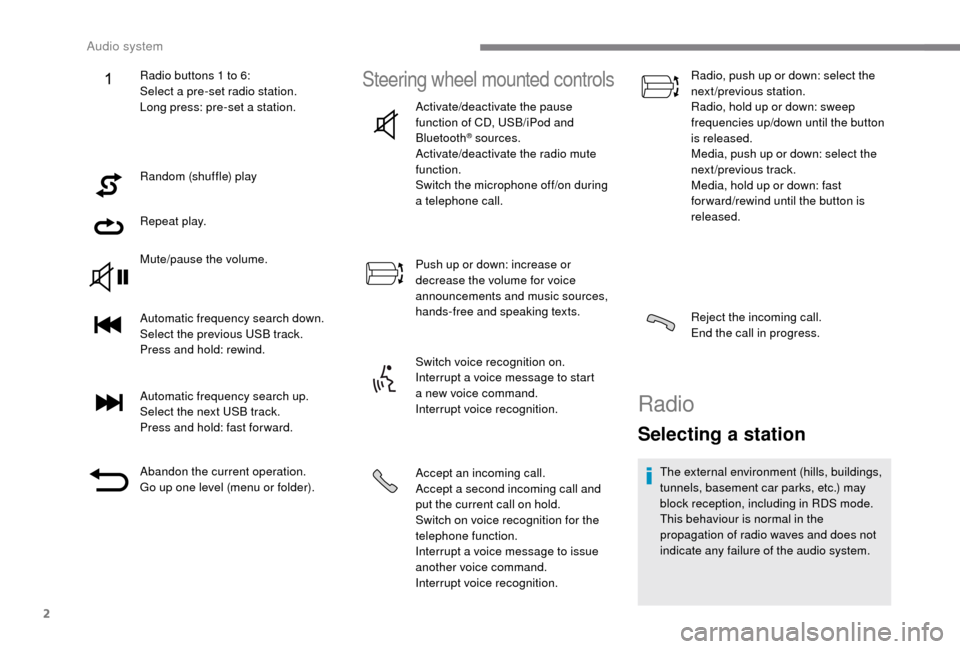
Random (shuffle) play
Repeat play.
Mute/pause the volume.
Automatic frequency search down.
Select the previous USB track.
Press and hold: rewind.
Automatic frequency search up.
Select the next USB track.
Press and hold: fast for ward.
Abandon the current operation.
Go up one level (menu or folder).
Steering wheel mounted controls
Activate/deactivate the pause
function of CD, USB/iPod and
Bluetooth
® sources.
Activate/deactivate the radio mute
function.
Switch the microphone off/on during
a
telephone call.
Push up or down: increase or
decrease the volume for voice
announcements and music sources,
hands-free and speaking texts.
Switch voice recognition on.
Interrupt a
voice message to start
a
new voice command.
Interrupt voice recognition.
Accept an incoming call.
Accept a
second incoming call and
put the current call on hold.
Switch on voice recognition for the
telephone function.
Interrupt a
voice message to issue
another voice command.
Interrupt voice recognition. Radio, push up or down: select the
next/previous station.
Radio, hold up or down: sweep
frequencies up/down until the button
is released.
Media, push up or down: select the
next/previous track.
Media, hold up or down: fast
for ward/rewind until the button is
released.
Reject the incoming call.
End the call in progress.
Radio
Selecting a station
The external environment (hills, buildings,
tunnels, basement car parks, etc.) may
block reception, including in RDS mode.
This behaviour is normal in the
propagation of radio waves and does not
indicate any failure of the audio system.
Radio buttons 1
to 6:
Select a
pre-set radio station.
Long press: pre-set a
station.
Audio system
Page 215 of 232
5
To protect the system, do not use a USB
hub .
The system does not support the simultaneous
connection of two identical devices (two
memory sticks or two Apple
® players) but it is
possible to connect one memory stick and one
Apple
® player at the same time.
It is recommended that you use genuine
Apple® USB cables for correct operation.
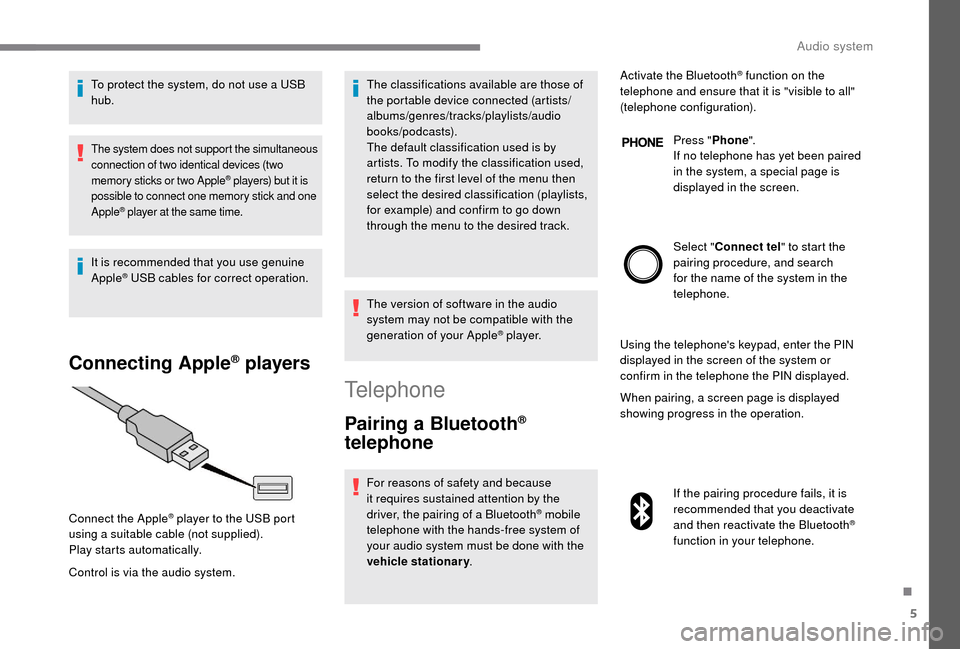
Connecting Apple® players
Control is via the audio system. The classifications available are those of
the portable device connected (artists/
albums/genres/tracks/playlists/audio
books/podcasts).
The default classification used is by
artists. To modify the classification used,
return to the first level of the menu then
select the desired classification (playlists,
for example) and confirm to go down
through the menu to the desired track.
The version of software in the audio
system may not be compatible with the
generation of your Apple
® p l aye r.
Connect the Apple
® player to the USB port
using a
suitable cable (not supplied).
Play starts automatically.
Telephone
Pairing a Bluetooth®
telephone
For reasons of safety and because
it requires sustained attention by the
driver, the pairing of a
Bluetooth
® mobile
telephone with the hands-free system of
your audio system must be done with the
vehicle stationary . Activate the Bluetooth
® function on the
telephone and ensure that it is "visible to all"
(telephone configuration).
Press "Phone".
If no telephone has yet been paired
in the system, a special page is
displayed in the screen.
Select " Connect tel " to start the
pairing procedure, and search
for the name of the system in the
telephone.
Using the telephone's keypad, enter the PIN
displayed in the screen of the system or
confirm in the telephone the PIN displayed.
When pairing, a screen page is displayed
showing progress in the operation.
If the pairing procedure fails, it is
recommended that you deactivate
and then reactivate the Bluetooth
®
function in your telephone.
.
Audio system
Page 216 of 232
6
When the pairing procedure has
finished successfully, a screen page
with "Connection successful"
appears:
Confirm to display the menus.
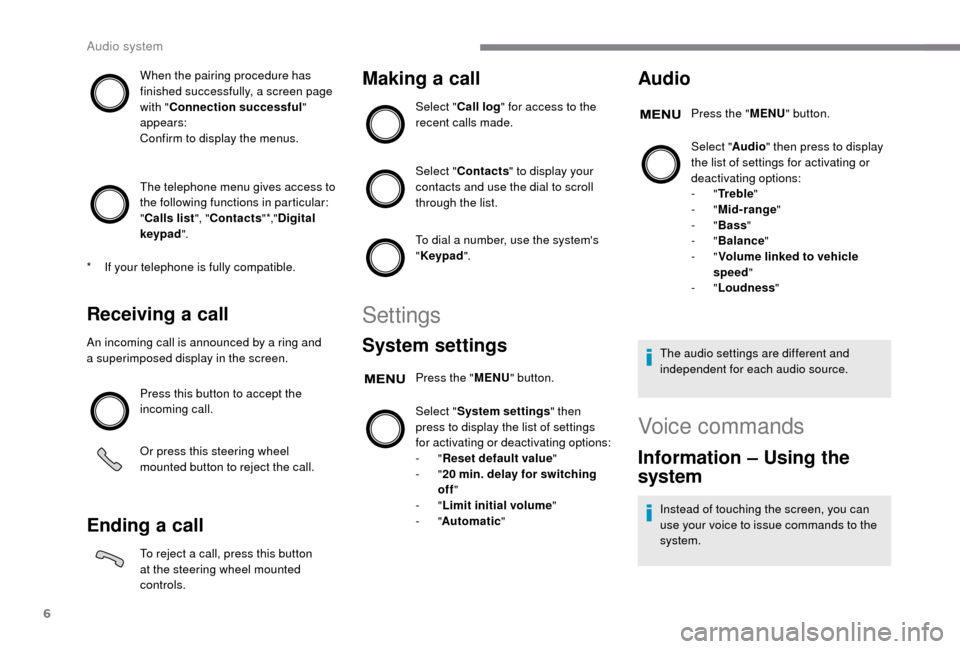
The telephone menu gives access to
the following functions in particular:
" Calls list ", "Contacts " *,"Digital
keypad ".
Receiving a call
An incoming call is announced by a ring and
a superimposed display in the screen.
Press this button to accept the
incoming call.
Or press this steering wheel
mounted button to reject the call.
Ending a call
To reject a call, press this button
a t the steering wheel mounted
controls.
Making a call
Select "Call log " for access to the
recent calls made.
Select " Contacts " to display your
contacts and use the dial to scroll
through the list.
To dial a
number, use the system's
" Keypad ".
Settings
System settings
Press the " MENU" button.
Select " System settings " then
press to display the list of settings
for activating or deactivating options:
-
"Reset default value "
-
"20
min. delay for switching
off "
-
"Limit initial volume "
-
"Automatic "
Audio
Press the "MENU" button.
Select " Audio" then press to display
the list of settings for activating or
deactivating options:
-
"Tr e b l e "
-
"Mid-range "
-
"Bass "
-
"Balance "
-
"Volume linked to vehicle
speed "
-
"Loudness "
The audio settings are different and
independent for each audio source.
*
I
f your telephone is fully compatible.
Voice commands
Information – Using the
system
Instead of touching the screen, you can
use your voice to issue commands to the
system.
Audio system
Page 217 of 232
7
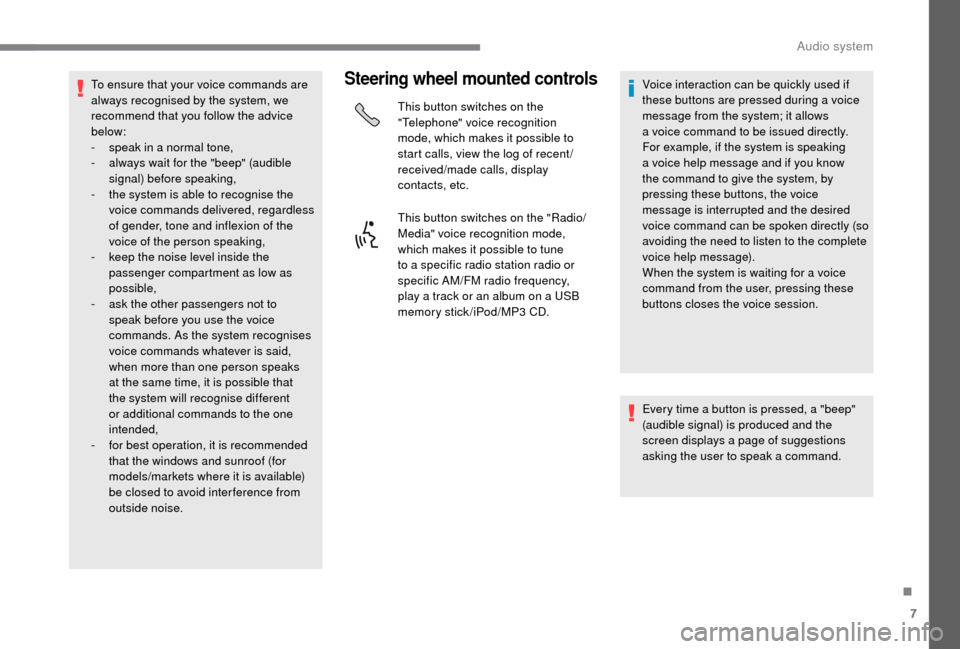
To ensure that your voice commands are
always recognised by the system, we
recommend that you follow the advice
below:
-
s
peak in a normal tone,
-
a
lways wait for the "beep" (audible
signal) before speaking,
-
t
he system is able to recognise the
voice commands delivered, regardless
of gender, tone and inflexion of the
voice of the person speaking,
-
k
eep the noise level inside the
passenger compartment as low as
possible,
-
a
sk the other passengers not to
speak before you use the voice
commands. As the system recognises
voice commands whatever is said,
when more than one person speaks
at the same time, it is possible that
the system will recognise different
or additional commands to the one
intended,
-
f
or best operation, it is recommended
that the windows and sunroof (for
models/markets where it is available)
be closed to avoid inter ference from
outside noise.Steering wheel mounted controls
This button switches on the
"Telephone" voice recognition
mode, which makes it possible to
start calls, view the log of recent /
received/made calls, display
contacts, etc.
This button switches on the "Radio/
Media" voice recognition mode,
which makes it possible to tune
to a
specific radio station radio or
specific AM/FM radio frequency,
play a
track or an album on a USB
memory stick/iPod/MP3
CD.Voice interaction can be quickly used if
these buttons are pressed during a
voice
message from the system; it allows
a
voice command to be issued directly.
For example, if the system is speaking
a
voice help message and if you know
the command to give the system, by
pressing these buttons, the voice
message is interrupted and the desired
voice command can be spoken directly (so
avoiding the need to listen to the complete
voice help message).
When the system is waiting for a
voice
command from the user, pressing these
buttons closes the voice session.
Every time a
button is pressed, a "beep"
(audible signal) is produced and the
screen displays a
page of suggestions
asking the user to speak a
command.
.
Audio system
Page 218 of 232
8
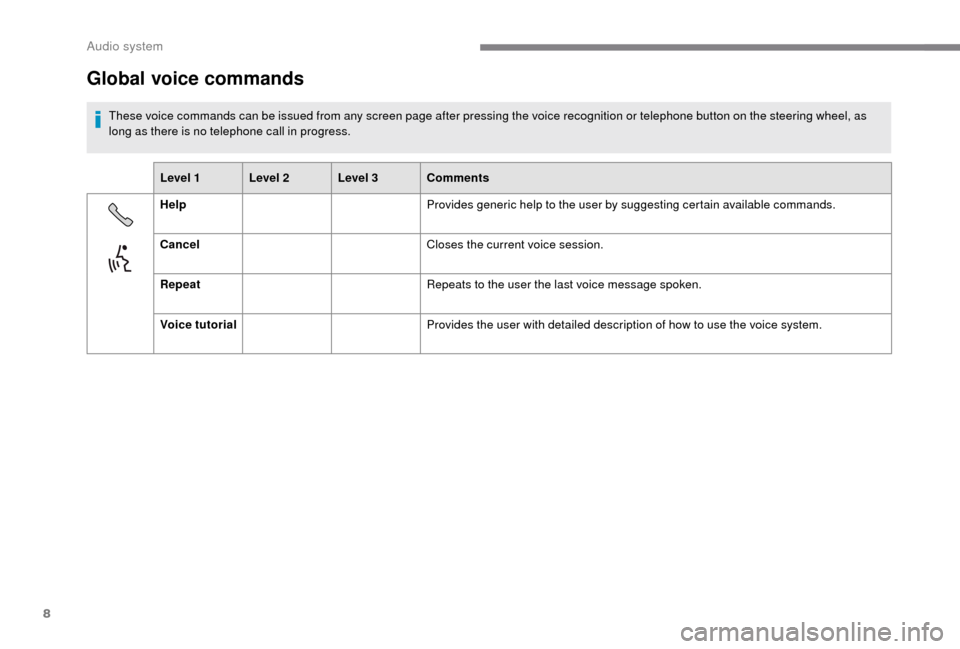
Global voice commands
These voice commands can be issued from any screen page after pressing the voice recognition or telephone button on the steering wheel, as
long as there is no telephone call in progress.Level 1 Level 2 Level 3 Comments
Help Provides generic help to the user by suggesting certain available commands.
Cancel Closes the current voice session.
Repeat Repeats to the user the last voice message spoken.
Voice tutorial Provides the user with detailed description of how to use the voice system.
Audio system