navi Peugeot Boxer 2018 Owner's Manual
[x] Cancel search | Manufacturer: PEUGEOT, Model Year: 2018, Model line: Boxer, Model: Peugeot Boxer 2018Pages: 232, PDF Size: 9.09 MB
Page 6 of 232
4
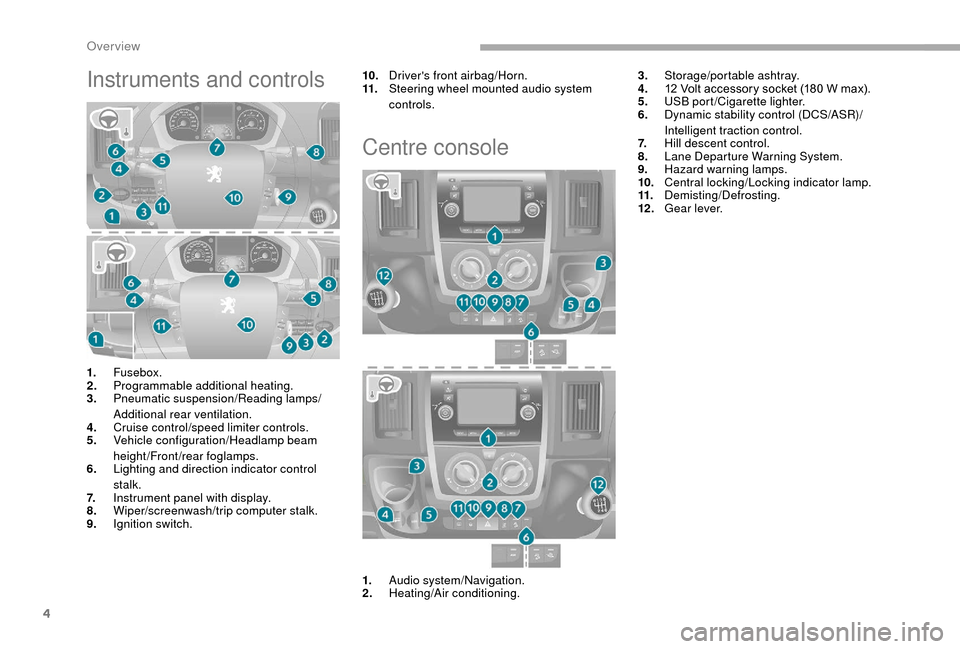
Instruments and controls10.Driver's front airbag/Horn.
11. Steering wheel mounted audio system
controls.
Centre console
3.Storage/portable ashtray.
4. 12
Volt accessory socket (180 W max).
5. USB port/Cigarette lighter.
6. Dynamic stability control (DCS/ASR)/
Intelligent traction control.
7. Hill descent control.
8. Lane Departure Warning System.
9. Hazard warning lamps.
10. Central locking/Locking indicator lamp.
11. Demisting/Defrosting.
12 . Gear lever.
1. Fusebox.
2. Programmable additional heating.
3. Pneumatic suspension/Reading lamps/
Additional rear ventilation.
4. Cruise control/speed limiter controls.
5. Vehicle configuration/Headlamp beam
height/Front/rear foglamps.
6. Lighting and direction indicator control
stalk.
7. Instrument panel with display.
8. Wiper/screenwash/trip computer stalk.
9. Ignition switch.
1.Audio system/Navigation.
2. Heating/Air conditioning.
Over view
Page 29 of 232
27
Using the touch screen
audio system
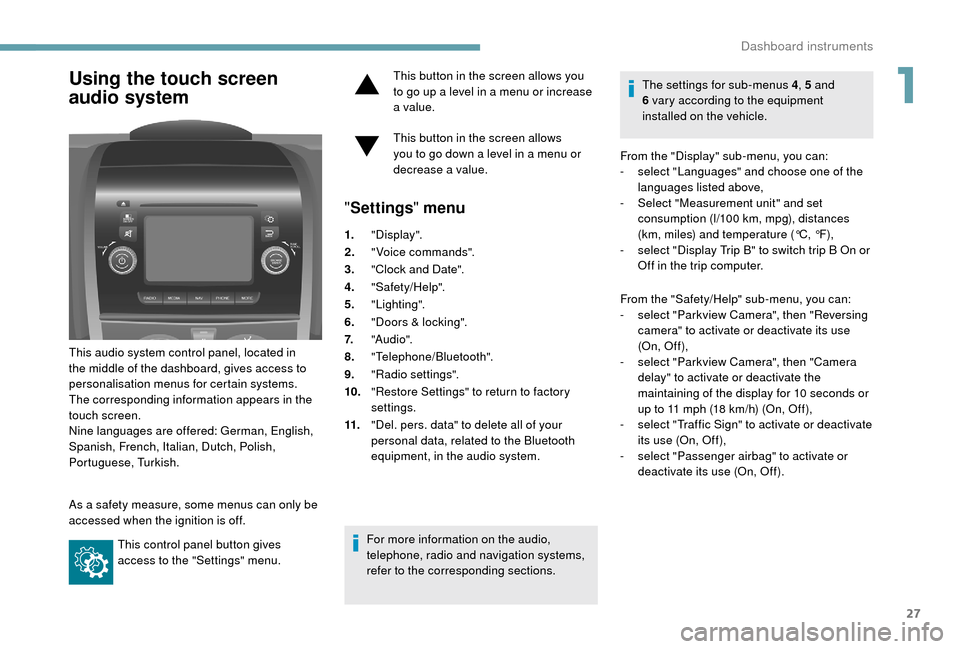
This audio system control panel, located in
the middle of the dashboard, gives access to
personalisation menus for certain systems.
The corresponding information appears in the
touch screen.
Nine languages are offered: German, English,
Spanish, French, Italian, Dutch, Polish,
Portuguese, Turkish.
As a
safety measure, some menus can only be
accessed when the ignition is off.
This control panel button gives
access to the "Settings" menu. This button in the screen allows you
to go up a
level in a menu or increase
a value.
This button in the screen allows
you to go down a level in a menu or
decrease a
value.
"
Settings " menu
1."Display".
2. "Voice commands".
3. "Clock and Date".
4. "Safety/Help".
5. "Lighting".
6. "Doors & locking".
7. "Audi o".
8. "Telephone/Bluetooth".
9. "Radio settings".
10. "Restore Settings" to return to factory
settings.
11. "Del. pers. data" to delete all of your
personal data, related to the Bluetooth
equipment, in the audio system.
For more information on the audio,
telephone, radio and navigation systems,
refer to the corresponding sections. The settings for sub-menus 4
, 5 and
6 vary according to the equipment
installed on the vehicle.
From the "Display" sub-menu, you can:
-
s
elect "Languages" and choose one of the
languages listed above,
-
S
elect "Measurement unit" and set
consumption (l/100 km, mpg), distances
(km, miles) and temperature (°C, °F),
- s elect "Display Trip B" to switch trip B On or
Off in the trip computer.
From the "Safety/Help" sub-menu, you can:
-
s
elect "Parkview Camera", then "Reversing
camera" to activate or deactivate its use
(On, Of f ),
-
s
elect "Parkview Camera", then "Camera
delay" to activate or deactivate the
maintaining of the display for 10
seconds or
up to 11
mph (18 km/h) (On, Off),
-
s
elect "Traffic Sign" to activate or deactivate
its use (On, Off),
-
s
elect "Passenger airbag" to activate or
deactivate its use (On, Off).
1
Dashboard instruments
Page 83 of 232
81
LTNIEK ADA neįrenkite vaiko prilaikymo priemonės su atgal atgręžtu vaiku ant sėdynės, kuri saugoma VEIKIANČIOS priekinės ORO
PAGALVĖS. Išsiskleidus oro pagalvei vaikas gali būti MIRTINAI arba SUNKIAI TR AUMUOTAS.
LV NEK AD NEuzstādiet uz aizmuguri vērstu bērnu sēdeklīti priekšējā pasažiera sēdvietā, kurā ir AKTIVIZĒTS priekšējais DROŠĪBAS GAISA
SPILVENS. Tas var izraisīt BĒRNA NĀVI vai radīt NOPIETNUS IEVAINOJUMUS.
MT Qatt m'ghandek thalli tifel/tifla marbut f'siggu dahru lejn l-Airbag attiva, ghaliex tista' tikkawza korriment serju jew anke mewt lit-tifel/tifla
NL Plaats NOOIT een kinderzitje met de rug in de rijrichting op een zitplaats waar van de AIRBAG is INGESCHAKELD. Bij het afgaan van de
airbag kan het KIND LEVENSGEVA ARLIJK GEWOND R AKEN
NO Installer ALDRI et barnesete med ryggen mot kjøreretningen i
et sete som er beskyttet med en frontal AKTIVERT KOLLISJONSPUTE,
BARNET risikerer å bli DREPT eller HARDT SK ADET.
PL NIGDY nie instalować fotelika dziecięcego w
pozycji "tyłem do kierunku jazdy" na siedzeniu wyposażonym w CZOŁOWĄ PODUSZKĘ
POWIETRZNĄ w
stanie AKT Y WNYM. Może to doprowadzić do ŚMIERCI DZIECK A lub spowodować u niego POWA ŻNE OBR A ŻENIA
CIAŁA.
PT NUNCA instale um sistema de retenção para crianças de costas para a
estrada num banco protegido por um AIRBAG frontal ACTIVADO.
Esta instalação poderá provocar FERIMENTOS GR AVES ou a
MORTE da CRIANÇA.
RO Nu instalati NICIODATA un sistem de retinere pentru copii, dispus cu spatele in directia de mers, pe un loc din vehicul protejat cu AIRBAG
frontal ACTIVAT. Aceasta ar putea provoca MOARTEA COPILULUI sau R ANIREA lui GR AVA.
RU ВО ВСЕХ СЛУЧА ЯХ ЗАПРЕЩАЕТСЯ использовать обращенное назад детское удерживающее устройство на сиденье,
защищенном ФУНКЦИОНИРУЮЩЕЙ ПОДУШКОЙ БЕЗОПАСНОСТИ, установленной перед этим сиденьем. Это может привести к
ГИБЕЛИ РЕБЕНК А или НАНЕСЕНИЮ ЕМУ СЕРЬЕЗНЫХ ТЕЛЕСНЫХ ПОВРЕЖ ДЕНИЙ
SK NIKDY neinštalujte detské zádržné zariadenie orientované smerom dozadu na sedadlo chránené AKTIVOVANÝM čelným AIRBAGOM.
Mohlo by dôjsť k
SMRTEĽNÉMU alebo VÁ ŽNEMU POR ANENIU DIEŤAŤA.
SL NIKOLI ne nameščajte otroškega sedeža s
hrbtom v smeri vožnje, če je VARNOSTNA BLA ZINA pred sprednjim sopotnikovim sedežem
AKTIVIR ANA. Takšna namestitev lahko povzroči SMRT OTROK A ali HUDE POŠKODBE.
SR NIK ADA ne koristite dečje sedište koje se okreće unazad na sedištu zaštićenim AKTIVNIM VA ZDUŠNIM JASTUKOM ispred njega, jer mogu
nastupiti SMRT ili OZBILJNA POVREDA DETETA.
SV Passagerarkrockkudden fram MÅSTE vara avaktiverad om en bakåtvänd bilbarnstol installeras på denna plats. Annars riskerar barnet att
DÖDAS eller SK ADAS ALLVARLIGT.
TR KESİNLKLE HAVA YASTIĞI AKTİF olan ön koltuğa yüzü arkaya dönük bir çocuk koltuğu yerleştirmeyiniz. Bu ÇOCUĞUN ÖLMESİNE veya
ÇOK AĞIR YAR ALANMASINA sebep olabilir.
5
5
Safety
Page 187 of 232
1
Touch screen Audio-Telematic system
Multimedia audio system –
Bluetooth® telephone – GPS
navigation
Contents
First steps
1
G
lossary
2
S
teering wheel mounted controls
3
M
enus
3
R
adio
4
D
AB radio (Digital Audio Broadcasting)
5
M
edia
6
N
avigation
9
T
elephone
1
2
Vehicle information
1
4
Settings
1
4
Voice commands
1
6The system is protected in such a
way that
it will only operate in your vehicle.
For safety reasons, the vehicle must
always be stationary for the driver to
perform operations that require close
attention.
When the engine is switched off and to
prevent discharging of the battery, the
system switches off after activation of
energy economy mode.
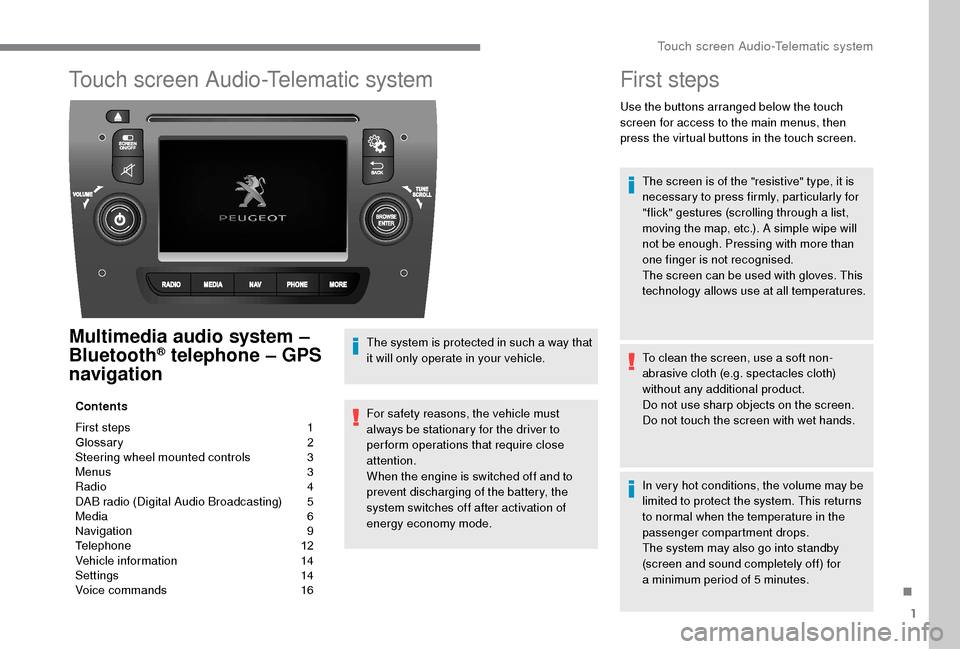
First steps
Use the buttons arranged below the touch
screen for access to the main menus, then
press the virtual buttons in the touch screen.
The screen is of the "resistive" type, it is
necessary to press firmly, particularly for
"flick" gestures (scrolling through a
list,
moving the map, etc.). A simple wipe will
not be enough. Pressing with more than
one finger is not recognised.
The screen can be used with gloves. This
technology allows use at all temperatures.
To clean the screen, use a
soft non-
abrasive cloth (e.g. spectacles cloth)
without any additional product.
Do not use sharp objects on the screen.
Do not touch the screen with wet hands.
In very hot conditions, the volume may be
limited to protect the system. This returns
to normal when the temperature in the
passenger compartment drops.
The system may also go into standby
(screen and sound completely off) for
a
minimum period of 5 minutes.
.
Touch screen Audio-Telematic system
Page 188 of 232
2
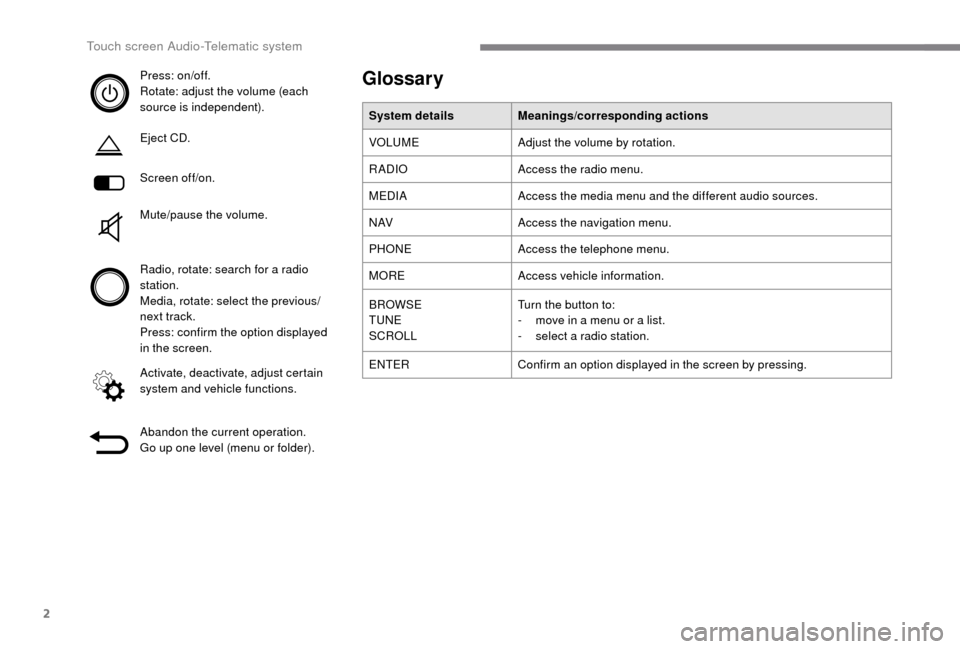
Press: on/off.
Rotate: adjust the volume (each
source is independent).
Eject CD.
Screen off/on.
Mute/pause the volume.
Radio, rotate: search for a radio
station.
Media, rotate: select the previous/
next track.
Press: confirm the option displayed
in the screen.
Activate, deactivate, adjust certain
system and vehicle functions.
Abandon the current operation.
Go up one level (menu or folder).Glossary
System details Meanings/corresponding actions
VOLUME Adjust the volume by rotation.
RADIO Access the radio menu.
MEDIA Access the media menu and the different audio sources.
N AV Access the navigation menu.
PHONE Access the telephone menu.
MORE Access vehicle information.
BROWSE
TUNE
SCROLL Turn the button to:
-
m
ove in a menu or a list.
-
s
elect a radio station.
ENTER Confirm an option displayed in the screen by pressing.
Touch screen Audio-Telematic system
Page 190 of 232
4
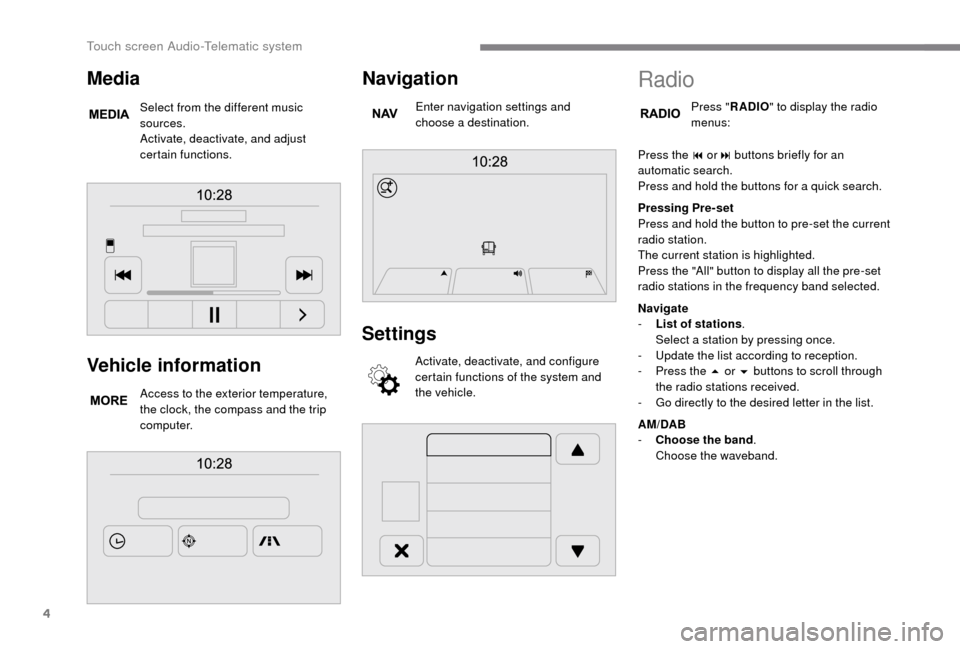
Vehicle information
Access to the exterior temperature,
the clock, the compass and the trip
computer.
Navigation
Enter navigation settings and
choose a destination.
Settings
Activate, deactivate, and configure
certain functions of the system and
the vehicle.
Media
Select from the different music
sources.
Activate, deactivate, and adjust
certain functions.
Radio
Press "RADIO " to display the radio
menus:
Press the 9
or: buttons briefly for an
automatic search.
Press and hold the buttons for a
quick search.
Pressing Pre-set
Press and hold the button to pre-set the current
radio station.
The current station is highlighted.
Press the "All" button to display all the pre-set
radio stations in the frequency band selected.
Navigate
-
L
ist of stations .
Select a
station by pressing once.
-
U
pdate the list according to reception.
-
P
ress the 5 or 6 buttons to scroll through
the radio stations received.
-
G
o directly to the desired letter in the list.
AM/DAB
-
C
hoose the band .
Choose the waveband.
Touch screen Audio-Telematic system
Page 191 of 232
5
Adjustment
- D irect adjustment .
The screen virtual keypad can be used to
enter a
single number corresponding to
a
station.
-
T
he "more" or "less" graphic symbols allow
precise adjustment of the frequency.
Info
-
I
nformation .
Display information on the current radio
station.
Audio
-
E
qualiser .
Adjust the bass, mid-range and treble.
-
B
alance/Fade .
Adjust the balance of the speakers, front
and rear, left and right.
Press the button in the middle of the arrows
to balance the adjustments.
-
V
olume/Speed .
Select the desired setting, the option is
highlighted.
-
L
oudness .
Optimise audio quality at low volume.
-
A
utomatic radio .
Adjust the radio on startup or restore the
active state the last time the ignition was
switched to STOP.
-
R
adio off delay .
Adjust the setting.
-
A
UX vol. adjustment .
Adjust the settings.DAB (Digital Audio
Broadcasting) radio
Digital Radio
Digital radio provides higher quality
reception and also the graphical display
of current information on the radio station
being listened to.
The different "multiplex/ensembles" offer
a
choice of radio stations in alphabetical
o r d e r.
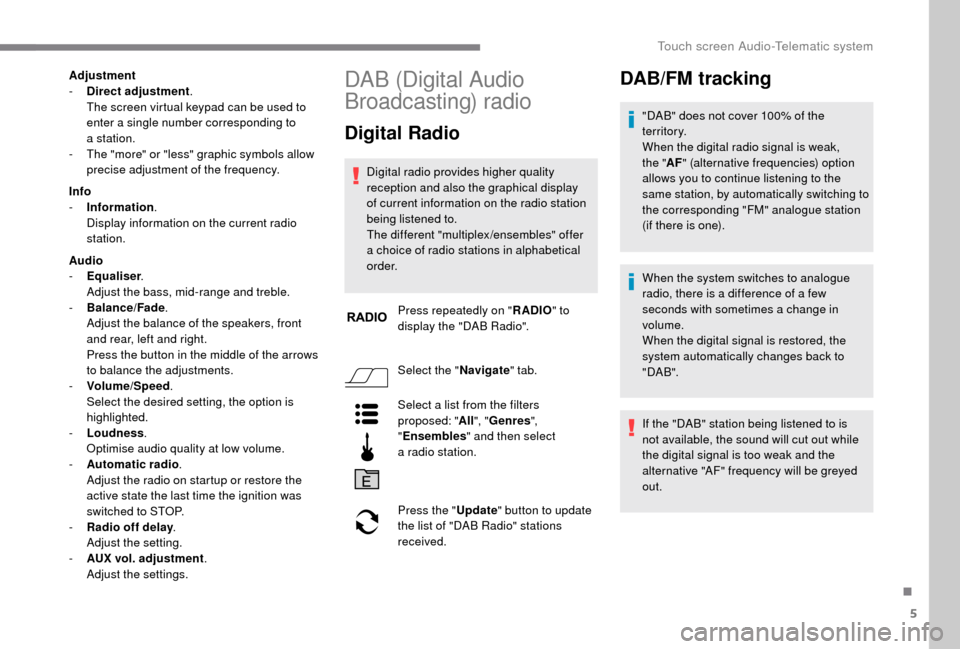
Press repeatedly on " RADIO" to
display the "DAB Radio".
Select the " Navigate" tab.
Select a
list from the filters
proposed: " All", "Genres ",
" Ensembles " and then select
a
radio station.
Press the " Update" button to update
the list of "DAB Radio" stations
received.
DAB/FM tracking
"DAB" does not cover 100% of the
te r r i to r y.
When the digital radio signal is weak,
the " AF" (alternative frequencies) option
allows you to continue listening to the
same station, by automatically switching to
the corresponding "FM" analogue station
(if there is one).
When the system switches to analogue
radio, there is a
difference of a few
seconds with sometimes a
change in
volume.
When the digital signal is restored, the
system automatically changes back to
" DA B ".
If the "DAB" station being listened to is
not available, the sound will cut out while
the digital signal is too weak and the
alternative "AF" frequency will be greyed
out.
.
Touch screen Audio-Telematic system
Page 192 of 232
6
Media
Press "MEDIA" to display the media
menus:
Press the 9
or: buttons to play the previous/
next track.
Press and hold the buttons for fast for ward or
rewind in the track selected.
Navigate
-
N
avigate by: Playing currently, Ar tists,
Albums, Genres, Tracks, Playlists, Audio
books, Podcasts .
Navigate and select tracks on the active
device.
The selection options depend on the device
connected or type of CD inserted.
Source
-
C
D, AUX, USB .
Select the desired audio source from those
available or insert a
device intended for
this purpose; the system starts playing the
source automatically.
-
Bl
uetooth
®.
Pair a
Bluetooth® audio device.
Info
-
I
nformation .
Display information on the track playing. Random
Press the button to play tracks on the CD, USB,
iPod or Bluetooth
® device in random order.
Repeat
Press the button to activate this function.
Audio
-
E
qualiser .
Adjust the bass, mid-range and treble.
-
B
alance/Fade .
Adjust the balance of the speakers, front
and rear, left and right.
Press the button in the middle of the arrows
to balance the adjustments.
-
V
olume/Speed .
Select the desired setting, the option is
highlighted.
-
L
oudness .
Optimise audio quality at low volume.
-
A
utomatic radio .
Adjust the radio on startup or restore the
active state the last time the ignition was
switched to STOP.
-
R
adio off delay .
Adjust the setting.
-
A
UX vol. adjustment .
Adjust the settings.
USB port
Insert a USB memory stick or connect
a peripheral device to the USB port in
the central storage space , provided for
transferring data to the system, using a
suitable
cable (not supplied).
To protect the system, do not use a
USB
hub.
The system builds playlists (in temporary
memory), an operation which can take from
a
few seconds to several minutes at the first
connection.
Reduce the number of non-music files and the
number of folders to reduce the waiting time.
The playlists are updated every time the
ignition is switched off or a
USB memory stick
is connected. The lists are stored: if they are
not modified, the subsequent loading time will
b e s h o r t e r.
Touch screen Audio-Telematic system
Page 195 of 232
9
The classifications available are those of
the portable device connected (artists/
albums/genres/tracks/playlists/audio
books/podcasts).
The default classification used is by
artists. To modify the classification used,
return to the first level of the menu then
select the desired classification (playlists,
for example) and confirm to go down
through the menu to the desired track.
The version of software in the audio
system may not be compatible with the
generation of your Apple
® p l aye r.
Navigation
Press N AV then in the centre or at
the bottom of the screen to display
the settings and navigation menus:
Go to…
Select "Go to", to define the destination in many
ways and not just by entering an address.
Display map
Display the map for the route for a
preview
using the map navigator. Plan a
route
Use the navigation system to plan a route
in advance, selecting the start point and the
destination.
Services
Use the traffic information to minimise the
impact on your journey from traffic delays.
Settings
Modify the appearance and operation of the
navigation system.
Most of the system settings are accessible by
pressing "Settings" in the main menu.
Help
Access information on assistance ser vices or
other specialised services.
End
Confirm the settings.
Limit
Speed limit (if known).
To see the difference between the desired time
of arrival and estimated time of arrival.
Switch between 3D and 2D maps.
Go to…, Display map, Plan a
route,
Services, Settings, Help, End.
When the navigation system starts for the
first time, the "Driving mode" and detailed
information on the current position are
displayed. Details
The route over view gives a
preview of the
route, the remaining distance to the destination
and an estimate of the remaining travelling
time.
With RDS-TMC data, the route over view also
shows traffic information related to delays on
the route.
Modify route
The navigation system helps you to reach
your destination in the fastest possible time by
displaying an alternative route when available.
End
Confirm the settings.
Instructions
Navigation instructions for the next section
of the route and the distance until the next
instruction. If the second instruction is less
than 150 metres from the first, it is displayed
immediately instead of the distance.
Touch this part of the status bar to repeat the
last voice instruction. Touch the middle of the screen to open the
main menu.
.
Touch screen Audio-Telematic system
Page 196 of 232
10
Map update
Proceed as follows to update a map:
- L atest Map Guarantee: if a new map
becomes available within ninety days
of using the system for the first time,
you can download it once free of
charge.
-
M
ap updating: you can purchase a new
version of the map in your system.
Follow these four steps to install an updated
map in your system:
-
P
repare a USB device.
-
Install To m To m H O M E and create
a
M yTo mTo m account.
-
D
ownload the map.
-
I
nstall the new map. Use a
USB device, not a mass storage
device (telephone or media player).
To protect the system, do not use a
USB
hub.
Prepare a USB device
The USB device must be prepared with
the engine running and the vehicle
stationary.
You must have a
USB device meeting the
conditions below to update the map:
-
T
he USB device must be empty.
-
T
he USB device has 16 Gb of space
available.
-
U
se only USB devices in FAT32 format (File
Allocation Table).
-
D
o not lock the USB device and check that
it can save files.
Proceed as follows to prepare the USB device:
F
M
ake sure that the map you wish to update
is active in your navigation system.
If the navigation system has several maps
and you wish to update a
map that is not
currently activated, start by activating it.
F
Sel
ect " Change map " in the "Settings "
menu of the navigation application.
F
Sel
ect " Navigation updates " in the
" Settings " menu.
F
Y
ou should indicate whether you wish to
prepare a
USB device to download updates. The system starts to prepare the USB device.
-
I
f the system continues to ask you to
insert a
USB device, make sure that
your USB device meets the conditions
above and try again.
-
I
f you connect several USB devices,
the system asks you to remove the
devices so that only the device being
prepared is connected.
-
I
f there is not enough space on the
USB device, the system asks you to
use another USB device.
-
I
f you connect a USB device already
containing files, the system warns you
that these files may be deleted.
The following message appears when the USB
device is ready:
" Navigation updates "
The USB device is now prepared and
you can safely remove it. F
Sel
ect "
Ye s".
F
I
nsert the USB device into the USB port in
the central storage space , provided for
transferring data.
Touch screen Audio-Telematic system