Over speed Peugeot Boxer 2020 Owner's Guide
[x] Cancel search | Manufacturer: PEUGEOT, Model Year: 2020, Model line: Boxer, Model: Peugeot Boxer 2020Pages: 196, PDF Size: 5.1 MB
Page 162 of 196
160
Touch screen audio and telematics system
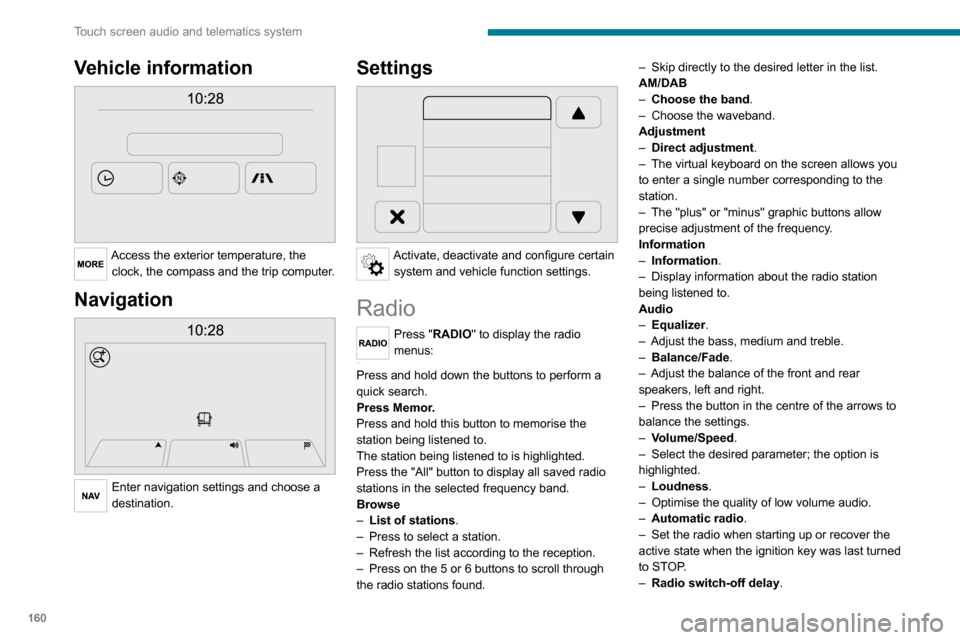
Vehicle information
Access the exterior temperature, the clock, the compass and the trip computer.
Navigation
Enter navigation settings and choose a
destination.
Settings
Activate, deactivate and configure certain system and vehicle function settings.
Radio
Press "RADIO" to display the radio
menus:
Briefly press on the 9 or : buttons to perform an automatic search.
Press and hold down the buttons to perform a
quick search.
Press Memor.
Press and hold this button to memorise the
station being listened to.
The station being listened to is highlighted.
Press the "All" button to display all saved radio stations in the selected frequency band.
Browse
– List of stations .– Press to select a station.– Refresh the list according to the reception.– Press on the 5 or 6 buttons to scroll through
the radio stations found.
– Skip directly to the desired letter in the list.AM/DAB– Choose the band .– Choose the waveband.Adjustment– Direct adjustment.– The virtual keyboard on the screen allows you to enter a single number corresponding to the
station.
– The "plus" or "minus" graphic buttons allow precise adjustment of the frequency.
Information
– Information.– Display information about the radio station being listened to.
Audio
– Equalizer.– Adjust the bass, medium and treble.– Balance/Fade.– Adjust the balance of the front and rear speakers, left and right.– Press the button in the centre of the arrows to balance the settings.
– Volume/Speed.– Select the desired parameter; the option is highlighted.– Loudness.– Optimise the quality of low volume audio.– Automatic radio.– Set the radio when starting up or recover the active state when the ignition key was last turned
to STOP.
– Radio switch-off delay .
– Set the parameter.– AUX vol. setting .– Set the parameters.
DAB (Digital Audio
Broadcasting) radio
Terrestrial Digital Radio
Digital radio
Digital radio provides higher quality
reception and also the graphical display
of current information on the radio station
being listened to.
The various "multiplexes/ensembles" offer
a choice of radio stations organised in
alphabetical order.
Press “RADIO” successively to display the "DAB Radio".Select the "Navigate" tab.
Select a list from the filters offered: "All", "Types",
"Ensembles", then select a radio station.
Press the "Update" button to update the
list of "DAB Radio" stations received.
Page 163 of 196
161
Touch screen audio and telematics system
12– Set the parameter.– AUX vol. setting.– Set the parameters.
DAB (Digital Audio
Broadcasting) radio
Terrestrial Digital Radio
Digital radio
Digital radio provides higher quality
reception and also the graphical display
of current information on the radio station
being listened to.
The various "multiplexes/ensembles" offer
a choice of radio stations organised in
alphabetical order.
Press “RADIO” successively to display the "DAB Radio".Select the "Navigate" tab.
Select a list from the filters
offered: "All", "Types",
"Ensembles", then select a radio station.
Press the "Update" button to update the
list of "DAB Radio" stations received.
DAB/FM station tracking
"DAB" does not cover 100% of the
territory.
When the digital radio signal is poor, the
"AF
" (alternative frequency) option enables you to continue listening to the same
station by automatically switching to the
corresponding "FM" analogue station (if there is one).
When the system switches to analogue
station, there is a delay of a few seconds
with sometimes a change in volume.
When the digital signal quality is restored, the
system automatically changes back to "DAB".
If the "DAB" station is not available, the
sound cuts out when the digital signal
quality becomes poor and the "AF"
alternative frequency is crossed out.
Media
Press "MEDIA" to display the media
menus:
Briefly press on the 9 or : buttons to play the previous/next track.
Press and hold the buttons to fast-forward or
rewind the selected track.
Browse
– Browse by: Currently playing, Artists,
Albums, Types, Songs, Playlists,
Audiobooks, Podcasts.
– Browse and select the songs contained in the active device.– The selection possibilities depend on the device connected or the type of CD inserted.
Source
– CD, AUX, USB.– Select the desired audio source from those available or insert a device intended for this
purpose; the system starts to play the sources
automatically.
– Bluetooth®.– Save a Bluetooth® audio device.
Information
– Information .– View the information about the track being listened to.
Random
Press the button to play the songs on the CD,
USB, iPod or Bluetooth
® in random order.
Repeat
Press the button to activate this function.
Audio
– Equalizer.– Adjust the bass, medium and treble.– Balance/Fade.– Adjust the balance of the front and rear speakers, left and right.– Press the button in the centre of the arrows to balance the settings.– Volume/Speed.
Page 166 of 196
164
Touch screen audio and telematics system
Change the appearance and behaviour of the
navigation system.
Most system settings can be accessed by
touching "Settings" in the main menu.
Help
Access information about assistance services
and other specialised services.
Finish
Validate the settings.
Limitation
Speed limitation (if known).To see the difference between the desired arrival
time and the estimated arrival time.
Switch between a 3D map and a 2D map.
Go to..., Display the map, Plan a route,
Services, Settings, Help, Finish.
When the navigation system starts for the first
time, the "Driving mode" as well as detailed
information on the current position is displayed.
Touch the centre of the screen to open the main
menu.
Details
The route summary provides an overview of the
route, the remaining distance to the destination
and an estimate of the remaining travel time.
With the RDS-TMC data, the route summary also shows the traffic information concerning
delays along the route.
Modify route The navigation system helps you to get to your
destination as quickly as possible by displaying a
faster alternative route when it is available.
Finish
Validate the settings.
Instructions
Navigation instructions for the next part of the
trip and the distance to the next instruction. If the
second instruction is less than 150 metres from
the first one, it is immediately displayed instead
of the distance.
Touch this part of the status bar to repeat the last
voice instruction.
Updating maps
To get a map update, you can proceed as follows:
– Map refresh guarantee: if a new map becomes available within 90 days of the first
use of the system, you can download it once
for free.
– Map update: you can buy a new version of your system’s map.
To install a map update on your system, perform
the following four steps:
– Prepare a USB device.
– Install TomTom HOME and create a
MyTomTom account.
– Download the map.– Install the new map.
Use a USB device instead of a mass
storage device (telephone or media
player).
To protect the system, do not use a USB hub.
Prepare a USB device
The preparation of the USB device
must be done with the engine running
and the vehicle stationary.
In order to update the map, you must have
a USB device that meets the following
requirements:
– The USB device must be empty .– The USB device has 16 GB of available space.– Use only USB devices in FAT32 format (File Allocation Table).– Do not lock the USB device and check that files can be saved on it.
To prepare the USB device, proceed as follows:
► Make sure that the map you want to update is active on your navigation system.
If the navigation system has multiple maps and
you want to update a map that is not currently
active, start by activating it.
► Select “Change map” in the “Settings” menu
of the navigation application.
► Select “Navigation updates” from the
“Settings” menu.
► You must indicate whether you want to prepare a USB device to download updates.► Select "Ye s ".
Page 170 of 196
168
Touch screen audio and telematics system
Enter the telephone number using the keypad,
then press the “Call” button to make the call.
Calling a contact
Press "PHONE".
Press the "Contacts" button or the
"Recent calls" button.
Select the desired contact from the list offered to
start the call.
Vehicle information
Press "MORE" to display the vehicle
information menus:
Exterior temp.
Display the exterior temperature.
Clock
Display the clock.CompassDisplay the direction that you are travelling in.Trip– Current info., Trip A, Trip B.
Display the trip computer.
Press and hold the "Trip A" or "Trip B" button to
reset the trip concerned.
Settings
Press this button to display the settings
menus:
Display
– Brightness.
– Set the brightness of the screen.– Display mode.– Set the display mode.– Language.– Choose the desired language.– Unit of measurement.– Set the display units for consumption, distance and temperature.– Touch screen beep.– Activate or deactivate the audible signal when touching a button on the screen.– Display Trip B.– Display Trip B on the driver's screen.Voice commands– Voice response time.– Set the length of the voice system response.– Display list of commands.– Display suggestions with the different options during a voice session.
Clock and Date
– Time setting and format.– Setting the time.– Display time mode.
– Activate or deactivate the display of the digital clock on the status bar.– Synchro time.– Activate or deactivate the automatic time display.– Date setting.– Set the date.Safety/Assistance– Reversing camera.– Display the reversing camera in reverse.
– Camera delay.– Maintain the on-screen display of the reversing camera for a maximum of 10 seconds
or up to 11 mph (18 km/h).
Lighting
– Daytime running lamps.– Activate or deactivate the automatic illumination of the headlamps when starting.
Doors & locking
– Autoclose.– Activate or deactivate the automatic locking of the doors when the vehicle is moving.Audio– Equalizer.– Adjust the bass, medium and treble.– Balance/Fade.– Adjust the balance of the front and rear speakers, left and right.– Press the button in the centre of the arrows to balance the settings.– Volume/Speed.– Select the desired parameter; the option is highlighted.
– Loudness.– Optimise the quality of low volume audio.– Automatic radio.– Set the radio when starting up or recover the active state when the ignition key was last turned
to STOP.
– Radio switch-off delay.– Set the parameter.– AUX vol. setting.– Set the parameters.
Page 180 of 196
178
Alphabetical index
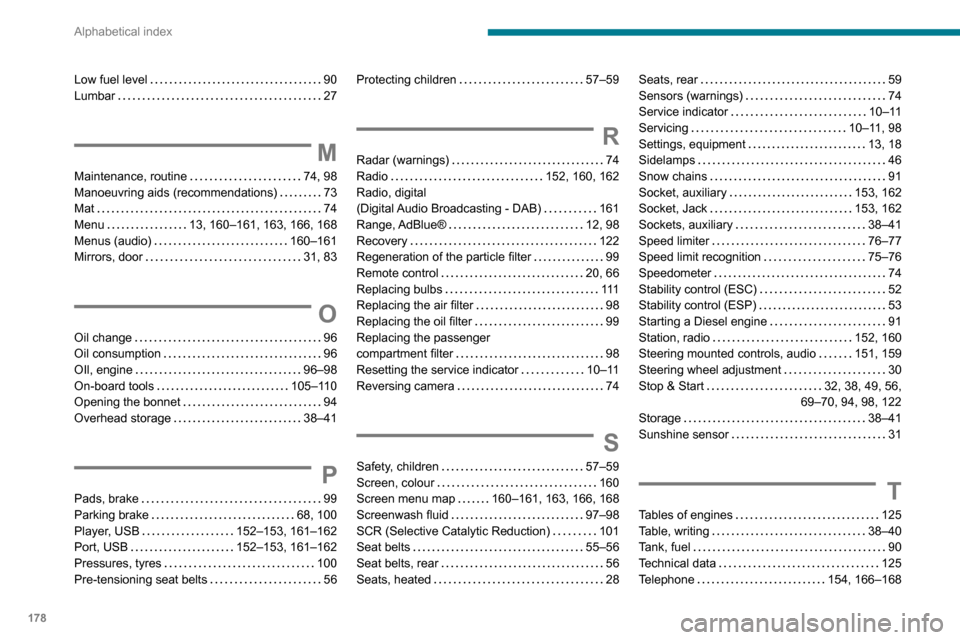
Low fuel level 90Lumbar 27
M
Maintenance, routine 74, 98Manoeuvring aids (recommendations) 73Mat 74
Menu 13, 160–161, 163, 166, 168Menus (audio) 160–161Mirrors, door 31, 83
O
Oil change 96Oil consumption 96OIl, engine 96–98On-board tools 105–110Opening the bonnet 94Overhead storage 38–41
P
Pads, brake 99Parking brake 68, 100Player, USB 152–153, 161–162Port, USB 152–153, 161–162Pressures, tyres 100Pre-tensioning seat belts 56
Protecting children 57–59
R
Radar (warnings) 74Radio 152, 160, 162Radio, digital (Digital Audio Broadcasting - DAB) 161
Range, AdBlue® 12, 98Recovery 122Regeneration of the particle filter 99Remote control 20, 66Replacing bulbs 111Replacing the air filter 98Replacing the oil filter 99Replacing the passenger compartment filter 98Resetting the service indicator 10–11Reversing camera 74
S
Safety, children 57–59Screen, colour 160Screen menu map 160–161, 163, 166, 168Screenwash fluid 97–98SCR (Selective Catalytic Reduction) 101Seat belts 55–56Seat belts, rear 56Seats, heated 28
Seats, rear 59Sensors (warnings) 74Service indicator 10–11Servicing 10–11, 98Settings, equipment 13, 18Sidelamps 46Snow chains 91Socket, auxiliary 153, 162Socket, Jack 153, 162
Sockets, auxiliary 38–41Speed limiter 76–77Speed limit recognition 75–76Speedometer 74Stability control (ESC) 52Stability control (ESP) 53Starting a Diesel engine 91Station, radio 152, 160Steering mounted controls, audio 151, 159Steering wheel adjustment 30Stop & Start 32, 38, 49, 56,
69–70, 94, 98, 122
Storage 38–41Sunshine sensor 31
T
Tables of engines 125Table, writing 38–40Tank, fuel 90Technical data 125Telephone 154, 166–168