particular Peugeot Expert 2019 Owner's Guide
[x] Cancel search | Manufacturer: PEUGEOT, Model Year: 2019, Model line: Expert, Model: Peugeot Expert 2019Pages: 324, PDF Size: 13.07 MB
Page 220 of 324
218
PEUGEOT accepts no responsibility for
the cost incurred in repairing your vehicle
or for rectifying malfunctions resulting
from the installation of accessories
not supplied and not recommended by
PEUGEOT and not installed in accordance
with specifications, in particular when the
combined power consumption of all of the
additional equipment connected exceeds
10 milliamperes.
For more information on installing a
towbar or equipment of the TA XI type,
contact a PEUGEOT dealer.
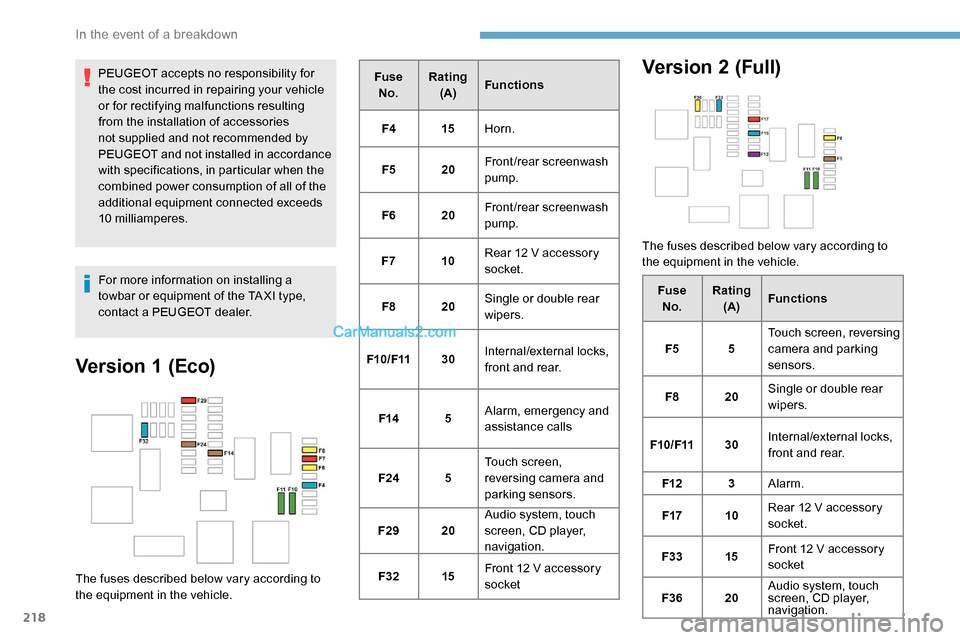
Version 1 (Eco)
The fuses described below vary according to
the equipment in the vehicle.Fuse
No. Rating
(A) Functions
F4 15Horn.
F5 20Front/rear screenwash
pump.
F6 20Front/rear screenwash
pump.
F7 10Rear 12 V accessory
socket.
F8 20Single or double rear
wipers.
F10/F11 30Internal/external locks,
front and rear.
F14 5Alarm, emergency and
assistance calls
F24 5Touch screen,
reversing camera and
parking sensors.
F29 20Audio system, touch
screen, CD player,
navigation.
F32 15Front 12 V accessory
socket
Version 2 (Full)
The fuses described below vary according to
the equipment in the vehicle.
FuseNo. Rating
(A) Functions
F5 5Touch screen, reversing
camera and parking
sensors.
F8 20Single or double rear
wipers.
F10/F11 30Internal/external locks,
front and rear.
F12 3Alarm.
F17 10Rear 12 V accessory
socket.
F33 15Front 12 V accessory
socket
F36 20Audio system, touch
screen, CD player,
navigation.
In the event of a breakdown
Page 244 of 324
10
Connecting Apple® players
Connect the Apple® player to the USB port
using a suitable cable (not supplied).
Play starts automatically.
Control is via the audio system.
The classifications available are those of the
portable device connected (artists / albums /
genres / playlists).
The version of software in the audio system
may not be compatible with the generation of
your Apple
® p l aye r.
Information and advice
The CD player can play files with “.mp3”,
“.wma”, “.wav” and “.aac” file extensions, with a
bit rate of 32 to 320 Kbps.
It also supports TAG mode (ID3 tag, WMA
TAG) .
No other file types (“.mp”4, etc.) can be read.
Files of the ".wma" type should be to the wma
9 standard.
The sampling rates supported are 11, 22, 44
and 48 kHz. Files of the ".wma" type should be to the wma
9 standard.
The sampling rates supported are 11, 22, 44
and 48 kHz.
File names should have fewer than
20
characters, avoiding special characters (e.g.
« ? ; ù) so as to avoid any reading or display
problems.
In order to be able to play a burned CDR or
CDRW, select standards ISO 9660 level 1, 2, or
Joliet, if possible, when burning the CD.
If the disc is burned in another format, it may
not be played correctly.
It is recommended that the same burning
standard be always used on an individual disc,
with the lowest speed possible (4x maximum)
for the best acoustic quality.
In the particular case of a multi-session CD, the
Joliet standard is recommended.
To protect the system, do not use a USB hub.
Use only USB memory sticks formatted
FAT 32 (File Allocation Table).
Via the USB port, the system can play audio
files with the extension ".mp3”, “.wma”, “.wav”,
“.cbr”, “.vbr" with a bit rate of 32 to 320 Kbps.
No other file types (“.mp4”, etc.) can be read. It is recommended that you use genuine
Apple
® USB cables for correct operation.
Telephone
Pairing a Bluetooth®
telephone
As a safety measure and because they
require prolonged attention on the part
of the driver, the operations for pairing
of the Bluetooth mobile telephone with
the Bluetooth hands-free system of your
audio system must be carried out with the
vehicle stationary and the ignition on.
Activate the telephone's Bluetooth
function and ensure that it is "visible to all"
(telephone configuration).
The services available depend on
the network, the SIM card and the
compatibility of the Bluetooth telephone
used.
Check the instructions for your telephone
and with your ser vice provider for the
ser vices to which you have access.
Bluetooth® audio system
Page 245 of 324
11
Procedure from the telephone
Select the name of the system in the
list of devices detected.
Procedure from the system
Press the MENU button.
Select " Connections ".
Confirm with OK.
Select " Search for a device ".
Confirm with OK.
A window is displayed with a search in progress
message.
In the list of devices detected, select a
telephone to pair. Only one telephone can be
paired at a time.
Completing the pairing
To complete the pairing, whichever
procedure is used (from the telephone or
from the system), ensure that the code
is the same in the system and in the
telephone.
If pairing fails, the number of attempts is not
restricted.
A message appears in the screen confirming
the pairing.
Information and advice
The " Telephone " menu gives access to the
following functions in particular: " Directory", if
your telephone equipment is fully compatible,
" Call log ", "View paired devices ".
Depending on the type of telephone, you may
be asked to accept or confirm access by the
system to each of these functions.
Go to the Brand's website for more
information (compatibility, more help, etc.).
Manage connections
The telephone connection automatically
includes hands free operation and audio
streaming.
The ability of the system to connect to just
one profile depends on the telephone.
Both profiles may connect by default. Press the MENU button.
Select " Connections ".
Confirm with OK.
Select " Connections
management " and confirm. The list
of paired devices is displayed.
Confirm with OK.
Indicates that a device is connected.
A number indicates the profile of the
connection with the system:
-
1 f
or media or 1 for telephone.
-
2 f
or media and telephone.
.
Bluetooth® audio system
Page 262 of 324
10
It is recommended that file names are less
than 20 characters long and do not contain
any special characters (e.g. « » ? . ; ù) so as to
avoid any reading or display problems.
Use only USB memory sticks in FAT32 format
(File Allocation Table).
It is recommended that the original USB
cable for the portable device be used.
In order to be able to play a burned CDR or
CDRW, select standards ISO 9660 level 1, 2, or
Joliet, if possible, when burning the CD.
If the disc is burned in another format, it may
not be played correctly.
It is recommended that the same burning
standard be always used on an individual disc,
with the lowest speed possible (4x maximum)
for the best acoustic quality.
In the particular case of a multi-session CD, the
Joliet standard is recommended.
TelephoneMirrorLinkTM smartphone
connection
The "MirrorLinkTM" function requires a
compatible smartphone and applications.
Telephone not connected by
Bluetooth®
Connect a USB cable. The
smartphone charges when
connected by the USB cable.
From the system, press
" Telephone " to display the primary
page.
Press " MirrorLink
TM" to start the
application in the system.
Depending on the smartphone, it may be
necessary to activate the " MirrorLink
TM"
function. During the procedure, several
screen pages relating to certain
functions are displayed.
Accept to start and complete the
connection. When connecting a smartphone
to the system, it is recommended
that Bluetooth
® be started on the
smartphone.
Telephone connected by
Bluetooth®
From the system, press
" Telephone " to display the primary
page.
USB sockets
Depending on equipment, for more information
on the USB sockets compatible with the
CarPlay
®, MirrorLinkTM or Android Auto
applications, refer to the "Ease of use and
comfort" section. The synchronisation of a smartphone
allows users to display applications
adapted to the CarPlay
®, MirrorLinkTM
or Android Auto
technology of the
smartphone on the vehicle screen. For
the CarPlay
® technology, the CarPlay®
function must be activated on the
smartphone beforehand.
For the communication process between
the smartphone and the system to
work, it is essential in all cases that the
smartphone is unlocked.
As the principles and standards are
constantly changing, it is recommended
that you keep the smar tphone's
operating system up-to- date, as well
as the date and time of the smar tphone
and of the system .
For the list of eligible smartphones, go to
the Brand's national website.
Connect a USB cable. The
smartphone charges when
connected by the USB cable.
PEUGEOT Connect Radio
Page 296 of 324
24
Information and advice
The system supports USB mass storage
devices, BlackBerry® devices or Apple®
players via the USB sockets. The adapter
cable is not supplied.
Device management is via the audio
system controls.
Other devices, not recognised on
connection, must be connected to the
auxiliary socket using a Jack cable (not
supplied) or via Bluetooth streaming,
depending on compatibility.
To protect the system, do not use a USB
hub.
The audio system will only play audio files
with ".wma", ".aac", ".flac", ".ogg" and ".mp3"
file extensions and with a bit rate of between
32
Kbps and 320 Kbps.
It also supports VBR (Variable Bit Rate) mode.
No other file types (".mp4", etc.) can be read.
Files of the ".wma" type should be to the wma
9 standard.
The sampling rates supported are 32, 44 and
48 kHz. It is recommended that file names are less
than 20 characters long and do not contain
any special characters (e.g. « »
? . ; ù) so as to
avoid any reading or display problems.
Use only USB memory sticks in FAT32 format
(File Allocation Table).
It is recommended that the original USB
cable for the portable device be used.
CD player (depending on equipment).
In order to be able to play a burned CDR or
CDRW, select standards ISO 9660 level 1, 2, or
Joliet, if possible, when burning the CD.
If the disc is burned in another format, it may
not be played correctly.
It is recommended that the same burning
standard be always used on an individual disc,
with the lowest speed possible (4x maximum)
for the best acoustic quality.
In the particular case of a multi-session CD, the
Joliet standard is recommended.
Telephone
Pairing a Bluetooth®
telephone
Activate the Bluetooth function on the
telephone and ensure that it is "visible to
all" (telephone configuration).
Procedure from the telephone
Select the system name in the list of
devices detected.
In the system, accept the connection request
from the telephone.
To complete the pairing, whichever
procedure used (from the telephone or
from the system), ensure that the code
is the same in the system and in the
telephone.
Procedure from the system
Press Telephone to display the
primary page.
Press " Bluetooth search ".
Or
PEUGEOT Connect Nav