Screen Peugeot Expert 2019 Repair Manual
[x] Cancel search | Manufacturer: PEUGEOT, Model Year: 2019, Model line: Expert, Model: Peugeot Expert 2019Pages: 324, PDF Size: 13.07 MB
Page 193 of 324
191
When the engine is hot, handle the
exterior safety catch and the bonnet
stay with care (risk of burns), using the
protected area.
When the bonnet is open, take care not to
damage the safety catch.
Do not open the bonnet under very windy
conditions.
The cooling fan may star t after
switching off the engine: take care
with articles and clothing that might be
caught by the fan blades.
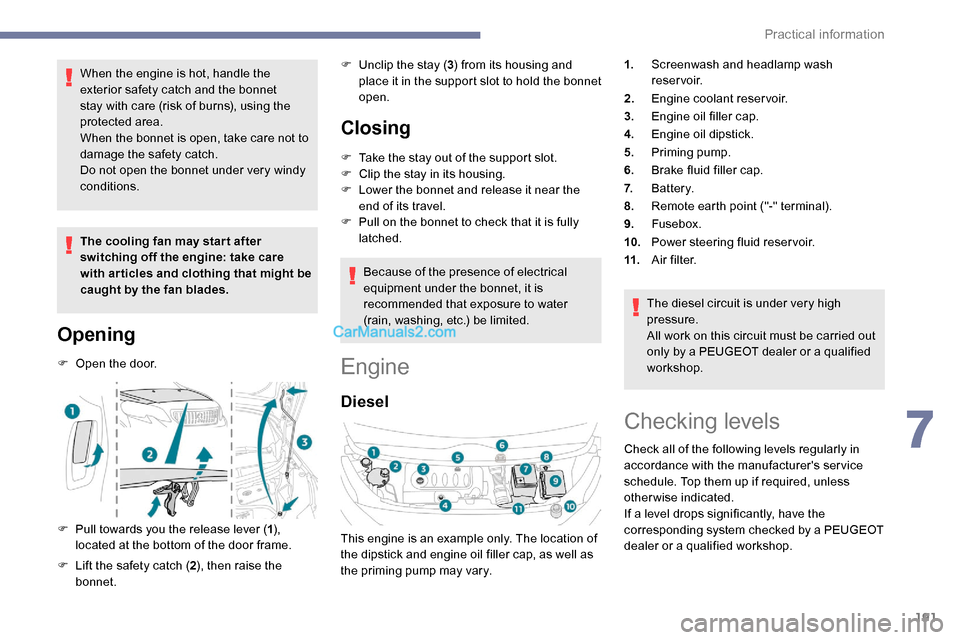
Opening
F Open the door.
F
P
ull towards you the release lever ( 1),
located at the bottom of the door frame.
F
L
ift the safety catch ( 2), then raise the
bonnet. F
U
nclip the stay (
3) from its housing and
place it in the support slot to hold the bonnet
open.
Closing
F Take the stay out of the support slot.
F C lip the stay in its housing.
F
L
ower the bonnet and release it near the
end of its travel.
F
P
ull on the bonnet to check that it is fully
latched.
Because of the presence of electrical
equipment under the bonnet, it is
recommended that exposure to water
(rain, washing, etc.) be limited.
Engine
Diesel
The diesel circuit is under very high
pressure.
All work on this circuit must be carried out
only by a PEUGEOT dealer or a qualified
workshop.
This engine is an example only. The location of
the dipstick and engine oil filler cap, as well as
the priming pump may vary. 1.
Screenwash and headlamp wash
reservoir.
2. Engine coolant reservoir.
3. Engine oil filler cap.
4. Engine oil dipstick.
5. Priming pump.
6. Brake fluid filler cap.
7. Battery.
8. Remote earth point ("-" terminal).
9. Fusebox.
10. Power steering fluid reservoir.
11. A i r f i l t e r.
Checking levels
Check all of the following levels regularly in
accordance with the manufacturer's service
schedule. Top them up if required, unless
otherwise indicated.
If a level drops significantly, have the
corresponding system checked by a PEUGEOT
dealer or a qualified workshop.
7
Practical information
Page 195 of 324
193
During the 30 minutes after topping up the
oil, the check per formed with the oil level
indicator in the instrument panel when the
ignition is switched on is not valid.
Brake fluid
The level of this fluid should be
close to the "MAX" mark. If not,
check the brake pad wear.
To know how often the brake fluid should be
replaced, refer to the manufacturer's servicing
schedule. If topping up, clean the cap before
replacing it. Use only DOT4 brake fluid
from a sealed canister.
F
A
dd more oil if necessary.
F
A
fter checking the level, carefully refit the oil
filler cap and the dipstick in its tube.
Power steering fluid
The level of this fluid should be
close to the " MAX" mark. With the
engine cold and the vehicle standing
on level ground, check this by
reading the level on the filler neck.
Engine coolant
Check the engine coolant level
regularly.
It is normal to top up this fluid
between two services.
The check and top-up must only be done with
the engine cold.
A low level presents a risk of serious damage
to the engine.
The level of this fluid should be close to the
" MAX " mark but should never exceed it.
If the level is close to or below the " MIN” mark,
it is essential to top up. Once the pressure has dropped, remove the
cap and top up to the required level.
Screen and headlamp
washer fluid
Top up the reser voir when you next
stop the vehicle.
Fluid specification
The fluid must be topped up with a ready-to-
use mixture.
In winter (temperatures below zero), a liquid
containing an agent to prevent freezing must
be used which is appropriate for the prevailing
conditions, in order to protect the elements of
the system (pump, tank, ducts, jets, etc.).
When the engine is hot, the temperature of this
fluid is regulated by the fan.
In addition, as the cooling system is
pressurised, wait at least one hour after
switching off the engine before carrying out any
work.
To avoid the risk of scalding if you need to top
up in an emergency, wrap a cloth around the
cap and unscrew the cap by two turns to allow
the pressure to drop. Filling with pure water is prohibited
under all circumstances (risk of freezing,
limestone deposits, etc.).
Diesel fuel additive (Diesel
with particle filter)
or
The minimum level in the particle
filter additive tank is indicated by
fixed illumination of this warning
lamp, accompanied by an audible
warning and a message warning that
the level of additive is too low.
7
Practical information
Page 220 of 324
218
PEUGEOT accepts no responsibility for
the cost incurred in repairing your vehicle
or for rectifying malfunctions resulting
from the installation of accessories
not supplied and not recommended by
PEUGEOT and not installed in accordance
with specifications, in particular when the
combined power consumption of all of the
additional equipment connected exceeds
10 milliamperes.
For more information on installing a
towbar or equipment of the TA XI type,
contact a PEUGEOT dealer.
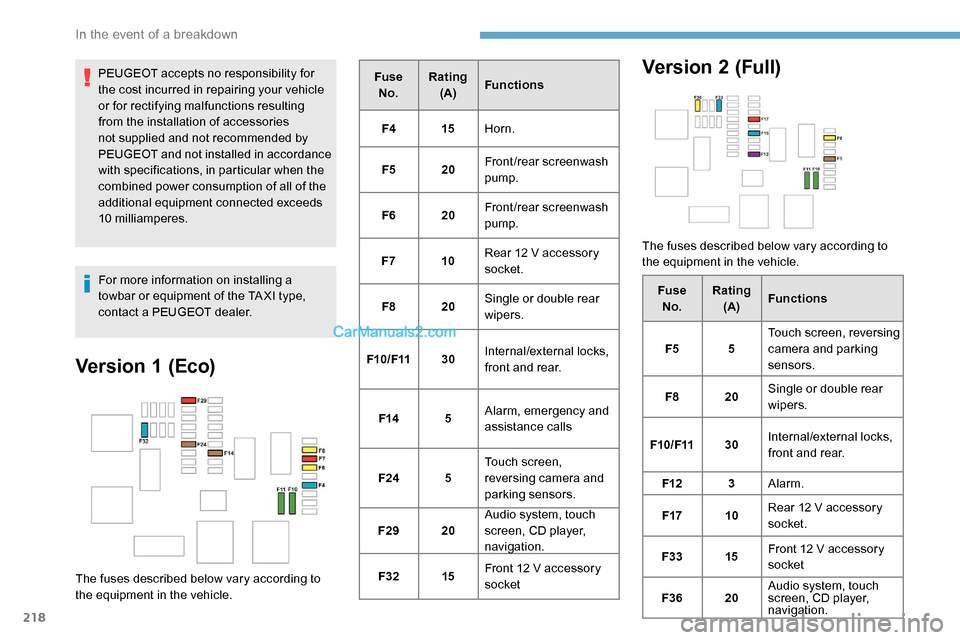
Version 1 (Eco)
The fuses described below vary according to
the equipment in the vehicle.Fuse
No. Rating
(A) Functions
F4 15Horn.
F5 20Front/rear screenwash
pump.
F6 20Front/rear screenwash
pump.
F7 10Rear 12 V accessory
socket.
F8 20Single or double rear
wipers.
F10/F11 30Internal/external locks,
front and rear.
F14 5Alarm, emergency and
assistance calls
F24 5Touch screen,
reversing camera and
parking sensors.
F29 20Audio system, touch
screen, CD player,
navigation.
F32 15Front 12 V accessory
socket
Version 2 (Full)
The fuses described below vary according to
the equipment in the vehicle.
FuseNo. Rating
(A) Functions
F5 5Touch screen, reversing
camera and parking
sensors.
F8 20Single or double rear
wipers.
F10/F11 30Internal/external locks,
front and rear.
F12 3Alarm.
F17 10Rear 12 V accessory
socket.
F33 15Front 12 V accessory
socket
F36 20Audio system, touch
screen, CD player,
navigation.
In the event of a breakdown
Page 221 of 324
219
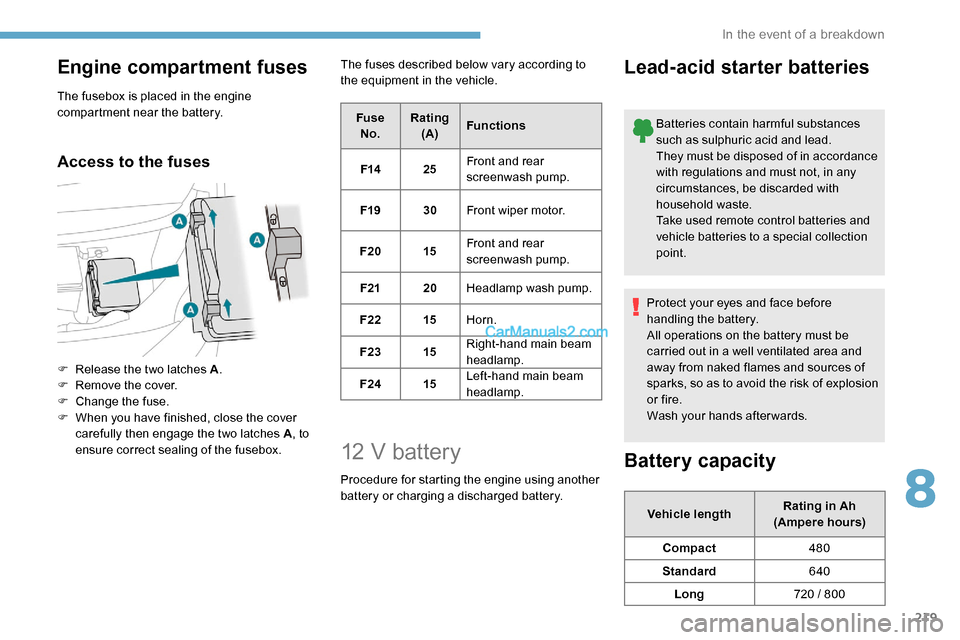
Engine compartment fuses
The fusebox is placed in the engine
compartment near the battery.
Access to the fuses
F Release the two latches A.
F R emove the cover.
F
C
hange the fuse.
F
W
hen you have finished, close the cover
carefully then engage the two latches A , to
ensure correct sealing of the fusebox. The fuses described below vary according to
the equipment in the vehicle.
FuseNo. Rating
(A) Functions
F14 25Front and rear
screenwash pump.
F19 30Front wiper motor.
F20 15Front and rear
screenwash pump.
F21 20Headlamp wash pump.
F22 15Horn.
F23 15Right-hand main beam
headlamp.
F24 15Left-hand main beam
headlamp.
12 V battery
Procedure for starting the engine using another
battery or charging a discharged battery.
Lead-acid starter batteries
Batteries contain harmful substances
such as sulphuric acid and lead.
They must be disposed of in accordance
with regulations and must not, in any
circumstances, be discarded with
household waste.
Take used remote control batteries and
vehicle batteries to a special collection
point.
Protect your eyes and face before
handling the battery.
All operations on the battery must be
carried out in a well ventilated area and
away from naked flames and sources of
sparks, so as to avoid the risk of explosion
or fire.
Wash your hands afterwards.
Battery capacity
Vehicle length Rating in Ah
(Ampere hours)
Compact 480
Standard 640
Long 720 / 800
8
In the event of a breakdown
Page 233 of 324
231
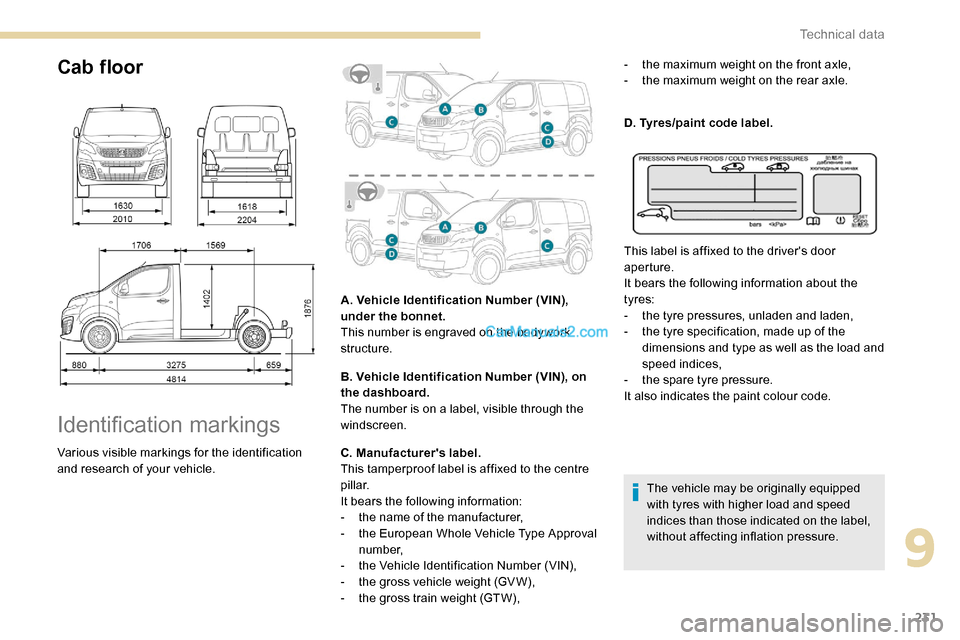
Cab floor
Identification markings
Various visible markings for the identification
and research of your vehicle.A. Vehicle Identification Number (VIN),
under the bonnet.
This number is engraved on the bodywork
structure.
B. Vehicle Identification Number (VIN), on
the dashboard.
The number is on a label, visible through the
windscreen.
C. Manufacturer's label.
This tamperproof label is affixed to the centre
pillar.
It bears the following information:
-
t
he name of the manufacturer,
-
t
he European Whole Vehicle Type Approval
number,
-
t
he Vehicle Identification Number (VIN),
-
t
he gross vehicle weight (GV W),
-
t
he gross train weight (GTW),-
t
he maximum weight on the front axle,
-
t
he maximum weight on the rear axle.
D. Tyres/paint code label.
The vehicle may be originally equipped
with tyres with higher load and speed
indices than those indicated on the label,
without affecting inflation pressure.
This label is affixed to the driver's door
aperture.
It bears the following information about the
tyres:
-
t
he tyre pressures, unladen and laden,
-
t
he tyre specification, made up of the
dimensions and type as well as the load and
speed indices,
-
t
he spare tyre pressure.
It also indicates the paint colour code.
9
Technical data
Page 236 of 324
2
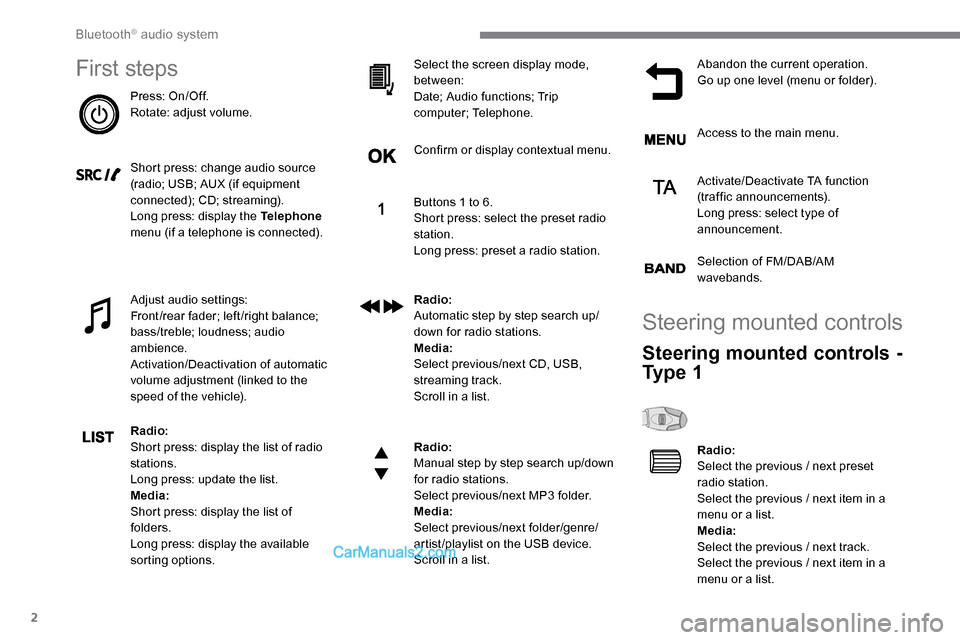
First steps
Press: On/Off.
Rotate: adjust volume.
Short press: change audio source
(radio; USB; AUX (if equipment
connected); CD; streaming).
Long press: display the Telephone
menu (if a telephone is connected).
Adjust audio settings:
Front/rear fader; left/right balance;
bass/treble; loudness; audio
ambience.
Activation/Deactivation of automatic
volume adjustment (linked to the
speed of the vehicle).
Radio:
Short press: display the list of radio
stations.
Long press: update the list.
Media:
Short press: display the list of
folders.
Long press: display the available
sorting options. Select the screen display mode,
between:
Date; Audio functions; Trip
computer; Telephone.
Confirm or display contextual menu.
Buttons 1 to 6.
Short press: select the preset radio
station.
Long press: preset a radio station.
Radio:
Automatic step by step search up/
down for radio stations.
Media:
Select previous/next CD, USB,
streaming track.
Scroll in a list.
Radio:
Manual step by step search up/down
for radio stations.
Select previous/next MP3 folder.
Media:
Select previous/next folder/genre/
artist/playlist on the USB device.
Scroll in a list.
Abandon the current operation.
Go up one level (menu or folder).
Access to the main menu.
Activate/Deactivate TA function
(traffic announcements).
Long press: select type of
announcement.
Selection of FM/DAB/AM
wavebands.
Steering mounted controls
Steering mounted controls -
Ty p e 1
Radio:
Select the previous / next preset
radio station.
Select the previous / next item in a
menu or a list.
Media:
Select the previous / next track.
Select the previous / next item in a
menu or a list.
Bluetooth® audio system
Page 238 of 324
4
Radio:
Select the previous / next preset
radio station.
Select the previous / next item in a
menu or a list.
Media:
Select the previous / next track.
Select the previous / next item in a
menu or a list.
Press the thumbwheel: confirm.
Menus
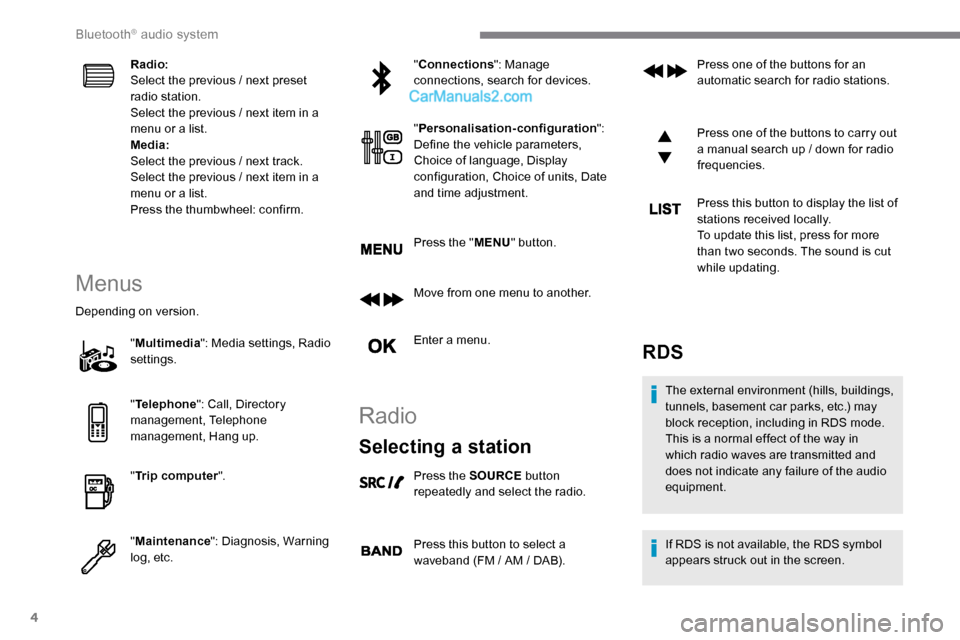
Depending on version."Multimedia ": Media settings, Radio
settings.
" Telephone ": Call, Directory
management, Telephone
management, Hang up.
" Trip computer ".
" Maintenance ": Diagnosis, Warning
log, etc. "
Connections ": Manage
connections, search for devices.
" Personalisation-configuration ":
Define the vehicle parameters,
Choice of language, Display
configuration, Choice of units, Date
and time adjustment.
Press the " MENU" button.
Move from one menu to another.
Enter a menu.
Radio
Selecting a station
Press the SOURCE button
repeatedly and select the radio.
Press this button to select a
waveband (FM / AM / DAB). Press one of the buttons for an
automatic search for radio stations.
Press one of the buttons to carry out
a manual search up / down for radio
frequencies.
Press this button to display the list of
stations received locally.
To update this list, press for more
than two seconds. The sound is cut
while updating.
RDS
The external environment (hills, buildings,
tunnels, basement car parks, etc.) may
block reception, including in RDS mode.
This is a normal effect of the way in
which radio waves are transmitted and
does not indicate any failure of the audio
equipment.
If RDS is not available, the RDS symbol
appears struck out in the screen.
Bluetooth® audio system
Page 239 of 324
5
The RDS, if activated, enables you to
continue listening to the same station
by automatic retuning to alternative
frequencies. However, in certain
conditions, coverage of an RDS station
may not be assured throughout the entire
country as radio stations do not cover
100% of the territory. This explains the
loss of reception of the station during a
j o u r n ey.
Short procedure
In "Radio " mode, press the OK button to
activate or deactivate RDS directly.
Long procedure
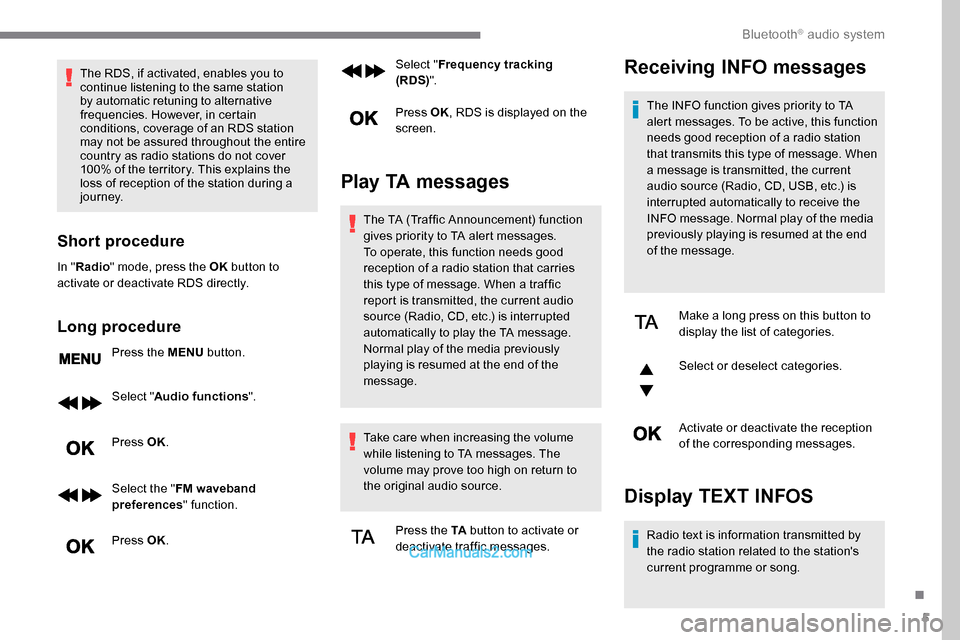
Press the MENU button.
Select " Audio functions ".
Press OK.
Select the " FM waveband
preferences " function.
Press OK. Select "
Frequency tracking
(RDS) ".
Press OK , RDS is displayed on the
screen.
Play TA messages
The TA (Traffic Announcement) function
gives priority to TA alert messages.
To operate, this function needs good
reception of a radio station that carries
this type of message. When a traffic
report is transmitted, the current audio
source (Radio, CD, etc.) is interrupted
automatically to play the TA message.
Normal play of the media previously
playing is resumed at the end of the
message.
Take care when increasing the volume
while listening to TA messages. The
volume may prove too high on return to
the original audio source.
Press the TA button to activate or
deactivate traffic messages.
Receiving INFO messages
The INFO function gives priority to TA
alert messages. To be active, this function
needs good reception of a radio station
that transmits this type of message. When
a message is transmitted, the current
audio source (Radio, CD, USB, etc.) is
interrupted automatically to receive the
INFO message. Normal play of the media
previously playing is resumed at the end
of the message.
Make a long press on this button to
display the list of categories.
Select or deselect categories.
Activate or deactivate the reception
of the corresponding messages.
Display TEXT INFOS
Radio text is information transmitted by
the radio station related to the station's
current programme or song.
.
Bluetooth® audio system
Page 240 of 324
6
When the radio station is displayed
in the screen, press OK to display
the contextual menu.
Select " RadioText (TXT) display "
and confirm OK to save.
DAB (Digital Audio
Broadcasting) radio
Depending on version
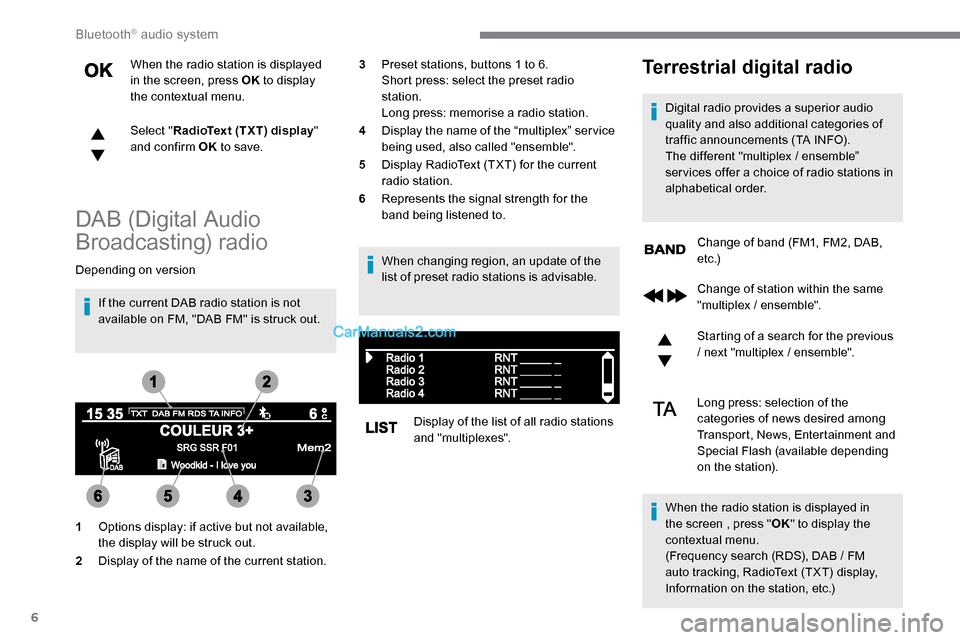
If the current DAB radio station is not
available on FM, "DAB FM" is struck out. When changing region, an update of the
list of preset radio stations is advisable.
Display of the list of all radio stations
and "multiplexes".
Terrestrial digital radio
Digital radio provides a superior audio
quality and also additional categories of
traffic announcements (TA INFO).
The different "multiplex / ensemble”
ser vices offer a choice of radio stations in
alphabetical order.Change of band (FM1, FM2, DAB,
e t c .)
1 Options display: if active but not available,
the display will be struck out.
2 Display of the name of the current station. 3
Preset stations, buttons 1 to 6.
Short press: select the preset radio
station.
Long press: memorise a radio station.
4 Display the name of the “multiplex” ser vice
being used, also called "ensemble".
5 Display RadioText (TXT) for the current
radio station.
6 Represents the signal strength for the
band being listened to.
Change of station within the same
"multiplex / ensemble".
Starting of a search for the previous
/ next "multiplex / ensemble".
Long press: selection of the
categories of news desired among
Transport, News, Entertainment and
Special Flash (available depending
on the station).
When the radio station is displayed in
the screen , press " OK" to display the
contextual menu.
(Frequency search (RDS), DAB
/ FM
auto tracking, RadioText (TXT) display,
Information on the station, etc.)
Bluetooth® audio system
Page 242 of 324
8
- Repeat: the tracks played are only those
from the current album or folder.
Press this button to display the
contextual menu for the Media
function.
Press this button to select the
chosen play mode.
Press this button to confirm.
The choice made is displayed at the top of the
screen.
Choosing a track to play
Press one of these buttons to go to
the previous / next track.
Press one of these buttons to go to
the previous / next folder.
File classification
Make a long press on this button to
display the different classifications. Select by "
Folder" / "Artist " /
" Genre " / "Playlist ".
Depending on availability and type
of device used.
Press OK to select the desired
classification, then press OK again
to confirm.
Playing files
Make a short press on this button to
display the chosen classification.
Navigate in the list using the left /
right and up / down buttons.
Confirm the selection by pressing
OK.
Press one of these buttons to go to
the previous / next track in the list.
Press and hold one of these buttons
for fast for ward or rewind.
Press one of these buttons to go
to the previous / next " Folder" /
" Artist " / "Genre " / "Playlist "* in
the list.
Auxiliary socket (AUX)
(depending on model / depending on
equipment)
*
D
epending on availability and the type of
device used. Connect a portable device (MP3 player, etc.)
to the Jack socket using an audio cable (not
supplied).
Any additional equipment connected to
the system must conform to the standard
of the product or standard IEC 60950 -1.
Press the SOURCE button several
times in succession and select
" AUX ".
First adjust the volume on your portable device
(to a high level). Then adjust the volume of your
audio system. Display and management of the
controls are via the portable device.
Do not connect a device to both the Jack
auxiliary socket and the USB port at the
same time.
Bluetooth® audio system