warning PEUGEOT EXPERT 2021 Repair Manual
[x] Cancel search | Manufacturer: PEUGEOT, Model Year: 2021, Model line: EXPERT, Model: PEUGEOT EXPERT 2021Pages: 324, PDF Size: 10.85 MB
Page 200 of 324
198
Practical information
In wintry conditions, ensure that the temperature
of the vehicle is above -11°C. Otherwise the
AdBlue
® may be frozen and so cannot be poured
into the tank. Park the vehicle in a warmer area
for a few hours to allow the top-up to be carried
out.
Never pour the AdBlue® into the Diesel
fuel tank.
If any AdBlue® is splashed, or if there are
any spillages on the bodywork, rinse
immediately with cold water or wipe with a
damp cloth.
If the fluid has crystallised, clean it off using a
sponge and hot water.
Important: in the event of a top-up after
a breakdown because of a lack of
AdBlue, it is essential to wait around 5
minutes before switching on the ignition,
without opening the driver’s door,
unlocking the vehicle, inserting the key
into the ignition switch, or bringing the
key for the "Keyless Entry and Starting"
system into the passenger compartment.
Switch on the ignition, then wait for 10
seconds before starting the engine.
► Switch off the ignition and remove the key
from the switch to switch off the engine.
or
Several alerts are triggered successively during
the remaining 1,500 miles (2,400 km) until the
tank is empty and the vehicle is immobilised.
If the estimated distance travelled by the vehicle
between two services is greater than 3,000
miles
(5,000
km), it will be necessary to top up the
AdBlue.
For more information on the Warning
and indicator lamps and the associated
alerts, or the Indicators, please refer to the
corresponding sections.
Once the AdBlue® tank is empty, a device
required by law prevents the engine from
being restarted.
If the SCR system is faulty, the level of
emissions from the vehicle will no longer meet
the Euro 6 standard and the vehicle starts
polluting the environment.
In the event of a confirmed SCR system
malfunction, it is essential to visit a
PEUGEOT dealer or a qualified workshop.
After 685 miles (1,100 km), a device is
automatically activated to prevent the engine
from starting.
In both cases, a range indicator indicates
the distance that can be travelled before the
vehicle is stopped.
Freezing of the AdBlue®
AdBlue® freezes at temperatures below
around -11°C.
The SCR system includes a heater for the
AdBlue® tank, allowing you to continue driving
in very cold conditions.
Supply of AdBlue®
It is recommended that the AdBlue® be topped
up as soon as the first alert is issued indicating
that the reserve level has been reached.
For the correct operation of the SCR
system:
–
Use
only AdBlue
® fluid that meets the ISO
22241 standard.
–
Never
transfer AdBlue
® to another container
as it would lose its purity.
–
Never
dilute AdBlue
® with water.
You can obtain AdBlue
® from a PEUGEOT
dealer or a qualified workshop, as well as service
stations equipped with AdBlue
® pumps specially
designed for passenger vehicles.
Never top up from an AdBlue® dispenser
reserved for heavy goods vehicles.
Recommendations on
storage
AdBlue® freezes at about -11°C and deteriorates
above +25°C. Containers should be stored in a
cool area and protected from direct sunlight.
Under these conditions, the fluid can be kept for
at least a year.
If the fluid has frozen, it can be used once it has
completely thawed out at room temperature.
Never store AdBlue® containers in your
vehicle.
Precautions for use
AdBlue® is a urea-based solution. This fluid is
non-flammable, colourless and odourless (when
kept in a cool place).
In the event of contact with the skin, wash the
affected area with soap and running water. In the
event of contact with the eyes, immediately rinse
the eyes with large amounts of water or with an
eye wash solution for at least 15 minutes. Seek
medical attention if you feel a persistent burning
sensation or irritation.
If swallowed, immediately wash out the mouth
with clean water and then drink plenty of water.
In certain conditions (high temperature, for
example), the risk of release of ammonia cannot
be excluded: do not inhale the fluid. Ammonia
vapours have an irritant effect on mucous
membranes (eyes, nose and throat).
Store AdBlue® out of the reach of
children, in its original container.
Procedure
Before starting the top-up procedure, ensure that
the vehicle is parked on a flat and level surface.
Page 205 of 324
203
In the event of a breakdown
8Warning triangle
This reflective and dismantlable device is to be
installed on the side of the road when a vehicle
is broken down or damaged.
Before getting out of the vehicle
Turn on the hazard warning lamps, then
put on the safety vest to assemble and install
the triangle.
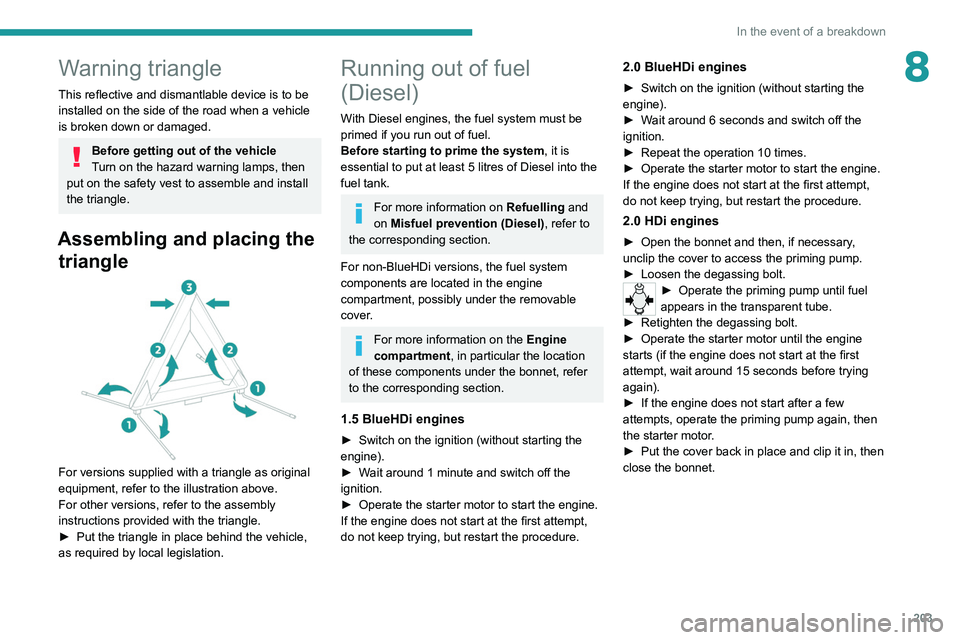
Assembling and placing the triangle
For versions supplied with a triangle as original
equipment, refer to the illustration above.
For other versions, refer to the assembly
instructions provided with the triangle.
►
Put the triangle in place behind the vehicle,
as required by local legislation.
Running out of fuel
(Diesel)
With Diesel engines, the fuel system must be
primed if you run out of fuel.
Before starting to prime the system, it is
essential to put at least 5 litres of Diesel into the
fuel tank.
For more information on Refuelling and
on Misfuel prevention (Diesel), refer to
the corresponding section.
For non-BlueHDi versions, the fuel system
components are located in the engine
compartment, possibly under the removable
cover.
For more information on the Engine
compartment, in particular the location
of these components under the bonnet, refer
to the corresponding section.
1.5 BlueHDi engines
► Switch on the ignition (without starting the
engine).
►
W
ait around 1 minute and switch off the
ignition.
►
Operate the starter motor to start the engine.
If the engine does not start at the first attempt,
do not keep trying, but restart the procedure.
2.0 BlueHDi engines
► Switch on the ignition (without starting the
engine).
►
W
ait around 6 seconds and switch off the
ignition.
►
Repeat the operation 10
times.
►
Operate the starter motor to start the engine.
If the engine does not start at the first attempt,
do not keep trying, but restart the procedure.
2.0 HDi engines
► Open the bonnet and then, if necessary ,
unclip the cover to access the priming pump.
►
Loosen the degassing bolt.
► Operate the priming pump until fuel
appears in the transparent tube.
►
Retighten the degassing bolt.
►
Operate the starter motor until the engine
starts (if the engine does not start at the first
attempt, wait around 15
seconds before trying
again).
►
If the engine does not start after a few
attempts, operate the priming pump again, then
the starter motor
.
►
Put the cover back in place and clip it in, then
close the bonnet.
Page 208 of 324
206
In the event of a breakdown
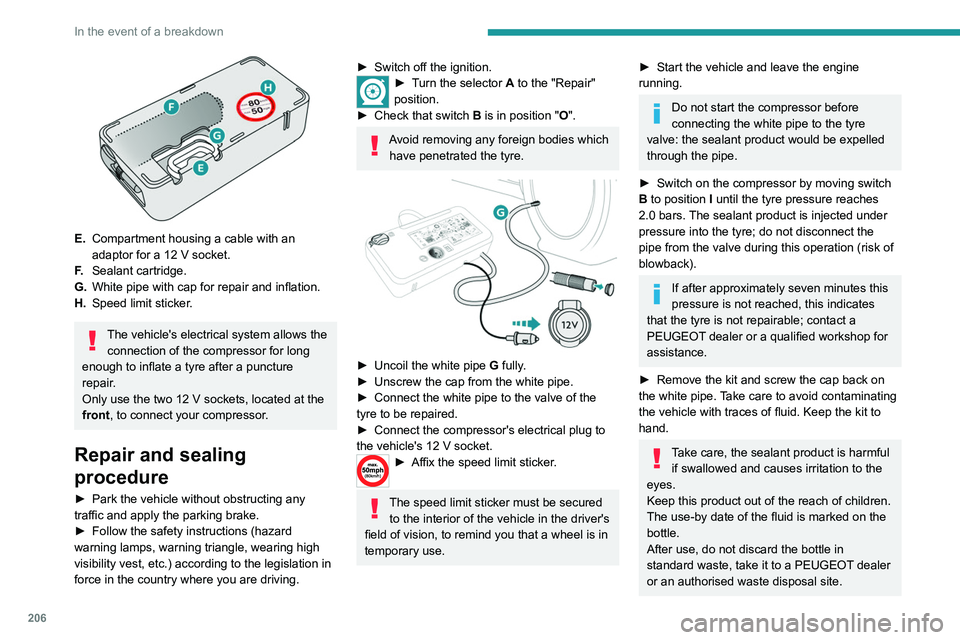
E.Compartment housing a cable with an
adaptor for a 12
V socket.
F. Sealant cartridge.
G. White pipe with cap for repair and inflation.
H. Speed limit sticker.
The vehicle's electrical system allows the
connection of the compressor for long
enough to inflate a tyre after a puncture
repair.
Only use the two 12 V sockets, located at the
front, to connect your compressor.
Repair and sealing
procedure
► Park the vehicle without obstructing any
traffic and apply the parking brake.
►
Follow the safety instructions (hazard
warning lamps, warning triangle, wearing high
visibility vest, etc.) according to the legislation in
force in the country where you are driving.
► Switch off the ignition.► Turn the selector A to the "Repair"
position.
►
Check that switch
B is in position " O".
Avoid removing any foreign bodies which
have penetrated the tyre.
► Uncoil the white pipe G fully.
► Unscrew the cap from the white pipe.
►
Connect the white pipe to the valve of the
tyre to be repaired.
►
Connect the compressor's electrical plug to
the vehicle's 12 V socket.
► Affix the speed li mit sticker.
The speed limit sticker must be secured
to the interior of the vehicle in the driver's
field of vision, to remind you that a wheel is in
temporary use.
► Start the vehicle and leave the engine
running.
Do not start the compressor before
connecting the white pipe to the tyre
valve: the sealant product would be expelled
through the pipe.
►
Switch on the compressor by moving switch
B
to position I until the tyre pressure reaches
2.0 bars. The sealant product is injected under
pressure into the tyre; do not disconnect the
pipe from the valve during this operation (risk of
blowback).
If after approximately seven minutes this
pressure is not reached, this indicates
that the tyre is not repairable; contact a
PEUGEOT dealer or a qualified workshop for
assistance.
►
Remove the kit and screw the cap back on
the white pipe.
Take care to avoid contaminating
the vehicle with traces of fluid. Keep the kit to
hand.
Take care, the sealant product is harmful if swallowed and causes irritation to the
eyes.
Keep this product out of the reach of children.
The use-by date of the fluid is marked on the
bottle.
After use, do not discard the bottle in
standard waste, take it to a PEUGEOT dealer
or an authorised waste disposal site.
Page 226 of 324
224
In the event of a breakdown
Towing constraints
Type of vehicle
(engine/gearbox) Front wheels on the
ground Rear wheels on the
ground Flatbed
4 wheels on the ground
with towbar
Electric
In case of battery or electric parking brake failure, it is essential to call a p
rofessional using flatbed recovery vehicles (excluding manual gearbox).
Accessing the eye
The towing eye is stowed in the tool box.
For more information on the Tool box,
refer to the corresponding section.
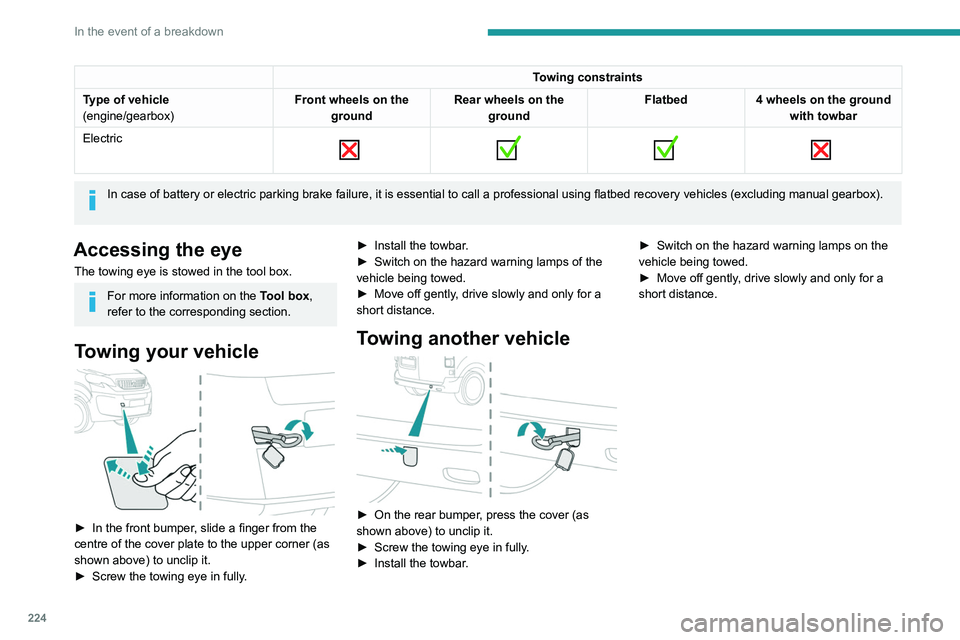
Towing your vehicle
► In the front bumper , slide a finger from the
centre of the cover plate to the upper corner (as
shown above) to unclip it.
►
Screw the towing eye in fully
.►
Install the towbar
.
►
Switch on the hazard warning lamps of the
vehicle being towed.
►
Move off gently
, drive slowly and only for a
short distance.
Towing another vehicle
► On the rear bumper , press the cover (as
shown above) to unclip it.
►
Screw the towing eye in fully
.
►
Install the towbar
. ►
Switch on the hazard warning lamps on the
vehicle being towed.
►
Move off gently
, drive slowly and only for a
short distance.
Page 240 of 324
238
Bluetooth® audio system
"Telephone": Call, Directory
management, Telephone management,
Hang up.
"Trip computer".
"Maintenance": Diagnosis, Warning log,
etc.
"Connections": Manage connections,
search for devices.
"Personalisation-configuration ": Define
the vehicle parameters, Choice of
language, Display configuration, Choice of units,
Date and time adjustment.
Press the "MENU" button.
Move from one menu to another.
Enter a menu.
Radio
Selecting a station
Press the SOURCE button repeatedly
and select the radio.
Press this button to select a waveband
(FM / AM / DAB).
Press one of the buttons for an automatic
search for radio stations.
Press one of the buttons to carry out a
manual search up / down for radio
frequencies.
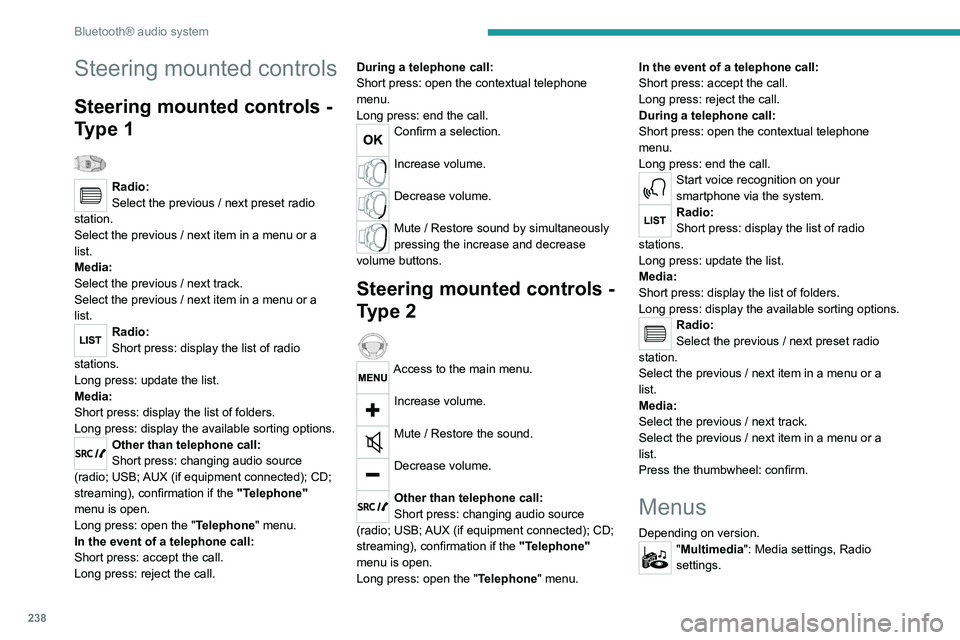
Steering mounted controls
Steering mounted controls -
Type 1
Radio:
Select the previous / next preset radio
station.
Select the previous / next item in a menu or a
list.
Media:
Select the previous / next track.
Select the previous / next item in a menu or a
list.
Radio:
Short press: display the list of radio
stations.
Long press: update the list.
Media:
Short press: display the list of folders.
Long press: display the available sorting options.
Other than telephone call:
Short press: changing audio source
(radio; USB; AUX (if equipment connected); CD;
streaming), confirmation if the "Telephone"
menu is open.
Long press: open the " Telephone" menu.
In the event of a telephone call:
Short press: accept the call.
Long press: reject the call. During a telephone call:
Short press: open the contextual telephone
menu.
Long press: end the call.
Confirm a selection.
Increase volume.
Decrease volume.
Mute / Restore sound by simultaneously
pressing the increase and decrease
volume buttons.
Steering mounted controls -
Type 2
Access to the main menu.
Increase volume.
Mute / Restore the sound.
Decrease volume.
Other than telephone call:
Short press: changing audio source
(radio; USB; AUX (if equipment connected); CD;
streaming), confirmation if the "Telephone"
menu is open.
Long press: open the " Telephone" menu. In the event of a telephone call:
Short press: accept the call.
Long press: reject the call.
During a telephone call:
Short press: open the contextual telephone
menu.
Long press: end the call.
Start voice recognition on your
smartphone via the system.
Radio:
Short press: display the list of radio
stations.
Long press: update the list.
Media:
Short press: display the list of folders.
Long press: display the available sorting options.
Radio:
Select the previous / next preset radio
station.
Select the previous / next item in a menu or a
list.
Media:
Select the previous / next track.
Select the previous / next item in a menu or a
list.
Press the thumbwheel: confirm.
Menus
Depending on version."Multimedia": Media settings, Radio
settings.
Page 241 of 324
239
Bluetooth® audio system
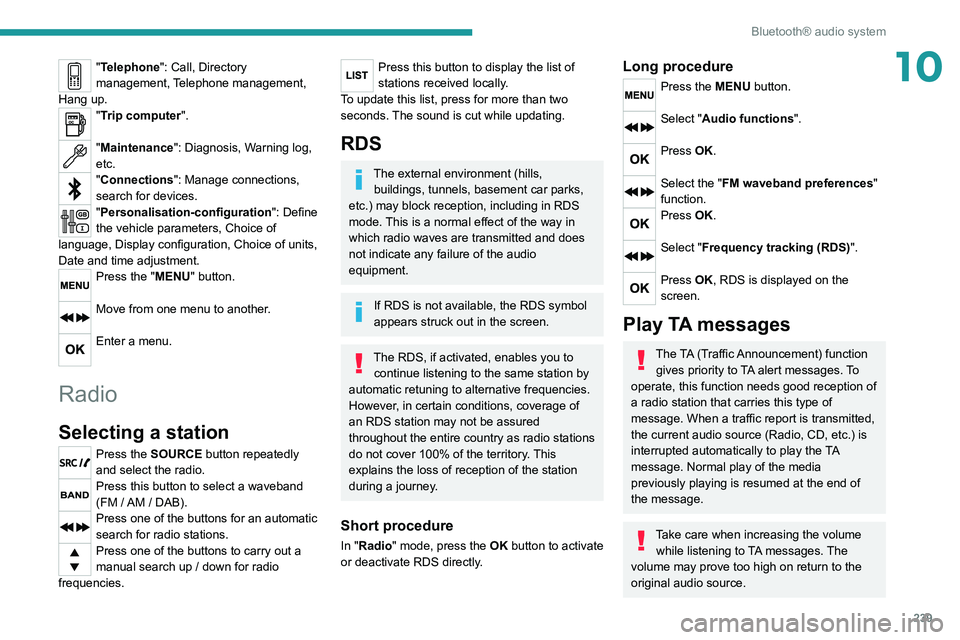
10"Telephone": Call, Directory
management, Telephone management,
Hang up.
"Trip computer".
"Maintenance": Diagnosis, Warning log,
etc.
"Connections": Manage connections,
search for devices.
"Personalisation-configuration ": Define
the vehicle parameters, Choice of
language, Display configuration, Choice of units,
Date and time adjustment.
Press the "MENU" button.
Move from one menu to another.
Enter a menu.
Radio
Selecting a station
Press the SOURCE button repeatedly
and select the radio.
Press this button to select a waveband
(FM / AM / DAB).
Press one of the buttons for an automatic
search for radio stations.
Press one of the buttons to carry out a
manual search up / down for radio
frequencies.
Press this button to display the list of
stations received locally.
To update this list, press for more than two
seconds. The sound is cut while updating.
RDS
The external environment (hills, buildings, tunnels, basement car parks,
etc.) may block reception, including in RDS
mode. This is a normal effect of the way in
which radio waves are transmitted and does
not indicate any failure of the audio
equipment.
If RDS is not available, the RDS symbol
appears struck out in the screen.
The RDS, if activated, enables you to continue listening to the same station by
automatic retuning to alternative frequencies.
However, in certain conditions, coverage of
an RDS station may not be assured
throughout the entire country as radio stations
do not cover 100% of the territory. This
explains the loss of reception of the station
during a journey.
Short procedure
In "Radio" mode, press the OK button to activate
or deactivate RDS directly.
Long procedure
Press the MENU button.
Select "Audio functions ".
Press OK.
Select the "FM waveband preferences"
function.
Press OK.
Select "Frequency tracking (RDS)".
Press OK, RDS is displayed on the
screen.
Play TA messages
The TA (Traffic Announcement) function
gives priority to TA alert messages. To
operate, this function needs good reception of
a radio station that carries this type of
message. When a traffic report is transmitted,
the current audio source (Radio, CD, etc.) is
interrupted automatically to play the TA
message. Normal play of the media
previously playing is resumed at the end of
the message.
Take care when increasing the volume while listening to TA messages. The
volume may prove too high on return to the
original audio source.
Page 274 of 324
272
PEUGEOT Connect Nav
Activate or deactivate:
–
"No data sharing except for company
vehicles".
–
"Only data sharing "
–
"Sharing data and vehicle position "
Settings specific to
connected navigation
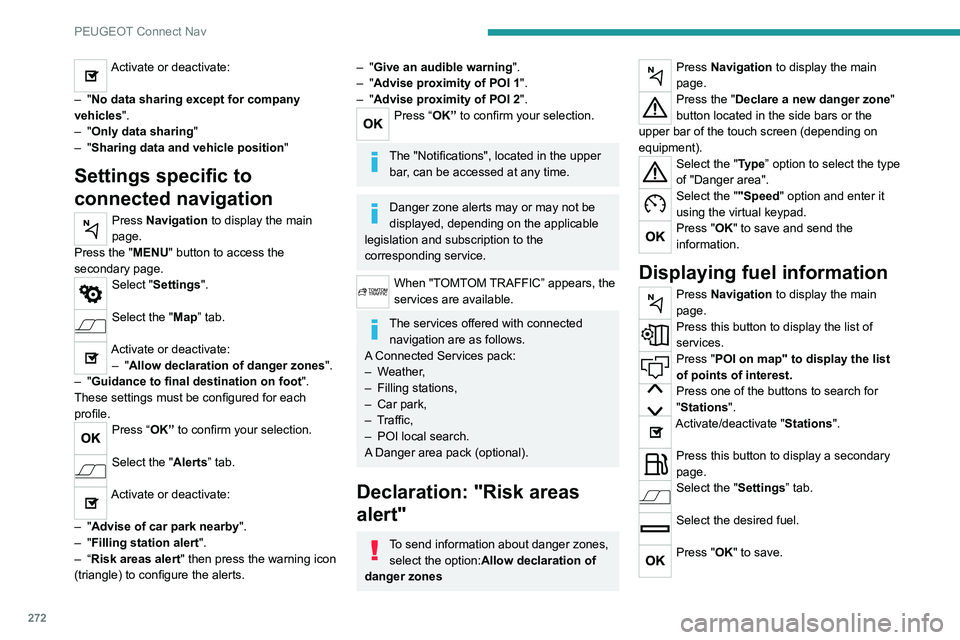
Press Navigation to display the main
page.
Press the "MENU" button to access the
secondary page.
Select "Settings".
Select the "Map” tab.
Activate or deactivate: – "Allow declaration of danger zones ".
–
"Guidance to final destination on foot ".
These settings must be configured for each
profile.
Press “OK” to confirm your selection.
Select the "Alerts” tab.
Activate or deactivate:
–
"Advise of car park nearby ".
–
"Filling station alert ".
–
“
Risk areas alert " then press the warning icon
(triangle) to configure the alerts.
– "Give an audible warning ".
– "Advise proximity of POI 1 ".
–
"Advise proximity of POI 2 ".
Press “OK” to confirm your selection.
The "Notifications", located in the upper
bar, can be accessed at any time.
Danger zone alerts may or may not be
displayed, depending on the applicable
legislation and subscription to the
corresponding service.
When "TOMTOM TRAFFIC” appears, the
services are available.
The services offered with connected navigation are as follows.
A Connected Services pack:
–
Weather,
–
Filling stations,
–
Car park,
–
T
raffic,
–
POI local search.
A
Danger area pack (optional).
Declaration: "Risk areas
alert"
To send information about danger zones, select the option:Allow declaration of
danger zones
Press Navigation to display the main
page.
Press the "Declare a new danger zone"
button located in the side bars or the
upper bar of the touch screen (depending on
equipment).
Select the "Type” option to select the type
of "Danger area".
Select the ""Speed" option and enter it
using the virtual keypad.
Press "OK" to save and send the
information.
Displaying fuel information
Press Navigation to display the main
page.
Press this button to display the list of
services.
Press "POI on map" to display the list
of points of interest.
Press one of the buttons to search for
"Stations".
Activate/deactivate "Stations".
Press this button to display a secondary
page.
Select the "Settings” tab.
Select the desired fuel.
Press "OK" to save.
Displaying charging station
details
Press Navigation to display the main
page.
Press this button to display the list of
services.
Press "POI on map" to display the list
of points of interest.
Press one of the buttons to search for
"Stations".
Activate/deactivate "Stations".
Press this button to display a secondary
page.
Select the "Settings" tab.
Select the desired connector type.
Press "OK" to save.
Displaying weather
information
Press Navigation to display the main
page.
Press this button to display the list of
services.
Select "View map".
Select "Weather".
Page 285 of 324
283
PEUGEOT Connect Nav
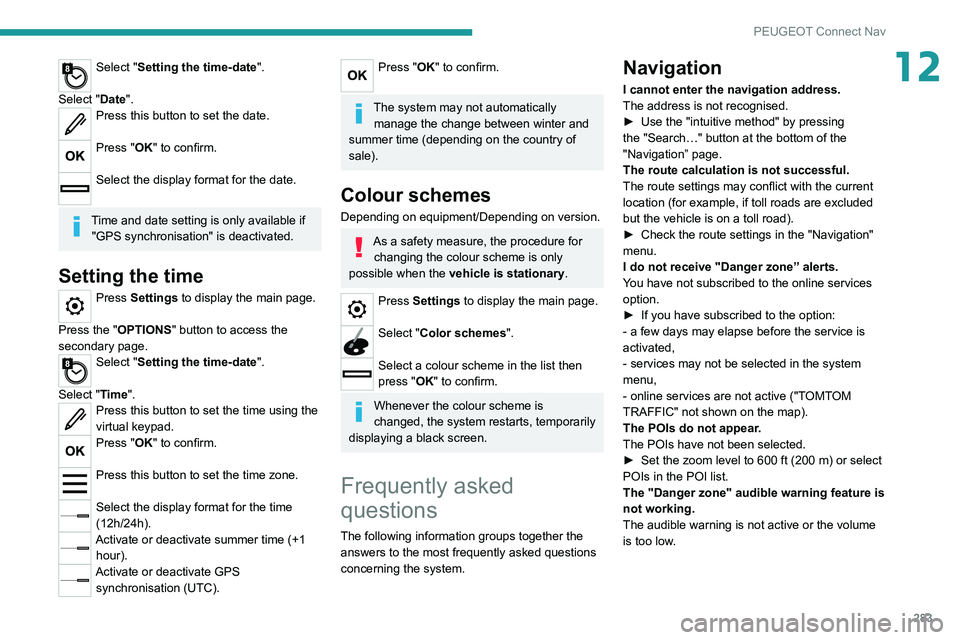
12Select "Setting the time-date".
Select "Date".
Press this button to set the date.
Press "OK" to confirm.
Select the display format for the date.
Time and date setting is only available if "GPS synchronisation" is deactivated.
Setting the time
Press Settings to display the main page.
Press the "OPTIONS " button to access the
secondary page.
Select "Setting the time-date".
Select "Time".
Press this button to set the time using the
virtual keypad.
Press "OK" to confirm.
Press this button to set the time zone.
Select the display format for the time
(12h/24h).
Activate or deactivate summer time (+1 hour).
Activate or deactivate GPS synchronisation (UTC).
Press "OK" to confirm.
The system may not automatically manage the change between winter and
summer time (depending on the country of
sale).
Colour schemes
Depending on equipment/Depending on version.
As a safety measure, the procedure for changing the colour scheme is only
possible when the vehicle is stationary.
Press Settings to display the main page.
Select "Color schemes ".
Select a colour scheme in the list then
press "OK" to confirm.
Whenever the colour scheme is
changed, the system restarts, temporarily
displaying a black screen.
Frequently asked
questions
The following information groups together the answers to the most frequently asked questions
concerning the system.
Navigation
I cannot enter the navigation address.
The address is not recognised.
►
Use the "intuitive method" by pressing
the "Search…" button at the bottom of the
"Navigation” page.
The route calculation is not successful.
The route settings may conflict with the current
location (for example, if toll roads are excluded
but the vehicle is on a toll road).
►
Check the route settings in the "Navigation"
menu.
I do not receive "Danger zone” alerts.
Y
ou have not subscribed to the online services
option.
►
If you have subscribed to the option:
- a few days may elapse before the service is
activated,
- services may not be selected in the system
menu,
- online services are not active ("T
OMTOM
TRAFFIC" not shown on the map).
The POIs do not appear.
The POIs have not been selected.
►
Set the zoom level to 600 ft (200 m) or select
POIs in the POI list.
The "Danger zone" audible warning feature is
not working.
The audible warning is not active or the volume
is too low
.
Page 286 of 324
284
PEUGEOT Connect Nav
► Activate the audible warning in the
"Navigation" menu and check the voice volume
in the sound settings.
The system does not suggest a detour
around an incident on the route.
The route settings do not take account of
TMC
messages.
►
Configure the "T
raffic info " function in
the route settings list (Without, Manual or
Automatic).
I receive a warning about a "Danger area"
that is not on my route.
As well as providing guided navigation, the
system announces all "Danger areas" positioned
in a cone located in front of the vehicle. It may
provide an alert for "Danger areas" located on
nearby or parallel roads.
►
Zoom the map to show the exact location
of the "Danger area".
You can select "On the
route" to stop receiving warnings or decrease the
warning duration.
Certain traffic jams along the route are not
indicated in real time.
On starting, a few minutes may elapse before
the system begins to receive traffic information.
►
W
ait until traffic information is being received
correctly (traffic information icons shown on the
map).
In certain countries, only major routes
(motorways, etc.) are listed for the traffic
information.
This is perfectly normal. The system is
dependent on the traffic information available. The altitude is not displayed.
On starting, GPS initialisation may take up to
3 minutes to receive more than 4 satellites
correctly.
►
W
ait until the system has started up
completely so that there is GPS coverage by at
least 4
satellites.
Depending on the geographical environment
(tunnel, etc.) or the weather, the conditions of
reception of the GPS signal may vary.
This behaviour is normal. The system is
dependent on the GPS signal reception
conditions.
My navigation is no longer connected.
During start-up and in certain geographical
areas, the connection may be unavailable.
►
Check that the online services are activated
(settings, contract).
Radio
The reception quality of the tuned radio
station gradually deteriorates or the station
presets are not working (no sound, 87.5 MHz
is displayed, etc.).
The vehicle is too far from the selected station’s
transmitter, or no transmitter is present in the
geographical area.
►
Activate the "RDS" function by means of the
short-cut menu to enable the system to check
whether there is a more powerful transmitter in
the geographical area. The aerial is missing or has been damaged
(for example while entering a car wash or
underground car park).
►
Have the aerial checked by a dealer
.
The environment (hills, buildings, tunnels,
basement car parks, etc.) is blocking reception,
including in RDS mode.
This is a perfectly normal phenomenon, and is
not indicative of an audio system malfunction.
I cannot find some radio stations in the list of
stations received.
The name of the radio station changes.
The station is no longer received or its name has
changed in the list.
Some radio stations send other information
in place of their name (the title of the song for
example).
The system interprets these details as the station
name.
►
Press the "Update list" button in the "Radio
stations” secondary menu.
Media
Playback of my USB memory stick starts only
after a very long wait (around 2 to 3 minutes).
Some files supplied with the memory stick may
greatly slow down access to reading the memory
stick (multiplication by 10 of the cataloguing
time).
►
Delete the files supplied with the memory
stick and limit the number of sub-folders in the
file structure on the memory stick.
There may be an extended pause after
inserting a USB stick.
The system reads a variety of data (folder, title,
artist, etc.). This can take from a few seconds to
a few minutes.
This is perfectly normal.
Some characters in information about the
currently playing media may not be displayed
correctly.
The audio system is unable to process certain
types of character.
► Use standard characters to name tracks and
folders.
Playback of streaming files does not start.
The connected device does not automatically
launch playback.
► Start playback from the device.
Track names and playing times are not
displayed on the audio streaming screen.
The Bluetooth profile does not allow the transfer
of this information.
Telephone
I cannot connect my Bluetooth telephone.
The telephone's Bluetooth function may be
switched off or the device may not be visible.
► Check that the telephone has Bluetooth
switched on.
► Check in the telephone settings that it is
"visible to all".
► Deactivate then reactivate the telephone’s
Bluetooth function.
Page 289 of 324
287
Alphabetical index
180° rear vision 176
A
ABS 101
Accelerated charging unit (Wallbox)
182
Accessories
98
Access to the 3rd row
58, 60
Access to the spare wheel
209
Active Safety Brake
166–168
AdBlue®
20, 197
AdBlue® tank
198
Additive, Diesel
195–196
Adjusting head restraints
51
Adjusting seat
49–50
Adjusting the air distribution
80–81
Adjusting the air flow
80–81
Adjusting the date
28, 260, 282
Adjusting the height and reach of
the steering wheel
53
Adjusting the lumbar support
49
Adjusting the seat angle
49–50
Adjusting the seat belt height
105
Adjusting the temperature
80–81
Adjusting the time
28, 259, 283
Advanced Grip Control
103–104
Advice on care and maintenance
180, 201
Advice on driving
8, 136–137
Airbags
107–110, 112
Airbags, curtain
109–110
Airbags, front
108–109, 112
Airbags, lateral 108–110
Air conditioning
79–80, 81–84, 82
Air conditioning, digital
83
Air conditioning, dual-zone automatic
80–81
Air conditioning, manual
80, 82
Air intake
80–82
Air vents
79
Alarm
46–47
Android Auto connection
256, 274
Anti-lock braking system (ABS)
101
Anti-pinch
75
Antitheft / Immobiliser
30
Apple CarPlay connection
256, 273
Applications
274
Area, loading
31, 38–39, 73
Armrest, front
51
Assistance call
99
Assistance, emergency braking
101, 168
Audible warning
100
Audio streaming (Bluetooth)
243, 255, 278
B
Battery 220
Battery, 12 V
189, 195–196, 219–222
Battery, ancillaries
219–220
Battery, charging
221–222
Battery, remote control
36–37, 85
Bench seat, one-piece, fixed
58–59
Blind, panoramic roof
75
Blind spot monitoring system
172
Blind spot sensors 171
Blinds, side
75
BlueHDi
20, 195, 203
Bluetooth (hands-free)
243–244, 257, 279
Bluetooth (telephone)
257–258, 279–280
Bodywork
201
Bonnet
192
Boot
45
Boot lid
34–35, 36, 45
Brake discs
197
Brake lamps
215, 217
Brakes
196–197
Braking
150
Braking assistance system
101
Braking, automatic emergency
166–168
Braking, dynamic emergency
143–144
Brightness
259
Bulbs
212
Bulbs (changing)
212, 215
C
Cable, audio 277
Cable, Jack
277
Capacity, fuel tank
178–179
Cap, fuel filler
178–179
Care of the bodywork
201
CD
242
CD, MP3
242
Central locking
29, 34, 38
Changing a bulb
212, 215, 217