Peugeot Partner 2017 Owner's Guide
Partner 2017
Peugeot
Peugeot
https://www.carmanualsonline.info/img/29/15967/w960_15967-0.png
Peugeot Partner 2017 Owner's Guide
Page 187 of 260
Audio and Telematics
185
Partner-2-VU_en_Chap10a_SMEGplus_ed02-2016
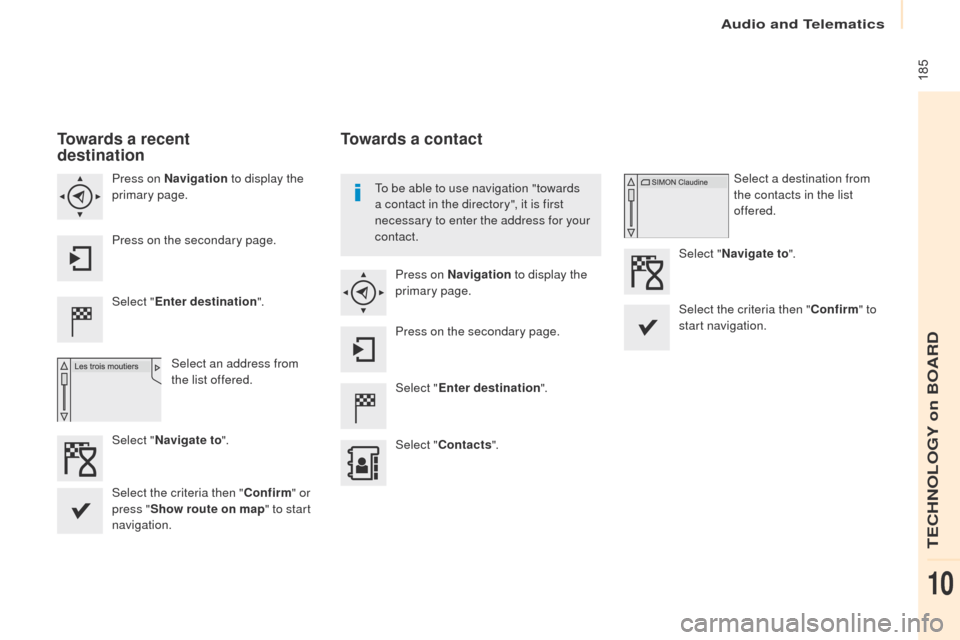
Towards a recent
destination
Select "Enter destination ".
Select an address from
the list offered.
Press on Navigation
to display the
primary page.
Press on the secondary page.
Select " Navigate to ".
Towards a contact
Select "Enter destination ".
Select " Contacts ".
Press on Navigation
to display the
primary page.
Press on the secondary page. Select a destination from
the contacts in the list
offered.
Select " Navigate to ".
Select the criteria then " Confirm" to
start navigation.
To be able to use navigation "towards
a contact in the directory", it is first
necessary to enter the address for your
contact.
Select the criteria then " Confirm" or
press " Show route on map " to start
navigation.
TECHNOLOGY on BOARD
10
Page 188 of 260
Audio and Telematics
186
Partner-2-VU_en_Chap10a_SMEGplus_ed02-2016
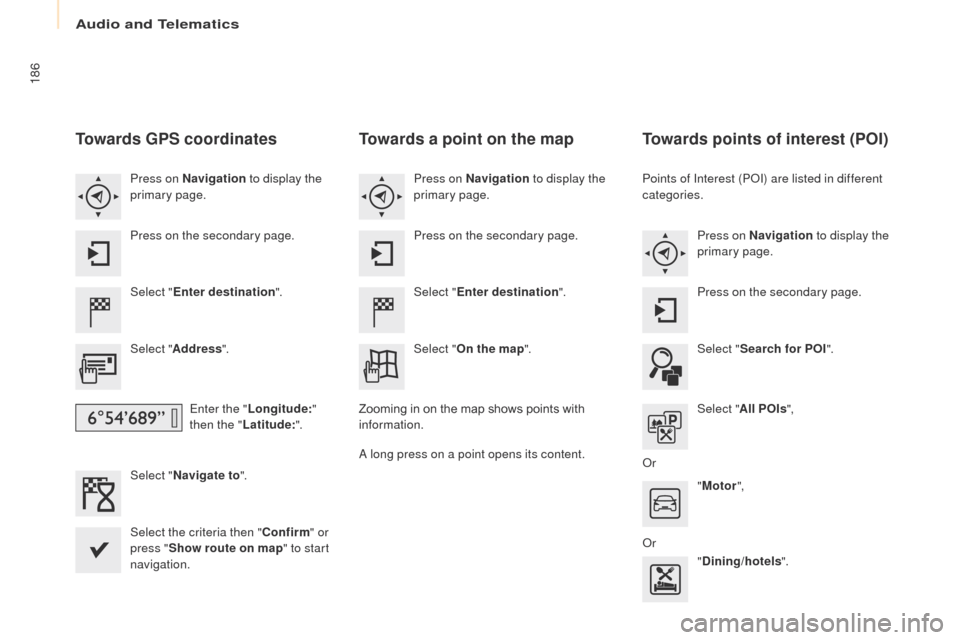
Towards GPS coordinates
Select "Enter destination ".
Select " Address ".
Enter the " Longitude: "
then the " Latitude: ".
Select " Navigate to ".
Select the criteria then " Confirm" or
press " Show route on map " to start
navigation. Press on Navigation to display the
primary page.
Press on the secondary page.
Towards a point on the map
Select " Enter destination ".
Select " On the map ".
Press on Navigation
to display the
primary page.
Press on the secondary page.
Zooming in on the map shows points with
information.
A long press on a point opens its content.
Towards points of interest (POI)
Points of Interest (POI) are listed in different
categories. Press on Navigation to display the
primary page.
Press on the secondary page.
Select " Search for POI ".
Select " All POIs ",
Or "Motor ",
Or "Dining/hotels ".
Page 189 of 260
Audio and Telematics
187
Partner-2-VU_en_Chap10a_SMEGplus_ed02-2016
An annual mapping update allows new
points of interest to be presented to
you.
You can also update the Risk areas /
Danger areas every month.
The detailed procedure is available on:
http://peugeot.navigation.com.
TECHNOLOGY on BOARD
10
Page 190 of 260
Audio and Telematics
188
Partner-2-VU_en_Chap10a_SMEGplus_ed02-2016
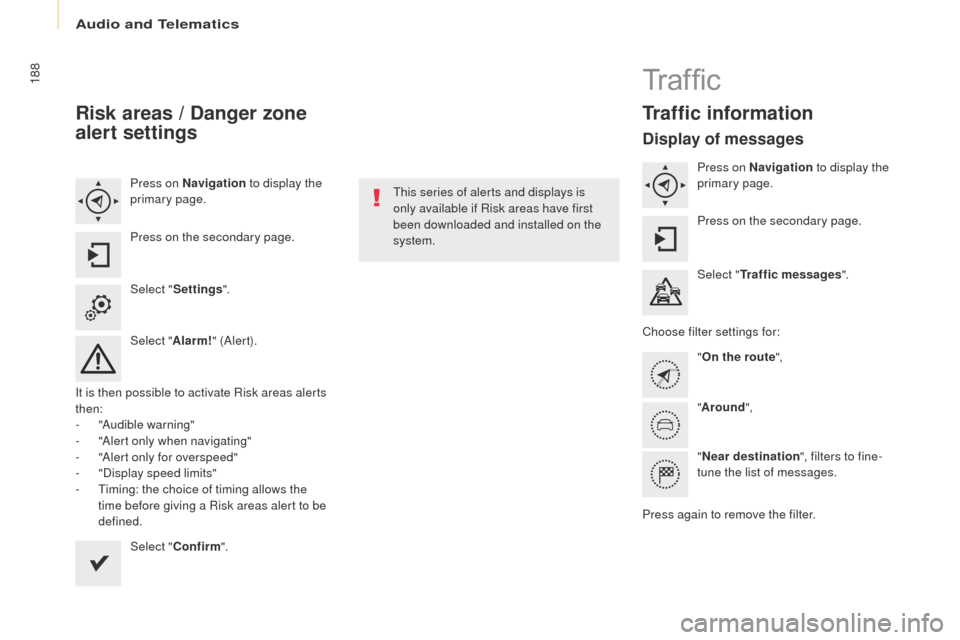
Risk areas / Danger zone
alert settings
Press on Navigation to display the
primary page.
Press on the secondary page.
Select " Settings ".
Select " Alarm!" (Aler t).
It is then possible to activate Risk areas alerts
then:
-
"
Audible warning"
-
"
Alert only when navigating"
-
"
Alert only for overspeed"
-
"
Display speed limits"
-
T
iming: the choice of timing allows the
time before giving a Risk areas alert to be
defined.
Select " Confirm ". This series of alerts and displays is
only available if Risk areas have first
been downloaded and installed on the
system.
Tr a f fi c
Traffic information
Display of messages
Press on Navigation
to display the
primary page.
Press on the secondary page.
Select " Traffic messages ".
Choose filter settings for: "On the route ",
" Around ",
" Near destination ", filters to fine-
tune the list of messages.
Press again to remove the filter.
Page 191 of 260
Audio and Telematics
189
Partner-2-VU_en_Chap10a_SMEGplus_ed02-2016
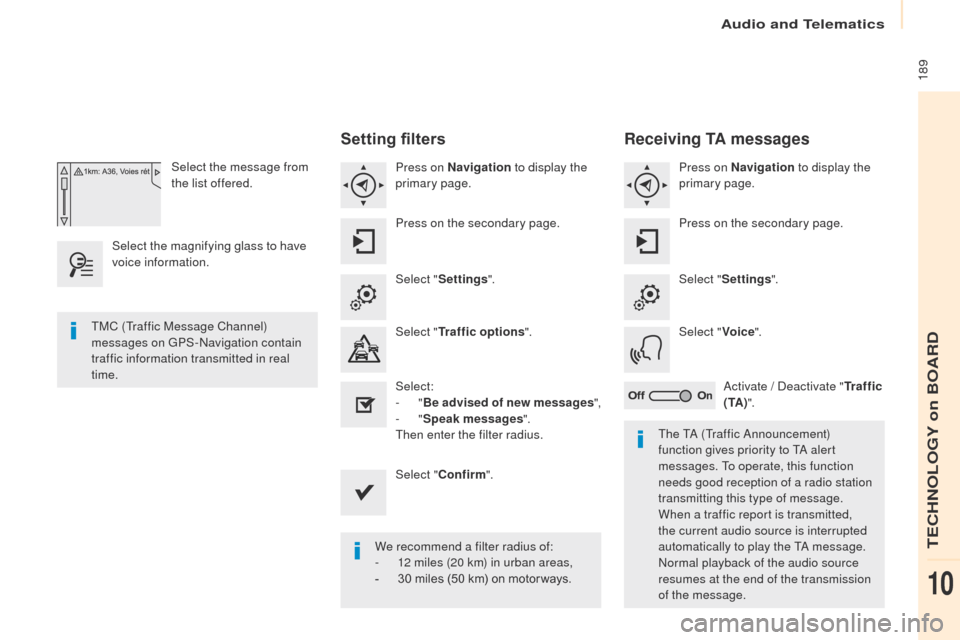
Select the message from
the list offered.
Select the magnifying glass to have
voice information.
Setting filters
Press on Navigation to display the
primary page.
Press on the secondary page.
Select " Settings ".
Select " Traffic options ".
Select:
-
"Be advised of new messages ",
-
"Speak messages ".
Then enter the filter radius.
Select " Confirm ".
We recommend a filter radius of:
-
1
2 miles (20 km) in urban areas,
-
3
0 miles (50 km) on motor ways.
TMC (Traffic Message Channel)
messages on GPS-Navigation contain
traffic information transmitted in real
time.
The TA (Traffic Announcement)
function gives priority to TA alert
messages. To operate, this function
needs good reception of a radio station
transmitting this type of message.
When a traffic report is transmitted,
the current audio source is interrupted
automatically to play the TA message.
Normal playback of the audio source
resumes at the end of the transmission
of the message.
Receiving TA messages
Press on Navigation to display the
primary page.
Press on the secondary page.
Select " Settings ".
Select " Voice".
Activate / Deactivate " Tr a f f i c
( TA ) ".
TECHNOLOGY on BOARD
10
Page 192 of 260
Audio and Telematics
190
Partner-2-VU_en_Chap10a_SMEGplus_ed02-2016
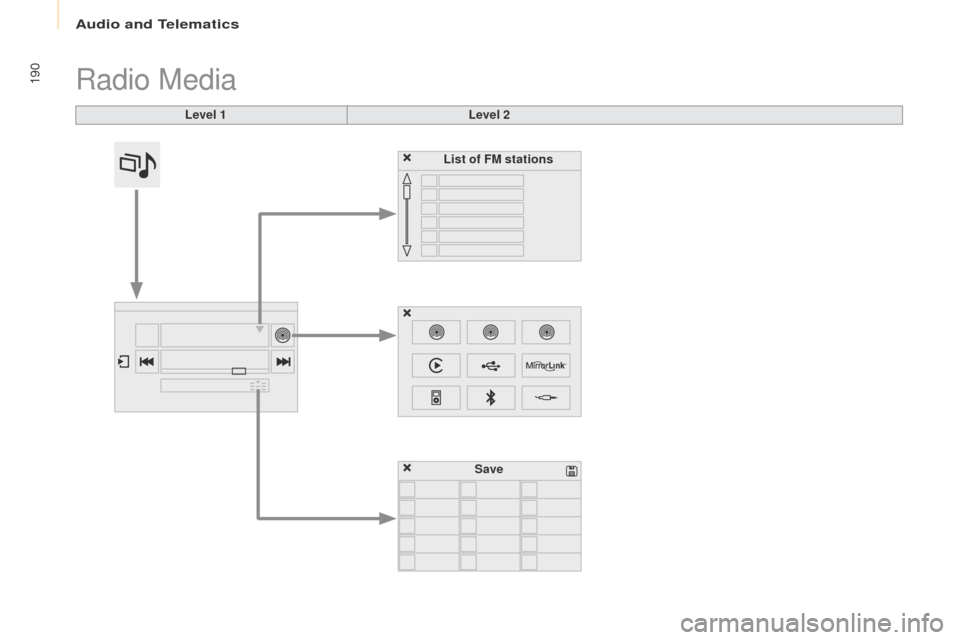
Radio Media
Level 1Level 2
List of FM stations
Save
Page 193 of 260
Audio and Telematics
191
Partner-2-VU_en_Chap10a_SMEGplus_ed02-2016
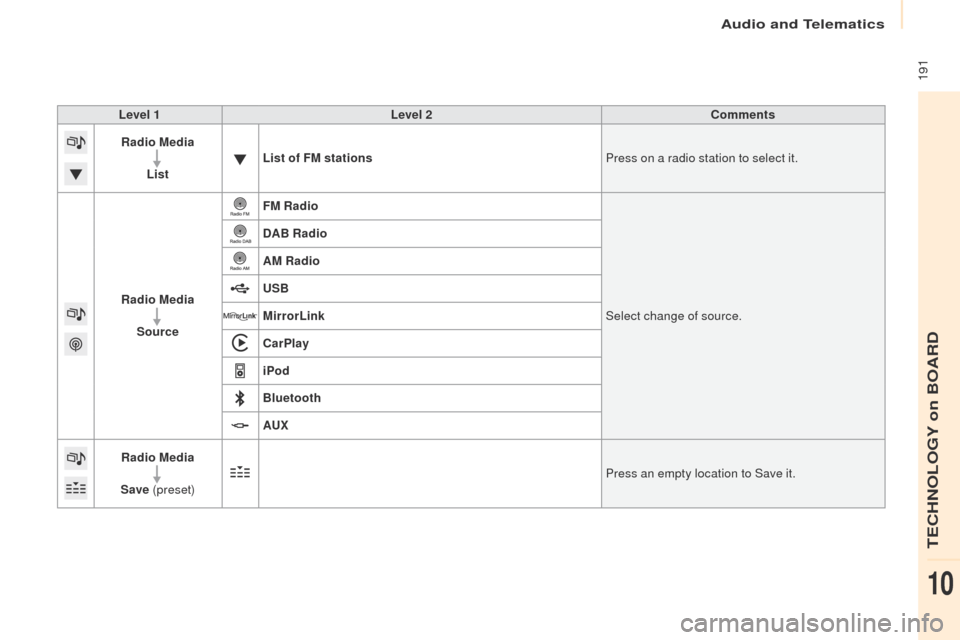
Level 1Level 2 Comments
Radio Media
List List of FM stations
Press on a radio station to select it.
Radio Media Source FM Radio
Select change of source.
DAB Radio
AM Radio
USB
MirrorLink
CarPlay
iPod
Bluetooth
AU
x
R
adio Media
Save (preset) Press an empty location to Save it.
TECHNOLOGY on BOARD
10
Page 194 of 260
Audio and Telematics
192
Partner-2-VU_en_Chap10a_SMEGplus_ed02-2016
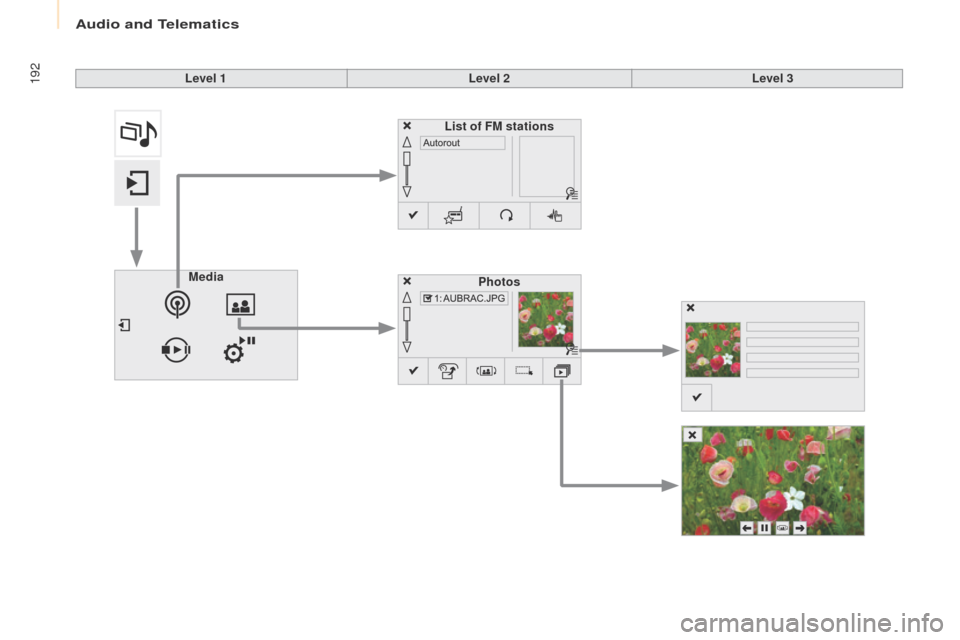
Level 1Level 2Level 3
Media Photos
List of FM stations
Page 195 of 260
Audio and Telematics
193
Partner-2-VU_en_Chap10a_SMEGplus_ed02-2016
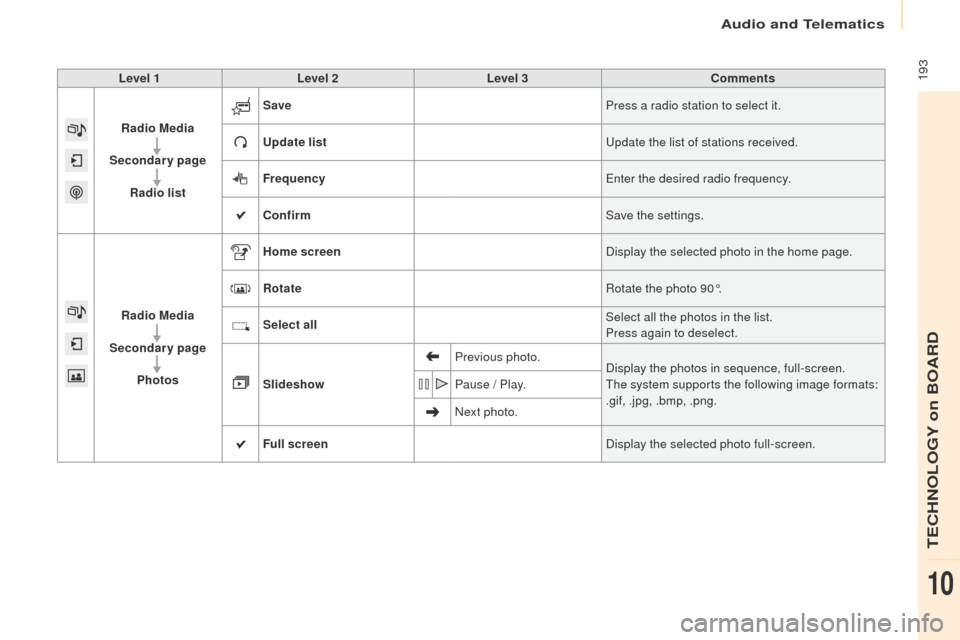
Level 1Level 2 Level 3 Comments
Radio Media
Secondary page Radio list Save
Press a radio station to select it.
Update list Update the list of stations received.
Frequency Enter the desired radio frequency.
Confirm Save the settings.
Radio Media
Secondary page Photos Home screen
Display the selected photo in the home page.
Rotate Rotate the photo 90°.
Select all Select all the photos in the list.
Press again to deselect.
Slideshow Previous photo.
Display the photos in sequence, full-screen.
The system supports the following image formats:
.gif, .jpg, .bmp, .png.
Pause / Play.
Next photo.
Full screen Display the selected photo full-screen.
TECHNOLOGY on BOARD
10
Page 196 of 260
Audio and Telematics
194
Partner-2-VU_en_Chap10a_SMEGplus_ed02-2016
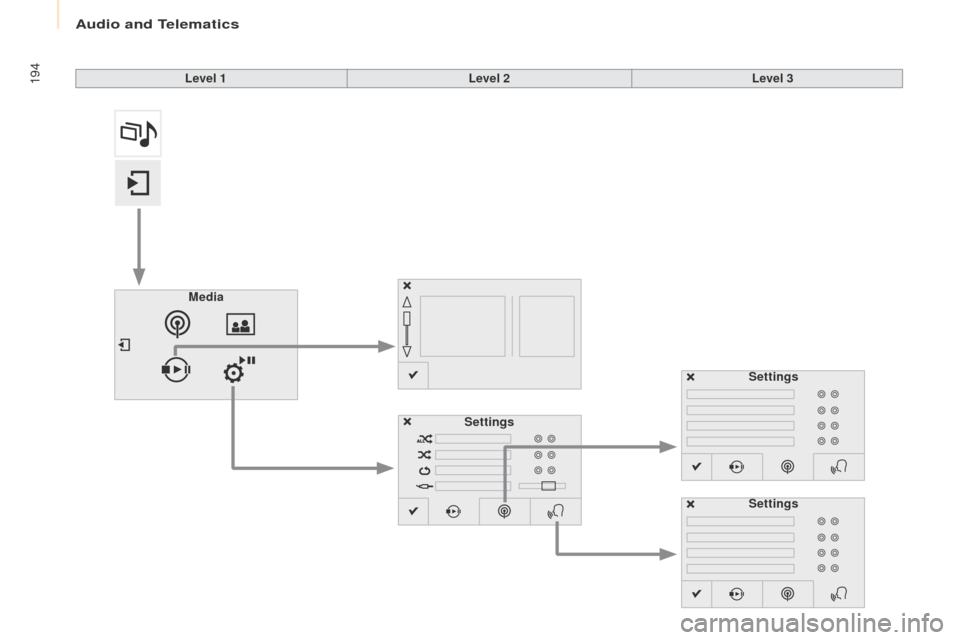
Level 1Level 2Level 3
Media Settings Settings
Settings