key Peugeot Partner Tepee 2011 Owner's Guide
[x] Cancel search | Manufacturer: PEUGEOT, Model Year: 2011, Model line: Partner Tepee, Model: Peugeot Partner Tepee 2011Pages: 232, PDF Size: 7.4 MB
Page 177 of 232
9.9
04
1
2
3
5
6
4
NAVIGATION - GUIDANCE
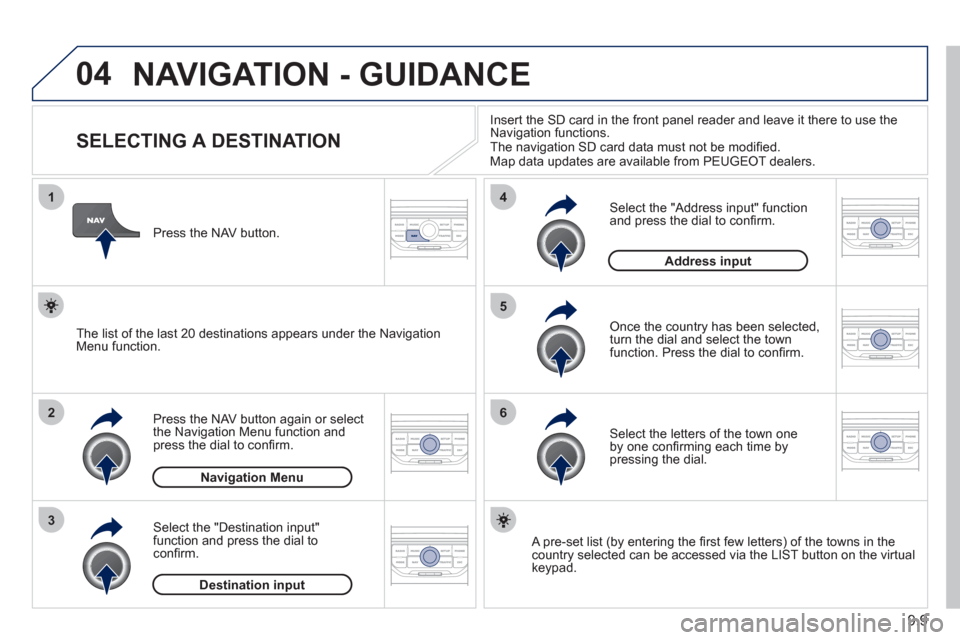
SELECTING A DESTINATION
Press the NAV button again or select
the Navigation Menu function and
press the dial to confi rm.
Select the "Destination in
put"
function and press the dial to
confi rm. Pr
ess the NAV button.
Select the letters of the town one
by one confi rming each time by pressing the dial.
Once the country has been selected,
turn the dial and select the townfunction. Press the dial to confi rm. Insert the SD card in the front
panel reader and leave it there to use the
Navigation functions.
The navigation SD card data must not be modifi ed.
Map data updates are available from PEUGEOT dealers.
A pre-set list (by entering the fi rst few letters) of the towns in thecountry selected can be accessed via the LIST button on the virtual
keypad.
Select the "Address input" function
and press the dial to confi rm.
The list o
f the last 20 destinations appears under the NavigationMenu function.
Navigation Menu
Destination input
Address input
Page 182 of 232
9.14
04
8
6
7
4
3
5
2
1
NAVIGATION - GUIDANCE
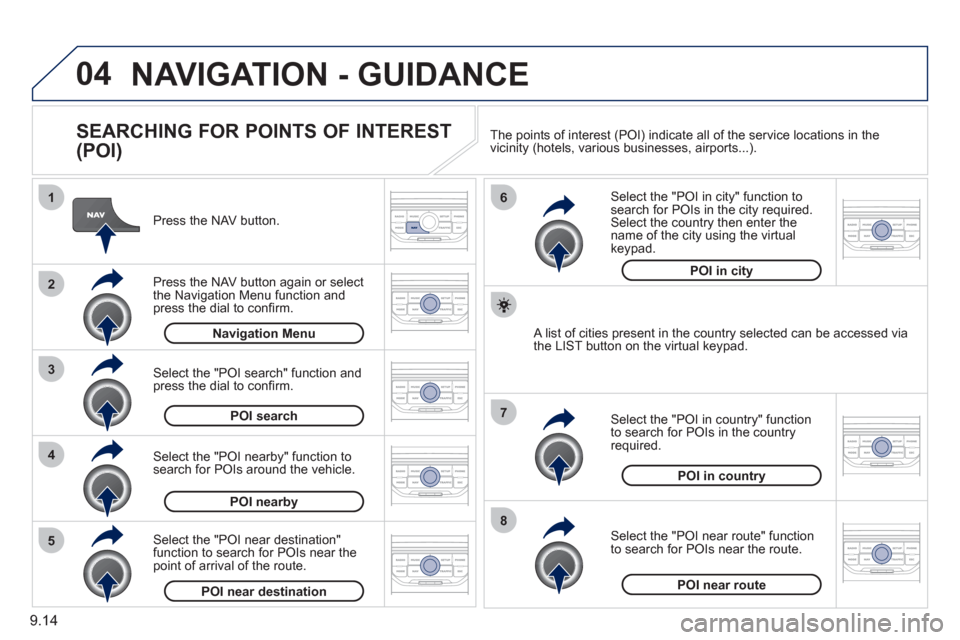
SEARCHING FOR POINTS OF INTEREST
(POI)
Press the NAV button.
Press the NAV button again or select
the Navigation Menu function and press the dial to confi rm.
Select the "POI nearby" function to search for POIs around the vehicle.
Select the "POI search" function and press the dial to confi rm. Navigation Menu
POI search
POI nearby
Select the "POI in city" function tosearch for POIs in the city required.Select the country then enter the name of the city using the virtual
keypad.
Select the "POI near route" function
to search for POIs near the route.
Select the "P
OI in country" function
to search for POIs in the country
required.
Select the "POI near destination"function to search for POIs near thepoint of arrival of the route.
POI near destinationPOI near route
POI in country
POI in city
A list of cities present in the country selected can be accessed via
the LIST button on the virtual keypad. The points o
f interest (POI) indicate all of the service locations in the
vicinity (hotels, various businesses, airports...).
Page 187 of 232
9.19
06
3 2 1 1
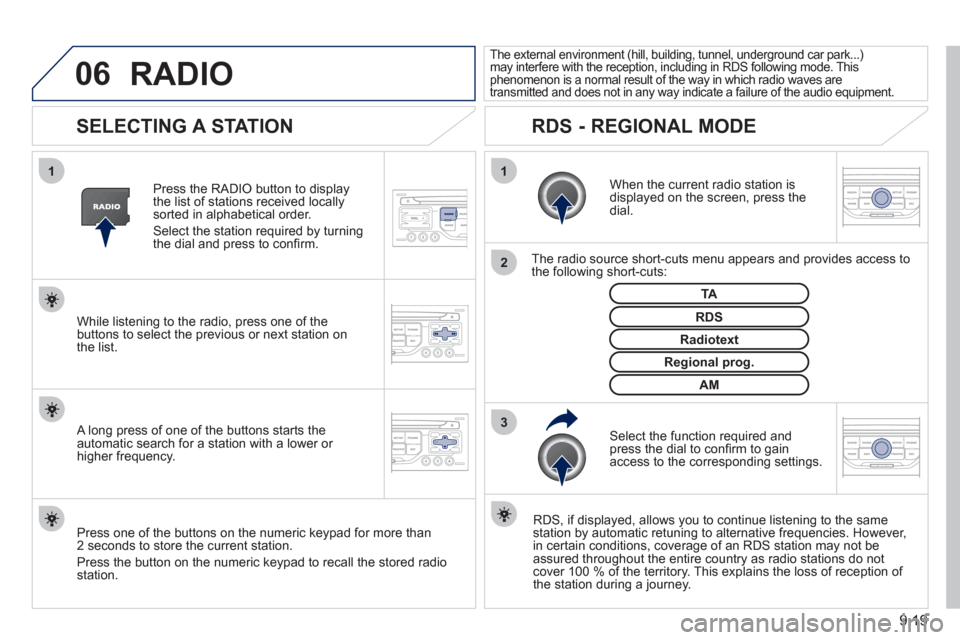
SELECTING A STATION
When the current radio station isdisplayed on the screen, press thedial.
The radio source short-cuts menu appears and provides access to
the following short-cuts:
Select the function re
quired and press the dial to confi rm to gain
access to the corresponding settings.
TA
RDS, if displayed, allows you to continue listening to the same station by automatic retuning to alternative frequencies. However,
in certain conditions, coverage of an RDS station may not be
assured throughout the entire country as radio stations do notcover 100 % of the territory. This explains the loss of reception of
the station during a journey.
The external environment (hill, building, tunnel, underground car park...)may interfere with the reception, including in RDS following mode. Thisphenomenon is a normal result of the way in which radio waves are
transmitted and does not in any way indicate a failure of the audio equipment.
RDS - REGIONAL MODE
Press the RADIO button to display
the list of stations received locally sorted in alphabetical order.
Select the station required by turningthe dial and press to confi rm.
Re
gional prog.
Radiotext
RDSWhile listening to the radio, press one of the
buttons to select the previous or next station on
the list.
Press one o
f the buttons on the numeric keypad for more than
2 seconds to store the current station.
Press the button on the numeric keypad to recall the stored radio
station.
AM
A long press of one of the buttons starts theautomatic search for a station with a lower or
higher frequency.
RADIO
Page 192 of 232
9.24
08
1
3 2
2 1to refuse and confi rm by pressing
the dial.
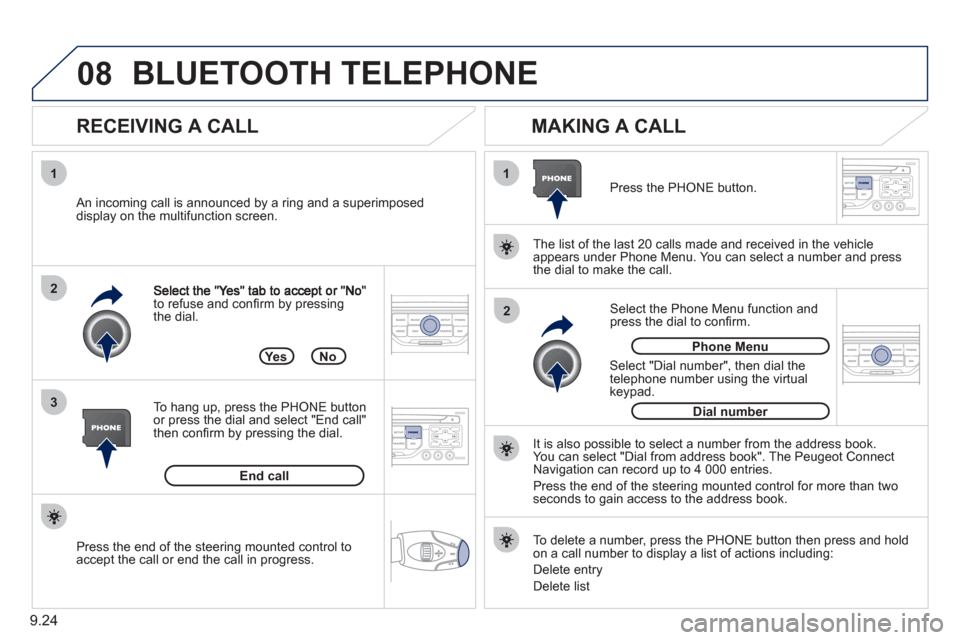
RECEIVING A CALL
MAKING A CALL
An incoming call is announced by a ring and a superimposed
display on the multifunction screen.
Yes
To han
g up, press the PHONE button
or press the dial and select "End call"then confi rm by pressing the dial.
End callPress the PH
ONE button.
Select "Dial number", then dial the
telephone number using the virtual
keypad.
No
Select the Phone Menu function and press the dial to confi rm.
The list o
f the last 20 calls made and received in the vehicle
appears under Phone Menu. You can select a number and press
the dial to make the call.
It is also possible to select a number
from the address book. You can select "Dial from address book". The Peugeot Connect
Navigation can record up to 4 000 entries.
Press the end of the steerin
g mounted control for more than twoseconds to gain access to the address book.
Phone Menu
Dial number
To delete a number, press the PH
ONE button then press and hold on a call number to display a list of actions including:
Delete entr
y
D
elete list
BLUETOOTH TELEPHONE
Press the end of the steering mounted control to
accept the call or end the call in progress.
Page 213 of 232
9.45
06
1
2
3
4
5
6
7
8
9
10
BLUETOOTH
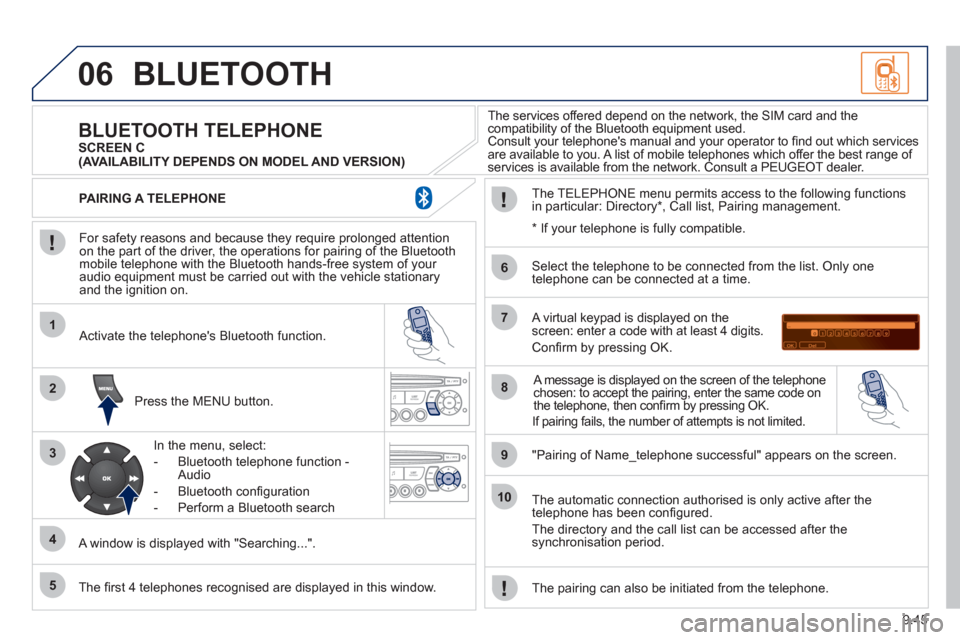
For safety reasons and because they require prolonged attentionon the part of the driver, the operations for pairing of the Bluetooth mobile telephone with the Bluetooth hands-free system of your
audio equipment must be carried out with the vehicle stationary
and the ignition on.
Press the MENU button.
A window is displa
yed with "Searching...".
Activate the telephone's Bluetooth
function.
In the menu, select:
- Bluetooth telephone
function -
Audio
- Bluetooth con
fi guration
- P
erform a Bluetooth search
The services offered de
pend on the network, the SIM card and thecompatibility of the Bluetooth equipment used.
Consult your telephone's manual and your operator to fi nd out which services are available to you. A list of mobile telephones which offer the best range of
services is available from the network. Consult a PEUGEOT dealer.
BLUETOOTH TELEPHONE SCREEN C
The TELEPH
ONE menu permits access to the following functions
in particular: Directory * , Call list, Pairing management.
The fi rst 4 telephones reco
gnised are displayed in this window.
A virtual keypad is displayed on thescreen: enter a code with at least 4 digits.
Confi rm by pressing OK.
"Pairin
g of Name_telephone successful" appears on the screen.
Select the telephone to be connected from the list.
Only one
telephone can be connected at a time.
A messa
ge is displayed on the screen of the telephone chosen: to accept the pairing, enter the same code on
the telephone, then confi rm by pressing OK.
The automatic connection authorised is onl
y active after the
telephone has been confi gured.
The directory and the call list can be accessed a
fter thesynchronisation period.
PAIRING A TELEPHONE
The pairin
g can also be initiated from the telephone.
(AVAILABILITY DEPENDS ON MODEL AND VERSION)
* If
your telephone is fully compatible.
If pairin
g fails, the number of attempts is not limited.
Page 214 of 232
9.46
06
2
1
2
2
3
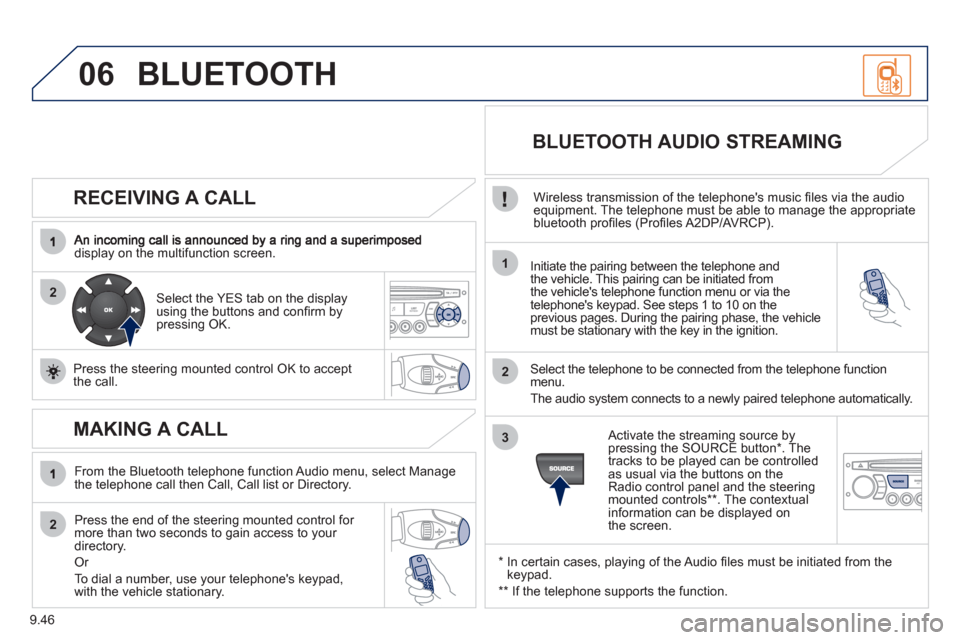
RECEIVING A CALL
display on the multifunction screen.Initiate the pairing between the telephone and
the vehicle. This pairing can be initiated from
the vehicle's telephone function menu or via the
telephone's keypad. See steps 1 to 10 on the
previous pages. During the pairing phase, the vehicle
must be stationary with the key in the ignition.
Select the tele
phone to be connected from the telephone function
menu.
The audio s
ystem connects to a newly paired telephone automatically.
Select the YES tab on the display
using the buttons and confi rm bypressing OK.
Press the steerin
g mounted control OK to accept
the call.
BLUETOOTH AUDIO STREAMING
Wireless transmission of the telephone's music fi les via the audio equipment. The telephone must be able to manage the appropriate
bluetooth profi les (Profi les A2DP/AVRCP).
*
In certain cases, playing of the Audio fi les must be initiated from the keypad.
** If the tele
phone supports the function.
Activate the streamin
g source by
pressing the SOURCE button * . The
tracks to be played can be controlled as usual via the buttons on theRadio control panel and the steering
mounted controls ** . The contextual
information can be displayed on
the screen.
BLUETOOTH
MAKING A CALL
From the Bluetooth telephone function Audio menu, select Manage
the telephone call then Call, Call list or Directory.
Press the end o
f the steering mounted control for more than two seconds to gain access to your
directory.
Or
To dial a number, use
your telephone's keypad,with the vehicle stationary.
Page 225 of 232
167
Exterior
VISUAL SEARCH
10
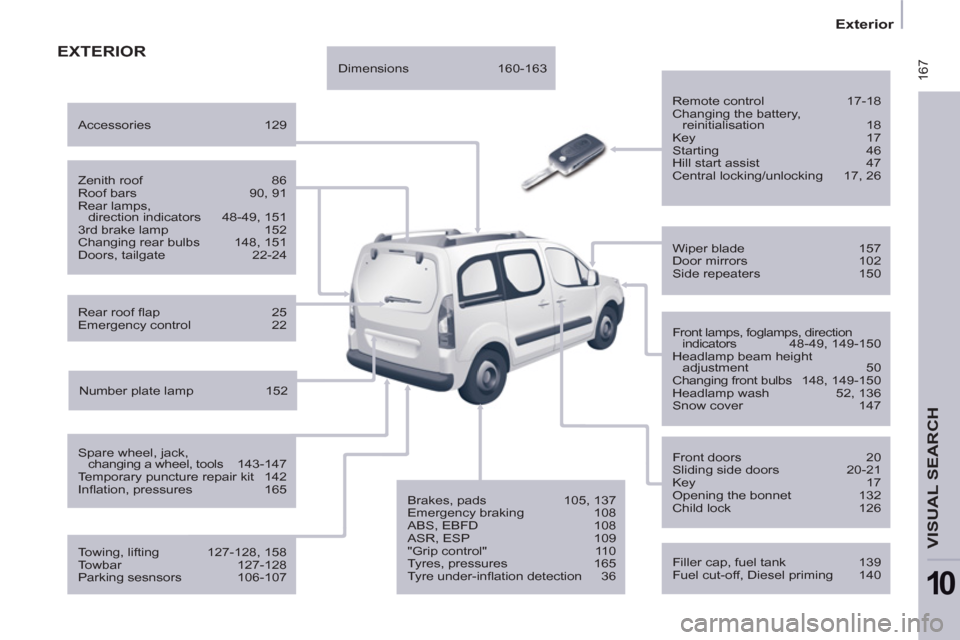
EXTERIOR
Remote control 17-18
Changing the battery,
reinitialisation 18
Key 17
Starting 46
Hill start assist 47
Central locking/unlocking 17, 26
Filler cap, fuel tank 139
Fuel cut-off, Diesel priming 140
Wiper blade 157
Door mirrors 102
Side repeaters 150
Front lamps, foglamps, direction
indicators 48-49, 149-150
Headlamp beam height
adjustment 50
Changing front bulbs 148, 149-150
Headlamp wash 52, 136
Snow cover 147
Front doors 20
Sliding side doors 20-21
Key 17
Opening the bonnet 132
Child lock 126
Towing, lifting 127-128, 158
Towbar 127-128
Parking sesnsors 106-107
Rear roof fl ap 25
Emergency control 22
Spare wheel, jack,
changing a wheel, tools 143-147
Temporary puncture repair kit 142
Infl ation, pressures 165
Zenith roof 86
Roof bars 90, 91
Rear lamps,
direction indicators 48-49, 151
3rd brake lamp 152
Changing rear bulbs 148, 151
Doors, tailgate 22-24
Accessories 129
Number plate lamp 152
Dimensions 160-163
Brakes, pads 105, 137
Emergency braking 108
ABS, EBFD 108
ASR, ESP 109
"Grip control" 110
Tyres, pressures 165
Tyre under-infl ation detection 36