ECO mode Peugeot Partner Tepee 2016 Owner's Guide
[x] Cancel search | Manufacturer: PEUGEOT, Model Year: 2016, Model line: Partner Tepee, Model: Peugeot Partner Tepee 2016Pages: 296, PDF Size: 10.76 MB
Page 225 of 296
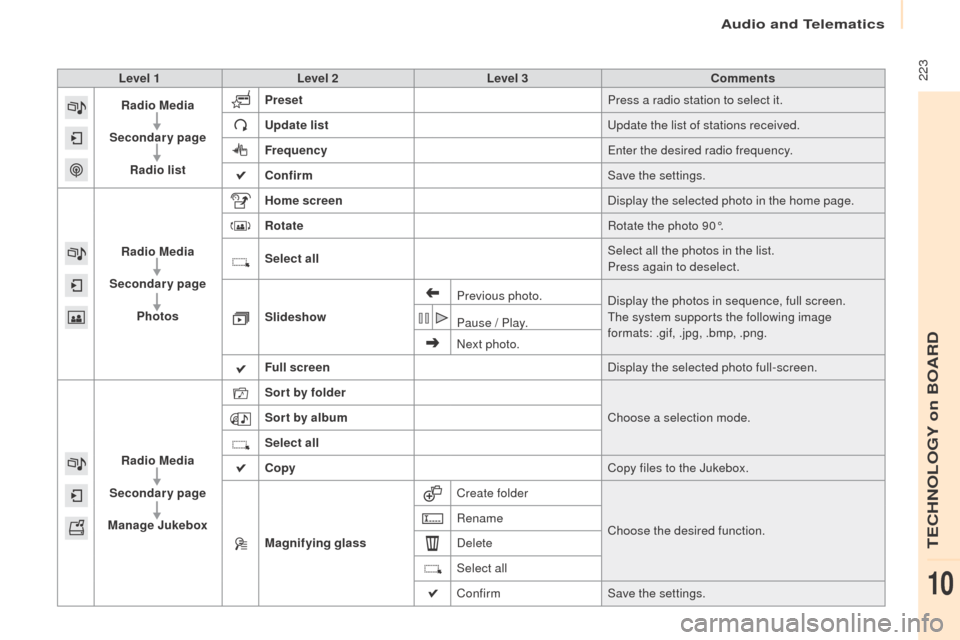
223Level 1Level 2 Level 3 Comments
Radio Media
Secondary page Radio list Preset
Press a radio station to select it.
up
date list
up
date the list of stations received.
Frequency
en
ter the desired radio frequency.
Confirm Save the settings.
Radio Media
Secondary page Photos Home screen
Display the selected photo in the home page.
Rotate Rotate the photo 90°.
Select all Select all the photos in the list.
Press again to deselect.
Slideshow Previous photo.
Display the photos in sequence, full screen.
The system supports the following image
formats: .gif, .jpg, .bmp, .png.
Pause / Play.
Next photo.
Full screen Display the selected photo full-screen.
Radio Media
Secondary page
Manage Jukebox Sor t by folder
Choose a selection mode.
Sor t by album
Select all
Copy Copy files to the Jukebox.
Magnifying glass Create folder
Choose the desired function.
Rename
Delete
Select all
Confirm
Save the settings.
Audio and Telematics
TeCHNoLogY on BoARD
10
Page 228 of 296
226
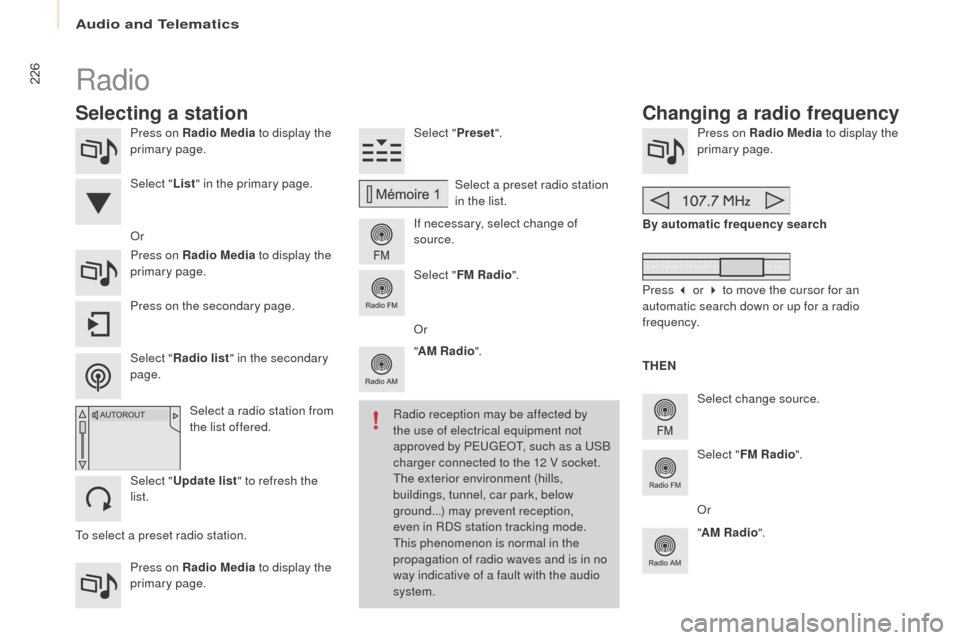
Press on Radio Media to display the
primary page.
Press on Radio Media to display the
primary page. Select "
Preset".
If necessary, select change of
source. Press on Radio Media
to display the
primary page.
Select change source.
"
AM Radio ". By automatic frequency search
Select "FM Radio ".
" AM Radio ".
Press on the secondary page.
o
r Select a preset radio station
in the list.
Select " FM Radio ".
Select a radio station from
the list offered.
Select "
up
date list" to refresh the
list. Select " List" in the primary page.
Press on Radio Media to display the
primary page.
Radio
Changing a radio frequency
Selecting a station
tHeN
R
adio reception may be affected by
the use of electrical equipment not
approved by P
e
ugeo
T
, such as a
u
S
B
charger connected to the 12 V socket.
The exterior environment (hills,
buildings, tunnel, car park, below
ground...) may prevent reception,
even in RDS station tracking mode.
This phenomenon is normal in the
propagation of radio waves and is in no
way indicative of a fault with the audio
system.
Select "
Radio list " in the secondary
page.
o
r Press 3 or 4 to move the cursor for an
automatic search down or up for a radio
frequency.
o
r
To select a preset radio station.
Audio and Telematics
Page 233 of 296
231
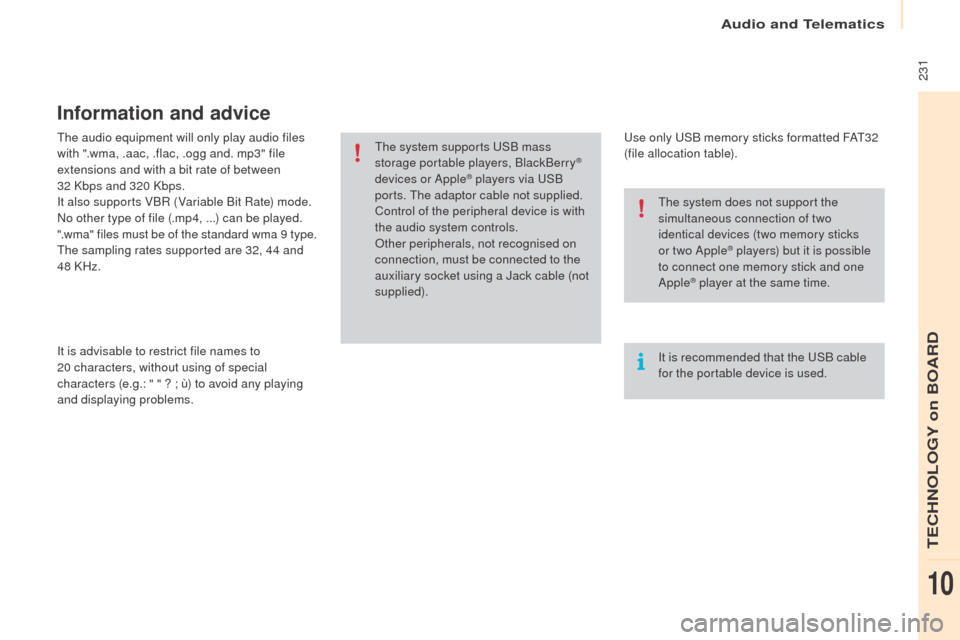
The audio equipment will only play audio files
with ".wma, .aac, .flac, .ogg and. mp3" file
extensions and with a bit rate of between
32 Kbps and 320 Kbps.
It also supports VBR (Variable Bit Rate) mode.
No other type of file (.mp4, ...) can be played.
".wma" files must be of the standard wma 9 type.
The sampling rates supported are 32, 44 and
48 KHz.
It is advisable to restrict file names to
20
characters, without using of special
characters (e.g.: " " ? ; ù) to avoid any playing
and displaying problems.
Information and advice
use only uS B memory sticks formatted FAT32
(file allocation table).
The system supports
uS
B mass
storage portable players, BlackBerry
®
devices or Apple® players via uS B
ports. The adaptor cable not supplied.
Control of the peripheral device is with
the audio system controls.
ot
her peripherals, not recognised on
connection, must be connected to the
auxiliary socket using a Jack cable (not
supplied).
It is recommended that the
u
S
B cable
for the portable device is used. The system does not support the
simultaneous connection of two
identical devices (two memory sticks
or two Apple
® players) but it is possible
t
o connect one memory stick and one
Apple
® player at the same time.
Audio and Telematics
TeCHNoLogY on BoARD
10
Page 234 of 296
232
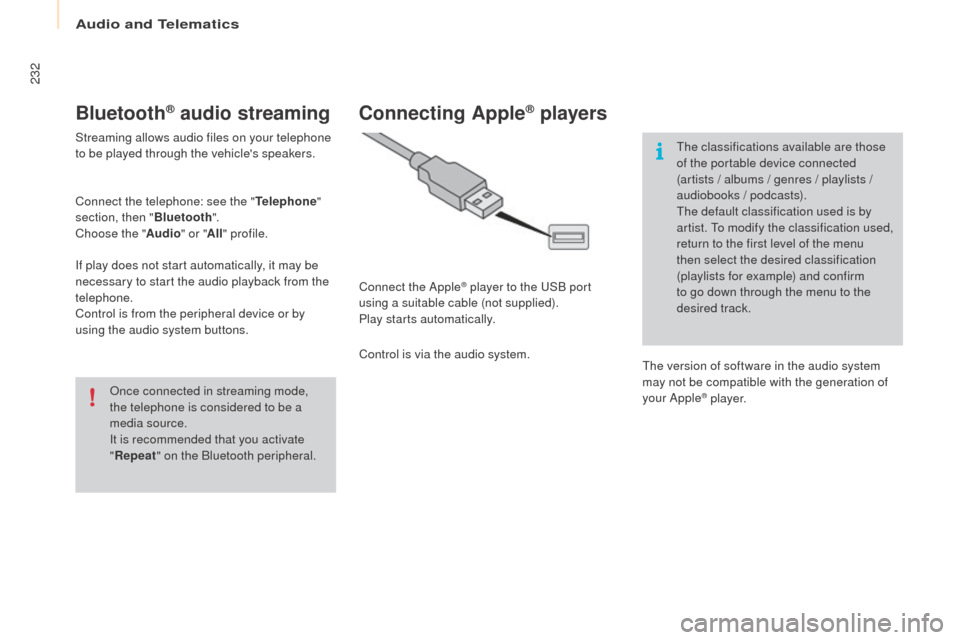
Bluetooth® audio streaming
Streaming allows audio files on your telephone
to be played through the vehicle's speakers.
Connect the telephone: see the "
tel
ephone"
section, then " Bluetooth".
Choose the " Audio" or "All" profile.
If play does not start automatically, it may be
necessary to start the audio playback from the
telephone.
Control is from the peripheral device or by
using the audio system buttons.
on
ce connected in streaming mode,
the telephone is considered to be a
media source.
It is recommended that you activate
" Repeat " on the Bluetooth peripheral.
Connecting Apple® players
Connect the Apple® player to the uS B port
using a suitable cable (not supplied).
Play starts automatically.
Control is via the audio system. The classifications available are those
of the portable device connected
(artists / albums / genres / playlists /
audiobooks / podcasts).
The default classification used is by
artist. To modify the classification used,
return to the first level of the menu
then select the desired classification
(playlists for example) and confirm
to go down through the menu to the
desired track.
The version of software in the audio system
may not be compatible with the generation of
your Apple
® p l aye r.
Audio and Telematics
Page 261 of 296
259
The services available depend on
the network, the SIM card and the
compatibility of the Bluetooth telephone
used. Check the telephone manual and
with your network provider for details of
the services available to you.
The ability of the system to connect
with only one profile depends on the
telephone. The three profiles may all
connect by default.
Visit www.peugeot.co.uk for more information
(compatibility, additional help, ...).
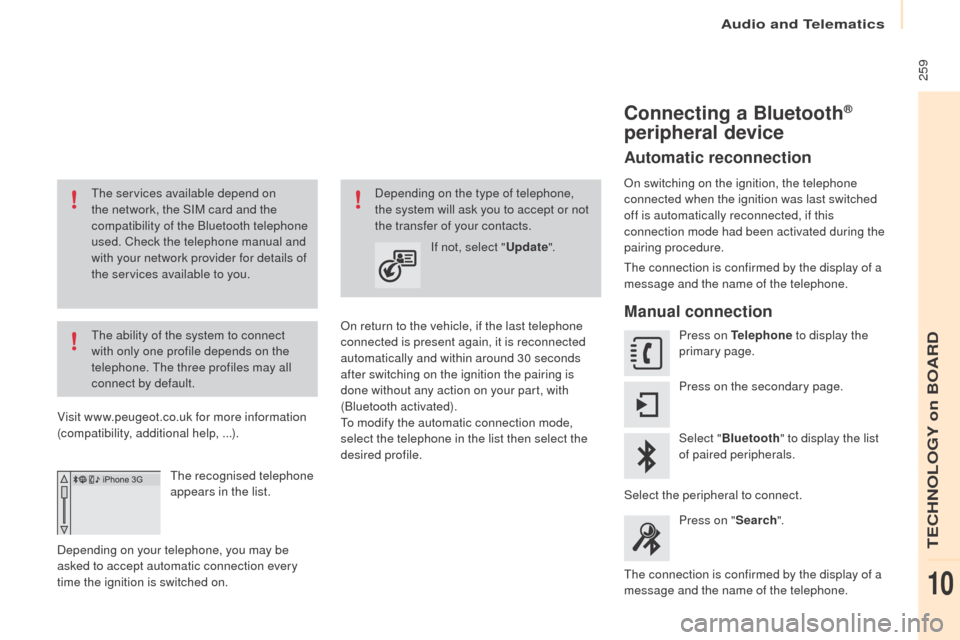
The recognised telephone
appears in the list.
Depending on your telephone, you may be
asked to accept automatic connection every
time the ignition is switched on.
on r
eturn to the vehicle, if the last telephone
connected is present again, it is reconnected
automatically and within around 30 seconds
after switching on the ignition the pairing is
done without any action on your part, with
(Bluetooth activated).
To modify the automatic connection mode,
select the telephone in the list then select the
desired profile. Depending on the type of telephone,
the system will ask you to accept or not
the transfer of your contacts.
If not, select "
upd
ate".
Connecting a Bluetooth®
peripheral device
Automatic reconnection
on switching on the ignition, the telephone
connected when the ignition was last switched
off is automatically reconnected, if this
connection mode had been activated during the
pairing procedure.
The connection is confirmed by the display of a
message and the name of the telephone.
Manual connection
Press on tel ephone to display the
primary page.
Press on the secondary page.
Select " Bluetooth " to display the list
of paired peripherals.
Select the peripheral to connect. Press on " Search".
The connection is confirmed by the display of a
message and the name of the telephone.
Audio and Telematics
TeCHNoLogY on BoARD
10
Page 269 of 296
267
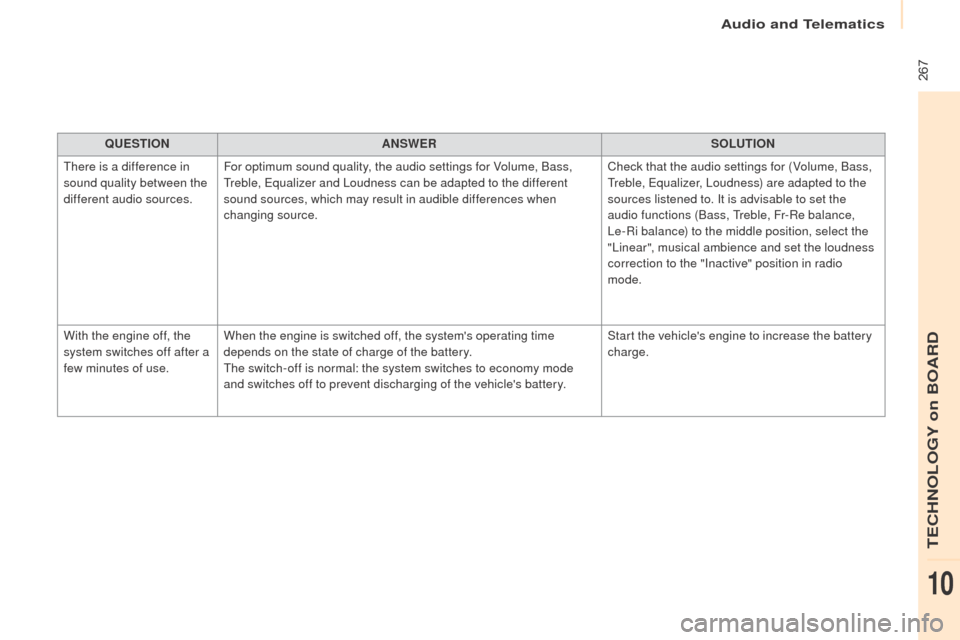
QueStIoNA NSWeRS oLutIoN
T
here is a difference in
sound quality between the
different audio sources. For optimum sound quality, the audio settings for Volume, Bass,
Treble,
e
q
ualizer and Loudness can be adapted to the different
sound sources, which may result in audible differences when
changing source. Check that the audio settings for (Volume, Bass,
Treble,
e
q
ualizer, Loudness) are adapted to the
sources listened to. It is advisable to set the
audio functions (Bass, Treble, Fr-Re balance,
Le-Ri balance) to the middle position, select the
"Linear", musical ambience and set the loudness
correction to the "Inactive" position in radio
mode.
With the engine off, the
system switches off after a
few minutes of use. When the engine is switched off, the system's operating time
depends on the state of charge of the battery.
The switch-off is normal: the system switches to economy mode
and switches off to prevent discharging of the vehicle's battery. Start the vehicle's engine to increase the battery
charge.
Audio and telematics
teCHNoLogY on BoARD
10
Page 276 of 296
274Media
uSB player
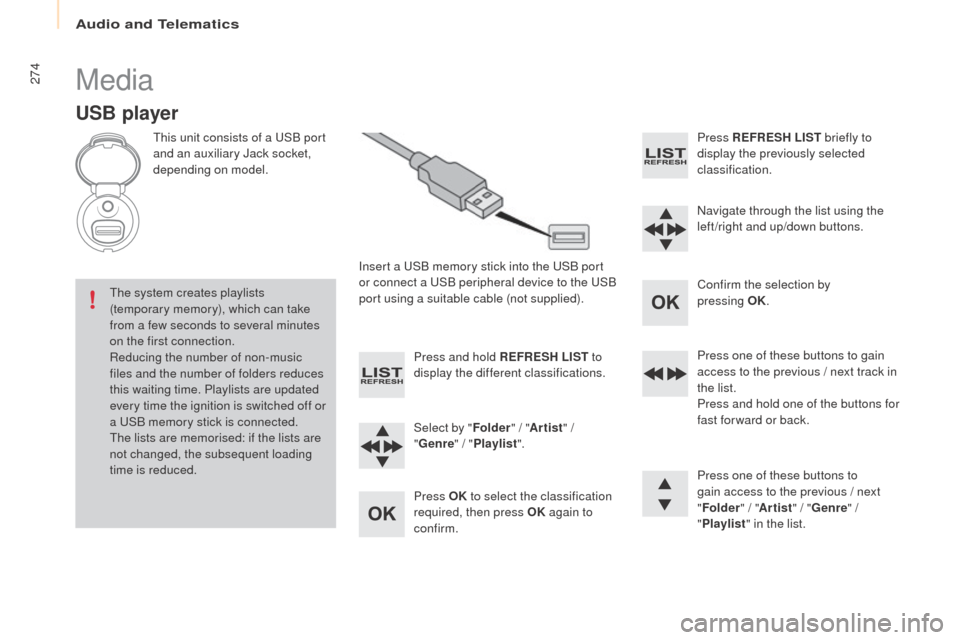
This unit consists of a uSB port
and an auxiliary Jack socket,
depending on model.
Insert a
u
S
B memory stick into the u
S
B port
or connect a
u
S
B peripheral device to the u
S
B
port using a suitable cable (not supplied).
The system creates playlists
(temporary memory), which can take
from a few seconds to several minutes
on the first connection.
Reducing the number of non-music
files and the number of folders reduces
this waiting time. Playlists are updated
every time the ignition is switched off or
a
u
S
B memory stick is connected.
The lists are memorised: if the lists are
not changed, the subsequent loading
time is reduced. Press and hold R
eF
R
eS
H LIS
t t
o
display the different classifications.
Select by " Folder" / "Artist " /
"
ge
nre" / "Playlist ".
Press
o
K t
o select the classification
required, then press
o
K a
gain to
confirm. Press ReF
ReS H LISt b riefly to
display the previously selected
classification.
Navigate through the list using the
left /right and up/down buttons.
Confirm the selection by
pressing
o K.
Press one of these buttons to gain
access to the previous / next track in
the list.
Press and hold one of the buttons for
fast for ward or back.
Press one of these buttons to
gain access to the previous / next
" Folder " / "Artist " / "
ge
nre" /
" Playlist " in the list.
Audio and Telematics
Page 280 of 296
278Telephone
Pairing a Bluetooth® telephone
Screen C
(Available according to model and version)
As a safety measure and because they
require prolonged attention on the part
of the driver, the operations for pairing
of the Bluetooth mobile telephone with
the Bluetooth hands-free system of
your audio equipment must be carried
out with the vehicle stationary and the
ignition on.
go
to www.peugeot.co.uk for more information
(compatibility, more help, ...).
Activate the telephone's Bluetooth function
and ensure that it is "visible to all" (telephone
configuration).
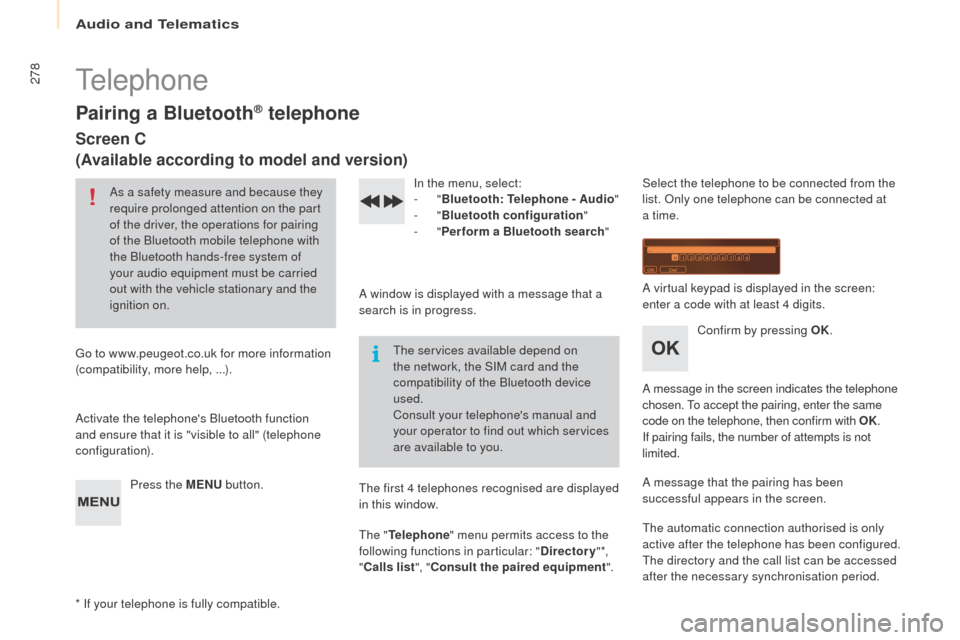
Press the M
eN
u
b
utton. In the menu, select:
-
"Bluetooth:
tel ephone - Audio"
-
"Bluetooth configuration "
-
"Perform a Bluetooth search "
A window is displayed with a message that a
search is in progress. The services available depend on
the network, the SIM card and the
compatibility of the Bluetooth device
used.
Consult your telephone's manual and
your operator to find out which services
are available to you.
* If your telephone is fully compatible. The first 4 telephones recognised are displayed
in this window.
The "
tel
ephone" menu permits access to the
following functions in particular: " Directory" *,
" Calls list ", "Consult the paired equipment ".Select the telephone to be connected from the
list.
on ly one telephone can be connected at
a time.
A virtual keypad is displayed in the screen:
enter a code with at least 4 digits.
Confirm by pressing
o K.
A message in the screen indicates the telephone
chosen. To accept the pairing, enter the same
code on the telephone, then confirm with
o K.
If pairing fails, the number of attempts is not
limited.
A message that the pairing has been
successful appears in the screen.
The automatic connection authorised is only
active after the telephone has been configured.
The directory and the call list can be accessed
after the necessary synchronisation period.
Audio and Telematics
Page 286 of 296
284
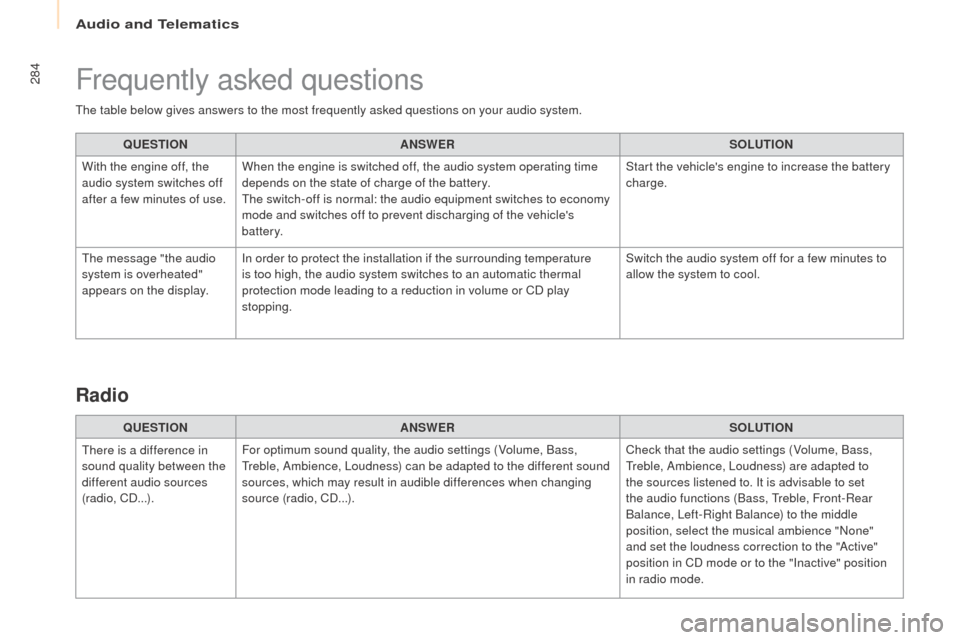
The table below gives answers to the most frequently asked questions on your audio system.Q
ueStIoN A
NSW
eRS
o
LutIoN
W
ith the engine off, the
audio system switches off
after a few minutes of use. When the engine is switched off, the audio system operating time
depends on the state of charge of the battery.
The switch-off is normal: the audio equipment switches to economy
mode and switches off to prevent discharging of the vehicle's
battery. Start the vehicle's engine to increase the battery
charge.
The message "the audio
system is overheated"
appears on the display. In order to protect the installation if the surrounding temperature
is too high, the audio system switches to an automatic thermal
protection mode leading to a reduction in volume or CD play
stopping. Switch the audio system off for a few minutes to
allow the system to cool.
Frequently asked questions
QueStIoN
A NSWeRS oLutIoN
T
here is a difference in
sound quality between the
different audio sources
(radio, CD...). For optimum sound quality, the audio settings (Volume, Bass,
Treble, Ambience, Loudness) can be adapted to the different sound
sources, which may result in audible differences when changing
source (radio, CD...). Check that the audio settings (Volume, Bass,
Treble, Ambience, Loudness) are adapted to
the sources listened to. It is advisable to set
the audio functions (Bass, Treble, Front-Rear
Balance, Left-Right Balance) to the middle
position, select the musical ambience "None"
and set the loudness correction to the "Active"
position in CD mode or to the "Inactive" position
in radio mode.
Radio
Audio and Telematics
Page 287 of 296
285
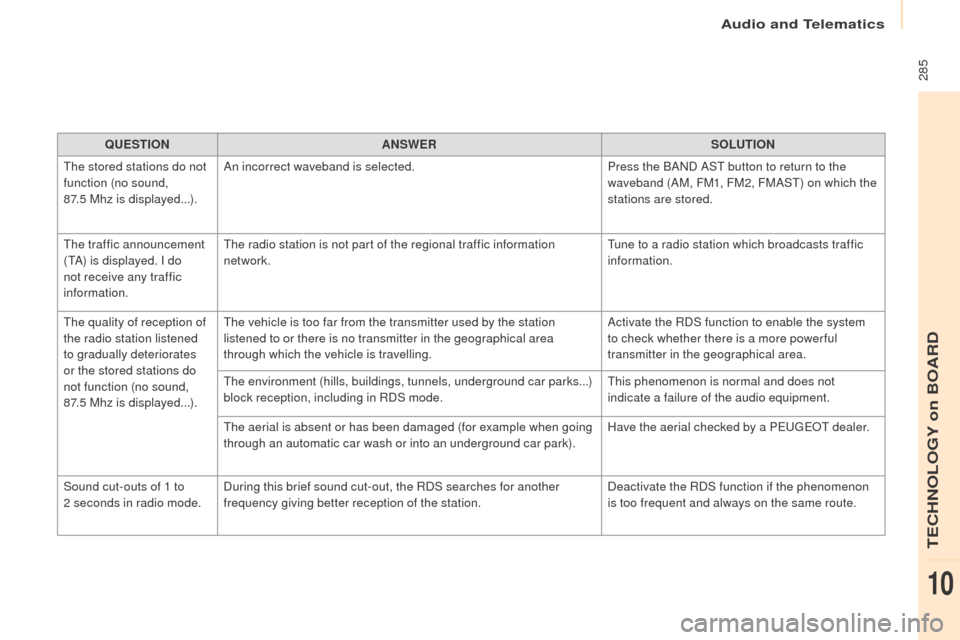
QueStIoNA NSWeRS oLutIoN
T
he stored stations do not
function (no sound,
87.5 Mhz is displayed...). An incorrect waveband is selected.
Press the BAND AST button to return to the
waveband (AM, FM1, FM2, FMAST) on which the
stations are stored.
The traffic announcement
(TA) is displayed. I do
not receive any traffic
information. The radio station is not part of the regional traffic information
network.
Tune to a radio station which broadcasts traffic
information.
The quality of reception of
the radio station listened
to gradually deteriorates
or the stored stations do
not function (no sound,
87.5
Mhz is displayed...). The vehicle is too far from the transmitter used by the station
listened to or there is no transmitter in the geographical area
through which the vehicle is travelling.
Activate the RDS function to enable the system
to check whether there is a more power ful
transmitter in the geographical area.
The environment (hills, buildings, tunnels, underground car parks...)
block reception, including in RDS mode. This phenomenon is normal and does not
indicate a failure of the audio equipment.
The aerial is absent or has been damaged (for example when going
through an automatic car wash or into an underground car park). Have the aerial checked by a P
e
ugeo
T d
ealer.
Sound cut-outs of 1 to
2
seconds in radio mode. During this brief sound cut-out, the RDS searches for another
frequency giving better reception of the station. Deactivate the RDS function if the phenomenon
is too frequent and always on the same route.
Audio and Telematics
TeCHNoLogY on BoARD
10