ignition PONTIAC G5 2008 Workshop Manual
[x] Cancel search | Manufacturer: PONTIAC, Model Year: 2008, Model line: G5, Model: PONTIAC G5 2008Pages: 388, PDF Size: 2.22 MB
Page 184 of 388
4(Information) (Radio with CD (Base)):Press to
switch the display between the track number, elapsed
time of the track, and the time. When the ignition is
off, press this button to display the time.
BAND:Press to listen to the radio while a CD is
playing. The CD remains inside the radio for future
listening.
CD/AUX (CD/Auxiliary):Press to play a CD while
listening to the radio. The CD icon and a message
showing disc and/or track number displays when
a CD is in the player. Press again and the system
automatically searches for an auxiliary input device,
such as a portable audio player. If a portable audio
player is not connected, “No Aux Input Device” displays.
Playing an MP3 CD-R or CD-RW Disc
Radios with the MP3 feature are capable of playing an
MP3 CD-R or CD-RW disc. For more information on
how to play an MP3 CD-R or CD-RW disc, seeUsing an
MP3 on page 3-69later in this section.
CD Messages
CHECK DISC:If an error message displays and/or the
CD comes out, it could be for one of the following
reasons:
It is very hot. When the temperature returns to
normal, the CD should play.
You are driving on a very rough road. When the
road becomes smoother, the CD should play.
The CD is dirty, scratched, wet, or upside down.
The air is very humid. If so, wait about an hour and
try again.
There could have been a problem while burning
the CD.
The label could be caught in the CD player.
If the CD is not playing correctly, for any other reason,
try a known good CD.
If any error occurs repeatedly or if an error cannot be
corrected, contact your dealer/retailer. If the radio
displays an error message, write it down and provide it
to your dealer/retailer while reporting the problem.
3-68
Page 188 of 388
Preprogrammed Playlists
Preprogrammed playlists that were created using
WinAmp™, MusicMatch™, or Real Jukebox™ software,
can be accessed, however, they cannot be edited
using the radio. These playlists are treated as special
folders containing compressed audio song les.
Playing an MP3
Insert a CD-R or CD-RW partway into the slot (Single
CD Player), or press the load button and wait for
the message to insert disc (Six-Disc CD Player), label
side up. The player pulls it in, and the CD-R or CD-RW
should begin playing.
If the ignition or radio is turned off with a CD-R or
CD-RW in the player, it stays in the player. When the
ignition or radio is turned on, the CD-R starts to
play where it stopped, if it was the last selected audio
source.
As each new track starts to play, the track number and
song title displays.
ZEJECT:Press this button to eject CD-R(s) or
CD-RW(s). To eject the CD-R or CD-RW that is currently
playing, press and release this button. A beep sounds
and Ejecting Disc displays. Once the disc is ejected,
Remove Disc displays. The CD-R or CD-RW can
be removed. If the CD-R or CD-RW is not removed,
after several seconds, the CD-R or CD-RWautomatically pulls back into the player and begins
playing. For the Six-Disc CD player, press and hold this
button for two seconds to eject all discs.
f(Tune):Turn this knob to select MP3 les on the
CD-R or CD-RW currently playing.
©SEEK¨:Press the left SEEK arrow to go to the
start of the current MP3 le, if more than ten seconds
have played. Press the right SEEK arrow to go to
the next MP3 le. If either SEEK arrow is held or
pressed multiple times, the player continues moving
backward or forward through MP3 les on the CD.
Sc(Previous Folder):Press the pushbutton
positioned under the Folder label to go to the rst track
in the previous folder.
cT(Next Folder):Press the pushbutton positioned
under the Folder label to go to the rst track in the
next folder.
sREV (Reverse):Press and hold this button to
reverse playback quickly within an MP3 le. You will
hear sound at a reduced volume. Release this button to
resume playing the le. The elapsed time of the le
displays.
3-72
Page 213 of 388
Hill and Mountain Roads
Driving on steep hills or through mountains is different
than driving on at or rolling terrain. Tips for driving
in these conditions include:
Keep your vehicle serviced and in good shape.
Check all uid levels and brakes, tires, cooling
system, and transmission.
Going down steep or long hills, shift to a
lower gear.
{CAUTION:
If you do not shift down, the brakes could get
so hot that they would not work well. You
would then have poor braking or even none
going down a hill. You could crash. Shift down
to let the engine assist the brakes on a steep
downhill slope.
{CAUTION:
Coasting downhill in NEUTRAL (N) or with the
ignition off is dangerous. The brakes will have
to do all the work of slowing down and they
could get so hot that they would not work well.
You would then have poor braking or even
none going down a hill. You could crash.
Always have the engine running and your
vehicle in gear when you go downhill.
Stay in your own lane. Do not swing wide or cut
across the center of the road. Drive at speeds that let
you stay in your own lane.
Top of hills: Be alert — something could be in your
lane (stalled car, accident).
Pay attention to special road signs (falling rocks
area, winding roads, long grades, passing or
no-passing zones) and take appropriate action.
4-19
Page 225 of 388
Dinghy Towing
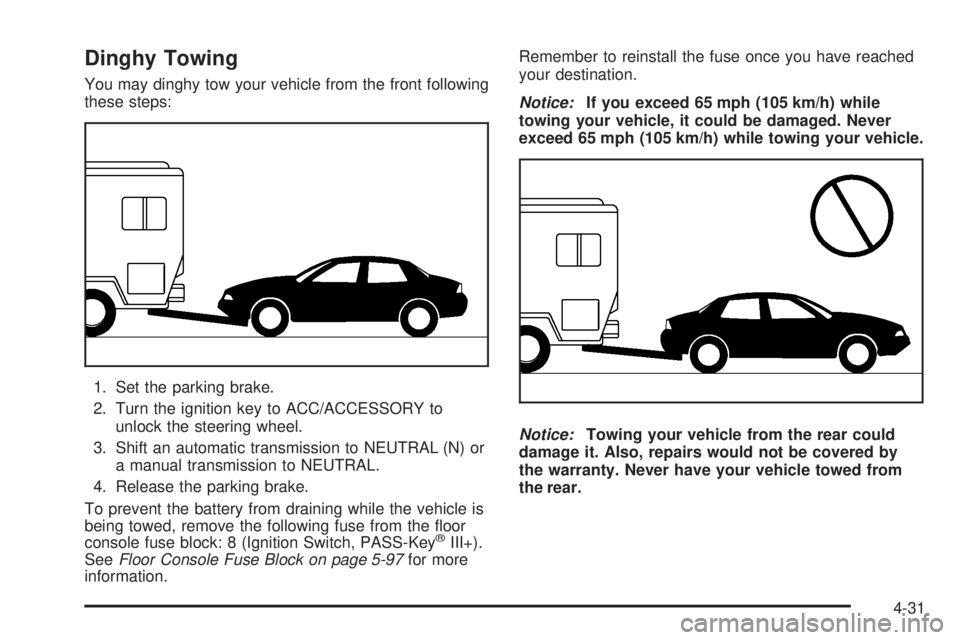
You may dinghy tow your vehicle from the front following
these steps:
1. Set the parking brake.
2. Turn the ignition key to ACC/ACCESSORY to
unlock the steering wheel.
3. Shift an automatic transmission to NEUTRAL (N) or
a manual transmission to NEUTRAL.
4. Release the parking brake.
To prevent the battery from draining while the vehicle is
being towed, remove the following fuse from the oor
console fuse block: 8 (Ignition Switch, PASS-Key
®III+).
SeeFloor Console Fuse Block on page 5-97for more
information.Remember to reinstall the fuse once you have reached
your destination.
Notice:If you exceed 65 mph (105 km/h) while
towing your vehicle, it could be damaged. Never
exceed 65 mph (105 km/h) while towing your vehicle.
‘
Notice:Towing your vehicle from the rear could
damage it. Also, repairs would not be covered by
the warranty. Never have your vehicle towed from
the rear.
4-31
Page 250 of 388
If you are in an area of extreme cold, where the
temperature falls below−20°F (−29°C), it is
recommended that you use either an SAE 5W-30
synthetic oil or an SAE 0W-30 oil. Both provide easier
cold starting and better protection for the engine at
extremely low temperatures.
Engine Oil Additives
Do not add anything to the oil. The recommended
oils with the starburst symbol that meet
GM Standard GM6094M are all you need for good
performance and engine protection.
Engine Oil Life System
When to Change Engine Oil
Your vehicle has the Engine Oil Life System, a computer
system that lets you know when to change the engine
oil and lter. This is based on engine revolutions and
engine temperature, and not on mileage. Based on
driving conditions, the mileage at which an oil change will
be indicated can vary considerably. For the oil life system
to work properly, you must reset the system every time
the oil is changed.
When the system has calculated that oil life has been
diminished, it will indicate that an oil change is necessary.
A CHANGE OIL SOON message will come on. SeeDIC
Warnings and Messages on page 3-44. Change the oil assoon as possible within the next 600 miles (1 000 km).
It is possible that, if you are driving under the best
conditions, the oil life system might not indicate that an oil
change is necessary for over a year. However, the engine
oil and lter must be changed at least once a year and at
this time the system must be reset. Your dealer/retailer
has trained service people who will perform this work
using genuine parts and reset the system. It is also
important to check the oil regularly and keep it at the
proper level.
If the system is ever reset accidentally, you must
change the oil at 3,000 miles (5 000 km) since the last
oil change. Remember to reset the oil life system
whenever the oil is changed.
How to Reset the Engine Oil Life System
The Engine Oil Life System calculates when to change
your engine oil and lter based on vehicle use. Whenever
the oil is changed, reset the system so it can calculate
when the next oil change is required. If a situation occurs
where you change the oil prior to a CHANGE OIL SOON
message being turned on, reset the system.
After changing the engine oil, the system must be reset:
1. Turn the ignition to ON/RUN, with the engine off.
2. Press the information and reset buttons on the
Driver Information Center (DIC) at the same
time to enter the personalization menu. SeeDIC
Vehicle Personalization on page 3-50.
5-16
Page 269 of 388
Notice:Ignoring these steps could result in costly
damage to your vehicle that would not be covered
by your warranty.
Trying to start your vehicle by pushing or pulling it
will not work, and it could damage your vehicle.
1. Check the other vehicle. It must have a 12-volt
battery with a negative ground system.
Notice:If the other vehicle’s system is not a 12-volt
system with a negative ground, both vehicles can
be damaged. Only use vehicles with 12-volt systems
with negative grounds to jump start your vehicle.
2. Get the vehicles close enough so the jumper cables
can reach, but be sure the vehicles are not touching
each other. If they are, it could cause a ground
connection you do not want. You would not be able
to start your vehicle, and the bad grounding
could damage the electrical systems.
To avoid the possibility of the vehicles rolling, set
the parking brake rmly on both vehicles involved
in the jump start procedure. Put an automatic
transmission in PARK (P) or a manual transmission
in NEUTRAL before setting the parking brake.Notice:If you leave your radio or other accessories
on during the jump starting procedure, they could
be damaged. The repairs would not be covered
by your warranty. Always turn off your radio and
other accessories when jump starting your vehicle.
3. Turn off the ignition on both vehicles. Unplug
unnecessary accessories plugged into the cigarette
lighter or the accessory power outlet. Turn off
the radio and all lamps that are not needed.
This will avoid sparks and help save both batteries.
And it could save the radio!
5-35
Page 292 of 388
Tire Pressure Monitor Operation
The Tire Pressure Monitor System (TPMS) is designed
to warn the driver when a low tire pressure condition
exists. TPMS sensors are mounted onto each tire and
wheel assembly, excluding the spare tire and wheel
assembly. The TPMS sensors monitor the air pressure in
the vehicle’s tires and transmits the tire pressure readings
to a receiver located in the vehicle.
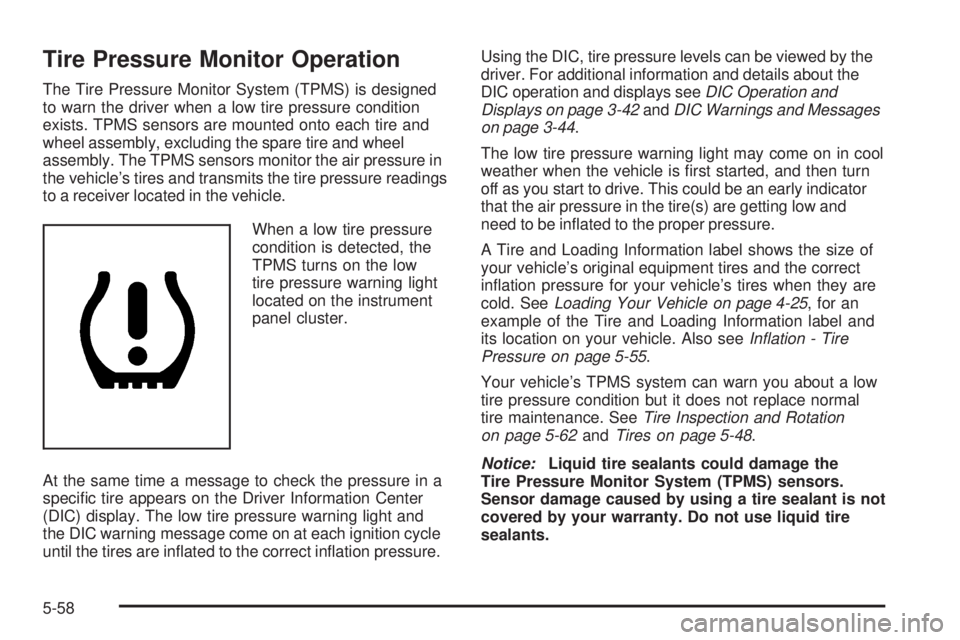
When a low tire pressure
condition is detected, the
TPMS turns on the low
tire pressure warning light
located on the instrument
panel cluster.
At the same time a message to check the pressure in a
specic tire appears on the Driver Information Center
(DIC) display. The low tire pressure warning light and
the DIC warning message come on at each ignition cycle
until the tires are inated to the correct ination pressure.Using the DIC, tire pressure levels can be viewed by the
driver. For additional information and details about the
DIC operation and displays seeDIC Operation and
Displays on page 3-42andDIC Warnings and Messages
on page 3-44.
The low tire pressure warning light may come on in cool
weather when the vehicle is rst started, and then turn
off as you start to drive. This could be an early indicator
that the air pressure in the tire(s) are getting low and
need to be inated to the proper pressure.
A Tire and Loading Information label shows the size of
your vehicle’s original equipment tires and the correct
ination pressure for your vehicle’s tires when they are
cold. SeeLoading Your Vehicle on page 4-25, for an
example of the Tire and Loading Information label and
its location on your vehicle. Also seeInflation - Tire
Pressure on page 5-55.
Your vehicle’s TPMS system can warn you about a low
tire pressure condition but it does not replace normal
tire maintenance. SeeTire Inspection and Rotation
on page 5-62andTires on page 5-48.
Notice:Liquid tire sealants could damage the
Tire Pressure Monitor System (TPMS) sensors.
Sensor damage caused by using a tire sealant is not
covered by your warranty. Do not use liquid tire
sealants.
5-58
Page 293 of 388
TPMS Malfunction Light and Message
The TPMS will not function properly if one or more of the
TPMS sensors are missing or inoperable. When the
system detects a malfunction, the low tire warning light
ashes for about one minute and then stays on for
the remainder of the ignition cycle. A DIC warning
message is also displayed. The low tire warning light
and DIC warning message come on at each ignition
cycle until the problem is corrected. Some of the
conditions that can cause the malfunction light and DIC
message to come on are:
One of the road tires has been replaced with the
spare tire. The spare tire does not have a TPMS
sensor. The TPMS malfunction light and DIC
message should go off once you re-install the road
tire containing the TPMS sensor.
The TPMS sensor matching process was started
but not completed or not completed successfully
after rotating the vehicle’s tires. The DIC message
and TPMS malfunction light should go off once the
TPMS sensor matching process is performed
successfully. See “TPMS Sensor Matching Process”
later in this section.
One or more TPMS sensors are missing or
damaged. The DIC message and the TPMS
malfunction light should go off when the TPMS
sensors are installed and the sensor matching
process is performed successfully. See your dealer/
retailer for service.
Replacement tires or wheels do not match your
vehicle’s original equipment tires or wheels. Tires
and wheels other than those recommended for your
vehicle could prevent the TPMS from functioning
properly. SeeBuying New Tires on page 5-65.
Operating electronic devices or being near facilities
using radio wave frequencies similar to the TPMS
could cause the TPMS sensors to malfunction.
If the TPMS is not functioning it cannot detect or signal
a low tire condition. See your dealer/retailer for service if
the TPMS malfunction light and DIC message comes on
and stays on.
5-59
Page 294 of 388
TPMS Sensor Matching Process
Each TPMS sensor has a unique identication code.
Any time you replace one or more of the TPMS sensors
or rotate the vehicle’s tires, the identication codes need
to be matched to the new tire/wheel location. The sensors
are matched, to the tire/wheel locations, in the following
order: driver side front tire, passenger side front tire,
passenger side rear tire, and driver side rear tire using a
TPMS diagnostic tool. See your dealer/retailer for
service.
The TPMS sensors can also be matched to each
tire/wheel position by increasing or decreasing the tire’s
air pressure. When increasing the tire’s pressure, do
not exceed the maximum ination pressure indicated on
the tire’s sidewall. To decrease the tire’s air-pressure
use the pointed end of the valve cap, a pencil-style air
pressure gage, or a key.
You have two minutes to match each tire and wheel
position. If it takes longer than two minutes to match any
tire and wheel position, the matching process stops and
you need to start over.
TPMS Matching Process for Vehicles
with Remote Keyless Entry (RKE)
1. Set the parking brake.
2. Turn the ignition switch to ON/RUN with the
engine off.
3. Press and hold the Remote Keyless Entry (RKE)
transmitter’s LOCK and UNLOCK buttons, at the
same time, for about ve seconds to start the TPMS
learn mode. The horn sounds twice indicating the
TPMS receiver is ready and in learn mode.
4. Start with the driver side front tire. The driver side
front turn signal also comes on to indicate that
corner’s sensor is ready to be learned.
5. Remove the valve cap from the tire’s valve stem.
Activate the TPMS sensor by increasing or
decreasing the tire’s air pressure for about
eight seconds. The horn chirp, can take up to
30 seconds to sound. It chirps one time and then all
the turn signals ash one time to conrm the
sensor identication code has been matched to the
tire/wheel position.
6. The passenger side front turn signal comes on to
indicate that corner sensor is ready to be learned.
Proceed to the passenger side front tire and
repeat the procedure in Step 5.
5-60
Page 295 of 388
7. The passenger side rear turn signal comes on to
indicate that corner sensor is ready to be learned.
Proceed to the passenger side rear tire and
repeat the procedure in Step 5.
8. The driver side rear turn signal comes on to
indicate that corner sensor is ready to be learned.
Proceed to the driver side rear tire, and repeat
the procedure in Step 5.
9. After hearing the single horn chirp for the driver
side rear tire, two additional horn chirps sound to
indicate the tire learning process is done. Turn
the ignition switch to LOCK/OFF.
If no tires are learned after entering the TPMS learn
mode, or if communication with the receiver
stops, or if the time limit has expired, turn the
ignition switch to LOCK/OFF and start over
beginning with Step 2.
10. Set all four tires to the recommended air pressure
level as indicated on the Tire and Loading
Information label.
11. Put the valve caps back on the valve stems.TPMS Matching Process for Vehicles
without Remote Keyless Entry (RKE)
1. Set the parking brake.
2. Turn the ignition switch to ON/RUN with the
engine off.
3. Using the Driver Information Center (DIC), press
the INFO and Set/Reset buttons at the same time
for about one second. Then press and release
the INFO button until the TIRE LEARN? message
displays.
4. Press and hold the Set/Reset DIC button for
approximately three seconds to start the TPMS
learn mode. The horn sounds twice to indicate the
TPMS receiver is ready and the TIRE LEARN ON
message displays. The driver side front turn signal
also comes on to indicate that corner sensor is ready
to be learned.
5. Start with the driver side front tire.
6. Remove the valve cap from the tire’s valve stem.
Activate the TPMS sensor by increasing or
decreasing the tire’s air pressure for about
eight seconds. The horn chirp, can take up to
30 seconds to sound. It chirps one time and then all
the turn signals ash one time to conrm the
sensor identication code has been matched to the
tire/wheel position.
5-61