wheel PONTIAC G8 2009 User Guide
[x] Cancel search | Manufacturer: PONTIAC, Model Year: 2009, Model line: G8, Model: PONTIAC G8 2009Pages: 356, PDF Size: 1.83 MB
Page 99 of 356
Trip/Fuel Menu Items
Press3to scroll through the
following menu items:
Speedometer
UNITS
Tire Pressure
Customize Options
Odometer/Trip Odometer
Distance/Time To Go
Range
Avg (Average)Speed/Avg
(Average) Fuel
OverSpeed
Speedometer
Press
3until the speedometer
is displayed.
The speedometer shows how fast
the vehicle is moving in either miles
per hour (MPH) or kilometers per
hour (km/h). To switch between
English and metric measurements,
see “UNITS” later in this section.The digital speedometer display can
be enabled or disabled. See “Digital
Speedometer” underDIC Vehicle
Customization on page 4-31for more
information.
UNITS
Move the thumbwheel up
Qor
down
Rto highlight English or Metric
when the UNITS display is active.
Press
8to conrm the setting.
This will change the displays on the
cluster, DIC, and the temperature
display in the mirror to either English
or metric measurements.
Tire Pressure
Press
3until Tire Pressure is
displayed.
The display will show a vehicle and
the approximate pressures of all four
tires. Tire pressure is displayed in
either pounds per square inch (PSI)
or in kilopascal (kPa).
This display can be customized.
SeeDIC Vehicle Customization on
page 4-31for more information.Customize Options
SeeDIC Vehicle Customization on
page 4-31for more information.
Odometer/Trip Odometer
Press
3until the Odometer/Trip
Odometer is displayed.
The odometer display shows the
distance the vehicle has been
driven in either miles (MI) or
kilometers (km). To switch between
English and metric measurements,
see “UNITS” earlier in this section.
The Trip Odometer display shows
the current distance traveled since
the last reset for the trip odometer.
The trip odometer can be reset to
zero by pressing and holding
8
while the trip odometer value is
highlighted. If
8is only pressed
briey, the Avg Speed/Avg Fuel
will be reset as well.
Instruments and Controls 4-23
Page 100 of 356
Distance/Time To Go
Press
3until To Go is displayed.
If this item doesn’t display, check
that the display is turned on through
the Customize Options menu.
SeeDIC Vehicle Customization on
page 4-31for more information.
At the start of a trip, estimate the
distance to arrival (for example,
from maps, road signs). Move the
thumbwheel up or down until
the display shows the estimated
trip distance. When driving, the
computer constantly updates
the time to arrival, based on
changing driving speeds. Use the
thumbwheel to adjust the distance
any time this display is shown.
Time to go is shown in hours and
minutes and is only shown if the
distance to go is more than zero.
This display can be turned on or off
and the default setting can be
changed.Range
Press3until Range is displayed.
This display shows the approximate
distance the vehicle can be driven
without refueling. The fuel range
estimate is based on an average of
the vehicle’s fuel economy over
recent driving history and the amount
of fuel remaining in the fuel tank.
Fuel range cannot be reset.
Avg (Average) Speed/Avg
(Average) Fuel
Press
3until Avg Speed/Avg
Fuel is displayed.
Avg Speed shows the average
speed (while the engine is running)
since the last reset.
Avg Fuel shows average fuel used
since the last reset.
To reset only the Avg Speed or Avg
Fuel, press and hold
8while either
value is highlighted. If
8is only
pressed briey, the Trip Odometer
will be reset as well.OverSpeed
OverSpeed allows the driver to set
a speed that they do not want to
exceed. OverSpeed will illuminate in
the display and a chime will sound
to warn that the vehicle’s speed
is equal or has exceeded the
preselected value. During an
OverSpeed warning, the OverSpeed
display is shown, allowing the
driver to make adjustments.
To set the OverSpeed warning
press
3when OverSpeed
is displayed to highlight the
OverSpeed mode. Move the
thumbwheel up
Qor downRto
scroll through and highlight one
of the following options:
Off:No OverSpeed warning set.
Manual:Allows you to manually
set the OverSpeed warning.
See “Manual OverSpeed” following.
4-24 Instruments and Controls
Page 101 of 356
Preset 1:Default setting 30 MPH
(48 km/h)
Preset 2:Default setting 45 MPH
(72 km/h)
Preset 3:Default setting 55 MPH
(89 km/h)
Preset 4:Default setting 70 MPH
(113 km/h)
The selection is set automatically
after a few seconds.
The corresponding value of the
presets will be shown on the display.
The preset OverSpeed warnings
can be reprogrammed. See
“Programming the OverSpeed
Presets” later in this section.Manual OverSpeed
To manually set the OverSpeed
warning:
1. Use the thumbwheel to select
Manual for OverSpeed.
2. Press
8to highlight the current
value.
3. Use the thumbwheel to adjust
the value in 5 MPH or km/h
increments and press
8
to conrm the setting.
To set the OverSpeed warning to
the vehicle’s current speed:
1. Use the thumbwheel to select
Manual as described in the
OverSpeed section.
2. Press
8to highlight the current
value.
3. Press and hold
8for more than
3 seconds to set the value to the
nearest 5 MPH or km/h above the
current vehicle’s speed.Programming the OverSpeed
Presets
While the vehicle’s speed is 6 MPH
(10 km/h) or below, each of the
presets can be altered and values
can be stored for future use.
To reprogram the OverSpeed
presets:
1. Use the thumbwheel to select the
desired preset and press
8.
2. Move the thumbwheel up
Qor
down
Rto adjust the value in
1km/h increments.
3. Press
8to conrm the setting.
Instruments and Controls 4-25
Page 102 of 356
Adjusting the Setting During an
OverSpeed Warning
While the OverSpeed warning is
displayed move the thumbwheel up
Qor downRto adjust the
value when in Manual mode or to
select a different preset when
in Preset mode. Press and hold
8
for more than 3 seconds to set
the value to the nearest 5 MPH or
km/h above the current vehicle’s
speed. If Preset mode was selected,
this will change it to Manual mode.
Underspeed Chime
If an OverSpeed warning appeared
and the vehicle’s speed drops
below the set value, you will hear a
chime. The underspeed chime
can be turned on or off through the
vehicle customization. SeeDIC
Vehicle Customization on page 4-31
for more information.
DIC Warnings and
Messages
Messages are displayed on the DIC
to notify the driver that the status
of the vehicle has changed and that
some action may be needed by
the driver to correct the condition.
Multiple messages may appear
one after another.
Some messages may not require
immediate action, but you can press
3or8to acknowledge that
you received the messages and
to clear them from the display.
Some messages cannot be cleared
from the DIC display because
they are more urgent. These
messages require action before they
can be cleared. You should take
any messages that appear on
the display seriously and remember
that clearing the messages will
only make the messages disappear,
not correct the problem.The following are the possible
messages that can be displayed
and some information about them.
!ABS Fault
This message is displayed if there is
a problem with the ABS system.
The ABS light may also turn on
in the instrument panel cluster.
SeeAntilock Brake System (ABS)
Warning Light on page 4-16.
When this message is on, the brake
system will still operate with the
antilock operation disabled.
See your dealer/retailer.
uActive Select On
This message is displayed when
the automatic transmission
active select mode is enabled.
See “Active Select Mode” under
Automatic Transmission Operation
on page 8-6.
4-26 Instruments and Controls
Page 105 of 356
yOverSpeed
This message is displayed when the
vehicle’s speed is greater than
the set OverSpeed value. See
“OverSpeed” underDIC Operation
and Displays on page 4-22.
You can press
8or move the
thumbwheel up
Qor downRto
acknowledge that you received
the message, but OverSpeed will
continue to appear in the bottom of
the DIC display as long as the
vehicle’s speed exceeds the
preset value.
$Park Brake
This message is displayed if the
parking brake is applied when you
are driving. Release the parking
brake. SeeParking Brake on
page 8-11.
Replace Battery in Remote Key
This message is displayed when the
battery in the remote keyless entry
transmitter needs to be replaced.
See your dealer/retailer to replace
the battery.
You can press
3or8to
acknowledge that you received the
message, but
QKey Batt will
continue to appear in the bottom
of the DIC display until the battery
has been replaced.
wRest Reminder
This feature reminds the driver
that they may have been driving
for too long without a break.
When the ignition is turned on, a
timer starts counting. After two hours
of continuous driving, the rest
reminder ashes to alert the driver.The Rest Reminder message is
displayed until
3or8are
pressed. The rest reminder
reappears after 20 minutes
accompanied by a chime, unless
the ignition has been turned off.
For information on how to turn the
rest reminder on and off, seeDIC
Vehicle Customization on page 4-31.
{Safety Mode Active and
Power Reduced
These messages display alternately
when there is a problem with the
engine control system, see your
dealer/retailer.
You can press
3or8to
acknowledge that you received the
message, but
{Safety will
continue to appear in the bottom of
the DIC display until the vehicle
has been serviced.
Instruments and Controls 4-29
Page 107 of 356
You can press3or8to
acknowledge that you received
the message, but ESP OFF will
continue to appear in the bottom of
the DIC display until the vehicle
has been serviced.
7Check XX Tire Pressure
This message is displayed when the
ination pressure is low or very
low in the indicated tire.
You can press
3or8to
acknowledge that you received the
message, but
7LF Tire,7RF Tire,
7LR Tire, or7RR Tire will continue
to appear in the bottom of the DIC
display until the tire pressure is at a
normal level. SeeTire Pressure
Monitor System on page 9-52
for more information.
7Tire Pressure System Fault
This message is displayed when
there is a problem with the Tire
Pressure Monitor System.
You can press
3or8to
acknowledge that you received the
message, but
7Tire Fault will
continue to appear in the bottom
of the DIC display until the tire
pressure is at a normal level.
SeeTire Pressure Monitor System
on page 9-52for more information.
xVery Low Fuel
This message is displayed when the
fuel level is very low.
You can press
3or8to
acknowledge that you received the
message, but
.V.Low Fuel will
continue to appear in the bottom of
the DIC display until enough fuel
tank has been lled above the
low fuel level.
DIC Vehicle
Customization
Your vehicle has features that you
can customize through the DIC.
Using the Customization Menu
Press3until you see Customize
Options and then press
8.
The customization options will only
be available when the vehicle
speed is less than 6 mph (10 km/h).
If the vehicle is moving faster
than that the display will show
Not Available.
Move the thumbwheel up
Qor
down
Rto scroll through the
available options. Press
8to select
an item. To exit the current menu,
or go back, use the thumbwheel
to select
qat the top of the screen
and then press
8.
Instruments and Controls 4-31
Page 113 of 356
OnStar Virtual Advisor
OnStar Virtual Advisor is a feature
of OnStar Hands-Free Calling
that uses minutes to access
location-based weather, local traffic
reports, and stock quotes. Press
the phone button and give a
few simple voice commands to
browse through the various topics.
See the OnStar Owner’s Guide
for more information. This feature is
only available in the continental U.S.
OnStar Steering Wheel
Controls
This vehicle may have a Talk/Mute
button that can be used to interact
with OnStar Hands-Free Calling.
SeeAudio Steering Wheel Controls
on page 6-36for more information.On some vehicles, the mute button
can be used to dial numbers into
voice mail systems, or to dial phone
extensions. See the OnStar Owner’s
Guide for more information.
How OnStar Service Works
The OnStar system can record
and transmit vehicle information.
This information is automatically
sent to an OnStar Call Center
when the OnStar button is pressed,
the emergency button is pressed,
or if the airbags or AACN system
deploy. This information usually
includes the vehicles GPS location
and, in the event of a crash,
additional information regarding
the crash that the vehicle was
involved in (e.g. the direction
from which the vehicle was hit).When the Virtual Advisor feature
of OnStar Hands-Free Calling
is used, the vehicle also sends
OnStar the vehicles GPS location
so they can provide services where
it is located.
OnStar service cannot work unless
the vehicle is in a place where
OnStar has an agreement with a
wireless service provider for service
in that area. OnStar service also
cannot work unless the vehicle is in
a place where the wireless service
provider OnStar has hired for that
area has coverage, network capacity
and reception when the service is
needed, and technology that is
compatible with the OnStar service.
Not all services are available
everywhere, particularly in remote or
enclosed areas, or at all times.
Instruments and Controls 4-37
Page 115 of 356
Lighting
Lighting
Exterior Lamps Controls.....5-1
Daytime Running
Lamps (DRL)....................5-2
Automatic Headlamp
System.............................5-2
Fog Lamps.........................5-3
Instrument Panel
Brightness.........................5-3
Dome Lamp(s)....................5-4
Perimeter Lighting...............5-4
Reading Lamps..................5-4
Battery Run-Down
Protection.........................5-4
Lighting
Exterior Lamps Controls
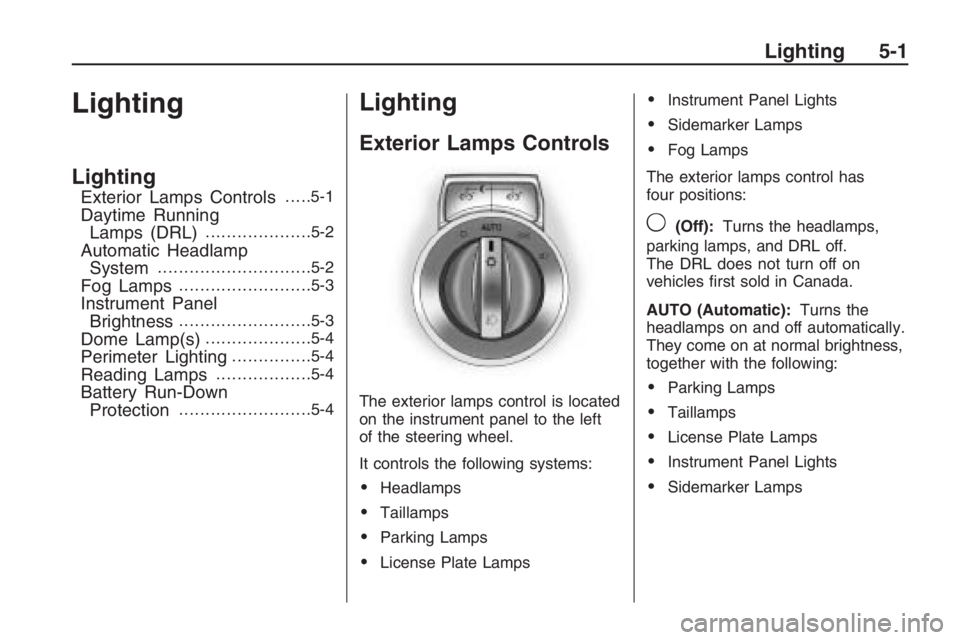
The exterior lamps control is located
on the instrument panel to the left
of the steering wheel.
It controls the following systems:
Headlamps
Taillamps
Parking Lamps
License Plate Lamps
Instrument Panel Lights
Sidemarker Lamps
Fog Lamps
The exterior lamps control has
four positions:
9(Off):Turns the headlamps,
parking lamps, and DRL off.
The DRL does not turn off on
vehicles rst sold in Canada.
AUTO (Automatic):Turns the
headlamps on and off automatically.
They come on at normal brightness,
together with the following:
Parking Lamps
Taillamps
License Plate Lamps
Instrument Panel Lights
Sidemarker Lamps
Lighting 5-1
Page 119 of 356
Infotainment
Audio System(s)
Audio System(s).................6-1
Setting the Clock................6-2
Radio(s).............................6-3
Using an MP3...................6-20
XM Radio Messages.........6-24
Bluetooth®........................6-25
Theft-Deterrent Feature.....6-35
Audio Steering Wheel
Controls..........................6-36
Radio Reception...............6-36
Fixed Mast Antenna..........6-37
XM™ Satellite Radio
Antenna System..............6-37
Audio System(s)
Determine which radio the vehicle
has and become familiar with
its features.
{CAUTION
This system provides you with far
greater access to audio stations
and song listings. Giving extended
attention to entertainment tasks
while driving can cause a crash
and you or others can be injured
or killed. Always keep your eyes
on the road and your mind on the
drive — avoid engaging in
extended searching while driving.Keeping your mind on the drive is
important for safe driving. See
Defensive Driving on page 8-16.
Here are some ways in which you
can help avoid distraction while
driving.
Familiarize yourself with all of
its controls
Familiarize yourself with its
operation.
Set up your audio system by
presetting your favorite radio
stations, setting the tone,
and adjusting the speakers.
Then, when driving conditions
permit, you can tune to your
favorite radio stations using the
presets and steering wheel
controls if the vehicle has them.
Infotainment 6-1
Page 144 of 356
Bluetooth Controls
Use the buttons located on the
steering wheel to operate the
in-vehicle Bluetooth system. See
Audio Steering Wheel Controls
on page 6-36for more information.
%(Voice In):Press to answer
incoming calls, to conrm system
information, and to start speech
recognition.
{(Call End):Press to end a
call, reject a call, or to cancel an
operation.
Pairing
A Bluetooth enabled cell phone
must be paired to the in-vehicle
Bluetooth system rst and then
connected to the vehicle before it
can be used. See the cell phone
manufacturers user guide for
Bluetooth functions before pairing
the cell phone. If a Bluetooth phone
is not connected, calls will bemade using OnStar
®Hands Free
Calling, if available. Refer to
the OnStar owner’s guide for more
information.
Pairing Information:
Up to ve cell phones can be
paired to the in-vehicle
Bluetooth system.
The pairing process is disabled
when the vehicle is moving.
The in-vehicle Bluetooth system
automatically links with the rst
available paired cell phone in the
order the phone was paired.
Only one paired cell phone can
be connected to the in-vehicle
Bluetooth system at a time.
Pairing should only need to be
completed once, unless
changes to the pairing
information have been made or
the phone is deleted.
To link to a different paired phone,
see Linking to a Different Phone
later in this section.Pairing a Phone
1. Press and hold
%for
two seconds. The system
responds with “Ready”
followed by a tone.
2. Say “Bluetooth”. The system
responds with “Bluetooth
ready” followed by a tone.
3. Say “Pair”. The system responds
with instructions and a four digit
PIN number. The PIN number
will be used in Step 4.
4. Start the Pairing process on the
cell phone that will be paired to
the vehicle. Reference the
cell phone manufacturers user
guide for information on this
process.
Locate the device named
“General Motors” in the list on
the cellular phone and follow the
instructions on the cell phone
to enter the four digit PIN number
that was provided in Step 3.
6-26 Infotainment