reset PONTIAC GRAND PRIX 2004 Service Manual
[x] Cancel search | Manufacturer: PONTIAC, Model Year: 2004, Model line: GRAND PRIX, Model: PONTIAC GRAND PRIX 2004Pages: 432, PDF Size: 2.99 MB
Page 186 of 432
SERVICE PARK LAMPS
This warning message will display if one of the vehicle's
parking lamps needs to be replaced. SeeFront Turn
Signal, Parking and Fog Lamps on page 5-62for
bulb replacement procedures.
This warning message will display only while the ignition
is in RUN. Press the set/reset button to acknowledge
this warning message and to clear it from the screen.
This message will continue to display if it has not been
acknowledged when the engine is turned off. It will
also re-display for three seconds if the message has
been acknowledged, but the condition still exists
when the engine is turned off.
The message will re-appear when the engine is turned
on and the condition still exists.
SERVICE TRACTION SYSTEM
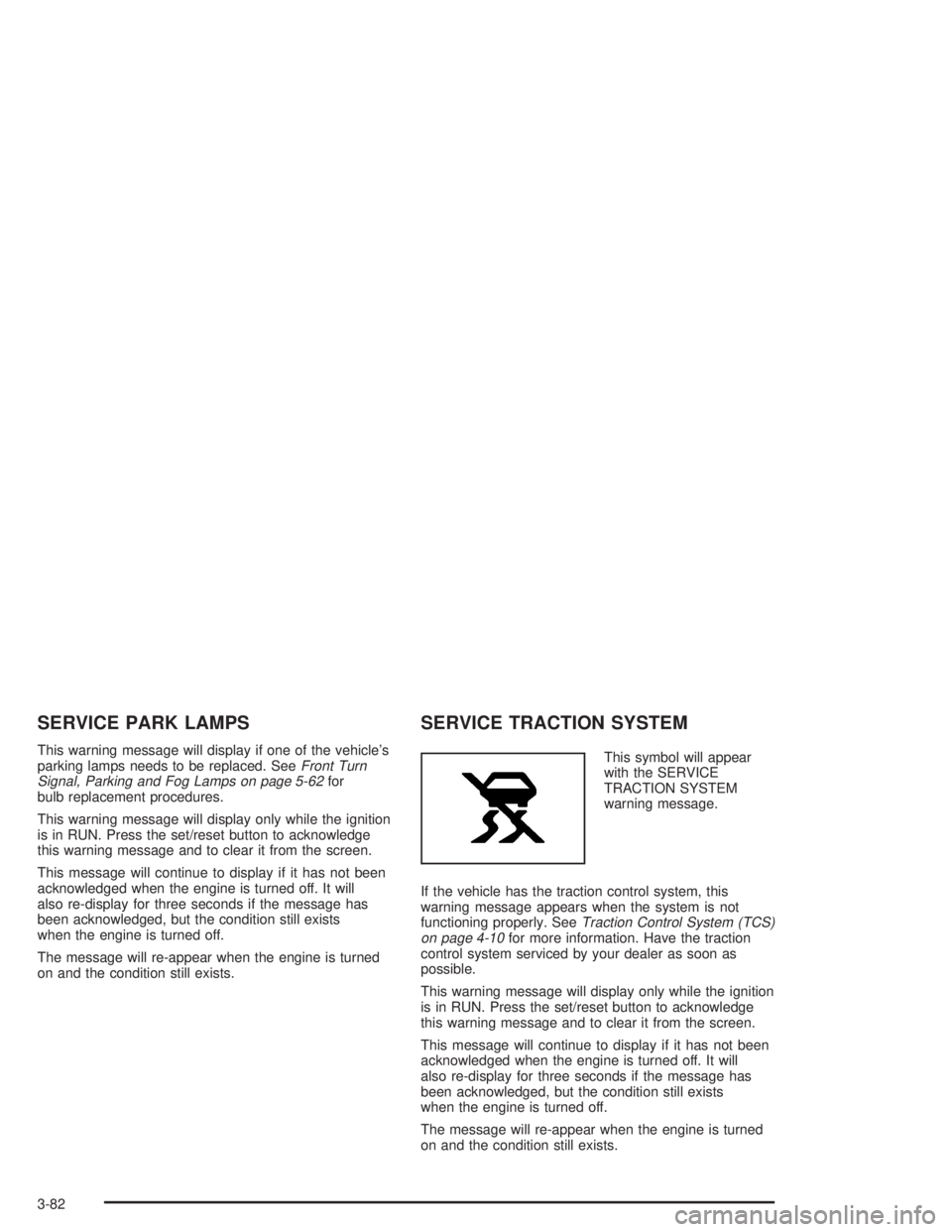
This symbol will appear
with the SERVICE
TRACTION SYSTEM
warning message.
If the vehicle has the traction control system, this
warning message appears when the system is not
functioning properly. See
Traction Control System (TCS)
on page 4-10for more information. Have the traction
control system serviced by your dealer as soon as
possible.
This warning message will display only while the ignition
is in RUN. Press the set/reset button to acknowledge
this warning message and to clear it from the screen.
This message will continue to display if it has not been
acknowledged when the engine is turned off. It will
also re-display for three seconds if the message has
been acknowledged, but the condition still exists
when the engine is turned off.
The message will re-appear when the engine is turned
on and the condition still exists.
3-82
Page 187 of 432
SERVICE STABILITY SYSTEM
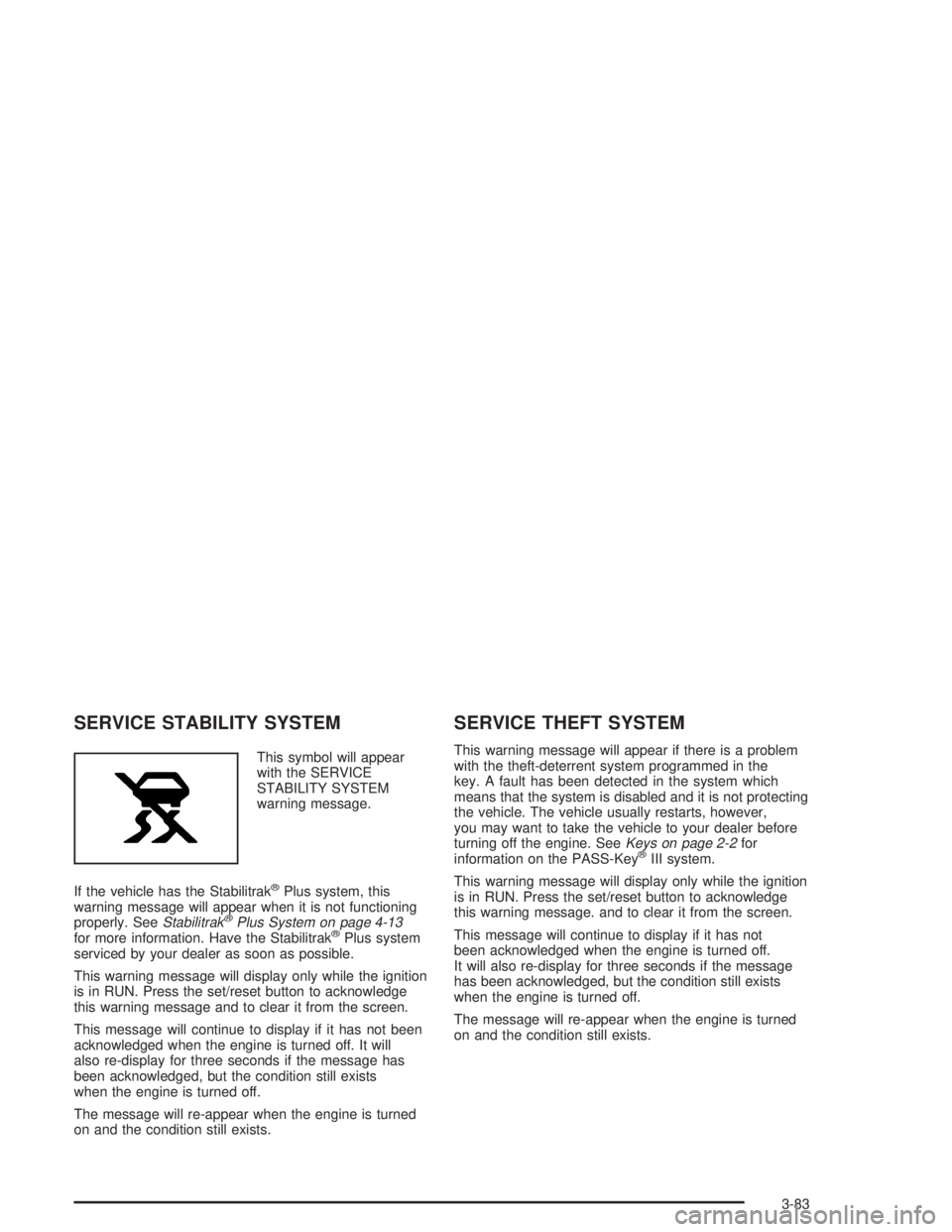
This symbol will appear
with the SERVICE
STABILITY SYSTEM
warning message.
If the vehicle has the Stabilitrak
žPlus system, this
warning message will appear when it is not functioning
properly. See
StabilitrakžPlus System on page 4-13for more information. Have the StabilitrakžPlus system
serviced by your dealer as soon as possible.
This warning message will display only while the ignition
is in RUN. Press the set/reset button to acknowledge
this warning message and to clear it from the screen.
This message will continue to display if it has not been
acknowledged when the engine is turned off. It will
also re-display for three seconds if the message has
been acknowledged, but the condition still exists
when the engine is turned off.
The message will re-appear when the engine is turned
on and the condition still exists.
SERVICE THEFT SYSTEM
This warning message will appear if there is a problem
with the theft-deterrent system programmed in the
key. A fault has been detected in the system which
means that the system is disabled and it is not protecting
the vehicle. The vehicle usually restarts, however,
you may want to take the vehicle to your dealer before
turning off the engine. See
Keys on page 2-2for
information on the PASS-KeyžIII system.
This warning message will display only while the ignition
is in RUN. Press the set/reset button to acknowledge
this warning message. and to clear it from the screen.
This message will continue to display if it has not
been acknowledged when the engine is turned off.
It will also re-display for three seconds if the message
has been acknowledged, but the condition still exists
when the engine is turned off.
The message will re-appear when the engine is turned
on and the condition still exists.
3-83
Page 188 of 432
SERVICE VARIABLE EFFORT
STEERING
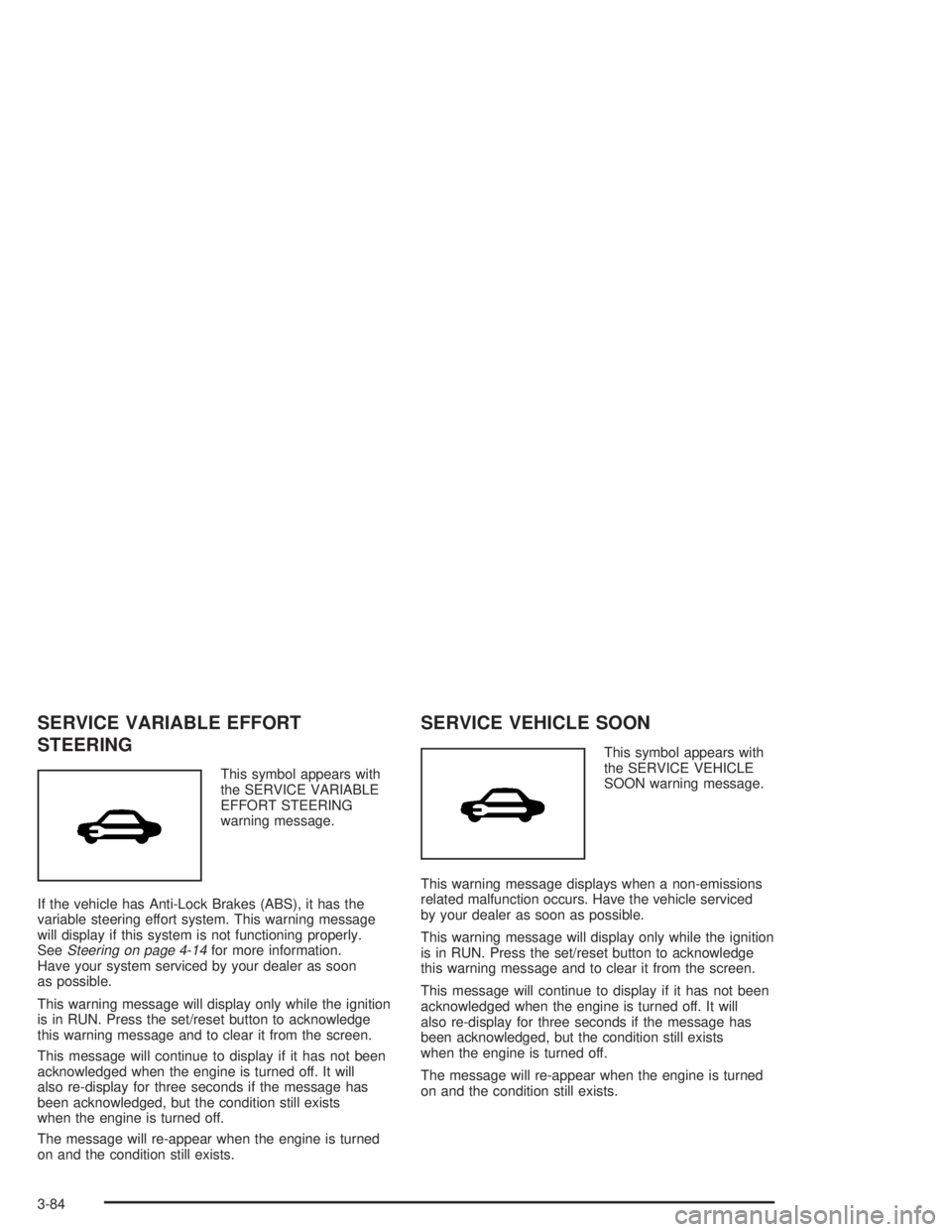
This symbol appears with
the SERVICE VARIABLE
EFFORT STEERING
warning message.
If the vehicle has Anti-Lock Brakes (ABS), it has the
variable steering effort system. This warning message
will display if this system is not functioning properly.
See
Steering on page 4-14for more information.
Have your system serviced by your dealer as soon
as possible.
This warning message will display only while the ignition
is in RUN. Press the set/reset button to acknowledge
this warning message and to clear it from the screen.
This message will continue to display if it has not been
acknowledged when the engine is turned off. It will
also re-display for three seconds if the message has
been acknowledged, but the condition still exists
when the engine is turned off.
The message will re-appear when the engine is turned
on and the condition still exists.
SERVICE VEHICLE SOON
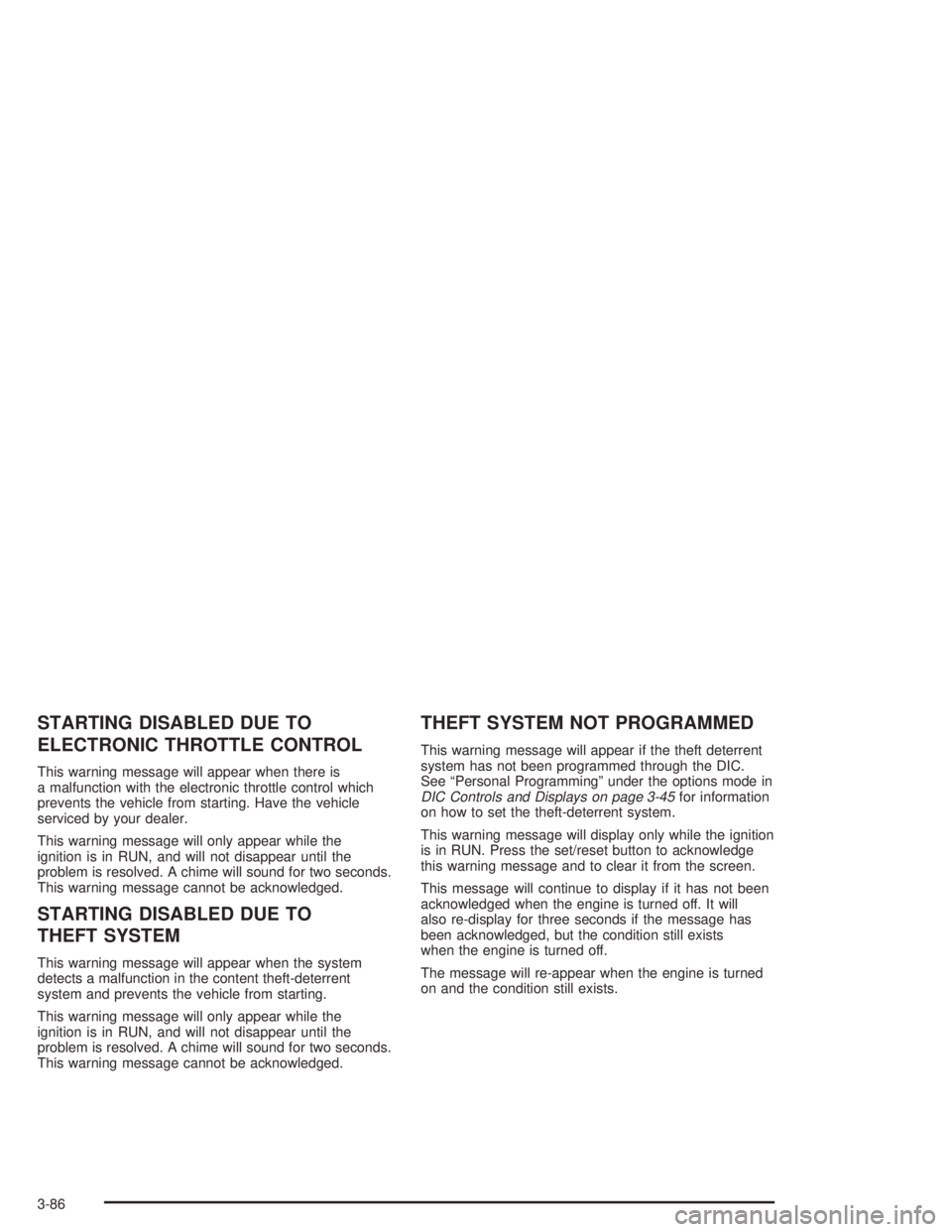
This symbol appears with
the SERVICE VEHICLE
SOON warning message.
This warning message displays when a non-emissions
related malfunction occurs. Have the vehicle serviced
by your dealer as soon as possible.
This warning message will display only while the ignition
is in RUN. Press the set/reset button to acknowledge
this warning message and to clear it from the screen.
This message will continue to display if it has not been
acknowledged when the engine is turned off. It will
also re-display for three seconds if the message has
been acknowledged, but the condition still exists
when the engine is turned off.
The message will re-appear when the engine is turned
on and the condition still exists.
3-84
Page 190 of 432
STARTING DISABLED DUE TO
ELECTRONIC THROTTLE CONTROL
This warning message will appear when there is
a malfunction with the electronic throttle control which
prevents the vehicle from starting. Have the vehicle
serviced by your dealer.
This warning message will only appear while the
ignition is in RUN, and will not disappear until the
problem is resolved. A chime will sound for two seconds.
This warning message cannot be acknowledged.
STARTING DISABLED DUE TO
THEFT SYSTEM
This warning message will appear when the system
detects a malfunction in the content theft-deterrent
system and prevents the vehicle from starting.
This warning message will only appear while the
ignition is in RUN, and will not disappear until the
problem is resolved. A chime will sound for two seconds.
This warning message cannot be acknowledged.
THEFT SYSTEM NOT PROGRAMMED
This warning message will appear if the theft deterrent
system has not been programmed through the DIC.
See ªPersonal Programmingº under the options mode in
DIC Controls and Displays on page 3-45for information
on how to set the theft-deterrent system.
This warning message will display only while the ignition
is in RUN. Press the set/reset button to acknowledge
this warning message and to clear it from the screen.
This message will continue to display if it has not been
acknowledged when the engine is turned off. It will
also re-display for three seconds if the message has
been acknowledged, but the condition still exists
when the engine is turned off.
The message will re-appear when the engine is turned
on and the condition still exists.
3-86
Page 195 of 432
Finding a Station
BAND:Press this button to switch between FM1, FM2,
AM, or XM1 or XM2 (USA only, if equipped). The
display will show your selection.
TUNE:Turn this knob to choose radio stations.
wSEEKx:Press the up or the down arrow to go to
the next or to the previous station and stay there.
The radio will seek only to stations that are in the
selected band and only to those with a strong signal.
wSCANx:Press and hold one of the SCAN arrows
for two seconds until SCAN appears on the display
and you hear a beep. The radio will go to a station,
play for a few seconds, then go on to the next station.
Press one of the SCAN arrows again to stop scanning.
To scan preset stations, press and hold one of the
SCAN arrows for more than four seconds until PSCAN
and the preset number appear on the display. You
will hear a double beep. The radio will go to the ®rst
preset station stored on your pushbuttons, play for a few
seconds, then go on to the next preset station. Press
one of the SCAN arrows again to stop scanning presets.
The radio will scan only to stations that are in the
selected band and only to those with a strong signal.
Setting Preset Stations
The six numbered pushbuttons let you return to your
favorite stations. You can set up to 30 stations (six FM1,
six FM2, and six AM, six XM1 and six XM2 (USA only,
if equipped), by performing the following steps:
1. Turn the radio on.
2. Press BAND to select FM1, FM2, AM, or XM1
or XM2.
3. Tune in the desired station.
4. Press EQ to select the equalization.
5. Press and hold one of the six numbered pushbuttons
until you hear a beep. Whenever you press that
numbered pushbutton, the station you set will return
and the equalization that you selected will also be
automatically selected for that pushbutton.
6. Repeat the steps for each pushbutton.
3-91
Page 196 of 432
Setting the Tone (Bass/Treble)
TONE:Press and release this button until BASS, MID,
or TREB appears on the display. The SELECT LED
indicator will light to show that the tone control can be
adjusted. Turn the SELECT knob to increase or to
decrease. If a station is weak or noisy, you may want
to decrease the treble.
Pressing and holding the TONE button for two seconds
will return all speaker settings to the middle position.
EQ (Equalizer):Press this button to select customized
bass, mid and treble equalization settings.
You can set up to six customized equalization settings
by performing the following steps:
1. Turn the radio on.
2. Use the TONE button and the SELECT knob to
create the desired equalization.
3. Press and hold the EQ button for two seconds.
SELECT EQ # will appear on the display and the
EQ symbol will ¯ash.
4. Press EQ or turn the SELECT knob to select the
desired EQ number.5. Press and hold the EQ button or push the SELECT
knob to store the equalization setting and the
number. You will hear a beep and EQ SAVED will
appear on the display.
6. Repeat the steps for the other EQ settings and
numbers.
EQ 5 has been programmed at the factory for use with
talk radio, but it can be preset to a different tone.
Adjusting the Speakers (Balance/Fade)
BAL (Balance):Press and release this button until
BAL appears on the display. The SELECT LED indicator
will light to show that the speakers can be adjusted.
Turn the SELECT knob to move the sound toward the
left or the right speakers.
FADE:Press and release this button until FADE
appears on the display. The SELECT LED indicator
will light to show that the speakers can be adjusted. Turn
the SELECT knob to move the sound toward the front
or the rear speakers.
Pressing and holding the BAL FADE button for two
seconds will return all speaker settings to the middle
position.
3-92
Page 198 of 432
Setting Preset PTYs (RDS Only)
The six numbered pushbuttons let you return to your
favorite program types (PTYs). These pushbuttons have
factory PTY presets. You can set up to 12 PTYs (six FM1
and six FM2) by performing the following steps:
1. Press BAND to select FM1 or FM2.
2. Press PROG TYPE to activate program type
select mode.
3. Turn the SELECT knob to select a PTY.
4. Press and hold one of the six numbered pushbuttons
until you hear a beep. Whenever you press that
numbered pushbutton, the PTY you set will return,
if program type select mode is activated.
5. Repeat the steps for each pushbutton.
RDS Messages
ALERT!:Alert warns of national or local emergencies.
When an alert announcement comes on the current
radio station, ALERT! will appear on the display. You will
hear the announcement, even if the volume is muted
or a compact disc is playing. If the compact disc player
is playing, play will stop during the announcement.
You will not be able to turn off alert announcements.
ALERT! will not be affected by tests of the emergency
broadcast system. This feature is not supported by
all RDS stations.
INFO (Information):If the current station has a
message, INFO will appear on the display. Press this
button to see the message. The message may display
the artist and song title, call in phone numbers, etc.
If the whole message is not displayed, parts of it
will appear every three seconds. To scroll through the
message at your own speed, press the INFO button
repeatedly. A new group of words will appear on
the display with each press. Once the complete
message has been displayed, INFO will disappear
from the display until another new message is received.
The old message can be displayed by pressing the
INFO button until a new message is received or
a different station is tuned to.
3-94
Page 200 of 432
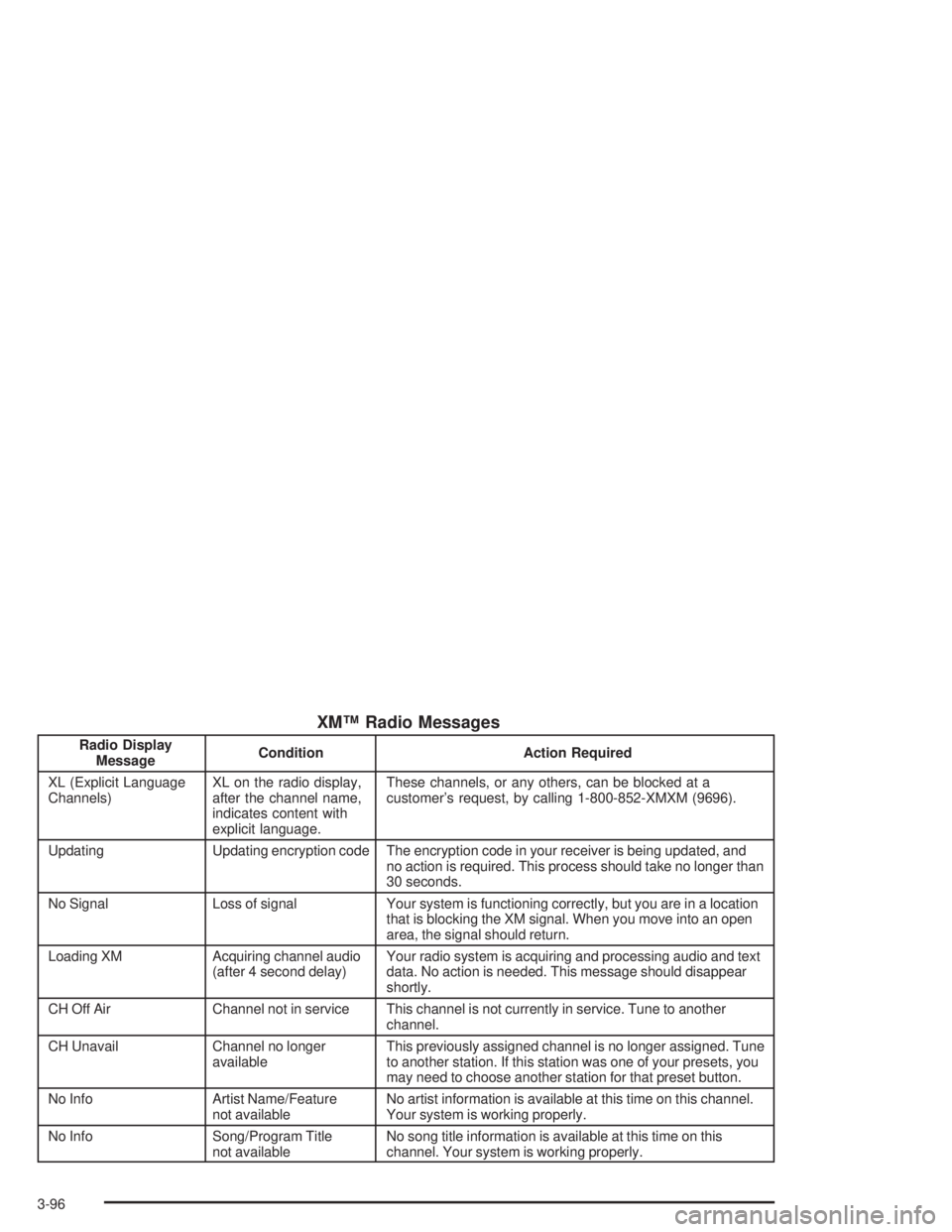
XMŸ Radio Messages
Radio Display
MessageCondition Action Required
XL (Explicit Language
Channels)XL on the radio display,
after the channel name,
indicates content with
explicit language.These channels, or any others, can be blocked at a
customer's request, by calling 1-800-852-XMXM (9696).
Updating Updating encryption code The encryption code in your receiver is being updated, and
no action is required. This process should take no longer than
30 seconds.
No Signal Loss of signal Your system is functioning correctly, but you are in a location
that is blocking the XM signal. When you move into an open
area, the signal should return.
Loading XM Acquiring channel audio
(after 4 second delay)Your radio system is acquiring and processing audio and text
data. No action is needed. This message should disappear
shortly.
CH Off Air Channel not in service This channel is not currently in service. Tune to another
channel.
CH Unavail Channel no longer
availableThis previously assigned channel is no longer assigned. Tune
to another station. If this station was one of your presets, you
may need to choose another station for that preset button.
No Info Artist Name/Feature
not availableNo artist information is available at this time on this channel.
Your system is working properly.
No Info Song/Program Title
not availableNo song title information is available at this time on this
channel. Your system is working properly.
3-96
Page 206 of 432
Finding a Station
BAND:Press this button to switch between FM1, FM2,
AM, or XM1 or XM2 (USA only, if equipped). The display
will show your selection.
TUNE:Turn this knob to choose radio stations.
wSEEKx:Press the up or the down arrow to go to
the next or to the previous station and stay there.
The radio will seek only to stations that are in the
selected band and only to those with a strong signal.
wSCANx:Press and hold one of the SCAN arrows
for two seconds until SCAN appears on the display
and you hear a beep. The radio will go to a station,
play for a few seconds, then go on to the next station.
Press one of the SCAN arrows again to stop scanning.
To scan preset stations, press and hold one of the
SCAN arrows for more than four seconds until PSCAN
and the preset number appear on the display. You
will hear a double beep. The radio will go to the ®rst
preset station stored on your pushbuttons, play for a few
seconds, then go on to the next preset station. Press
one of the SCAN arrows again to stop scanning presets.
The radio will scan only to stations that are in the
selected band and only to those with a strong signal.
Setting Preset Stations
The six numbered pushbuttons let you return to your
favorite stations. You can set up to 30 stations (six FM1,
six FM2, and six AM, six XM1 and six XM2 (USA only,
if equipped), by performing the following steps:
1. Turn the radio on.
2. Press BAND to select FM1, FM2, AM, or XM1
or XM2.
3. Tune in the desired station.
4. Press EQ to select the equalization.
5. Press and hold one of the six numbered pushbuttons
until you hear a beep. Whenever you press that
numbered pushbutton, the station you set will return
and the equalization that you selected will also be
automatically selected for that pushbutton.
6. Repeat the steps for each pushbutton.
3-102
Page 209 of 432
Setting Preset PTYs (RDS Only)
The six numbered pushbuttons let you return to your
favorite program types (PTYs). These pushbuttons
have factory PTY presets. You can set up to 12 PTYs
(six FM1 and six FM2) by performing the following steps:
1. Press BAND to select FM1 or FM2.
2. Press PROG TYPE to activate program type
select mode.
3. Turn the SELECT knob to select a PTY.
4. Press and hold one of the six numbered pushbuttons
until you hear a beep. Whenever you press that
numbered pushbutton, the PTY you set will return,
if program type select mode is activated.
5. Repeat the steps for each pushbutton.
RDS Messages
ALERT!:Alert warns of local or national emergencies.
When an alert announcement comes on the current radio
station, ALERT! will appear on the display. You will hear
the announcement, even if the volume is muted or a
cassette tape or a compact disc is playing. If the cassette
tape or compact disc player is playing, play will stop
during the announcement. You will not be able to turn off
alert announcements.
ALERT! will not be affected by tests of the emergency
broadcast system. This feature is not supported by all
RDS stations.
INFO (Information):If the current station has a
message, INFO will appear on the display. Press this
button to see the message. The message may display
the artist and song title, call in phone numbers, etc.
If the whole message is not displayed, parts of it will
appear every three seconds. To scroll through the
message at your own speed, press the INFO button
repeatedly. A new group of words will appear on the
display with each press. Once the complete message has
been displayed, INFO will disappear from the display until
another new message is received. The old message can
be displayed by pressing the INFO button until a new
message is received or a different station is tuned to.
3-105