reset PONTIAC GRAND PRIX 2004 Owners Manual
[x] Cancel search | Manufacturer: PONTIAC, Model Year: 2004, Model line: GRAND PRIX, Model: PONTIAC GRAND PRIX 2004Pages: 432, PDF Size: 2.99 MB
Page 114 of 432

This symbol, along with
the mph (km/h) and the
CRUISE SET message,
will appear in the DIC
when cruise is set.
This message will disappear when you brake or cancel
the cruise control. It will reappear when set speed is
resumed. The message will go out when the cruise
control is turned off.
The CRUISE SET message will also appear temporarily
on the HUD, if equipped, when you push the lever to the
set/coast/decelerate or the resume/accelerate positions.
Resuming a Set Speed
Suppose you set your cruise control at a desired speed
and then you apply the brake. This shuts off the
cruise control. But you don't need to reset it.
Once the vehicle is traveling approximately 25 mph
(40 km/h) or more, you can push the lever upward
toward the plus (resume/accelerate) position to return
to your desired preset speed.The vehicle will return to and stay at the preset speed.
If you push up and hold the lever toward the plus
(resume/accelerate) position, the vehicle speed will
increase until you release the button or apply the brake.
Unless you want to go faster, do not continue to hold
the lever in the plus (resume/accelerate) position.
Increasing Speed While Using Cruise
Control
There are two ways to go to a higher speed:
·Use the accelerator pedal to get to the higher
speed. Push up on the lever toward the plus
(resume/accelerate) position, then release the
lever and take your foot off the accelerator pedal.
You will now cruise at the higher speed.
·Push up and hold the lever toward the plus
(resume/accelerate) position until you get up to
the speed that you want, and then release the lever.
To increase your speed in very small amounts, push
up brie¯y on the lever and release it. Each time you
do this, your vehicle will speed up approximately
1 mph (1.6 km/h).
The acceleration feature will only work after you have
set the cruise control speed by pushing the lever
down to the set position.
3-10
Page 132 of 432
Recirculation
h
(Recirculation):Press this button on the climate
control panel to activate the recirculation mode. With
this selection inside air is recirculated into the vehicle
along with some outside air. This mode reduces outside
air and odors from entering your vehicle. It may also
help to heat or cool the air inside your vehicle more
quickly.
When this button is pressed an indicator lamp to the
right of the button will come on to indicate that the
recirculation mode is on. An adjustment to the
instrument panel brightness control to the highest
setting may be required to see the indicator lamp.
The recirculation mode has a timer. After ®ve minutes,
the system's air inlet door will move slightly to allow
for ten percent fresh outside air to maintain interior air
quality. The only way to reset the system to full
recirculation is to restart the ®ve minute timer by
selecting vent/outside air and recirculation again.
Rear Window Defogger
The rear window defogger uses a warming grid to
remove fog or frost from the rear window. Be sure to
clear as much snow from the rear window as possible.
Notice:Don't use a razor blade or something
else sharp on the inside of the rear window. If you
do, you could cut or damage the defogger and
the repairs would not be covered by your warranty.
Do not attach a temporary vehicle license, tape,
a decal or anything similar to the defogger grid.
=(REAR):Press this button to turn the rear window
defogger on or off.
When this button is pressed an indicator light to the right
of the button will come on to show that the rear window
defogger is active. The instrument brightness control may
have to be adjusted to the highest setting during the
daytime in order to see the indicator light.
The rear window defogger will turn off approximately
20 minutes after the button is pressed. If reselected,
it will run another 20 minutes. The defogger can
be turned off by pressing the button again or by turning
off the engine.
Do not drive the vehicle until all windows are clear.
3-28
Page 137 of 432
Speedometer and Odometer
The speedometer lets you see your speed in both
miles per hour (mph) and kilometers per hour (km/h).
The odometer, located on the Driver Information Center
(DIC) display, shows how far your vehicle has been
driven, in either miles or kilometers. See
DIC Controls
and Displays on page 3-45for more information.
If the vehicle has the Head-Up Display (HUD), the speed
will also be displayed on the HUD screen.
You may wonder what happens if a vehicle has to have
a new odometer installed. It the new one can be set
to the mileage total of the old odometer, than that will be
done. If it can't, than it will be set at zero and a label
must be put on the driver's door to show the old mileage
reading when the new odometer was installed.
Trip Odometer
The trip odometer, located in the Driver Information
Center (DIC), tells you how far you have driven since you
last reset it. You are able to see the miles (kilometers) for
two different trips. See
DIC Controls and Displays on
page 3-45for more information on setting the trip
odometer.
Tachometer
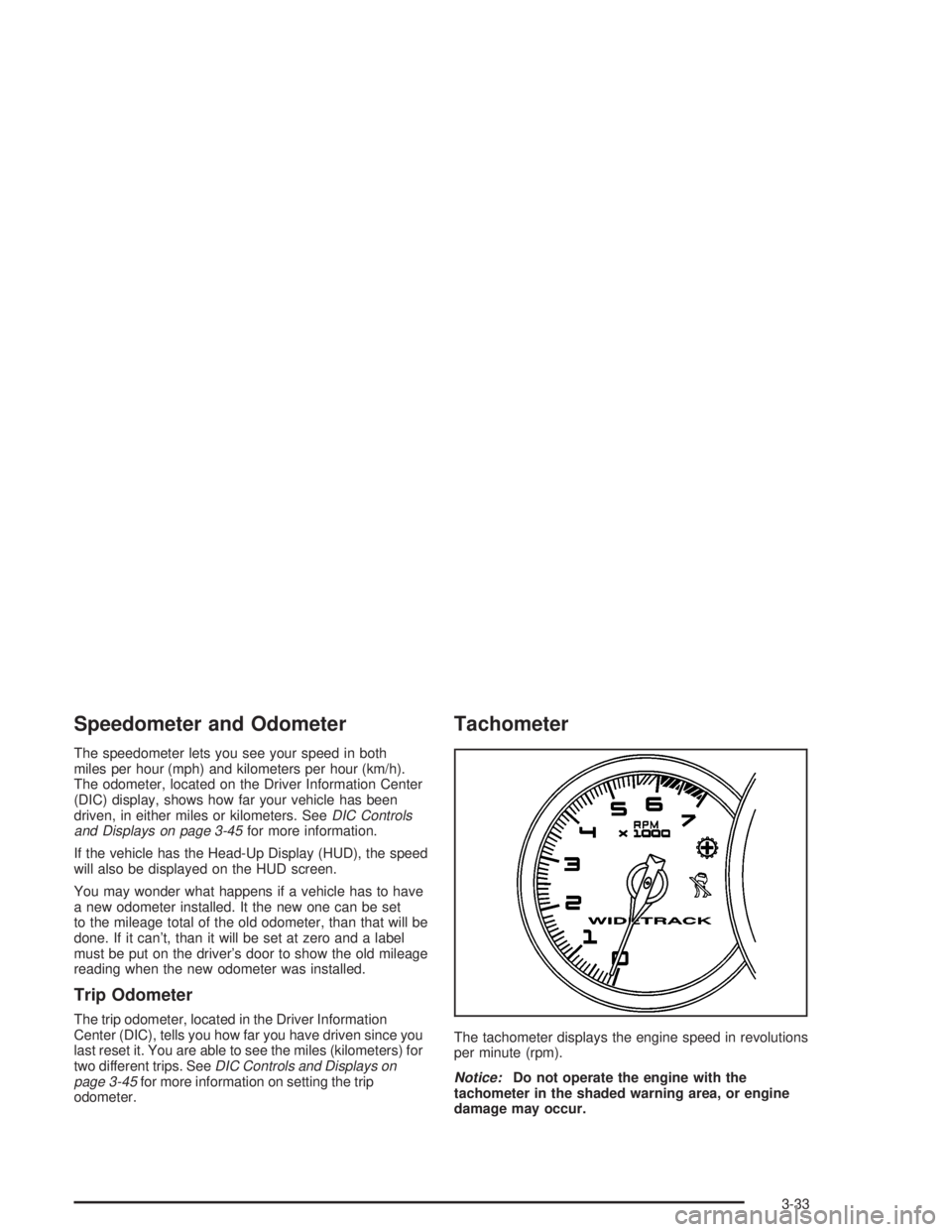
The tachometer displays the engine speed in revolutions
per minute (rpm).
Notice:Do not operate the engine with the
tachometer in the shaded warning area, or engine
damage may occur.
3-33
Page 141 of 432
Anti-Lock Brake System Warning
Light
If your vehicle has the
Anti-lock Brake System
(ABS), this light will come
on when your engine is
started and may stay on
for several seconds.
That's normal.
If the ABS warning light comes on and stays on, there
may be a problem with the anti-lock portion of the brake
system. If the brake system warning light is not on,
you still have brakes, but you don't have anti-lock
brakes. See
Brake System Warning Light on page 3-36.If the light stays on, turn the ignition to OFF. If the light
comes on when you're driving, stop as soon as
possible and turn the ignition off. Then start the engine
again to reset the system. If the light still stays on,
or comes on again while you're driving, your vehicle
needs service. If the regular brake system warning light
isn't on, you still have brakes, but you don't have
anti-lock brakes. If the brake system warning light is
also on, you don't have anti-lock brakes and there's a
problem with your regular brakes. See
Brake System
Warning Light on page 3-36.
The anti-lock brake system warning light will come on
brie¯y when you turn the ignition key to RUN. This
is normal. If the light doesn't come then, have it ®xed
so it will be ready to warn you if there is a problem.
3-37
Page 149 of 432
Driver Information Center (DIC)
The Driver Information Center (DIC) gives you important
safety and maintenance facts. When you turn the ignition
on, all of the DIC lights illuminate for a few seconds and
the phrase WIDETRACK GP will appear. After this, the
DIC will begin working.
DIC Controls and Displays
Base Level DIC
The Driver Information Center (DIC) control buttons
and the message display screen are located above
the radio. The DIC gives you important safety and
maintenance facts concerning the vehicle. The status
of many of the vehicle's systems along with driver
personalization menus and warning messages about
your vehicle's systems may display on the DIC screen.
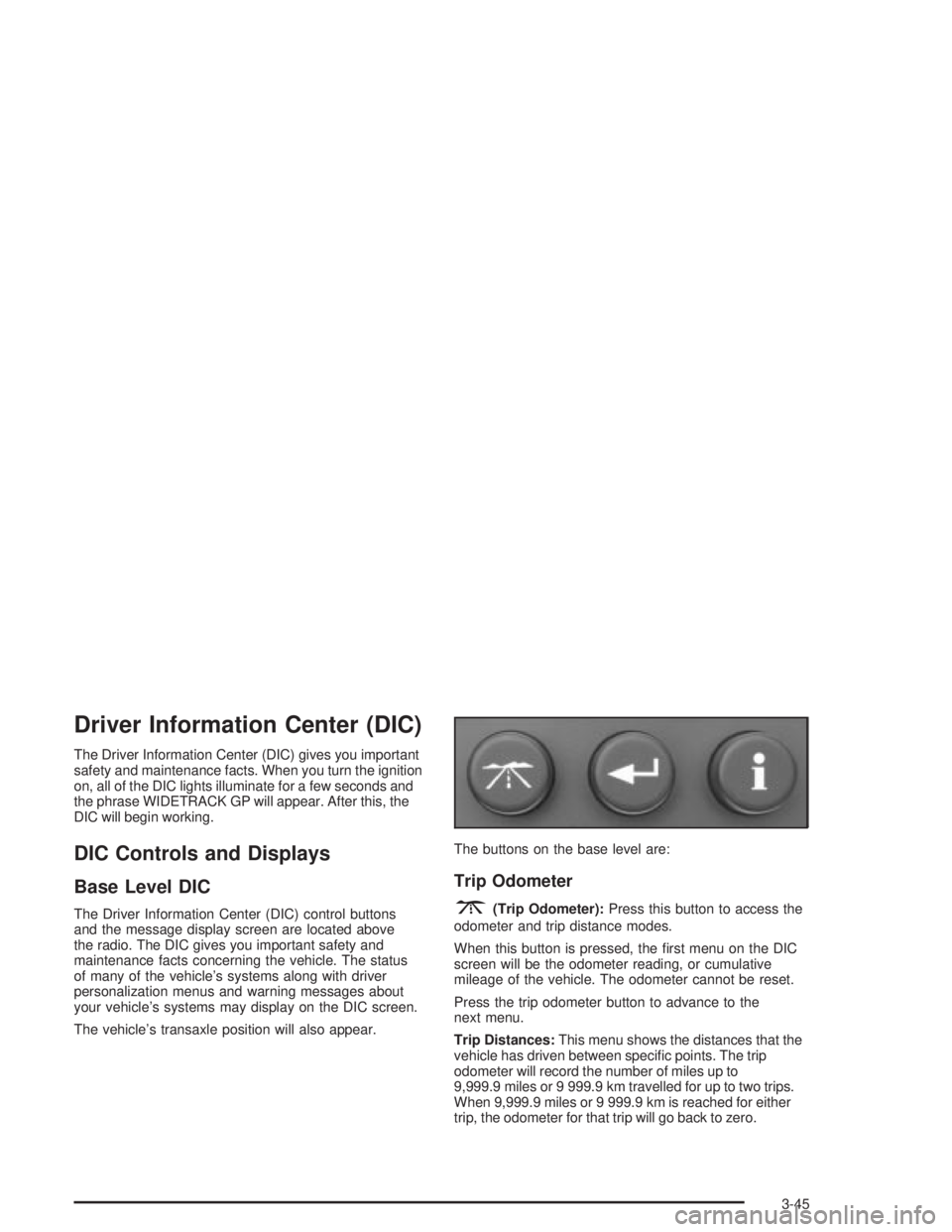
The vehicle's transaxle position will also appear.The buttons on the base level are:
Trip Odometer
3(Trip Odometer):Press this button to access the
odometer and trip distance modes.
When this button is pressed, the ®rst menu on the DIC
screen will be the odometer reading, or cumulative
mileage of the vehicle. The odometer cannot be reset.
Press the trip odometer button to advance to the
next menu.
Trip Distances:This menu shows the distances that the
vehicle has driven between speci®c points. The trip
odometer will record the number of miles up to
9,999.9 miles or 9 999.9 km travelled for up to two trips.
When 9,999.9 miles or 9 999.9 km is reached for either
trip, the odometer for that trip will go back to zero.
3-45
Page 150 of 432
Press the trip odometer button again to access TRIP A.
Press the trip odometer button again to access TRIP B.
To reset the trip odometer(s) back to zero miles or
kilometers, access the trip you want to reset and press
the set/reset button.
The trip odometer has a feature called the retro-active
reset. This can be used to set the trip odometer to the
number of miles or kilometers driven since the ignition
was last turned on. This can be used if you forget to reset
your trip odometer at the beginning of the trip.
To use the retro-active reset feature, press and hold the
set/reset button for at least three seconds. The trip
odometer will display the number of miles or kilometers
driven since the ignition was last turned on and you
began driving. Once you begin driving, the trip odometer
will accumulate mileage. For example, if you have
driven 5.0 miles (8.0 km) since you started the vehicle,
and then activate the reto-active reset feature, the
display will show 5.0 miles (8.0 km) since you started
your vehicle. As you drive, the display will then increase
to 5.1 miles (8.2 km), 5.2 miles (8.4 km), etc.
If the retro-active reset feature is activated after the
vehicle is started, but before it begins moving, the
display will show the number of miles or kilometers
that were driven during the last ignition cycle.
Press the trip odometer button again to access the
odometer.Set/Reset
r(Set/Reset):Press this button to set or reset a
menu item when using the trip odometer or options
buttons.
Options
4(Options):Press this button to access the
Date, Language, Display Units, Daytime Display
Enhancements, Engine Oil Monitor System, Tire In¯ation
Monitor System and Personal Programming modes.
Date:This menu lets you select the date. The time
is set through the radio. See
Setting the Time on
page 3-88for more information. To set the date use
the following procedure:
1. Press the options button until the date is displayed
on the DIC.
2. Press the set/reset button to scroll to the second
position in the year, releasing the button when the
correct digit appears.
3. Press the set/reset button to advance to the ®rst
position in the year, releasing the button when the
correct digit appears.
3-46
Page 151 of 432
4. Press the options button to advance to the months
of the year.
5. Press the set/reset button to scroll through the
months of the year, releasing the button when
the correct month appears.
6. Press the options button to advance to the days of
the month.
7. Press the set/reset button to scroll through the days
of the month, releasing the button when the correct
day appears.
8. Press the options button again to advance to the
next screen.
Language:This menu lets you select the language in
which you want the DIC messages to appear. The
DIC can be programmed to one of three languages:
English, French or Spanish. The message on the HUD,
if equipped, will also appear in the language selected.
To change the language use the following procedure:
1. Press the options button until the language in which
you want the messages to appear on the screen is
displayed.
2. Press the set/reset button to set the language
choice.
3. Press the options button again to advance to the
next screen.Display Units:This menu allows you to choose
whether measurements are displayed in English or
metric units. The messages on the HUD, if equipped,
and the instrument panel cluster will also appear in the
type of measurement selected.
To set the measurement, when this message is
displayed use the following procedure:
1. Press the set/reset button to select ENGLISH or
METRIC.
2. Press the options button again to advance to the
next screen.
DAYTIME DISPLAY ENHANCEMENTS:This menu
allows you to select the color of the display message.
When ON is selected for the daytime enhancement,
the messages will appear black on a red screen. This
combination makes it easier to see the DIC messages
during the daytime. When OFF is selected, or when
the headlamps are on, the messages will appear red on
a black background.
To set the daytime display enhancements use the
following procedure:
1. Press the set/reset button to select OFF or ON.
2. Press the options button again to advance to
the next screen.
3-47
Page 152 of 432

ENGINE OIL MONITOR SYSTEM:This menu lets you
reset the engine oil monitor system for the vehicle.
See ªWhen to Change Engine Oil (GM Oil LIfe System)º
under
Engine Oil on page 5-16.
To reset the engine oil monitor system use the following
procedure:
1. Press the set/reset button after an oil change to
reset the engine oil monitor system. The
con®rmation, ENGINE OIL MONITOR HAS BEEN
RESET, will appear on the next screen.
2. Press the options button again to advance to the
next screen.
Tire In¯ation Monitor System:If the vehicle has ABS,
this menu lets you set the tire in¯ation monitor system.
See ªTire In¯ation Monitor Systemº under
In¯ation ± Tire
Pressure on page 5-69for more information.
To set or reset the tire in¯ation monitor system, use the
following procedure:
1. Press the set/reset button to reset the tire in¯ation
monitor system.TIRE INFLATION HAS BEEN SET
will appear on the next screen to con®rm this
system has been set.
2. Press the options button again to advance to the
next screen.
Select the set/reset button to return to the main (date)
screen.PERSONAL PROGRAMMING MODE:This menu
lets you customize the time the exterior and interior
lamps are left on, and, when the automatic door locks
are activated after the vehicle is turned off and the doors
are closed. These adjustments can only be made
while the vehicle is in PARK (P). Press the set/reset
button to display the ®rst screen.
Personal Programming Mode Screens
Press the options button to access these modes:
EXTERIOR LIGHTING DELAY:This screen lets you
turn this feature off, or lets you select the number
of seconds the headlamps, sidelamps and taillamps, fog
lamps and back-up lamps are turned on after the key
is removed from the ignition or the vehicle is unlocked
using the remote keyless entry transmitter.
If OFF is selected, the exterior lamps will not turn on.
If a time delay is selected, the lamps will turn on
(for the time selected), when the key is removed from
the ignition, or when the vehicle is unlocked using
the remote keyless entry transmitter.
To program this mode use the following procedure:
1. Press and release the set/reset button to scroll to
the selection you want to program. Choose from
OFF or 15, 30, 60 or 90 seconds.
2. Press the options button again to advance to the
next screen.
3-48
Page 153 of 432
INTERIOR LIGHTS WHEN DOOR CLOSED:This
screen lets you select this feature to be turned OFF
or ON.
If OFF is selected, the interior lamps will turn off
immediately when the ignition is OFF and the last
door is closed.
If ON is selected, the interior lamps will stay on for
about 25 seconds after the vehicle's ignition is off and
the last door is closed.
To program this mode use the following procedure:
1. Press and release the set/reset button to scroll to
either OFF or ON.
2. Press the options button again to advance to the
next screen.
INTERIOR LIGHTS WHEN KEY REMOVED:This
screen lets you select this feature to be turned OFF or
ON. This feature enables the interior lamps in the
vehicle to turn on for about 25 seconds after the key is
removed from the ignition.
If OFF is selected, removing the key from the ignition
will not cause the interior lamps to turn on.If ON is selected, removing the key from the ignition
will cause the interior lamps to be turned on for about
25 seconds.
To program this mode use the following procedure:
1. Press and release the set/reset button to scroll to
either OFF or ON.
2. Press the options button again to advance to the
next screen.
AUTO DOOR LOCK:This screen lets you select this
feature to be turned OFF or ON.
If OFF is selected, all automatic door locking is disabled.
The doors will always need to be locked manually
before driving, to increase occupant safety.
If ON is selected, the vehicle's doors automatically lock
when the doors are closed and the vehicle is shifted
into DRIVE (D).
To program this mode use the following procedure:
1. Press and release the set/reset button to scroll to
either OFF or ON.
2. Press the options button again to advance to the
next screen.
3-49
Page 154 of 432

AUTO DOOR UNLOCK:This screen can be used if
ON was selected for the AUTO DOOR LOCK feature.
This screen lets you select this feature to be turned
off, used for the driver's door only, or for all the doors.
If OFF is selected, none of the doors will unlock
when the vehicle's transaxle is shifted into PARK (P).
If DRIVER is selected, only the driver's door will unlock
when the vehicle's transaxle is shifted into PARK (P).
If ALL is selected, all the doors will unlock when the
vehicle's transaxle is shifted into PARK (P).
To program this mode use the following procedure:
1. Press and release the set/reset button to scroll to
either OFF, DRIVER or ALL.
2. Press the options button again to advance to the
next screen.
AUTO DOOR LOCK ON:If DRIVER or ALL was
selected on the AUTO DOOR UNLOCK screen, this
screen lets you select when the vehicle's doors
will unlock. The choices are when the key is removed
from the ignition or when the vehicle is shifted into
PARK (P).
If KEY-OUT is selected, the auto door unlock will
function when the key is taken out of the ignition.If PARK is selected, the auto door unlock will function
when the transaxle is shifted into PARK (P).
To program this mode use the following procedure:
1. Press and release the set/reset button to scroll to
either KEY-OUT or PARK.
2. Press the options button again to advance to the
next screen
DELAYED LOCKING:This screen lets you select
whether this feature will be turned OFF or ON. The key
must be out of the ignition for this feature to work.
If OFF is selected, there will be no delayed locking of
the vehicle's doors.
If ON is selected, the locking of the vehicle's doors will
be delayed by 25 seconds after a power door lock
switch is pressed after a door is open, or the LOCK
button on the remote keyless entry transmitter is
pressed while any door is open.
To program this mode use the following procedure:
1. Press and release the set/reset button to scroll to
either OFF or ON.
2. Press the options button again to advance to the
next screen.
3-50