CAN Ram 1500 2015 Owner's Manual
[x] Cancel search | Manufacturer: RAM, Model Year: 2015, Model line: 1500, Model: Ram 1500 2015Pages: 871, PDF Size: 24.83 MB
Page 357 of 871
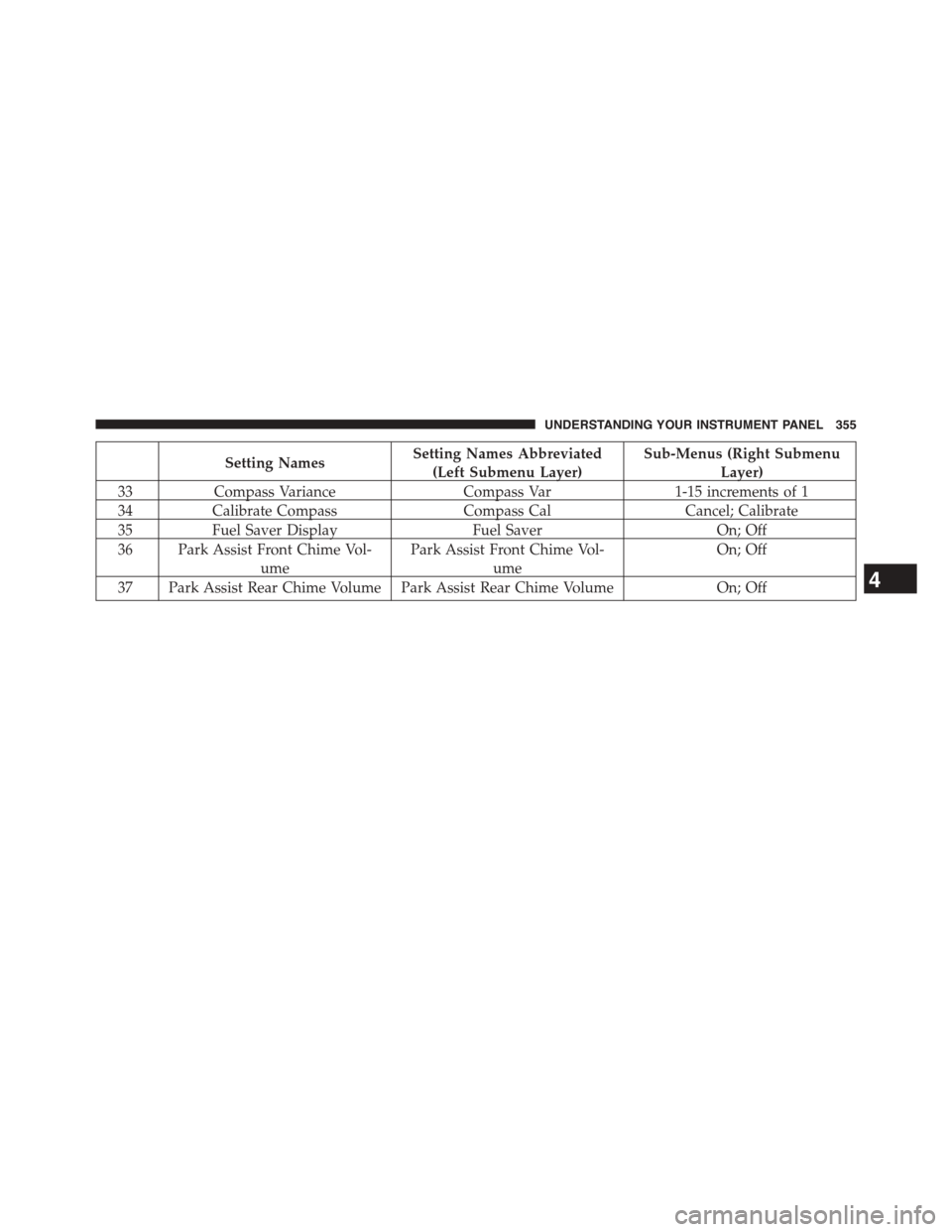
Setting NamesSetting Names Abbreviated
(Left Submenu Layer)
Sub-Menus (Right Submenu
Layer)
33Compass VarianceCompass Var1-15 increments of 1
34Calibrate CompassCompass CalCancel; Calibrate
35Fuel Saver DisplayFuel SaverOn; Off
36 Park Assist Front Chime Vol-
ume
Park Assist Front Chime Vol-
ume
On; Off
37 Park Assist Rear Chime Volume Park Assist Rear Chime VolumeOn; Off4
UNDERSTANDING YOUR INSTRUMENT PANEL 355
Page 358 of 871
Uconnect® SETTINGS
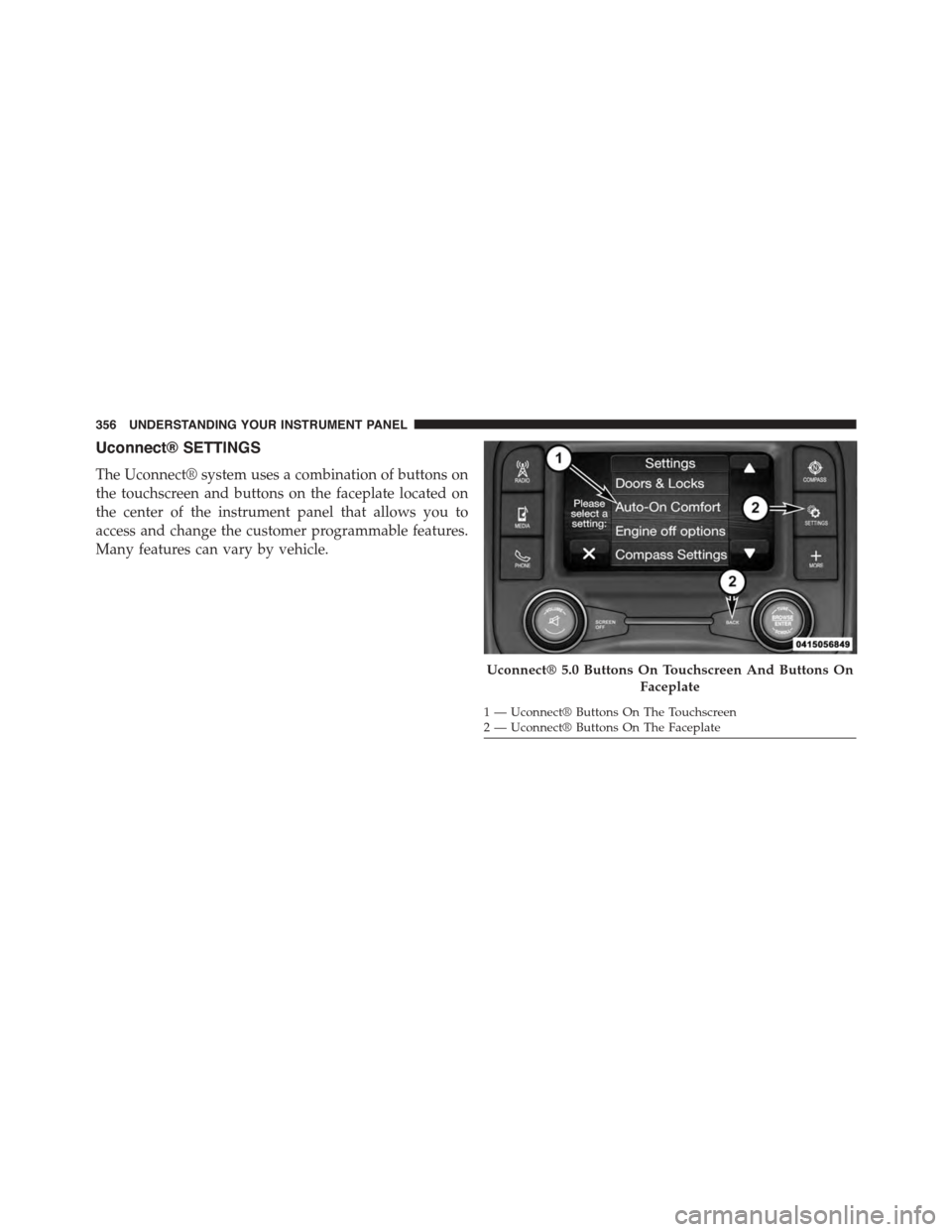
The Uconnect® system uses a combination of buttons on
the touchscreen and buttons on the faceplate located on
the center of the instrument panel that allows you to
access and change the customer programmable features.
Many features can vary by vehicle.
Uconnect® 5.0 Buttons On Touchscreen And Buttons On
Faceplate
1—Uconnect®ButtonsOnTheTouchscreen2—Uconnect®ButtonsOnTheFaceplate
356 UNDERSTANDING YOUR INSTRUMENT PANEL
Page 363 of 871

arrows above and below the current date to adjust. Press
the back arrow/Done button on the touchscreen to return
to the previous menu.
Safety/Assistance
After pressing the “Safety/Assistance” button on the
touchscreen the following settings will be available:
•ParkSense®
The ParkSense® system will scan for objects behind the
vehicle when the transmission shift lever/gear selector is
in REVERSE and the vehicle speed is less than 11 mph
(18 km/h). It will provide an alert (audible and/or visual)
to indicate the proximity to other objects. The system can
be enabled with Sound Only, or Sound and Display. To
change the ParkSense® status, press and release the
“Sound Only” or “Sounds and Display” button. Then press
the back arrow/Done button on the touchscreen. Refer to
“ParkSense®” in “Understanding The Features Of Your
Vehicle” for system function and operating information.
•Tilt Mirrors In Reverse — If Equipped
When this feature is selected, the exterior sideview
mirrors will tilt downward when the ignition is in the
RUN position and the transmission shift lever/gear
selector is in the REVERSE position. The mirrors will
move back to their previous position when the transmis-
sion is shifted out of REVERSE. To make your selection,
press the “Tilt Mirrors In Reverse” button on the touch-
screen and make your selection. Press the back arrow/
Done button on the touchscreen to return to the previous
menu.
•ParkView® Backup Camera Active Guidelines
Your vehicle may be equipped with the ParkView® Rear
Back Up Camera Active Guidelines that allows you to see
active guidelines over the ParkView Back up camera
display whenever the shift lever/gear selector is put into
REVERSE. The image will be displayed on the radio
touchscreen display along with a caution note to “check
4
UNDERSTANDING YOUR INSTRUMENT PANEL 361
Page 369 of 871
Auto Comfort Systems — If Equipped
After pressing the “Auto-On Comfort” button on the
touchscreen the following settings will be available:
•Auto-On Driver Heated/Ventilated Seat & Steering
Wheel With Vehicle Start — If Equipped
When this feature is selected the driver’s heated seat and
heated steering wheel will automatically turn ON when
temperatures are below 40° F (4.4° C). When tempera-
tures are above 80° F (26.7° C) the driver vented seat will
turn ON. To make your selection, press the “Auto Heated
Seats” button on the touchscreen, then select either “On”
or “Off.” Press the back arrow/Done button on the
touchscreen to return to the previous menu.
Engine Off Options
After pressing the “Engine Off Options” button on the
touchscreen the following settings will be available.
•Easy Exit Seats — If Equipped
When this feature is selected, the Driver ’s seat will
automatically move rearward once the engine is shut off.
To make your selection, press the “Easy Exit Seats”
button on the touchscreen and make your selection. Press
the back arrow/Done button on the touchscreen to return
to the previous menu.
•Headlight Off Delay
When this feature is selected, the driver can choose to
have the headlights remain on for 0, 30, 60, or 90 seconds
when exiting the vehicle. Press the “Headlight Off Delay”
button on the touchscreen and choose from “0,” “30,”
“60,” or “90” seconds to select your desired time interval.
Press the back arrow/Done button on the touchscreen to
return to the previous menu.
4
UNDERSTANDING YOUR INSTRUMENT PANEL 367
Page 370 of 871

•Engine Off Power Delay
When this feature is selected, the power window
switches, radio, Uconnect® phone system (if equipped),
DVD video system (if equipped), power sunroof (if
equipped), and power outlets will remain active for up to
10 minutes after the ignition is cycled to OFF. Opening
either front door will cancel this feature. Press the “En-
gine Off Power Delay” button on the touchscreen and
choose from “0 sec,” “45 sec,” “5 min” or “10 min” to
select your desired time interval. Then press the back
arrow/Done button on the touchscreen to return to the
previous menu.
•Auto Entry/Exit — If Equipped
When this feature is selected, it automatically lowers the
vehicle ride height position when shifted into park. Press
the “Auto Entry/Exit” button on the touchscreen and
choose from “On” or “Off.” Press the back arrow/Done
button on the touchscreen to return to the previous menu.
Suspension — If Equipped
After pressing the “Suspension” button on the touch-
screen the following settings will be available:
•Sound Horn With Lower
When this feature is selected, a short horn sound will
occur when the RKE transmitter REMOTE LOWER but-
ton is pressed. To make your selection, press the “Horn
w/lower” button on the touchscreen, select “On” or
“Off” followed by pressing the back arrow/Done button
on the touchscreen.
•Flash Lights With Lower
When this feature is selected, the front and rear turn
signals will flash when the RKE transmitter REMOTE
LOWER button is pressed twice. To make your selection,
press the “Light w/Lower” button on the touchscreen,
select “On” or “Off” followed by pressing the back
arrow/Done button on the touchscreen.
368 UNDERSTANDING YOUR INSTRUMENT PANEL
Page 372 of 871

Trailer Brake
After pressing the “Trailer Brake” button on the touch-
screen the following settings will be available:
•Trailer Select
When this feature is selected, the Trailer Type can be
selected between “Trailer 1,” “Trailer 2,” “Trailer 3” and
“Trailer 4.”
•Trailer Brake Type
When this feature is selected, the Trailer Brake Type can
be changed between “Light Electric,” “Heavy Electric,”
“Light EOH” and “Heavy EOH.” Refer to “Integrated
Trailer Brake Module” in “Starting And Operating.”
•Trailer Name — If Equipped
When this feature is selected, the Trailer name can be
selected from 16 names.
Audio
After pressing the “Audio” button on the touchscreen the
following settings will be available:
•Balance/Fade
This feature allows you to adjust the Balance and Fade
settings. Press and drag the speaker icon or use the
arrows to adjust, tap the “C” icon to readjust to the center.
Press the back arrow/Done button on the touchscreen to
return to the previous menu.
•Equalizer
When in this display you may adjust the Bass, Mid and
Treble settings. Adjust the settings with the “+” and “–”
buttons on the touchscreen or by selecting any point on
the scale between the “+” and “–” buttons on the
touchscreen. Press the back arrow/Done button on the
touchscreen to return to the previous menu.
370 UNDERSTANDING YOUR INSTRUMENT PANEL
Page 374 of 871

set, the compass will automatically compensate for the
differences, and provide the most accurate compass
heading.
NOTE:Keep magnetic materials away from the top of the
instrument panel, such as iPod’s, Mobile Phones, Lap-
tops and Radar Detectors. This is where the compass
module is located, and it can cause interference with the
compass sensor, and it may give false readings.
•Perform Compass Calibration
Press the “Calibration” button on the touchscreen to
change this setting. This compass is self-calibrating,
which eliminates the need to manually reset the compass.
When the vehicle is new, the compass may appear erratic
until it is calibrated. You may also calibrate the compass
Compass Variance Map
372 UNDERSTANDING YOUR INSTRUMENT PANEL
Page 375 of 871
by pressing the “ON” button on the touchscreen and
completing one or more 360-degree turns (in an area free
from large metal or metallic objects). The compass will
now function normally.
Phone/Bluetooth®
After pressing the “Phone/Bluetooth” button on the
touchscreen the following settings will be available:
•Paired Devices
This feature shows which phones are paired to the
Phone/Bluetooth® system. For further information, refer
to your Uconnect® Supplement Manual.
SiriusXM Setup — If Equipped
After pressing the “SiriusXM Setup” button on the touch-
screen, the following settings will be available:
•Channel Skip
SiriusXM can be programmed to designate a group of
channels that are the most desirable to listen to or to
exclude undesirable channels while scanning. To make
your selection, press the “Channel Skip” button on the
touchscreen, select the channels you would like to skip
followed by pressing the back arrow/Done button on the
touchscreen.
•Subscription Information
New vehicle purchasers or lessees will receive a free
limited time subscription to SiriusXM Satellite Radio
with your radio. Following the expiration of the free
services, it will be necessary to access the information on
the Subscription Information screen to re-subscribe.
Press the “Subscription Info” button on the touchscreen
to access the Subscription Information screen.
4
UNDERSTANDING YOUR INSTRUMENT PANEL 373
Page 376 of 871
Write down the SIRIUS ID numbers for your receiver. To
reactivate your service, either call the number listed on
the screen or visit the provider online.
NOTE:SiriusXM Travel Link is a separate subscription
and is available for U.S. residents only.
Restore Settings
After pressing the “Restore Settings” button on the
touchscreen the following settings will be available:
•Restore Settings
When this feature is selected it will reset the Display,
Clock, Audio, and Radio Settings to their default settings.
To restore the settings to their default setting, press the
“Restore Settings” button and select from “Yes” or “No.”
If “Yes” is selected a pop-up will appear asking#Are you
sure you want to reset your settings to default?” select
“Yes” to restore, or “Cancel” to exit. Press back arrow/
Done button to return to the previous menu.
Clear Personal Data
After pressing the “Clear Personal Data Settings” button
on the touchscreen the following settings will be avail-
able:
•Clear Personal Data
When this feature is selected it will remove all personal
data including Bluetooth® devices and presets. To re-
move all personal information, press the “Clear Personal
Data” button and select from “Yes” or “No.” If “Yes” is
selected a pop-up will appear asking#Are you sure you
want to clear all personal data?” select “Yes” to Clear, or
“Cancel” to exit. Press the back arrow/Done button on
the touchscreen to return to the previous menu.
374 UNDERSTANDING YOUR INSTRUMENT PANEL
Page 382 of 871
•Time Format
This feature will allow you to select the time format
display setting. Press the “Time Format” button on the
touchscreen and select from “12hrs” or “24hrs.” Press the
back arrow button on the touchscreen to return to the
previous menu.
•Show Time In Status Bar — If Equipped
This feature will allow you to turn on or shut off the
digital clock in the status bar. To change the Show Time
Status setting press the “Show Time in Status Bar” button
on the touchscreen to turn the feature on or off. Press the
back arrow button on the touchscreen to return to the
previous menu.
Safety & Driving Assistance
After pressing the “Safety & Driving Assistance” button
on the touchscreen the following settings will be avail-
able.
•ParkSense®
The Rear Park Assist system will scan for objects behind
the vehicle when the transmission shift lever is in RE-
VERSE and the vehicle speed is less than 11 mph
(18 km/h). The system can be enabled with Sound Only
or Sound and Display. To change the Park Assist status,
select the “Sound Only” or the “Sound and Display”
button on the touchscreen. Press the back arrow button
on the touchscreen. Refer to “ParkSense® Rear Park
Assist” in “Understanding The Features Of Your Vehicle”
for system function and operating information.
•Front ParkSense® Chime Volume
The Front ParkSense® Chime Volume settings can be
selected from the EVIC/DID or Uconnect® System — if
equipped. The chime volume settings include LOW,
MEDIUM, and HIGH. The factory default volume setting
is MEDIUM. To change the mode status, press the “Front
ParkSense® Volume” button and select the “Low” “Med”
380 UNDERSTANDING YOUR INSTRUMENT PANEL