4 wheel drive Ram 1500 2018 Repair Manual
[x] Cancel search | Manufacturer: RAM, Model Year: 2018, Model line: 1500, Model: Ram 1500 2018Pages: 372, PDF Size: 7.1 MB
Page 309 of 372
WARNING!
ALWAYS drive safely with your hands on
the wheel. You have full responsibility and
assume all risks related to the use of the
Uconnect features, SiriusXM Guardian
services, and applications in this vehicle.
Only use Uconnect features and SiriusXM
Guardian services when it is safe to do so.
Failure to do so may result in an accident
involving serious injury or death.
CAUTION!
Do NOT attach any object to the touch-
screen, doing so can result in damage to
the screen.
NOTE:
Uconnect screen images are for illustration
purposes only and may not reflect exact soft-
ware for your vehicle. Setting The Time
• Model 4C NAV synchronizes time automati-
cally via GPS, so it should not require any
time adjustment. If you do need to set the
time manually, follow the instructions be-
low for Model 4C NAV.
• For Model 4C, turn the unit on, and then press the time display at the top of the
screen. Press “Yes.”
• If the time is not displayed at the top of the screen, press the “Settings” button on the
touchscreen. In the Settings screen, press
the “Clock” button on the touchscreen,
then check or uncheck this option.
• Press “+” or “–” next to Set Time Hours and Set Time Minutes to adjust the time.
• If these features are not available, uncheck the Sync Time box.
• Press “X” to save your settings and exit out of the Clock Setting screen. Background Themes
• Screen background themes are selectable
from a pre-loaded list of themes. If you’d
like to set a theme, follow the instructions
below.
• Press the “Settings” button on the touch- screen.
• Press the “Display” button on the touch- screen.
• Then press “Set Theme” button on the touchscreen and select a theme.
Audio Settings
• Press of the “Audio” button on the touch- screen to activate the Audio settings screen
to adjust Balance\Fade, Equalizer, and
Speed Adjusted Volume.
• You can return to the Radio screen by pressing the “X” located at the top right.
Balance/Fade
• Press the “Balance/Fade” button on the touchscreen to Balance audio between the
front speakers or fade the audio between
the rear and front speakers.
307
Page 312 of 372
1. Press the “Apps” button to open the
App screen.
2. Press and hold, then drag the selected App to replace an existing shortcut in the
main menu bar.
The new app shortcut, that was dragged
down onto the main menu bar, will now
be an active App/shortcut.
NOTE:
This feature is only available if the vehicle is
in PARK.
Radio
WARNING!
ALWAYS drive safely with your hands on
the wheel. You have full responsibility and
assume all risks related to the use of the
Uconnect features, SiriusXM Guardian
services, and applications in this vehicle.
Only use Uconnect features and SiriusXM
Guardian services when it is safe to do so.
Failure to do so may result in an accident
involving serious injury or death. • To access the Radio mode, press the “Ra-
dio” button on the touchscreen.
Selecting Radio Stations
• Press the desired radio band (AM, FM or SXM) button on the touchscreen.
Seek Up/Seek Down
• Press the Seek up or down arrow buttons on the touchscreen for less than two seconds
to seek through radio stations.
• Press and hold either arrow button on the touchscreen for more than two seconds to
bypass stations without stopping. The radio
will stop at the next listenable station once
the arrow button on the touchscreen is
released.
Direct Tune
• Tune directly to a radio station by pressing the “Tune” button on the screen, and en-
tering the desired station number.
Store Radio Presets Manually
Your radio can store 36 total preset stations,
12 presets per band (AM, FM and SXM). They
are shown at the top of your radio screen. To see the 12 preset stations per band, press the
arrow button on the touchscreen at the top
right of the screen to toggle between the two
sets of six presets.
To store a radio preset manually, follow the
steps below:
1. Tune to the desired station.
2. Press and hold the desired numbered but-
ton on the touchscreen for more than two
seconds or until you hear a confirmation
beep.
HD Radio — If Equipped
• HD Radio (available on Uconnect 4C/4C NAV) operates similar to conventional radio
except it allows broadcasters to transmit a
high-quality digital signal.
• With an HD radio receiver, the listener is provided with a clear sound that enhances
the listening experience. HD radio can also
transmit data such as song title or artist.
Android Auto
Android Auto is a feature of your Uconnect
system, and your Android 5.0 Lollipop, or
higher, powered smartphone with a data
MULTIMEDIA
310
Page 317 of 372
NOTE:
Only temporarily pushing the VR button on
the steering wheel will launch a native VR
session, not a Siri session, and it will not
function with CarPlay.
Music
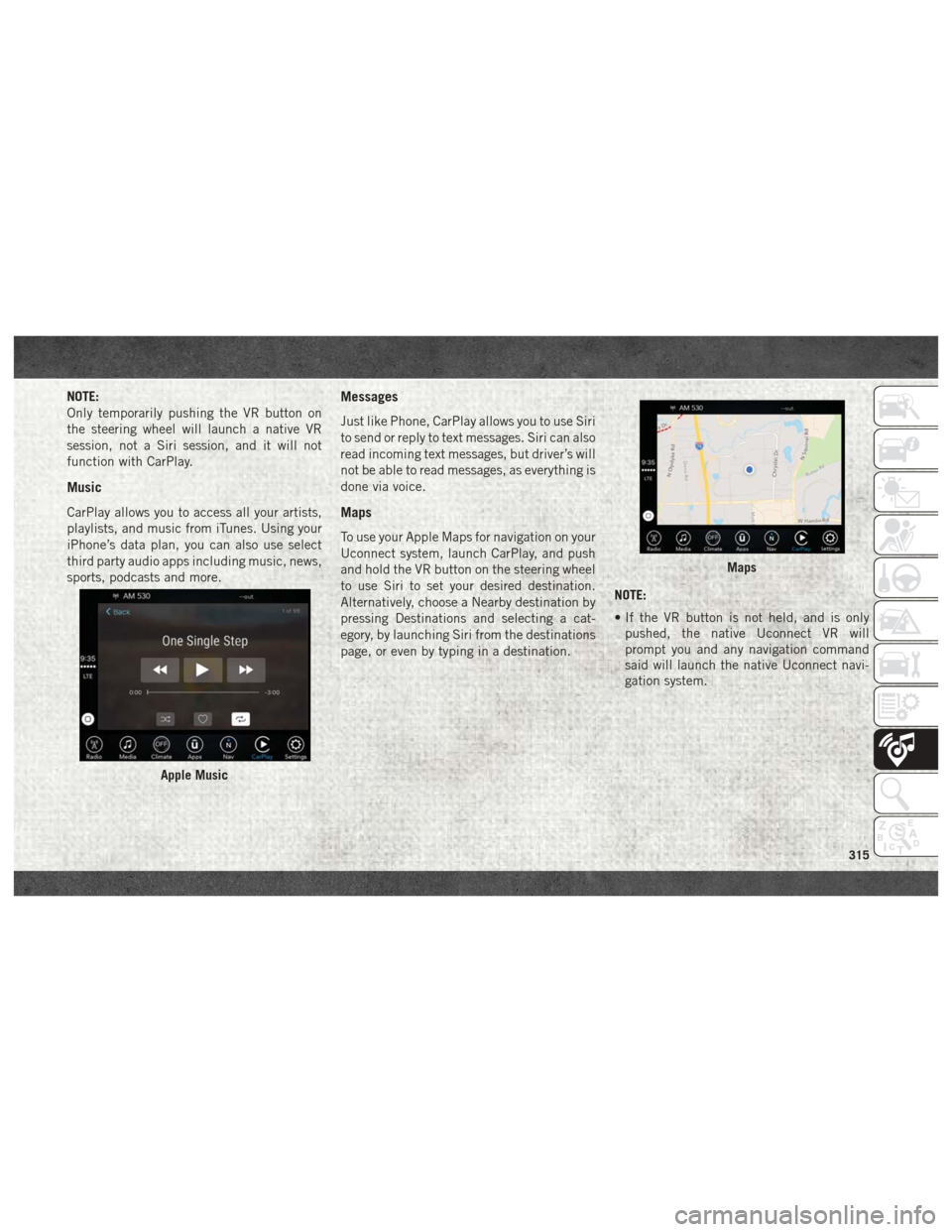
CarPlay allows you to access all your artists,
playlists, and music from iTunes. Using your
iPhone’s data plan, you can also use select
third party audio apps including music, news,
sports, podcasts and more.
Messages
Just like Phone, CarPlay allows you to use Siri
to send or reply to text messages. Siri can also
read incoming text messages, but driver’s will
not be able to read messages, as everything is
done via voice.
Maps
To use your Apple Maps for navigation on your
Uconnect system, launch CarPlay, and push
and hold the VR button on the steering wheel
to use Siri to set your desired destination.
Alternatively, choose a Nearby destination by
pressing Destinations and selecting a cat-
egory, by launching Siri from the destinations
page, or even by typing in a destination.NOTE:
• If the VR button is not held, and is only
pushed, the native Uconnect VR will
prompt you and any navigation command
said will launch the native Uconnect navi-
gation system.
Apple Music
Maps
315
Page 318 of 372
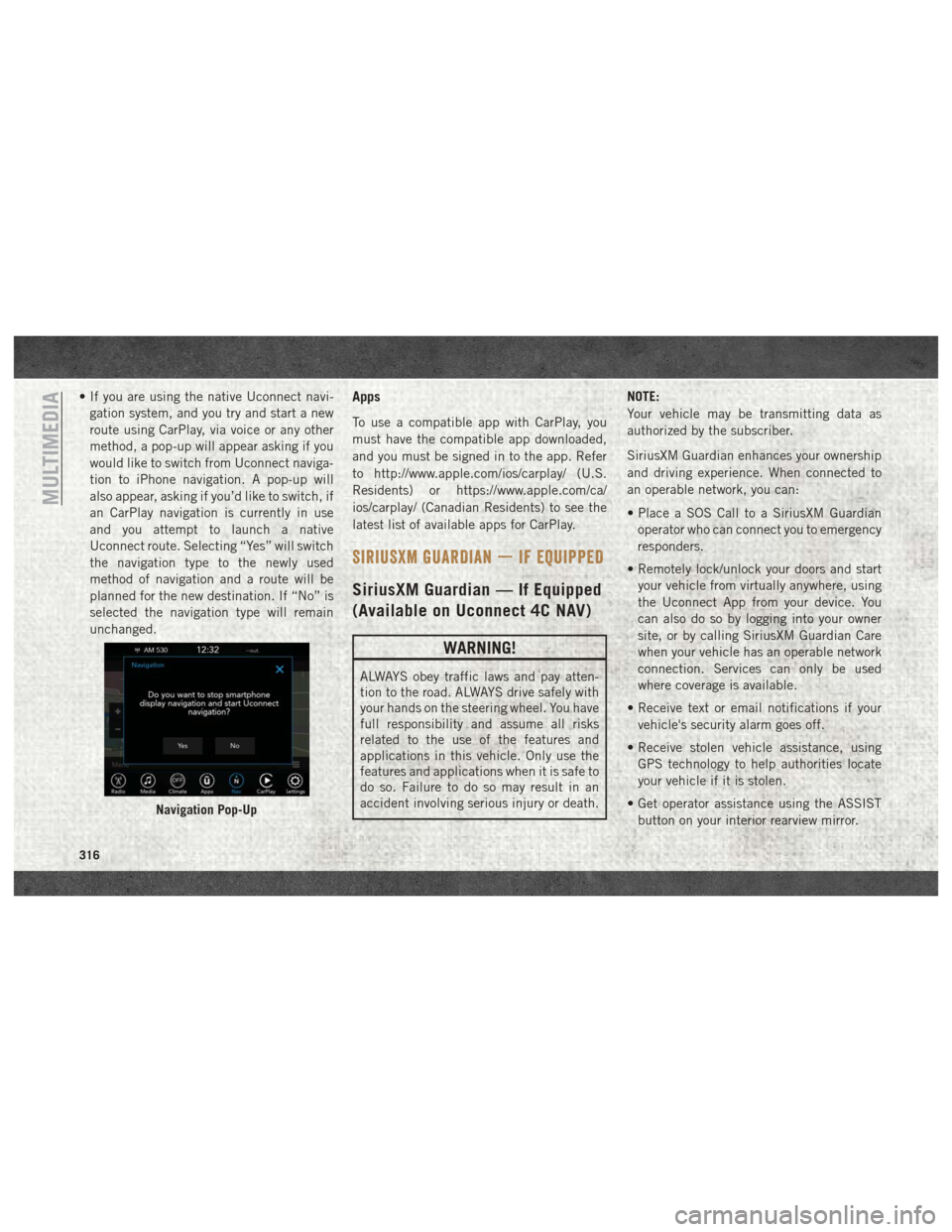
• If you are using the native Uconnect navi-gation system, and you try and start a new
route using CarPlay, via voice or any other
method, a pop-up will appear asking if you
would like to switch from Uconnect naviga-
tion to iPhone navigation. A pop-up will
also appear, asking if you’d like to switch, if
an CarPlay navigation is currently in use
and you attempt to launch a native
Uconnect route. Selecting “Yes” will switch
the navigation type to the newly used
method of navigation and a route will be
planned for the new destination. If “No” is
selected the navigation type will remain
unchanged.Apps
To use a compatible app with CarPlay, you
must have the compatible app downloaded,
and you must be signed in to the app. Refer
to http://www.apple.com/ios/carplay/ (U.S.
Residents) or https://www.apple.com/ca/
ios/carplay/ (Canadian Residents) to see the
latest list of available apps for CarPlay.
SIRIUSXM GUARDIAN — IF EQUIPPED
SiriusXM Guardian — If Equipped
(Available on Uconnect 4C NAV)
WARNING!
ALWAYS obey traffic laws and pay atten-
tion to the road. ALWAYS drive safely with
your hands on the steering wheel. You have
full responsibility and assume all risks
related to the use of the features and
applications in this vehicle. Only use the
features and applications when it is safe to
do so. Failure to do so may result in an
accident involving serious injury or death. NOTE:
Your vehicle may be transmitting data as
authorized by the subscriber.
SiriusXM Guardian enhances your ownership
and driving experience. When connected to
an operable network, you can:
• Place a SOS Call to a SiriusXM Guardian
operator who can connect you to emergency
responders.
• Remotely lock/unlock your doors and start your vehicle from virtually anywhere, using
the Uconnect App from your device. You
can also do so by logging into your owner
site, or by calling SiriusXM Guardian Care
when your vehicle has an operable network
connection. Services can only be used
where coverage is available.
• Receive text or email notifications if your vehicle's security alarm goes off.
• Receive stolen vehicle assistance, using GPS technology to help authorities locate
your vehicle if it is stolen.
• Get operator assistance using the ASSIST button on your interior rearview mirror.
Navigation Pop-Up
MULTIMEDIA
316
Page 319 of 372
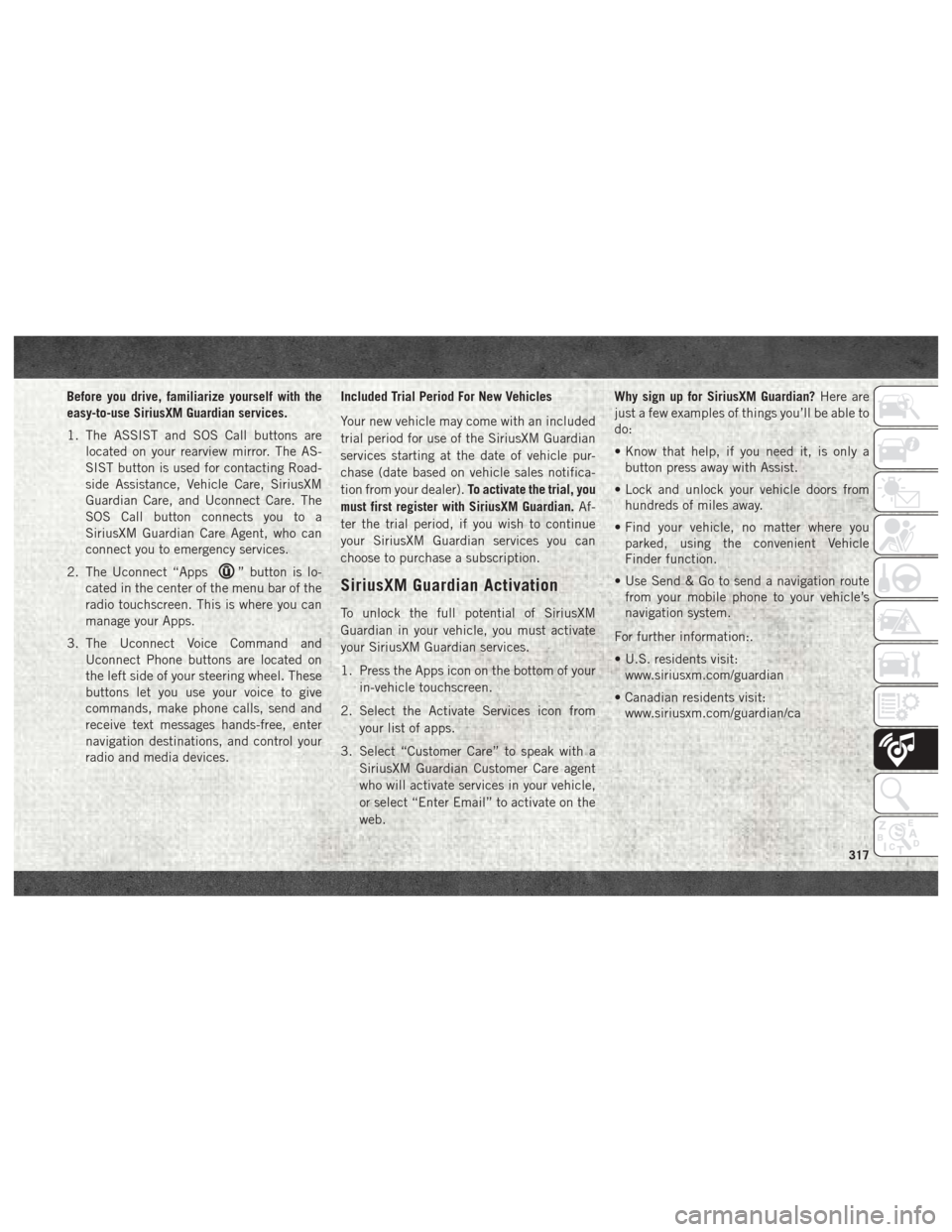
Before you drive, familiarize yourself with the
easy-to-use SiriusXM Guardian services.
1. The ASSIST and SOS Call buttons arelocated on your rearview mirror. The AS-
SIST button is used for contacting Road-
side Assistance, Vehicle Care, SiriusXM
Guardian Care, and Uconnect Care. The
SOS Call button connects you to a
SiriusXM Guardian Care Agent, who can
connect you to emergency services.
2. The Uconnect “Apps
” button is lo-
cated in the center of the menu bar of the
radio touchscreen. This is where you can
manage your Apps.
3. The Uconnect Voice Command and Uconnect Phone buttons are located on
the left side of your steering wheel. These
buttons let you use your voice to give
commands, make phone calls, send and
receive text messages hands-free, enter
navigation destinations, and control your
radio and media devices. Included Trial Period For New Vehicles
Your new vehicle may come with an included
trial period for use of the SiriusXM Guardian
services starting at the date of vehicle pur-
chase (date based on vehicle sales notifica-
tion from your dealer).
To activate the trial, you
must first register with SiriusXM Guardian. Af-
ter the trial period, if you wish to continue
your SiriusXM Guardian services you can
choose to purchase a subscription.SiriusXM Guardian Activation
To unlock the full potential of SiriusXM
Guardian in your vehicle, you must activate
your SiriusXM Guardian services.
1. Press the Apps icon on the bottom of your in-vehicle touchscreen.
2. Select the Activate Services icon from your list of apps.
3. Select “Customer Care” to speak with a SiriusXM Guardian Customer Care agent
who will activate services in your vehicle,
or select “Enter Email” to activate on the
web. Why sign up for SiriusXM Guardian?
Here are
just a few examples of things you’ll be able to
do:
• Know that help, if you need it, is only a button press away with Assist.
• Lock and unlock your vehicle doors from hundreds of miles away.
• Find your vehicle, no matter where you parked, using the convenient Vehicle
Finder function.
• Use Send & Go to send a navigation route from your mobile phone to your vehicle’s
navigation system.
For further information:.
• U.S. residents visit: www.siriusxm.com/guardian
• Canadian residents visit: www.siriusxm.com/guardian/ca
317
Page 320 of 372
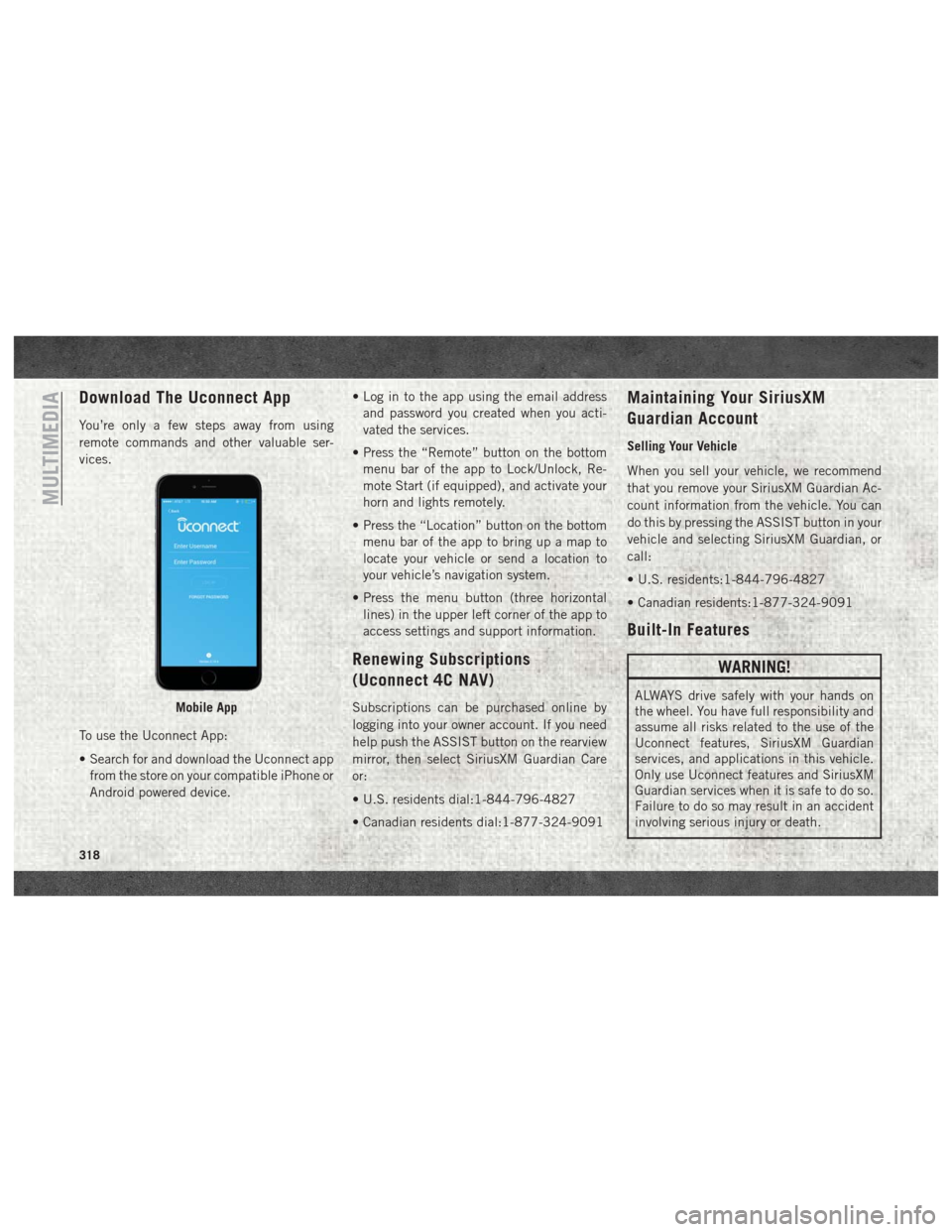
Download The Uconnect App
You’re only a few steps away from using
remote commands and other valuable ser-
vices.
To use the Uconnect App:
• Search for and download the Uconnect appfrom the store on your compatible iPhone or
Android powered device. • Log in to the app using the email address
and password you created when you acti-
vated the services.
• Press the “Remote” button on the bottom menu bar of the app to Lock/Unlock, Re-
mote Start (if equipped), and activate your
horn and lights remotely.
• Press the “Location” button on the bottom menu bar of the app to bring up a map to
locate your vehicle or send a location to
your vehicle’s navigation system.
• Press the menu button (three horizontal lines) in the upper left corner of the app to
access settings and support information.
Renewing Subscriptions
(Uconnect 4C NAV)
Subscriptions can be purchased online by
logging into your owner account. If you need
help push the ASSIST button on the rearview
mirror, then select SiriusXM Guardian Care
or:
• U.S. residents dial:1-844-796-4827
• Canadian residents dial:1-877-324-9091
Maintaining Your SiriusXM
Guardian Account
Selling Your Vehicle
When you sell your vehicle, we recommend
that you remove your SiriusXM Guardian Ac-
count information from the vehicle. You can
do this by pressing the ASSIST button in your
vehicle and selecting SiriusXM Guardian, or
call:
• U.S. residents:1-844-796-4827
• Canadian residents:1-877-324-9091
Built-In Features
WARNING!
ALWAYS drive safely with your hands on
the wheel. You have full responsibility and
assume all risks related to the use of the
Uconnect features, SiriusXM Guardian
services, and applications in this vehicle.
Only use Uconnect features and SiriusXM
Guardian services when it is safe to do so.
Failure to do so may result in an accident
involving serious injury or death.Mobile App
MULTIMEDIA
318
Page 331 of 372
Finding Points Of Interest
• From the main Navigation menu, press the“Where To?” button on the touchscreen,
then press the “Points of Interest” button
on the touchscreen.
• Select a category and then a subcategory, if necessary.
• Select your destination and press the “GO!” button on the touchscreen.
Finding A Place By Spelling The
Name
• From the Main Navigation Menu press the“Where to?” button on the touchscreen,
press the “Points of Interest” button on the
touchscreen, then press the “Spell Name”
button on the touchscreen.
• Enter the name of your destination.
• Press the “List” button on the touchscreen.
• Select your destination and press the “GO!” button on the touchscreen.
One-Step Voice Destination Entry
• Enter a navigation destination without tak-ing your hands off the wheel.
• Just push the Uconnect Voice Command
button on the steering wheel, wait for
the beep and say something like, "Find
Address 800 Chrysler Drive Auburn Hills
MI."
NOTE:
Destination entry is not available while your
vehicle is in motion. However, you can also
use Voice Commands to enter an address
while moving. Refer to “Uconnect Voice Rec-
ognition Quick Tips” in this section for further
information.
Setting Your Home Location
• Press the “Nav” button on the touchscreen in the menu bar to access the Navigation
system and the Main Navigation menu.
• Press the “Home” button on the touch- screen.
• You may enter your address directly, use your current location as your home address,
or choose from recently found locations.
• To delete your Home location (or other saved locations) so you can save a new
Home location, press the “Home” button
on the touchscreen, and in the “GO!”
screen press the “Options” button on the
touchscreen. In the Options menu press the
“Clear Home” button on the touchscreen.
Set a new Home location by following the
previous instructions.
329
Page 336 of 372
The Uconnect Phone feature enables you to
place and receive hands-free mobile phone
calls. Drivers can also place mobile phone
calls using their voice or by using the buttons
on the touchscreen (see Voice Command sec-
tion).
The hands-free calling feature is made pos-
sible through Bluetooth technology — the
global standard that enables different elec-
tronic devices to connect to each other wire-
lessly.
If the Uconnect Phone Button
exists on
your steering wheel, you then have the
Uconnect Phone features.
NOTE:
• The Uconnect Phone requires a mobile phone equipped with the Bluetooth Hands-
Free Profile, Version 1.0 or higher.
• Most mobile phones/devices are compat- ible with the Uconnect system, however
some mobile phones/devices may not be
equipped with all of the required features
to utilize all of the Uconnect system
features. For Uconnect Customer Care:
• U.S. residents visit UconnectPhone.com or
call 1-877-855-8400
• Canadian residents visit UconnectPhone.com or call
1-800-465-2001 (English) or
1-800-387-9983 (French).
Pairing (Wirelessly Connecting)
Your Mobile Phone To The
Uconnect System
Mobile phone pairing is the process of estab-
lishing a wireless connection between a cel-
lular phone and the Uconnect system.
NOTE:
• To use the Uconnect Phone feature, youfirst must determine if your mobile phone
and software are compatible with the
Uconnect system. Please visit
UconnectPhone.com for complete mobile
phone compatibility information.
• Mobile phone pairing is not available while the vehicle is in motion. • A maximum of ten mobile phones can be
paired to the Uconnect system.
Start Pairing Procedure On The Radio
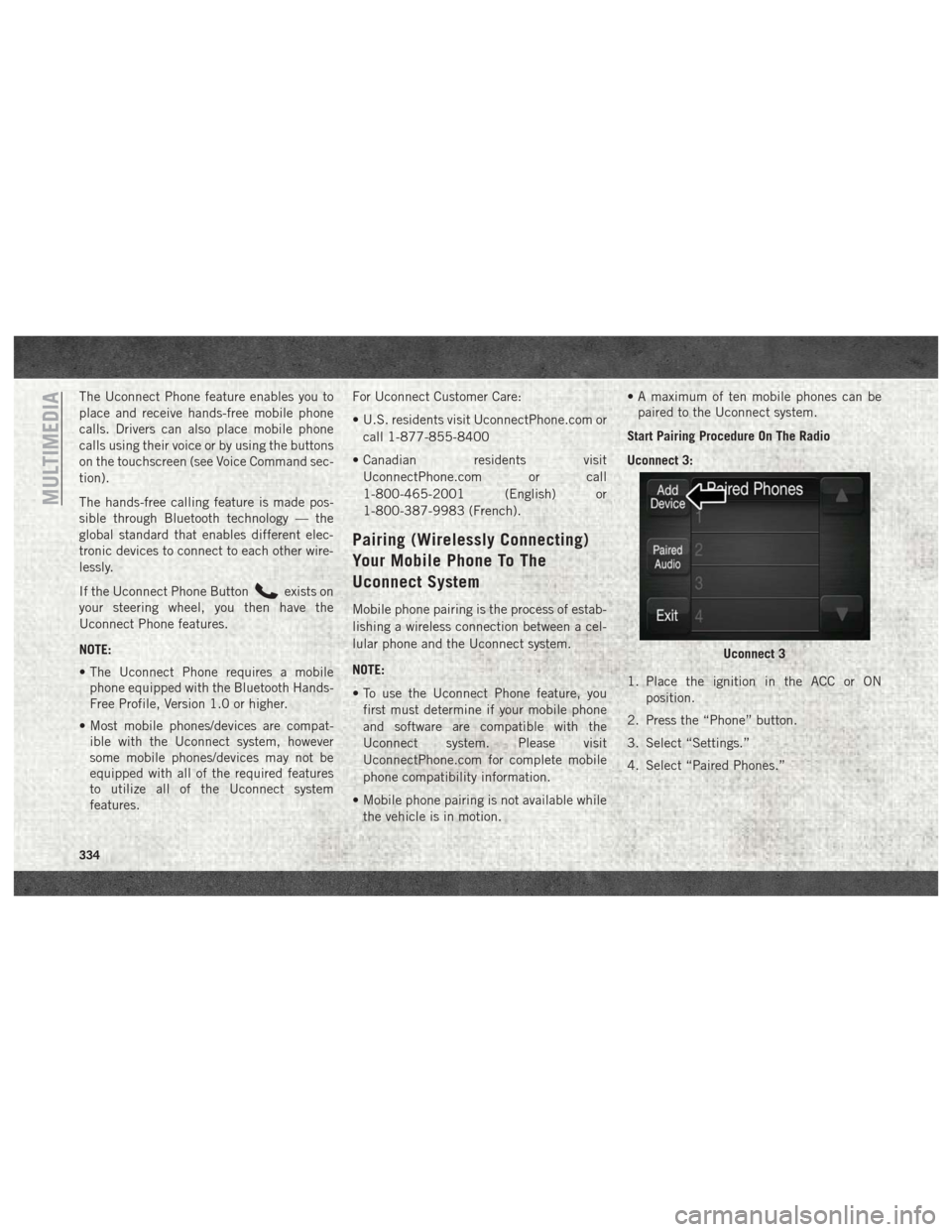
Uconnect 3:
1. Place the ignition in the ACC or ON position.
2. Press the “Phone” button.
3. Select “Settings.”
4. Select “Paired Phones.”
Uconnect 3
MULTIMEDIA
334
Page 343 of 372
2. Reduce background noise. Wind and pas-senger conversations are examples of
noise that may impact recognition.
3. Speak clearly at a normal pace and vol- ume while facing straight ahead. The mi-
crophone is positioned on the headliner
and aimed at the driver.
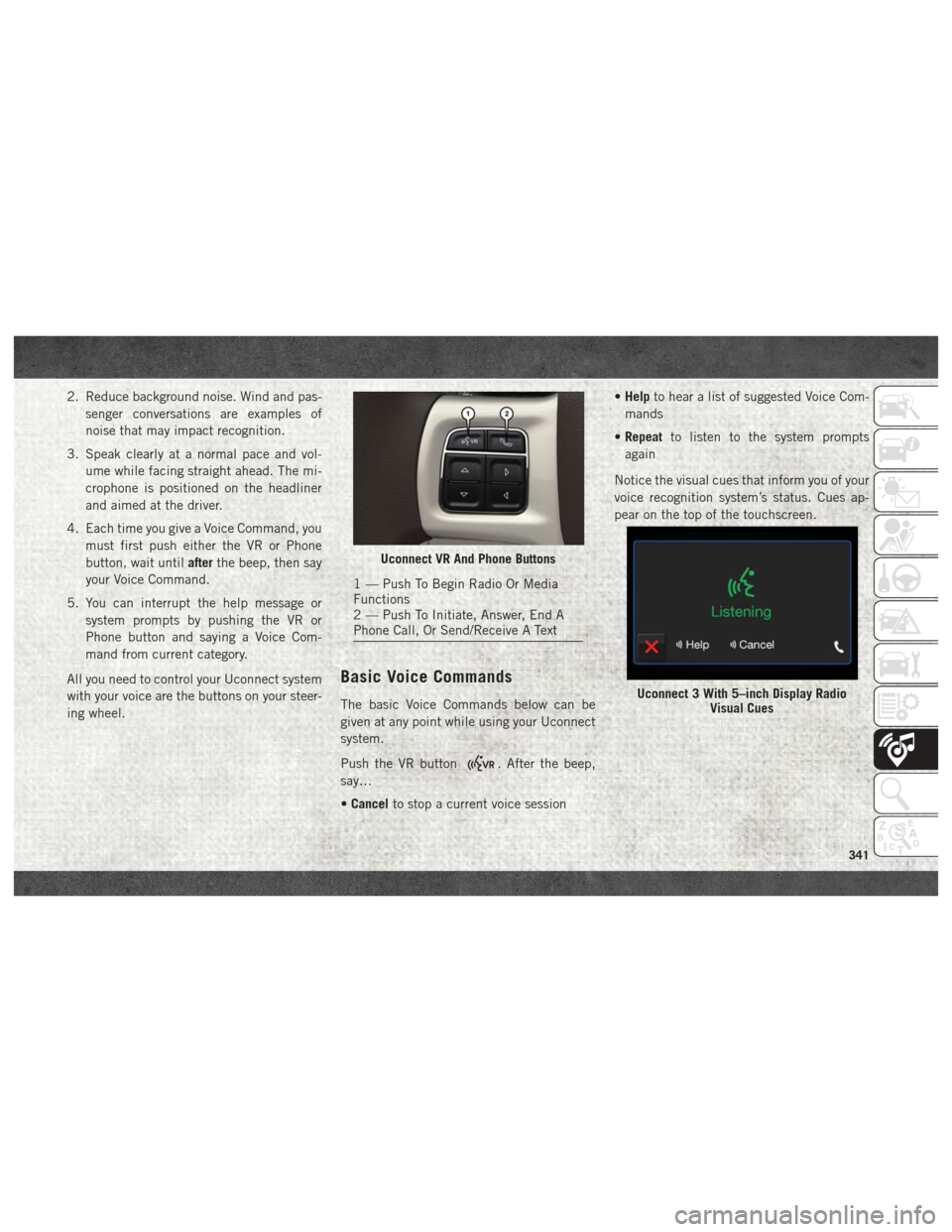
4. Each time you give a Voice Command, you must first push either the VR or Phone
button, wait until afterthe beep, then say
your Voice Command.
5. You can interrupt the help message or system prompts by pushing the VR or
Phone button and saying a Voice Com-
mand from current category.
All you need to control your Uconnect system
with your voice are the buttons on your steer-
ing wheel.
Basic Voice Commands
The basic Voice Commands below can be
given at any point while using your Uconnect
system.
Push the VR button
. After the beep,
say…
• Cancel to stop a current voice session •
Help to hear a list of suggested Voice Com-
mands
• Repeat to listen to the system prompts
again
Notice the visual cues that inform you of your
voice recognition system’s status. Cues ap-
pear on the top of the touchscreen.
Uconnect VR And Phone Buttons
1 — Push To Begin Radio Or Media
Functions
2 — Push To Initiate, Answer, End A
Phone Call, Or Send/Receive A Text
Uconnect 3 With 5–inch Display Radio Visual Cues
341
Page 346 of 372
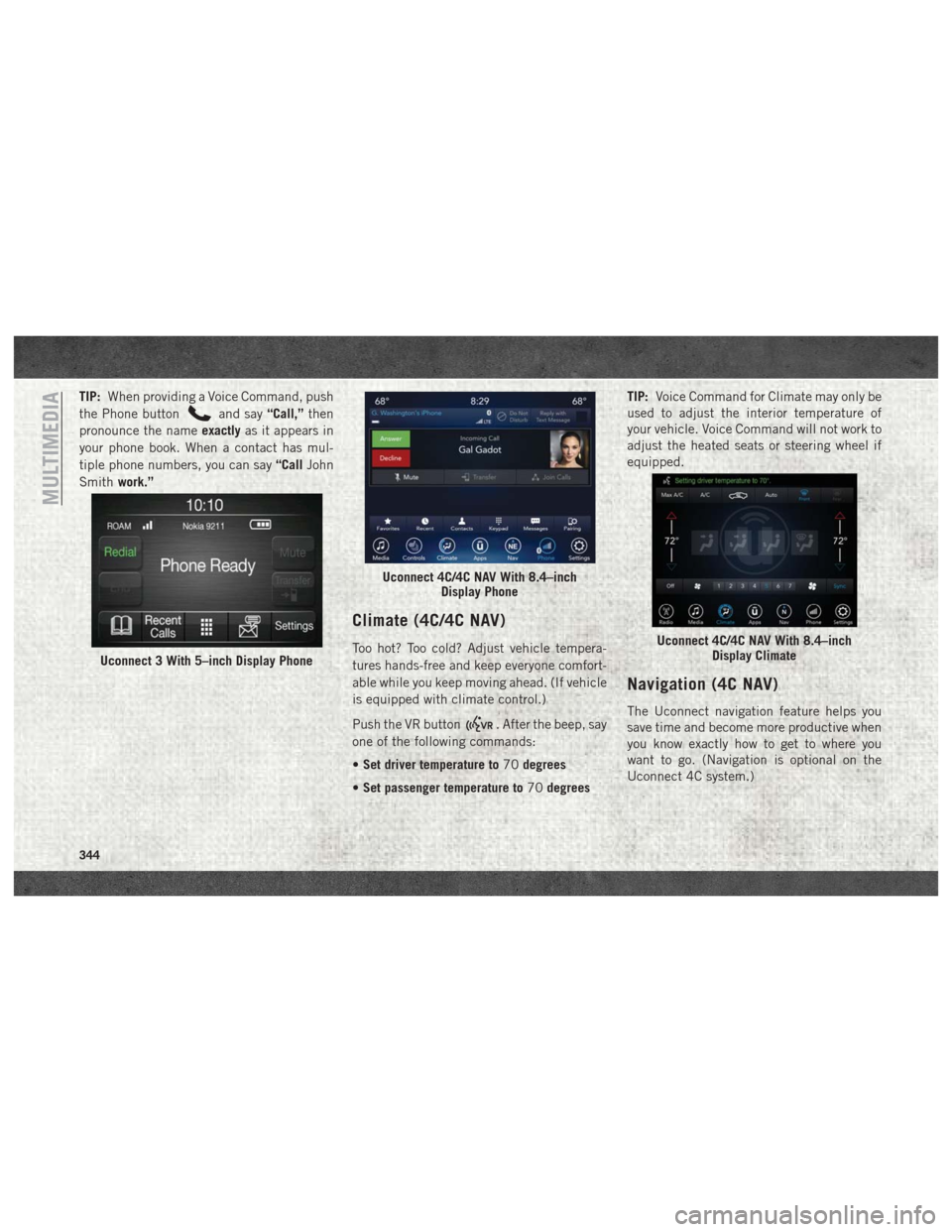
TIP:When providing a Voice Command, push
the Phone button
and say “Call,”then
pronounce the name exactlyas it appears in
your phone book. When a contact has mul-
tiple phone numbers, you can say “CallJohn
Smith work.”
Climate (4C/4C NAV)
Too hot? Too cold? Adjust vehicle tempera-
tures hands-free and keep everyone comfort-
able while you keep moving ahead. (If vehicle
is equipped with climate control.)
Push the VR button
. After the beep, say
one of the following commands:
• Set driver temperature to 70degrees
• Set passenger temperature to 70degrees TIP:
Voice Command for Climate may only be
used to adjust the interior temperature of
your vehicle. Voice Command will not work to
adjust the heated seats or steering wheel if
equipped.
Navigation (4C NAV)
The Uconnect navigation feature helps you
save time and become more productive when
you know exactly how to get to where you
want to go. (Navigation is optional on the
Uconnect 4C system.)
Uconnect 3 With 5–inch Display Phone
Uconnect 4C/4C NAV With 8.4–inch Display Phone
Uconnect 4C/4C NAV With 8.4–inchDisplay Climate
MULTIMEDIA
344