media center Ram 1500 2020 User Guide
[x] Cancel search | Manufacturer: RAM, Model Year: 2020, Model line: 1500, Model: Ram 1500 2020Pages: 674, PDF Size: 32.69 MB
Page 561 of 674

MULTIMEDIA 559
NOTE:
• FCA US LLC or your dealer may contact you directlyregarding software updates.
• To help further improve vehicle security and minimize the potential risk of a security breach, vehicle owners should:
• Routinely check www.driveuconnect.com (U.S. Resi-
dents) or www.driveuconnect.ca (Canadian Residents)
to learn about available Uconnect software updates.
• Only connect and use trusted media devices (e.g. personal mobile phones, USBs, CDs).
Privacy of any wireless and wired communications cannot
be assured. Third parties may unlawfully intercept informa -
tion and private communications without your consent. For
further information, refer to “Data Collection & Privacy” in
your Uconnect Owner’s Manual Supplement or “Onboard
Diagnostic System (OBD II) Cybersecurity” in “Getting To
Know Your Instrument Panel”.UCONNECT SETTINGS
The Uconnect system uses a combination of buttons on the
touchscreen and buttons on the faceplate located on the
center of the instrument panel that allows you to access and
change the customer programmable features. Many features
can vary by vehicle.
Uconnect 3 Settings
Uconnect 3 With 5-inch Display Buttons On The Touchscreen And Buttons On The Faceplate
1 — Uconnect Buttons On The Touchscreen
2 — Uconnect Buttons On The Faceplate
9
2020_DT_1500_OM_US.book Page 559
Page 574 of 674

572 MULTIMEDIA
Audio
After pressing the Audio button on the touchscreen, the following settings will be available:Setting Name Selectable Options
Balance/Fade FrontBack LeftRight
NOTE:
The “Balance/Fade” feature allows you to adjust the Balance and Fade settings. Press and drag the speaker icon or use the
arrows to adjust, tap the C icon to readjust to the center. Equalizer + –
NOTE:
When in the “Equalizer” display, you may adjust the Bass, Mid and Treble settings. Speed Adjusted Volume Off
123
NOTE:
The “Speed Adjusted Volume” feature increases or decreases volume relative to vehicle speed. Surround Sound — If Equipped On
Off
NOTE:
The “Surround Sound” feature provides simulated surround sound mode.
2020_DT_1500_OM_US.book Page 572
Page 583 of 674

MULTIMEDIA 581
Safety & Driving Assistance
After pressing the Safety & Driving Assistance button on the touchscreen, the following settings will be available:Active Parkview Backup Camera
Guidelines On
Off
NOTE:
The “Active ParkView Backup Camera Guide Lines” feature overlays the Rear Backup Camera image with active, or
dynamic, grid lines to help illustrate the width of the vehicle and its projected backup path, based on the steering wheel posi -
tion when the option is checked. A dashed center line overlay indicates the center of the vehicle to assist with parking or
aligning to a hitch/receiver.
Fixed Parkview Backup Camera Guidelines On
Off
Setting Name
Selectable Options
Setting NameSelectable Options
Forward Collision Warning — If Equipped Off
Warning Only Warning & Braking
NOTE:
Applies brakes to slow the vehicle in case of potential forward collision, or applies brakes and a warning chime. Forward Collision Warning Sensitivity — If Equipped Near
Med Far
NOTE:
Sets the distance in which a Forward Collision Warning occurs.
9
2020_DT_1500_OM_US.book Page 581
Page 597 of 674

MULTIMEDIA 595
Audio
After pressing the Audio button on the touchscreen, the following settings will be available:Setting Name Selectable Options
Balance/Fade FrontRearLeftRight
NOTE:
The “Balance/Fade” feature allows you to adjust the Balance and Fade settings. Press and drag the speaker icon or use the
arrows to adjust, tap the C icon to readjust to the center. Equalizer + –
NOTE:
When in the “Equalizer” display, you may adjust the Bass, Mid and Treble settings. Speed Adjusted Volume Off
123
NOTE:
The “Speed Adjusted Volume” feature increases or decreases volume relative to vehicle speed. Surround Sound — If Equipped On
Off
NOTE:
The “Surround Sound” feature provides simulated surround sound mode.
9
2020_DT_1500_OM_US.book Page 595
Page 607 of 674

MULTIMEDIA 605
Safety & Driving Assistance
After pressing the Safety & Driving Assistance button on the touchscreen, the following settings will be available:Active Backup Camera Guidelines
OnOff
NOTE:
The “Active Backup Camera Guidelines” feature overlays the Rear Backup Camera image with active, or dynamic, grid lines
to help illustrate the width of the vehicle and its project back up path, based on the steering wheel position when the option
is checked. A dashed center line overlay indicates the center of the vehicle to assist with parking or aligning to a hitch/
receiver. Fixed Backup Camera Guidelines OnOff
Setting Name
Selectable Options
Setting NameSelectable Options
Forward Collision Warning — If Equipped Off
Warning Only Warning & Active Braking
NOTE:
Applies brakes to slow the vehicle in case of potential forward collision, or applies brakes and a warning chime. Forward Collision Warning Sensitivity — If Equipped Near
Med Far
NOTE:
Sets the distance in which a Forward Collision Warning occurs.
9
2020_DT_1500_OM_US.book Page 605
Page 619 of 674

MULTIMEDIA 617
NOTE:
For further information about Trailer Tire Pressure Monitoring, refer to ”Auxiliary Driving Systems” in “Safety.”
Audio
After pressing the Audio button on the touchscreen, the following settings will be available:Trailer Name
List of Trailer Names
NOTE:
You can select and personalize your trailer name depending on the type of trailer you are hauling. Select the trailer name
from the following list: trailer, boat, car, cargo, dump, equipment, flatbed, gooseneck, horse, livestock, motorcycle, snowmo -
bile, travel, utility, and 5th wheel. Setting Name
Selectable Options
Setting NameSelectable Options
Balance/Fade FrontRight Back Left
NOTE:
The “Balance/Fade” feature allows you to adjust the Balance and Fade settings. Press and drag the speaker icon or use the
arrows to adjust, tap the C icon to readjust to the center. Equalizer + –
NOTE:
When in the “Equalizer” display, you may adjust the Bass, Mid and Treble settings.
9
2020_DT_1500_OM_US.book Page 617
Page 624 of 674
622 MULTIMEDIA
STEERING WHEEL AUDIO CONTROLS — IF
EQUIPPED
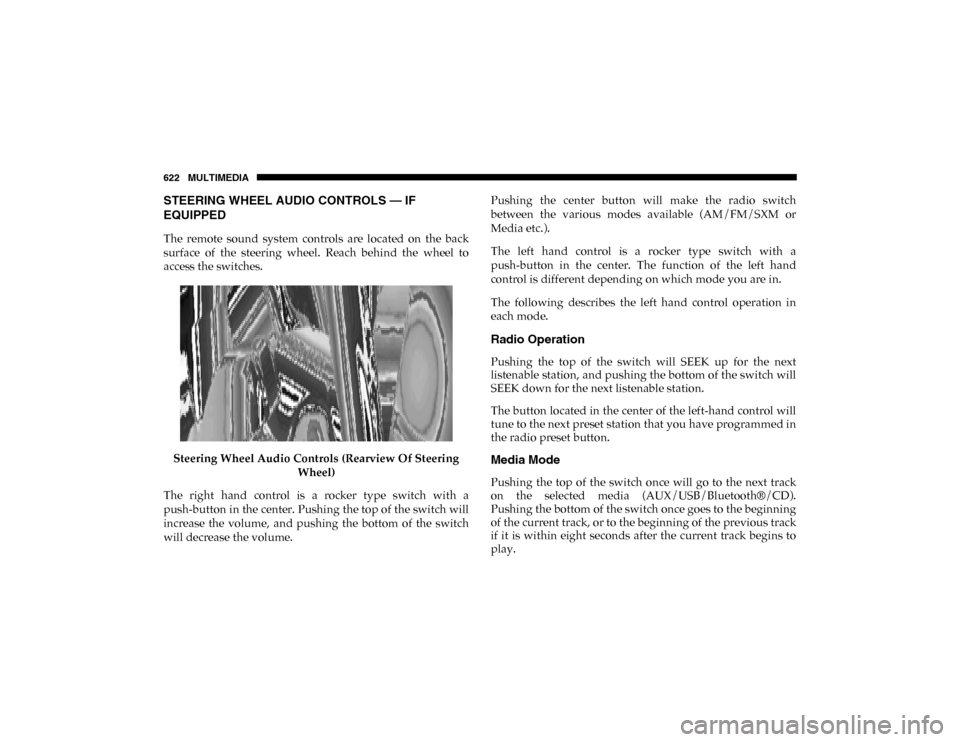
The remote sound system controls are located on the back
surface of the steering wheel. Reach behind the wheel to
access the switches.Steering Wheel Audio Controls (Rearview Of Steering Wheel)
The right hand control is a rocker type switch with a
push-button in the center. Pushing the top of the switch will
increase the volume, and pushing the bottom of the switch
will decrease the volume. Pushing the center button will make the radio switch
between the various modes available (AM/FM/SXM or
Media etc.).
The left hand control is a rocker type switch with a
push-button in the center. The function of the left hand
control is different depending on which mode you are in.
The following describes the left hand control operation in
each mode.
Radio Operation
Pushing the top of the switch will SEEK up for the next
listenable station, and pushing the bottom of the switch will
SEEK down for the next listenable station.
The button located in the center of the left-hand control will
tune to the next preset station that you have programmed in
the radio preset button.
Media Mode
Pushing the top of the switch once will go to the next track
on the selected media (AUX/USB/Bluetooth®/CD).
Pushing the bottom of the switch once goes to the beginning
of the current track, or to the beginning of the previous track
if it is within eight seconds after the current track begins to
play.
2020_DT_1500_OM_US.book Page 622
Page 625 of 674
MULTIMEDIA 623
IPOD®/USB/MP3 CONTROL — IF EQUIPPED
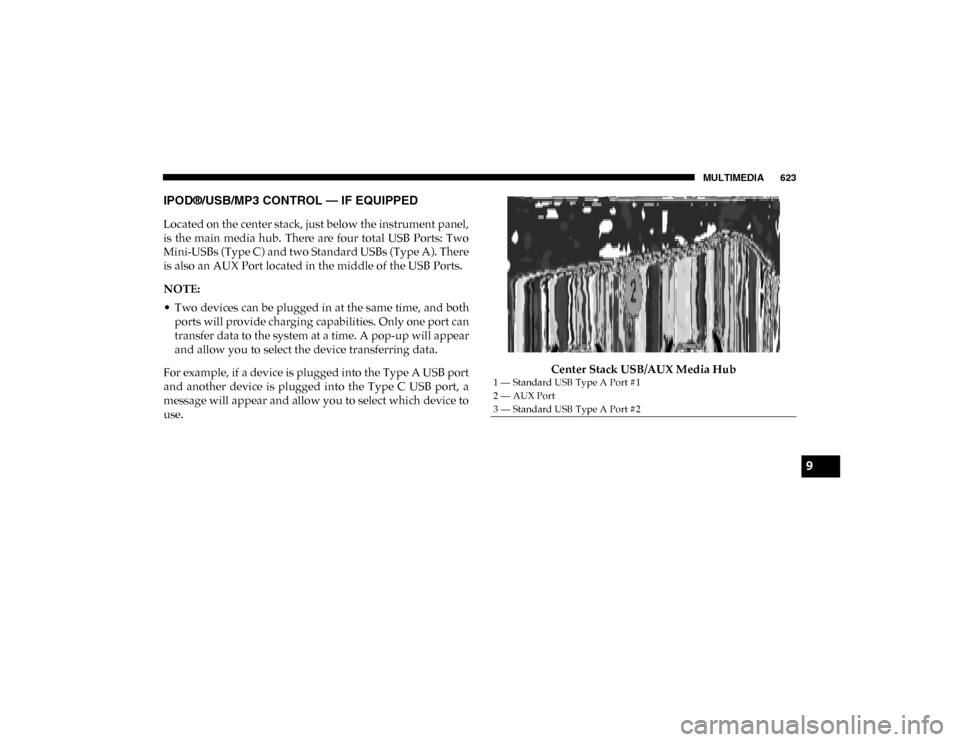
Located on the center stack, just below the instrument panel,
is the main media hub. There are four total USB Ports: Two
Mini-USBs (Type C) and two Standard USBs (Type A). There
is also an AUX Port located in the middle of the USB Ports.
NOTE:
• Two devices can be plugged in at the same time, and bothports will provide charging capabilities. Only one port can
transfer data to the system at a time. A pop-up will appear
and allow you to select the device transferring data.
For example, if a device is plugged into the Type A USB port
and another device is plugged into the Type C USB port, a
message will appear and allow you to select which device to
use. Center Stack USB/AUX Media Hub
1 — Standard USB Type A Port #1
2 — AUX Port
3 — Standard USB Type A Port #2
9
2020_DT_1500_OM_US.book Page 623
Page 626 of 674
624 MULTIMEDIA
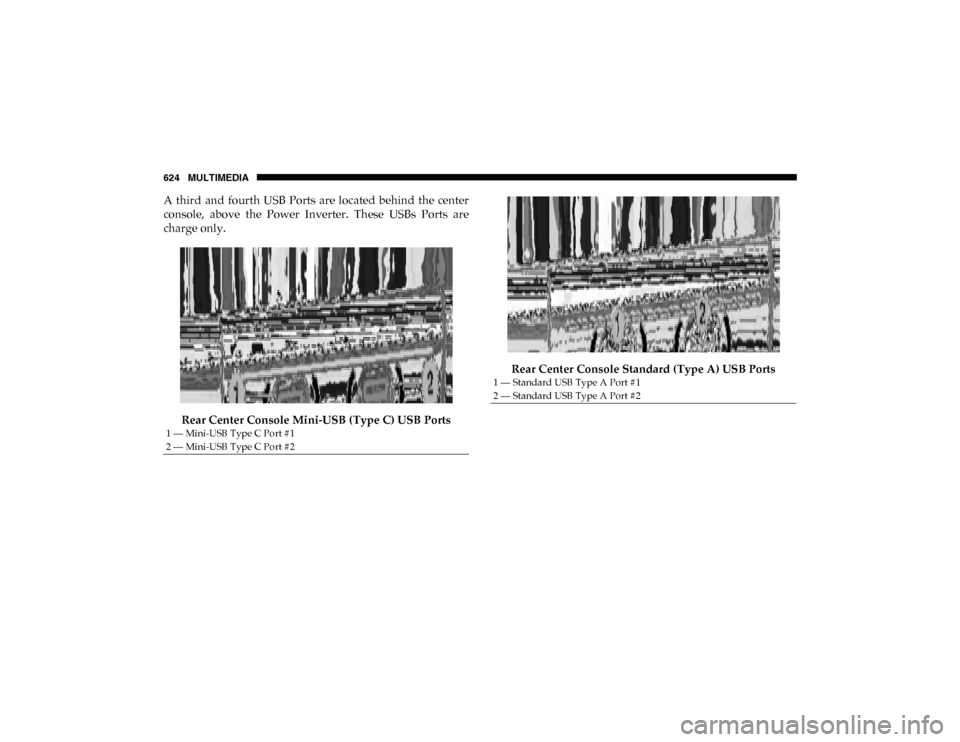
A third and fourth USB Ports are located behind the center
console, above the Power Inverter. These USBs Ports are
charge only.Rear Center Console Mini-USB (Type C) USB Ports Rear Center Console Standard (Type A) USB Ports
1 — Mini-USB Type C Port #1
2 — Mini-USB Type C Port #2
1 — Standard USB Type A Port #1
2 — Standard USB Type A Port #2
2020_DT_1500_OM_US.book Page 624
Page 627 of 674
MULTIMEDIA 625
Different scenarios are shown below when a non-phone
device is plugged into the smaller and larger USB Ports and
when a phone device is plugged into the smaller and larger
USB Ports:Device Plugged In Message Screen Plugging in a phone or another USB device may cause the
connection to a previous device to be lost.
If equipped, your vehicle may also contain a USB Port
located on the top tray of the vehicles center console.
Center Console USB Port
9
2020_DT_1500_OM_US.book Page 625