AC system Ram 1500 2020 Owner's Manual
[x] Cancel search | Manufacturer: RAM, Model Year: 2020, Model line: 1500, Model: Ram 1500 2020Pages: 674, PDF Size: 32.69 MB
Page 633 of 674
MULTIMEDIA 631
Radio
Use your voice to quickly get to the AM, FM or SiriusXM®
Satellite Radio stations you would like to hear. (Subscription
or included SiriusXM® Satellite Radio trial required.)
Push the VR button . After the beep, say:
• “Tune to ninety-five-point-five FM”.
• “Tune to Satellite Channel Hits 1”.
TIP:
At any time, if you are not sure of what to say or want to
learn a Voice Command, push the VR button and say
“Help .” The system provides you with a list of commands.
Uconnect 3 Radio Uconnect 4/4C/4C NAV With 8.4-inch Display
9
2020_DT_1500_OM_US.book Page 631
Page 636 of 674

634 MULTIMEDIA
Uconnect 4C NAV With 12-inch Display Media
Phone
Making and answering hands-free phone calls is easy with
Uconnect. When the Phonebook button is illuminated on
your touchscreen, your system is ready. Check Uconnect-
Phone.com for mobile phone compatibility and pairing
instructions.
Push the Phone button . After the beep, say one of the
following commands:
• “Call John Smith”
• “Dial 123-456-7890 and follow the system prompts”
• “Redial (call previous outgoing phone number)”
• “Call back (call previous incoming phone number)”
TIP:
When providing a Voice Command, push the Phone button and say “ Call,” then pronounce the name exactly as it
appears in your phone book. When a contact has multiple
phone numbers, you can say “ Call John Smith work.”
2020_DT_1500_OM_US.book Page 634
Page 638 of 674
636 MULTIMEDIA
Uconnect 4C NAV With 12-inch Display Phone
Voice Text Reply
Uconnect announces incoming text messages. Push the VR
button or Phone button (if enabled) and say “ Listen.”
(Must have compatible mobile phone paired to Uconnect
system.)
1. Once an incoming text message is read to you, push the
VR button or Phone button (if enabled). After the
beep, say: “ Reply.”
2. Listen to the Uconnect prompts. After the beep, repeat one of the pre-defined messages and follow the system
prompts.
PRE-DEFINED VOICE TEXT REPLY RESPONSES
Yes. Stuck in traffic. See you later.No. Start without me. I’ll be late.
Okay. Where are you? I will be 5
Call me. Are you there yet?
I’ll call you later. I need directions. See you in 5
I’m on my way.
Can’t talk right
now.
I’m lost. Thanks.
2020_DT_1500_OM_US.book Page 636
Page 639 of 674
MULTIMEDIA 637
NOTE:
Only use the numbering listed, otherwise the system does
not transpose the message.
TIP:
Your mobile phone must have the full implementation of the
Message Access Profile (MAP) to take advantage of this
feature. For details about MAP, visit UconnectPhone.com.
Apple® iPhone® iOS 6 or later supports reading incoming
text messages only. To enable this feature on your Apple®
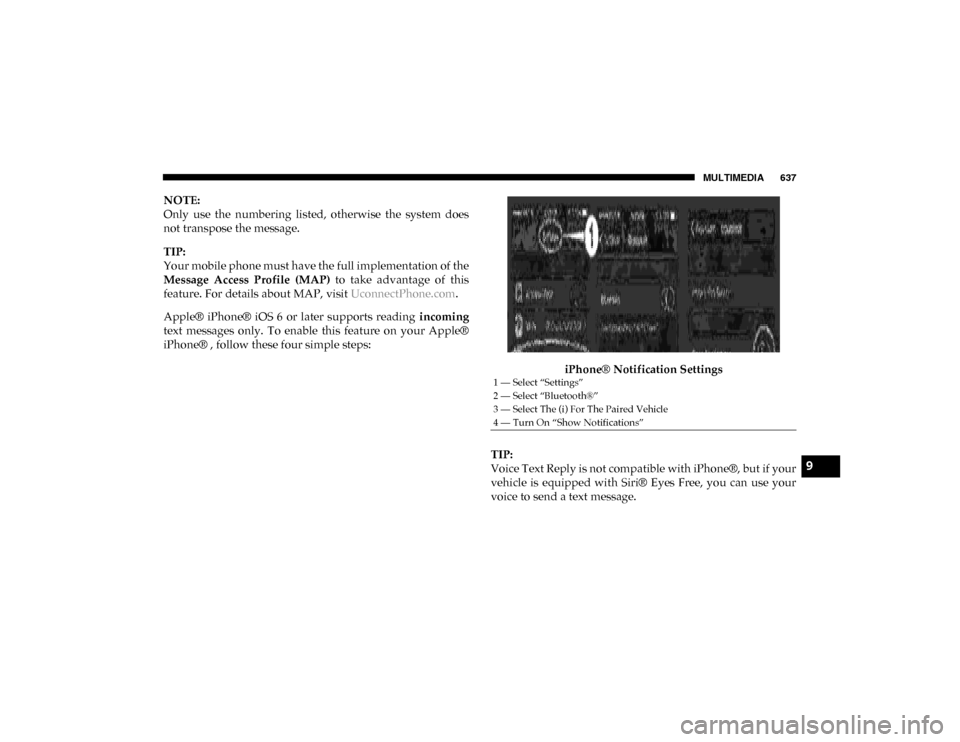
iPhone® , follow these four simple steps:
iPhone® Notification Settings
TIP:
Voice Text Reply is not compatible with iPhone®, but if your
vehicle is equipped with Siri® Eyes Free, you can use your
voice to send a text message.
1 — Select “Settings”
2 — Select “Bluetooth®”
3 — Select The (i) For The Paired Vehicle
4 — Turn On “Show Notifications”
9
2020_DT_1500_OM_US.book Page 637
Page 641 of 674
MULTIMEDIA 639
Uconnect 4C NAV With 12-inch Display Climate
Navigation
The Uconnect navigation feature helps you save time and
become more productive when you know exactly how to get
to where you want to go.
1. To enter a destination, push the VR button . After thebeep, say: “ Find address 800 Chrysler Drive Auburn
Hills, Michigan.”
2. Then follow the system prompts.
TIP:
To start a POI search, push the VR button . After the beep,
say: “ Find nearest coffee shop.”
9
2020_DT_1500_OM_US.book Page 639
Page 645 of 674
MULTIMEDIA 643
To use the Uconnect App:
• Download the Uconnect App to your mobile device.
• Press the Info button on the navigation bar at the bottom ofthe app for Vehicle Info.
• Press the Remote button on the navigation bar at the bottom of the app to Lock/Unlock, Remote Start, and acti -
vate your horn and lights remotely.
• Press the Location button on the navigation bar at the bottom of the app to bring up a map to locate your vehicle
or send a location to your vehicle’s navigation system.
• Press the Settings button in the upper left corner of the app to bring up app settings and access the Assist Call Centers.
NOTE:
For further information, please visit DriveUconnect.com (US
Residents) or DriveUconnect.ca (Canadian Residents).SiriusXM® Travel Link (4C NAV)
Need to find a gas station, view local movie listings, check a
sports score or the 5 - day weather forecast? SiriusXM®
Travel Link is a suite of services that brings a wealth of infor -
mation right to your Uconnect 4C NAV system.
Push the VR button . After the beep, say one of the
following commands:
• “Show fuel prices ”.
• “Show 5-day weather forecast ”.
• “Show extended weather ”.
TIP:
Traffic alerts are not accessible with Voice Command.
9
2020_DT_1500_OM_US.book Page 643
Page 647 of 674
MULTIMEDIA 645
Siri® Eyes Free — If Equipped
Siri lets you use your voice to send text messages, select
media, place phone calls and much more. Siri uses your
natural language to understand what you mean and
responds back to confirm your requests. The system is
designed to keep your eyes on the road and your hands on
the wheel by letting Siri help you perform useful tasks.
To enable Siri, push and hold, then release the Uconnect
Voice Recognition (VR) button on the steering wheel. After
you hear a double beep you can ask Siri to play podcasts and
music, get directions, read text messages and many other
useful requests.Uconnect 4C/4C NAV With 8.4-inch Siri® Eyes Free Available
9
2020_DT_1500_OM_US.book Page 645
Page 649 of 674

MULTIMEDIA 647
Android Auto™ — If Equipped
NOTE:
Feature availability depends on your carrier and mobile
phone manufacturer. Some Android Auto™ features may or
may not be available in every region and/or language.
Android Auto™ allows you to use your voice to interact with
Android’s™ best-in-class speech technology through your
vehicle’s voice recognition system, and use your smart-
phone’s data plan to project your Android powered smart -
phone and a number of its apps onto your Uconnect
touchscreen. Connect your Android™ 5.0 (Lollipop), or
higher, to one of the media USB ports, using the
factory-provided USB cable, and press the new Android
Auto™ icon that replaces your “Phone” icon on the main
menu bar to begin Android Auto™. Push and hold the VR
button on the steering wheel, or press and hold the “Micro -
phone” icon within Android Auto™, to activate Android’s™
VR, which recognizes natural voice commands, to use a list
of your smartphone’s features:
• Maps
• Music • Phone
• Text Messages
• Additional Apps
Uconnect 4/4C NAV With 8.4-inch Display Android Auto™
9
2020_DT_1500_OM_US.book Page 647
Page 650 of 674
648 MULTIMEDIA
Uconnect 4C NAV With 12-inch Display Android Auto™Refer to your Uconnect Owner’s Manual Supplement for
further information.
NOTE:
Requires compatible smartphone running Android™ 5.0
(Lollipop) or higher and download app on Google Play.
Android™, Android Auto™, and Google Play are trade
-
marks of Google Inc.
Apple CarPlay® — If Equipped
NOTE:
Feature availability depends on your carrier and mobile
phone manufacturer. Some Apple CarPlay® features may or
may not be available in every region and/or language.
Apple CarPlay® allows you to use your voice to interact
with Siri through your vehicle’s voice recognition system,
and use your smartphone’s data plan to project your
iPhone® and a number of its apps onto your Uconnect touch -
screen. Connect your iPhone® 5, or higher, to one of the
media USB ports, using the factory-provided Lightning
cable, and press the new Apple CarPlay® icon that replaces
your “Phone” icon on the main menu bar to begin Apple
CarPlay® . Press and hold the VR button on the steering
2020_DT_1500_OM_US.book Page 648
Page 653 of 674

MULTIMEDIA 651
Additional Information
© 2019 FCA US LLC. All rights reserved. Mopar and Ucon-
nect are registered trademarks and Mopar Owner Connect is
a trademark of FCA US LLC. Android™ is a trademark of
Google Inc. SiriusXM® and all related marks and logos are
trademarks of SiriusXM® Radio Inc.
Uconnect System Support:
• US residents visit www.DriveUconnect.com or call:
1-877-855-8400 (24 hours a day 7 days a week)
• Canadian residents visit www.DriveUconnect.ca or call:
1-800-465-2001 (English) or 1-800-387-9983 (French) SiriusXM Guardian™ services support:
• US residents visit
www.siriusxm.com/guardian or call:
1-844-796-4827
• Canadian residents visit www.siriusxm.ca/guardian or
call: 1-877-324-9091
9
2020_DT_1500_OM_US.book Page 651