USB RAM 1500 2021 User Guide
[x] Cancel search | Manufacturer: RAM, Model Year: 2021, Model line: 1500, Model: RAM 1500 2021Pages: 496, PDF Size: 20.89 MB
Page 261 of 496

MULTIMEDIA259
UCONNECT MODES
STEERING WHEEL AUDIO CONTROLS
The remote sound system controls are located
on the rear surface of the steering wheel at the
three and nine o’clock positions.
Remote Sound System Controls
The right-hand control is a rocker-type switch
with a push button in the center and controls
the volume and mode of the sound system.
Pushing the top of the rocker switch will
increase the volume, and pushing the bottom of
the rocker switch will decrease the volume.
Pushing the center button will make the radio
switch between the various modes available
(AM/FM/SXM or Media, etc.). The left-hand control is a rocker-type switch with
a push button in the center. The function of the
left-hand control is different depending on
which mode you are in.
The following describes the left-hand control
operation in each mode:
Radio Operation
Pushing the top of the switch will Seek Up for
the next available station and pushing the
bottom of the switch will Seek Down for the next
available station.
The button located in the center of the left-hand
control will tune to the next preset station that
you have programmed in the radio presets.
Media Mode
Pushing the top of the switch skips to the next
track on the selected media (AUX/USB/
Bluetooth®). Pushing the switch up twice will go
forward two tracks. Pushing the bottom switch
goes to the beginning of the current track, or the
beginning of the previous track if it is within
eight seconds after the current track begins to
play. Double pressing the bottom button switch
will skip to the previous track if it is after eight
seconds into the current track.
RADIO MODE
Radio Controls
Uconnect 3 With 5-inch Display
1 — Preset Radio Stations
2 — All Preset Radio Stations
3 — Seek Up
4 — Audio Settings
5 — Station Info
6 — Tune
7 — Radio Band (AM/FM)
8 — Seek Down
5
21_DT_OM_EN_USC_t.book Page 259
Page 269 of 496
MULTIMEDIA267
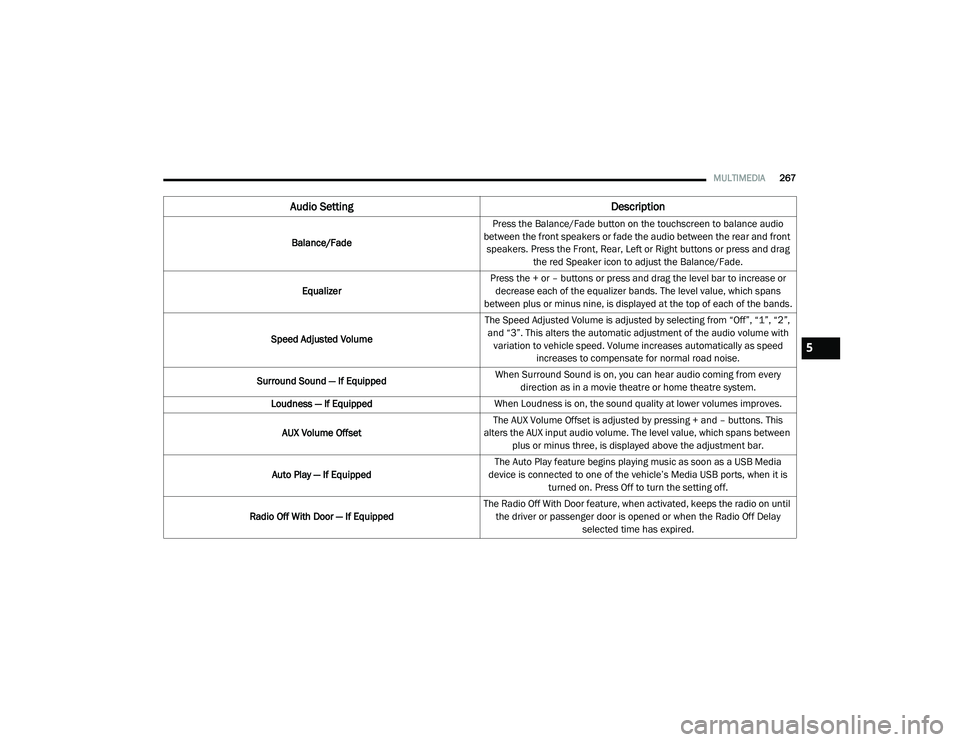
Audio Setting Description
Balance/FadePress the Balance/Fade button on the touchscreen to balance audio
between the front speakers or fade the audio between the rear and front speakers. Press the Front, Rear, Left or Right buttons or press and drag the red Speaker icon to adjust the Balance/Fade.
Equalizer Press the + or – buttons or press and drag the level bar to increase or
decrease each of the equalizer bands. The level value, which spans
between plus or minus nine, is displayed at the top of each of the bands.
Speed Adjusted Volume The Speed Adjusted Volume is adjusted by selecting from “Off”, “1”, “2”,
and “3”. This alters the automatic adjustment of the audio volume with variation to vehicle speed. Volume increases automatically as speed increases to compensate for normal road noise.
Surround Sound — If Equipped When Surround Sound is on, you can hear audio coming from every
direction as in a movie theatre or home theatre system.
Loudness — If Equipped When Loudness is on, the sound quality at lower volumes improves.
AUX Volume Offset The AUX Volume Offset is adjusted by pressing + and – buttons. This
alters the AUX input audio volume. The level value, which spans between plus or minus three, is displayed above the adjustment bar.
Auto Play — If Equipped The Auto Play feature begins playing music as soon as a USB Media
device is connected to one of the vehicle’s Media USB ports, when it is turned on. Press Off to turn the setting off.
Radio Off With Door — If Equipped The Radio Off With Door feature, when activated, keeps the radio on until
the driver or passenger door is opened or when the Radio Off Delay selected time has expired.
5
21_DT_OM_EN_USC_t.book Page 267
Page 270 of 496

268MULTIMEDIA
MEDIA MODE
Operating Media Mode
Uconnect 3 With 5-inch Display Operating Media Mode
Media Mode is entered by pushing the MEDIA
button located on the faceplate.
Audio Source Selection
Once in Media Mode, press the Source or
Source Select button on the touchscreen and the desired mode button on the touchscreen.
USB, AUX, and Bluetooth® are the Media
sources available. When available, you can
select the Browse button on the touchscreen to
be given these options:
Now Playing
Artists
Albums
Genres
Songs
Playlists
Folders
For the Uconnect 3 With 5-inch Display, Media
Mode is entered by pushing the Media button
located on the faceplate.
Types of Media Modes
USB Mode
Overview
USB Mode is entered by either inserting a USB
device into the USB Port, or by pressing the
Media button on the faceplate and then
selecting the USB button. On the Uconnect 3 with 5-inch Display, if you
insert a USB device with the ignition ON, the unit
will switch to USB Mode and begin to play. The
display will show the track number and index
time in minutes and seconds. Play will begin at
the start of track 1.
Bluetooth® Mode
Overview
Bluetooth® Streaming Audio or Bluetooth®
Mode is entered by pairing a Bluetooth®
device, containing music, to the Uconnect
system.
Before proceeding, the Bluetooth® device must
be paired to the Uconnect Phone to
communicate with the Uconnect system.
On the Uconnect 3 with 5-inch Display, push the
Media button located on the faceplate. Once in
Media Mode, press the Source button on the
touchscreen and select the Bluetooth® button
Ú
page 271.
To access Bluetooth® Mode, press the
Bluetooth® button on the left side of the
touchscreen or under the Source Select/Select
Source button (if equipped).
1 — Seek Down
2 — Seek Up
3 — Additional Functions
4 — Info
5 — Pause/Play
6 — Source
7 — Browse
21_DT_OM_EN_USC_t.book Page 268
Page 271 of 496

MULTIMEDIA269
AUX Mode
Overview
Auxiliary Mode (AUX) is entered by inserting an
AUX device using a cable with a 3.5 mm audio
jack into the AUX port or pushing the Media
button on the faceplate and then selecting the
Source button and then the AUX button.
To insert an Auxiliary device, gently insert the
Auxiliary device cable into the AUX Port. If you
insert an Auxiliary device with the ignition and
the radio on, the unit will switch to AUX Mode
and begin to play.
Controlling The Auxiliary Device
The control of the Auxiliary device (e.g.,
selecting playlists, play, fast forward, etc.)
cannot be provided by the radio; use the device
controls instead. Adjust the volume with the
Volume button, Volume/Mute rotary knob, or
the On/Off rotary knob, or with the volume of
the attached device.
NOTE:
The radio unit is acting as the amplifier for audio
output from the Auxiliary device. Therefore, if
the volume control on the Auxiliary device is set
too low, there will be insufficient audio signal for
the radio unit to play the music on the device. Seek Up
/ Seek Down
In USB Mode, press the Seek Up button on the
touchscreen for the next selection on the USB
device. Press and release the Seek Down
button on the touchscreen to return to the
beginning of the current selection, or to return
to the beginning of the previous selection if the
USB device is within the first three seconds of
the current selection.
In Bluetooth® Mode, press and release the
Seek Up button on the touchscreen for the next
selection on the Bluetooth® device. Press and
release the Seek Down button on the
touchscreen to return to the beginning of the
current selection, or return to the beginning of
the previous selection if the Bluetooth® device
is within the first second of the current
selection.
Browse
In USB Mode, press the Browse button on the
touchscreen to display the browse window. In
USB Mode, the left side of the browse window
displays a list of ways you can browse through
the contents of the USB device. If supported by
the device, you can browse by Folder, Artist,
Playlist, Album, Song, etc. Press the desired button on the touchscreen on the left side of the
screen. The center of the browse window shows
items and its sub-functions, which can be
scrolled through by pressing the Up and Down
buttons to the right. The Tune/Scroll knob can
also be used to scroll.
On the Uconnect 3 With 5-inch Display, rotate
the Browse button on the touchscreen to scroll
through and select a desired track on the
device. Press the Exit button on the
touchscreen if you wish to cancel the Browse
function.
Media Mode
In USB Mode, press the Media button on the
touchscreen to select the desired audio source:
USB.
In Bluetooth® Mode, press the Media button on
the touchscreen to select the desired audio
source: Bluetooth®.
In AUX Mode, press the Media button on the
touchscreen to select the desired audio source:
AUX.
5
21_DT_OM_EN_USC_t.book Page 269
Page 272 of 496

270MULTIMEDIA
Repeat
In USB Mode, press the Repeat button on the
touchscreen to toggle the repeat functionality.
The Repeat button on the touchscreen is
highlighted when active. The Radio will continue
to play the current track, repeatedly, as long as
the repeat is active. Press the Repeat button
again to enter Repeat All. The radio will continue
to play all the current tracks, repeatedly, as long
as the repeat function is active. To cancel
Repeat, press the Repeat button a third time.
Shuffle
In USB Mode, press the Shuffle button on the
touchscreen to play the selections on the USB
device in random order to provide an interesting
change of pace. Press the Shuffle button on the
touchscreen a second time to turn this feature
off.
Audio
Audio settings can be accessed by pressing the
Audio button Ú page 259. Info
In both Disc and USB Modes, press the Info
button on the touchscreen to display the
current track information. Press the Info or X
button on the touchscreen a second time to
cancel this feature.
Tracks
In both Disc and USB Modes, press the Tracks
button on the touchscreen to display a pop-up
with the Song List. The song currently playing is
indicated by an arrow and lines above and
below the song title. When in the Tracks List
screen you can rotate the Tune/Scroll knob to
highlight a track (indicated by the line above
and below the track name) and then push the
Enter/Browse knob to start playing that track.
In Bluetooth® Mode, if the Bluetooth® device
supports this feature, press the Tracks button
on the touchscreen to display a pop-up with the
Song List. The currently playing song is
indicated by a red arrow and lines above and
below the song title.
Pressing the Tracks button on the touchscreen
while the pop-up is displayed will close the
pop-up. Media Voice Commands
Uconnect offers connections via USB,
Bluetooth®, and auxiliary (AUX) ports. Voice
operation is only available for connected USB
and AUX devices.
Push the VR button located on the steering
wheel. After the beep, say one of the following
commands and follow the prompts to switch
your media source or choose an artist.
“
Change source to Bluetooth®”
“Change source to AUX”
“Change source to USB”
“Play artist Beethoven”; “ Play album
Greatest Hits”; “ Play song Moonlight
Sonata”; “ Play genre Classical”
Did You Know: Press the Browse button on the
touchscreen to see all of the music on your USB
device. Your Voice Command must match
exactly how the artist, album, song, and genre
information is displayed.
21_DT_OM_EN_USC_t.book Page 270
Page 436 of 496
434SERVICING AND MAINTENANCE
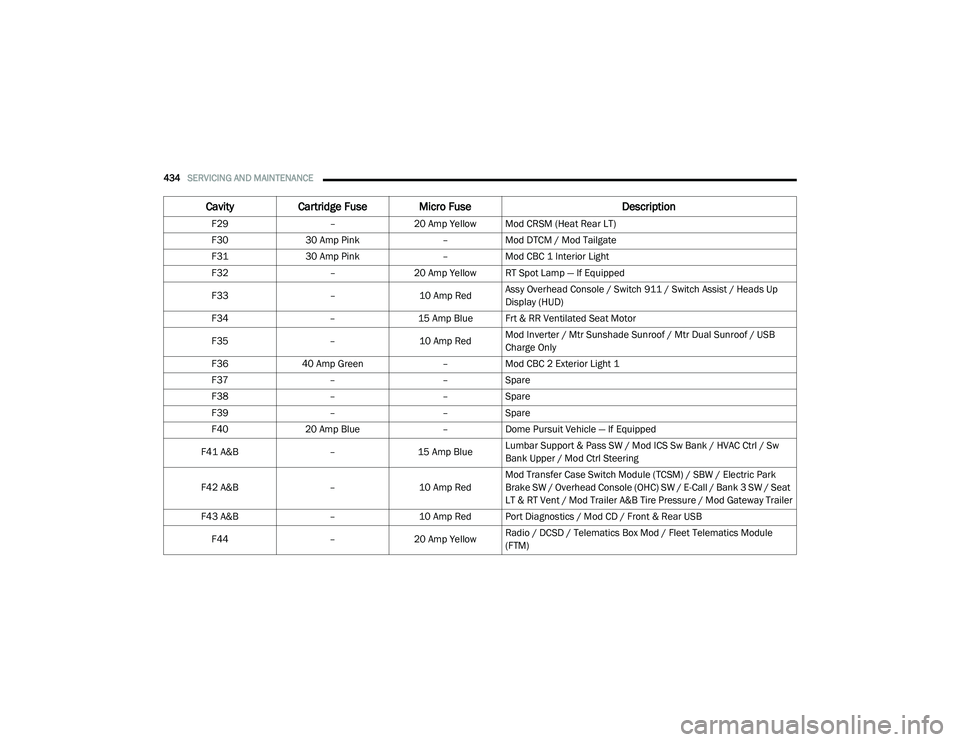
F29–20 Amp Yellow Mod CRSM (Heat Rear LT)
F30 30 Amp Pink –Mod DTCM / Mod Tailgate
F31 30 Amp Pink –Mod CBC 1 Interior Light
F32 –20 Amp Yellow RT Spot Lamp — If Equipped
F33 –10 Amp RedAssy Overhead Console / Switch 911 / Switch Assist / Heads Up
Display (HUD)
F34 –15 Amp Blue Frt & RR Ventilated Seat Motor
F35 –10 Amp RedMod Inverter / Mtr Sunshade Sunroof / Mtr Dual Sunroof / USB
Charge Only
F36 40 Amp Green –Mod CBC 2 Exterior Light 1
F37 ––Spare
F38 ––Spare
F39 ––Spare
F40 20 Amp Blue –Dome Pursuit Vehicle — If Equipped
F41 A&B –15 Amp BlueLumbar Support & Pass SW / Mod ICS Sw Bank / HVAC Ctrl / Sw
Bank Upper / Mod Ctrl Steering
F42 A&B –10 Amp RedMod Transfer Case Switch Module (TCSM) / SBW / Electric Park
Brake SW / Overhead Console (OHC) SW / E-Call / Bank 3 SW / Seat
LT & RT Vent / Mod Trailer A&B Tire Pressure / Mod Gateway Trailer
F43 A&B –10 Amp Red Port Diagnostics / Mod CD / Front & Rear USB
F44 –20 Amp Yellow Radio / DCSD / Telematics Box Mod / Fleet Telematics Module
(FTM)
Cavity
Cartridge Fuse Micro Fuse Description
21_DT_OM_EN_USC_t.book Page 434
Page 437 of 496
SERVICING AND MAINTENANCE435
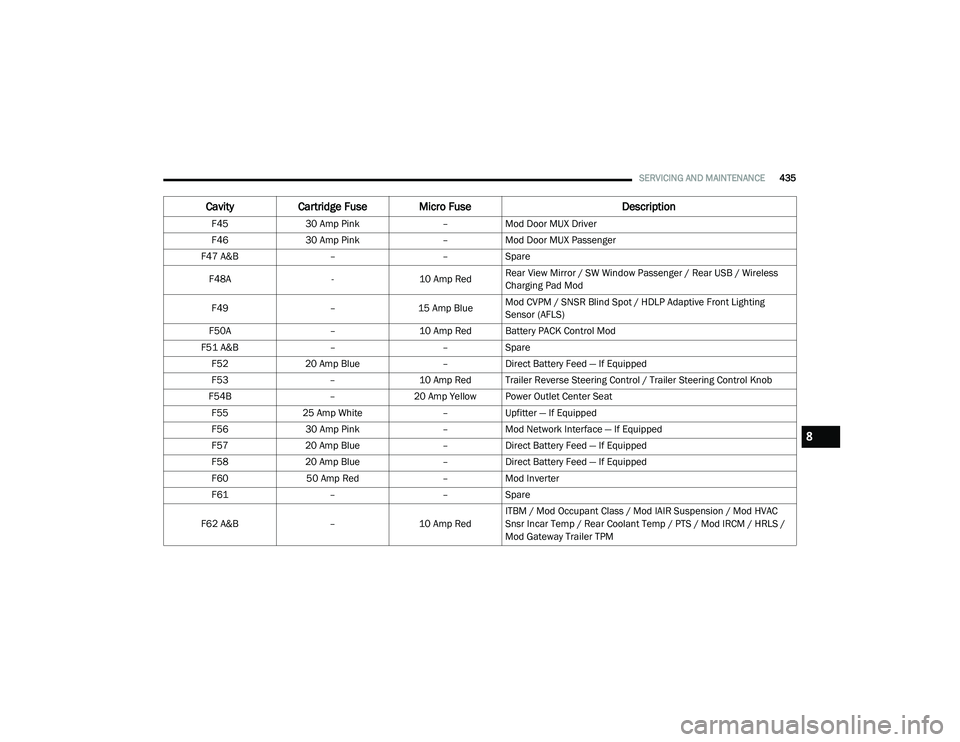
F4530 Amp Pink –Mod Door MUX Driver
F46 30 Amp Pink –Mod Door MUX Passenger
F47 A&B ––Spare
F48A -10 Amp RedRear View Mirror / SW Window Passenger / Rear USB / Wireless
Charging Pad Mod
F49 –15 Amp BlueMod CVPM / SNSR Blind Spot / HDLP Adaptive Front Lighting
Sensor (AFLS)
F50A –10 Amp Red Battery PACK Control Mod
F51 A&B ––Spare
F52 20 Amp Blue –Direct Battery Feed — If Equipped
F53 –10 Amp Red Trailer Reverse Steering Control / Trailer Steering Control Knob
F54B –20 Amp Yellow Power Outlet Center Seat
F55 25 Amp White –Upfitter — If Equipped
F56 30 Amp Pink –Mod Network Interface — If Equipped
F57 20 Amp Blue –Direct Battery Feed — If Equipped
F58 20 Amp Blue –Direct Battery Feed — If Equipped
F60 50 Amp Red –Mod Inverter
F61 ––Spare
F62 A&B –10 Amp RedITBM / Mod Occupant Class / Mod IAIR Suspension / Mod HVAC
Snsr Incar Temp / Rear Coolant Temp / PTS / Mod IRCM / HRLS /
Mod Gateway Trailer TPM
Cavity
Cartridge Fuse Micro Fuse Description
8
21_DT_OM_EN_USC_t.book Page 435
Page 494 of 496

492
Pair (Link) Uconnect Phone To A Mobile Phone
................................................... 273Phonebook Download............................... 275Place/Retrieve A Call From Hold............... 278Power-Up................................................... 281Recent Calls.............................................. 277Redial........................................................ 279To Remove A Favorite............................... 276Toggling Between Calls............................. 278Touch-Tone Number Entry......................... 277Transfer Call To And From Mobile Phone.. 279Voice Command........................................ 279Uconnect SettingsCustomer Programmable Features............. 28Passive Entry Programming......................... 28Uconnect System........................................... 256Uniform Tire Quality Grades........................... 460Unleaded Gasoline........................................ 468Untwisting Procedure, Seat Belt.................... 339USB................................................................. 72Utility Rails, Rear Cargo Area........................... 91
V
Vehicle Finder...................................... 295, 303Vehicle Health Alert...................................... 298Vehicle Health Report................................... 297Vehicle Loading................................... 213, 447Vehicle Maintenance.................................... 409Vehicle Modifications/Alterations.................... 11Vehicle Notifications..................................... 298Vehicle Storage.......................................66, 461Voice Command............................................... 41Voice Recognition System (VR)........................ 41
W
Warning Lights (Instrument Cluster
Descriptions)
................................................. 131Warnings And Cautions.................................... 11Warranty Information.................................... 481Washers, Windshield.................................... 408Washing Vehicle........................................... 462WaterDriving Through........................................ 234
Water SeparatorDiesel Fuel................................................ 412Wheel And Wheel Tire Care........................... 456Wheel And Wheel Tire Trim........................... 456Wi-fi............................................................... 296Wind Buffeting.................................................80Window Fogging...............................................66Windows..........................................................77Power...........................................................77Rear Sliding.................................................79Reset Auto-Up..............................................78Windshield Defroster.................................... 369Windshield Washers.............................. 58, 408Fluid................................................... 58, 408Windshield Wiper Blades.............................. 418Windshield Wipers...........................................58Wipers Blade Replacement........................... 418Wipers, Rain Sensitive.....................................59Wireless Charging Pad.....................................77
21_DT_OM_EN_USC_t.book Page 492