center console RAM 1500 2021 User Guide
[x] Cancel search | Manufacturer: RAM, Model Year: 2021, Model line: 1500, Model: RAM 1500 2021Pages: 496, PDF Size: 20.89 MB
Page 81 of 496
GETTING TO KNOW YOUR VEHICLE79
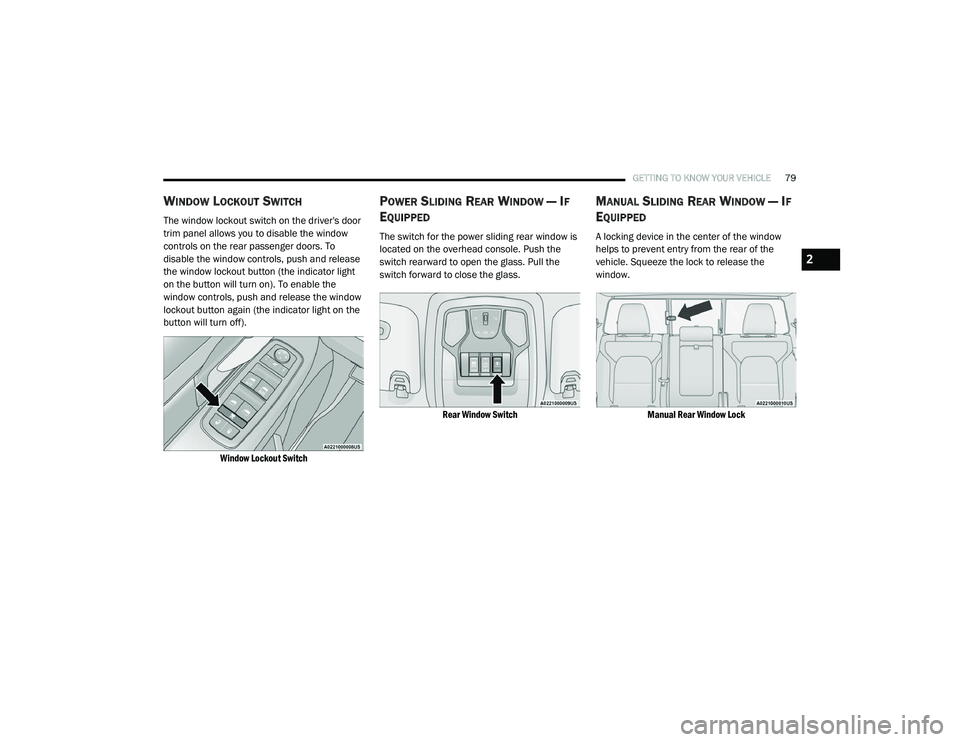
WINDOW LOCKOUT SWITCH
The window lockout switch on the driver's door
trim panel allows you to disable the window
controls on the rear passenger doors. To
disable the window controls, push and release
the window lockout button (the indicator light
on the button will turn on). To enable the
window controls, push and release the window
lockout button again (the indicator light on the
button will turn off).
Window Lockout Switch
POWER SLIDING REAR WINDOW — IF
E
QUIPPED
The switch for the power sliding rear window is
located on the overhead console. Push the
switch rearward to open the glass. Pull the
switch forward to close the glass.
Rear Window Switch
MANUAL SLIDING REAR WINDOW — IF
E
QUIPPED
A locking device in the center of the window
helps to prevent entry from the rear of the
vehicle. Squeeze the lock to release the
window.
Manual Rear Window Lock
2
21_DT_OM_EN_USC_t.book Page 79
Page 87 of 496
GETTING TO KNOW YOUR VEHICLE85
TO CLOSE THE HOOD
Hoods equipped with gas props are closed from
the point where the props no longer hold the
hood open.
TAILGATE
OPENING
The tailgate may be opened by pushing the
tailgate release pad located on the tailgate
door.
The tailgate damper strut will lower the tailgate
to the open position (if equipped).
Electronic Tailgate Release — If Equipped
The key fob may be equipped with an
electronic release feature for the
tailgate, allowing hands-free tailgate
opening. To activate, push and
release the Tailgate Release button on the key
fob twice within five seconds. The tailgate door
will unlatch, and slowly lower into the open
position.
If equipped, a button on the center overhead
console inside the vehicle can be used to
release the tailgate. An indicator light may also
signal when the tailgate is open.
For the tailgate to lower, the vehicle must be
stationary and in PARK or NEUTRAL. NOTE:
The optional Tri-Fold Tonneau Cover
Úpage 97
may prevent electronic tailgate release. The
Tonneau Cover must be removed or folded up
before releasing the tailgate.
CLOSING
To close the tailgate, push it upward until both
sides are securely latched.
LOCKING TAILGATE
The tailgate can be locked using the key fob
lock button.
MULTIFUNCTION TAILGATE — IF
E
QUIPPED
The 60/40 multifunction tailgate has two swing
doors to allow for closer access to the pickup
box with the doors open.
Opening
The tailgate must be latched closed to open the
swing doors. Push the paddle down, then pull
the release handle beneath the tailgate
lowering handle. This opens the 60 split door.
WARNING!
Be sure the hood is fully latched before
driving your vehicle. If the hood is not fully
latched, it could open when the vehicle is in
motion and block your vision. Failure to follow
this warning could result in serious injury or
death.
CAUTION!
To prevent possible damage, do not slam the
hood to close it. Use a firm downward push at
the front center of the hood to ensure that
both latches engage.
2
21_DT_OM_EN_USC_t.book Page 85
Page 284 of 496
282MULTIMEDIA
CONNECTED VEHICLE SERVICES — IF
EQUIPPED
IS MY VEHICLE CONNECTED?
Vehicles with an Assist and an SOS button are
connected vehicles. These buttons will be
located on either the rearview mirror or
overhead console, depending on the vehicle. If
these buttons are present in your vehicle, you
have a connected radio and can take
advantage of the many connected vehicle
features.
For further information about the ASSIST and
SOS buttons Ú page 373.
INTRODUCTION TO CONNECTED VEHICLE
S
ERVICES
One of the many benefits of your vehicle’s
Uconnect system is that you can now take
advantage of SiriusXM Guardian™ connected
vehicle services. To unlock the full potential of
SiriusXM Guardian™ in your vehicle, you first
need to activate SiriusXM Guardian™ services. NOTE:
SiriusXM Guardian™ involves the collection,
transmission and use of data from your vehicle
Ú
page 306.
SiriusXM Guardian™ Contact Information
And Business Hours
SiriusXM Guardian™/Care
US residents visit: https://www.driveucon -
nect.com/sirius-xm-guardian.html or call
1-844-796-4827
Canadian residents visit: https://www.siri -
usxm.ca/guardian-v1/ or call
1-877-324-9091 Uconnect Phone Customer Support
UconnectPhone.com or for US residents call:
1-877-855-8400.
Canadian residents call: 1-800-465-2001
(English) or call: 1-800-387-9983 (French).
Business Hours
Central Time
Monday through Friday – 7:00 am to 10:00 pm
Saturday – 8:00 am to 9:00 pm
What Is SiriusXM Guardian™?
SiriusXM Guardian™ uses an embedded device
in the Uconnect system installed in your vehicle,
which receives GPS signals and communicates
with the SiriusXM Guardian™ Customer Care
center via wireless and landline
communications networks. Depending on the
type of device in your vehicle, some SiriusXM
Guardian™ services require an operable LTE
(voice/data) or 3G or 4G (data) network
compatible with your device. SiriusXM
Guardian™ is available only on equipped
vehicles purchased within the continental
United States, Alaska, Hawaii, Puerto Rico and
Canada.
WARNING!
ALWAYS obey traffic laws and pay attention to
the road. ALWAYS drive safely with your hands
on the steering wheel. You have full
responsibility and assume all risks related to
the use of the features and applications in
this vehicle. Only use the features and
applications when it is safe to do so. Failure
to comply may result in an accident involving
serious injury or death.
21_DT_OM_EN_USC_t.book Page 282
Page 285 of 496
MULTIMEDIA283
NOTE:
Certain SiriusXM Guardian™ services are
dependent upon an operative telematics
device, a cellular connection, navigation map
data, and GPS satellite signal reception, which
can limit the ability to reach the response
center or reach emergency support.
Not all features of SiriusXM Guardian™ are
available everywhere at all times, particularly
in remote or enclosed areas.
Other factors outside the control of SiriusXM
Guardian™ that may limit or prevent service
delivery are hills, structures, buildings,
tunnels, weather, damage to the electrical
system or other important parts of your
vehicle, network congestion, civil distur-
bances, actions of third parties or the govern -
ment, Internet failure, and/or the physical
location of your vehicle, such as in an under -
ground parking structure or under a bridge.
Not all SiriusXM Guardian™ features are
available for all models.
SiriusXM Guardian™ provides:
The ability to remotely lock/unlock and remote
start your vehicle from virtually anywhere by
using the Uconnect App or your computer.
Send & Go capability with the Uconnect App.
Use the Uconnect App to easily search, map
and send your locations directly to your
Uconnect Navigation.
The ability to locate your vehicle, when you
forget where you parked, using the Vehicle
Finder function of the Uconnect App.
Before you drive, familiarize yourself with the
easy-to-use Uconnect system and SiriusXM
Guardian™ services.
The ASSIST and SOS Call Buttons On Your
Rearview Mirror Or Overhead Console
The ASSIST Button is used for contacting
Roadside Assistance, Vehicle Care, Uconnect
Care, and SiriusXM Guardian™ Customer Care.
The SOS Call button connects you directly to
SiriusXM Guardian™ Customer Care for
assistance in an emergency.
Activation
To unlock the full potential of SiriusXM
Guardian™ in your vehicle, you must activate
your SiriusXM Guardian™ services.
1. Press the Apps icon on the bottom of your in-vehicle touchscreen.
2. Select the Activate Services icon from your
list of apps.
3. For customers in the United States , select
“Customer Care” to speak with a SiriusXM
Guardian™ Customer Care agent who will
activate services in your vehicle, or select
“Enter Email” to activate on the web.
For customers in Canada , enter your email
address to activate services in your vehicle.
Included Trial Period For New Vehicles
Your new vehicle may come with an included
trial period for use of the SiriusXM Guardian™
services starting on the date of vehicle
purchase. To get started with your trial,
enrollment in SiriusXM Guardian™ is required.
The Uconnect 4C/4C NAV includes a trial* of
SiriusXM Guardian™ services from your date of
purchase.
* Included trial applies to new vehicles only.
Features And Packages
After the trial period, you must purchase a
subscription to continue your services by calling
a SiriusXM Guardian™ Customer Care agent.
5
21_DT_OM_EN_USC_t.book Page 283
Page 288 of 496
286MULTIMEDIA
Connected Services Status:
This statement will indicate your SiriusXM
Guardian™-equipped vehicle.
Remote Commands:
For vehicles with an active SiriusXM
Guardian™ subscription, press one of these
icons and enter your four-digit SiriusXM
Guardian™ Security PIN to remotely start (if
equipped), lock/unlock doors or sound the
horn and flash the lights.
Editing Your Notifications
Notifications are an important element of your
SiriusXM Guardian™ account. For example, any
time you use your remote services (such as
Remote Door Unlock), you can elect to receive a
text message, push notification, and/or E-mail
to notify you of the event. To set up the
notifications, please follow these instructions.
1. Log on to your Owner’s Account at
https://
www.mopar.com/en-us.html (US Residents)
and select “Dashboard”, or www.mopar.ca
(Canadian Residents), select “My Vehicle”
and then “Dashboard”.
2. Click the Edit/Edit Profile button. 3. Once there, select “SiriusXM Guardian™”
where can edit Notification Preferences.
4. You can enter a mobile phone and/or email address to notify you, and you can
customize the types of messages.
USING SIRIUSXM GUARDIAN™
SOS Call
Access To Emergency Services At The Push Of A
Button SiriusXM Guardian™ In-Vehicle Assistance
Features
With SiriusXM Guardian™, your vehicle has
onboard assistance features located on the
rearview mirror or overhead console designed
to enhance your driving experience if you should
ever need assistance or support.
Description
SOS Call offers a convenient way to get in contact
with a SiriusXM Guardian™ Customer Care agent
in the event of an emergency. When the
connection between the vehicle and the live
agent is made, your vehicle will automatically
transmit location information. In the event of a
minor collision, medical or any other emergency,
press the SOS button to be connected to a call
center agent who can send emergency
assistance to your vehicle’s location.
NOTE:
Certain SiriusXM Guardian™ services are
dependent on an operational Uconnect system,
cellular network availability that is compatible
with the device in your vehicle, and GPS
network availability. Not all features of SiriusXM
Guardian™ are available everywhere at all
times, particularly in remote or enclosed areas.
WARNING!
Some SiriusXM Guardian™ services,
including SOS Call and Roadside Assistance
Call will NOT work without a network
connection compatible with your device.
Center Light Status Description
Off
No call activated
Green Active call in progress Red System error
21_DT_OM_EN_USC_t.book Page 286
Page 294 of 496
292MULTIMEDIA
Working Vehicle Conditions
The vehicle must in PARK or at a standstill.
The vehicle must be in an open area with cell
tower reception.
Your mobile device must have a cellular or
Wi-Fi connection.
NOTE:
The Remote Horn & Lights feature is designed
to be loud and get noticed. Please keep in mind
the surroundings when using this feature. You
are responsible for compliance with local laws,
rules and ordinances in the location of your
vehicle when using Remote Horn & Lights.
Roadside Assistance Call
Description
Vehicles equipped with the SiriusXM Guardian™
system feature will contain an ASSIST button in
the vehicle. Once your SiriusXM Guardian™
services have been activated, the ASSIST
button can connect you directly to customer
care call centers. You will be directed to one of
the four services below.
Roadside Assist — If you get a flat tire or need
a tow, you’ll be connected to someone who
can help anytime.
Connected Services — Contact the SiriusXM
Guardian™ Customer Care call center to acti -
vate your services, renew after your trial has
expired, and for in-vehicle support for your
SiriusXM Guardian™ system or help
answering any general questions
surrounding your connected services.
Uconnect Care — In-vehicle support for all
non-connected Uconnect system features,
such as radio and Bluetooth® connections.
Vehicle Care — Total support for your vehicle.
SiriusXM Guardian™ In-Vehicle Assistance
Features
With SiriusXM Guardian™, your vehicle has
onboard assistance features located on the
rearview mirror or overhead console designed
to enhance your driving experience if you should
ever need assistance or support. How It Works
Simply press the ASSIST button in the vehicle
and you will be presented with your ASSIST
options on the touchscreen. Make your
selection by pressing the touchscreen.
Requirements
This feature is available only on vehicles sold
in the US and Canada.
Vehicle must be properly equipped with the
SiriusXM Guardian™ system.
Vehicle must have an operable LTE (voice/
data) or 3G or 4G (data) network connection.
Vehicle must be registered with SiriusXM
Guardian™ and have an active subscription
that includes the applicable feature.
Vehicle must be powered in the ON/RUN or
ACC (Accessory) position with a properly func -
tioning electrical system.
21_DT_OM_EN_USC_t.book Page 292
Page 349 of 496
SAFETY347
Lighter Weight Passengers (Including Small
Adults)
When a lighter weight passenger, including a
small adult, occupies the front passenger seat,
the OCS may reduce the inflation rate of the
Passenger Advanced Front Air Bag. This does
not mean that the OCS is working improperly.
Do not decrease OR increase the front
passenger’s seated weight on the front
passenger seat
The front passenger’s seated weight must be
properly positioned on the front passenger seat.
Failure to do so may result in serious injury or
death. The OCS determines the most probable
classification of the occupant that it detects.
The OCS will detect the front passenger’s
decreased or increased seated weight, which
may result in an adjusted inflation rate of the
Passenger Advanced Front Air Bag in a collision.
This does not mean that the OCS is working
improperly. Decreasing the front passenger’s
seated weight on the front passenger seat may
result in a reduced-power deployment of the
Passenger Advanced Front Air Bag. Increasing
the front passenger’s seated weight on the front
passenger seat may result in a full-power
deployment of the Passenger Advanced Front
Air Bag. Examples of improper front passenger seating
include:
The front passenger’s weight is transferred to
another part of the vehicle (like the door, arm
rest or instrument panel).
The front passenger leans forward, sideways,
or turns to face the rear of the vehicle.
The front passenger’s seatback is not in the
full upright position.
The front passenger carries or holds an
object while seated (e.g., backpack, box,
etc.).
Objects are lodged under the front passenger
seat.
Objects are lodged between the front
passenger seat and center console.
Accessories that may change the seated
weight on the front passenger seat are
attached to the front passenger seat.
Anything that may decrease or increase the
front passenger’s seated weight.
The OCS determines the front passenger’s most
probable classification. If an occupant in the
front passenger seat is seated improperly, the occupant may provide an output signal to the
OCS that is different from the occupant’s
properly seated weight input, for example:
Not Seated Properly
Not Seated Properly
6
21_DT_OM_EN_USC_t.book Page 347
Page 376 of 496
374IN CASE OF EMERGENCY
NOTE:
Your vehicle may be transmitting data as
authorized by the subscriber Ú page 482.
The ASSIST and SOS buttons will only func -
tion if you are connected to an operable LTE
(voice/data) or 4G (data) network, which
comes as a built in function. Other Uconnect
services will only be operable if your SiriusXM
Guardian™ service is active and connected
to an operable LTE (voice/data) or 4G (data)
network. ASSIST Call
The ASSIST Button is used to automatically
connect you to any one of the following support
centers:
Roadside Assistance – If you get a flat tire, or
need a tow, just push the ASSIST button and
you’ll be connected to someone who can
help. Roadside Assistance will know what
vehicle you’re driving and its location. Addi
-
tional fees may apply for roadside assis -
tance.
SiriusXM Guardian™ Customer Care –
In-vehicle support for SiriusXM Guardian™.
Vehicle Customer Care – Total support for all
other vehicle issues.
SOS Call
1. Push the SOS Call button on the overhead console.
NOTE:
In case the SOS Call button is pushed in error,
there will be a ten second delay before the SOS
Call system initiates a call to a SOS operator. To
cancel the SOS Call connection, push the SOS
call button on the overhead console or press the cancellation button on the Device Screen.
Termination of the SOS Call will turn off the
green LED light on the overhead console.
2. The LED lights located within the ASSIST
and SOS buttons on the overhead console
will turn green once a connection to a SOS
operator has been made.
3. Once a connection between the vehicle and a SOS operator is made, the SOS Call
system may transmit the following
important vehicle information to a SOS
operator:
Indication that the occupant placed a
SOS Call
The vehicle brand
The last known GPS coordinates of the
vehicle
4. You should be able to speak with the SOS operator through the vehicle audio system
to determine if additional help is needed.
WARNING!
ALWAYS obey traffic laws and pay attention to
the road. ALWAYS drive safely with your hands
on the steering wheel. You have full
responsibility and assume all risks related to
the use of the features and applications in
this vehicle. Only use the features and
applications when it is safe to do so. Failure
to do so may result in an accident involving
serious injury or death.
21_DT_OM_EN_USC_t.book Page 374