lights RAM 1500 2021 Service Manual
[x] Cancel search | Manufacturer: RAM, Model Year: 2021, Model line: 1500, Model: RAM 1500 2021Pages: 496, PDF Size: 20.89 MB
Page 245 of 496
MULTIMEDIA243
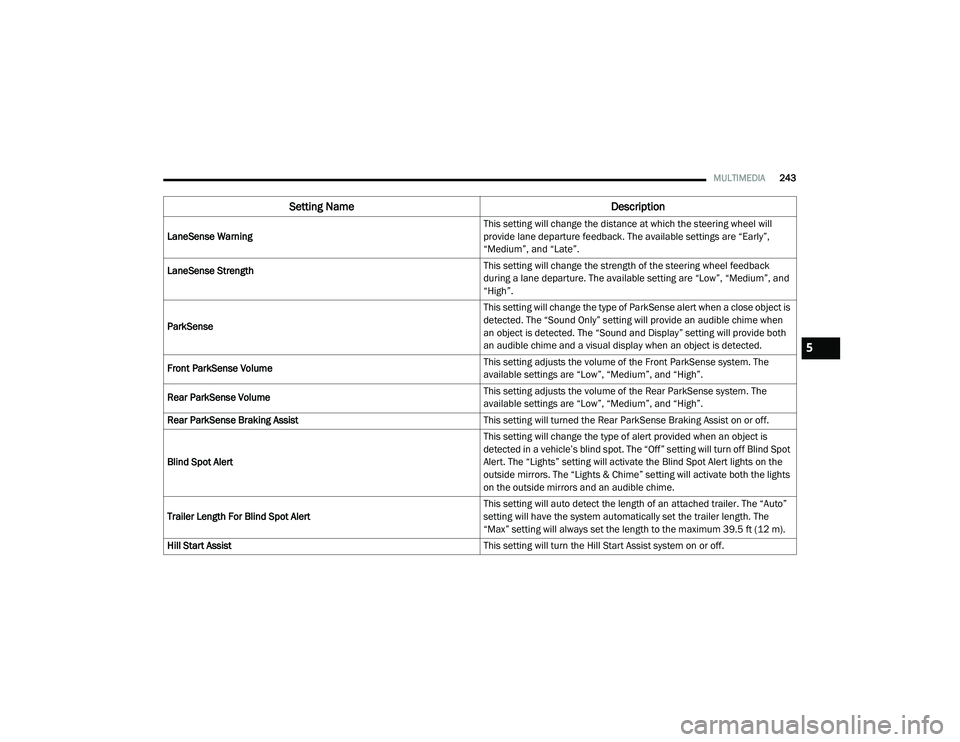
LaneSense Warning This setting will change the distance at which the steering wheel will
provide lane departure feedback. The available settings are “Early”,
“Medium”, and “Late”.
LaneSense Strength
This setting will change the strength of the steering wheel feedback
during a lane departure. The available setting are “Low”, “Medium”, and
“High”.
ParkSense This setting will change the type of ParkSense alert when a close object is
detected. The “Sound Only” setting will provide an audible chime when
an object is detected. The “Sound and Display” setting will provide both
an audible chime and a visual display when an object is detected.
Front ParkSense Volume This setting adjusts the volume of the Front ParkSense system. The
available settings are “Low”, “Medium”, and “High”.
Rear ParkSense Volume This setting adjusts the volume of the Rear ParkSense system. The
available settings are “Low”, “Medium”, and “High”.
Rear ParkSense Braking Assist This setting will turned the Rear ParkSense Braking Assist on or off.
Blind Spot Alert This setting will change the type of alert provided when an object is
detected in a vehicle’s blind spot. The “Off” setting will turn off Blind Spot
Alert. The “Lights” setting will activate the Blind Spot Alert lights on the
outside mirrors. The “Lights & Chime” setting will activate both the lights
on the outside mirrors and an audible chime.
Trailer Length For Blind Spot Alert This setting will auto detect the length of an attached trailer. The “Auto”
setting will have the system automatically set the trailer length. The
“Max” setting will always set the length to the maximum 39.5 ft (12 m).
Hill Start Assist This setting will turn the Hill Start Assist system on or off.
Setting NameDescription
5
21_DT_OM_EN_USC_t.book Page 243
Page 246 of 496
244MULTIMEDIA
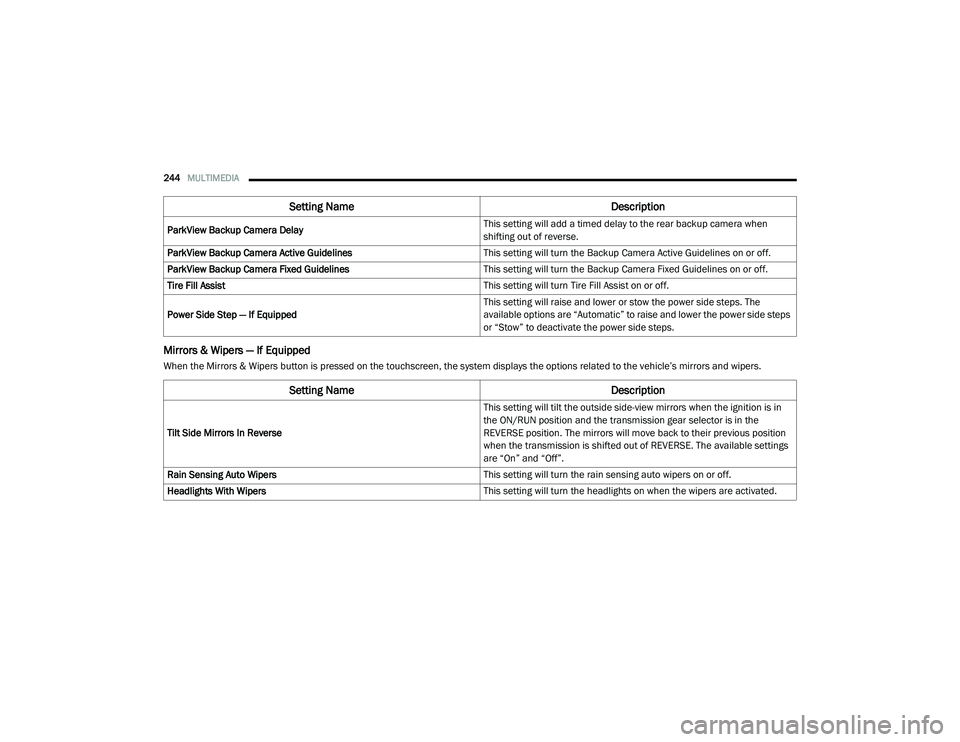
Mirrors & Wipers — If Equipped
When the Mirrors & Wipers button is pressed on the touchscreen, the system displays the options related to the vehicle’s mirrors and wipers.ParkView Backup Camera Delay
This setting will add a timed delay to the rear backup camera when
shifting out of reverse.
ParkView Backup Camera Active Guidelines This setting will turn the Backup Camera Active Guidelines on or off.
ParkView Backup Camera Fixed Guidelines This setting will turn the Backup Camera Fixed Guidelines on or off.
Tire Fill Assist This setting will turn Tire Fill Assist on or off.
Power Side Step — If Equipped This setting will raise and lower or stow the power side steps. The
available options are “Automatic” to raise and lower the power side steps
or “Stow” to deactivate the power side steps.
Setting Name
Description
Setting NameDescription
Tilt Side Mirrors In Reverse This setting will tilt the outside side-view mirrors when the ignition is in
the ON/RUN position and the transmission gear selector is in the
REVERSE position. The mirrors will move back to their previous position
when the transmission is shifted out of REVERSE. The available settings
are “On” and “Off”.
Rain Sensing Auto Wipers This setting will turn the rain sensing auto wipers on or off.
Headlights With Wipers This setting will turn the headlights on when the wipers are activated.
21_DT_OM_EN_USC_t.book Page 244
Page 247 of 496
MULTIMEDIA245
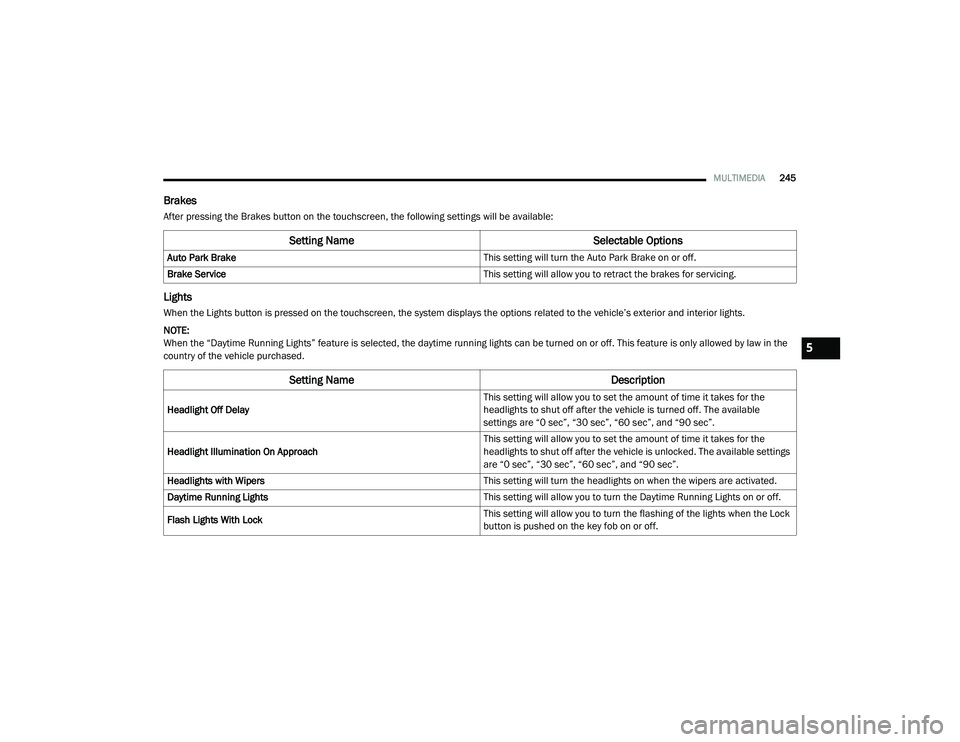
Brakes
After pressing the Brakes button on the touchscreen, the following settings will be available:
Lights
When the Lights button is pressed on the touchscreen, the system displays the options related to the vehicle’s exterior and interior lights.
NOTE:
When the “Daytime Running Lights” feature is selected, the daytime running lights can be turned on or off. This feature is only allowed by law in the
country of the vehicle purchased.
Setting Name Selectable Options
Auto Park Brake This setting will turn the Auto Park Brake on or off.
Brake Service This setting will allow you to retract the brakes for servicing.
Setting NameDescription
Headlight Off Delay This setting will allow you to set the amount of time it takes for the
headlights to shut off after the vehicle is turned off. The available
settings are “0 sec”, “30 sec”, “60 sec”, and “90 sec”.
Headlight Illumination On Approach This setting will allow you to set the amount of time it takes for the
headlights to shut off after the vehicle is unlocked. The available settings
are “0 sec”, “30 sec”, “60 sec”, and “90 sec”.
Headlights with Wipers This setting will turn the headlights on when the wipers are activated.
Daytime Running Lights This setting will allow you to turn the Daytime Running Lights on or off.
Flash Lights With Lock This setting will allow you to turn the flashing of the lights when the Lock
button is pushed on the key fob on or off.
5
21_DT_OM_EN_USC_t.book Page 245
Page 248 of 496
246MULTIMEDIA
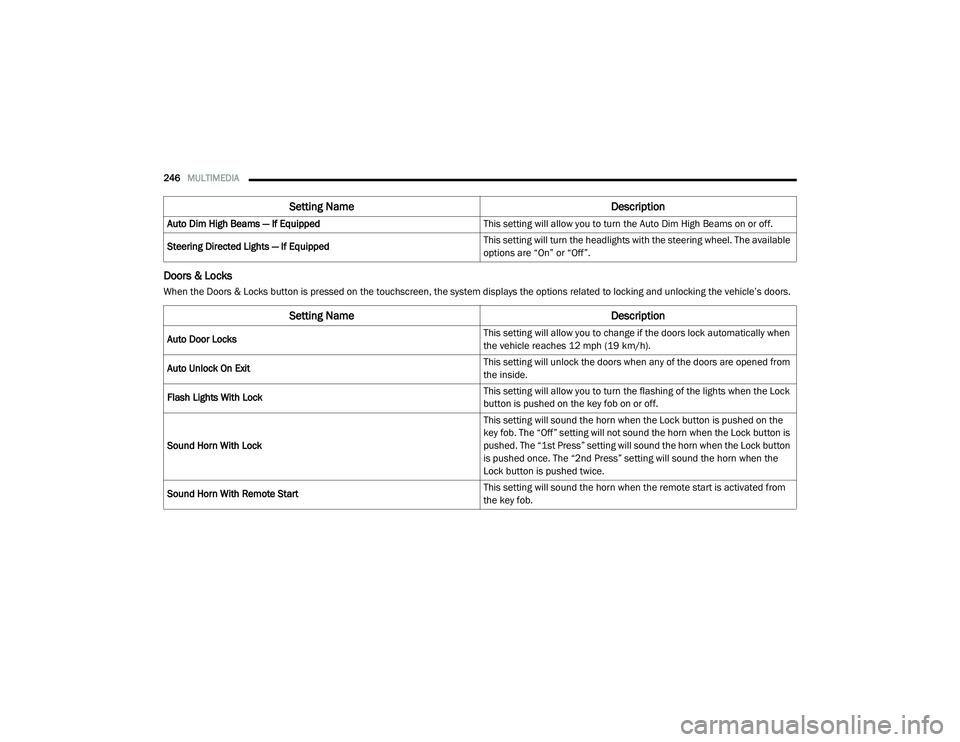
Doors & Locks
When the Doors & Locks button is pressed on the touchscreen, the system displays the options related to locking and unlocking the vehicle’s doors.Auto Dim High Beams — If Equipped
This setting will allow you to turn the Auto Dim High Beams on or off.
Steering Directed Lights — If Equipped This setting will turn the headlights with the steering wheel. The available
options are “On” or “Off”.
Setting Name
Description
Setting NameDescription
Auto Door Locks This setting will allow you to change if the doors lock automatically when
the vehicle reaches 12 mph (19 km/h).
Auto Unlock On Exit This setting will unlock the doors when any of the doors are opened from
the inside.
Flash Lights With Lock This setting will allow you to turn the flashing of the lights when the Lock
button is pushed on the key fob on or off.
Sound Horn With Lock This setting will sound the horn when the Lock button is pushed on the
key fob. The “Off” setting will not sound the horn when the Lock button is
pushed. The “1st Press” setting will sound the horn when the Lock button
is pushed once. The “2nd Press” setting will sound the horn when the
Lock button is pushed twice.
Sound Horn With Remote Start This setting will sound the horn when the remote start is activated from
the key fob.
21_DT_OM_EN_USC_t.book Page 246
Page 251 of 496
MULTIMEDIA249
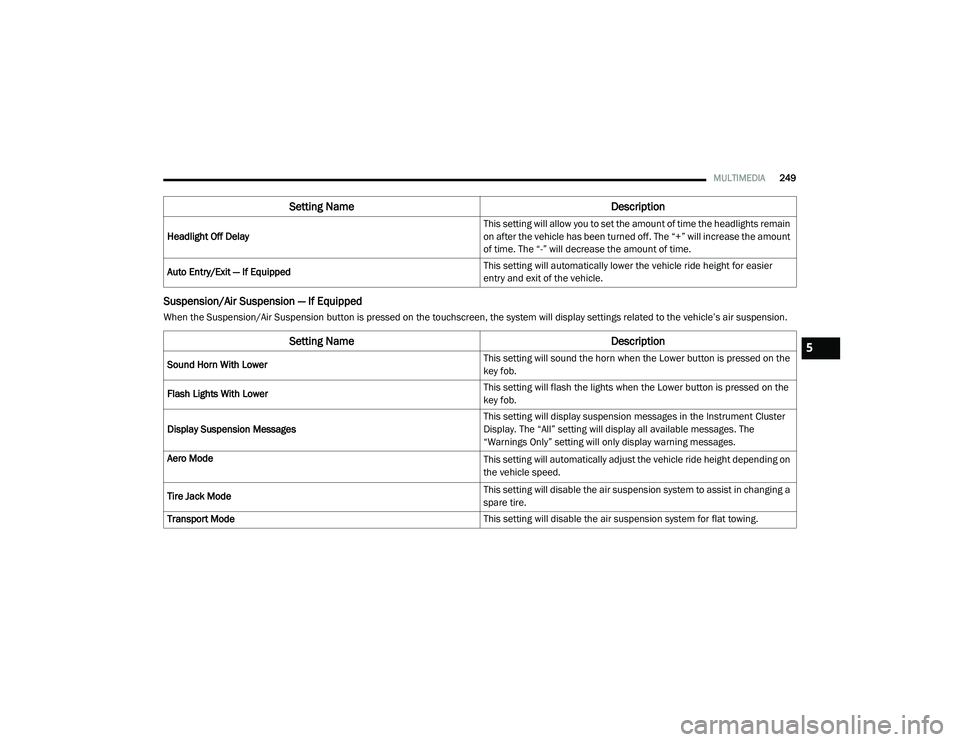
Suspension/Air Suspension — If Equipped
When the Suspension/Air Suspension button is pressed on the touchscreen, the system will display settings related to the vehicle’s air suspension.Headlight Off Delay
This setting will allow you to set the amount of time the headlights remain
on after the vehicle has been turned off. The “+” will increase the amount
of time. The “-” will decrease the amount of time.
Auto Entry/Exit — If Equipped This setting will automatically lower the vehicle ride height for easier
entry and exit of the vehicle.
Setting Name
Description
Setting NameDescription
Sound Horn With Lower This setting will sound the horn when the Lower button is pressed on the
key fob.
Flash Lights With Lower This setting will flash the lights when the Lower button is pressed on the
key fob.
Display Suspension Messages This setting will display suspension messages in the Instrument Cluster
Display. The “All” setting will display all available messages. The
“Warnings Only” setting will only display warning messages.
Aero Mode
This setting will automatically adjust the vehicle ride height depending on
the vehicle speed.
Tire Jack Mode This setting will disable the air suspension system to assist in changing a
spare tire.
Transport Mode This setting will disable the air suspension system for flat towing.
5
21_DT_OM_EN_USC_t.book Page 249
Page 287 of 496
MULTIMEDIA285
d. After clicking the email link, it will take
you to a website and prompt you to
assign your account with a password.
e. Once you have added a password, the website will direct you to your homepage
where you can add in your vehicle’s VIN.
a. Click the Register button
b. Select the correct country and email address then click “Register”.
c. You will then receive an email notification to confirm/verify your newly created
account.
d. After clicking the email link, it will take you to a website and prompt you to
assign your account with a password.
e. Once you have added a password, the website will direct you to your homepage
where you can add in your vehicle’s VIN.
For customers in Canada, register your
account via your vehicle.
a. Press the Apps button in the bottom menu bar.
b. Press the Activate Services button from the apps list. c. Enter your email and press “OK”. A confir
-
mation email will be sent to the provided
email address.
d. Press “Continue Activation” from the confirmation email. It may take a short
time before remote services will be avail -
able, but you will be able to log into the
Uconnect App and the owner’s site.
Once on the Remote screen and you have set
up your four-digit PIN, you can begin using
Remote Door Lock/Unlock, Remote Vehicle
Start, and activate your horn and lights
remotely, if equipped.
Press the Location button on the bottom
menu bar of the app to bring up a map to
locate your vehicle or send a location to your
Uconnect Navigation, if equipped.
Press the Settings side menu in the upper left
corner of the app to bring up app settings and
access the Assist Call Centers.
Using Your Owner’s Site
Your Owner’s Site website
https://www.mopar.com/en-us.html (US
Residents), or www.mopar.ca (Canadian
Residents) provides you with all the information
you need, all in one place. You can track your service history, find recommended accessories
for your vehicle, watch videos about your
vehicle's features, and easily access your
manuals. It is also where you can manage your
SiriusXM Guardian™ account. This section will
familiarize you with the key elements of the
website that will help you get the most of your
SiriusXM Guardian™ system.
For customers in the United States, press the
Sign In/Register button and enter your email
address and password.
For customers in Canada, press the My Vehicle
button. Select from “Dashboard”, “Vehicle
Health Report”, and “Recalls”. The website will
then prompt you to log-in using your email
address and password.
Edit/Edit Profile:
To manage the details of your SiriusXM
Guardian™ account, such as your contact
information, password and SiriusXM
Guardian™ PIN, click on the Edit/Edit Profile
button to access the details of your account.
5
21_DT_OM_EN_USC_t.book Page 285
Page 288 of 496
286MULTIMEDIA
Connected Services Status:
This statement will indicate your SiriusXM
Guardian™-equipped vehicle.
Remote Commands:
For vehicles with an active SiriusXM
Guardian™ subscription, press one of these
icons and enter your four-digit SiriusXM
Guardian™ Security PIN to remotely start (if
equipped), lock/unlock doors or sound the
horn and flash the lights.
Editing Your Notifications
Notifications are an important element of your
SiriusXM Guardian™ account. For example, any
time you use your remote services (such as
Remote Door Unlock), you can elect to receive a
text message, push notification, and/or E-mail
to notify you of the event. To set up the
notifications, please follow these instructions.
1. Log on to your Owner’s Account at
https://
www.mopar.com/en-us.html (US Residents)
and select “Dashboard”, or www.mopar.ca
(Canadian Residents), select “My Vehicle”
and then “Dashboard”.
2. Click the Edit/Edit Profile button. 3. Once there, select “SiriusXM Guardian™”
where can edit Notification Preferences.
4. You can enter a mobile phone and/or email address to notify you, and you can
customize the types of messages.
USING SIRIUSXM GUARDIAN™
SOS Call
Access To Emergency Services At The Push Of A
Button SiriusXM Guardian™ In-Vehicle Assistance
Features
With SiriusXM Guardian™, your vehicle has
onboard assistance features located on the
rearview mirror or overhead console designed
to enhance your driving experience if you should
ever need assistance or support.
Description
SOS Call offers a convenient way to get in contact
with a SiriusXM Guardian™ Customer Care agent
in the event of an emergency. When the
connection between the vehicle and the live
agent is made, your vehicle will automatically
transmit location information. In the event of a
minor collision, medical or any other emergency,
press the SOS button to be connected to a call
center agent who can send emergency
assistance to your vehicle’s location.
NOTE:
Certain SiriusXM Guardian™ services are
dependent on an operational Uconnect system,
cellular network availability that is compatible
with the device in your vehicle, and GPS
network availability. Not all features of SiriusXM
Guardian™ are available everywhere at all
times, particularly in remote or enclosed areas.
WARNING!
Some SiriusXM Guardian™ services,
including SOS Call and Roadside Assistance
Call will NOT work without a network
connection compatible with your device.
Center Light Status Description
Off
No call activated
Green Active call in progress Red System error
21_DT_OM_EN_USC_t.book Page 286
Page 291 of 496
MULTIMEDIA289
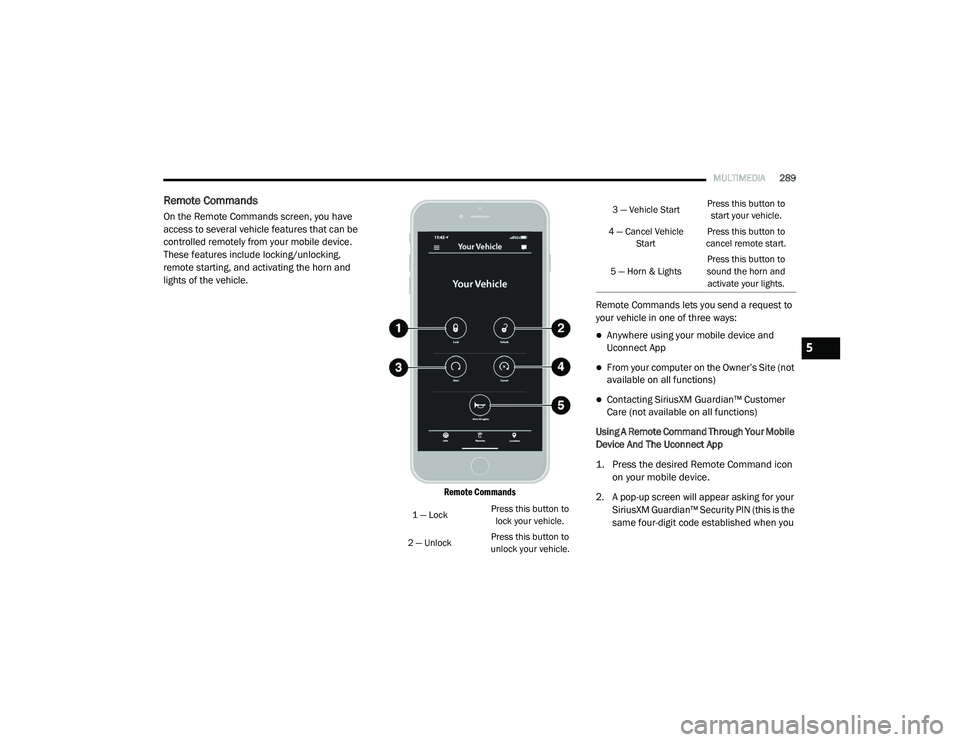
Remote Commands
On the Remote Commands screen, you have
access to several vehicle features that can be
controlled remotely from your mobile device.
These features include locking/unlocking,
remote starting, and activating the horn and
lights of the vehicle.
Remote Commands
Remote Commands lets you send a request to
your vehicle in one of three ways:
Anywhere using your mobile device and
Uconnect App
From your computer on the Owner’s Site (not
available on all functions)
Contacting SiriusXM Guardian™ Customer
Care (not available on all functions)
Using A Remote Command Through Your Mobile
Device And The Uconnect App
1. Press the desired Remote Command icon on your mobile device.
2. A pop-up screen will appear asking for your SiriusXM Guardian™ Security PIN (this is the
same four-digit code established when you
1 — Lock Press this button to
lock your vehicle.
2 — Unlock Press this button to
unlock your vehicle.
3 — Vehicle Start Press this button to
start your vehicle.
4 — Cancel Vehicle Start Press this button to
cancel remote start.
5 — Horn & Lights Press this button to
sound the horn and activate your lights.
5
21_DT_OM_EN_USC_t.book Page 289
Page 293 of 496
MULTIMEDIA291
An ignition cycle is required for some remote
commands, such as Remote Vehicle Start
and Remote Door Lock/Unlock if following a
Remote Horn & Lights activation.
Your Remote Door Lock/Unlock request will
not be processed if the vehicle is in motion,
the ignition key is on or during an emergency
call.
NOTE:
All other remote services should be performed
via your Owner’s Site or through the Uconnect
App on your compatible device.
Remote Vehicle Start
Description
The Remote Vehicle Start feature provides you
with the ability to start the engine on your
vehicle without the keys and from virtually any
distance. Once started, the preset climate
controls in your vehicle can warm up or cool
down the interior.
You can also send a command to turn off an
engine that has been started using Remote
Vehicle Start. After 15 minutes, if you have not
entered your vehicle with the key, the engine
will shut off automatically. This remote function requires your vehicle to be
equipped with a factory-installed Remote Start
system.
You can set up push notifications every time a
command is sent to activate or cancel Remote
Start.
Working Vehicle Conditions
The vehicle must be off or in ACC mode.
The vehicle has been started with the key fob
within the last 14 days.
The vehicle must be in PARK or at a standstill.
The vehicle’s security system has been
armed and not triggered since the last
vehicle start.
The doors, hood, and trunk/liftgate are
closed.
The vehicle’s check engine light must be off.
The vehicle must have at least a quarter tank
of fuel, along with oil and battery power.
The vehicle’s hazard lights must be off.
If equipped, the vehicle must have an auto
-
matic transmission.
The vehicle must be in an open area with cell
tower reception.
Your mobile device must have a cellular or
Wi-Fi connection.
If the Panic button has been pressed, the
vehicle must be started at least once after
alarming the system.
NOTE:
The SiriusXM Guardian™ Customer Care agents
are not authorized for Remote Vehicle Start
services. Contact the Uconnect Care Team for
assistance
Remote Horn & Lights
Description
It is easy to locate a vehicle in a dark, crowded
or noisy parking area by activating the horn and
lights. It may also help if you need to draw
attention to your vehicle for any reason.
If you want, you can set up push notifications
every time a command is sent to turn on the
horn and lights.
5
21_DT_OM_EN_USC_t.book Page 291
Page 294 of 496
292MULTIMEDIA
Working Vehicle Conditions
The vehicle must in PARK or at a standstill.
The vehicle must be in an open area with cell
tower reception.
Your mobile device must have a cellular or
Wi-Fi connection.
NOTE:
The Remote Horn & Lights feature is designed
to be loud and get noticed. Please keep in mind
the surroundings when using this feature. You
are responsible for compliance with local laws,
rules and ordinances in the location of your
vehicle when using Remote Horn & Lights.
Roadside Assistance Call
Description
Vehicles equipped with the SiriusXM Guardian™
system feature will contain an ASSIST button in
the vehicle. Once your SiriusXM Guardian™
services have been activated, the ASSIST
button can connect you directly to customer
care call centers. You will be directed to one of
the four services below.
Roadside Assist — If you get a flat tire or need
a tow, you’ll be connected to someone who
can help anytime.
Connected Services — Contact the SiriusXM
Guardian™ Customer Care call center to acti -
vate your services, renew after your trial has
expired, and for in-vehicle support for your
SiriusXM Guardian™ system or help
answering any general questions
surrounding your connected services.
Uconnect Care — In-vehicle support for all
non-connected Uconnect system features,
such as radio and Bluetooth® connections.
Vehicle Care — Total support for your vehicle.
SiriusXM Guardian™ In-Vehicle Assistance
Features
With SiriusXM Guardian™, your vehicle has
onboard assistance features located on the
rearview mirror or overhead console designed
to enhance your driving experience if you should
ever need assistance or support. How It Works
Simply press the ASSIST button in the vehicle
and you will be presented with your ASSIST
options on the touchscreen. Make your
selection by pressing the touchscreen.
Requirements
This feature is available only on vehicles sold
in the US and Canada.
Vehicle must be properly equipped with the
SiriusXM Guardian™ system.
Vehicle must have an operable LTE (voice/
data) or 3G or 4G (data) network connection.
Vehicle must be registered with SiriusXM
Guardian™ and have an active subscription
that includes the applicable feature.
Vehicle must be powered in the ON/RUN or
ACC (Accessory) position with a properly func -
tioning electrical system.
21_DT_OM_EN_USC_t.book Page 292